Snipaste for Mac: 5 Better Alternatives (2026)
Snipaste is a beloved screenshot tool for Windows power users. It's famous for one feature: snip-and-paste. Capture any area, then pin it as a floating window on your desktop. Mac users wanting that workflow often turn to apps like ScreenSnap Pro instead.
Snipaste has a Mac version. But it has major limits. Many users want better options.
Switched from Windows to Mac? Miss that pin screenshot feature? You're in the right place. This guide covers 5 Mac options. They match or beat Snipaste's strengths. More features. Fewer workarounds on a Mac.
Short answer: ScreenSnap Pro is the best overall pick. It pins screenshots like Snipaste and adds scrolling capture, a screen recorder and a video editor. CleanShot X suits cloud teams. Shottr is the tiny, low-cost choice.
What is Snipaste (and Why Do People Love It)?
Snipaste is a snipping tool that's free for personal use. It brought a key concept: snip-and-paste. Here's why people love it:
- Pin screenshots to desktop. Capture any area. Press F3. It becomes a floating window on top of everything.
- Quick reference captures. Keep code snippets visible. Reference docs while you work. Compare design mockups side by side.
- Lightweight and keyboard-driven. No bloated interface. Just hotkeys: F1 to snip, F3 to paste.
- Free for personal use and portable. Download and run. No install needed.
Developers love the pin feature. Need docs visible while coding? Done. Designers comparing UI elements? Perfect. You can zoom, rotate, and flip pinned screenshots. Even make them click-through.
The problem? On a Mac, it leaves gaps.
Snipaste's Mac Limitations
Snipaste is available for macOS. But it has drawbacks for Mac users:
No App Store Distribution
Download from their website. Install by hand. You'll grant security permissions yourself. Windows has a Microsoft Store version. The Mac has no App Store one.
New Features Need PRO
Snipaste 2 is free for personal use only. Work use needs a PRO license: $8.99 for 1 device or $19.99 for 3. The free version now gets bug fixes only. New features, like text extraction (OCR), go to PRO.
Limited Markup Tools
Snipaste has basic markup: arrows, shapes, text, mosaic, blur. Some alternatives below offer more, like callouts, step counters, highlighters and spotlight.
No Cloud Sharing
Snipaste is local-only. Need a shareable link? Save the file. Upload somewhere. Share by hand. Too many steps.
No GIF Recording
Modern workflows need quick GIF captures. Tutorials. Bug reports. Demos. Snipaste can't record at all.
No Background Styling
Social posts need polished screenshots. Same for slides. Snipaste can't add backgrounds. You'd export and use Figma or Canva on the side.
Less Intuitive on Mac
Snipaste was built for Windows first. The Mac version came later, as a port of the same cross-platform app, and it shows. Its default hotkeys are F1 and F3, Windows style. On a Mac, they feel wrong. Workflows seem foreign.
Manual Install Friction
No App Store means going through security settings. First launch shows a scary warning. "Developer cannot be verified." Go to System Settings → Privacy & Security. Click "Open Anyway." Not a dealbreaker. But it adds friction.
These limits matter. Time to explore the alternatives.
5 Best Snipaste Alternatives for Mac
1. ScreenSnap Pro: Best Overall Snipaste Alternative
ScreenSnap Pro is a screenshot app and screen recorder for Mac and Windows. It has the pin screenshot feature Snipaste users love. Plus screen and GIF recording, a video editor, cloud share links, 500+ backgrounds and 17 markup tools.

Key Features:
- Pin Screenshot. Keep captures floating on your desktop, just like Snipaste
- Scrolling Capture. Select an area, scroll down, and get one long screenshot of a page, PDF or chat
- Screen Recording. MP4 at up to 60fps with webcam, mic and system audio, or record straight to GIF
- Video Editor. Trim, split, cut and change speed on a timeline. Remove silences in one click. Auto zoom follows your cursor
- Cloud Share Links. Optional quick links for chats, tickets and email
- 500+ Backgrounds. One-click styling with padding and shadow for social-ready screenshots
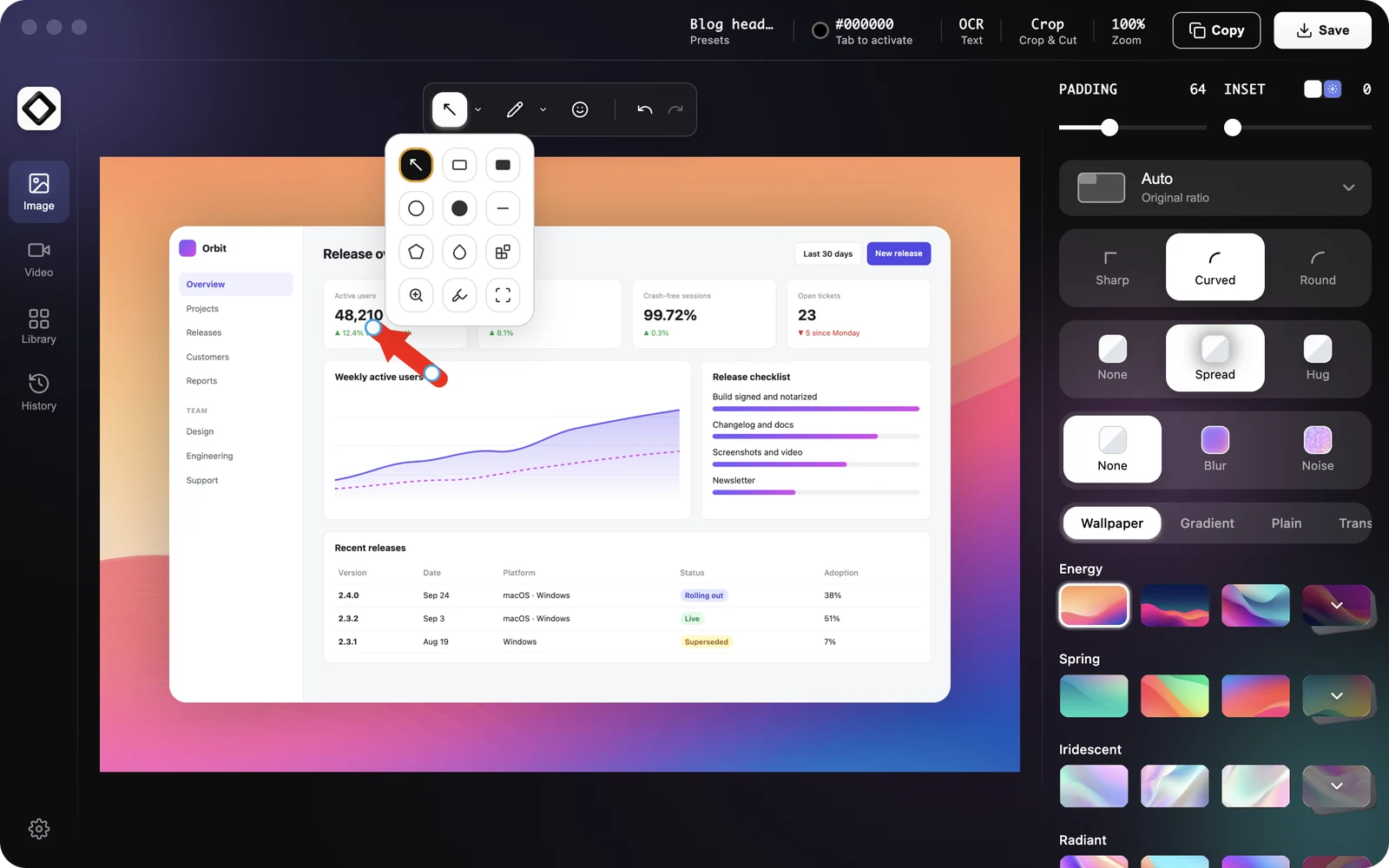
- 17 Markup Tools plus Emoji. Arrows, shapes, text, callouts, blur, pixelate, magnifier, highlighter, spotlight, counter and more
- OCR Text Extraction. Copy text from any screenshot right away
Pricing: $49 one-time. One license covers 2 seats, in any mix of Mac and Windows. Lifetime updates and a 30-day money-back guarantee.
Why It Beats Snipaste:
ScreenSnap Pro matches Snipaste's pin feature. Then it adds what Snipaste lacks: scrolling capture, screen and GIF recording, a video editor, cloud share links, backgrounds and more markup tools. Screenshots and recordings live in one app. One-time $49. No recurring fees.
How the Pin Feature Works:
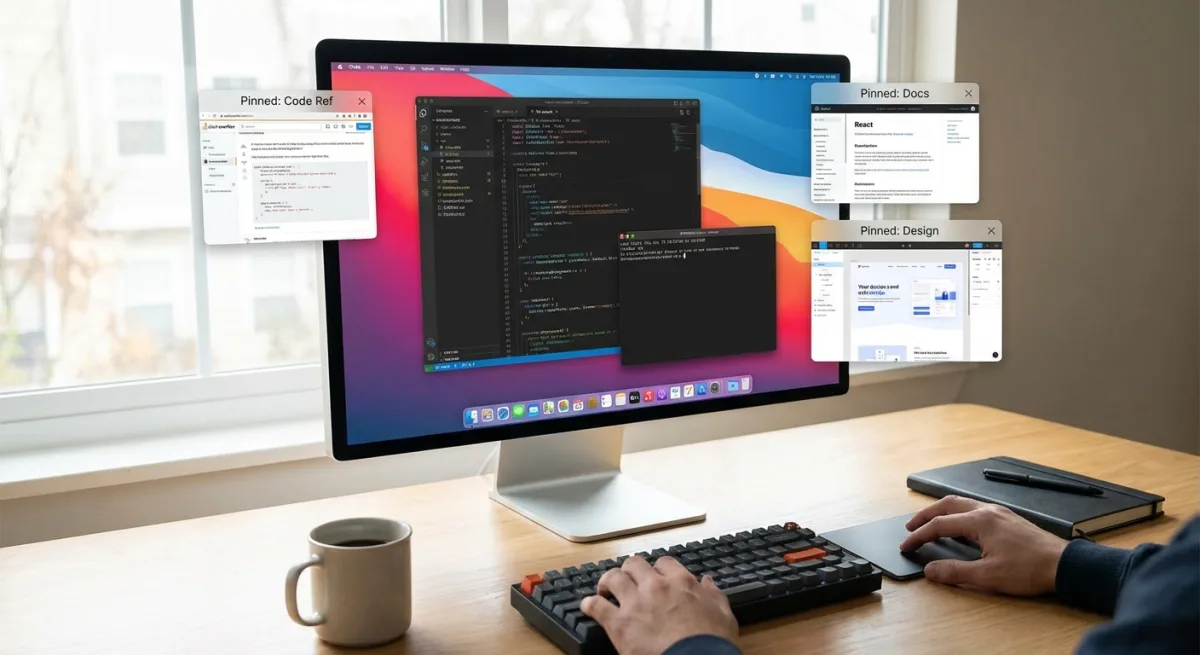
Capture any area of your screen. Hover the Quick Preview thumbnail and click Pin Screenshot. Your screenshot becomes a floating window. It stays on top of other apps. Drag it anywhere. Resize it from an edge or corner. Zoom in or out 10% at a time. Hover the pin to copy its text, get a share link or open it in the editor.
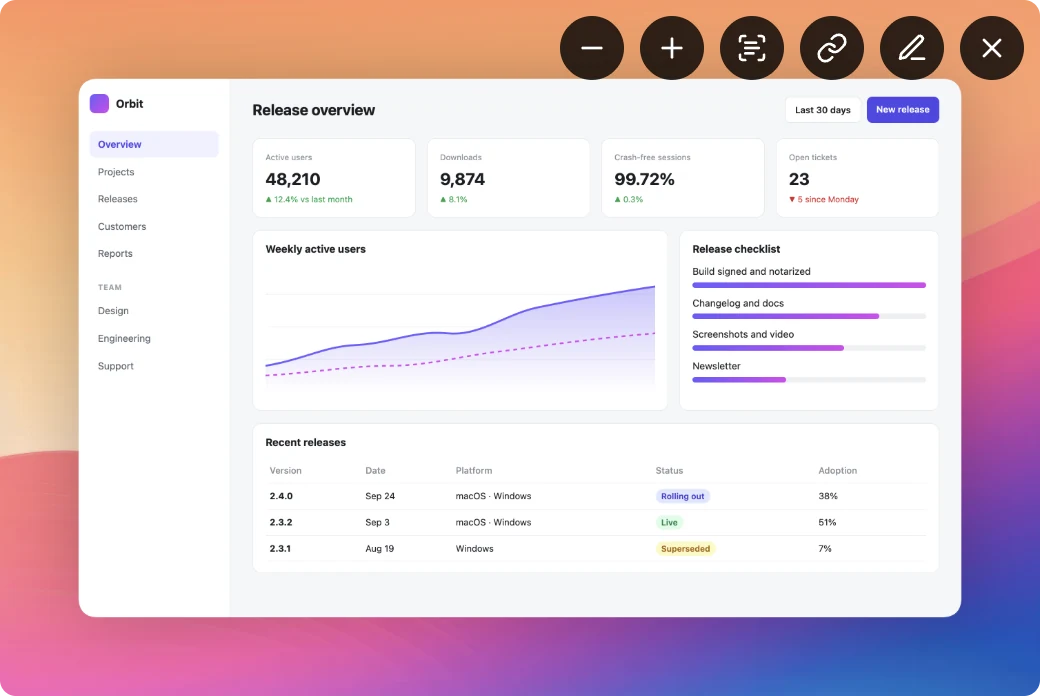
Developers use this for API docs. Keep endpoint specs visible while coding. Designers pin mockups. Compare them to live code side by side. Anyone can pin reference info. No window-switching needed.
Limitations: Pins are simpler than Snipaste's. You can't rotate or flip them, or make them see-through or click-through. No Linux version.
If you're looking for the best screenshot app for Mac, ScreenSnap Pro deserves a look. See ScreenSnap Pro pricing.
Best For: Developers and designers who want Snipaste's pin feature plus a screen recorder, video editor and share links in one app.
2. CleanShot X: Feature-Rich with Cloud Integration
CleanShot X is one of the most popular screenshot tools for Mac. Known for its all-in-one approach.
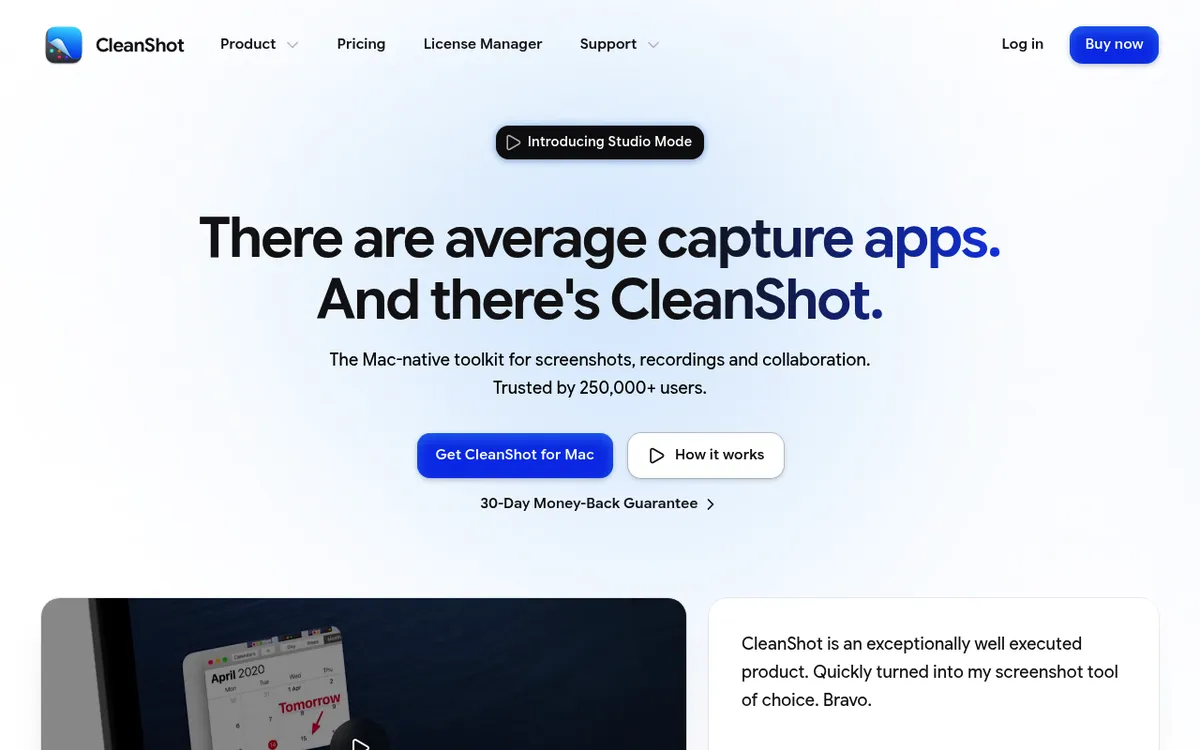
Key Features:
- Scrolling capture for long webpages and documents
- Built-in markup overlay with many tools
- Cloud storage with CleanShot Cloud
- Quick access overlay after capture
- Floating pinned screenshots
- Screen recording to MP4 or GIF, plus a video editor with Smart Zooms (added in version 5.0)
- OCR and text grabbing
Pricing: $35 one-time for CleanShot Basic (1 year of updates, 1 GB of Cloud storage), or $10 per user/month billed annually for CleanShot Pro with unlimited Cloud. Also on Setapp.
Why Consider It:
CleanShot X has great macOS integration. Polished interface. Great scrolling capture for full webpages. It pins screenshots too, so the Snipaste habit carries over. But unlimited cloud storage needs the Pro subscription. It's Mac only.
Scrolling Capture Deep Dive:
Long webpages are tricky to screenshot. CleanShot X handles this with auto-scroll. Click to start. The app scrolls and stitches frames together. You get one tall image of the full page. Works for websites, documents, and chat logs. Snipaste can't do this at all.
Quick Access Overlay:
After every capture, a small preview appears in the corner. Click to annotate. Drag to save. Hit ⌘C to copy. Dismiss to save to your default folder. This workflow keeps you in the zone. No hunting for files. The overlay is clever. But some users find it intrusive. You can tweak or disable it.
For a detailed comparison, check out our CleanShot X alternatives guide.
Best For: Power users who want an all-in-one solution and don't mind paying for cloud features.
3. Shottr: Free and Lightweight
Shottr is the best free option. Lightweight and fast. Similar to Snipaste's minimal footprint.
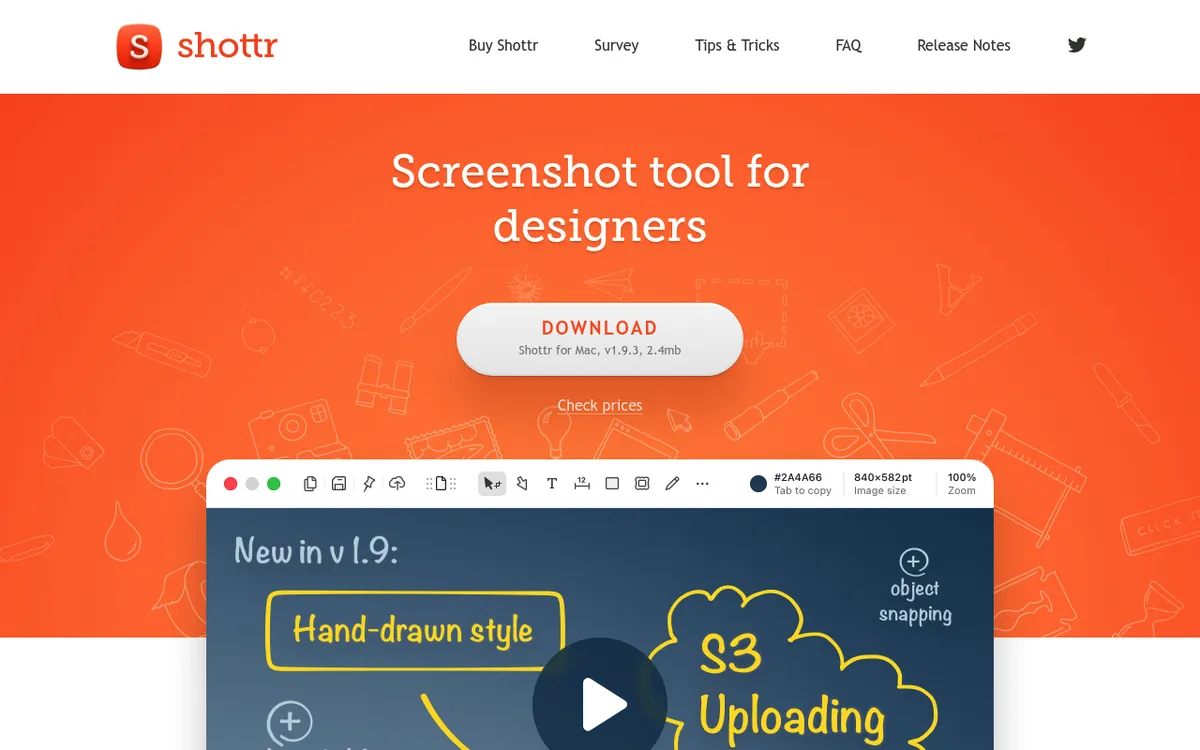
Key Features:
- Free for personal use (after 30 days it asks you to consider upgrading)
- Fast and lightweight (about a 2.4MB download)
- OCR text grabbing
- Pin screenshots as floating windows
- Pixel-perfect measurements for designers
- Scrolling screenshots
- Basic markup tools
Pricing: Free for personal use. Basic is $12 one-time and is needed for commercial use. Friends Club is $30 one-time.
Why Consider It:
Shottr appeals to users who loved Snipaste's minimal approach. Launches right away. Captures fast. Stays out of your way. The OCR is good for a low-cost tool. It pins screenshots, too. But there are no built-in share links (only upload to your own S3 bucket). No screen or GIF recording.
Pixel Measurements for Designers:
Shottr includes a built-in pixel ruler. Measure distances between elements. Get exact widths and heights. Color picker grabs hex codes from any pixel. These tools help designers match specs. Developers can check spacing too. All free. All built in.
How It Compares to Snipaste:
Both tools focus on speed and simplicity. Both stay lightweight. Shottr is built only for Mac. It uses standard ⌘+Shift combos. Snipaste sticks to F1/F3 Windows-style keys. Shottr also adds scrolling capture. Snipaste can't scroll. And both pin screenshots as floating windows.
Best For: Users who want a free, fast, no-frills screenshot tool with good OCR.
4. Snagit: Enterprise-Grade Features
Snagit by TechSmith is a widely used enterprise screenshot and screen recording tool. TechSmith now brands it Camtasia Snagit.
Key Features:
- Full-page scrolling capture
- Video recording with audio
- Large template library
- Team sharing and teamwork tools
- Batch image conversion
- Step tool for creating tutorials
Pricing: $39/year for Snagit Individual (subscription only since Snagit 2025)
Why Consider It:
Need documentation tools? Templates? Team work features? Snagit delivers. Overkill for personal use. But great for tech writers and docs teams. See our Snagit alternatives guide for options.
Step Tool Explained:
The Step tool is a Snagit highlight. Click anywhere on a screenshot. A numbered callout appears. Click again. Number two shows up. Keep clicking to build a sequence. Perfect for tutorials. Shows users exactly what to click and in what order. No manual numbering needed.
Template Library:
Snagit comes with dozens of templates. Combine multiple screenshots into collages. Add titles and captions. Create comparison graphics. Export as images or GIFs. Templates save time for docs teams. Create guides once. Reuse the format for every new feature.
Video Recording:
Snagit records video with audio. Narrate walkthroughs. Capture system sounds. Trim clips in the built-in editor. Export to MP4 or GIF. More robust than screen recording in most tools. But adds complexity if you only need screenshots.
Best For: Teams creating product docs, tutorials, and training materials.
5. Xnapper: Beautiful Screenshots for Developers
Xnapper focuses on making code screenshots beautiful with minimal effort.
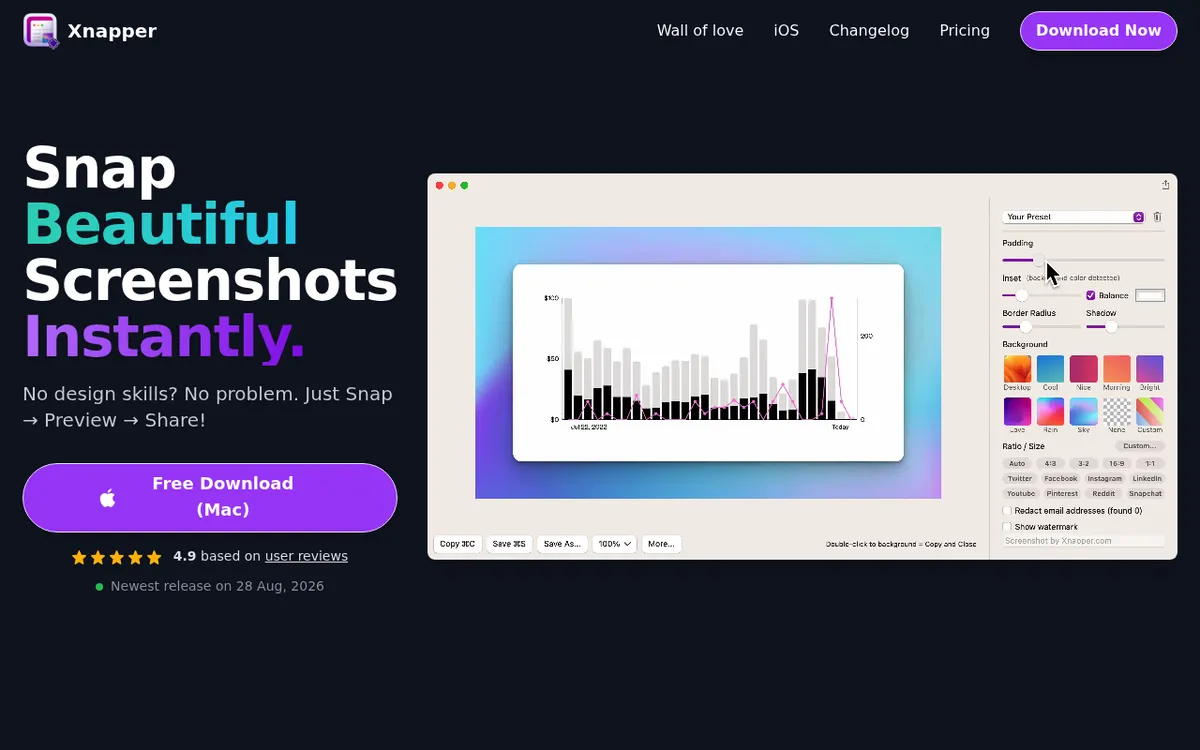
Key Features:
- Automatic background styling
- Auto-balance and auto background color
- One-click redaction of emails, API keys and IP addresses
- Social media-ready output
- On-device OCR
- Simple drag-and-drop interface
Pricing: Free with a watermark. Paying once removes it: from $29.99 for 1 Mac (1 year of updates).
Why Consider It:
Developers sharing code on Twitter love Xnapper. Same for blogs and docs. Automatic styling saves time. More focused than general tools. Great for code. Limited for other use cases.
How Automatic Styling Works:
Drop a screenshot into Xnapper. It detects edges. Adds a gradient background. Rounds corners. Adds subtle shadows. The result looks like a polished marketing image. Takes two seconds. No design skills needed. Adjust colors if you want. But defaults look good.
Code Screenshot Tips:
Capture code in your editor. Use a readable font size (14-16pt works well). Xnapper can pick a background color to match your screenshot. Light code gets light backgrounds. Dark code gets dark. The result is cohesive. Looks like a designed graphic.
Limits:
Xnapper focuses on styling. Markup is light: arrows, shapes, text and blur. Share links live in the separate Xnapper Web editor, not the Mac app. No GIF recording. It's a single-purpose tool. Use it for pretty code screenshots. Use something else for everything else.
Best For: Developers and writers who share code snippets on social media.
Feature Comparison Table
Here's how these Snipaste options compare across key features:
| Feature | ScreenSnap Pro | CleanShot X | Shottr | Snagit | Xnapper |
|---|---|---|---|---|---|
| Pin to Desktop | ✅ | ✅ | ✅ | ❌ | ❌ |
| Screen Recording | ✅ MP4 + GIF | ✅ MP4 + GIF | ❌ | ✅ (video) | ❌ |
| Video Editor | ✅ | ✅ | ❌ | Basic trim | ❌ |
| Cloud Sharing | ✅ | ✅ (1 GB on Basic) | S3 upload only | ✅ | Web app only |
| Backgrounds | 500+ | ✅ | ✅ | ❌ | ✅ |
| OCR | ✅ | ✅ | ✅ | ✅ | ✅ |
| Markup | 17 tools + emoji | 10+ | Basic | Many | Basic |
| Platforms | Mac + Windows | Mac | Mac | Mac + Windows | Mac (plus iOS and web) |
| Pricing | $49 one-time | $35+ one-time | Free / $12 | $39/year | Free (watermark) / $29.99+ |
Which Alternative is Right for You?
Choosing the right Snipaste option depends on your needs:
Choose ScreenSnap Pro if:
- You want the pin screenshot feature from Snipaste
- You need screen and GIF recording plus a video editor for tutorials and bug reports
- You need scrolling screenshots of long pages, PDFs or chats
- Cloud share links in one click are key
- You prefer one-time pricing over subscriptions
- You want 500+ backgrounds for social sharing
- You use both Mac and Windows (one license, 2 seats)
Choose CleanShot X if:
- You want team cloud features like SSO and a custom domain
- You're okay with subscription pricing for cloud features
- You want the most feature-rich option overall
Choose Shottr if:
- You want something free for personal use
- Speed and lightweight are top goals
- You need pixel measurements for design work
- Basic features are enough for your needs
- You work offline and don't need cloud sharing
Choose Snagit if:
- You work on a team with shared needs
- Templates and documentation tools are needed
- You need enterprise-grade features and support
- Budget isn't a main concern
Choose Xnapper if:
- You mainly share code screenshots
- Automatic styling sounds good to you
- You use Twitter/social media a lot
- You don't need general screenshot features

Tired of plain screenshots? Try ScreenSnap Pro.
Beautiful backgrounds, pro annotations, GIF recording, and instant cloud sharing, all in one app. Pay $49 once, own it forever.
See pricing and featuresSnipaste's Pin Feature: Which Mac Apps Support It?
Pin-to-desktop is Snipaste's main feature. Several Mac apps now offer it. They differ in what you can do with a pin. Developers need docs visible while coding. Designers compare mockups side-by-side. Anyone using reference info while working benefits.
Here's the current state of pin support across Mac screenshot tools:
| App | Pin Support | What You Can Do |
|---|---|---|
| ScreenSnap Pro | ✅ | Move, resize, zoom, copy text, get a share link or edit, right from the pin |
| Snipaste (Mac) | ✅ | Zoom, rotate, flip and change opacity |
| CleanShot X | ✅ | Floating pinned screenshots |
| Shottr | ✅ | Pin screenshots as floating windows |
| Snagit | ❌ | No pin feature |
If the pin feature is a must-have, ScreenSnap Pro, CleanShot X and Shottr all have it. ScreenSnap Pro puts OCR, share links and the editor on the pin's own toolbar. It also records your screen in the same app.
How the Pin Feature Works
In ScreenSnap Pro, a pinned screenshot becomes a floating window:
- Stays on top of all windows
- Move it anywhere on screen
- Resize it from an edge or corner
- Zoom in or out 10% at a time
- Copy its text, upload it for a link or open it in the editor
- Pin several at once to compare versions
Keeping API docs visible while coding? Comparing a mockup to code? This workflow beats window-switching. Faster than split-screen too.
Real-World Pin Use Cases
Bug Reports: Pin a screenshot of the bug. Open your code editor. Reference the visual while debugging. No tab-switching.
Design Review: Pin the Figma mockup. Open the live site. Compare pixel-by-pixel without losing context.
Data Entry: Pin a reference document. Fill forms in another window. The source stays visible.
Learning: Pin a tutorial. Follow steps in the terminal or app. Keep the guide on screen.
Beyond Snipaste: Features You Might Not Know You Need
Snipaste covers capture and pinning. The tools above go further. New workflows become possible.
GIF Recording for Tutorials
Don't explain bugs with text. Record a 10-second GIF instead. Show the exact issue. Tools like ScreenSnap Pro let you record GIFs on your Mac. No video conversion needed.
Why GIFs Beat Videos:
GIFs play anywhere. Slack previews them inline. GitHub renders them in issues. No video player needed. Perfect for bug reports, quick demos, and UI walkthroughs. Need sound or a longer clip? Record MP4 instead.

Cloud Sharing Without Extra Steps
Built-in cloud sharing changes everything. Capture. Get a link. That's it. No saving to disk. No uploading to Imgur. No app-switching.
How Cloud Sharing Works:
Take a screenshot. Click the link button, or turn on auto upload. The link lands on your clipboard. Paste into Slack, email, or a ticket. Anyone with the link can open it, so share it only with the right people. No attachments. Sharing a bug report? Takes five seconds.
Beautiful Backgrounds for Social Sharing
Raw screenshots look amateur. On Twitter. In slides. One-click backgrounds fix this. Your captures look polished. Learn more in our guide on how to add backgrounds to screenshots.
Why Backgrounds Matter:
A screenshot with a gradient looks like marketing material. Same image without one looks like a bug report. Perception matters for product demos. For portfolio pieces. For social posts that need to stand out in feeds.
Pro-Level Markup
Snipaste has basic markup. Mac options offer more. Numbered steps. Magnifiers. Blur and pixelate for private info. Emoji stamps. Check our markup guide for tips.
Blur vs Pixelate:
Blur smooths an area. Data is unreadable but the shape shows. Pixelate turns an area into blocks. Completely hides content. Use blur for names and emails. Use pixelate for passwords and keys. Both protect private info in shared screenshots.
Copy to Clipboard Workflows
Many Mac users prefer copying screenshots to clipboard. Skip saving files. Capture and paste into Slack. Into email. Into documents. Tools like ScreenSnap Pro can copy every capture to the clipboard automatically.
Clipboard Tips:
Hold Control while taking a screenshot to copy to clipboard. Or set your tool to always copy. Paste with ⌘+V anywhere. Faster than drag-and-drop. No file clutter.
Keyboard Shortcut Custom Setup
Change the built-in macOS shortcuts in System Settings. Set global hotkeys in your screenshot app's settings. Avoid conflicts with other apps. Use modifier keys that feel natural.
Setting Up Shortcuts:
Open your screenshot app's preferences. Look for keyboard shortcuts or hotkeys. Set capture to something easy like ⌘+Shift+4 or ⌘+1. Set annotate. Set pin. Muscle memory builds fast. Good shortcuts speed up your workflow.
Windows Switchers: Other Tools to Consider
If you're coming from Windows and miss other screenshot tools, we've covered options for most popular Windows apps:
- Greenshot for Mac. Popular free Windows tool with Mac options that offer similar features
- Lightshot for Mac. Lightweight capture with Mac versions for quick sharing
- Print Screen on Mac. Full guide for Windows keyboard users learning Mac screenshot shortcuts
The Windows-to-Mac switch feels jarring at first. But you don't have to give up your habits. Pick a tool with remappable shortcuts and a pin feature, and your old workflow carries over.
Making the Transition Smoother
Week One: Learn the basic Mac shortcuts. ⌘+Shift+3 for full screen. ⌘+Shift+4 for area. ⌘+Shift+5 for the options panel.
Week Two: Install your chosen tool. Set shortcuts to match muscle memory. Use your old Windows habits if possible.
Week Three: Explore new features. Try cloud sharing. Record a GIF. Add a background. Discover what you were missing.
Free Screenshot Tools Worth Trying
Don't want to pay? Besides Shottr, the built-in macOS tools work well for basic needs. Open-source fans sometimes try Flameshot on Mac too. It's free and cross-platform, but expect security warnings and an interface that feels out of place on macOS.
macOS Screenshot (Built-in)
Press ⌘+Shift+5 for a control bar. Full screen. Window. Area. Screen recording. Timer options. Saves to Desktop by default. Change the save location in options. No markup built in. But it's free and always there.
Preview for Markup
Open any image in Preview. Click the markup button (pen in a circle). Add shapes. Add text. Arrows and boxes. Draw freehand. Crop and resize. Not as polished as paid tools. But good enough for basic notes.
Combining Free Tools
Screenshot with ⌘+Shift+4. Open in Preview for markup. Upload to Imgur or Zight (formerly CloudApp) for sharing. This workflow is free. It takes more steps. But it works. Use it while you decide if a paid tool is worth it.
For more free screenshot tools for Mac, check our full roundup.
Frequently Asked Questions
Conclusion
Snipaste earned its reputation on Windows. It pioneered pin-to-desktop screenshots. The Mac version exists. But its limits push power users toward other options. Same pin feature. Plus modern features: screen and GIF recording, cloud share links, beautiful backgrounds.
Want the closest Snipaste feel on Mac? ScreenSnap Pro is the top choice. It pins screenshots like Snipaste. Then it adds scrolling capture, a screen recorder, a video editor, 17 markup tools and 500+ backgrounds. One-time $49, with 2 seats for Mac or Windows. No recurring fees. See ScreenSnap Pro pricing.
Need team cloud plans? CleanShot X has the most complete Mac-only feature set. Shottr is light and low cost for users who value simplicity, and it pins screenshots too.
ScreenSnap Pro, CleanShot X and Shottr all keep the pin-to-desktop habit you built with Snipaste. Each adds features Snipaste lacks on Mac.

Morgan
Indie DeveloperIndie developer, founder of ScreenSnap Pro. A decade of shipping consumer Mac apps and developer tools. Read full bio
@m_0_r_g_a_n_