Flameshot for Windows: Review & Alternatives (2026)
Flameshot Windows is the port of the popular Linux screenshot tool. It gives you region capture, markup tools, and a pin tool, all for free. But is it the right pick for Windows 11 in 2026? The short answer: it works, but it feels like a visitor in its own new home. If you want more, ScreenSnap Pro is our top pick, and ShareX is the best free option.
In this review, we'll cover:
- How to install Flameshot on Windows
- Every feature that works (and the ones that don't)
- Four better alternatives for Windows users
What is Flameshot?
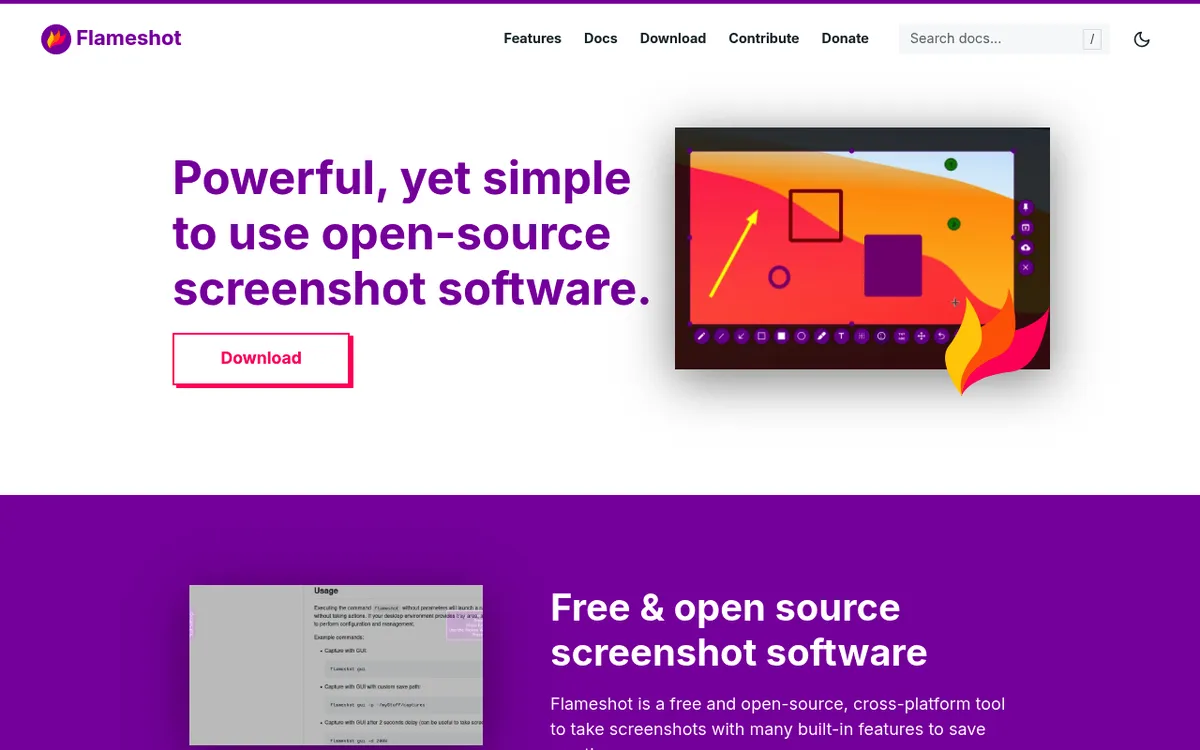
Flameshot is a free, open-source screenshot tool. It started on Linux in 2017 and quickly became the top pick for KDE and GNOME users. It now runs on Windows and macOS too. The app takes shots, adds markup, and saves or copies them, all from one keyboard shortcut.
Why Linux users love it:
- Free and open source (GPLv3 license)
- Works from the command line
- Scriptable for automation
- Clean purple toolbar right on your screen
The latest stable version is v14.0, released in June 2026. The team keeps pushing updates: v15.0 is in beta as of September 2026. Each release adds more Windows polish, but Linux is still the home turf.
On Windows, Flameshot works. It just doesn't feel native. More on that below. If you're still weighing your options, our Snipping Tool alternatives guide covers the wider field.
How to install Flameshot on Windows
You have three ways to install Flameshot on Windows. All are free. Pick the one that fits your workflow.
Option 1: Winget (easiest)
If you run Windows 11, you already have Winget. Open PowerShell and run:
winget install Flameshot.FlameshotWindows will pull the latest version from the official source. No browser needed. No manual clicks. This is the fastest flameshot install windows path for most users.
Option 2: Scoop
Flameshot's own docs list Scoop for Windows. Scoop users can install with two commands:
scoop bucket add extras
scoop install extras/flameshot
This works if you've already set up Scoop. Skip Chocolatey for now: its Flameshot package is stuck on an old 12.1 build. Check Microsoft's WinGet docs if you're new to package managers.
Option 3: Direct download from GitHub
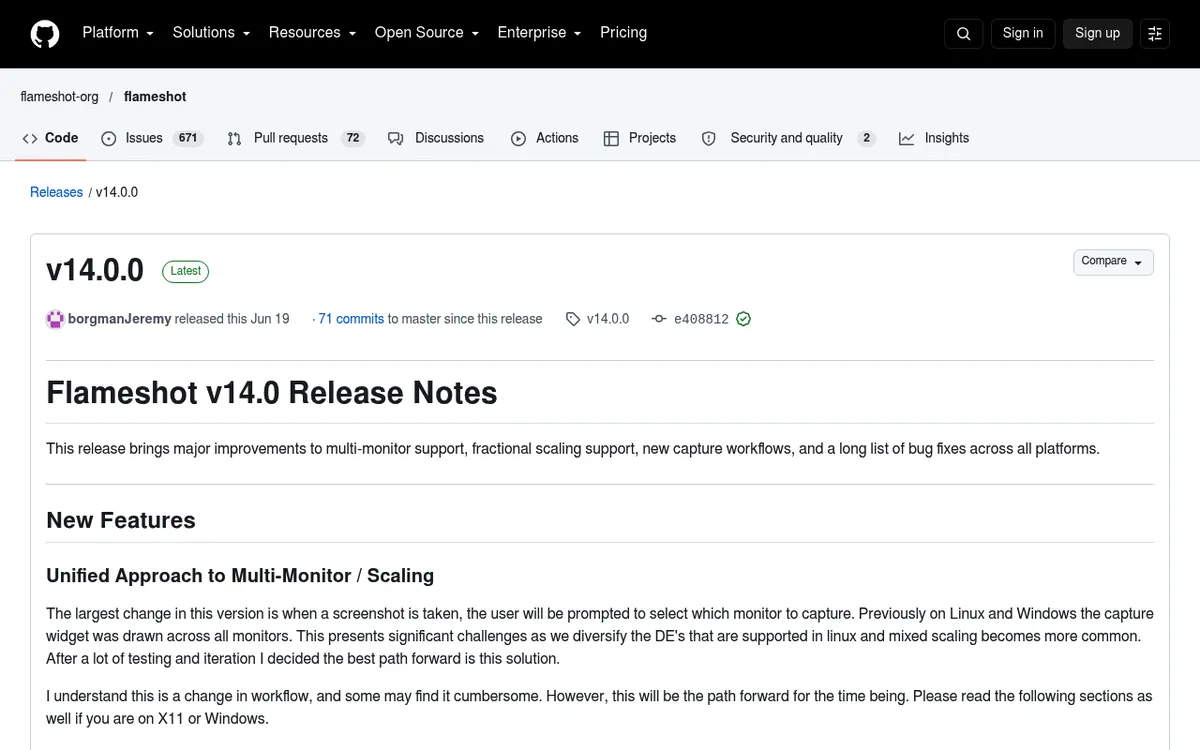
Go to the Flameshot GitHub releases page. Open the latest stable release and grab the .msi installer for Windows. There's also a portable .zip if you'd rather not install anything.
The .msi is small, about 19 MB. The installer walks you through a basic setup. Pick a folder, click Next, and you're done.
First launch setup
After install, launch Flameshot once. It adds itself to the system tray. Right-click the tray icon and pick Configuration to open settings.
Two things to set up first:
- Auto-start on boot. Flip this on so Flameshot is always ready
- Global hotkey. v14 uses
Win + Shift + Xby default. Change it in the Shortcuts tab, or let Flameshot take overPrintScreenfrom the Snipping Tool
Pick a hotkey you'll remember. Without one, you'll need to click the tray icon every time. That's a deal-breaker for fast workflows.
Flameshot Windows features review
Now for the real test. What does Flameshot actually do on Windows? We tested it on Windows 11 for a week, then checked each feature against the current v14.0 release.
Region capture with live markup
The core feature works well. Hit your hotkey and the screen dims. Drag a box around the area you want. The purple toolbar pops up right around your selection.
The markup tools:
- Arrow, line, rectangle, and circle
- Text with adjustable color and size
- Freehand pen and marker
- Blur and pixelate for hiding private info
- Step counter for tutorials
- Color picker for pixel-level picks
- Pin a shot on top of other windows
That's a solid set. It matches what paid apps offer. Everything is keyboard-driven too: press A for arrow, R for rectangle, and so on. Heavy users will love this.
Save and clipboard (no cloud upload)
After markup, press Ctrl + C to copy the shot or Ctrl + S to save it. That part is fast.
Older guides mention a one-click Imgur upload. That's gone from the official builds. Since v13.0 (August 2025), the Imgur uploader is off by default, and the Windows download doesn't include it. You'd have to build Flameshot from source to get it back.
So there's no built-in way to upload to:
- Imgur, Google Drive, or OneDrive
- Dropbox or Box
- Your own server (no S3 support)
- Slack or Discord directly
For solo devs who paste shots into chat, that's fine. For teams who share links all day, it's limiting. ShareX handles 70+ upload destinations out of the box.
Global hotkeys and multi-monitor
Global hotkey support on Windows arrived in v14.0 (June 2026). Before that, PrintScreen was the only trigger. Now you can bind any flameshot keyboard shortcut combo to start a capture from any app. This used to be a pain point.
Multi-monitor changed in v14 too. When you take a shot, Flameshot now asks which monitor to capture. It no longer stretches one capture across all screens. If the extra step slows you down, turn on Capture active monitor in the General tab. Flameshot then grabs the screen your cursor is on. Fractional scaling (125%, 150%) mostly works, with some small glitches on mixed-DPI setups.
The in-place toolbar workflow
The toolbar that appears during capture is Flameshot's best feature. You don't open an editor. You don't switch apps. You mark up right where you selected.
This is how native Windows 11 screenshot tools could be. Quick in, quick out. No clutter.
Command line interface
Power users can trigger Flameshot from the terminal:
flameshot gui
flameshot screen
flameshot full -p C:\Users\you\Pictures
You can script captures, schedule them, or chain them with other tools. No other free Windows screenshot app matches this CLI depth. If you come from Linux, this alone might be worth the install.
Flameshot limitations on Windows
Here's where things fall apart. Flameshot was built for Linux. On Windows, you'll hit these walls fast.
No screen recording or GIF
This is the big one. Flameshot does not record video or GIF. It's a still-screenshot tool, full stop. Its maintainers have called video recording out of scope. If you need screen recordings for tutorials or bug reports, you need a second app.
Most 2026 tools bundle recording with screenshots. The built-in Snipping Tool now records video. ScreenSnap Pro records. ShareX records. Flameshot doesn't. That gap keeps growing.
No cloud sharing at all
Imgur was Flameshot's only cloud option, and official builds dropped it in v13.0. That leaves you with files on disk and the clipboard. Teams often want a quick link they can paste into chat or a ticket.
Flameshot has no native way to:
- Upload a shot to any cloud service
- Copy a share link right after capture
- Send a shot straight to Slack or a ticket
- Delete a shared shot later from one place
No screenshot backgrounds or polish
Modern screenshot apps add beautiful gradient backgrounds to make shots pop. It's one click. Flameshot has none of this. Your exports look raw.
If you share screenshots on social media or in marketing materials, this matters. A plain screenshot of a browser window looks amateur next to a framed shot with a gradient backdrop.
UX feels rough
Flameshot uses the Qt framework. On Linux, Qt apps look fine. On Windows, they stick out. The dialogs, fonts, and scaling don't match Windows 11's modern look.
Small things add up:
- No Fluent Design support
- Right-click menus feel dated
- The settings panel has tabs within tabs
- HiDPI scaling has minor bugs
None of these are blockers. But they remind you this is a port, not a native app.
No OCR, no text extraction
Many 2026 tools can pull text from a screenshot. Handy for copying from PDFs, error messages, or video. Flameshot has none of this. You'd need to save the shot, open another tool, and run OCR separately.

Tired of plain screenshots? Try ScreenSnap Pro.
Beautiful backgrounds, pro annotations, GIF recording, and instant cloud sharing, all in one app. Pay $49 once, own it forever.
See pricing and featuresBest Flameshot alternatives for Windows
If Flameshot's limits don't fit your workflow, here are four flameshot alternative options for Windows. One paid, three free (PicPick is free for personal use only). Each fills a gap Flameshot misses.
1. ScreenSnap Pro: best polished pick ($49)
Price: $49 one-time (pay once, own forever)

If Flameshot's markup flow works for you but the UX feels rough, ScreenSnap Pro is the closest paid match on Windows 11. It takes the top spot because it puts screenshots, a recorder, and a video editor in one app for a one-time $49.
What you get:
- 17 markup tools (arrows, shapes, text, blur, pixelate, spotlight, callouts, counter, and more)
- Area, window, full screen, delayed, and Area to Editor capture
- Screen recording to MP4 at up to 60fps, with webcam, mic, and system audio
- Direct GIF recording, which Flameshot can't do
- A built-in video editor: trim, split, cut, silence removal, auto zoom, and MP4 or GIF export
- 500+ backgrounds with padding and shadow for polished shots
- OCR text extraction from any image
- Optional quick share links you can delete any time
- Pin mode to keep shots on screen while you work
- Scrolling Capture for long chats, documents, and pages in any app window
- Full-page capture of any website from its URL
Why it beats Flameshot on Windows:
- Runs natively on 64-bit Windows 10 and 11
- One-time $49 price, no subscription
- Works offline once activated, with optional cloud
- Built for devs, designers, and marketers
- One license covers 2 seats, in any mix of Windows and Mac
Limitations: ScreenSnap Pro isn't open source. It has no command line and no Linux version. If you script captures or live on Linux, Flameshot or ShareX fit better.
For most working pros, that trade is fine. You pay once and own it forever. No subscription fatigue. No missing cloud links. And you get video recording, something Flameshot will probably never add.
Workflow example: Capture a bug, add numbered steps with the counter tool, blur sensitive API keys, and paste a quick share link in Slack, all in under 10 seconds. That's the polish Flameshot aims for but can't hit on Windows.
2. ShareX: best free power tool
Price: Free and open source
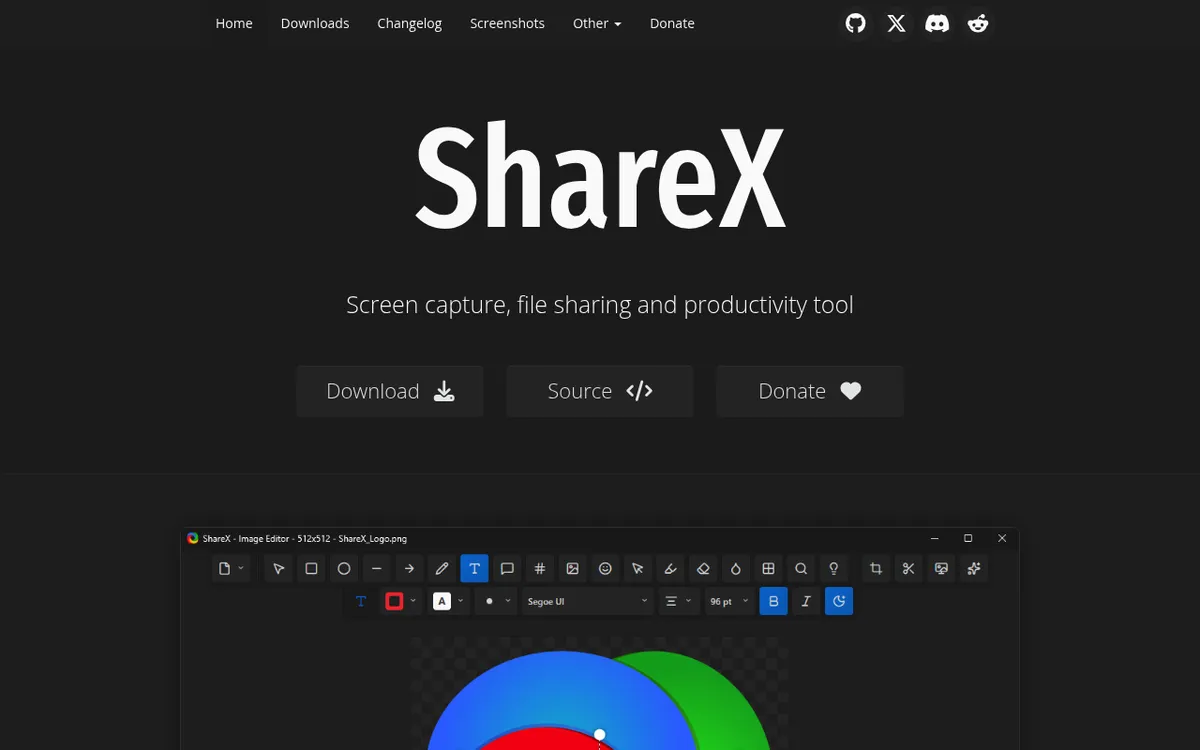
ShareX is the free open source screenshot tool windows champion. It's free, it's open, and it does more than Flameshot in every way except simplicity.
Key features:
- 15+ capture modes (region, window, scrolling, OCR)
- Screen recording (video and GIF)
- Upload to 70+ destinations (auto-upload is off by default on new installs)
- Workflow automation that chains actions after capture
- Image editor rebuilt in 2026, now with 20 annotation tools, a background beautifier, and effects
- Color picker, QR code reader, hash checker
The catch: ShareX has a huge menu system. First-time setup takes 15 minutes. The main window is busy, though the new image editor looks modern. It also needs 64-bit Windows 10 or 11. But once set up, nothing beats it for free.
Best for: Developers who want every feature and don't mind a learning curve. If you loved Flameshot's CLI depth, ShareX scales that idea to the whole app.
For a full ShareX deep-dive, see our best screenshot tools for Windows roundup, where it's our best free pick.
3. Greenshot: lightweight and simple
Price: Free on Windows (an older $1.99 Mac version, last updated 2020)
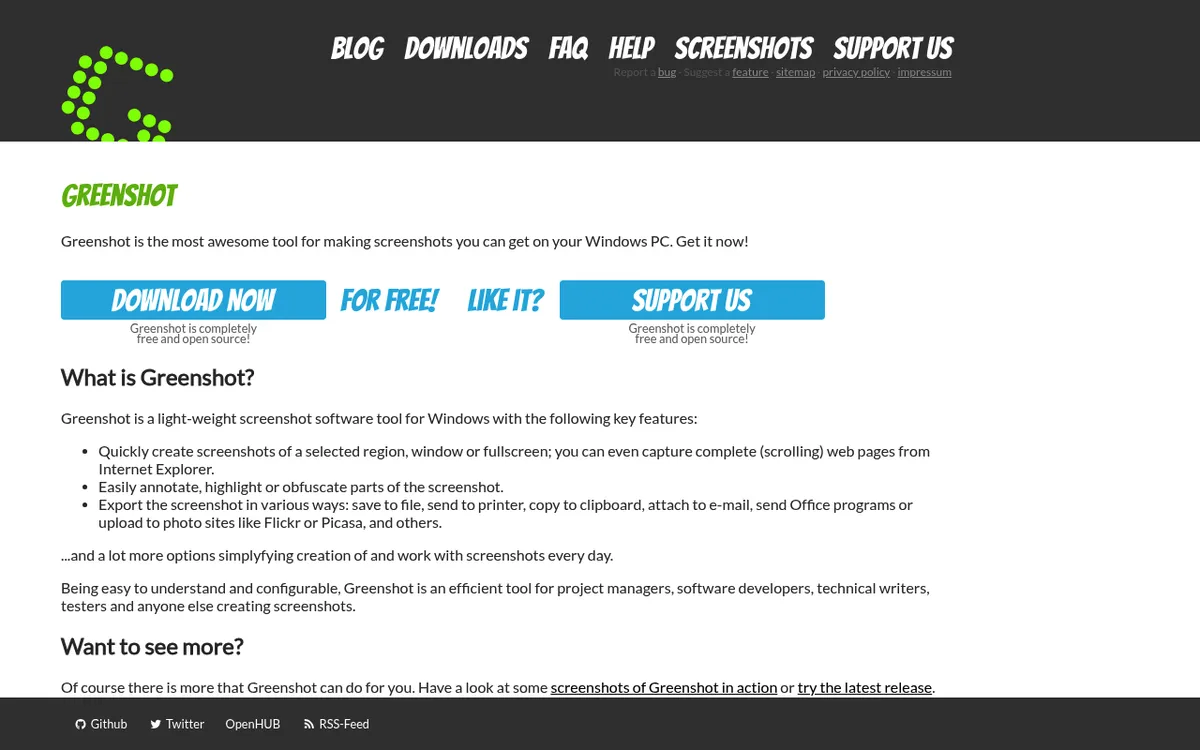
Greenshot is the opposite of ShareX. Tiny, focused, fast. It does region capture, markup, and export well. That's it.
Key features:
- Full screen, region, and window capture
- Built-in editor with arrows, text, highlight, and numbered step labels
- Export to Office apps directly (Word, PowerPoint, Outlook)
- Save to file, clipboard, or printer
- Text recognition (OCR) through its Windows 10 plug-in
- Available in more than 30 languages
What's missing:
- No screen recording
- Cloud upload only through plug-ins (Imgur by default, Dropbox and Box optional)
- Scrolling capture only works in Internet Explorer
- Dated UI, though it's still maintained (v1.3.323, October 2026)
Best for: Users who want a quick capture tool that doesn't get in the way. If Flameshot feels too busy, Greenshot is simpler. It's also kinder to low-end PCs.
4. PicPick: free for personal use
Price: Free for personal use, Pro from $30 per year or $79 lifetime (limited-time offers)
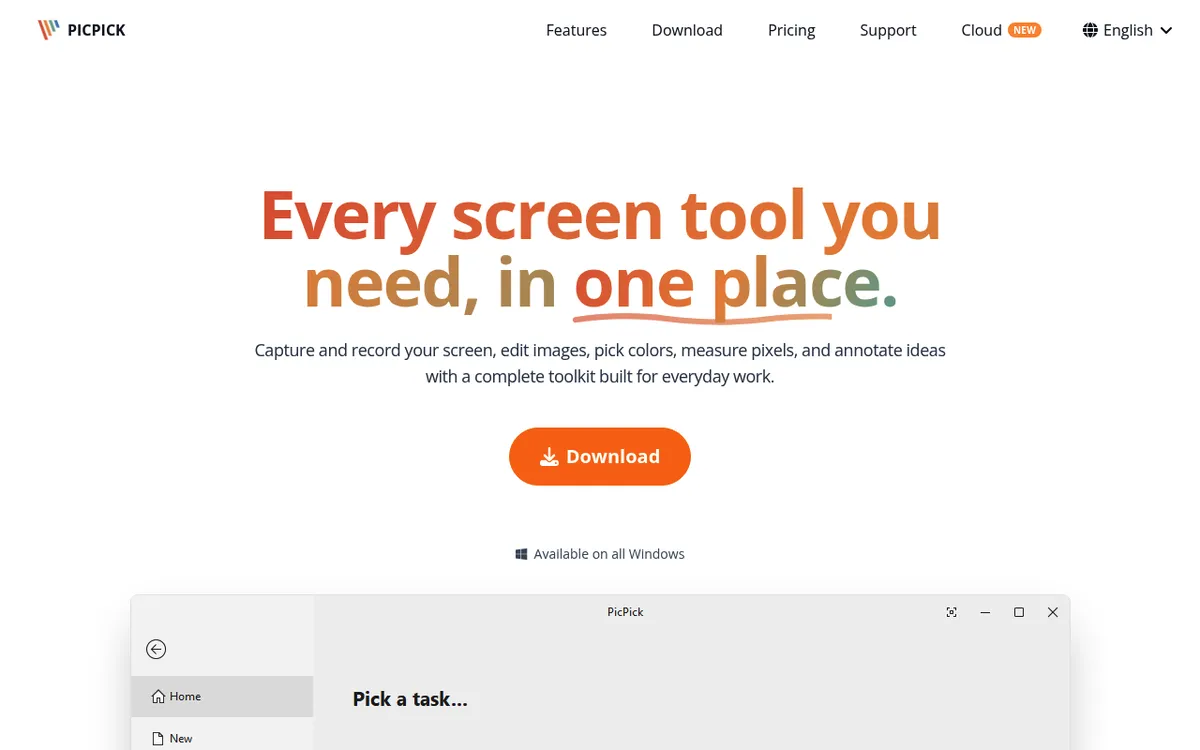
PicPick bundles a screenshot tool with a full graphics suite. You get capture, recording, and editing, plus a ruler, protractor, and color picker.
Key features:
- Many capture modes (including scrolling, fixed region, and freehand)
- Screen recorder with system audio and mic, saved as MP4 or GIF
- Ribbon-style editor with effects, frames, and watermarks
- Color picker and palette tools
- Pixel ruler and protractor
- Whiteboard mode for presentations
- Share to Google Drive, Dropbox, OneDrive, Box, FTP, or a web link
- Export to Office apps
The catch: PicPick is free for personal use only. The free version also shows ads and gets no auto updates. If you use it for work, you need Pro at $30 a year, or the $79 lifetime license while that offer lasts. ScreenSnap Pro is a one-time $49 and adds 500+ backgrounds, OCR, and a built-in video editor.
Best for: Designers and marketers who want precision tools alongside basic capture. The ruler and color picker are handy for UI work.
Comparison table
How do these tools stack up? Here's the side-by-side:
| Feature | ScreenSnap Pro | Flameshot | ShareX | Greenshot | PicPick |
|---|---|---|---|---|---|
| Price | $49 once | Free | Free | Free | Free (personal), Pro $30/yr |
| Windows-native feel | Polished cross-platform UI | ❌ | ⚠️ | ✅ | ✅ |
| Markup tools | ✅ (17) | ✅ | ✅ (20) | ✅ | ✅ |
| GIF recording | ✅ | ❌ | ✅ | ❌ | ✅ |
| Video recording | ✅ | ❌ | ✅ | ❌ | ✅ |
| Video editor | ✅ | ❌ | ❌ | ❌ | ❌ |
| Cloud sharing | Share links | ❌ | 70+ dests | Plug-ins | ✅ (Drive, Dropbox, more) |
| OCR | ✅ | ❌ | ✅ | ✅ (plug-in) | ❌ |
| Scrolling capture | ✅ | ❌ | ✅ | IE only | ✅ |
| Backgrounds | ✅ (500+) | ❌ | ✅ (beautifier) | ❌ | ❌ |
| CLI support | ❌ | ✅ | ⚠️ | ❌ | ❌ |
| Open source | ❌ | ✅ | ✅ | ✅ | ❌ |
| Subscription | No | No | No | No | Pro: yearly or lifetime |
Who should use Flameshot on Windows?
Despite the gaps, Flameshot still fits some users well:
Cross-platform teams: If your team mixes Linux, Windows, and Mac, Flameshot gives everyone the same tool. Same shortcuts, same workflow. That uniformity can beat any single-OS polish.
Open source advocates: You want free and transparent software. Flameshot is GPLv3. No tracking, no accounts, no cloud lock-in. Your shots stay on your PC, since official builds have no cloud upload at all.
Command line power users: The CLI depth is real. Script your captures. Chain with scheduled tasks. No other free Windows app does this.
Budget of zero: If you can't spend anything and need more than the built-in Snipping Tool, Flameshot delivers. It's not perfect, but it punches above its price.
Skip Flameshot if: You want screen recording, quick share links, OCR, or a polished Windows feel. The paid ScreenSnap Pro or the free ShareX save hours of setup and frustration.
Verdict: is Flameshot worth it on Windows?
Flameshot on Windows gets the job done. For a free open-source tool, the region capture and markup flow are solid. The in-place toolbar is fun to use. The CLI is a dev treat.
But the gaps are real. No recording. No GIF. No cloud upload. A UI that feels like a Linux visitor. For casual grabs, Flameshot is a fine upgrade from the built-in Snipping Tool. For heavy work, you'll outgrow it fast.
Our pick for most Windows users: ScreenSnap Pro at $49 one-time. You get a polished desktop app, a screen recorder with a built-in video editor, 500+ backgrounds, OCR, and quick share links. One license covers 2 seats on any mix of Windows and Mac. If you use Windows more than a few times a week for screenshots, it pays for itself in saved setup time.
Our pick for free users: ShareX. The learning curve is real but the power is unmatched. It does everything Flameshot does plus recording, scrolling, and 70+ upload targets.
If you're also looking at editing workflows after capture, see our edit screenshot on Windows guide. It covers free and paid tools for marking up saved shots.
Frequently Asked Questions

Morgan
Indie DeveloperIndie developer, founder of ScreenSnap Pro. A decade of shipping consumer Mac apps and developer tools. Read full bio
@m_0_r_g_a_n_