Best Snipping Tool Alternatives for Windows (2026)
Looking for a better snipping tool alternative for Windows? The built-in Snipping Tool gets the job done for quick grabs, but it stops there. GIFs stop at 30 seconds. No cloud sharing. Annotation stops at a pen, a highlighter, and a few shapes. If you take more than a handful of screenshots a day, you will hit its limits fast.
Before you switch, it is worth checking the baseline: how to use the Snipping Tool documents every feature the built-in app has in 2026.
We tested seven of the most popular Snipping Tool alternatives for Windows in 2026. Some are free. Some are paid. All of them do more than what ships with Windows. Here is how they compare, and which one fits your workflow.
Short version: ScreenSnap Pro is the best overall pick ($34 one-time, with screenshots, annotation, GIF and video recording, a video editor, and OCR in one app). ShareX is the best free option, Greenshot is the best lightweight free tool, and Snagit suits teams that need documentation templates.
What is wrong with the Windows Snipping Tool?
The Windows Snipping Tool is fine for basic use. Press Win + Shift + S and you get a quick region, window, or full-screen grab. You can draw on it with a pen. You can copy it to the clipboard. Done.
But for anyone who does real work with screenshots, the gaps add up fast. Here is where the default tool falls short:
- No scrolling screenshots. You cannot capture a long webpage or chat thread in one shot.
- GIFs are capped at 30 seconds. Recent versions can export a screen recording as a GIF, but only the first 30 seconds.
- Basic annotation. You get a pen, a highlighter, simple shapes, and arrows, but no text boxes, step numbers, or blur tool.
- No cloud sharing. Every screenshot lives on your disk until you attach it somewhere.
- No pinning. You cannot keep a screenshot floating on your screen while you work.
- No backgrounds or polish. You cannot frame a screenshot on a background or add padding and a shadow before you share it.
- Basic editor. The built-in editor is fine for quick marks, but it was not built for documentation work.
The good news: there are strong alternatives in every price range. If you need pro-level polish, the free tools will not cut it. If you just want better annotation, you do not need to pay for Snagit: our free browser-based image annotation tool already covers arrows, text, and blur. The list below covers every case.
For a deeper look at what the default tool misses, see our Snagit vs Snipping Tool breakdown. And if you want to master the default first, our Windows screenshot shortcuts guide walks through every built-in option.
How we picked these seven
We tested each tool on Windows 11 over a two-week period. The goal was simple: pick the best snipping tool windows users actually benefit from switching to. We looked at five things:
- Capture speed. How fast you can grab a region from cold start
- Annotation quality. Arrows, text, blur, and step tools
- Output options. File formats, cloud, clipboard, and direct share
- Resource use. RAM and CPU load while idle
- Pricing value. What you get for the dollar
Every tool on the list passed all five checks. Tools that did not make the cut include Snipping Tool++ (too light on features), Zight and Droplr (cloud-first, subscription-heavy), and Screenpresso (good, but the free tier is limited). The seven below are the ones worth installing in 2026.
Best Snipping Tool alternatives for Windows
Here are the seven best Snipping Tool alternatives for Windows in 2026, ranked by overall value. Each pick includes pricing, what it does well, and where it falls short.
1. ScreenSnap Pro: best overall ($34 one-time)
Price: $34 one-time (lifetime updates, 2 computers)
Best for: Users who want pro features without a subscription

ScreenSnap Pro is what you get when someone builds a screenshot tool that Windows users actually enjoy. It handles region, window, and full-screen grabs. It also records screen video, GIFs, webcam, and audio, and it edits recordings on a built-in timeline. That is rare at this price.
What it does well:
- 17 annotation tools: arrows, text, callouts, shapes, blur, pixelate, magnifier, spotlight, highlighter, and a step counter, plus emoji
- 500+ gradient backgrounds to make screenshots look sharp in seconds
- Direct GIF recording up to 1 minute, and the video editor exports longer clips as GIF
- Built-in video editor for recordings: trim, cut, auto zoom, and backgrounds
- Optional cloud upload with instant share links
- OCR text extraction from any image
- Pin screenshots on top while you work
- Works on both Windows and Mac with one license
Where it falls short:
- No scrolling capture inside app windows (for websites, paste a URL to get a full-page shot)
- No captions or subtitles in the video editor
- Smaller user base than Snagit or ShareX
Why it beats the Snipping Tool: It covers what the default tool cannot: full annotation (text, step numbers, blur), a video editor, cloud sharing, and pinned screenshots. GIFs also go past the 30-second cap: direct GIF recording runs up to 1 minute, and the video editor exports longer clips as GIF. All without a subscription. Snagit costs $39 every year and PicPick Pro $30 a year. ScreenSnap Pro is $34 once.
Best for: Devs, marketers, and designers who take many screenshots a day and want clean output. If you are tired of paying monthly for a screenshot app, this is the upgrade path.

Tired of plain screenshots? Try ScreenSnap Pro.
Beautiful backgrounds, pro annotations, GIF recording, and instant cloud sharing, all in one app. Pay $34 once, own it forever.
See pricing and features2. ShareX: best free open-source option
Price: Free (open source)
Best for: Power users who want deep control
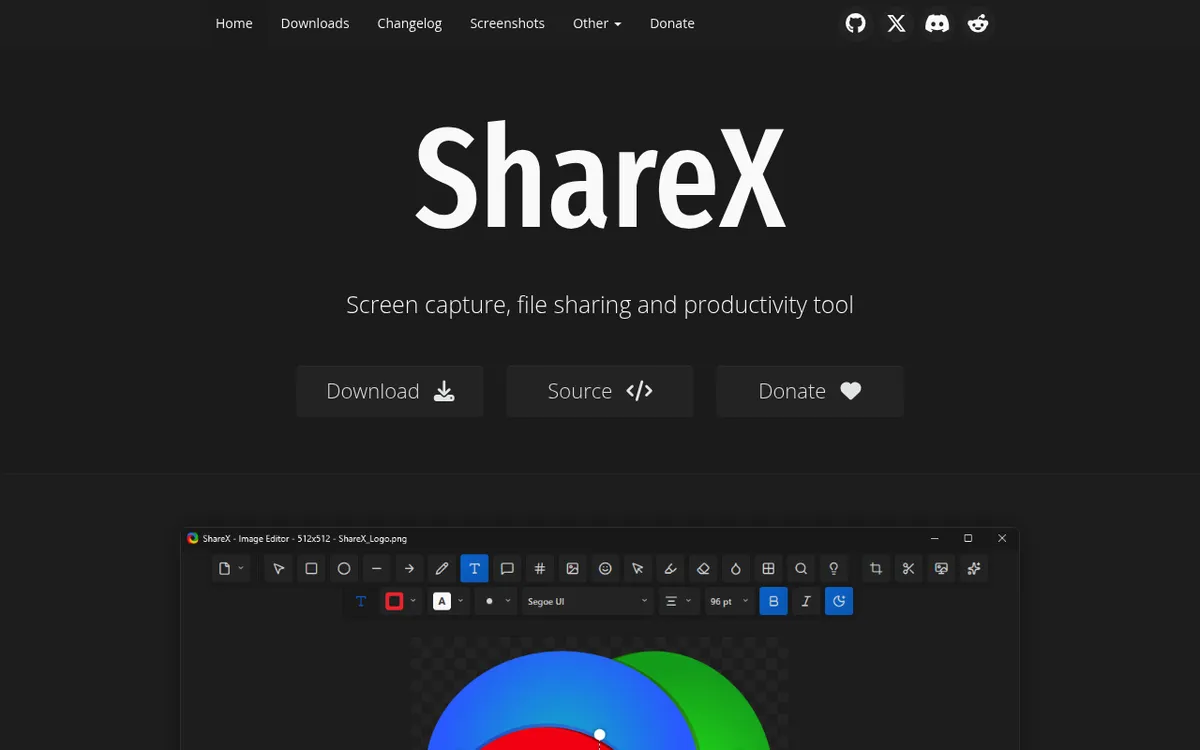
ShareX is a free Windows screenshot tool that is open source, fast, and packed with features. If you can look past its dense menus, it offers a lot at $0.
What it does well:
- 15+ capture modes including scrolling capture and screen recording
- Built-in image editor with arrows, shapes, text, blur, and watermarks
- Auto-upload to 70+ destinations (Imgur, Google Drive, Dropbox, S3, FTP, custom)
- Workflow automation that chains actions after each capture
- Bonus tools: color picker, hash checker, QR code reader
Where it falls short:
- Steep learning curve, since setup takes 10 to 15 minutes
- UI looks dated
- Windows only (no Mac or Linux)
Best for: Power users, developers, and anyone who wants to automate screenshot workflows. If you do not mind reading menus, ShareX is a capable free snipping tool app.
3. Greenshot: best lightweight free tool
Price: Free on Windows (an older $1.99 Mac version was last updated in 2020)
Best for: Users who want simple, fast captures with basic annotation
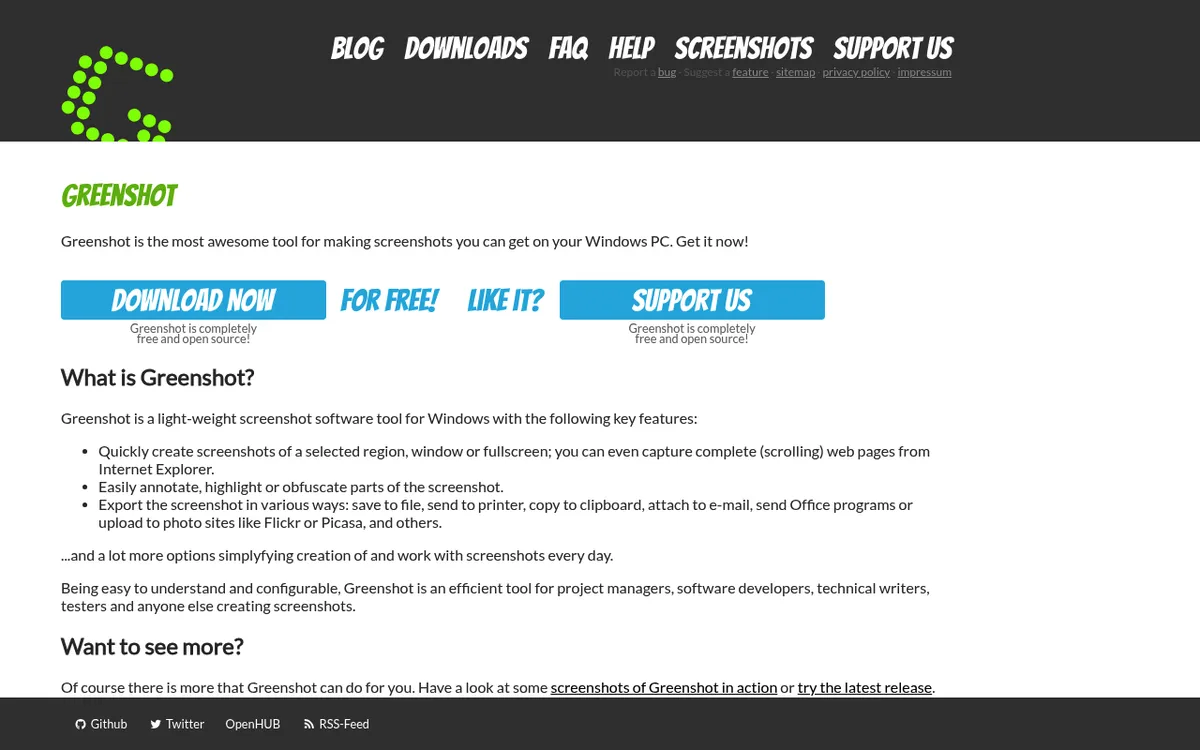
Greenshot sits in a sweet spot: more than the Snipping Tool, less overwhelming than ShareX. It is lightweight, stays out of the way, and does the job.
What it does well:
- Region, window, full-screen, and scrolling capture (IE only)
- Clean built-in editor with arrows, text, and obfuscation
- Direct export to Office, Outlook, and email
- Small memory footprint
- Customizable keyboard shortcuts
Where it falls short:
- No cloud sharing without plugins
- No screen recording or GIF capture
- Scrolling capture only works in Internet Explorer (outdated)
- UI has not changed much in years
Best for: People who want a better greenshot snipping tool experience than the default Windows app but do not need recording or cloud. For a head-to-head pro look, see our Snagit vs Greenshot comparison.
4. PicPick: best all-in-one for designers
Price: Free for personal use. Pro (needed for business use) is $30/year or $79 lifetime
Best for: Designers who need color picking, rulers, and image tools in one place
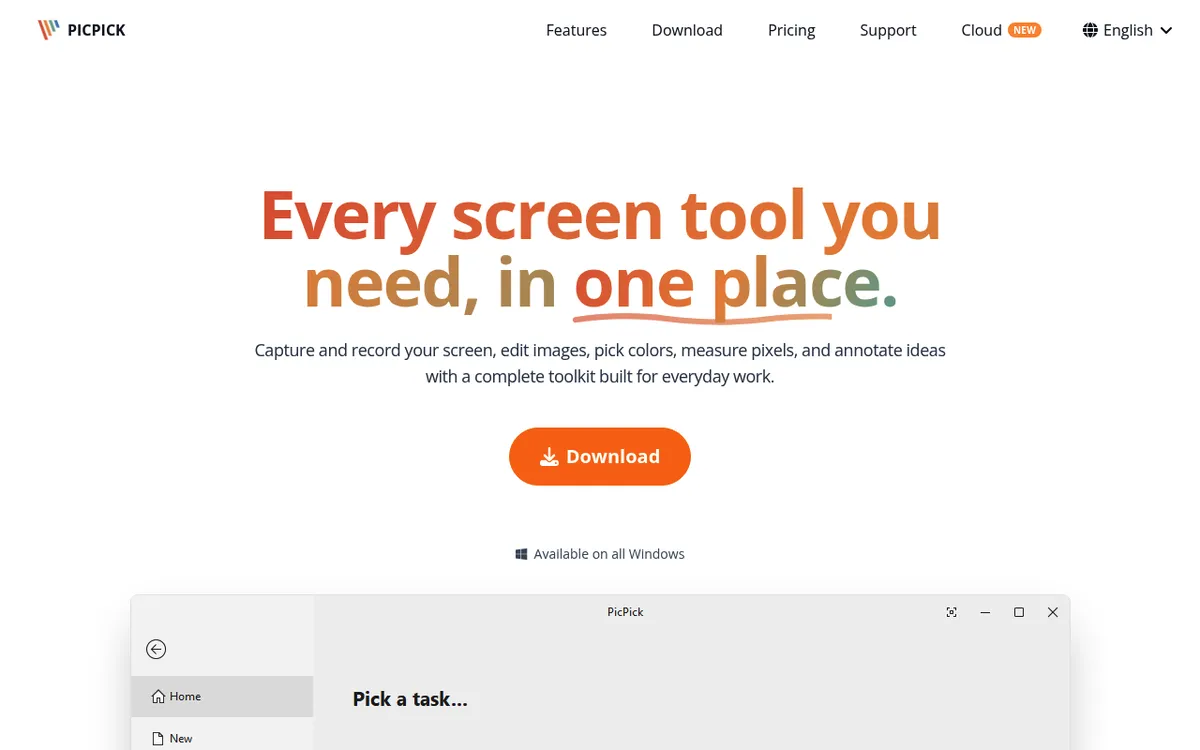
PicPick is part screenshot tool, part design utility. It handles captures, but it also throws in a color picker, pixel ruler, protractor, and whiteboard.
What it does well:
- Multiple capture modes including scrolling capture
- Screen recorder with audio and a webcam overlay, saved as MP4 or GIF
- Full image editor with filters, effects, and watermarks
- Color picker with hex codes and palette saving
- Pixel ruler, protractor, magnifier, and whiteboard
- Dual monitor support
Where it falls short:
- Free version is personal use only
- Interface feels cluttered
- Free version shows ads and has no auto updates
Best for: UI designers and developers who want design tools bundled with screenshots. If you already use a separate color picker tool, PicPick folds several utilities into one.
5. Lightshot: fastest for quick captures
Price: Free
Best for: Users who want the fastest possible screenshot-to-share workflow
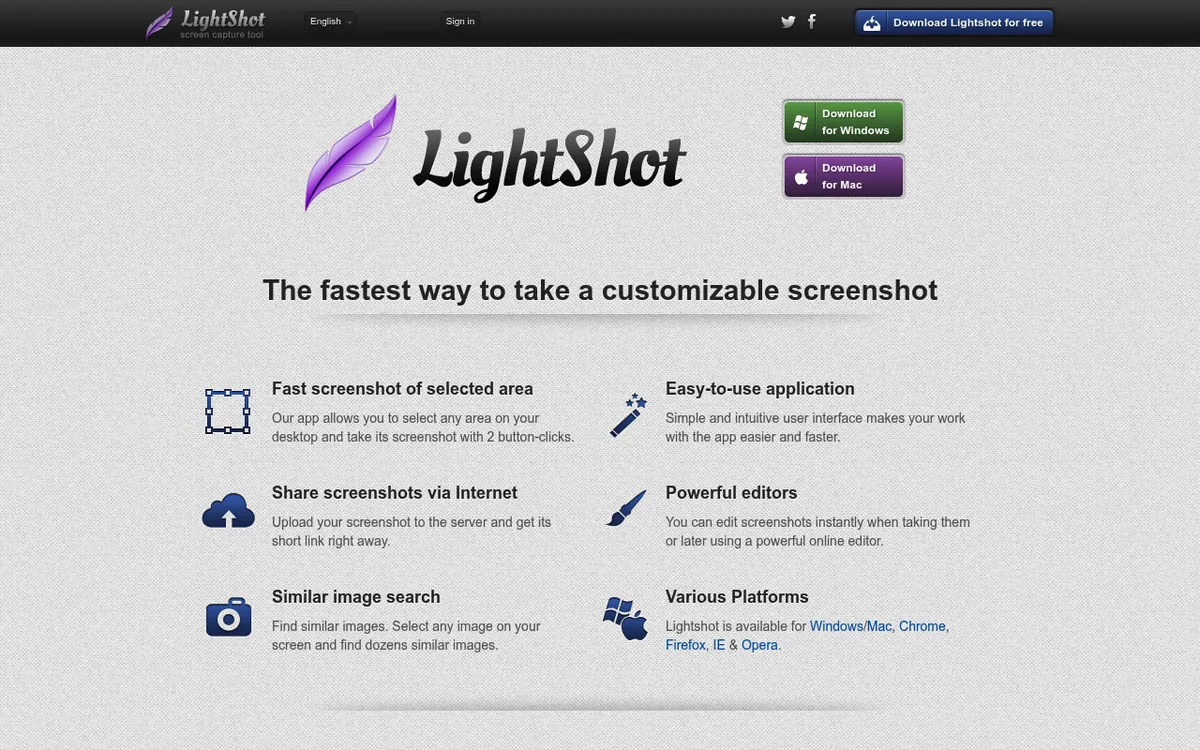
Lightshot is tiny and fast. Press Print Screen, drag to select, and an edit bar pops up. Add a quick arrow, hit share, and you get a link in seconds.
What it does well:
- Instant capture and edit bar
- Quick online sharing via
prnt.scURL - Reverse image search on any screenshot
- Works on Windows and Mac
Where it falls short:
- No scrolling capture or screen recording
- No GIF support
- Privacy concern: every upload to
prnt.scis public, anyone with the link can open it, and uploads cannot be made private - Annotation tools are basic next to Flameshot or ShareX
- Rare updates: the Mac app has not changed since 2019
Best for: Casual users who want a small, fast lightshot snipping tool replacement. Skip it if you share anything sensitive, because public URLs are a real issue.
6. Snagit: best for professionals (paid)
Price: $39/year (subscription only since Snagit 2025)
Best for: Tech writers, trainers, and teams making polished documentation
Snagit by TechSmith has been around for more than 30 years and is widely used in professional settings. It is also the only tool on this list you have to keep paying for every year.
What it does well:
- Deep annotation toolkit: callouts, stamps, step numbers, magnify, and quick styles
- Scrolling capture for full web pages and wide spreadsheets
- Screen recording with webcam, mic, and system audio
- Templates for uniform documentation
- OCR text extraction
Where it falls short:
- Subscription only: $39 per year to keep using it
- Heavy install (1.6 GB of disk space on Windows)
- Overkill for simple screenshots
- Smart Move AI features can feel gimmicky
Best for: Professional tutorial creators, tech writers, and corporate trainers. If you make guides for a living, Snagit covers the job well. For everyone else, a yearly fee is hard to justify. See our full Snagit pricing breakdown for all the plans.
7. Flameshot: best open-source with annotation
Price: Free (open source)
Best for: Devs who want a clean, keyboard-driven annotation experience
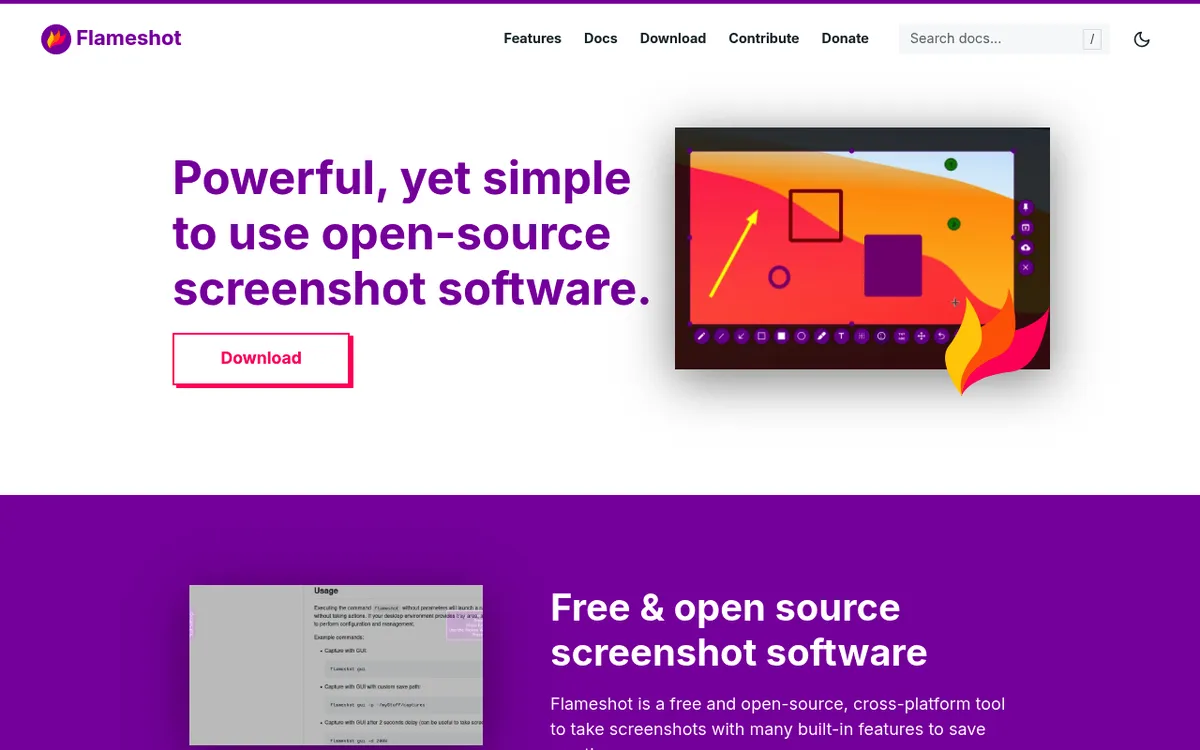
Flameshot started on Linux and now runs on Windows and Mac too. It is simpler than ShareX but better-looking. The annotation interface is the best in the free tier.
What it does well:
- Beautiful in-screenshot annotation toolbar
- Pin screenshots to your desktop
- Copy to clipboard or save to disk, with no account needed
- Custom keyboard shortcuts
- Open source and actively developed
Where it falls short:
- No scrolling capture
- No screen recording or GIF
- No cloud upload in the official builds (Imgur upload was dropped in v13)
- Some settings are Linux only, and on Windows multi-monitor capture asks you to pick a screen first
- Configuration requires editing files for some options
Best for: Developers who live in a terminal and want a lightweight, open-source tool that looks good. Especially strong if you already use it on Linux.
Quick comparison: 7 best snipping tool alternatives
Here is how the seven alternatives stack up at a glance:
| Tool | Price | Screen Recording | GIF | Scrolling | Cloud | OCR |
|---|---|---|---|---|---|---|
| ScreenSnap Pro | $34 one-time | Yes | Yes | Websites (URL) | Yes (optional) | Yes |
| ShareX | Free | Yes | Yes | Yes | Yes | Yes |
| Greenshot | Free | No | No | IE only | Plugin | Yes (Windows 10/11) |
| PicPick | Free / $30/yr | Yes | Yes | Yes | Yes | No |
| Lightshot | Free | No | No | No | Yes (public) | No |
| Snagit | $39/yr | Yes | Yes | Yes | Yes | Yes |
| Flameshot | Free | No | No | No | No | No |
Feature counts are only half the story. The right tool depends on your workflow, not the longest feature list. The next section breaks it down.
How to choose the right Snipping Tool alternative
Not sure which one fits? Use this quick guide.
If you want the best value overall
Pick ScreenSnap Pro. You get pro features (GIF, recording, annotation, cloud, OCR) for $34 once. No subscription. Works on Mac too if you switch.
If you want powerful and free
Pick ShareX. It does more than tools that cost $50+ per year. You just have to learn its menus. For a quick free option with less setup, Greenshot is the backup choice.
If you need top-tier docs
Pick Snagit. Its templates, Step Capture, and step tools are built for technical documentation. It costs $39 a year, but pro users make it back in hours saved.
If you want lightweight and fast
Pick Flameshot or Lightshot. Both launch quickly and feel snappy. Flameshot has better annotation. Lightshot is simpler but has privacy concerns.
If you also need design tools
Pick PicPick. The color picker and ruler alone can replace two other apps.
A few more tips to help you decide:
- Check your annotation needs first. If you only add arrows and boxes, any tool here works. If you need step numbers or blur, narrow to ScreenSnap Pro, Snagit, ShareX, or Flameshot.
- Think about recording. If you ever share GIFs or screen videos, skip Greenshot, Lightshot, and Flameshot. The rest all record.
- Think about scrolling capture. None of the default OS tools do it. ShareX, PicPick, and Snagit handle it best. If you grab long pages often, that is your shortlist.
- Consider cross-platform needs. If you also use a Mac, ScreenSnap Pro, Snagit, Flameshot, and Lightshot work on both (Lightshot's Mac app has not changed since 2019). ShareX is Windows only.
- Watch for privacy. Anything you upload with Lightshot gets a public
prnt.sclink that you cannot make private. Free cloud tools often store your shots on their servers. If you work with client data or internal info, stick to tools that let you keep files local. - Budget for the long run, not just the install. Snagit is subscription only now, so you pay every year to keep using it. Most cloud tools push monthly plans. One-time apps like ScreenSnap Pro skip that cycle.
Before you commit, try the free tools on your shortlist. Most take five minutes to install. ScreenSnap Pro has no free version, but it comes with a 30-day money-back guarantee, so you can test it on your own screenshots. Keep the one that fits your flow, and uninstall the rest to keep your system clean.
A note on free vs paid tools
Free does not mean worse. ShareX and Flameshot beat plenty of paid tools on features alone. But free tools often skimp on three things: design polish, cloud features, and customer support.
Paid tools fund ongoing work. That is why Snagit still runs on modern Windows after more than 30 years. ScreenSnap Pro gets new features and bug fixes every month. A $34 one-time price covers that effort without locking you into a monthly bill.
The right pick depends on what you value. If you enjoy tinkering and reading docs, ShareX is hard to beat for $0. If you want something that just works from the first click, a paid tool saves time, and time is money.
Getting more out of your new tool
Once you pick your Snipping Tool replacement, these guides can help you work faster:
- How to take a screenshot on Windows 11: covers every shortcut and method
- How to take a partial screenshot on Windows: region capture tips
- How to crop a screenshot on Windows: three quick methods
- How to edit a screenshot on Windows: markup and annotation
- Where do screenshots go on Windows?: find them fast
- Best free screen recorders for Windows: if you need video too
- How to scroll-capture a whole page on Windows: long pages
For OCR, you can also use our free image text extractor tool in the browser, with no install needed.
Frequently Asked Questions
Ready for a better screenshot tool?
The built-in Windows Snipping Tool is fine for now and then. For daily work, any of the seven tools above will save you time. Pick the free one that fits if cost matters most. Pick ScreenSnap Pro if you want pro features (GIF and video recording with a built-in editor, 500+ backgrounds, 17 annotation tools, and cloud sharing) without a subscription.
One-time $34 payment. Lifetime updates. Works on Windows and Mac. Thirty-day money-back guarantee. That is it.
Get ScreenSnap Pro and see how much faster your screenshot workflow can be.

Morgan
Indie DeveloperIndie developer, founder of ScreenSnap Pro. A decade of shipping consumer Mac apps and developer tools. Read full bio
@m_0_r_g_a_n_