9 Best Free Screen Recorders for Windows (2026)
A free screen recorder for Windows captures your desktop, app windows, or a set region as video. The best ones record with audio and export with no watermarks. They work on both Windows 10 and 11 at no cost, and tools like ScreenSnap Pro extend the same workflow to GIFs and screenshots when free recorders fall short.
But "free" can mislead. Some tools add watermarks. Others cap clips at five minutes. A few sneak extra apps into the install.
This guide cuts through the noise. We tested nine tools that are free or low-cost for daily use. If you just want to record your screen on Windows fast, start with Xbox Game Bar. For more control, read on. Eight picks are free. One (ScreenSnap Pro) is a $49 one-time buy that earns its spot.
Quick comparison: screen recorders for Windows
Here's how all nine tools stack up at a glance:
| Tool | Price | System Audio | Mic Audio | Webcam | GIF Export | Watermark | Best For |
|---|---|---|---|---|---|---|---|
| Xbox Game Bar | Free (built-in) | ✅ | ✅ | ❌ | ❌ | ❌ | Quick recordings |
| OBS Studio | Free | ✅ | ✅ | ✅ | ❌ | ❌ | Streaming & pro use |
| ShareX | Free | ✅ | ✅ | ❌ | ✅ | ❌ | Power users |
| ScreenSnap Pro | $49 (one-time) | ✅ | ✅ | ✅ | ✅ | ❌ | Best value all-in-one |
| CamStudio | Free | ✅ | ✅ | ❌ | ❌ | ❌ | Simple AVI captures |
| Apowersoft Online | Free (browser) | ✅ | ✅ | ❌ | ❌ | ❌ | No-install recording |
| FlashBack Express | Free | ✅ | ✅ | ✅ | ❌ | ❌ | Beginners |
| ScreenPal | Free tier | ✅ | ✅ | ✅ | ❌ | ✅ | Quick demos |
| Free Cam | Free | ✅ | ✅ | ❌ | ❌ | ❌ | Tutorials |

Tired of plain screenshots? Try ScreenSnap Pro.
Beautiful backgrounds, pro annotations, GIF recording, and instant cloud sharing, all in one app. Pay $49 once, own it forever.
See pricing and features1. Xbox Game Bar (best built-in option)
Xbox Game Bar ships with Windows 10 and 11. It was built for gameplay clips, but it works for any app window too.
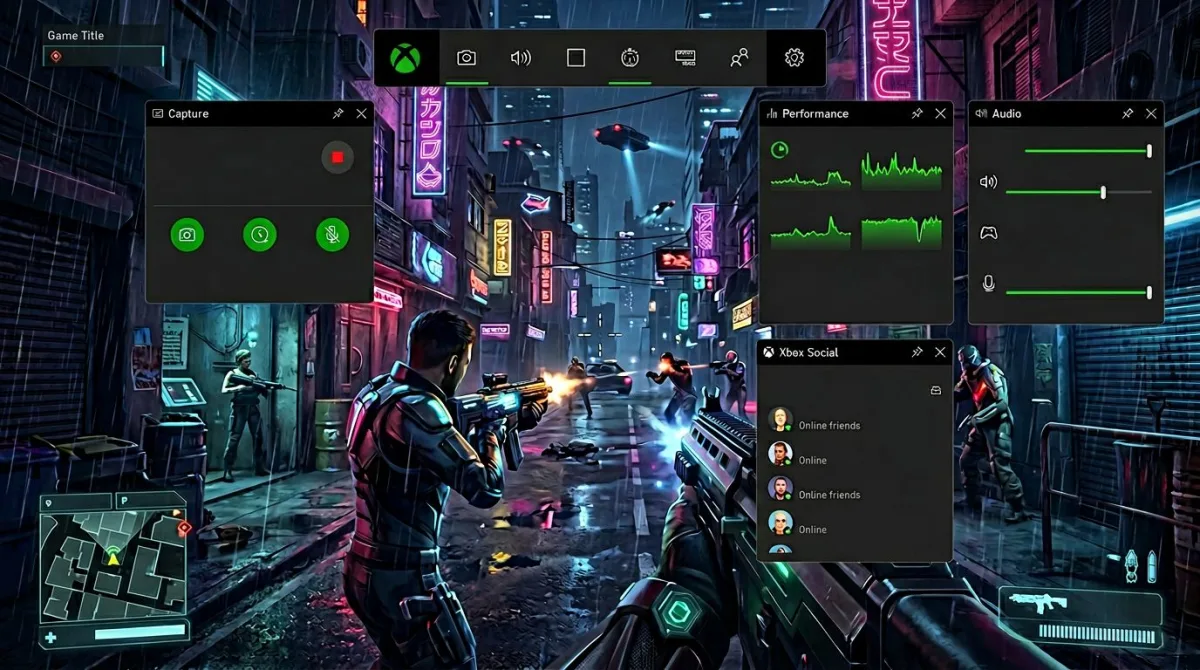
How to start recording:
- Press
Win + Gto open the Game Bar overlay. - Click the Capture widget (or press
Win + Alt + Rto record immediately). - Choose whether to include microphone audio.
- Press
Win + Alt + Ragain to stop.
Recordings save as MP4 files in your Videos > Captures folder.
Pros:
- Already on your PC, no download needed
- Records system audio and mic at once
- No watermarks, no time cap (up to 4 hours)
- Light with low impact on your PC
Cons:
- Cannot record the desktop or File Explorer (apps only)
- No webcam overlay or markup tools
- MP4 only, no other formats
- Settings are buried in Windows Settings > Gaming
Best for: Quick, one-off clips when you need to record fast. If you want more control over regions or formats, try a dedicated tool.
2. OBS Studio (best free screen recorder overall)
OBS Studio is the top free screen recorder. It is open source and works on Windows, Mac, and Linux. Millions of streamers use it daily.
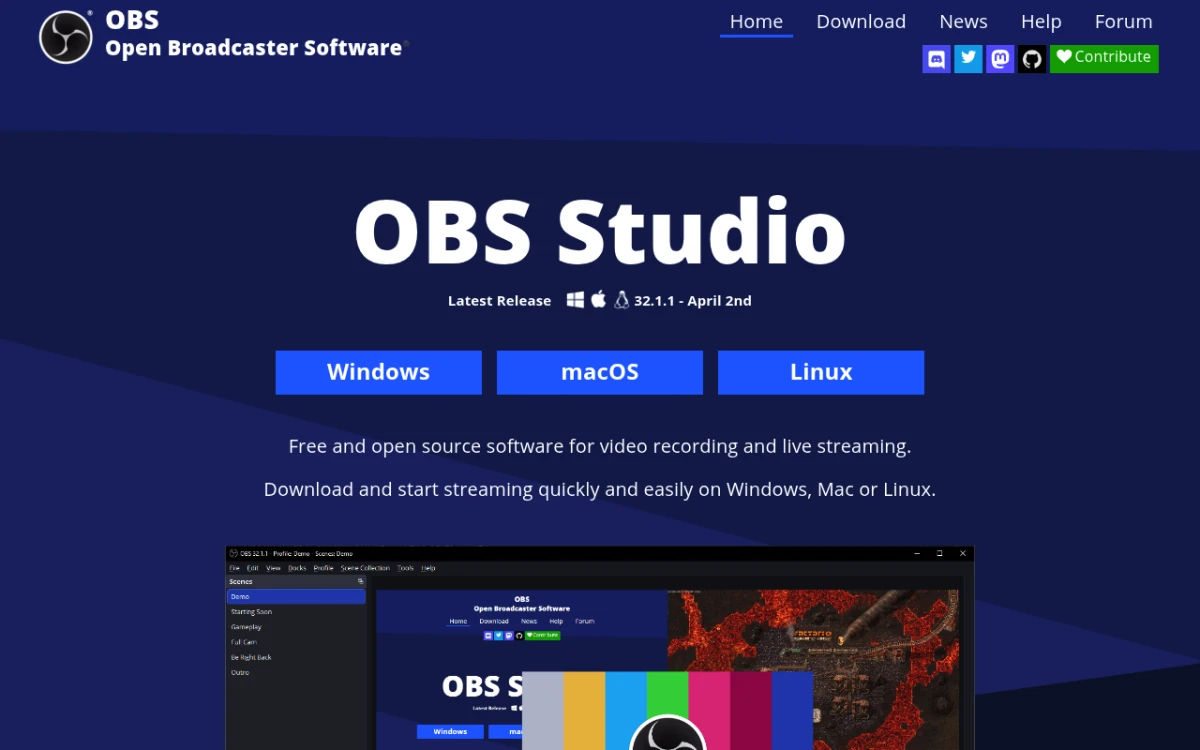
OBS stands out with its scene system. You set up scenes like full screen, webcam, or both. Then you switch between them while you record.
Key features:
- No time limits and no watermarks
- Many video sources: display, window, webcam, images
- Built-in audio mixer with per-source volume
- GPU encoding (NVENC, AMD AMF, QuickSync)
- Saves to MP4, MKV, FLV, or MOV
- Scene changes and custom hotkeys
Pros:
- Fully free with no hidden costs
- Records up to 4K 60fps
- Large plugin library
- Works on Windows, Mac, and Linux
Cons:
- Hard to learn at first
- The UI can feel complex
- No built-in video editor
- High CPU use without GPU encoding set up
Best for: People who record often and want full control. OBS also doubles as streaming software.
Pro tip: Run the Auto-Setup Wizard (Tools > Auto-Configuration Wizard). It picks the best settings for your PC and saves hours of tweaks.
3. ShareX (best open source screen recorder for power users)
ShareX is a free, open source recorder and screenshot tool for Windows. It handles quick grabs and full video clips with system audio.
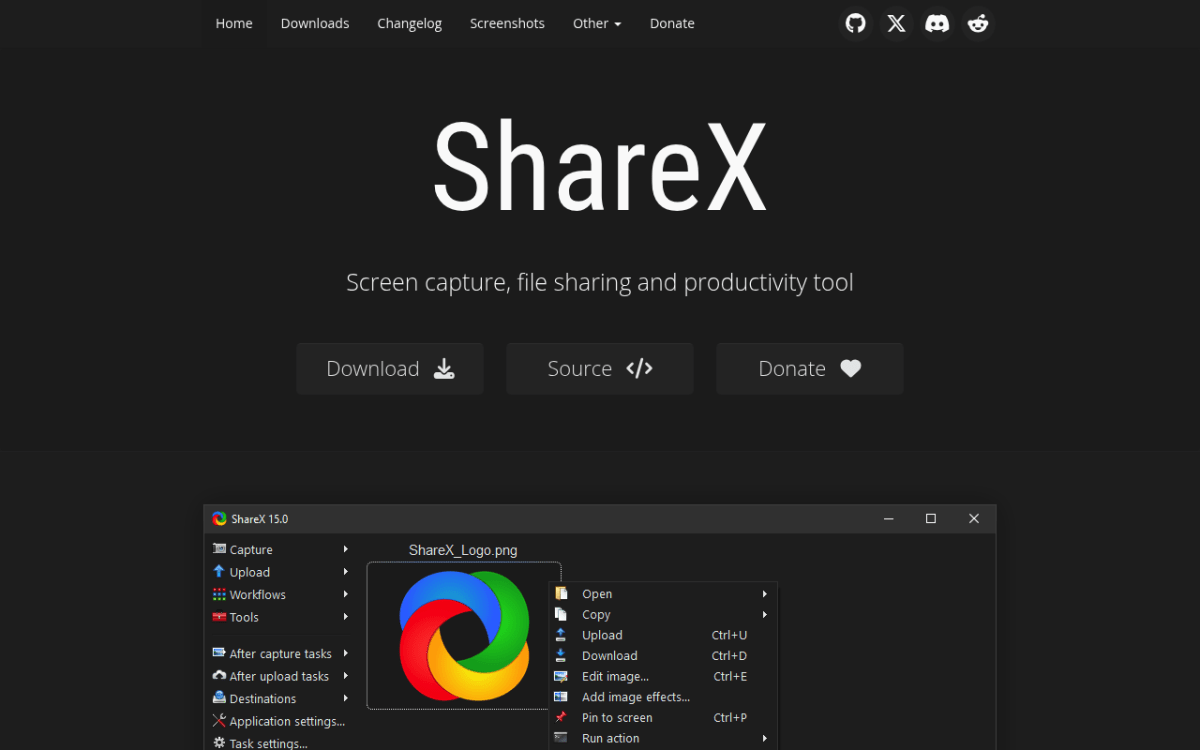
ShareX shines with its auto tasks. You set up steps that capture, mark up, upload, and copy a link. Once ready, it saves time every day.
Key features:
- Record to MP4 or GIF
- Full-screen, region, window, or scrolling capture
- Built-in image editor and markup tools
- Auto-upload to 80+ cloud places (Imgur, Google Drive, Dropbox)
- OCR text grab from screenshots
- Color picker, hash checker, and more
Pros:
- Truly free: no watermarks, no limits, no ads
- Deep tweaks with workflow auto tasks
- Active updates and large user base
- Light on resources (uses FFmpeg)
Cons:
- Windows only (Mac users can check ShareX for Mac options)
- The UI is cluttered and not beginner-friendly
- Video quality is decent but not top-tier
- No webcam overlay while recording
Best for: Devs and power users who want a free recorder with deep tweaks. If you work with screenshots often, ShareX handles capture and markup in one tool.
4. ScreenSnap Pro (best value all-in-one recorder)
ScreenSnap Pro is a screen recorder for Windows that captures video, GIFs, and screenshots in one app. It is not free. But at $49 one-time (no sub), it costs less than a year of most paid recorders.
Key features:
- Record to MP4, export MP4 or GIF
- Built-in GIF capture (no convert step needed)
- Webcam overlay
- System audio and mic capture
- Screenshots with 500+ pro wallpapers
- 17 markup tools, such as arrows, shapes, text, blur, and counter
- Cloud upload with instant share links
- Works on Windows and Mac with one license
Pros:
- One $49 buy covers two PCs (Mac or Windows)
- No watermarks, no time limits, no upsells
- Video, GIFs, screenshots, and markup in one tool
- Light and fast to launch
Cons:
- Not free (but $49 beats most monthly plans)
- No built-in video editor
- No Linux support
Best for: Anyone who wants video, GIFs, and screenshots in one tool with no monthly fee. One $49 payment replaces a monthly bill like Loom ($15/month) or ScreenPal ($4/month), and the gap grows with every month you would have kept paying. Same license works on Mac too.
5. CamStudio (simple and lightweight)
CamStudio is one of the oldest free screen recorders. It saves to AVI or SWF with a simple UI that stays out of your way.
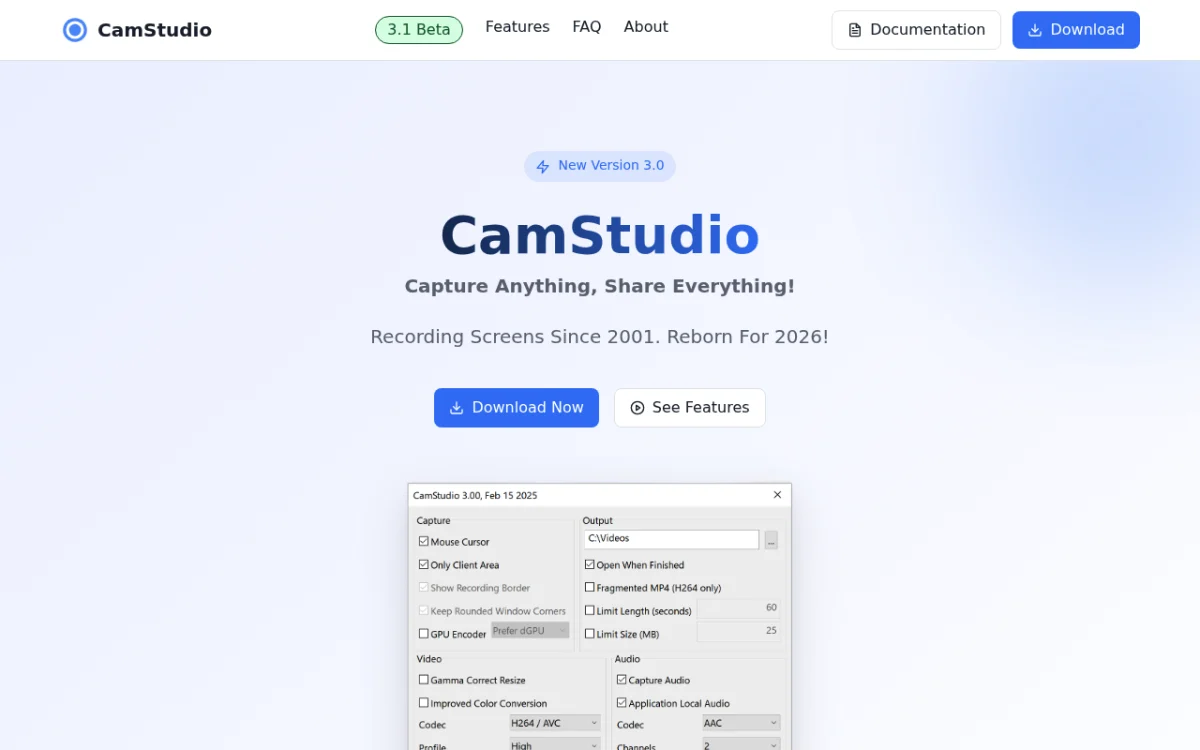
Key features:
- Records full screen or custom regions
- System audio and microphone recording
- Set video quality and frame rate
- Built-in SWF export for smaller files
- Cursor effects to show mouse moves
Pros:
- Very light (under 10 MB)
- No watermarks or recording limits
- Simple UI anyone can use
- Low resource usage
Cons:
- AVI files can be very large
- Dated UI, not changed much since 2013
- No MP4 export (needs a converter)
- Few codec options
Best for: Quick, no-frills clips when you need something small. If you record often, you will want more features. You can turn AVI files into GIFs with a GIF tool for easy sharing.
6. Apowersoft Free Online Screen Recorder
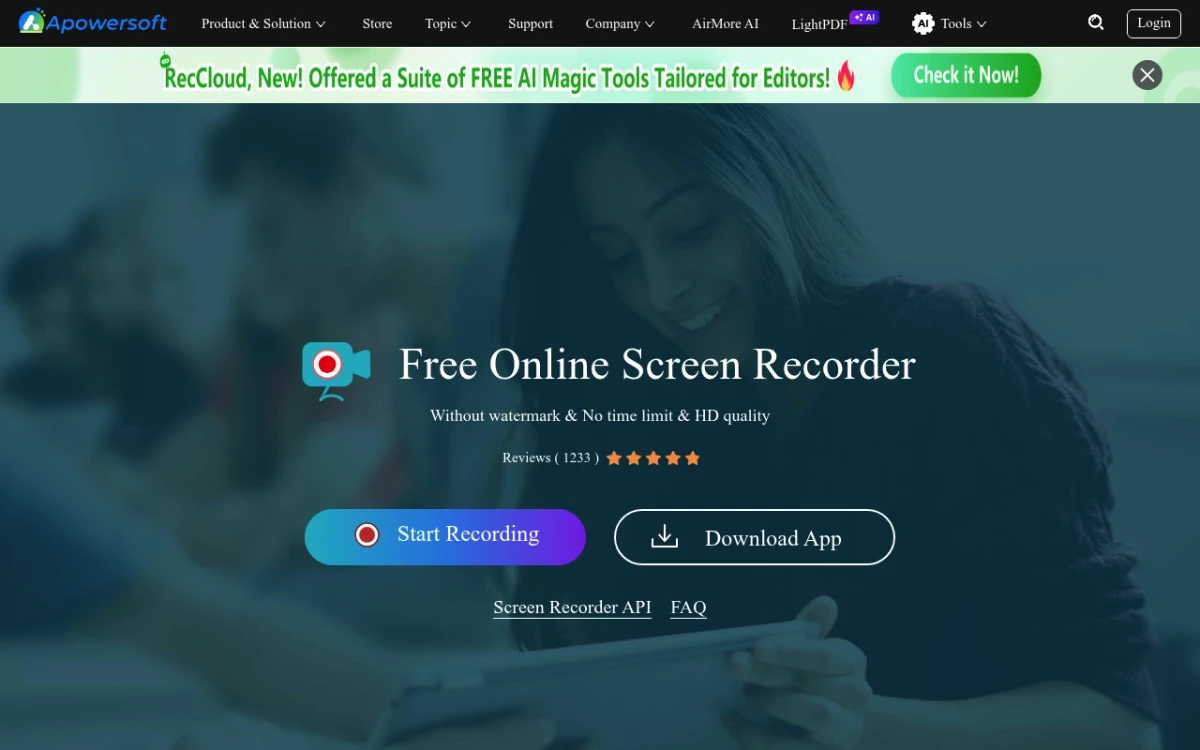
Apowersoft runs in your browser. No desktop install needed. Open the page, click record, and it starts in seconds.
Key features:
- Records from Chrome, Firefox, or Edge
- System audio and mic support
- Full screen, window, or custom region
- Saves to MP4, WMV, AVI, FLV, and more
- Live markup while you record
Pros:
- No install needed
- Clean, simple UI
- Many export formats
- Works on any Windows PC with a modern browser
Cons:
- Needs a small browser plugin the first time
- Quality can vary with your connection
- Fewer editing tools than desktop apps
- Cloud features need a paid plan
Best for: Quick, one-off recordings on work PCs or shared devices. Great when you need to record fast with no install.
7. FlashBack Express (best free screen recorder for beginners)
FlashBack Express is the free tier of Blueberry's FlashBack recorder. It packs a lot into a free tool. The UI is built for new users.
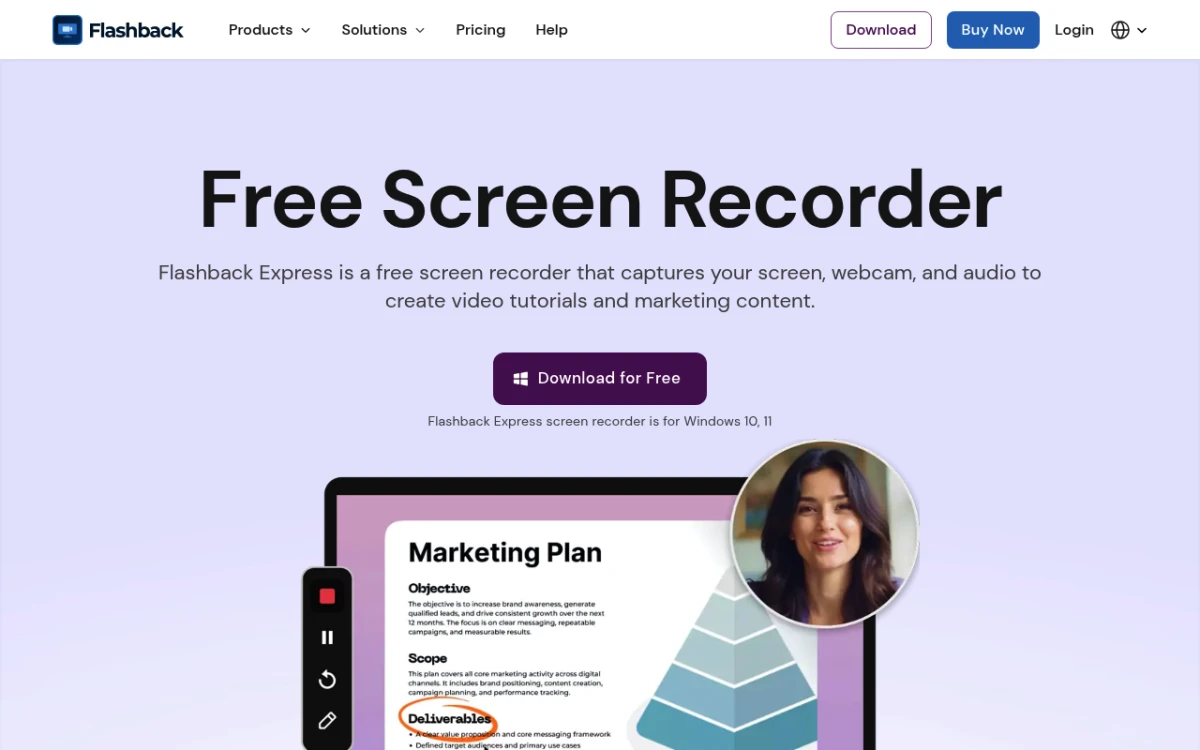
Key features:
- Full screen, window, or region recording
- Webcam overlay (picture-in-picture)
- System audio and mic capture
- Timed recordings (set it and walk away)
- Saves to MP4, AVI, and WMV
Pros:
- Clean, beginner-friendly interface
- No watermarks on recordings
- No time limits on recording length
- Webcam recording built in
Cons:
- Free version limits export formats (no MKV or GIF)
- No markup while recording
- Some features need the $49 Pro upgrade
- Slower exports than OBS or ShareX
Best for: New users who want a simple recorder with audio. The timed recording mode is great for catching webinars hands-free.
8. ScreenPal (formerly Screencast-O-Matic)
ScreenPal has a free tier for basic recording with webcam. It used to be Screencast-O-Matic. It has grown a lot since its rebrand.

Key features:
- Record screen, webcam, or both at once
- Built-in video trimmer
- Upload to YouTube, Google Drive, and Vimeo
- Draw and narrate while you record
- Works on Windows, Mac, and Chromebook
Pros:
- Easy to learn with a clean UI
- Webcam overlay works well
- Post straight to video sites
- Active updates
Cons:
- Free tier adds a watermark
- Free clips are capped at 15 minutes
- Full editing needs a $4/month plan
- Can lag at high resolutions
Best for: Quick demos and talks with a webcam. The 15-minute cap is fine for short clips but blocks longer work.
9. Free Cam (clean recordings for tutorials)
Free Cam is a Windows recorder built for clean tutorials. It records your screen with audio and has a basic trim editor.
Key features:
- Full screen or selected area recording
- System audio and microphone recording
- Built-in editor with noise removal
- Upload to YouTube
- Cursor highlights and click effects
Pros:
- No watermarks, no time limits, no ads
- Built-in noise removal cleans up audio
- Simple editing tools for trimming clips
- Exports clean WMV files
Cons:
- WMV only (no MP4 without a converter)
- No webcam overlay
- Some setups cannot record system audio and mic at once
- Windows only, no Mac version
Best for: Teachers and trainers who want a free recorder for Windows 10 or 11 with built-in audio cleanup.
How to choose the right free screen recorder
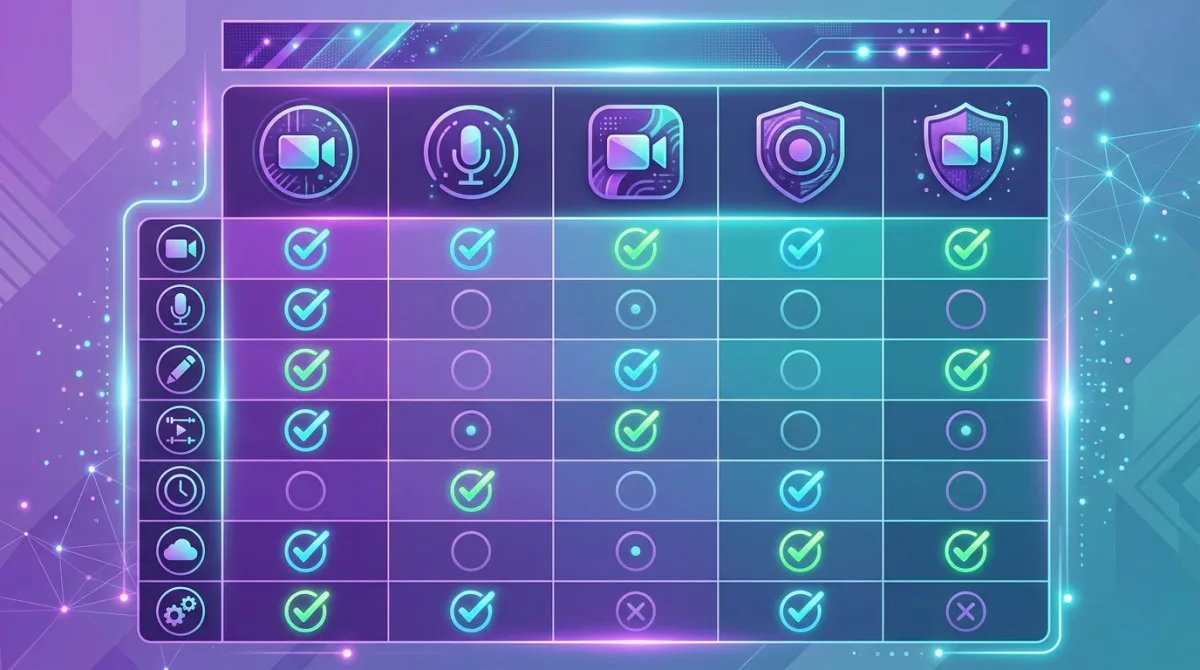
With nine solid picks, here is how to narrow it down:
For quick clips: Start with Xbox Game Bar. It is on your PC, records system audio, and saves clean MP4s. No setup needed.
For daily recording and streaming: Go with OBS Studio. The learning curve pays off. You get no limits, GPU encoding, and scene control.
For screenshots and recordings: ShareX pairs video with a strong screenshot flow. Need to annotate screenshots or extract text from images? It does both.
For webcam talks: ScreenPal or FlashBack Express both have webcam overlay. Note that ScreenPal's free tier adds a watermark.
For the simplest setup: FlashBack Express or Free Cam. Both are clean tools without the depth of OBS.
For best value (video + GIFs + screenshots): ScreenSnap Pro is not free, but $49 one-time beats monthly plans. It is a screen recorder for Mac and Windows that also records GIFs and takes screenshots.
If you also use a Mac: Most of these tools are Windows-only. ScreenSnap Pro and OBS work on both. See our guide to the best screen recorders for Mac for more picks, like QuickTime and Kap.
What about GIF recording?
If you want short clips as GIFs, not video, that is a different flow. ShareX can export to GIF, but quality is low and files get big fast.
ScreenSnap Pro handles both video and GIF capture. Record to MP4 for long content. Switch to GIF mode for quick bug reports or docs. No convert step needed. You can also compress GIFs or turn them into MP4 when you need video.
Hidden costs to watch for
"Free" does not always mean free. Before you pick a tool, check for:
- Watermarks on exports (ScreenPal free tier)
- Time limits (ScreenPal caps at 15 minutes)
- Format locks that force you to convert files later
- Upsell pop-ups that break your flow
- Bundled apps in the install (pick "custom install")
Xbox Game Bar, OBS Studio, and ShareX are truly free with no catches.
Tips for better screen recordings on Windows
No matter which tool you pick, these tips help:
- Close extra apps before you record. This frees CPU and blocks pop-ups.
- Set 1920x1080 as your resolution. It is the sweet spot for quality and size.
- Use GPU encoding (NVENC or AMD AMF) in OBS. It cuts CPU load a lot.
- Do a 10-second test before a long session. Check audio and video first.
- Use hotkeys to start and stop. Every tool on this list supports them.
- Blur private info before sharing. Use a blur tool to redact frames with passwords or personal data.
If you share clips often, one tool for video and screenshots saves time. ScreenSnap Pro records video, GIFs, and screenshots in one app. It has markup tools and instant cloud sharing. At $49 for Mac and Windows, it replaces separate apps.
Frequently Asked Questions

Morgan
Indie DeveloperIndie developer, founder of ScreenSnap Pro. A decade of shipping consumer Mac apps and developer tools. Read full bio
@m_0_r_g_a_n_