Best Screenshot Tools for Windows: 9 Apps Ranked (2026)
The best screenshot tool for Windows is ScreenSnap Pro ($34 once): a complete, Snagit-style toolkit for capture, markup, screen recording, and OCR, with no subscription. ShareX is the strongest free all-rounder, and Lightshot is the simplest. Windows' built-in Snipping Tool covers quick grabs but little else.
A screenshot tool for Windows grabs your screen and lets you mark it up, edit, and share it. Windows has built-in options, but they're basic. Dedicated tools add cloud uploads, GIF and video recording, real annotation, and in some cases scrolling capture.
Devs need them for bug reports. Marketers need them for slide decks. Anyone taking more than a few screenshots a day needs more than the default Snipping Tool.
We tested eight popular tools. We looked at capture modes, markup quality, speed, and resource use. SlimSnap, the ninth, is new enough that we cover it from its published schema and documentation rather than a hands-on run. Here's what's worth installing in 2026.
What makes a good Windows screenshot tool?
Before picking a tool, here's what matters:
- Capture modes. Full screen, window, region, scrolling, and timed captures. The best tools let you take a screenshot on Windows without switching modes.
- Markup tools. Arrows, text, shapes, blur, step numbers, and highlights. You shouldn't need a second app to add a simple callout, though our browser-based image annotation tool covers the basics on a machine you cannot install on.
- Workflow speed. Keyboard shortcuts, cloud upload, and auto-copy to clipboard. Power users save the most time here.
- Light footprint. Low RAM use and fast startup. A tool that takes three seconds to open kills the whole point.
- Export options. PNG, JPG, WebP, direct sharing, and a tidy file system.
Free tools often skip markup or cloud features. Paid tools can add bloat. The list below covers every type.

Tired of plain screenshots? Try ScreenSnap Pro.
Beautiful backgrounds, pro annotations, GIF recording, and instant cloud sharing, all in one app. Pay $34 once, own it forever.
See pricing and featuresBest overall: ScreenSnap Pro
Price: $34 one-time (lifetime updates, no subscription)
Best for: Anyone who takes screenshots every day and wants a Snagit-style toolkit without a yearly fee

ScreenSnap Pro is a full screenshot and screen recording app for Windows 10 and 11. Press a shortcut, grab an area, a window, or the whole screen, and the editor opens with everything you need to explain what you captured: arrows, numbered steps, callouts, blur, and a magnifier. Copy it, save it, or share a link, and get back to work.
If you were looking at Snagit, this is the closest match on the list. You get the same everyday toolkit (capture modes, step numbers, callouts, blur, magnify, screen recording, and OCR), but you pay $34 once instead of Snagit's $39 per user, every year. Your license never expires, and updates are included.
Key features:
- Area, window, full-screen, and delayed capture, plus Area to Editor
- 17 annotation tools: arrows, text, callouts, step counter, blur, pixelate, magnifier, spotlight, highlighter, and shapes, plus emoji
- 500+ backgrounds with padding and shadow for polished screenshots in one click
- Screen recording with webcam, mic, and system audio, plus direct GIF recording
- Built-in video editor to trim, cut, and zoom your recordings
- OCR to copy text out of any capture
- Pin screenshots on top of other windows while you work
- Paste straight into Slack, WhatsApp, or File Explorer
- Full-page website capture from a URL
- Optional cloud upload with instant share links
- No watermarks, ever
Limitations:
- No scrolling capture inside app windows (full web pages are covered by URL capture)
- No documentation templates like Snagit's
- No Linux version
One license comes with two seats (two computers), so your desktop and your laptop are both covered. On one Windows PC, it already replaces the Snipping Tool, a screen recorder, and an OCR app. For a deeper comparison, see our list of Snagit alternatives for Windows.
Verdict: The best all-round pick for Windows. A Snagit-class toolkit for a one-time $34.
Built-in: Snipping Tool
Price: Free (included with Windows 10/11)
Best for: Quick, occasional screenshots
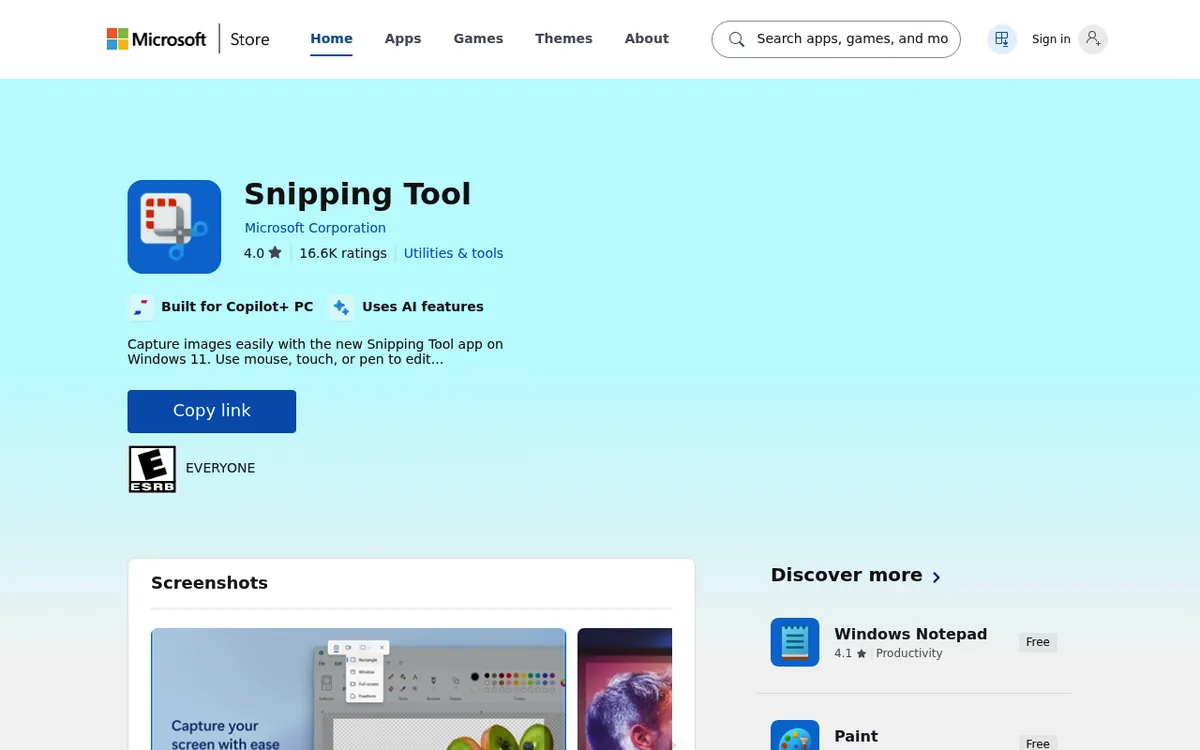
The Snipping Tool replaced Snip & Sketch. It handles basic grabs well. Press Win + Shift + S to open the capture bar. You get four modes: rectangle, freeform, window, and full screen.
What it does well:
- Instant access via the Windows screenshot shortcut
Win + Shift + S - Basic annotation with pen, highlighter, shapes, and ruler
- Text Actions to copy text out of a capture
- Delay timer (3, 5, or 10 seconds)
- Screen recording (added in recent Windows 11 updates)
Where it falls short:
- No scrolling screenshots
- Limited annotation (no text boxes, step numbers, or blur)
- No cloud upload or share links (only the Windows Share menu)
- Can't pin screenshots to your desktop
- No automated workflows
The Snipping Tool is fine for a quick grab. But you'll hit its limits fast if you take more than a few per day. Most people want better markup and cloud sharing. The tools below fill those gaps.
Want to get more out of the built-in app first? Our Snipping Tool guide for Windows 11 covers every feature. For more picks, see our Snipping Tool alternatives roundup.
Best free: ShareX
Price: Free and open source
Best for: Power users who want maximum control
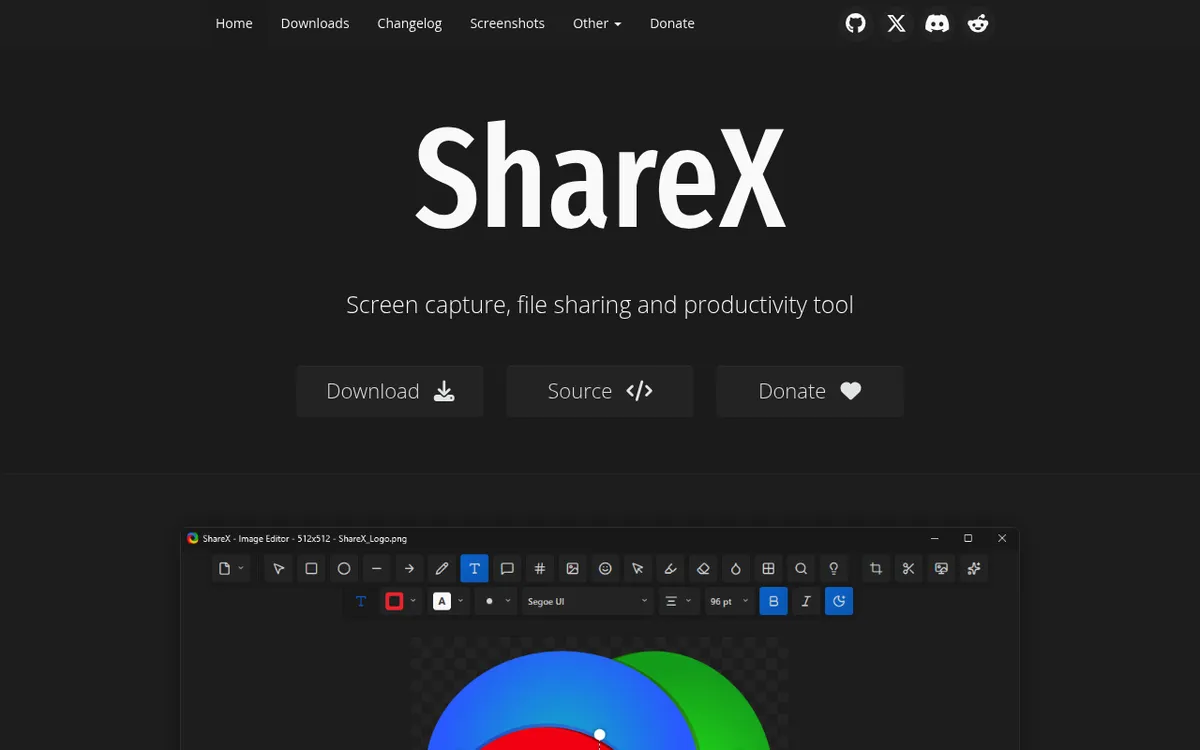
ShareX is a free, open-source screenshot app for PC. It's deeply flexible and does everything from basic grabs to auto-upload workflows.
Key features:
- 15+ capture modes including scrolling, OCR, and screen recording
- Built-in image editor with annotations, effects, and watermarks
- Auto-upload to 70+ destinations (Imgur, Google Drive, Amazon S3, custom servers)
- Workflow automation that chains actions after capture
- Color picker, hash checker, QR code scanner built in
The catch: ShareX's interface isn't pretty. The menus go deep. First-time setup takes 10 to 15 minutes. But once set up, it's fast to work with.
If you're a developer or power user, ShareX is worth a look. Our ShareX review walks through setup, and if it feels like too much, see these ShareX alternatives for Windows.
ShareX also reads text from images (OCR). That is handy for pulling an error message out of a screenshot. The Snipping Tool's Text Actions can do this too. But ShareX can run OCR after every capture, for free. For more ways to do it, see our guide to OCR software for Windows.
The auto-upload flow is where ShareX truly shines. Grab a region. It uploads to your server. A share link lands in your clipboard. All from one hotkey.
Verdict: A strong free option. Accept the learning curve and you get a tool that rivals paid options.
Best lightweight: Lightshot
Price: Free
Best for: Quick captures with minimal setup
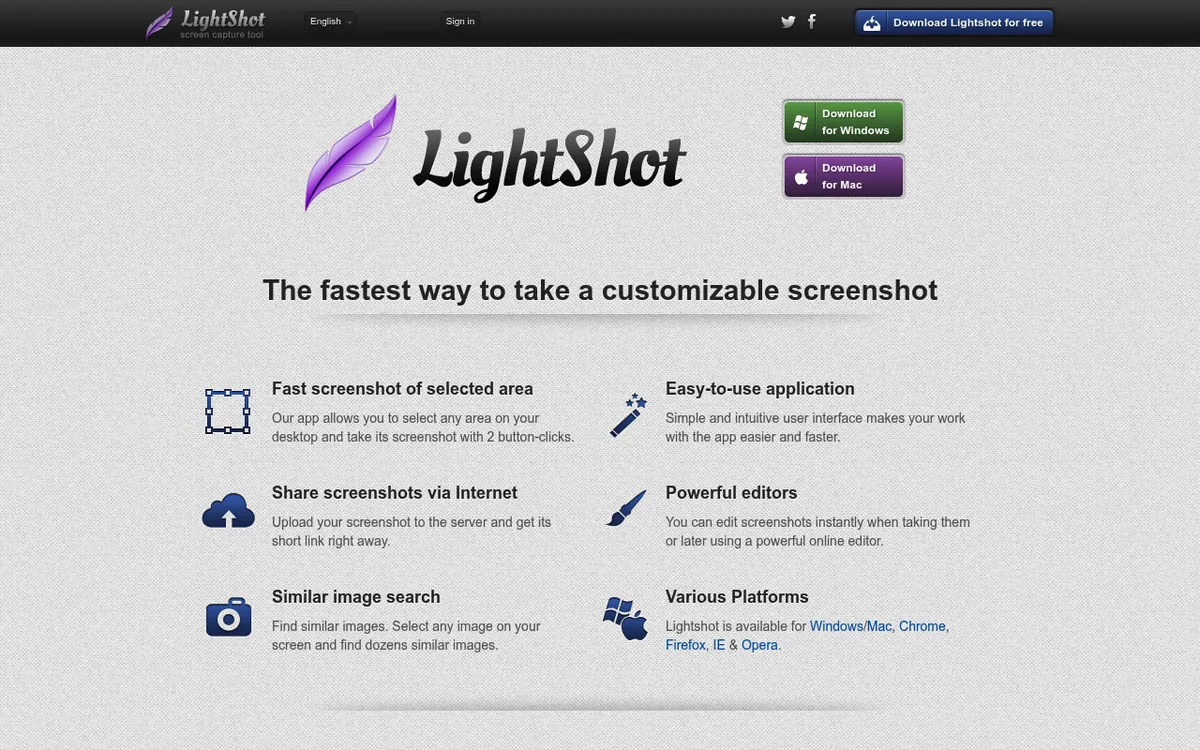
Lightshot swaps your Print Screen key for a smarter grab tool. Press PrtSc and drag a region. You get quick markup tools plus a share link. The whole thing takes about two seconds.
Key features:
- Replaces Print Screen with region capture
- Basic annotations (arrows, text, shapes, highlighter)
- Instant upload to prntscr.com with shareable link
- Google reverse image search from any capture
- Tiny footprint that uses almost no system resources
Limitations:
- No scrolling capture
- No delayed capture
- Annotations are basic (no blur, no step numbers)
- Cloud upload goes to Lightshot's servers only
Lightshot is the polar opposite of ShareX. Few features. Zero learning curve. It just works for quick grabs and shares. If its public share links worry you, see these Lightshot alternatives for Windows.
Verdict: Perfect for casual users. Install it, forget about it, use Print Screen.
Best open source: Greenshot
Price: Free and open source
Best for: Users who want a middle ground between Snipping Tool and ShareX
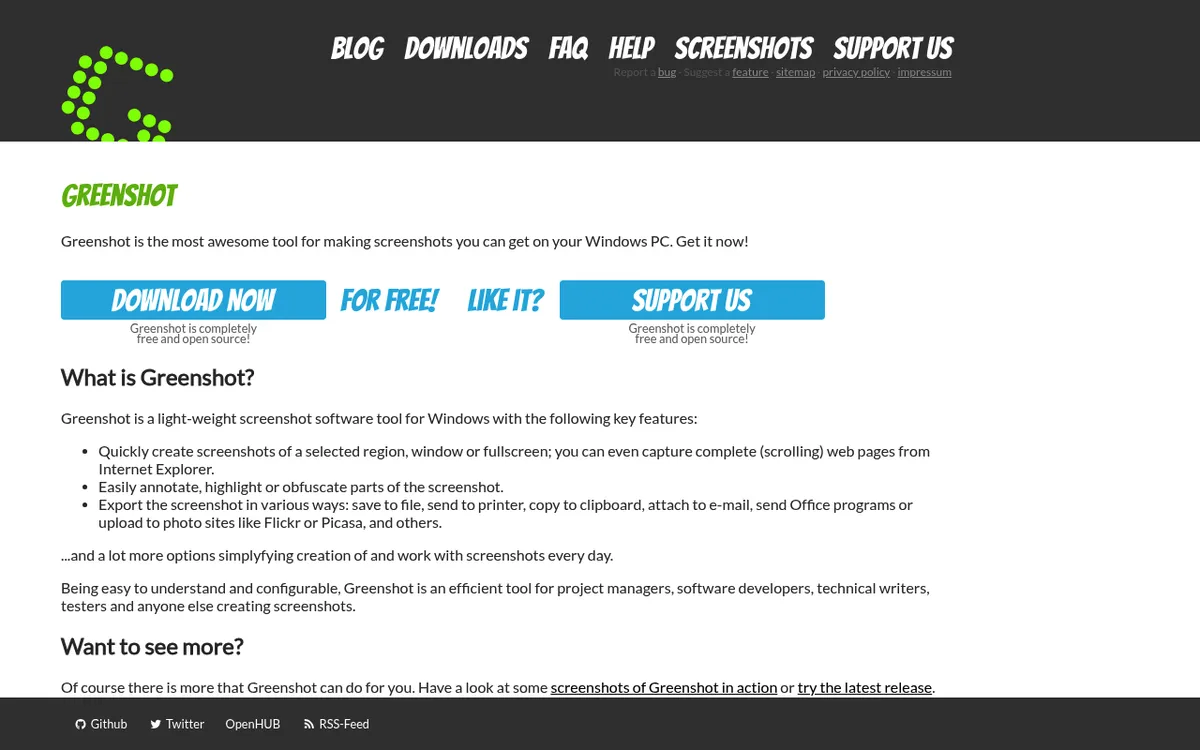
Greenshot sits between the Snipping Tool and ShareX. It's been around since 2007 and remains a solid, no-fuss pick for daily use.
Key features:
- Region, window, and full-screen capture
- Built-in editor with annotations, obfuscation, and effects
- Export directly to Office apps, printers, or clipboard
- Plugin system for Imgur, Dropbox, and other services
- Lightweight, runs quietly in the system tray
Limitations:
- Scrolling capture only works in Internet Explorer, so there is none for modern browsers or apps
- Interface looks dated compared to modern alternatives
- Big updates are rare: version 1.3 (2025) was the first major release since 2017
- No screen recording
Greenshot is the steady workhorse. It won't wow you. But it won't let you down either. If you want something more actively developed, our Greenshot alternatives for Windows roundup covers maintained picks.
Verdict: A solid, reliable choice if ShareX feels like too much and Snipping Tool feels like too little.
Best for developers: Flameshot
Price: Free and open source
Best for: Developers who live in the terminal
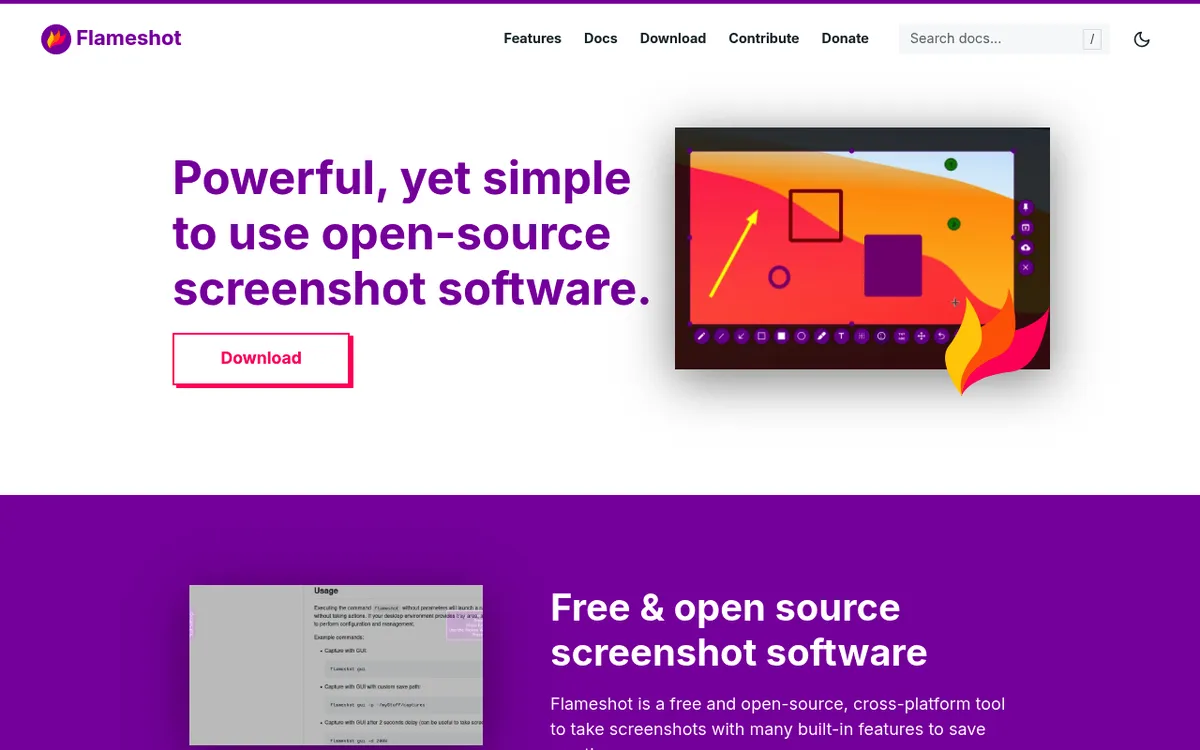
Flameshot brings Linux-style screen grabs to Windows. It's fast and keyboard-driven. Devs love it: you grab, mark up, and move on.
Key features:
- In-capture annotation (draw while selecting the region)
- CLI support for triggering captures from scripts and automation
- Customizable keyboard shortcuts
- Pin screenshots to desktop
- Cross-platform (Windows, Linux, macOS)
Limitations:
- No scrolling capture
- No OCR
- No cloud upload in the official builds (Imgur upload was dropped in v13)
- Less polished UI than commercial tools
The killer feature is drawing _while_ you capture. Select a region. Add arrows and text right in the overlay. Save or copy. No second window needed.
You can also fire captures from the command line. Run flameshot gui or flameshot full from scripts. Easy to plug into CI pipelines or test flows.
For teams on both Linux and Windows, Flameshot keeps the same tools and shortcuts on both. Only a few settings are Linux only.
Verdict: Fast and developer-friendly. The CLI integration is a real advantage for automation.
Best for AI coding agents: SlimSnap
Price: Free during launch, no registration required
Best for: Developers handing screenshots to Claude Code, Cursor, or another CLI agent
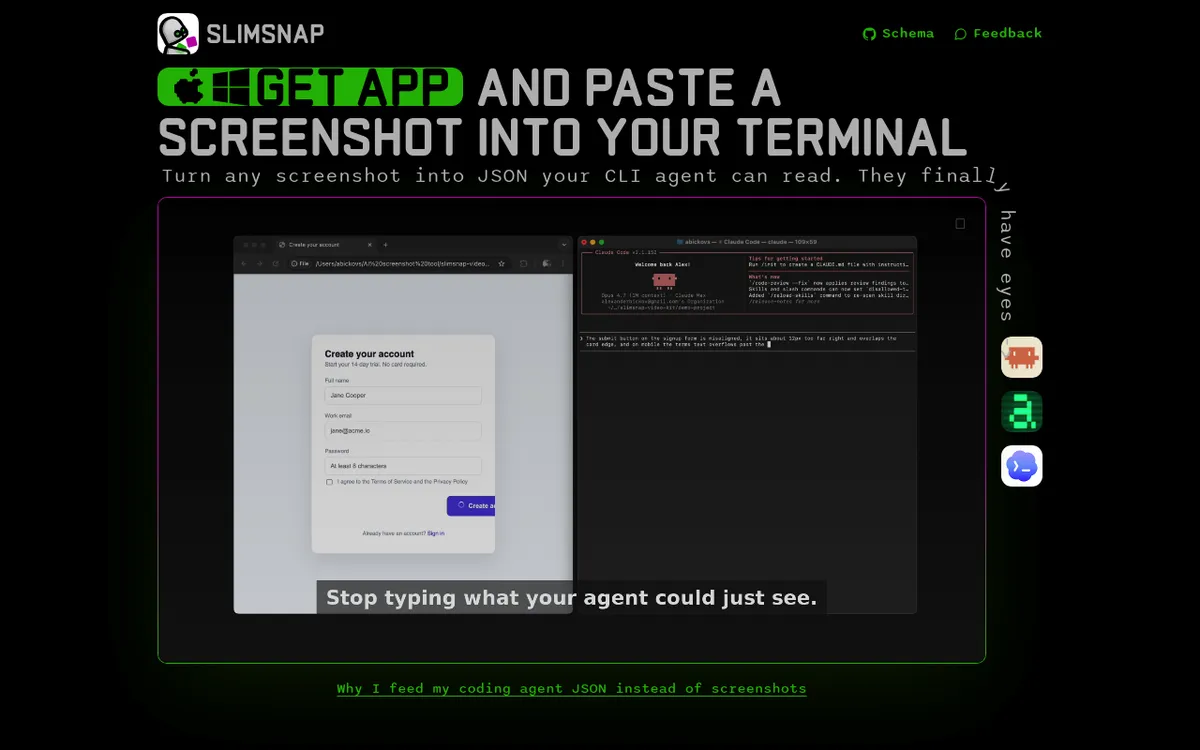
SlimSnap answers a problem none of the other tools here were built for. Terminals do not accept images, so the moment you want an AI coding agent to look at a broken layout, you end up typing a paragraph describing what a screenshot would have shown at a glance. SlimSnap captures the screen and exports it as JSON instead: every element, its text, and its position.
Key features:
- Region capture on
Ctrl + Shift + S, scrolling capture onCtrl + Shift + L - Autoscroll for long pages, split into frames under a single JSON for the whole capture
- Annotations that export as structured intent rather than drawn pixels
- Built-in OCR reads labels, buttons, and error text
- Bounding boxes in normalized 0 to 1 coordinates
- No account, no email, and no cloud upload step
- JSON schema published on GitHub under an MIT license
Limitations:
- Free only during launch, and the vendor has not said what it will cost after that
- The Mac build is Apple Silicon only, with no Intel support
- No Linux build yet
- No video or GIF recording
- Very new, with no independent reviews yet, so there is no track record to judge it on
- Windows SmartScreen may warn on first install
The annotation model is the part worth understanding. In every other tool on this list, drawing an arrow adds red pixels to an image. In SlimSnap the arrow exports as intent attached to a target element, so an agent acts on the thing you marked instead of guessing which of four buttons you meant.
There is also a connector that lets Claude read captures straight off your machine, which removes the paste step. The vendor's privacy policy states that capture and OCR run on your machine and that nothing is uploaded, though we have not tested that behavior ourselves.
Verdict: Narrow by design, and useful because of it. If your screenshots are going to an agent rather than to a person, nothing else on this list does that job.
Best browser-based: Awesome Screenshot
Price: Free, paid plans from $5/month (billed annually)
Best for: People who mostly screenshot web pages
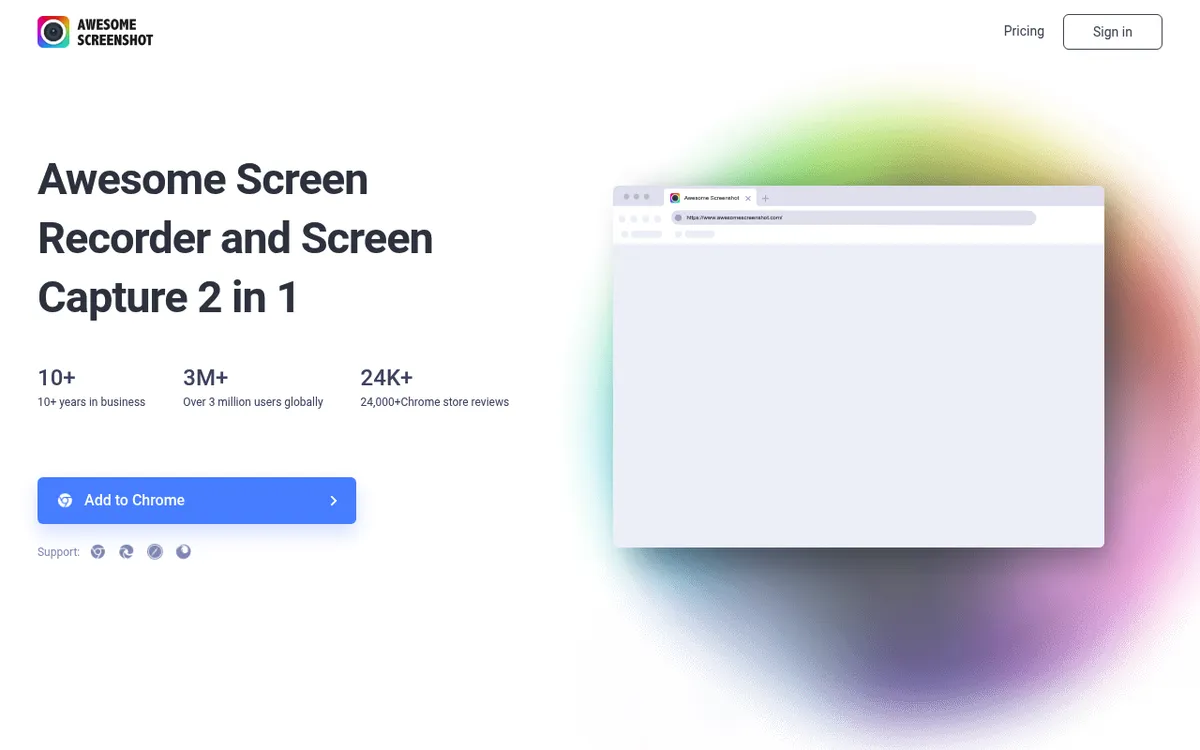
Awesome Screenshot started as a Chrome and Edge extension and now also has a free Windows desktop app. If most of your screenshots happen in the browser, you don't need a desktop app at all.
Key features:
- Full page scrolling capture (entire web page)
- Selected area and visible portion capture
- Annotation tools in the browser
- Screen recording with webcam
- Cloud storage with team sharing
- Instant link sharing
Limitations:
- The browser extension only captures web pages (desktop capture needs its separate Windows app)
- Free plan caps cloud storage at 100 screenshots and 20 recordings at 720p
- Requires an extension install (some workplaces restrict these)
- Performance can lag on very long pages
Awesome Screenshot makes sense if you work 90% in the browser. For anything outside it, you'll need its Windows app or another desktop tool.
If you frequently capture web pages and need to turn them into a document, our free image to PDF converter can help with that workflow.
Verdict: Great companion for web work. Not a full replacement for desktop tools.
Best for pinning: Snipaste
Price: Free (Pro from $8.99)
Best for: Designers and anyone who pastes screenshots frequently
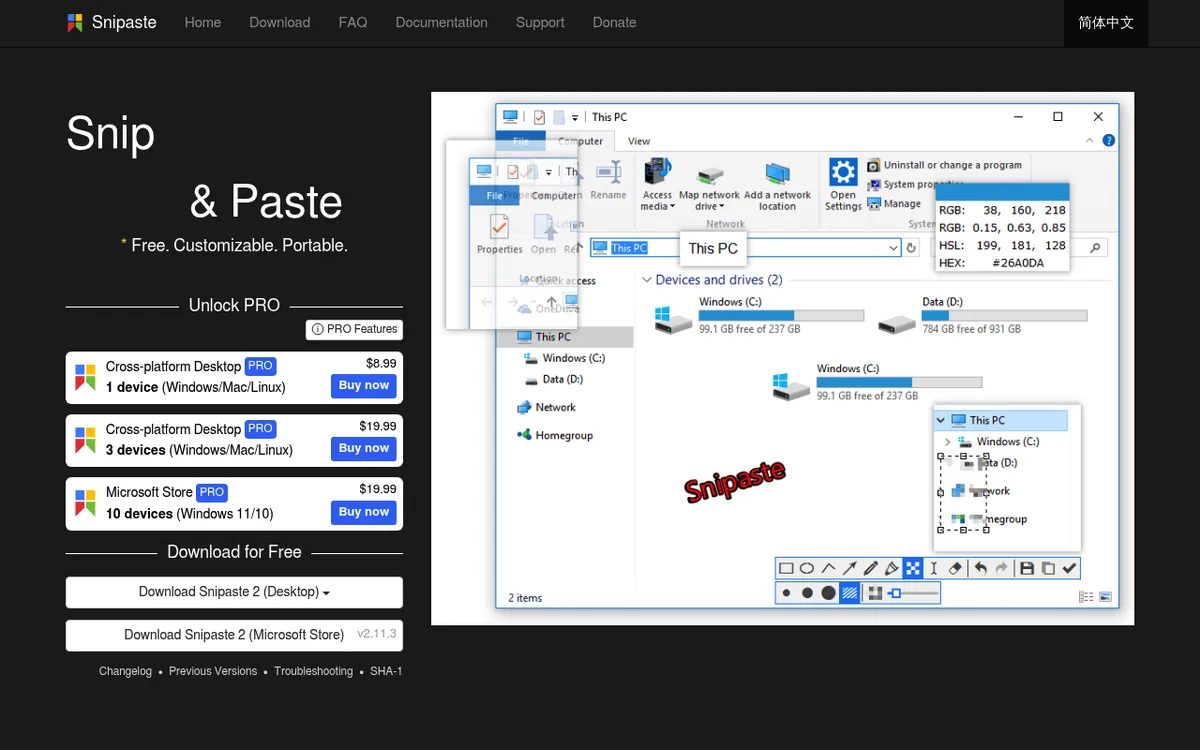
Snipaste takes a fresh approach. Snip first. Then paste the grab as a floating window on your desktop. Pin several captures. Mark them up. Adjust opacity. It's great for reference work and design review.
Key features:
- Paste screenshots as floating windows
- Group and organize pinned screenshots
- Advanced annotation with smooth shapes
- Color picker with format conversion
- Pixel-level precision with magnifier
- Customizable themes and shortcuts
Limitations:
- No scrolling capture
- No cloud upload built in
- No screen recording
- The "paste" workflow takes getting used to
Snipaste reimagines what a screenshot app for PC can be. The pinning feature alone makes it worth trying.
It's great for pixel-level compare work. Pin two grabs side by side. Compare them without switching windows. Designers and devs use this for visual QA and code review.
Verdict: Unique pinning concept. Excellent for visual comparison work and designers.
Comparison table
| Tool | Price | Scrolling | Annotations | Cloud Upload | Recording | Best For |
|---|---|---|---|---|---|---|
| ScreenSnap Pro | $34 once | Websites (URL) | Excellent (17 tools) | ✅ | ✅ (video + GIF + editor) | Snagit-style toolkit, one-time price |
| Snipping Tool | Free | ❌ | Basic | ❌ | Basic | Quick grabs |
| ShareX | Free | ✅ | Advanced | ✅ (70+) | ✅ | Power users |
| Lightshot | Free | ❌ | Basic | ✅ | ❌ | Casual use |
| Greenshot | Free | Limited | Good | Plugin | ❌ | Middle ground |
| Flameshot | Free | ❌ | Good | ❌ | ❌ | Developers |
| SlimSnap | Free during launch | ✅ | Good (exports as intent) | ❌ | ❌ | Handing captures to AI agents |
| Awesome Screenshot | Free / from $5/mo | ✅ | Good | ✅ | ✅ | Browser captures |
| Snipaste | Free / from $8.99 | ❌ | Good | ❌ | ❌ | Pinning and visual compare |
Quick guide to the shortlist:
- Want the full Snagit-style toolkit without a subscription: ScreenSnap Pro ($34 once)
- Want a free tool and don't mind a learning curve: ShareX
- Want something you install and forget: Lightshot
- Need scrolling capture inside desktop apps: ShareX
- Live in the terminal: Flameshot (CLI + in-capture editing)
- Feeding screenshots to an AI coding agent: SlimSnap (exports JSON instead of an image)
How to choose the right tool
With nine solid options, here's how to narrow it down based on your actual workflow:
Screenshots are part of your daily work? Pick ScreenSnap Pro. Bug reports, how-to guides, client feedback, and slide decks all need clear markup, and its step numbers, callouts, and blur get you there in seconds for a one-time $34.
Fewer than 5 screenshots per day? Stick with Snipping Tool. Or install Lightshot for a small upgrade. You don't need ShareX's complexity.
Making tech docs and SOPs? ScreenSnap Pro covers the Snagit-style essentials (step numbers, callouts, magnifier, and screen recording when a still is not enough) without a yearly plan. Snipaste is a strong free pick for visual compare work.
Developer? Pick Flameshot or ShareX. Flameshot wins for speed and CLI use. ShareX wins for auto-upload and cloud features. Both are free and open source. If the screenshot is going to an AI coding agent rather than to a colleague, SlimSnap is the one built for that handoff.
Mostly in the browser? Start with Awesome Screenshot. Add Lightshot for the occasional desktop capture.
Need to blur sensitive info? ScreenSnap Pro, ShareX, Greenshot, and Flameshot include blur or pixelate tools. Lightshot doesn't, so you'd need a separate editor. For a one-off image, the free blur image tool works in your browser.
Want beautiful screenshots? ScreenSnap Pro gives you 500+ built-in backgrounds, with padding and shadow in one click. For a free option, ShareX's new image editor adds gradient, color, and wallpaper backgrounds. For a one-off image, our free screenshot background generator works in the browser.
Need to save screenshots in specific formats? Most tools default to PNG. If you need JPG or WebP, check the export settings. Our guide on PNG vs JPG explains when each format is the better choice. You can also convert formats after capture with our free image format converter.
The one-time alternative to a Snagit subscription
Snagit moved to subscription-only pricing in 2025, so the tool many Windows users grew up with now costs $39 per user, every year. ScreenSnap Pro was built for the same daily job: capture, explain with clear markup, and share. It does that for a single payment of $34, with every future update included.
It runs natively on Windows 10 and 11, records your screen when a still image is not enough, and adds the polish (backgrounds, padding, shadows) that makes a screenshot ready for a doc or a slide. There is a 30-day money-back guarantee. See ScreenSnap Pro pricing.
Frequently Asked Questions

Morgan
Indie DeveloperIndie developer, founder of ScreenSnap Pro. A decade of shipping consumer Mac apps and developer tools. Read full bio
@m_0_r_g_a_n_