PNG vs JPG: Which Image Format to Use (2026)
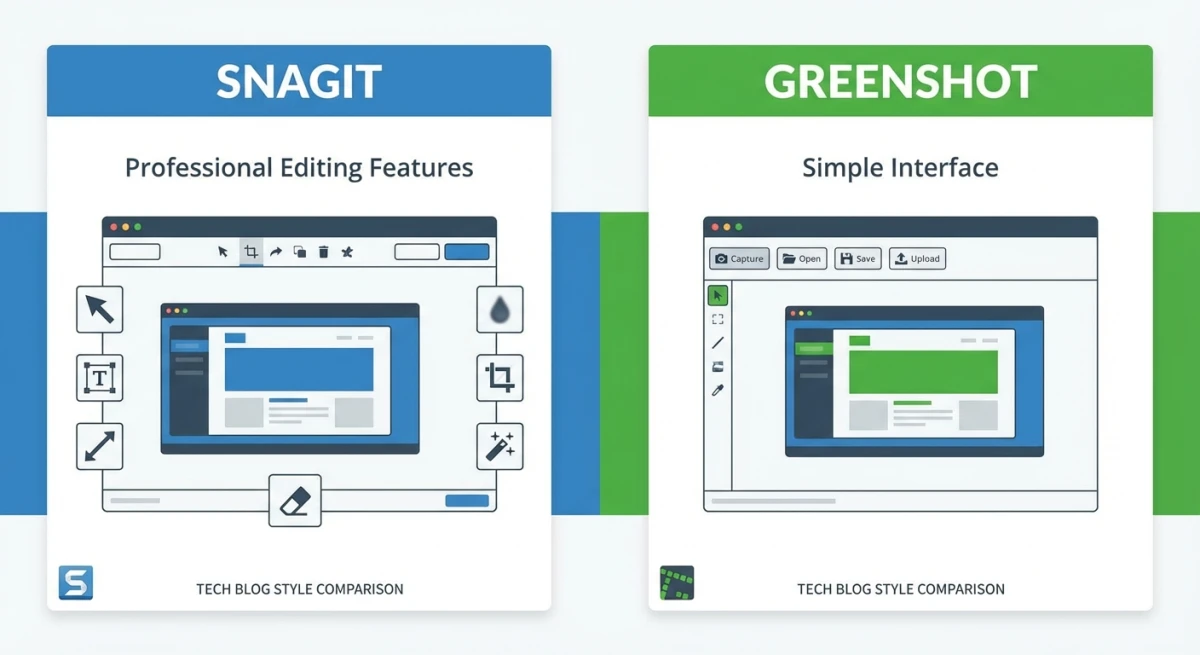
PNG vs JPG comes down to one question: do you need perfect quality or smaller file sizes? PNG keeps every pixel intact and supports transparency. JPG compresses photos into much smaller files but loses some detail. Knowing which to pick saves you from blurry screenshots and bloated web pages, especially if you're saving captures from a tool like ScreenSnap Pro.
This guide breaks down the real differences, shows when each format wins, and helps you pick the right one for screenshots, photos, web images, and more.
PNG vs JPG at a glance
Here's the quick comparison:
| Feature | PNG | JPG |
|---|---|---|
| Compression | Lossless (no quality loss) | Lossy (some quality loss) |
| File size | Larger | Smaller |
| Transparency | ✅ Yes | ❌ No |
| Best for | Screenshots, logos, text, graphics | Photos, social media, web pages |
| Color depth | Up to 48-bit | 24-bit |
| Animation | ❌ (use APNG or GIF) | ❌ |
| Web support | All browsers | All browsers |
| Editing | No quality loss when re-saved | Loses quality each time you save |
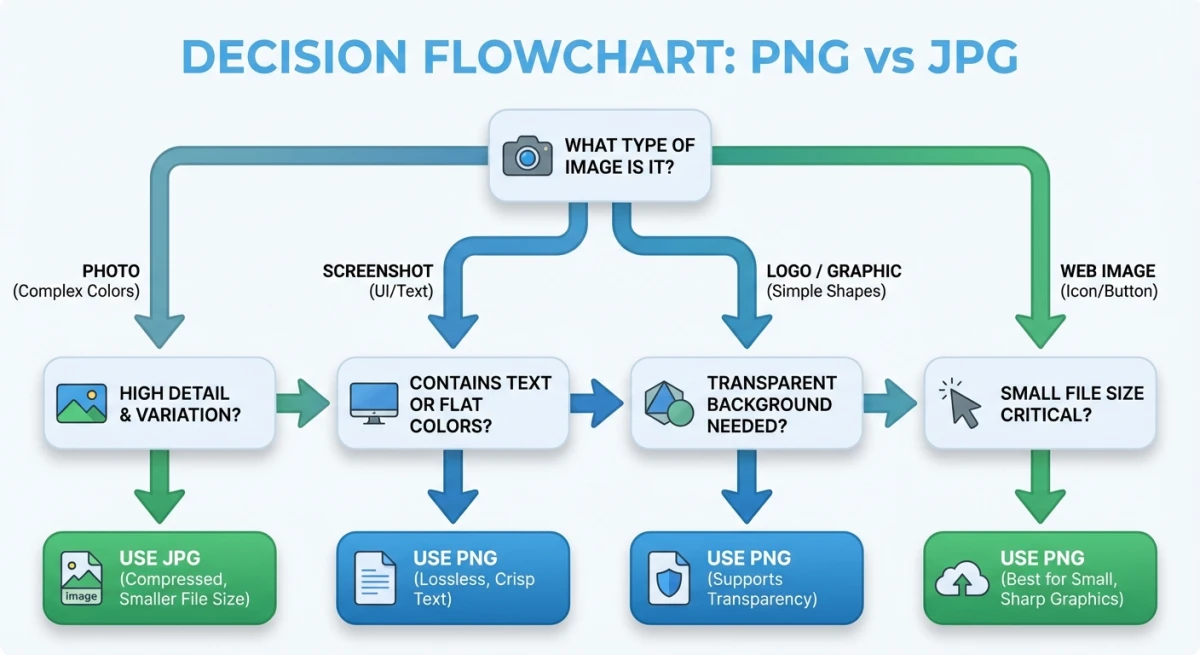
If you're in a rush: use PNG for screenshots and graphics with text. Use JPG for photos and images where file size matters.
What is PNG?
PNG stands for Portable Network Graphics. It was created in 1996 as a free, open-source replacement for GIF (which had patent issues at the time).
The key thing about PNG is lossless compression. When you save a PNG, every pixel stays the same. Open it, edit it, save it again: no quality lost. Ever.
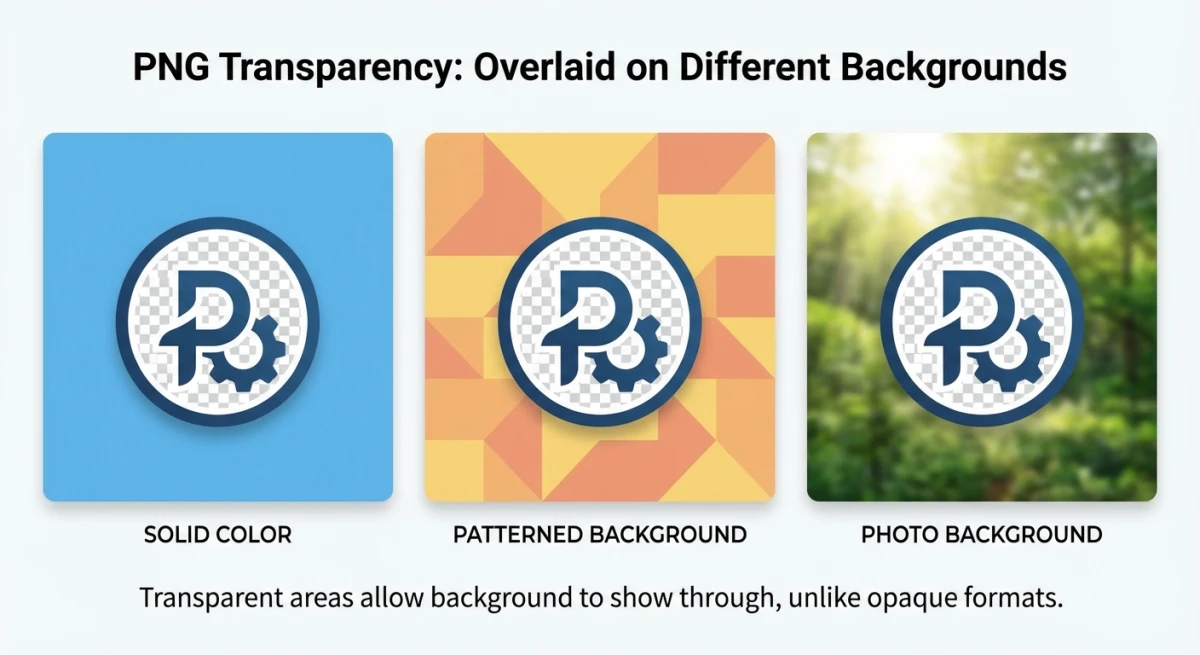
PNG also supports see-through backgrounds. You can have fully clear areas, partly see-through layers, and smooth edges on logos. This makes PNG the go-to format for logos, icons, and UI elements.
The tradeoff? File sizes. A PNG screenshot of your desktop might be 2-5 MB. The same image as a JPG could be 200-500 KB, up to 10x smaller.
PNG works best when your image has:
- Sharp edges (text, UI elements, code)
- Flat colors (logos, icons, diagrams)
- Transparency (overlays, watermarks)
- Few colors (line art, charts)
What is JPG?
JPG (also called JPEG) stands for Joint Photographic Experts Group. It was created in 1992 specifically for compressing photographic images.
JPG uses lossy compression. It looks at your image, finds details your eyes won't miss, and removes them. The result is much smaller files (often 80-90% smaller than PNG) with quality that still looks great to most people.
You control the trade-off with a quality slider (0-100). At quality 80-90, most photos look just like the original. Below 50, you start seeing ugly patches: blocky areas and blurry edges, mainly around text and sharp lines.
JPG does not support transparency. If you need a transparent background, JPG won't work.
JPG works best when your image has:
- Complex scenes (photos, gradients, textures)
- Millions of colors (landscapes, portraits)
- No text or sharp edges to preserve
- Size constraints (email attachments, web pages)
Key differences: compression, quality, transparency, and file size
Lossy vs lossless compression
This is the core difference between the two formats.
PNG (lossless): Shrinks the file without cutting any data. Think of it like a ZIP file for images: smaller, but nothing is lost. You can open, edit, and re-save a PNG hundreds of times and it stays the same.
JPG (lossy): Cuts image data to shrink file sizes. Each time you open and re-save a JPG, it cuts a bit more. This is called generation loss. After a few rounds of editing and saving, the damage shows up clearly.
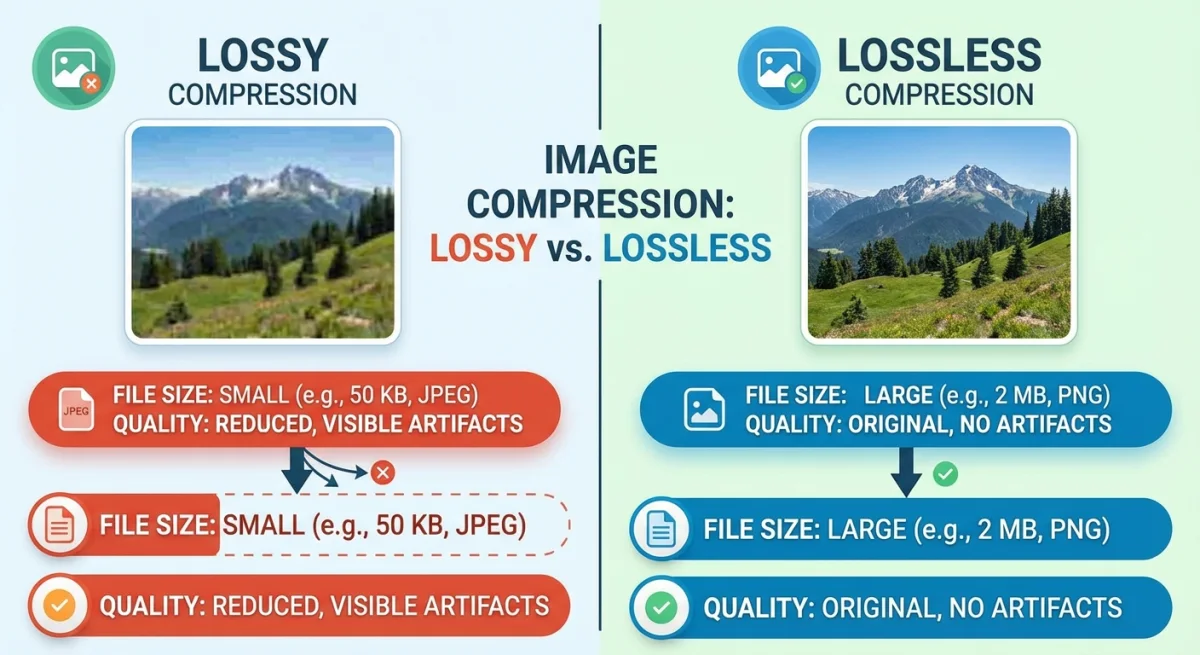
Pro tip: If you edit photos often, work with PNG or RAW originals and only export to JPG as the final step. This avoids generation loss.
Transparency
PNG supports full alpha channels, 256 levels from fully clear to fully solid. This means smooth edges on logos and clean overlays.
JPG has no see-through support at all. Any clear area turns into a solid color (usually white) when you save as JPG.
If you need to place a logo over different backgrounds, layer text on images, or create UI elements, PNG is your only choice between these two.
File size
For a typical 1920×1080 screenshot:
| Content type | PNG size | JPG size (quality 85) | Difference |
|---|---|---|---|
| Desktop screenshot | 2.1 MB | 280 KB | PNG is 7.5x larger |
| Photo of landscape | 4.8 MB | 420 KB | PNG is 11x larger |
| Simple diagram | 45 KB | 62 KB | PNG is actually smaller |
| Text on white | 120 KB | 95 KB | Similar sizes |
Notice something? For images with few colors and large flat areas (diagrams, simple graphics), PNG can actually be smaller than JPG. That's because lossless compression is very efficient with repetitive patterns.
For photos and complex images, JPG wins on file size by a wide margin.
Quality after editing
Every time you save a JPG, it re-compresses and loses a tiny bit of quality. Open a JPG in any editor, make no changes, and save it: the file is now slightly worse than before.
PNG doesn't have this problem. Save it a thousand times and it stays identical. This makes PNG the better archival format if you plan to edit images repeatedly.
When to use PNG
Screenshots. Mac saves screenshots as PNG by default for good reason. Screenshots contain text, UI elements, and sharp edges that JPG compression would blur. If you take Mac screenshots regularly, PNG preserves every detail.
Logos and icons. Any graphic that needs a transparent background or crisp edges belongs in PNG format.
Text-heavy images. Infographics, code snippets, and slides with text look terrible in JPG. The compression creates visible artifacts around letters. PNG keeps text razor-sharp.
Graphics for editing. If you're going to open, edit, and re-save the image multiple times, use PNG to avoid generation loss.
Technical documentation. When creating step-by-step guides with screenshots, PNG ensures every menu item and button label stays readable.
Images with few colors. Line art, wireframes, charts, and diagrams compress efficiently as PNG, sometimes smaller than JPG.

Tired of plain screenshots? Try ScreenSnap Pro.
Beautiful backgrounds, pro annotations, GIF recording, and instant cloud sharing, all in one app. Pay $34 once, own it forever.
See pricing and featuresWhen to use JPG
Photographs. Any photo from a camera or phone compresses beautifully as JPG. The lossy compression is nearly invisible in complex scenes with lots of color variation.
Web pages. Page load speed matters for SEO and user experience. JPG's smaller file sizes help pages load faster. Most image optimization guides recommend JPG for photographic content.
Social media. Platforms like Instagram, Twitter, and Facebook re-compress your uploads anyway. Starting with a well-compressed JPG prevents double compression artifacts.
Email attachments. JPG keeps files small enough to share without hitting attachment limits. A 5 MB PNG photo becomes a 400 KB JPG, which is much easier to send.
Backgrounds and textures. Large atmospheric images, gradients, and textures work great as JPG because slight quality loss isn't noticeable in the background.
PNG vs JPG for screenshots: which is better?
PNG wins for screenshots. Here's why:
Screenshots are full of text, buttons, menus, and sharp edges. JPG compression adds artifacts around these elements: fuzzy halos around text and blocky patches near color boundaries. These artifacts make screenshots look unprofessional and can make small text unreadable.
That's why macOS defaults to PNG for screenshots. When you press ⌘ + Shift + 3 or ⌘ + Shift + 4, the result is always a PNG file.
Changing Mac screenshot format
If you want JPG screenshots instead (maybe for smaller file sizes), you can change the default in Terminal:
defaults write com.apple.screencapture type jpg
killall SystemUIServer
To switch back to PNG:
defaults write com.apple.screencapture type png
killall SystemUIServer
You can also change this and other capture settings through Mac screenshot settings. For a deeper look at every option, check our guide on where screenshots go on Mac and how to organize them.
When JPG screenshots make sense
There are a few cases where JPG screenshots are fine:
- Sharing in chat apps. Slack and Discord handle JPG well, and smaller files upload faster
- Screenshots of photos. If the screenshot is mostly a photographic image anyway
- Storage-constrained. If you take hundreds of screenshots and need to save disk space
For professional use like documentation, bug reports, and tutorials, stick with PNG.
What about WebP, AVIF, and HEIC?
PNG and JPG have been around since the early 1990s. Newer formats offer better compression, but adoption varies.
WebP
Developed by Google, WebP supports both lossy and lossless compression, plus transparency. It produces files 25-35% smaller than equivalent JPG or PNG files.
Pros: Smaller files, supports both lossy and lossless, transparency, animation.
Cons: Not universally supported by all image editors and older software.
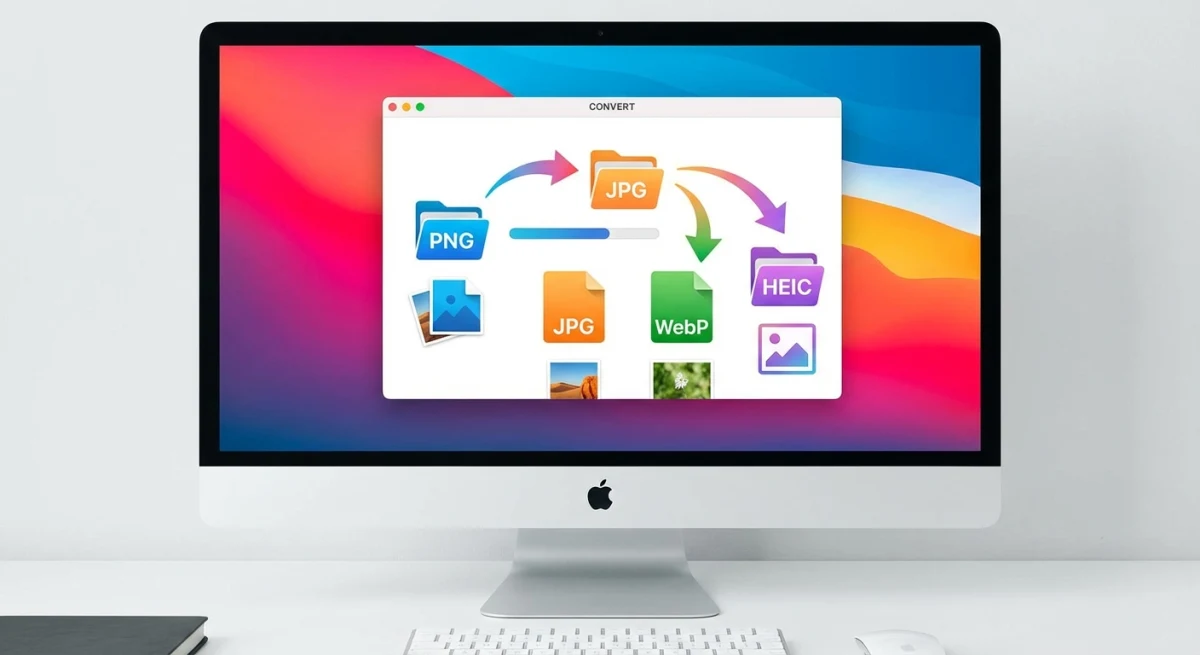
WebP is great for web images. All modern browsers support it. If you need to convert JPGs to WebP, there are free tools that make it simple.
AVIF
Based on the AV1 video codec, AVIF compresses even better than WebP, up to 50% smaller than JPG at similar quality. It supports HDR, wide color gamut, and transparency.
Pros: Best compression ratio, HDR support, transparency.
Cons: Slower to encode, limited editor support, still gaining adoption.
HEIC
Apple's preferred format for iPhone photos. HEIC uses the HEVC codec and produces files roughly half the size of equivalent JPGs.
Pros: Excellent compression, supports Live Photos, 16-bit color.
Cons: Mostly Apple ecosystem, limited Windows/web support.
If you receive HEIC files and need to convert them, our HEIC to JPG converter handles it instantly.
Which format should you actually use?
For most people in 2026:
- Screenshots and graphics: PNG (maximum compatibility)
- Photos for web: WebP (best size-to-quality ratio)
- Photos for sharing: JPG (universal compatibility)
- Archival: PNG or TIFF (no quality loss)
- iPhone photos: HEIC is fine until you need to share outside Apple
Common PNG and JPG mistakes to avoid
These are the errors we see most often:
Saving screenshots as JPG. This adds blur around text and UI elements. If you need to share a screenshot of a form, error message, or code, always use PNG. The text will be much easier to read.
Re-saving JPGs over and over. Each save cycle adds more damage. If you edit a photo in Photoshop and save as JPG five times, the quality drops with each save. Work in PNG or PSD format and export to JPG only as the last step.
Using PNG for large photos on websites. A 5 MB PNG hero image kills your page load speed. Photos compress well as JPG or WebP. According to Google's web guidelines, choosing the right format is one of the easiest wins for page speed.
Ignoring WebP. Many teams still upload only PNG and JPG to their sites. WebP is now supported by all major browsers and cuts file sizes by 25-35% with no visible quality loss. It's worth the switch for web content.
Converting JPG to PNG expecting better quality. Converting a lossy file to a lossless format doesn't bring back lost data. The file just gets bigger with no quality gain. Always start from the best source you have.
Forgetting to compress before uploading. Even if you pick the right format, an uncompressed image can still be too big. Run your files through an image compressor before posting to the web.
How to convert between PNG and JPG
Converting between formats is straightforward. Here are the quickest methods:
On Mac (built-in)
- Open the image in Preview.
- Go to File → Export.
- Choose your format from the Format dropdown.
- Adjust the quality slider (for JPG).
- Click Save.
Using free online tools
For quick conversions without installing anything:
- PNG to JPG converter: converts PNG files to compressed JPG
- JPG to PNG converter: converts JPG files to lossless PNG
- Image format converter: handles multiple formats in one tool
Batch conversion on Mac
If you have many images to convert, use the sips command in Terminal:
# Convert all PNGs in a folder to JPG
for file in *.png; do
  sips -s format jpeg "$file" --out "${file%.png}.jpg"
done
For web optimization, run your images through an image compressor after converting to get the smallest possible file sizes.
How Mac screenshot format affects quality
Mac's built-in screenshot tool saves as PNG by default. This is intentional: Apple prioritizes quality over file size for captures.
Here's how the format choice impacts your screenshots:
PNG (default): Perfect pixel reproduction. A 1920×1080 Retina screenshot is around 1-3 MB. Text stays sharp, edges stay crisp, and colors are exact.
JPG: Smaller files (200-500 KB) but with compression artifacts. Text gets slightly fuzzy. Fine for casual sharing, but noticeable in professional contexts.
HEIC: Available on newer macOS versions. Similar quality to PNG but roughly 40% smaller files. Limited compatibility outside Apple devices.
If you take screenshots for work, especially for annotating and marking up, keep the default PNG format. The quality difference is worth the extra storage.
For quick screen captures you'll share in Slack or email, tools like ScreenSnap Pro let you capture, annotate, and share in one step. You can also crop screenshots and add professional backgrounds before sharing.
Frequently Asked Questions

Morgan
Indie DeveloperIndie developer, founder of ScreenSnap Pro. A decade of shipping consumer Mac apps and developer tools. Read full bio
@m_0_r_g_a_n_