Best Image Format Converters for Mac (Free, 2026)
An image format converter changes your files from one type to another: PNG to JPG, HEIC to WebP, TIFF to PNG, and so on. If you work with images on a Mac, you've likely needed this at least once. Maybe a website only takes JPGs. Maybe a client sent HEIC files and you need PNGs. Maybe you want smaller WebP files for your blog. If your source images come from screenshots taken with ScreenSnap Pro, you can pick the export format up front and skip the conversion step entirely.
The good news: your Mac has built-in tools that handle most conversions. For more complex needs, free online and desktop apps fill the gaps.
Here are seven free ways to convert image formats on Mac, from the simplest to the most powerful.
When you need to convert image formats
Before diving into tools, here's when format conversion matters:
- Web publishing. PNG screenshots are too large for websites. Convert to WebP or JPG for faster page loads.
- Email and chat. Some apps don't preview HEIC or TIFF. Convert to JPG or PNG for wide support.
- Print work. Printers often need TIFF or high-quality JPG at 300 DPI. Web formats won't cut it.
- App requirements. Some tools, forms, or uploads only accept certain formats.
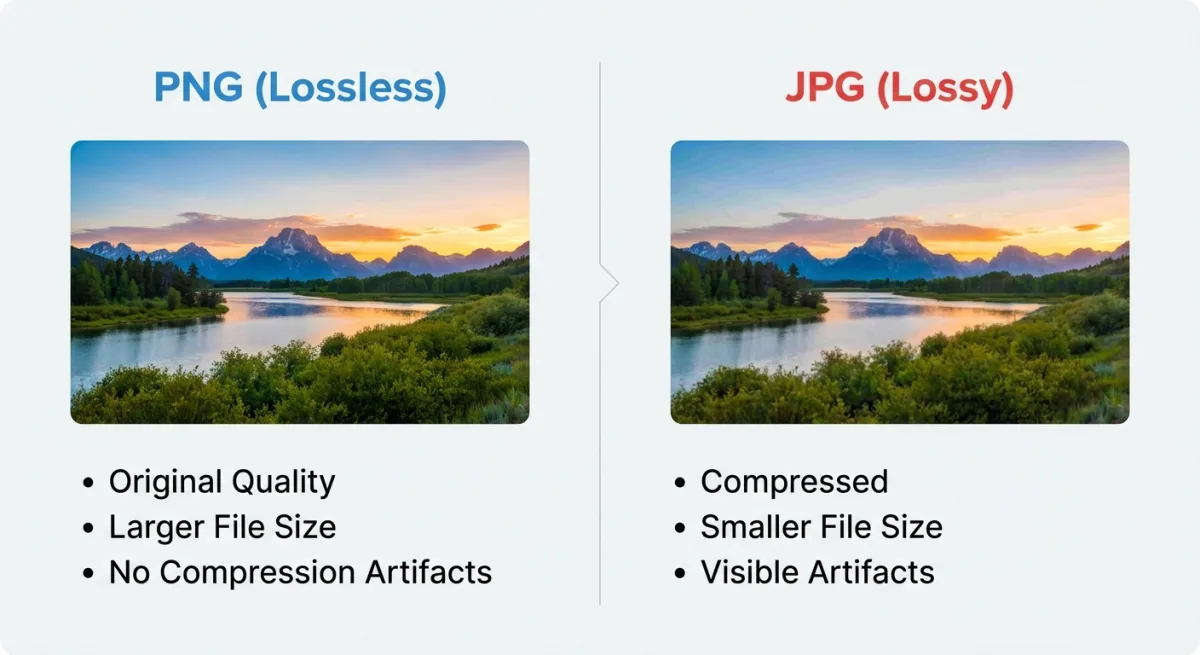
- File size. A 5MB PNG screenshot might shrink to 200KB as a WebP. That matters when you share dozens per day.
- Transparency. Need a see-through background? You must use PNG, WebP, or TIFF rather than JPG.
Knowing which format fits which job saves time. We'll cover that in the format comparison table below.
Built-in Mac tools for image conversion
You don't need to install anything for basic conversions. macOS has three built-in options.
Preview (single files or small batches)
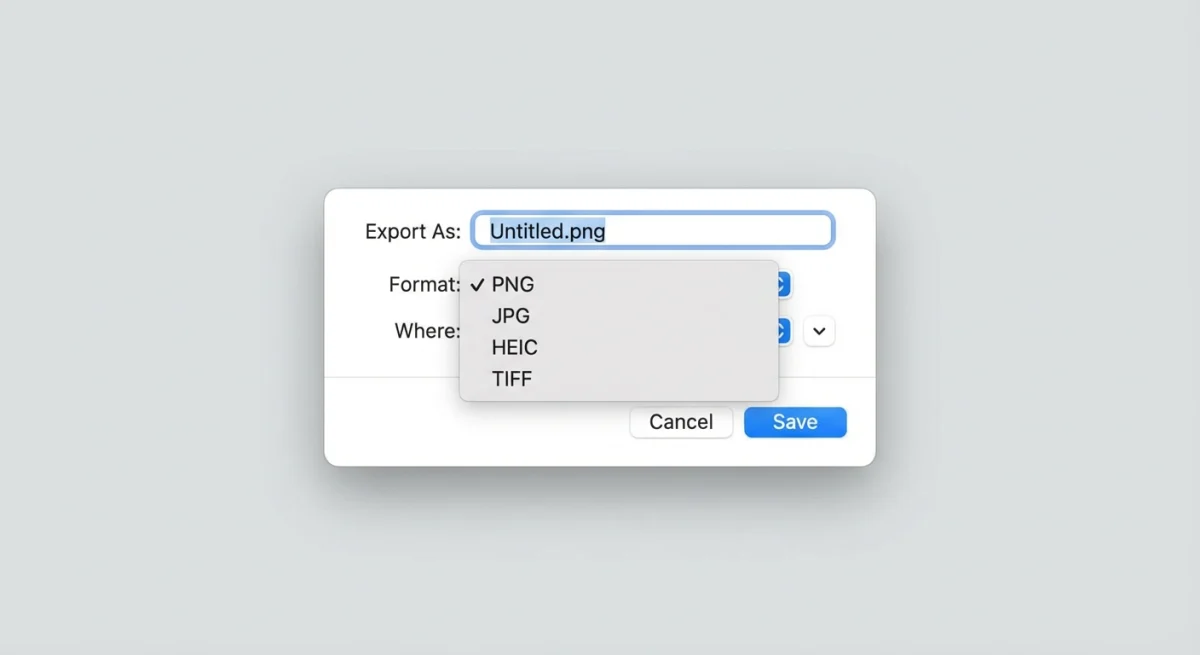
Preview is the fastest way to convert one or a few images.
Single file:
- Open the image in Preview.
- Go to File → Export.
- Pick the format from the dropdown (JPEG, PNG, HEIC, TIFF, or PDF).
- Set quality if needed.
- Click Save.
Batch convert:
- Open all images in Preview (select them in Finder, right-click → Open With → Preview).
- In the sidebar, press
⌘ + Ato select all. - Go to File → Export Selected Images.
- Pick a format and output folder.
- Click Choose.
Preview handles PNG, JPG, HEIC, TIFF, GIF, BMP, and PDF. It doesn't support WebP export, though. For WebP, use one of the tools below.
According to Apple's Preview guide, you can also hold the Option key while clicking the Format dropdown to see extra formats like JPEG 2000 and OpenEXR.
For more on editing images in Preview, check our edit screenshot guide.
sips (Terminal one-liner)
The sips command is built into macOS and handles format conversion from Terminal. It's fast for quick one-off conversions.
# Convert a single file
sips -s format png input.heic --out output.png

# Convert all JPGs in a folder to PNG
for f in *.jpg; do sips -s format png "$f" --out "${f%.jpg}.png"; done
Supported formats: JPEG, PNG, TIFF, GIF, BMP, HEIC, and more. No WebP support.
When to use sips: You're already in Terminal and need a quick convert without opening any app. It's also great for scripts and automation.
Automator (batch workflows)
Automator can build a reusable workflow for format conversion:
- Open Automator and choose Quick Action.
- Set "Workflow receives current" to image files in Finder.
- Add the action Change Type of Images.
- Pick your target format (JPEG, PNG, TIFF, BMP).
- Save the workflow with a name like "Convert to PNG."
Now you can right-click any image (or group of images) in Finder, go to Quick Actions, and pick your converter. It runs in a flash.
The downside: Automator only supports the same formats as Preview. No WebP, no AVIF.
Best free online image converters
Online tools handle formats that Mac's built-in tools can't, such as WebP, AVIF, and SVG.
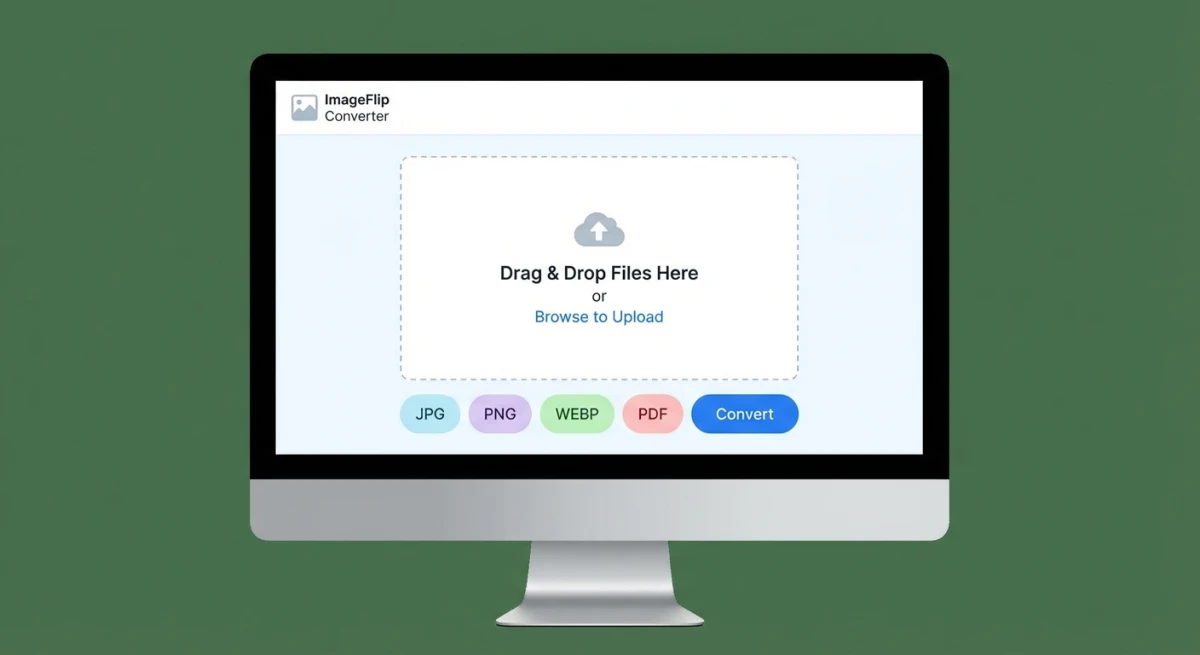
ScreenSnap Pro's free online converter
Our own image format converter runs right in your browser. No upload to a server. The conversion happens on your device.
- Supports PNG, JPG, WebP, GIF, BMP, TIFF
- Files stay on your Mac (no cloud upload)
- Free, no sign-up
- Works on any browser
This is the best option when privacy matters. Your images never leave your computer.
We also have specific converters for common tasks:
CloudConvert
CloudConvert is a versatile online converter. It supports over 200 formats, not just images but also documents, videos, and audio.
- Formats: PNG, JPG, WebP, AVIF, SVG, TIFF, HEIC, ICO, PDF, and many more
- Batch: Up to 25 files at once (free tier)
- API: For developers who need to automate
- Privacy: Files are deleted after 24 hours
Free tier: 25 conversions per day. Paid plans start at $8/month for more volume.
CloudConvert is a useful option when you need a rare format or want fine control over quality settings. The interface is clean, and it shows a preview before you download.
Convertio
Convertio is another solid online option. It's simpler than CloudConvert but handles common image formats well.
- Formats: PNG, JPG, WebP, GIF, BMP, TIFF, SVG, ICO
- Batch: Up to 2 files at once (free), more on paid plans
- Max file size: 100MB (free)
The free tier is tight, with only 2 files at a time. But it works well for occasional one-off conversions.
Privacy note: Both CloudConvert and Convertio upload files to their servers. Don't use them for private or sensitive images. Use ScreenSnap Pro's converter or a desktop tool instead.
Best Mac apps for image conversion
For heavy use (hundreds of files, complex settings, or WebP/AVIF support), a desktop app is the way to go.
XnConvert (free, powerful)
XnConvert is a free batch image converter and editor, and a capable free desktop option for Mac.
- 500+ input formats including RAW, WebP, AVIF
- Output: PNG, JPG, WebP, TIFF, BMP, GIF, and more
- Batch mode: Process thousands of files at once
- Actions: Resize, crop, rotate, watermark, and adjust colors during conversion
- Profiles: Save your settings for repeated use
XnConvert stands out because it's not just a converter. It's a batch processor. You can chain actions: resize to 800px wide, convert to WebP at 80% quality, and add a watermark, all in one run. For the opposite job, we compared eight AI watermark removers on identical photos.
Pricing: Free for personal use. $20 one-time for commercial.
ImageMagick (developer tool)
ImageMagick is the Swiss Army knife of image processing. It runs from Terminal and handles almost any format.
# Install
brew install imagemagick

# Convert single file
magick input.png output.webp

# Batch convert all PNGs to WebP at 85% quality
for f in *.png; do magick "$f" -quality 85 "${f%.png}.webp"; done

# Convert and resize
magick input.tiff -resize 1200x output.jpg
ImageMagick supports PNG, JPG, WebP, AVIF, HEIC, TIFF, GIF, SVG, PDF, BMP, ICO, and hundreds more. It can also strip metadata, adjust quality, crop, and transform in a single command.
When to use it: You're comfortable with Terminal and need to convert lots of files, or you want to put conversion into a script or CI pipeline.
For a related workflow, see our guide on converting MOV to GIF on Mac.

Tired of plain screenshots? Try ScreenSnap Pro.
Beautiful backgrounds, pro annotations, GIF recording, and instant cloud sharing, all in one app. Pay $34 once, own it forever.
See pricing and featuresImage format comparison: which format for what?
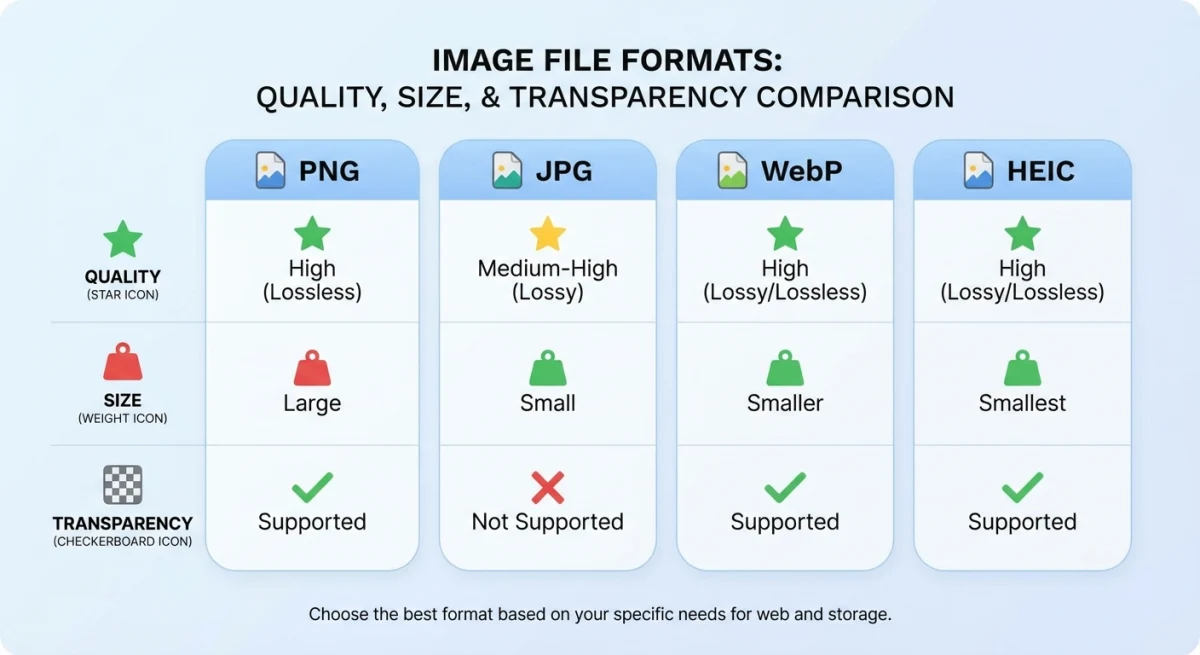
Picking the right format is half the battle. Here's a quick guide:
| Format | Best for | File size | Transparency | Quality | Browser support |
|---|---|---|---|---|---|
| PNG | Screenshots, logos, UI | Large | ✅ | Lossless | All |
| JPG | Photos, social media | Small | ❌ | Lossy | All |
| WebP | Web images (all types) | Smallest | ✅ | Both | All modern |
| HEIC | iPhone photos | Small | ❌ | Lossy | Apple only |
| TIFF | Print, archival | Very large | ✅ | Lossless | Limited |
| GIF | Simple animations | Medium | ✅ (1-bit) | 256 colors | All |
| AVIF | Next-gen web images | Tiny | ✅ | Both | Most modern |
| SVG | Icons, vector art | Tiny | ✅ | Perfect (vector) | All |
| BMP | Legacy Windows apps | Huge | ❌ | Lossless | All |
Quick rules of thumb
- Taking screenshots? Save as PNG for quality. Convert to WebP for sharing on the web.
- Sharing photos? JPG at 85% quality gives a good balance of size and looks.
- Building a website? Use WebP. It's 25-35% smaller than JPG with the same quality.
- Sending to a printer? TIFF at 300 DPI. Or high-quality JPG if TIFF is too big.
- Need transparency? PNG or WebP. Never JPG, which doesn't support it.
- iPhone photos for non-Apple users? Convert HEIC to JPG so everyone can open them.
If you change your Mac's default screenshot format, you can skip conversion for new captures. See our change screenshot format guide.
How to convert screenshots with ScreenSnap Pro
If you take lots of screenshots, ScreenSnap Pro fits into this workflow well. While it's a capture and annotation tool (not a file converter), it can save screenshots in the format you need from the start.
The typical flow:
- Capture with ScreenSnap Pro using a keyboard shortcut.
- Add annotations, backgrounds, or blur sensitive info.
- Save or share in your preferred format.
This avoids the "capture as PNG, then convert" step. You get the format you need right away.
For screenshots you've already taken, use any converter from this guide. Our free image compressor also helps shrink files without changing the format.
Batch conversion workflows
When you need to convert 50, 100, or 1,000+ images at once, here are the best approaches:
Quick batch: Finder + Preview
- Select all images in Finder.
- Right-click → Open With → Preview.
⌘ + Ato select all in the sidebar.- File → Export Selected Images.
- Pick format and folder.
Works for up to ~100 files. Gets slow after that.
Medium batch: Automator Quick Action
Build the Quick Action once (see the Automator section above). Then select files in Finder, right-click → Quick Actions → your converter. Handles hundreds of files well.
Large batch: XnConvert
Open XnConvert, drag in your folder, set output format and any transforms, click Convert. It shows progress and handles thousands of files without slowing down.
Developer batch: ImageMagick + shell script
#!/bin/bash
# Convert all images in a folder to WebP
INPUT_DIR="$1"
OUTPUT_DIR="$2"
mkdir -p "$OUTPUT_DIR"

for f in "$INPUT_DIR"/*.{png,jpg,jpeg,tiff,heic}; do
  [ -f "$f" ] || continue
  name=$(basename "${f%.*}")
  magick "$f" -quality 85 "$OUTPUT_DIR/$name.webp"
  echo "Done: $name.webp"
done
Save this as convert-to-webp.sh, make it executable (chmod +x), and run with ./convert-to-webp.sh ~/input ~/output.
Speed comparison
| Method | 10 files | 100 files | 1000 files |
|---|---|---|---|
| Preview | ~5 sec | ~30 sec | Too slow |
| Automator | ~3 sec | ~20 sec | ~3 min |
| XnConvert | ~2 sec | ~10 sec | ~90 sec |
| ImageMagick | ~1 sec | ~8 sec | ~60 sec |
For daily use, Automator or XnConvert are the sweet spot. For scripts and pipelines, ImageMagick wins.
Tips for better conversions
- Keep your originals. Always convert a copy, not the source file. You can't undo lossy compression.
- Set quality to 80-85% for JPG and WebP. Below 80, you start to see blur. Above 90, the file gets big with little visible gain.
- Strip metadata for web use. EXIF data (camera info, GPS location) adds to file size and may share private info. Most converters have a "strip metadata" option.
- Resize before converting. A 4000px wide screenshot compressed to WebP is still huge. Resize to 1200-1600px for web use first.
- Test with one file first. Before batch-converting 500 images, convert one and check the quality. Saves time if the settings need tweaking.
- Use WebP for new projects. It's the best all-around web format in 2026: smaller files, good quality, and full browser support.
Frequently Asked Questions

Morgan
Indie DeveloperIndie developer, founder of ScreenSnap Pro. A decade of shipping consumer Mac apps and developer tools. Read full bio
@m_0_r_g_a_n_