Best AI Image Upscalers: 8 Free Tools (2026)
An image upscaler is a tool that uses artificial intelligence to increase the resolution and quality of photos without creating the blurry, pixelated mess you get from traditional resizing. These AI-powered tools analyze patterns, textures, and edges in your image, then intelligently generate new pixels to produce a sharper, larger version. Pair them with a screenshot app like ScreenSnap Pro when you need to enlarge captured images for retina-quality docs.
Whether you need to rescue an old family photo, prep product shots for your online store, or blow up a screenshot for a presentation, the right AI image upscaler can save hours of manual editing. The problem? There are dozens of options, and most "best of" lists never actually test them.
I tested eight free AI image upscalers with the same source images to compare output quality, speed, and limitations. Here's what I found.
TL;DR: The best free AI image upscaler for most people is Upscale.media. It delivers the sharpest results at up to 4x with no account required. For unlimited free upscaling, use Upscayl (desktop, open source) or Imggen.ai (web). For illustrations and anime art, Bigjpg is trained specifically on that content. Need professional 16x output? Let's Enhance offers 10 free images to start. And if you are ready to pay for the strongest output, the best paid option is ClarityAI.
Disclosure: our ClarityAI link is an affiliate link, so we may earn a commission if you subscribe. It costs you nothing extra, and the eight free tools below are ranked on test results, not on commission.
What is AI image upscaling?
Traditional image resizing stretches existing pixels, which produces blurry or blocky results. AI image upscaling takes a fundamentally different approach.
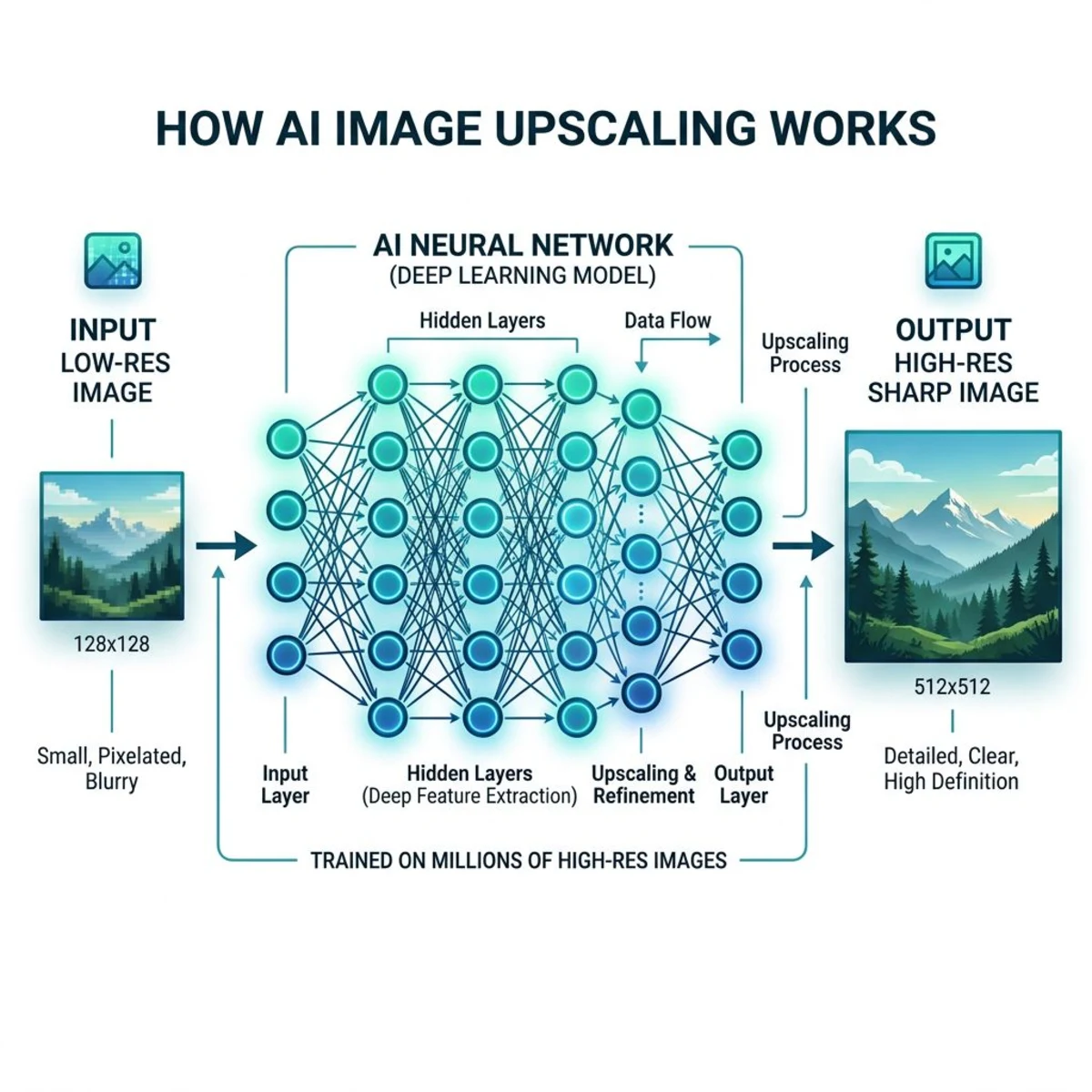
Modern AI upscalers use neural networks trained on millions of image pairs. Each pair matches a low-res input with its sharp, full-size original. When you upload a photo, the model spots patterns like skin texture, fabric weave, and text edges. It then fills in the missing detail to create a larger, sharper version.
The result: you can boost image resolution by 2x, 4x, or even 8x while keeping things sharp. Apple's own machine learning research has shaped many of the methods these tools rely on.
This matters because low-res images cause real problems. Social media platforms compress uploads. Online stores need sharp product shots. Print projects demand 300 DPI at minimum. An AI upscaler bridges the gap between what you have and what you need.
The tech has come a long way in the last two years. Older tools often left ugly marks: bright halos around edges, waxy skin, and harsh over-sharpening. Current models handle fine detail like hair, fabric, and text far more naturally. Free tools now match what used to require pricey desktop software.
If you frequently work with screenshots, you might also want to extract text from images using OCR, another AI-powered technique that saves time.
Best AI image upscalers: 8 free tools plus one premium pick
Here's each of the eight free tools tested with the same 640×480 JPEG photo, upscaled to 2x and 4x where supported.
1. Luminar: best for upscaling inside a full photo editor
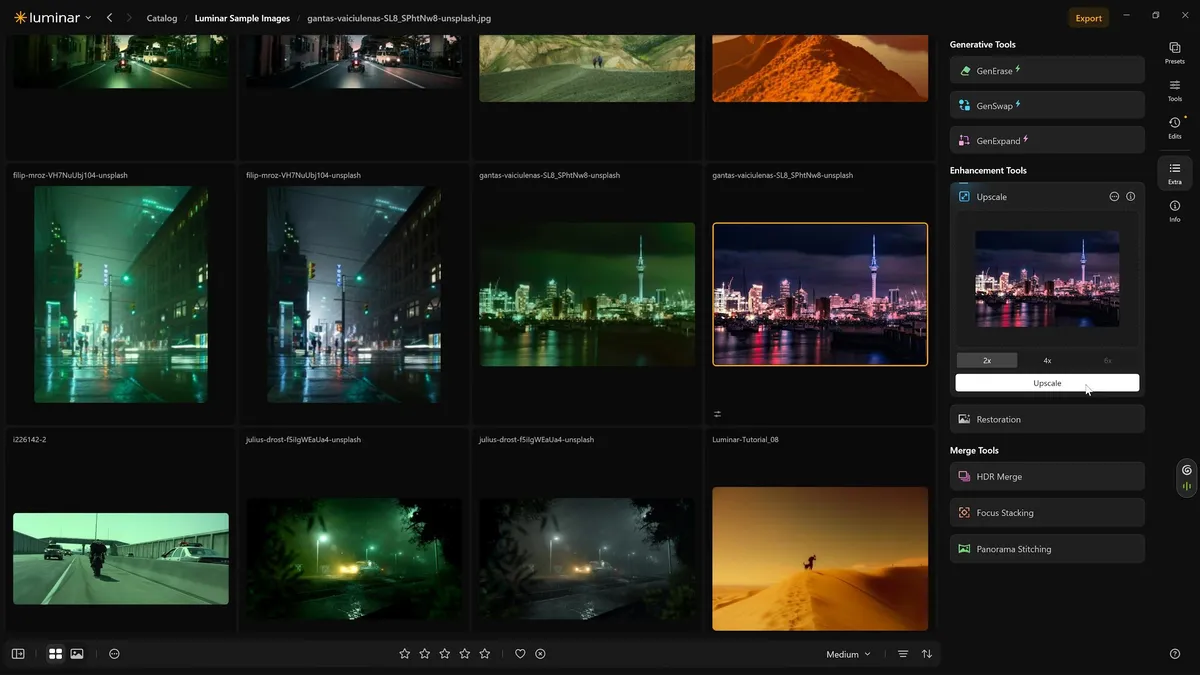
Website: Luminar
Luminar takes a different approach from most dedicated upscaling tools. Upscale AI is built into a full photo editor, so photographers and photo enthusiasts can enlarge an image and then carry on editing it in the same application.
Upscale AI offers 2x, 4x and 6x enlargement, and is built to raise image resolution while keeping the result looking natural. It suits cropping wildlife shots, enlarging older or low-resolution images, or preparing photos for larger prints.
- Free usage: 7-day free trial, from 129 EUR one-time purchase
- Max upscale: 6x
- Scaling options: 2x, 4x and 6x
- Supported formats: JPG, PNG, TIFF
- Platform: Mac, Windows, iOS, Android, ChromeOS (web coming soon)
Best for: photographers and photo enthusiasts who want AI upscaling as part of a full photo editing workflow.
2. Upscale.media: best overall free option
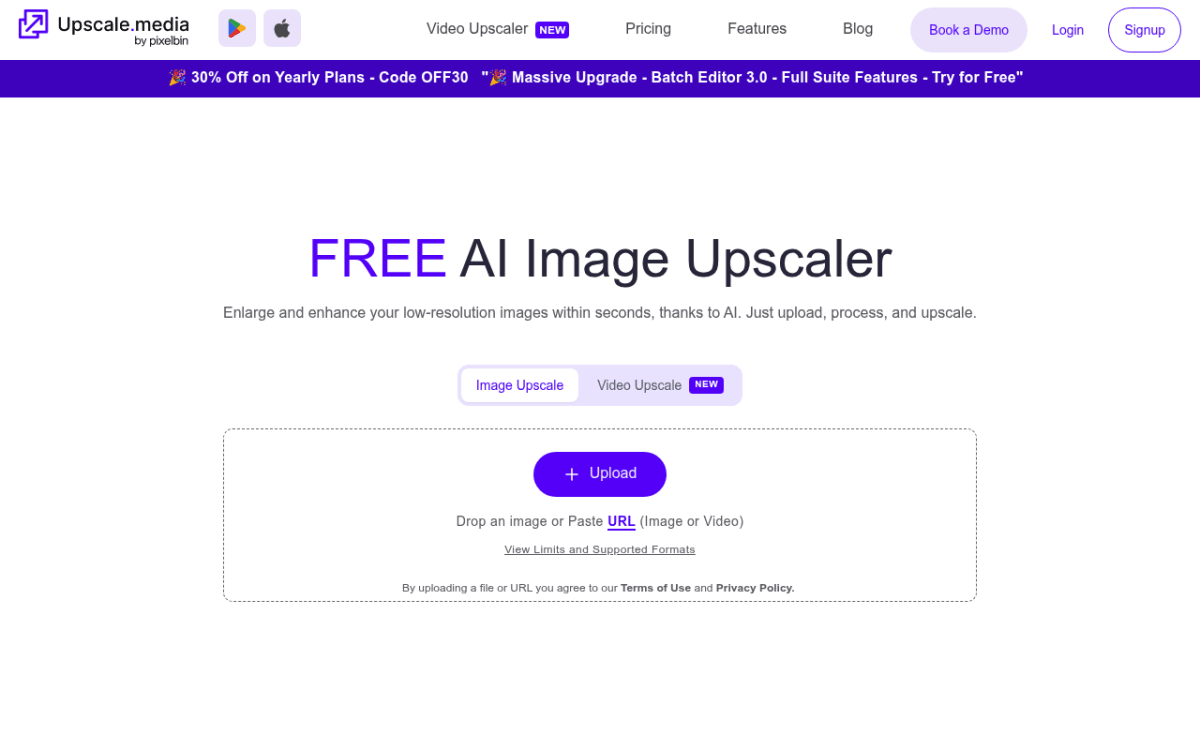
Website: upscale.media
Upscale.media consistently delivered the sharpest output across test images. It supports up to 8x upscaling (paid) with 2x and 4x available on the free tier.
What stood out: The AI handles skin textures and fabric patterns without the "plastic" look some competitors produce. Edge detection is excellent. Text in screenshots stayed crisp even at 4x.
Free limits: 3 images per session, up to 4x, max 5MB input. No account required for basic upscaling.
- Max upscale: 8x (paid), 4x (free)
- Supported formats: JPG, PNG, WebP
- Speed: ~5 seconds for 2x
- Quality: ★★★★★
Best for: Photographers and content creators who need reliable quality without paying. The free tier is generous enough for occasional use.
3. Let's Enhance: best for professional workflows
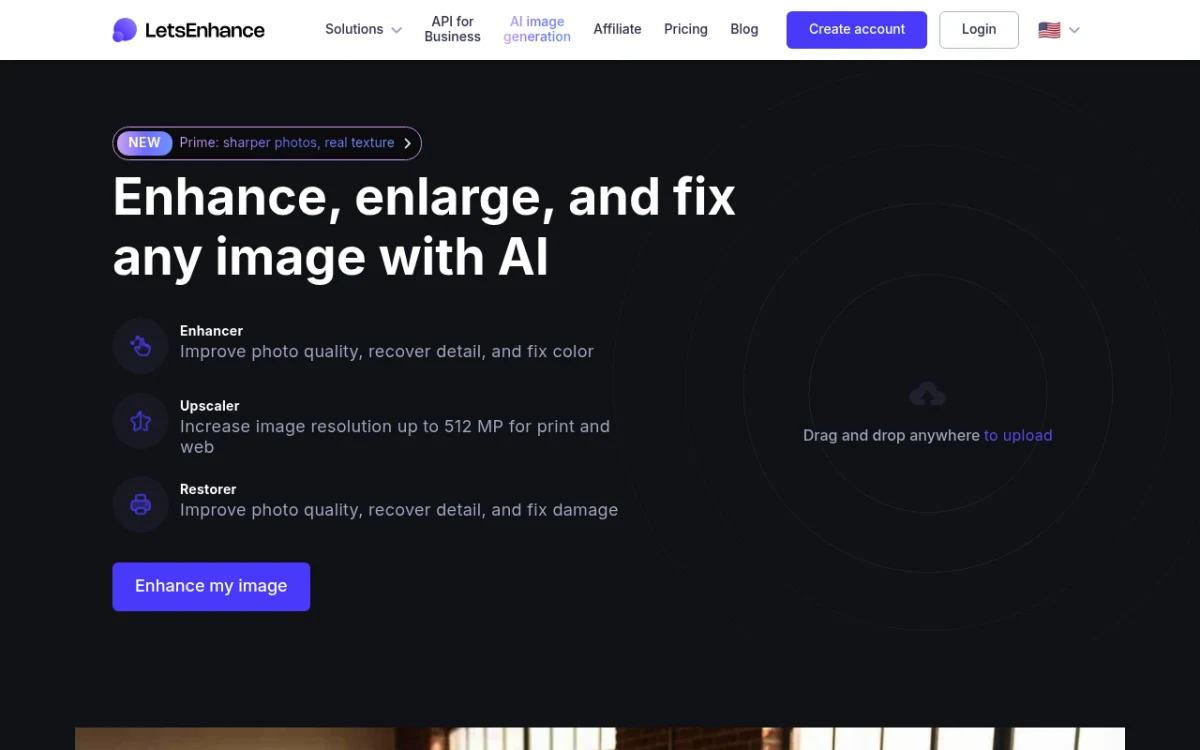
Website: letsenhance.io
Let's Enhance offers the highest max upscale at 16x. It includes several modes: Standard, Gentle (keeps fine text crisp), and Old Photo restoration.
What stood out: Gentle mode works great for screenshots and UI designs with small text. Standard mode sharpens landscape photos nicely. You can also batch-process up to 20 images at once, which saves a ton of time.
Free limits: 10 free image enhancements on signup. After that, plans start at $12/month.
- Max upscale: 16x
- Supported formats: JPG, PNG, WebP
- Speed: ~8 seconds for 2x
- Quality: ★★★★★
Best for: Professionals who regularly upscale images for print or large-format output. The 16x ceiling and batch processing justify the premium if you outgrow the free tier.
4. Bigjpg: best for illustrations and anime art
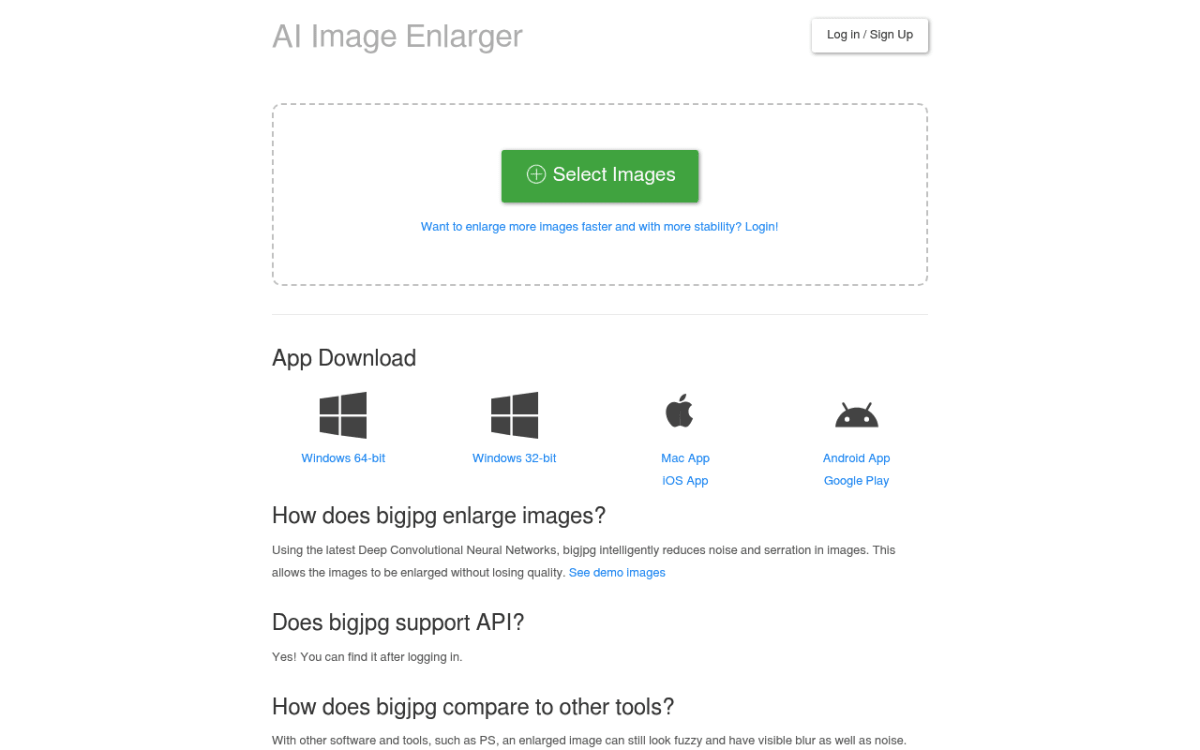
Website: bigjpg.com
Bigjpg fills a gap most upscalers skip: anime, illustrations, and digital art. Its AI was trained on illustration data, and you can tell.
What stood out: Line art stayed razor-sharp with no color bleeding. Flat colors held perfectly without added gradients or noise. For photos, results were decent but not top-tier. This tool knows its crowd.
Free limits: 3000×3000px max, 5MB file size, queue-based processing (can be slow during peak hours).
- Max upscale: 4x (free), 16x (paid)
- Supported formats: JPG, PNG
- Speed: 10-60 seconds (queue dependent)
- Quality: ★★★★☆ (photos), ★★★★★ (illustrations)
Best for: Digital artists, manga fans, and anyone working with flat-color illustrations. If you're creating code screenshots or diagrams, this handles clean graphics well too.
5. iLoveIMG: best for simplicity
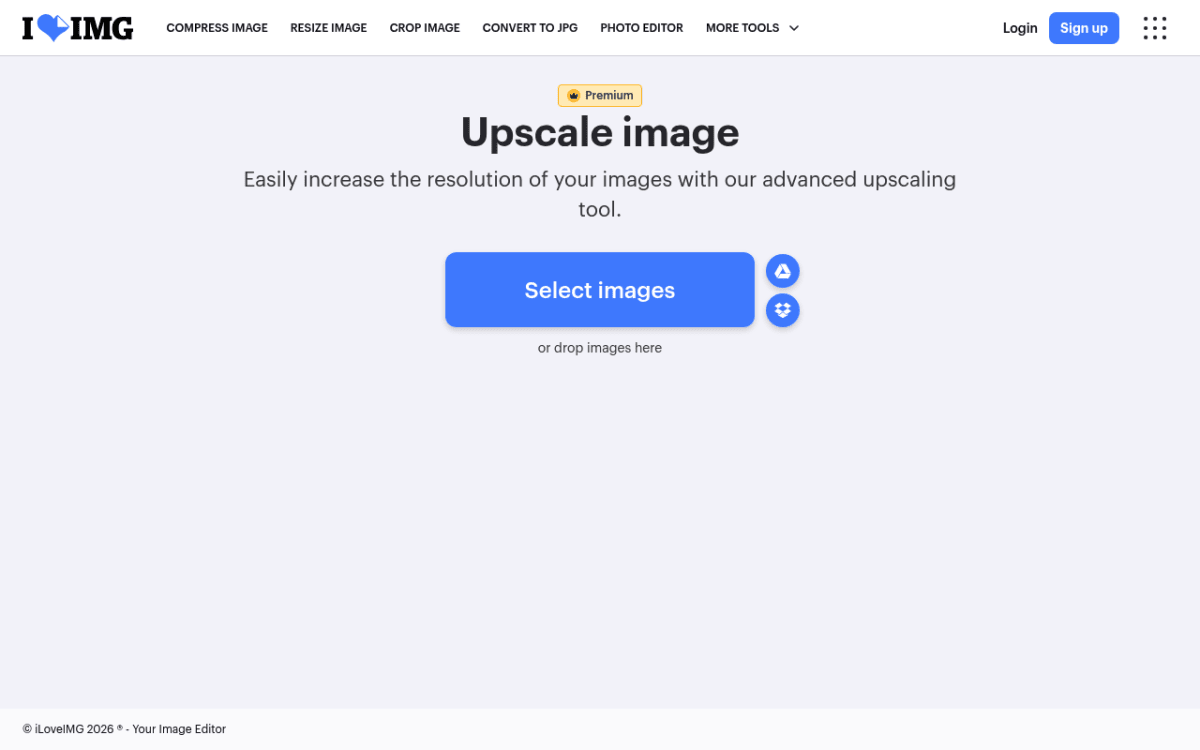
Website: iloveimg.com/upscale-image
iLoveIMG keeps things dead simple. Upload an image, pick 2x or 4x, wait a few seconds, download. No account required, no confusing settings, no AI credit system.
What stood out: The interface is refreshingly straightforward. Quality at 2x is solid, comparable to Upscale.media. At 4x, details get slightly softer than the top-tier options, but the results are still far better than basic interpolation.
Free limits: Unlimited upscales on web (with ads). No credit system. Max 6MP input.
- Max upscale: 4x
- Supported formats: JPG, PNG
- Speed: ~3 seconds for 2x
- Quality: ★★★★☆
Best for: Students, casual users, and anyone who needs quick upscaling without creating another account. The fastest path from upload to download.
6. Upscayl: best free desktop app (open source)
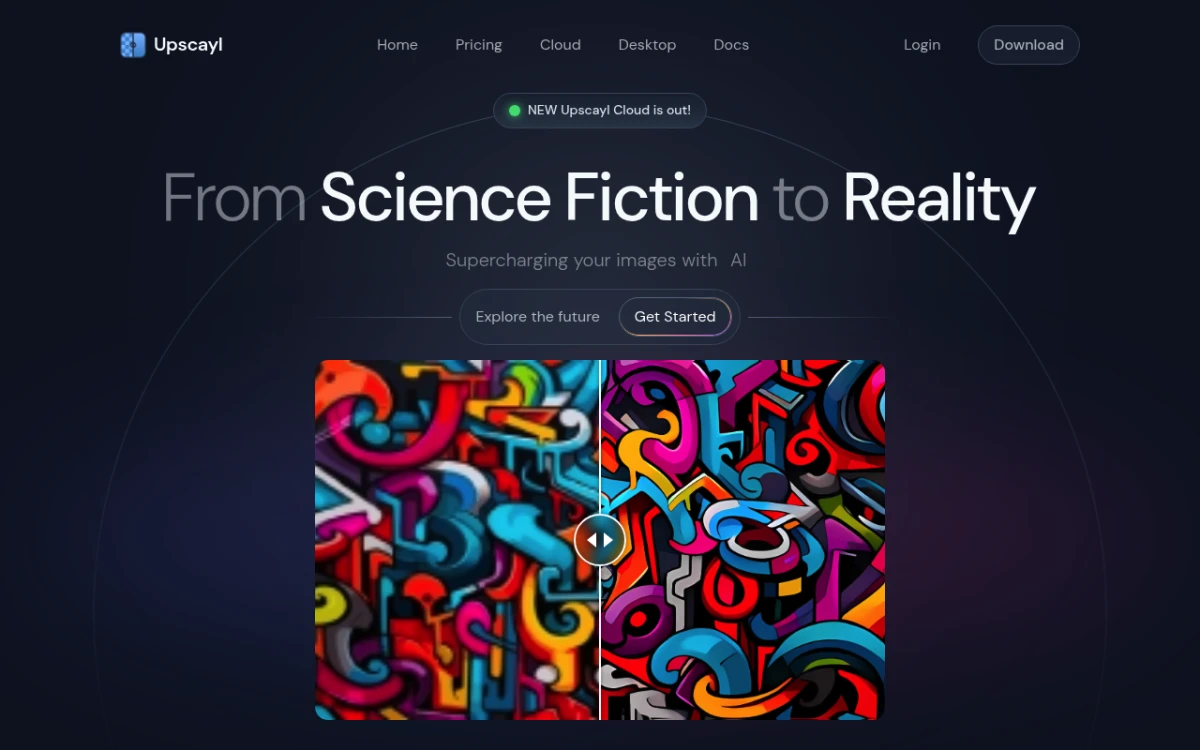
Website: upscayl.org
Upscayl is the only fully free, open-source option on this list. It runs on your own machine, so your images never touch a server. That makes it ideal for private or sensitive photos.
What stood out: It uses your GPU for processing. On an M2 Mac, 2x took about 3 seconds per image. You can batch-process entire folders at once. Several AI models come built in (Real-ESRGAN, UltraSharp, Digital Art), so you pick whichever fits your content best.
Free limits: Completely free. No limits whatsoever. Open source under AGPL-3.0.
- Max upscale: 16x
- Supported formats: JPG, PNG, WebP
- Speed: 3-10 seconds (hardware dependent)
- Quality: ★★★★☆
Best for: Privacy-conscious users, batch processing, and anyone who refuses to upload images to cloud services. Works great on Mac. If you regularly edit screenshots on Mac, this pairs well with your existing workflow.
7. Pixelcut: best for mobile users
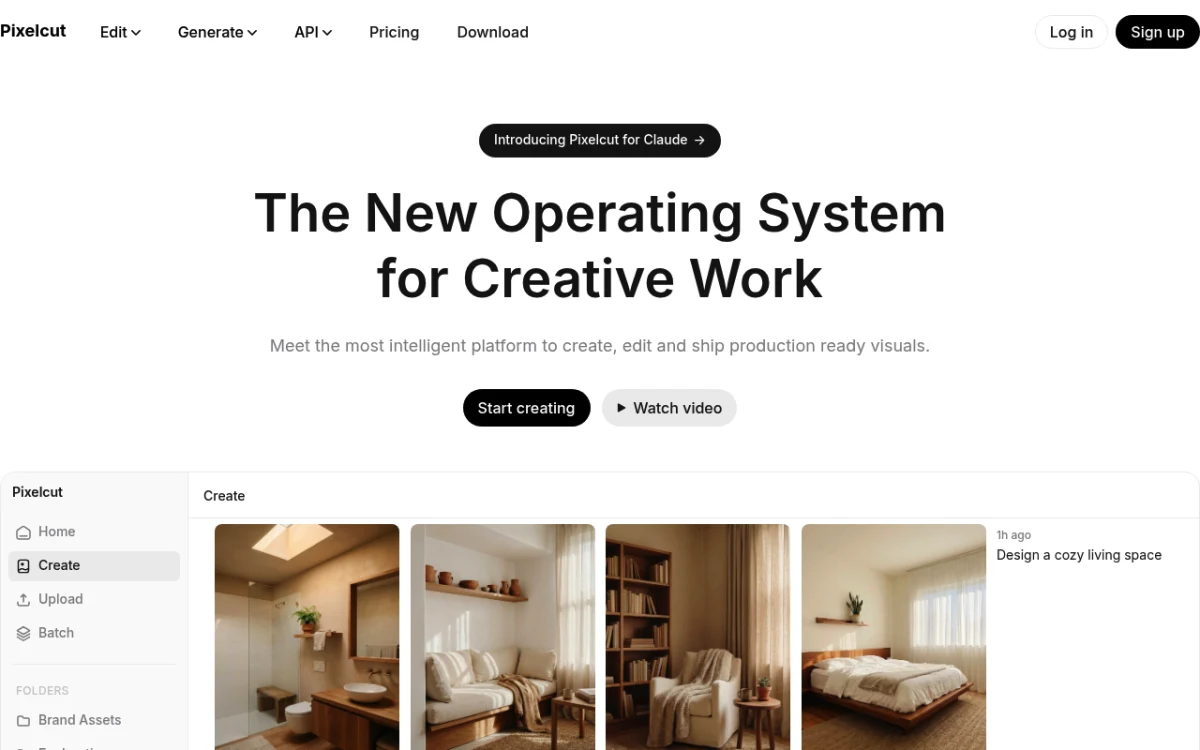
Website: pixelcut.ai
Pixelcut puts mobile editing first, with upscaling as a core feature. The app is polished, fast, and built for quick edits on the go.
What stood out: The mobile experience is genuinely good. Most rivals feel like squished desktop apps. Product photos look great after upscaling, which is no surprise given that Pixelcut is built for online sellers.
Free limits: Limited free upscales, then $8/month for unlimited.
- Max upscale: 4x
- Supported formats: JPG, PNG
- Speed: ~4 seconds for 2x
- Quality: ★★★★☆
Best for: Mobile content creators and small business owners who edit product photos on their phone. If you're snapping product shots and need quick enhancement before listing, this is your tool.
8. Imggen.ai: best completely free option
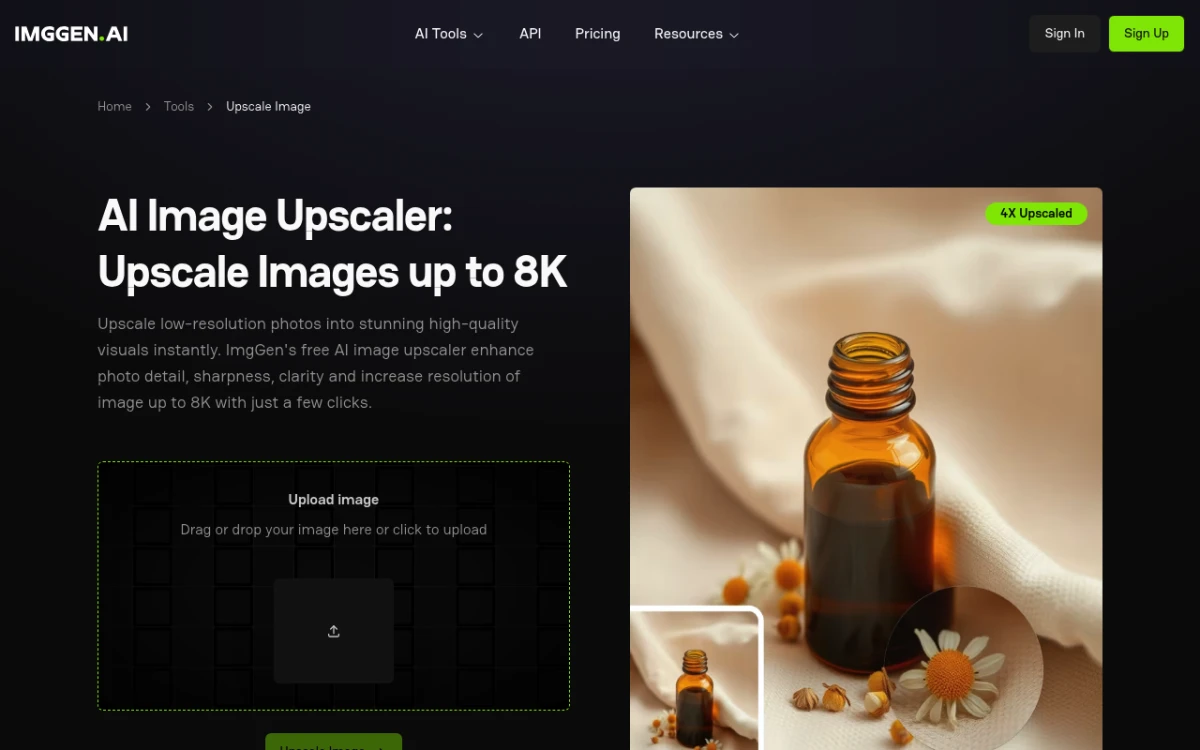
Website: imggen.ai
Imggen.ai stands out for one reason: it's free with no credit system and no daily caps. Upload, upscale, download. Do it as many times as you want.
What stood out: For a totally free tool, the quality surprised me. Natural photos look good, though fine text can get over-sharpened. The 8K max output lets you create large prints from small source files.
Free limits: Truly unlimited. No account required.
- Max upscale: 8K resolution
- Supported formats: JPG, PNG, WebP
- Speed: ~6 seconds for 2x
- Quality: ★★★☆☆
Best for: Freelance designers and AI art creators who need volume without a budget. Quality is a step below the top-tier options, but the price (free, forever) makes up for it.
9. Image Upscaler: best free credits model
Website: imageupscaler.com
Image Upscaler gives you free credits each month, enough for casual use without a subscription. Quality sits in the mid-range, with solid results on photos and decent text handling.
What stood out: The 4x upscale kept natural skin tones better than several rivals. Processing is fast, and the interface is clean. The monthly credit refresh means you can rely on it as a regular tool.
Free limits: Free credits monthly, max 4x upscale.
- Max upscale: 4x (400%)
- Supported formats: JPG, PNG
- Speed: ~5 seconds for 2x
- Quality: ★★★★☆
Best for: Freelancers and hobbyists who need occasional upscaling without ads or nagging upgrade prompts. A solid pick for light, regular use.
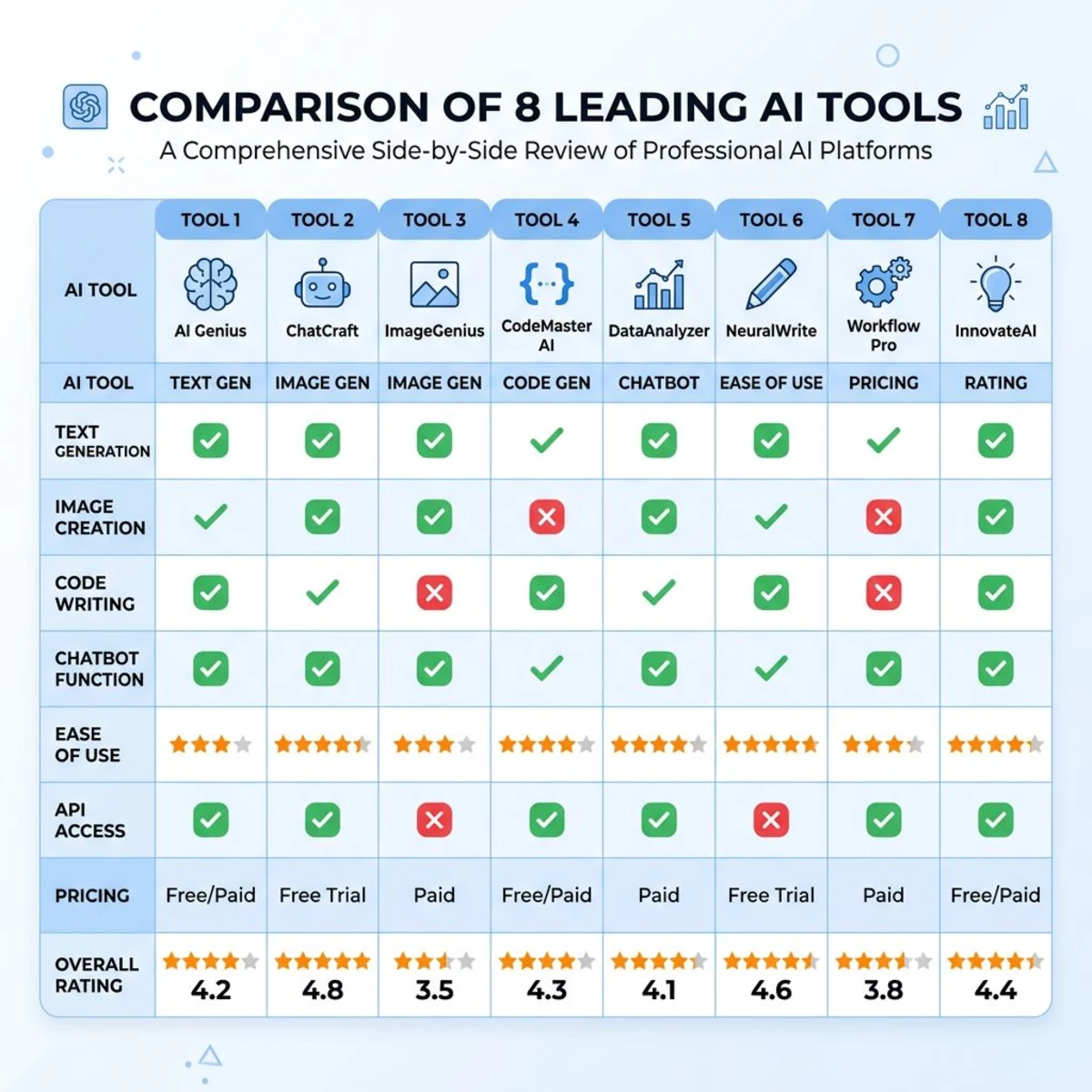
AI image upscaler comparison table
| Tool | Max Upscale | Free Limits | Best For | Quality |
|---|---|---|---|---|
| Upscale.media | 8x | 3 images/session | Photos & content | ★★★★★ |
| Let's Enhance | 16x | 10 free images | Professional print | ★★★★★ |
| Bigjpg | 16x | 3000×3000px max | Illustrations & anime | ★★★★★ |
| iLoveIMG | 4x | Unlimited (web) | Quick simple upscales | ★★★★☆ |
| Upscayl | 16x | Fully free | Privacy & batch | ★★★★☆ |
| Pixelcut | 4x | Limited free | Mobile editing | ★★★★☆ |
| Imggen.ai | 8K | Unlimited | Volume/budget | ★★★☆☆ |
| Image Upscaler | 4x | Free credits/month | Casual use | ★★★★☆ |
Key takeaway: If quality is your top priority, Upscale.media and Let's Enhance lead the pack. If you need unlimited free upscaling, Upscayl (desktop) or Imggen.ai (web) are your best bets.

Tired of plain screenshots? Try ScreenSnap Pro.
Beautiful backgrounds, pro annotations, GIF recording, and instant cloud sharing, all in one app. Pay $39 once, own it forever.
See pricing and featuresHow to choose the right AI image upscaler
With eight solid options on the table, picking the right one comes down to four questions: what you're upscaling, how often you need it, whether privacy matters, and what you're willing to spend.
Match the tool to your image type
Different AI models excel at different content. Photo upscalers trained on natural images handle skin, landscapes, and textures well but can struggle with sharp lines and flat colors. Illustration-focused models like Bigjpg preserve clean edges and solid fills but may add unwanted texture to real photos.
Here's a quick decision guide:
- Natural photos (portraits, landscapes, product shots) → Upscale.media or Let's Enhance
- Illustrations, anime, digital art → Bigjpg
- Screenshots, UI designs, text-heavy images → Let's Enhance (Gentle mode) or Upscayl
- Mixed content or batch jobs → Upscayl (swap AI models per batch)
If you work with multiple image types regularly, Upscayl's model-switching feature is a real advantage. You can run portraits through the Real-ESRGAN model and switch to Digital Art mode for illustrations, all without leaving the app.
Consider your volume and workflow
How many images you process per week should drive your tool choice. Here's the breakdown:
- 1-5 images occasionally: Any free web tool works. iLoveIMG or Upscale.media get the job done fast with zero friction.
- 5-20 images weekly: Imggen.ai (unlimited web) or Upscayl (unlimited desktop) keep you from hitting free tier walls.
- 20-50+ images weekly: Upscayl with batch processing or Let's Enhance (paid tier) with bulk upload. At this volume, automation features and batch support save serious time.
- API or automated pipelines: Let's Enhance and Image Upscaler both offer API access on paid plans. If you're building upscaling into an app or ecommerce workflow, check their developer docs.
Decide how much privacy matters
Cloud-based upscalers send your images to remote servers for processing. Most delete them within hours, but "most" and "always" aren't the same thing.
If you're working with client photos, medical images, legal documents, or anything you wouldn't post publicly, run it locally. Upscayl processes everything on your machine. Your files never leave your hard drive. For Mac users, it runs natively on Apple Silicon and uses the GPU for fast processing.
For less sensitive content (blog images, social media posts, personal photos), cloud tools are fine. Just check the privacy policy before uploading anything you'd want kept private.
Weigh free vs. paid honestly
Here's the honest truth: free AI upscalers in 2026 are genuinely good. The gap between free and paid has shrunk dramatically. Two years ago, paid tools like Topaz Gigapixel AI had a clear edge. Today, Upscale.media's free tier rivals most paid options at 2x.
You should pay for upscaling only if:
- You hit free limits regularly (a sign you need batch processing)
- You need resolution beyond 4x for print or large-format display
- You want API access for automated workflows
- You require guaranteed uptime and SLA for business use
For everyone else, start free. Upgrade only when the free tier becomes a bottleneck, not before.
When to use an AI image upscaler
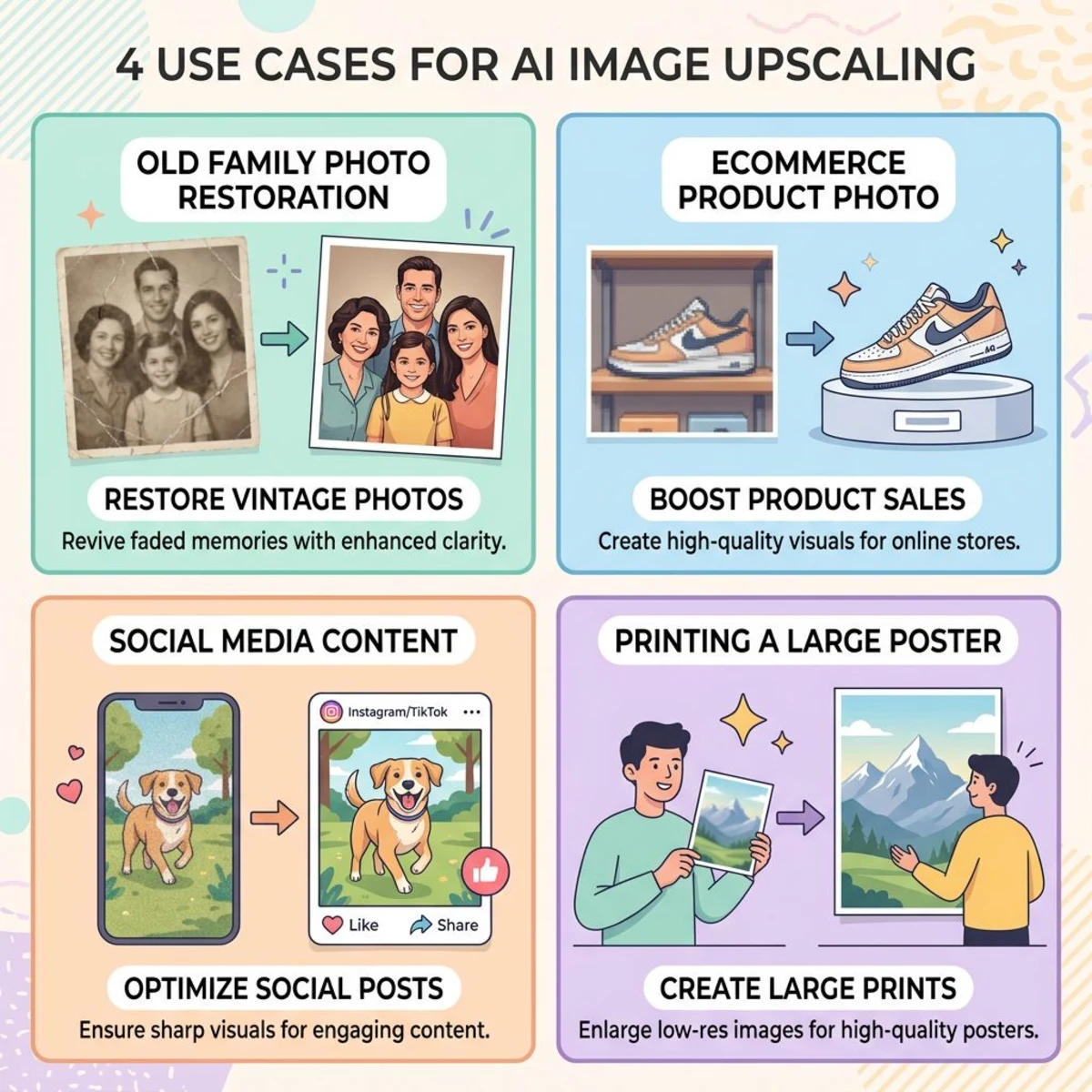
Not every image needs upscaling. Here's when it actually makes a difference:
Restoring old photos. Scanned family photos from the '90s are often low-res. AI upscaling can bring back detail that scanning alone can't. Bigjpg and Let's Enhance both have restoration modes built in.
Ecommerce product listings. Amazon and Etsy reward sharp product images with better placement. If your phone camera doesn't shoot high-res, a 2x upscale can make the difference between a crisp listing and a blurry one. (If a licensed stock preview still has a watermark on it, our best free watermark removers roundup covers the fastest ways to strip it first.)
Social media content. Platforms like Instagram compress images hard. Starting with a higher-res source means better results after compression. You might also want to add pro backgrounds to your screenshots before sharing.
Print projects. Printing needs 300 DPI minimum, and most screen images fall short. A 4x upscale can turn a 72 DPI web image into a print-ready file. Our free image resizer can help you hit exact sizes after upscaling.
Screenshot enhancement. Docs, bug reports, and tutorials need crisp screenshots. If you've ever cropped a screenshot on Mac and the crop ended up too small, upscaling can bring back usable detail.
Presentations and slides. A chart that looks fine on your laptop can turn pixelated on a projector. Upscale key visuals to 2x before adding them to your deck. If you need to convert screenshots to PDF for handouts, upscale first for sharper prints.
When NOT to upscale: AI can't invent detail that was never there. Very blurry or heavily compressed images (think 50KB JPEGs) won't magically become sharp. Upscaling sharpens what exists. It doesn't create detail from nothing.
Tips for best upscaling results
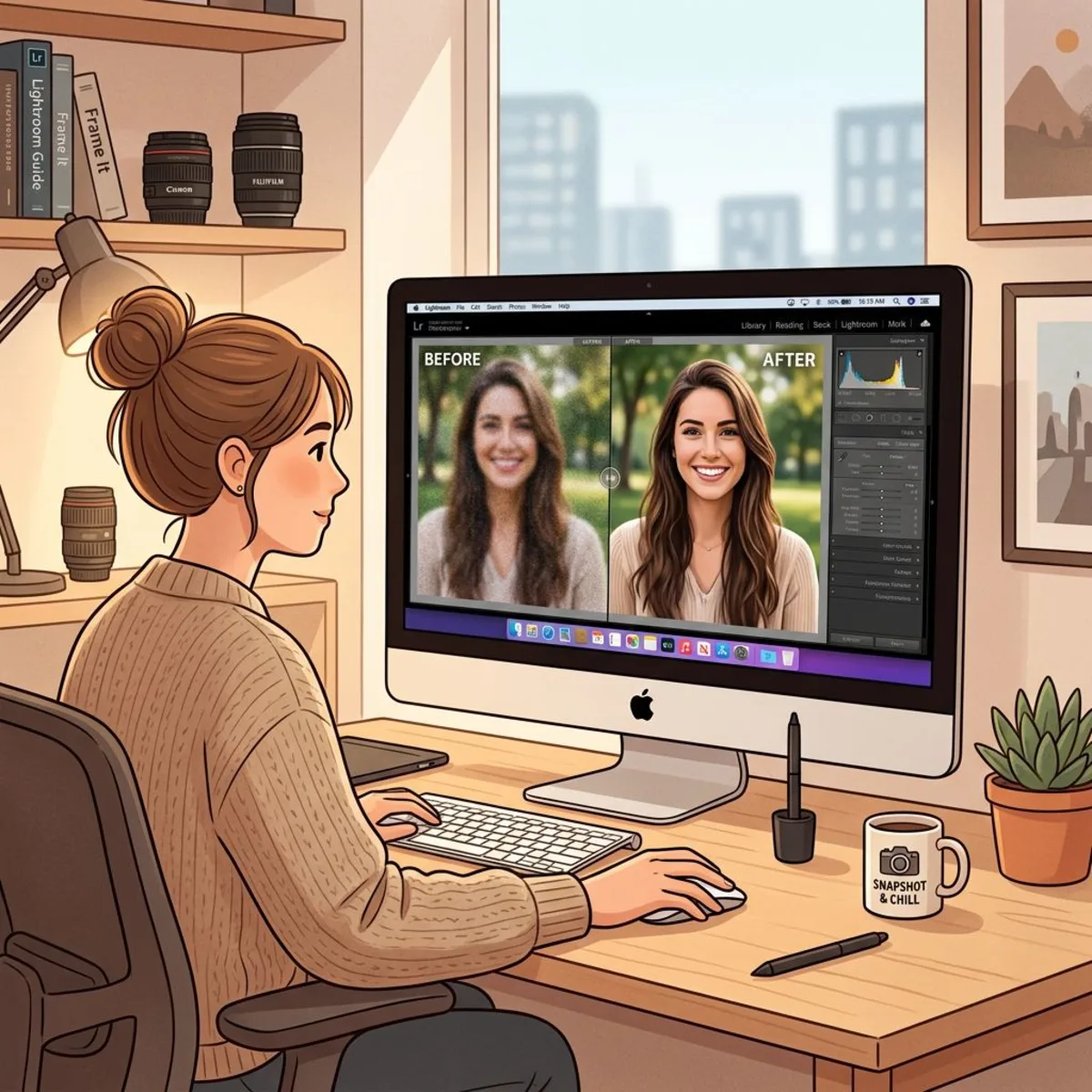
Good results start with good source material. Here are tips that make a real difference:
Start with the best source you have
Upscaling boosts what's already in your image, including flaws. If you have several versions of a photo, pick the highest-quality one. A PNG will always upscale better than a crunchy JPEG.
Try compressing your screenshots first to clean up JPEG artifacts, then upscale the cleaner version. Sounds backward, but it works.
Choose the right upscale factor
Bigger isn't always better. A 2x upscale almost always looks cleaner than 4x. Need a big boost? Try running 2x twice instead of jumping straight to 4x. Some tools handle chained upscales better than one big leap.
Match the tool to your content
Use Bigjpg for illustrations and flat graphics. Use Upscale.media or Let's Enhance for photos. Use Upscayl for batch jobs. Picking the right tool for your content type matters more than finding the "best" overall option.
Check output at 100% zoom
Screenshots on upscaler websites always look great. The real test is zooming to 100% and checking textures, edges, and text. Watch for:
- Haloing: bright edges around objects (common artifact)
- Over-smoothing: skin that looks plasticky or wax-like
- Text blur: letters that lost their crispness
- Color shifts: subtle changes in hue or saturation
Save in the right format
After upscaling, save as PNG to keep full quality. Need a smaller file? Use our image format converter to switch to WebP: sharp quality at roughly half the file size of JPEG.
For web or online stores, WebP is the go-to format. All modern browsers support it, and files are much smaller with no visible quality loss. For print, stick with PNG or TIFF to keep every pixel the upscaler created.
Combine upscaling with other edits
Upscaling is often just one step in a bigger workflow. You might need to combine multiple images into a collage afterward. Or annotate them for documentation. Plan ahead: upscale first, then crop and annotate.
Paid vs. free: is premium upscaling worth it?
For most people? No. The free tiers of Upscale.media, iLoveIMG, and Upscayl cover 90% of casual needs. You get solid AI upscaling without spending a dime.
If you do decide to pay, ClarityAI is the option we point people to. It is built purely for upscaling and enhancement, offers API access, and its creator develops it in the open. Affiliate link, as noted at the top.
Premium makes sense if you:
- Process images in bulk (50+ per week): batch features and higher limits pay for themselves
- Need top quality for print: paid tools like Let's Enhance and Topaz Gigapixel are a notch sharper at high zoom
- Work with private images: Upscayl runs locally for free, but cloud-based batch processing with API access requires a paid plan
- Want upscaling bundled with the rest of the edit: every free tool above upscales and nothing else, so upscaling becomes a round trip in a longer workflow. Suite tools such as AI Image Upscale from MagicShot put it next to background removal and image generation, so one subscription covers the whole edit
If you're on a Mac and use ScreenSnap Pro for screen captures, pair it with a free upscaler and you're set. Capture, annotate, upscale if needed, and share. Total cost: $39.
A good middle ground: use a free tool day-to-day, and save a paid option for high-stakes projects. Free tiers handle 80% of needs. Save paid credits for work that truly demands the best output.
Frequently Asked Questions

Morgan
Indie DeveloperIndie developer, founder of ScreenSnap Pro. A decade of shipping consumer Mac apps and developer tools. Read full bio
@m_0_r_g_a_n_