Snagit vs Greenshot: Which is Better? (2026 Comparison)
Choosing between Snagit vs Greenshot comes down to one question: Do you need a free, simple tool or a paid one packed with pro features? Snagit costs $39 a year and gives you screen capture, video recording, and rich editing tools. Greenshot is free, open-source, and covers the basics well. This guide breaks down which tool fits your needs, and it shows a better pick for Mac users like ScreenSnap Pro.
Quick comparison: Snagit vs Greenshot
Before diving into details, here's what you need to know at a glance:
| Feature | Snagit | Greenshot |
|---|---|---|
| Price | $39/year (subscription) | Free (Windows), $1.99 (Mac) |
| Platform | Windows, Mac | Windows only (Mac version abandoned) |
| Screen capture | Full, region, scrolling, panoramic | Full, region, scrolling |
| Video recording | ✓ Yes | ✗ No |
| GIF creation | ✓ Yes | ✗ No |
| Annotation tools | 15+ professional tools | Basic arrows, shapes, text |
| OCR text grab | ✓ Yes | ✗ No |
| Cloud sharing | TechSmith Screencast | Export to Imgur |
| Best for | Professionals, content creators | Casual Windows users |
If you want the best screenshot tool that balances features and price, neither of these nails it. We'll explain why below.
What is Snagit?
Snagit is TechSmith's flagship screenshot and screen recording app. It launched in 1990 and has grown into a full-featured capture tool. Businesses, teachers, and content creators use it worldwide.
Key strengths:
- Scrolling capture creates full-page screenshots of websites and documents automatically
- Video recording with webcam overlay and audio narration
- Create GIFs from any video clip, perfect for tutorials
- Text grab (OCR) extracts text from any screenshot
- Templates for step-by-step guides and documentation
- TechSmith Screencast for cloud hosting and sharing
Snagit shines for pro documentation work. If you create training guides, tech docs, or marketing content, the template system and batch editing save hours.
The downside? Snagit is now subscription-only. Since Snagit 2025 (released February 2025), new buyers pay $39 per year, which includes every new version. Older perpetual licenses keep working, but you can't buy a new one. Check our Snagit pricing breakdown for the full cost picture.
What is Greenshot?
Greenshot is a free, open-source screenshot tool built for Windows. It launched in 2007 and got popular fast. Users who needed more than the Snipping Tool but didn't want to pay found Greenshot was the perfect fit.
Key strengths:
- Completely free on Windows (no premium tiers or subscriptions)
- Lightweight with minimal system resources
- Quick capture via customizable hotkeys
- Built-in editor for basic annotations
- Multiple export options including Imgur, Office apps, and file save
Greenshot works well for basic screenshot needs. The interface is simple, captures are fast, and the markup tools cover the basics: arrows, shapes, and text.
The catch: Greenshot is a Windows-only tool in practice. There's a Mac version on the App Store ($1.99), but it's outdated and no longer maintained. Mac users looking for a Greenshot alternative need to look elsewhere.
Feature-by-feature comparison
Let's examine how these tools stack up across the features that matter most.
Screen capture options
Snagit offers the most capture modes of any screenshot tool:
- Full screen and active window
- Region selection with magnifier
- Scrolling capture (vertical and horizontal)
- Panoramic capture for wide content
- Menu and dropdown capture
- Timed and delayed capture
- Multi-area capture in one screenshot
Greenshot covers the basics well:
- Full screen capture
- Active window
- Region selection
- Scrolling web pages (limited)
For most people, Greenshot's capture options are enough. But if you often take scrolling screenshots of long pages or need timed captures for menus, Snagit handles these tasks better.
Winner: Snagit
Annotation and editing tools
This is where Snagit pulls ahead significantly.
Snagit's editor includes:
- Step tool (automatic numbered callouts)
- Blur and pixelate for sensitive info
- Spotlight and magnify effects
- Cut-out tool for removing sections
- Text replacement for quick edits
- Stamps and stickers library
- Color picker from any screenshot
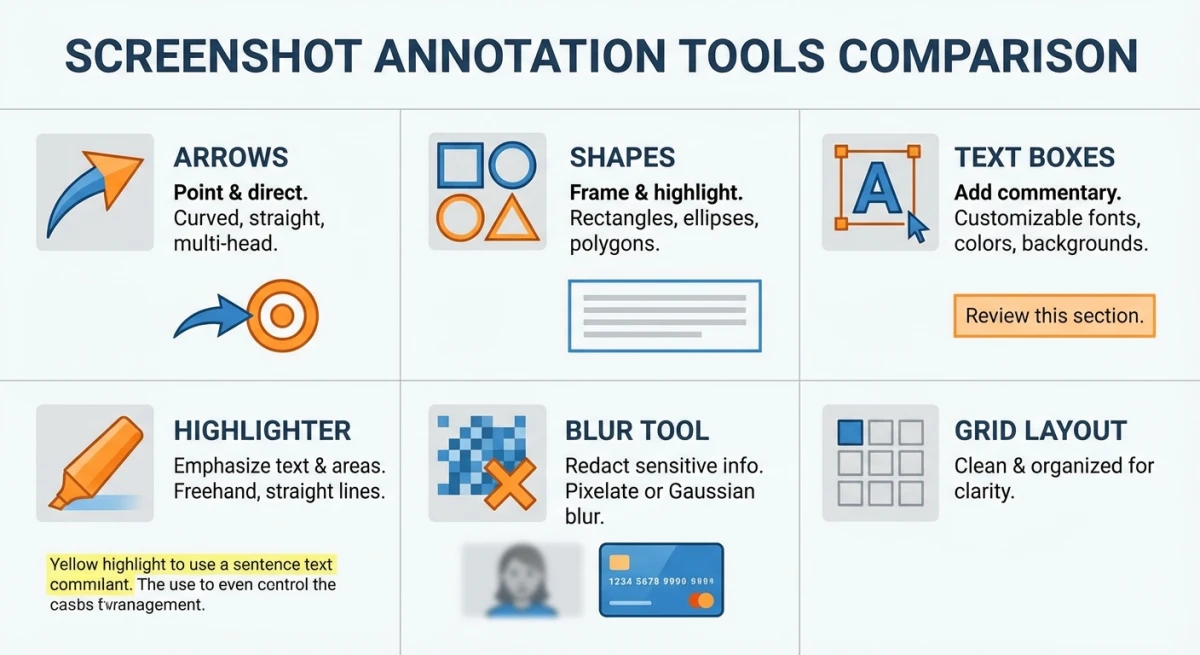
Greenshot's editor provides:
- Arrows and lines
- Basic shapes (rectangle, ellipse)
- Text boxes
- Highlighter
- Obfuscate (pixelate)
- Crop and resize
If you need to annotate screenshots like a pro, Snagit's tools are clearly better. The step tool alone saves a ton of time when making tutorials or guides.
Winner: Snagit
Video and GIF capabilities
Snagit records screen video with:
- Full screen or region recording
- Webcam picture-in-picture
- Microphone and system audio
- Drawing tools while recording
- Trim and cut editing
- Direct GIF export
Greenshot has no video or GIF features whatsoever.
If you need to record GIFs on Mac or any platform, Greenshot can't help. For quick demos and tutorials, Snagit's video-to-GIF workflow works great.
Winner: Snagit (by default)
Cloud integration and sharing
Snagit connects to:
- TechSmith Screencast (dedicated hosting)
- Google Drive
- Dropbox
- Microsoft OneDrive
- Slack
- YouTube (for videos)
Greenshot exports to:
- Imgur (direct upload)
- Microsoft Office apps
- Local file save
- Clipboard
Snagit's TechSmith Screencast gives you hosted links with view tracking and stats, which is handy for business docs. Greenshot's Imgur upload works fine for quick sharing but has no folders or tracking.
Winner: Snagit
Setup and learning curve
How quickly can you get started with each tool? This matters more than most reviews admit.
Getting started with Snagit
Snagit's installer is about 300 MB. After setup, you're greeted by a welcome tour that walks you through each capture mode. The learning curve is moderate: basic captures are easy, but it takes a few days to master all the editing tools.
Here's what slows people down:
- The editor is a separate window. Captures don't edit in-place
- Too many options at first. The toolbar can feel crowded
- Video features need practice. Webcam overlays and audio take trial and error
- Template system has its own logic. Building custom templates takes time
Most users report being comfortable within a week. Power users keep finding new tricks for months.
Getting started with Greenshot
Greenshot installs in under a minute. It's less than 5 MB and runs from the system tray. You can take your first screenshot within 30 seconds of setup.
The learning curve is almost flat:
- One hotkey to capture. Press Print Screen, select a region, done
- Editor is basic but clear. Every tool does exactly what you'd expect
- No account needed. Works fully offline from day one
- Settings fit on one page. Nothing buried in nested menus
If you've ever used Paint, you can use Greenshot. It's that simple.
Winner: Greenshot (for speed and ease of use)

Tired of plain screenshots? Try ScreenSnap Pro.
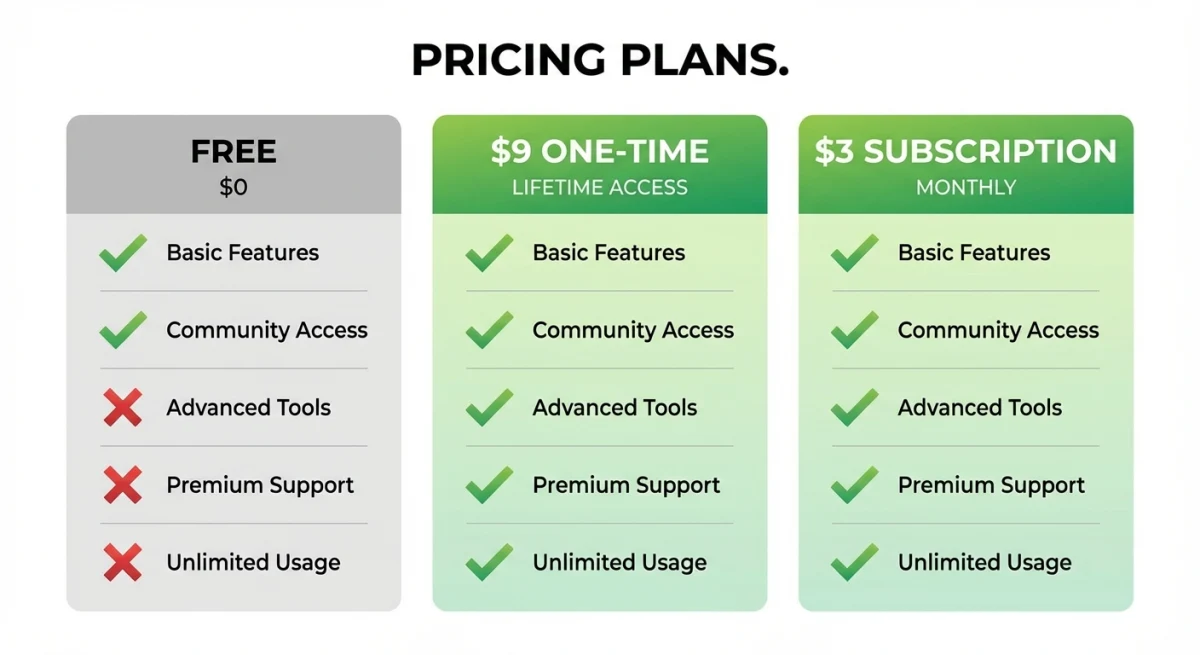
Beautiful backgrounds, pro annotations, GIF recording, and instant cloud sharing, all in one app. Pay $34 once, own it forever.
See pricing and featuresPricing breakdown
Here's where things get interesting.
| Tool | Initial Cost | Annual Cost | 3-Year Total |
|---|---|---|---|
| Snagit | $39 | $39/year subscription | $117 |
| Greenshot (Windows) | Free | Free | Free |
| Greenshot (Mac) | $1.99 | N/A (abandoned) | $1.99 |
| ScreenSnap Pro | $34 | Free (lifetime updates) | $34 |
Greenshot's free price is hard to beat on Windows. But if you want a Snagit free alternative with pro-level features, neither tool fits the bill.
Snagit's $39 a year is fair for what you get. But it's a subscription, so the cost comes back every year for as long as you use it.
When to choose Snagit
Snagit makes sense if you:
- Create training guides, SOPs, or tech docs at work
- Need video recording with basic editing built in
- Work on a team that shares templates and visual assets
- Use markup tools every day, not just now and then
- Have a software budget that covers a yearly subscription
Real-world use cases where Snagit shines:
- IT support teams. Capture a bug, record a video walkthrough, annotate the fix steps, and share via Screencast link. All in one tool.
- Tech writers. Use the step tool to auto-number callouts in how-to guides. Reorder steps, and the numbers update on their own. Huge time saver.
- Onboarding managers. Build visual SOPs with templates so every guide has the same look and feel across the team.
- Marketing teams. Grab scrolling captures of full web pages, add polished callouts, and drop them into slide decks or docs.
Snagit is a common pick for technical writers and trainers. Its template system and batch tools make it worth the cost for high-volume users. If your company covers software costs, Snagit gives you real gains in speed.
When to choose Greenshot
Greenshot works well if you:
- Use Windows as your main OS
- Only need screenshots now and then
- Want a tool that costs nothing
- Don't need video or GIF capture
- Like tools that are light and simple
For casual Windows users who just need quick captures with basic markup, Greenshot does the job well. No reason to pay for features you won't touch.
Real-world use cases where Greenshot wins:
- Devs sharing bugs. Hit Print Screen, draw a red box around the issue, paste the Imgur link in Slack. Done in 5 seconds.
- Students taking notes. Capture a slide, add a quick note, paste it into your doc. Free and fast.
- Remote workers on calls. Grab part of a shared screen, mark it up, and send it to your team chat. No app switching needed.
- QA testers. Capture a bug, add arrows pointing to the problem, and attach it to your ticket. Repeatable and quick.
What Greenshot does best is stay out of your way. It sits in the system tray, responds to hotkeys in a flash, and doesn't slow your system. The Print Screen swap is smooth: press the key, pick a region, and you're editing right away.
The Imgur upload is a nice touch for quick sharing. Capture, hit a hotkey, and get a link in your clipboard. No mouse needed. For devs posting bug screenshots in Discord, this flow is hard to beat.
However, if you're a Mac user looking for Greenshot, you're out of luck. The Mac App Store version is dead and crashes on modern macOS. Check our guide to Greenshot alternatives for Mac for better picks.
The best alternative for Mac users
Neither Snagit nor Greenshot is the ideal choice for Mac users in 2026.
Snagit works on Mac but feels like a Windows app wearing a Mac skin. It's heavy on resources, and the design doesn't match macOS norms. At $39 a year, every year, it costs too much for users who skip the enterprise features.
Greenshot is a dead end on Mac. The Mac version hasn't been updated in years. It crashes often on macOS Sonoma and newer.
This leaves Mac users hunting for a Snagit Mac alternative or Greenshot Mac swap with few good picks, at least until now.
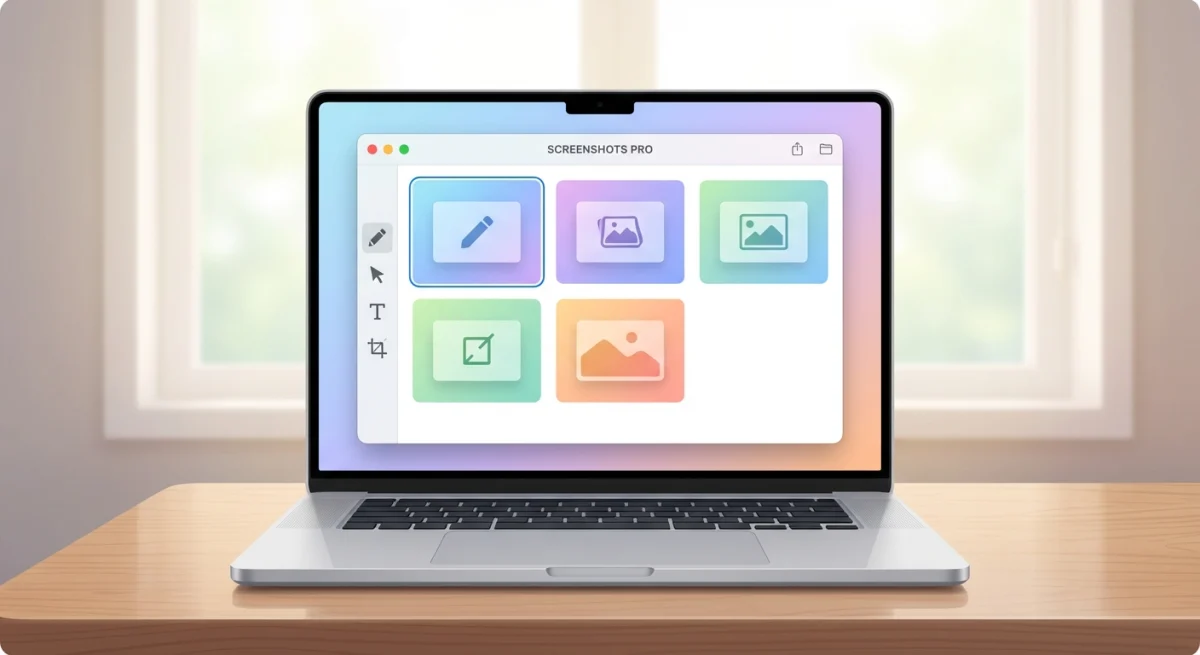
ScreenSnap Pro fills this gap with:
- One-time $34 purchase (no subscriptions, lifetime updates included)
- Desktop app for Mac and Windows that follows familiar macOS shortcuts on a Mac
- GIF recording without needing separate video software
- 22 gradient backgrounds for polished, shareable screenshots
- Professional annotation tools including blur, arrows, shapes, and OCR
- Instant cloud sharing with optional local-only mode
- Pin screenshots to keep references visible while working
These details matter more than specs suggest. ScreenSnap Pro uses Apple's standard screenshot shortcuts by default. It plugs into the macOS share sheet. Preferences live where you'd expect. Small details that make it quick to pick up on a Mac.
If you're coming from Windows and loved Greenshot's simplicity, ScreenSnap Pro follows the same idea: capture fast, edit quick, share in seconds. But with the polish and power macOS users expect in 2026.
If you're comparing the best screenshot apps for Mac, ScreenSnap Pro offers the professional features of Snagit for a single one-time payment instead of a yearly subscription, and without Windows-first design compromises.
Frequently Asked Questions
The verdict
Snagit vs Greenshot isn't close on features. Snagit wins on nearly every point. But Greenshot's $0 price tag makes it the smart pick for Windows users with basic needs.
The real question: does either tool fit your workflow in 2026?
- Windows + free + basic needs → Greenshot
- Any platform + professional features + budget available → Snagit
- Mac + professional features + value-conscious → ScreenSnap Pro
For Mac users, Greenshot is off the table. And while Snagit works, it's pricey and feels out of place on macOS. ScreenSnap Pro fills the gap with pro screenshot tools for Mac and Windows, at a price with no yearly fees.
Ready to upgrade your screenshot workflow? Get ScreenSnap Pro for $34 once and see the difference a focused screenshot app makes.

Morgan
Indie DeveloperIndie developer, founder of ScreenSnap Pro. A decade of shipping consumer Mac apps and developer tools. Read full bio
@m_0_r_g_a_n_