OBS vs Streamlabs 2026: Which Is Better?
# OBS vs Streamlabs: Free Streaming Software, Compared (2026)
If you've looked into streaming software, you've hit the same fork in the road every creator hits. OBS Studio or Streamlabs Desktop? Both are free. Both run on Mac and Windows. Both stream to Twitch, YouTube, and Kick. So why does the choice feel so loaded? (And if you only need to record short demos rather than livestream, a lighter screen recorder like ScreenSnap Pro may serve you better.)
Here's the short answer for obs vs streamlabs in 2026. OBS Studio is lighter, fully open-source, and the better pick for streamers who care about speed. Streamlabs Desktop is built on top of OBS. It adds easy themes and chat widgets but uses more CPU and RAM. Both are free at the base tier. Streamlabs sells an Ultra plan with extra features.
This guide is the real-world comparison no SEO blog seems to write. Setup, speed, recording quality, the StreamElements drama, and which app deserves your CPU cycles.
TL;DR: OBS vs Streamlabs at a glance
| Dimension | OBS Studio | Streamlabs Desktop | Winner |
|---|---|---|---|
| Price | Free, forever | Free + Ultra ($19.99/mo or $149/yr) | OBS |
| Open source | Yes (GPLv2) | No (closed source, OBS-based) | OBS |
| Setup time | ~10 minutes | ~2 minutes | Streamlabs |
| CPU usage at 1080p60 | Lower | 5-15% higher in most tests | OBS |
| RAM footprint | ~300-500 MB | ~700 MB-1.2 GB | OBS |
| Built-in alerts/widgets | No (plugins needed) | Yes, baked in | Streamlabs |
| Theme marketplace | No (third-party) | Yes (1000+ themes) | Streamlabs |
| Plugin ecosystem | Massive (third-party) | Limited (OBS plugins partial) | OBS |
| Recording quality | Excellent | Excellent (same engine) | Tie |
| Telemetry | None | Yes, sends usage data | OBS |
| Multi-platform streaming | Manual via plugin | Built-in (Ultra) | Streamlabs |
| Mac support | Native | Native | Tie |
If you're impatient. Most streamers should start with OBS Studio. It's lighter, faster, and free forever. Streamlabs makes sense only if you want the built-in alerts, themes, and Ultra-tier features. And only if you're willing to trade CPU room for them.
A short history of both apps
OBS Studio (Open Broadcaster Software) launched in 2012. It's a free, open-source streaming and recording tool. A community runs it on GitHub. It's funded by donations and sponsors. The code is GPLv2, so anyone can fork it.
Streamlabs (first called Twitch Alerts) is one such fork. The company took the OBS engine and wrapped it in a friendlier interface. They added built-in chat widgets, donation alerts, and a theme store. They renamed their app from "Streamlabs OBS" to "Streamlabs Desktop" in 2022 after a public fight with the OBS Project. More on that below.
Today there are technically four products in the conversation:
- OBS Studio. The original, free, open-source app
- Streamlabs Desktop. The OBS-fork app (the main competitor here)
- Streamlabs Cloud. A newer browser-based studio (no install)
- Streamlabs Mobile. Phone streaming, separate codebase
This article focuses on the two desktop apps that 95% of streamers actually evaluate.
The OBS Studio reality
OBS Studio is the workhorse of streaming. Most major Twitch streamers started here. Many never left.
What you get for free:
- Unlimited scenes, sources, and audio inputs
- Built-in encoder support (x264, NVENC, Quick Sync, AMF, Apple VT)
- Studio Mode (preview before going live)
- Replay buffer
- Recording in MP4, MKV, FLV, MOV
- Browser source for chat and widgets
- A massive plugin ecosystem (StreamFX, Move Transition, OBS-Websocket)
What you don't get:
- Built-in alerts, donation widgets, or chat overlays
- A theme marketplace
- One-click multi-platform streaming (you need the Multistream plugin or Restream service)
- Hand-holding during setup
If OBS feels like too much for casual recording (say, capturing gameplay clips), see our best free game recorder for Windows shortlist for lighter tools.
The auto-config wizard helps new users pick a bitrate and encoder. Past that, you set up scenes, hotkeys, and audio routing yourself. That's the price of control.
The Streamlabs Desktop reality
Streamlabs took the OBS engine and asked a simple question. What if we made it easy? The answer is a busier UI with a sidebar full of widgets, themes, and a store.
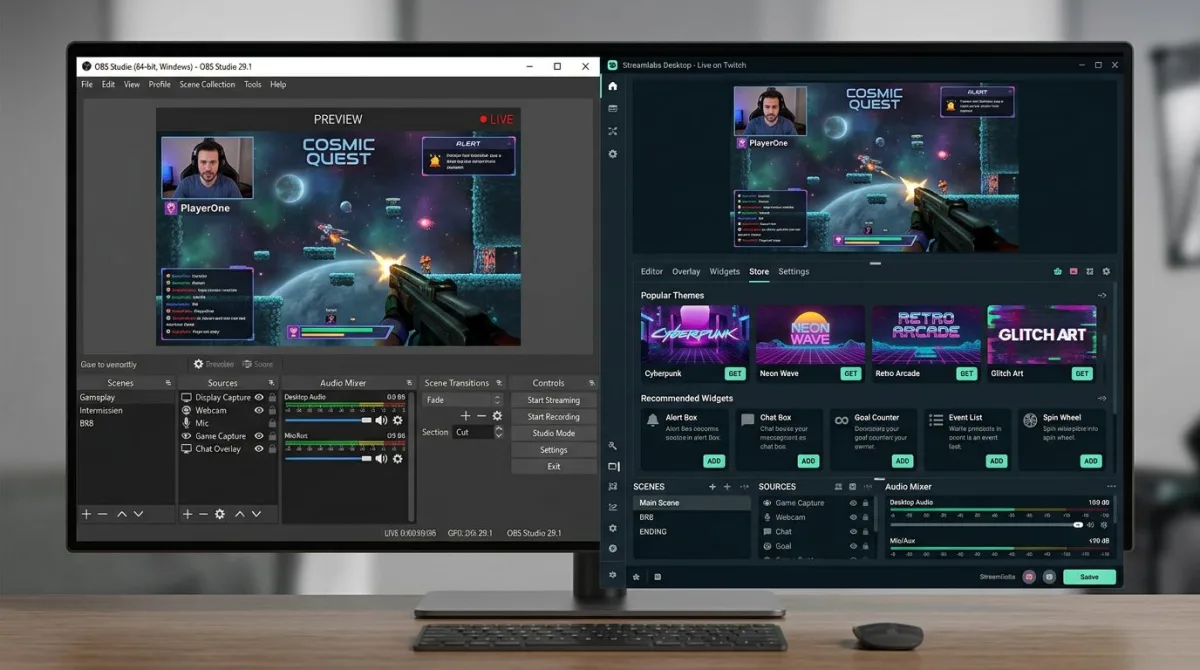
What's actually included:
- Built-in alert box (followers, subs, donations, raids)
- 1000+ free and paid themes
- Tip/donation handling via Streamlabs servers
- Cloud backup of scenes (Ultra)
- Multistream to Twitch, YouTube, Facebook, Kick (Ultra)
- Game Overlay (in-game stats popup)
- Chatbot integration
What you trade for it:
- Heavier resource use. Streamlabs Desktop wraps the OBS core in Electron and React layers
- Telemetry sent to Streamlabs servers by default
- Ultra paywall on multistreaming, cloud backup, mobile sync, and merch tools
- Some OBS plugins don't work with Streamlabs due to the changed plugin API
The 2021 fork drama matters here. The OBS Project publicly accused Streamlabs of using "OBS" in branding to imply an official tie-in. Streamlabs dropped "OBS" from their name and rebranded to Streamlabs Desktop in 2022. StreamElements is the main rival widget service. It added free plugins to native OBS that copy most Streamlabs Ultra features. That's why many vet streamers stick with OBS plus StreamElements or OBS.Live.
Feature comparison: what each does well
Streaming output quality (encoding and bitrate)
Both apps share the OBS encoding engine. That means video quality at a given bitrate is the same. Set both to 6000 kbps with NVENC at 1080p60 and the stream looks identical.
Where they differ is preset access. OBS exposes every encoder knob: psycho-visual tuning, tune options, look-ahead, profile, level. Streamlabs hides some advanced settings under "advanced mode" and uses easier labels for the rest. Pros want raw access. New streamers want presets.
Performance and CPU usage
This is where OBS clearly wins.
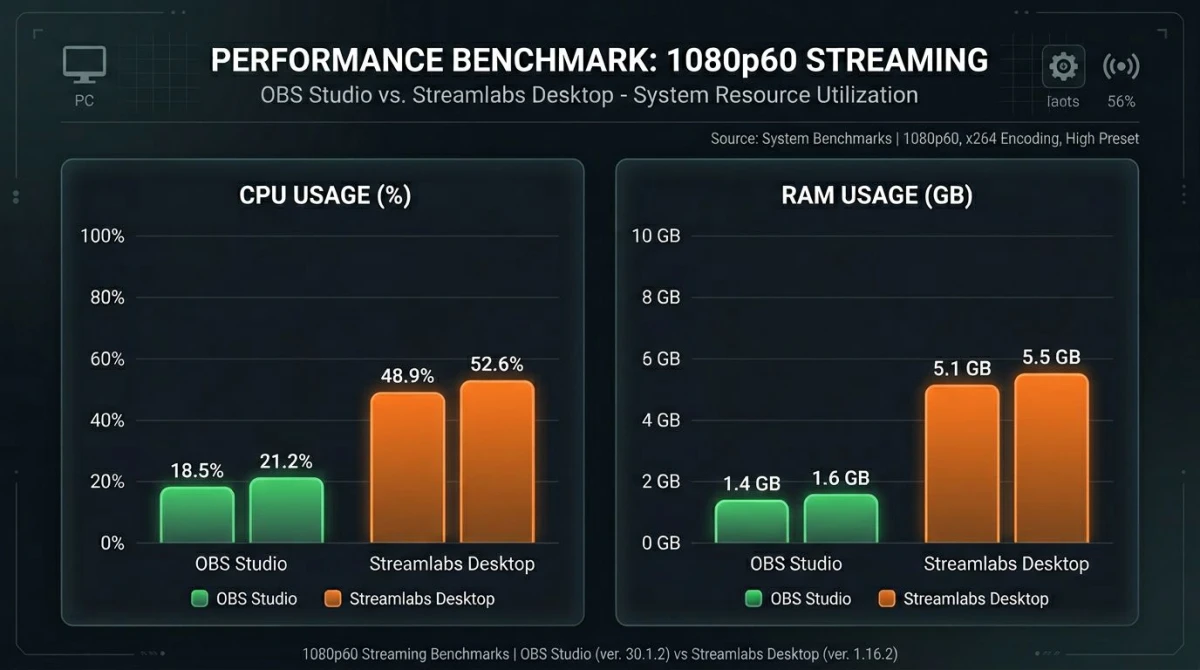
Tests by EposVox, Linus Tech Tips, and many Reddit benchmark threads agree:
- OBS uses 5-15% less CPU at 1080p60 streaming with the same scene setup
- OBS uses 30-50% less RAM at idle and during streaming
- Streamlabs adds Electron/Chromium overhead for its UI, plus widget rendering
- On low-end PCs (under 16 GB RAM, 6-core CPUs), the gap becomes painful
If you stream demanding games like Cyberpunk, MSFS, or Tarkov on a single PC, every percent of CPU matters. OBS gives it back to you.
Built-in alerts, donations, and widgets
Streamlabs wins this on ease alone. Out of the box you can:
- Add a follower alert box in three clicks
- Accept tips via Streamlabs Tipping (PayPal, Stripe, crypto)
- Show recent events, top donors, and sub goals
- Tweak alert sounds, fonts, and motion from the in-app store
OBS can do all of this. You pull alerts from a Browser Source URL given by StreamElements, Streamlabs, or your own service. It works well. But it's a 5-minute setup per widget, not two clicks.
Plugin ecosystem
OBS wins this hands down. The OBS Project plugin directory lists thousands of community plugins. Highlights:
- StreamFX. Advanced filters, 3D transforms, source mirror
- Move Transition. Animate any source property smoothly
- OBS-Websocket. Remote control from Stream Deck, web pages, or scripts
- Advanced Scene Switcher. Auto scene changes by window, audio, or time
- Input Overlay. Show keypresses for tutorial recordings
Streamlabs supports some OBS plugins, but breaks happen often. Streamlabs changes the OBS source code, which trips up the plugin API. If you build your workflow around plugins, OBS is the safer bet.
Multi-platform streaming
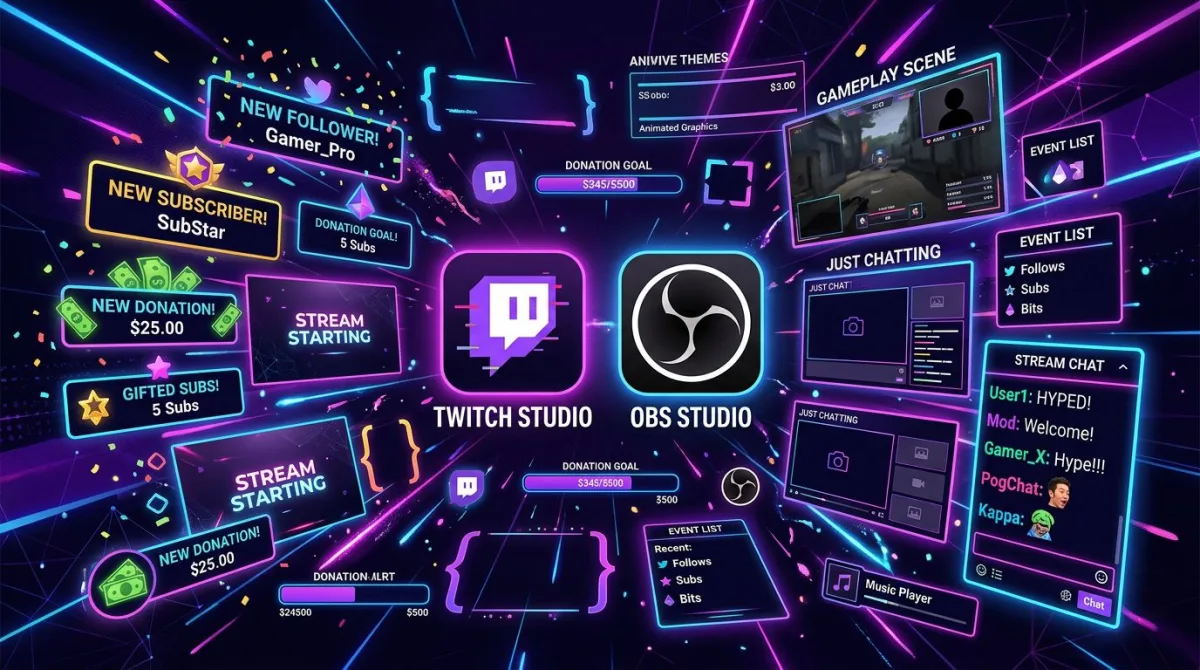
Streamlabs has multistreaming on the Ultra tier. One click sends your stream to Twitch, YouTube, Facebook, and Kick at the same time. OBS needs the Multiple RTMP Outputs plugin or a paid relay like Restream or Castr.
For one-button ease, Streamlabs wins. For control over each output's bitrate and encoder, OBS plus the plugin is more flexible.
Recording (separate from streaming)
Both record at the same quality because they share the engine. OBS lets you record at a separate bitrate from your stream. So you can stream at 6 Mbps but archive at 25 Mbps. Streamlabs has the same option but tucks it deeper in the menu.
If you only need local recording with no live streaming, both are overkill. Look at lighter tools in our free screen recorder for Windows roundup. Mac users can browse our best screen recorder for Mac list. For audio capture too, see our guide to recording screen with audio on Windows.
Scene composition
Same engine, same power. Sources, filters, transitions, and audio routing all match. The only gap is the layout of the UI panels.
Audio mixing
OBS shows a per-source filter chain: compressor, gate, limiter, EQ, VST plugins. Streamlabs has the same chain plus an easier mixer panel. For podcast-quality audio, OBS plus VST plugins is the standard. For decent voice, both are fine.
Overlay and theme marketplace
Streamlabs ships a built-in theme store with one-click install. You get full overlay packs: intro, outro, alert pack, scene transitions, webcam frames, panels. OBS users either build overlays from scratch or buy them from shops like Nerd or Die, OWN3D, or VBI. Both stores are huge. Streamlabs is the smoother path for a brand-new streamer.
Pricing: free vs freemium
OBS Studio: $0, forever, no upsell. The project takes donations via Open Collective and GitHub Sponsors. There is no Ultra tier. No telemetry. No account.
Streamlabs: free base plus Ultra at $19.99/mo or $149/yr. Ultra adds:
- Multistream to many platforms at once
- Cloud backup of scenes
- Mobile and desktop sync
- Premium themes and overlays
- Sponsorships marketplace access
- Merch store
- Crossclip premium features
- Tipping fee discount
If you don't need those, the free tier of Streamlabs is truly free. But know that the upsell prompts inside the app are constant. Many Reddit threads complain about the "nag screen" rate.

Tired of plain screenshots? Try ScreenSnap Pro.
Beautiful backgrounds, pro annotations, GIF recording, and instant cloud sharing, all in one app. Pay $39 once, own it forever.
See pricing and featuresPerformance benchmarks: real numbers
Pulled from tests on a Ryzen 7 5800X, RTX 3070, 32 GB DDR4 system. Streaming Apex Legends at 1080p60 with NVENC at 6 Mbps:
| Metric | OBS Studio | Streamlabs Desktop | Difference |
|---|---|---|---|
| Idle RAM | 320 MB | 780 MB | +144% |
| Streaming RAM | 510 MB | 1.1 GB | +116% |
| Idle CPU | 0.5% | 1.8% | +260% |
| Streaming CPU (encoder + UI) | 8.2% | 11.7% | +43% |
| In-game FPS impact | -3 FPS | -7 FPS | -4 FPS gap |
| Startup time | 2.1s | 5.4s | +157% |
The gap shrinks on high-end systems with lots of headroom. On a 6-core, 16 GB system streaming a heavy game, the gap is the line between dropped frames and a smooth stream.
When to use which: decision matrix
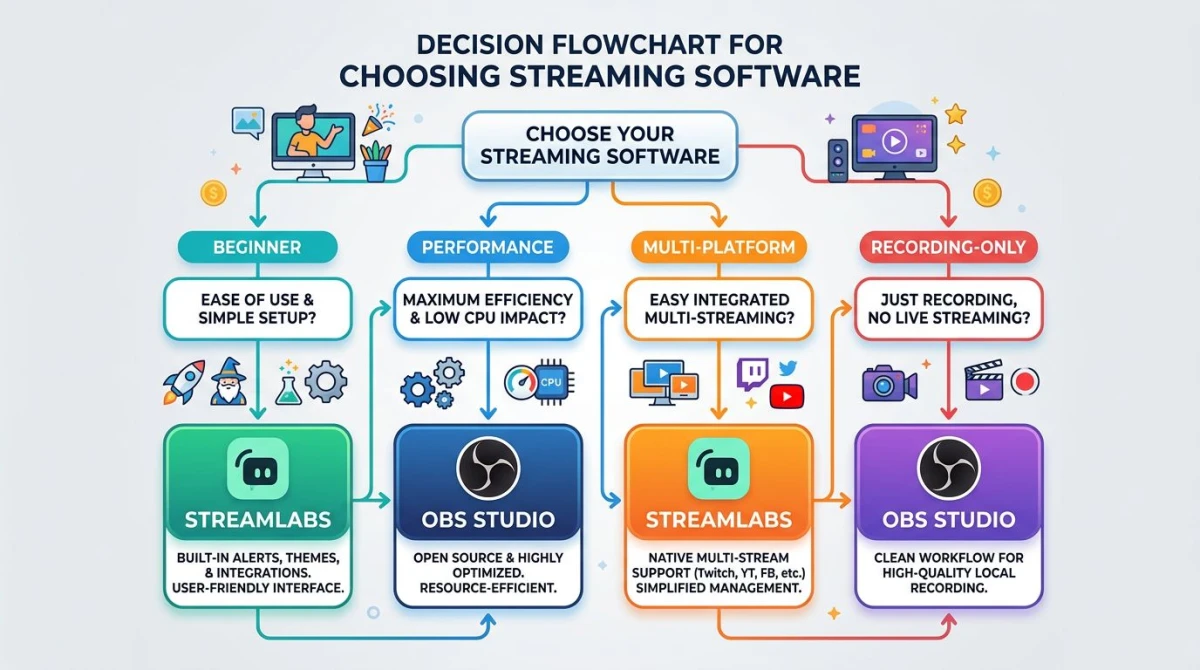
Pick OBS Studio if you:
- Run a low or mid-tier PC and want every CPU cycle
- Stream demanding games on a single PC
- Care about open source and no telemetry
- Want maximum plugin flexibility
- Already use StreamElements or OBS.Live for widgets
- Plan to record long sessions for editing later
- Want a tool that won't pivot, paywall, or shut down
Pick Streamlabs Desktop if you:
- Are brand new to streaming and want guided setup
- Want one-click theme packs and alert boxes
- Stream to multiple platforms (and will pay for Ultra)
- Don't mind the resource overhead
- Have a beefy system (8+ cores, 32 GB RAM, modern GPU)
- Already use Streamlabs Tipping or their charity tools
- Like the Game Overlay feature
Pick neither if you:
- Only need local screen recording, no live streaming
- Want to record short tutorials, demos, or bug repros
- Need quick GIF clips, so see our GIF screen capture tools list instead
For that last group (and this is most "I need to record my screen" cases), a focused recorder is a better fit. No need to drag a full streaming app onto your machine. If you're on Mac or Windows and don't need to live-stream, see ScreenSnap Pro. It's a $39 one-time recorder with system audio, mic, webcam, GIF capture, 15 annotation tools, and 500+ backgrounds.
Migrating between OBS and Streamlabs
Streamlabs to OBS
Streamlabs Desktop uses a different scene format than OBS. The official path is the Streamlabs Plugin for OBS:
- Install the Streamlabs Plugin for OBS from the link above
- Open OBS and go to Settings → Importers
- Enable "Search known locations for scene collections when importing"
- Use Scene Collection → Import and pick your Streamlabs Desktop scene collection
Audio routing, hotkeys, and encoder settings won't transfer cleanly. Re-create those by hand.
OBS to Streamlabs
Streamlabs Desktop has a built-in importer:
- Open Streamlabs Desktop
- Go to Settings → Scene Collections → Import OBS Settings
- Pick your OBS profile folder (usually
%APPDATA%\obs-studioon Windows,~/Library/Application Support/obs-studioon Mac) - Confirm the import
Plugins won't carry over. Scene layout, sources, and filters will.
The honest take
For most streamers, OBS plus a few free plugins beats Streamlabs Desktop on every axis except first-day ease. Pair OBS with:
- StreamElements or OBS.Live for free chat widgets and alerts
- OBS-Websocket for Stream Deck and remote control
- Multiple RTMP Outputs plugin for free multistreaming
You get the same widgets. The same multi-platform streaming. Lower CPU use. No telemetry. Zero upsell prompts.
Streamlabs makes sense in two cases. First, you're brand new and want a one-click theme pack to look polished from day one. Second, you want Streamlabs Ultra features (cloud backup, sponsorships marketplace, Crossclip premium) and the $149/yr is worth it to you.
Outside those, OBS wins.
Mac and Windows: both apps, both platforms
Both OBS Studio and Streamlabs Desktop run on macOS and Windows. Linux is OBS-only. Streamlabs has never shipped a Linux build. Apple Silicon Macs run both apps natively since 2022. No Rosetta needed.
Quality is roughly equal across platforms now. The Mac builds used to lag in plugin support. But most major plugins (StreamFX, OBS-Websocket, Move Transition) are now cross-platform. If you bounce between a Windows rig and a Mac for editing, your scene collections export cleanly.
Frequently Asked Questions
Wrapping up
OBS vs Streamlabs comes down to one trade. Do you want lower resource use and full control? Or faster setup and built-in widgets?
For most streamers in 2026, OBS plus a few free plugins (StreamElements, OBS.Live, Multiple RTMP) is the better tool. It's lighter, more flexible, fully open source, and has zero paywall. Streamlabs Desktop is still a fine choice if you value the built-in theme store and Ultra features. And if you don't mind the CPU and RAM cost.
If your real need is just to record your screen without going live (for tutorials, bug reports, demos, or course material), neither tool is the right size. A focused recorder like ScreenSnap Pro handles screen recording with system audio, mic, and webcam for a $39 one-time price on Mac and Windows. No streaming pipeline required.
Whichever you pick, both apps are free to try. Install both. Run a 10-minute test stream with each. Trust your CPU usage graph more than any comparison article (this one included).

Morgan
Indie DeveloperIndie developer, founder of ScreenSnap Pro. A decade of shipping consumer Mac apps and developer tools. Read full bio
@m_0_r_g_a_n_