Best Free Game Recorder for Windows (2026)
The best free game recorder for Windows in 2026 is Xbox Game Bar if you want built-in simplicity, NVIDIA ShadowPlay if you own a GeForce card, and OBS Studio if you want full control with zero cost. Each one hits 60 FPS or higher with almost no drop in game performance. None of them add watermarks. Pick based on your GPU and how much tweaking you enjoy.
We tested eight of the most talked-about game recording software options on Windows 11 this year. We ran each one on the same rig (a mid-range gaming PC) across the same three games. We checked frame rate impact, output quality, file size, and how easy it was to grab a clip after a ranked match. Here is what we found.
What gamers actually need from a screen recorder
Before we rank anything, here is the short list of what makes a screen recorder for gaming worth using:
- 60 FPS capture minimum. Anything lower looks choppy next to modern game footage. (Grabbed a clip at the wrong rate? You can convert its frame rate afterward.)
- Low CPU and GPU overhead. You want to record Valorant, not cut your frame rate in half.
- Hardware acceleration. NVENC, AMD AMF, or Intel Quick Sync keep the CPU free for your game.
- Instant replay or clip mode. Grab the last 30 seconds without hitting record first.
- No watermarks on the free tier. A big logo on your clip kills the vibe.
- Easy export. MP4 at a reasonable size that you can upload straight to YouTube or Discord.
Miss one of these and you will swap tools within a week. Hit all six and you are set.
1. OBS Studio: best overall free game recorder
OBS Studio is the tool most streamers start with. It is fully free, open source, and has zero limits on recording length or output quality.
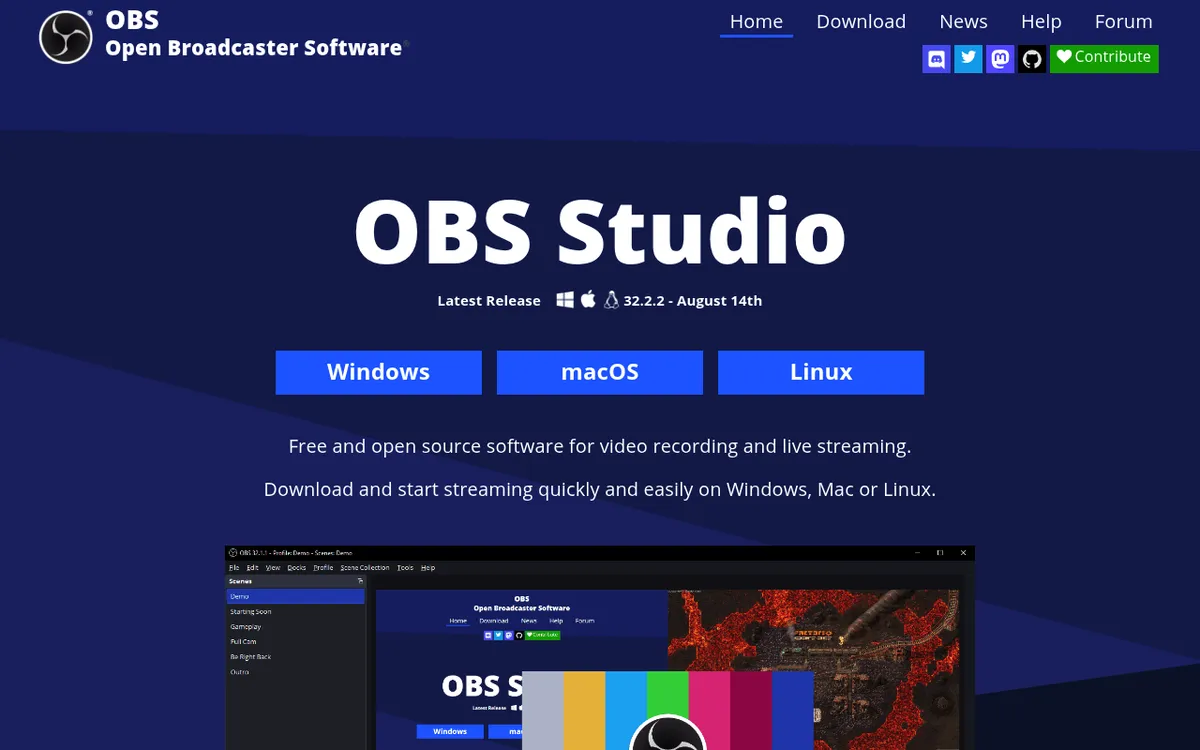
Why it wins for gaming: NVENC and AMF hardware encoding mean OBS barely touches your CPU. You can run it alongside a demanding title like Baldur's Gate 3 and lose only a few frames. The quality at 60 FPS and 20 Mbps bitrate is clean enough for YouTube.
Trade-offs: The learning curve is real. Scenes, sources, audio channels: it all takes an hour to wrap your head around. There is no one-button "clip the last play" feature out of the box, though you can add it with the Replay Buffer setting. There is no built-in editor either, so trims happen in another app.
Best for: Long Let's Play videos, stream recording, anyone who wants one tool that also handles webcams and mic setup. Check our list of OBS Studio alternatives for Windows if OBS feels like overkill.
Recording specs in our test: 1080p at 60 FPS, ~4 FPS drop in-game, 12 GB per hour at 20 Mbps.
2. Xbox Game Bar: best built-in option
Xbox Game Bar ships with Windows 11 and Windows 10. The Microsoft Store now lists it simply as Game Bar. Hit Win + G, click the record button, and you are rolling. It does not get simpler than that.
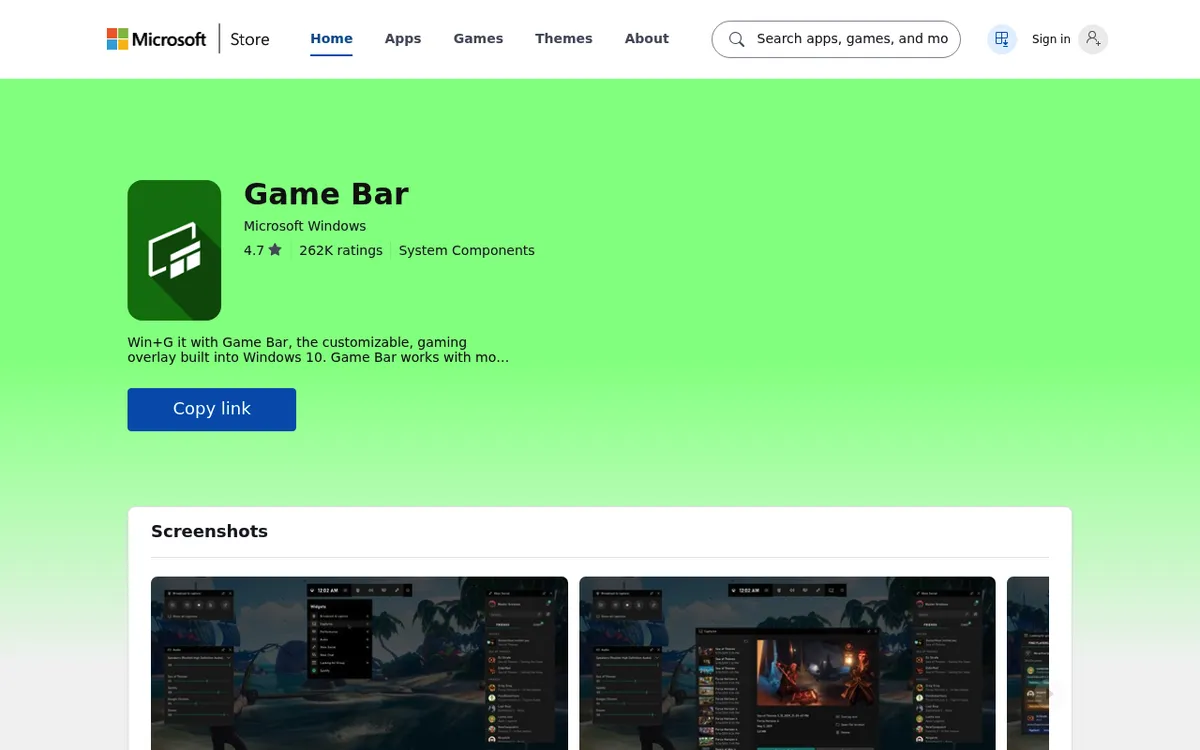
Why it works: Zero install time. Zero cost. Uses hardware encoding by default. The UI is clean: a widget for audio, one for performance, one for capture. Microsoft even rolled out HDR capture support in recent updates, which most free tools still lack. Microsoft's official guide walks through the basics.
Trade-offs: It only records the active game window, not your full desktop. It will not record the Windows File Explorer or other non-game apps. The output folder is buried inside Videos\Captures. Settings are limited: you pick 30 or 60 FPS, standard or high quality, and that is it. (In-game screenshots land somewhere else again. If you use Steam's F12, see exactly where the Steam screenshot folder lives.)
Best for: Quick clips of a clutch moment. Casual recording. People who hate installing extra software. For a deeper walkthrough, read our screen record on Windows guide.
3. NVIDIA ShadowPlay: best for GeForce cards
If you have a GeForce card, NVIDIA ShadowPlay (now part of the NVIDIA App) is free and incredible. NVIDIA's system requirements page now lists only GeForce RTX 20 series and newer, though the app FAQ still names older GTX cards.
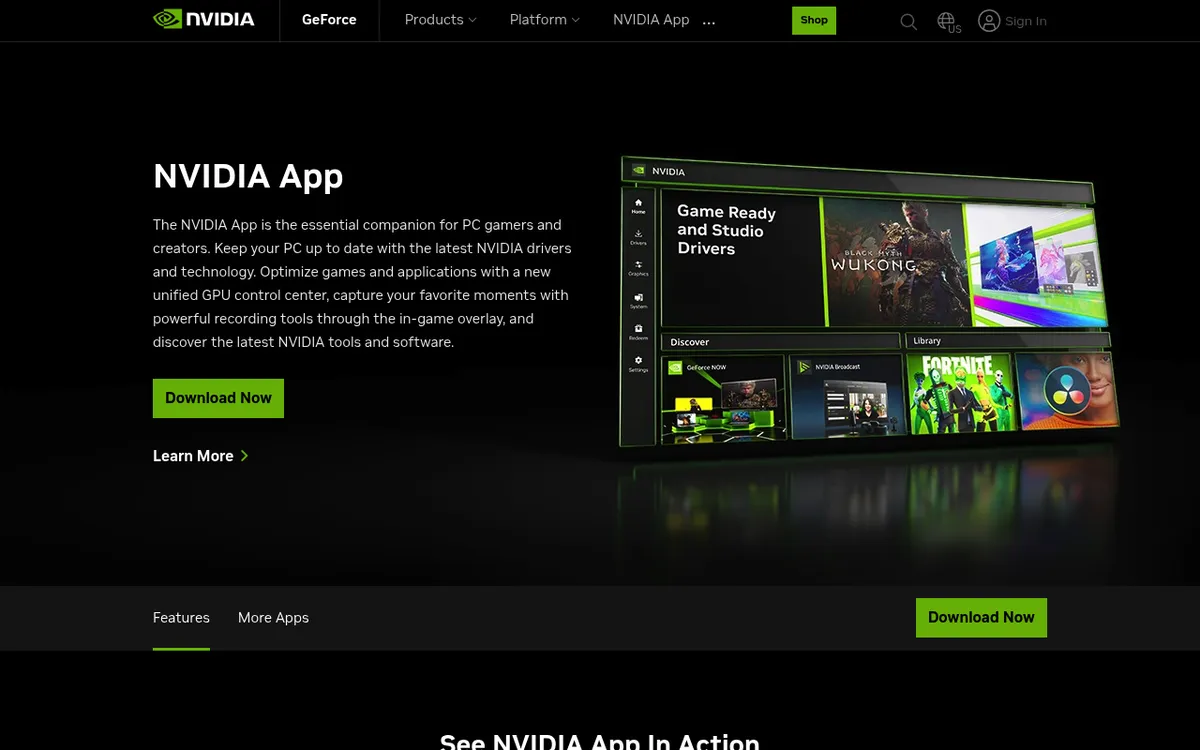
Why it wins: The recording runs on the GPU's dedicated NVENC chip. That means near-zero performance hit. We saw a 1 to 2 FPS drop in Cyberpunk 2077 at 1440p. Instant Replay is the killer feature. It quietly buffers the last 30 seconds to 20 minutes of gameplay, so when something cool happens you just hit Alt + F10 to save it. Recent releases also added 240 FPS recording on RTX 40 and 50 series cards.
Trade-offs: Only works on NVIDIA cards. Output quality is tied to NVIDIA's presets, with fewer knobs to tune than OBS. The NVIDIA App replaced GeForce Experience in 2024, so if you are on an older version you will want to update.
Best for: NVIDIA users who want one-key highlight clipping. Ranked match players. Anyone who hates thinking about settings.
4. AMD ReLive: best for Radeon cards
AMD ReLive is ShadowPlay's equivalent for Radeon GPUs. It lives inside AMD Software: Adrenalin Edition, where AMD now calls it Record & Stream, and it costs nothing.
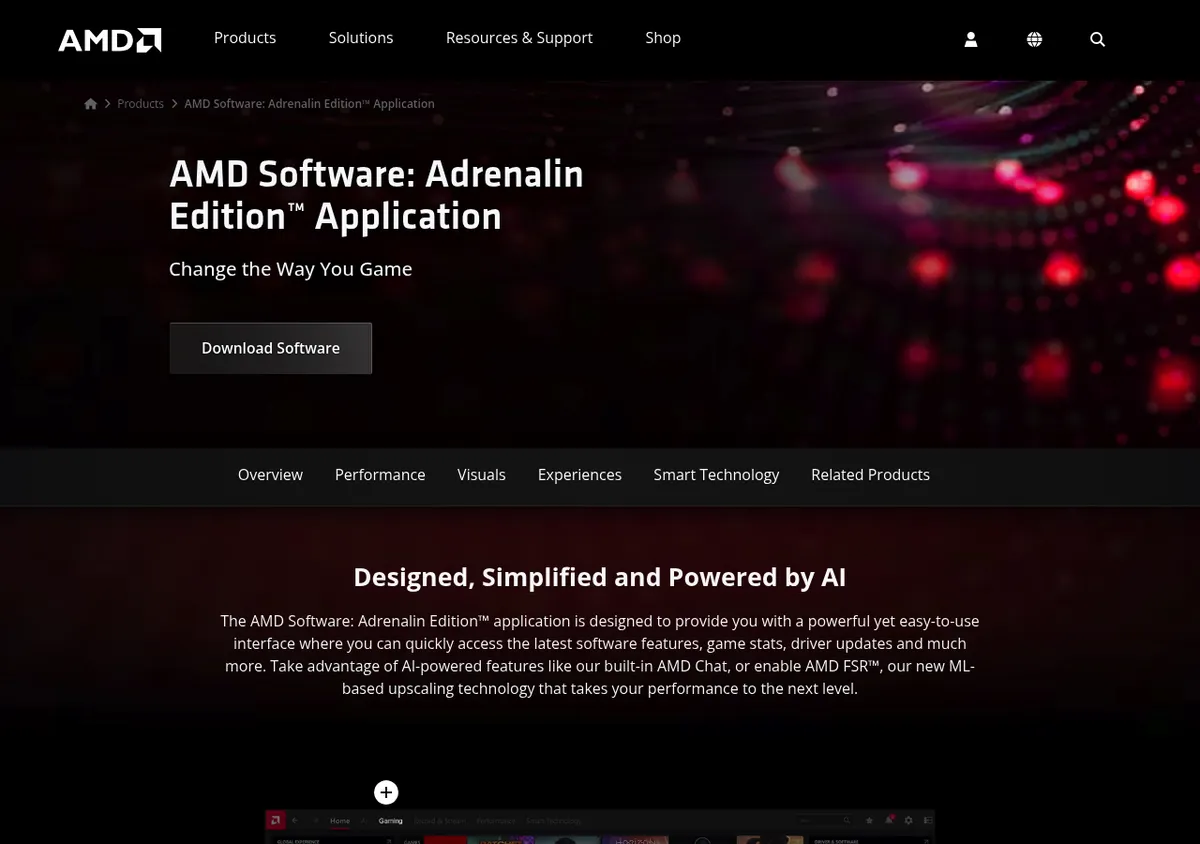
Why it works: Uses the AMF hardware encoder on your Radeon card. Performance cost is tiny, usually 1 to 3 FPS. It has its own Instant Replay buffer, live streaming built in, and scene editor for basic cuts. RX 7000 and RX 9000 cards also get AV1 encoding.
Trade-offs: AMD cards only. The Adrenalin UI has been rough historically, though 2025 updates made it much smoother. The scene editor is basic compared to dedicated video tools. It cannot record OpenGL games or VR headsets, and it will not run at the same time as Microsoft Game DVR.
Best for: Radeon owners. Anyone running an RX 6000, 7000, or 9000 series card. For more gameplay recording techniques, our record gameplay on PC guide covers this in depth.
5. Intel Arc Control: game recorder retired
Intel Arc Control used to include a free game recorder for Arc A-series and B-series cards. That is no longer the case. Intel replaced Arc Control with Intel Graphics Software in November 2024. The new app has no Studio page, and that page is where recording and streaming lived.
What changed: Intel says it retired the Studio page because very few people used it. Its own support article points Arc owners to OBS, Steam, and Windows Game Bar instead. Arc Control is now end of life and gets no more updates. Intel says the features may come back if demand is high, but as of October 2026 they have not.
What to use instead: OBS Studio with the Quick Sync encoder is the closest match. It uses the same hardware encoder on your Arc card, so the hit to your frame rate stays small. Xbox Game Bar works for quick clips. You can stay on an old driver to keep Arc Control, but then you miss new driver fixes.
Best for: Nobody new in 2026. Arc owners should pick OBS Studio or Xbox Game Bar.

Tired of plain screenshots? Try ScreenSnap Pro.
Beautiful backgrounds, pro annotations, GIF recording, and instant cloud sharing, all in one app. Pay $34 once, own it forever.
See pricing and features6. ShareX: best for quick clips and annotations
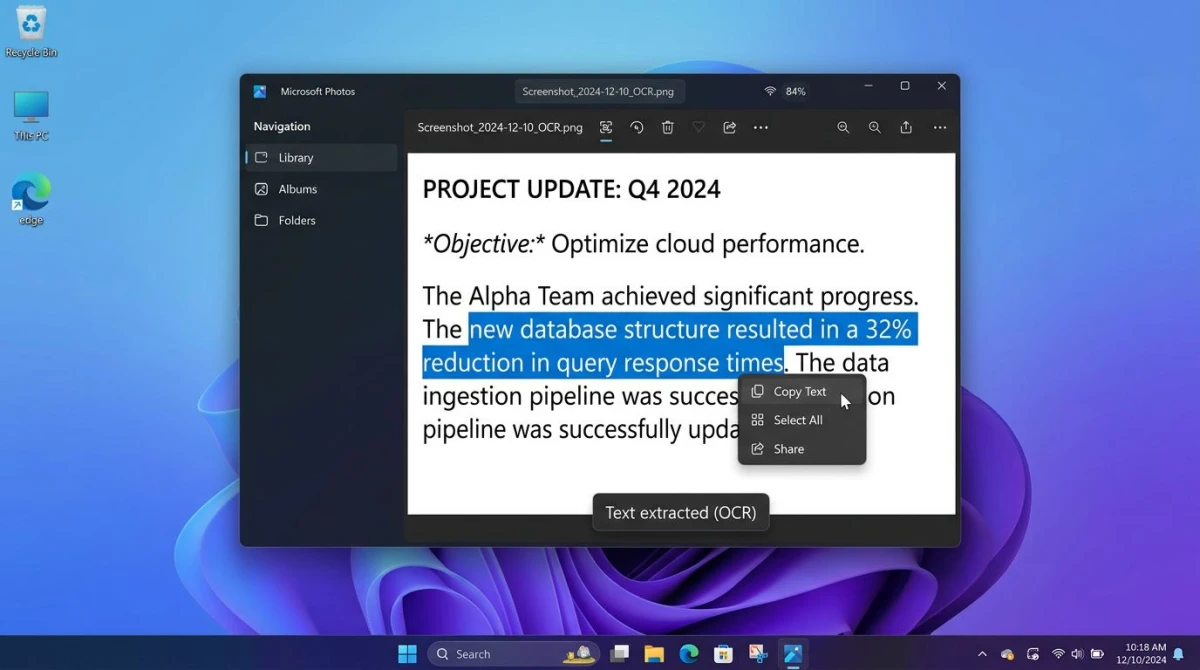
ShareX is a Swiss Army knife for Windows power users. It does screenshots, screen recording, GIFs, OCR, and file upload: basically everything except make coffee.
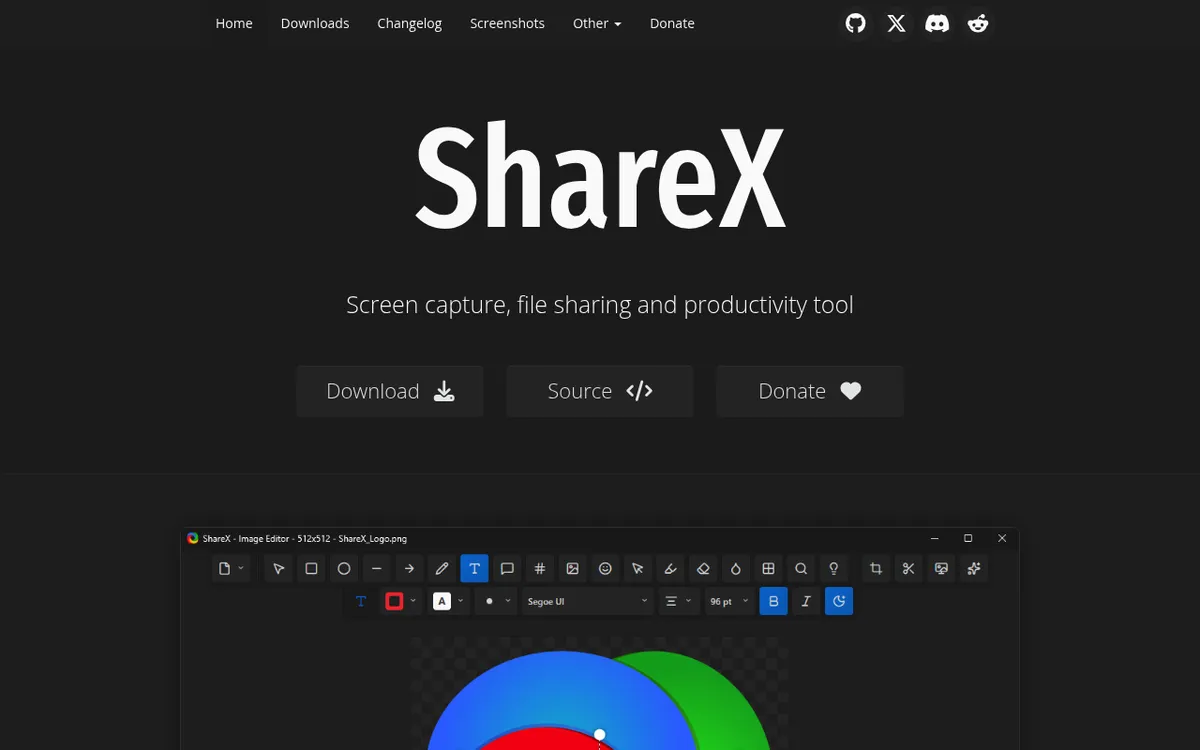
Why it fits gaming: Fully free and open source. Keyboard shortcuts for every action. Outputs directly to MP4 or GIF. Can auto-upload your clip to Imgur, Discord, or a custom server the second you stop recording. Auto upload is off by default on new installs, so switch it on first.
Trade-offs: ShareX uses FFmpeg for recording, which means it is software-encoded by default unless you configure hardware acceleration manually. The main window looks like a 2010 Windows app because it basically is one, though the image editor got a modern redesign in 2026. Current versions need 64-bit Windows 10 or 11. Read our full ShareX review for Windows for the complete rundown.
Best for: People who want one tool for everything. Quick GIF clips to drop in a Discord channel. Annotating screenshots of in-game menus. Check our GIF screen capture guide for Windows for quick GIF workflows.
7. Bandicam (free version)
Bandicam has been around since 2008. The free version lets you record gameplay, but each recording stops at 5 minutes. Since Bandicam 2027, raw recordings no longer get a watermark. Only clips you edit in the app, or export with burned-in subtitles, carry one.
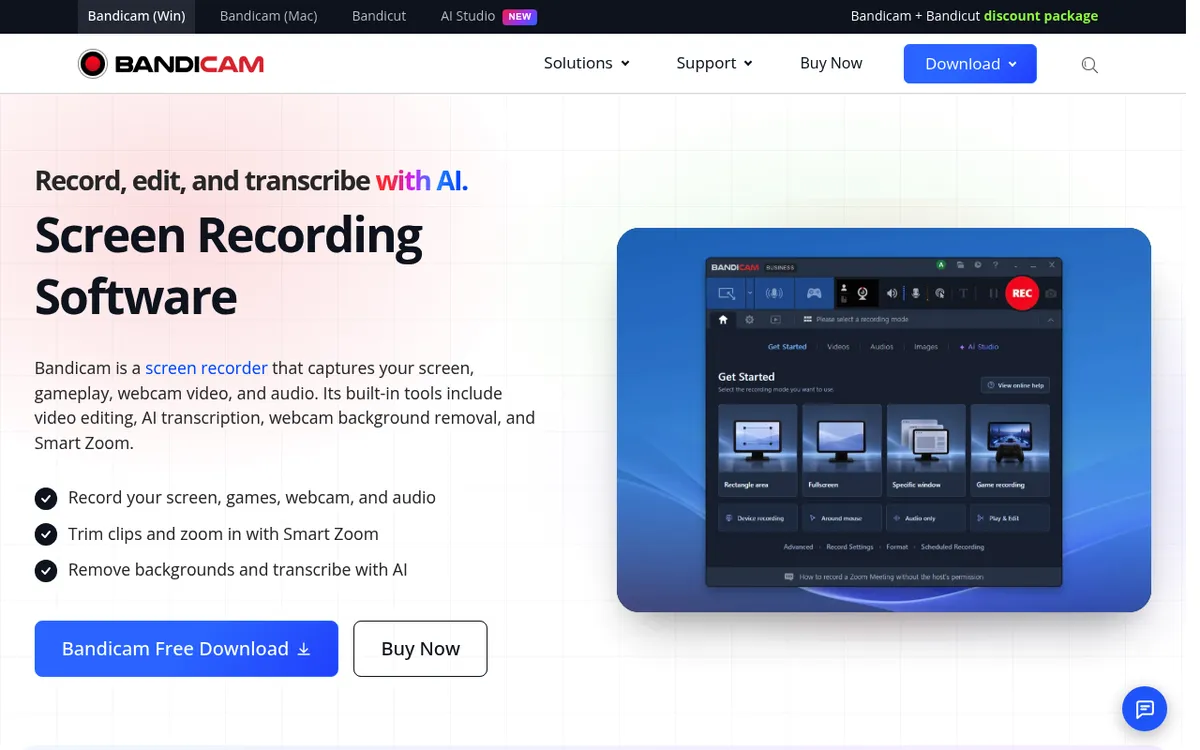
Why it is on the list: The recording engine is solid. Hardware acceleration works well. It handles high frame rate content (120 FPS, 144 FPS) better than some free options, and Bandicam lists support for up to 4K at 480 FPS. The UI is clear and beginner-friendly. Bandicam 2027 also added a basic trim editor and Smart Zoom.
Trade-offs: The 5-minute cap means no long Let's Plays, and edited exports still get a watermark. A personal license costs $33.26 a year, or $53.90 one-time for Bandicam 2027 (sale prices as of October 2026). Monetized YouTube channels need a Business license, from $49.46 a year. Not bad, but not free. Full breakdown in our Bandicam review and alternatives.
Best for: Testing the waters before buying. Recording short highlight clips under 5 minutes.
8. ScreenSnap Pro: best paid alternative if free feels clunky
ScreenSnap Pro is a simple, no-nonsense screen recorder and screenshot app for Windows and Mac. It is not free (a $34 one-time purchase), but it earns a spot on the list for one reason: most free tools feel like homework.

Why it belongs here: Pay once, record forever. No watermarks, no subscription, no time limits. Records MP4 at up to 60 FPS with system audio, mic, and webcam, or records GIFs directly. A built-in video editor lets you trim, split, and cut, remove silences in one click, add cursor-follow auto zoom, and place a webcam overlay. That is handy for gameplay tutorials. You also get 17 annotation tools, a quick-access overlay that stays out of your way, and 500+ backgrounds for mockup shots if you make thumbnails.
Trade-offs: Costs money. There is no GPU instant replay buffer and no live streaming, so it will not replace ShadowPlay for surprise highlights or OBS for streams. If free works for you, stick with free.
Best for: Gamers who also record tutorials, share bug reports, or make YouTube thumbnails and want one clean tool. One license covers 2 seats in any mix of Mac and Windows, with lifetime updates and a 30-day money-back guarantee.
How to record gameplay without lag
The fastest way to kill your frame rate is to record with the wrong encoder. Here is the short checklist for lag-free capture:
- Turn on hardware encoding. In OBS: Settings > Output > Encoder, pick NVENC, AMF, or QuickSync.
- Cap your game at 60 FPS if your GPU is struggling. A steady 60 beats a choppy 90.
- Close background apps. Chrome with 40 tabs eats GPU memory.
- Record to an SSD, not an HDD. Write speeds matter at high bitrates.
- Keep your recorder's bitrate reasonable. 20 to 25 Mbps at 1080p60 is a good balance.
- Use native GPU tools first. ShadowPlay on NVIDIA, ReLive on AMD. They are free and built to not tank performance. On Intel Arc, use OBS with Quick Sync.
If your GPU is older than five years, stick with Xbox Game Bar or ShadowPlay. Both are the lightest on system resources.
Best output settings for YouTube gaming
YouTube recompresses everything you upload, so you want to give it clean source footage.
| Setting | Recommended Value |
|---|---|
| Resolution | 1080p or 1440p |
| Frame rate | 60 FPS |
| Bitrate | 20 to 25 Mbps (1080p), 40 to 50 Mbps (1440p) |
| Codec | H.264 (most compatible) or HEVC |
| Container | MP4 |
| Audio | AAC, 192 kbps, 48 kHz |
For Twitch or live streaming, bitrate drops to 6 Mbps for 1080p60. YouTube gives you more room to breathe.
Which free game recorder should you pick?
Short version:
- NVIDIA card? Use ShadowPlay. It is the cheapest, lightest, one-button option.
- AMD card? Use AMD ReLive. Same deal, different team.
- Intel Arc card? Intel retired the Arc Control recorder, so use OBS Studio with Quick Sync or Xbox Game Bar.
- Anything else, or casual use? Xbox Game Bar. Already on your PC. Just press
Win + G. - Want full control? OBS Studio. Free, powerful, slight learning curve.
- Short clips and GIFs? ShareX.
- Want simple without the setup? ScreenSnap Pro at $34 one-time is the paid shortcut.
For anyone writing longer tutorials, you may also want to check our free screen recorder guide for Windows and how to record screen with audio on Windows.
Frequently Asked Questions

Morgan
Indie DeveloperIndie developer, founder of ScreenSnap Pro. A decade of shipping consumer Mac apps and developer tools. Read full bio
@m_0_r_g_a_n_