8 Best Lightshot Alternatives for Windows (2026)
Lightshot is small and fast. It is also the only popular screenshot tool that, by default, asks you to upload your captures to a public website. Those uploads land on prntscr.com URLs that used to follow a sequential, guessable pattern. Security researchers have been pulling personal data, passwords, and private chats off the site for years. Kaspersky has documented active crypto-wallet scams running on the Lightshot gallery, and entire GitHub repos exist to scrape Lightshot screenshots in bulk.
If you screenshot anything you would not put on a billboard (invoices, code, Slack, IDs, banking pages), Lightshot is the wrong tool. The good news: every replacement on this list either keeps your screenshots local, makes uploading explicit, or hands you private share links.
Quick answer: For Windows users leaving Lightshot, the best Lightshot alternatives are ScreenSnap Pro (one-time $49, screenshots plus a screen recorder and video editor in one app), ShareX (open source, most configurable, for power users), Greenshot (lightweight and simple), and Snagit (subscription, polished tutorials). All four save locally by default, with no Prntscr-style public URLs.
If you want the full story on Lightshot itself, see our full Lightshot review.
Why People Want a Lightshot Replacement on Windows
Lightshot got popular for one reason: the workflow. Press PrtSc, drag a region, hit upload, share a link. That is genuinely useful. But there are three problems baked into how it ships on Windows.
1. The public-URL leak. When you click "upload" in Lightshot, your screenshot lands on prntscr.com with a short, predictable URL. There is no password. There is no expiration. As DeleteMe's safety review of Lightshot notes, anyone who guesses or enumerates a URL can view it. People have written scraper scripts that walk through the URL space and dump millions of screenshots: passwords, IDs, private messages.
2. Stale development. Lightshot has not had a serious feature release in years. No scrolling capture. No GIF. No screen recording. No real annotation polish. On a modern Windows 11 box, it feels like a 2014 utility.
3. No control over sharing. Lightshot's editor pushes you toward "upload." There is no opt-in/opt-out for the cloud, no way to default to a local folder without changing your habit. The product wants traffic on prnt.sc. Your privacy is not the goal.
The eight tools below all fix one or more of those problems. Most fix all three.
Comparison: 8 Lightshot Alternatives at a Glance
| Tool | Price | License | Cloud Sharing | Annotation | Screen Recording | GIF | OCR | Default Privacy |
|---|---|---|---|---|---|---|---|---|
| ScreenSnap Pro | $49 one-time | One-time, 2 seats | Optional (opt-in) | 17 tools + emoji | Yes + video editor | Yes | Yes | Local-first |
| ShareX | Free | Open source | You configure | Strong | Yes | Yes | Yes | Local-first |
| Greenshot | Free | Open source | Plugin only | Basic | No | No | Plugin (Win 10+) | Local-only |
| Snagit | $39/year | Subscription (15-day trial) | Screencast (opt-in) | Best in class | Yes (light) | Yes | Yes | Local-first |
| PicPick | Free / $30 per year | Pro license for work | FTP/cloud (opt-in) | Strong | Yes | Yes | No | Local-first |
| Snipaste | Free / $8.99 Pro | Optional Pro upgrade | None | Pin + basic | No | No | No | 100% local |
| Snipping Tool | Free | Built into Windows | None | Basic | Yes (Win 11) | Export (30s max) | Yes (Win 11) | 100% local |
| Flameshot | Free | Open source | None | In-place | No | No | No | 100% local |
Use the table to filter quickly. The deep reviews below cover the workflow, the gotchas, and where each tool actually beats Lightshot.
The 8 Best Lightshot Alternatives for Windows
1. ScreenSnap Pro: Best Overall (Privacy-First + One-Time Price)
Price: $49 one-time | Platform: Windows and Mac | Rating: (4.7/5)

ScreenSnap Pro is the closest thing to "Lightshot, but safe." Same fast region capture. Same quick annotate-and-share flow. The big difference: cloud upload is optional and off by default. Take a screenshot, edit it, save it locally. Done. Nothing leaves your machine unless you press the upload button.
It also covers ground Lightshot never has: Scrolling Capture for long content in any app window (PDFs, Slack threads, spreadsheets), Full-Page Website Capture for any public URL (first screen or full page, infinite-scroll safe), GIF recording, screen recording to MP4 at up to 60fps with webcam, mic and system audio, 500+ backgrounds for polished captures, OCR text extraction, pinned screenshots, and 17 annotation tools (arrows, blur, pixelate, counter, spotlight and more) plus emoji. Since v5.0.0 there is also a built-in video editor: trim, split, cut silences, add auto zoom, and export to MP4 or GIF. No watermark, ever. One license includes 2 seats, in any mix of Windows and Mac, which is handy if you split work between a desktop and a laptop.
Best for: Lightshot users who want the same speed, fewer privacy worries, and screenshots plus recording in one app for a one-time price.
Honest tradeoff: There is no live streaming and no Linux version.
Get it: ScreenSnap Pro pricing
2. ShareX: Best for Power Users
Price: Free (open source) | Platform: Windows only | Rating: (4.5/5)
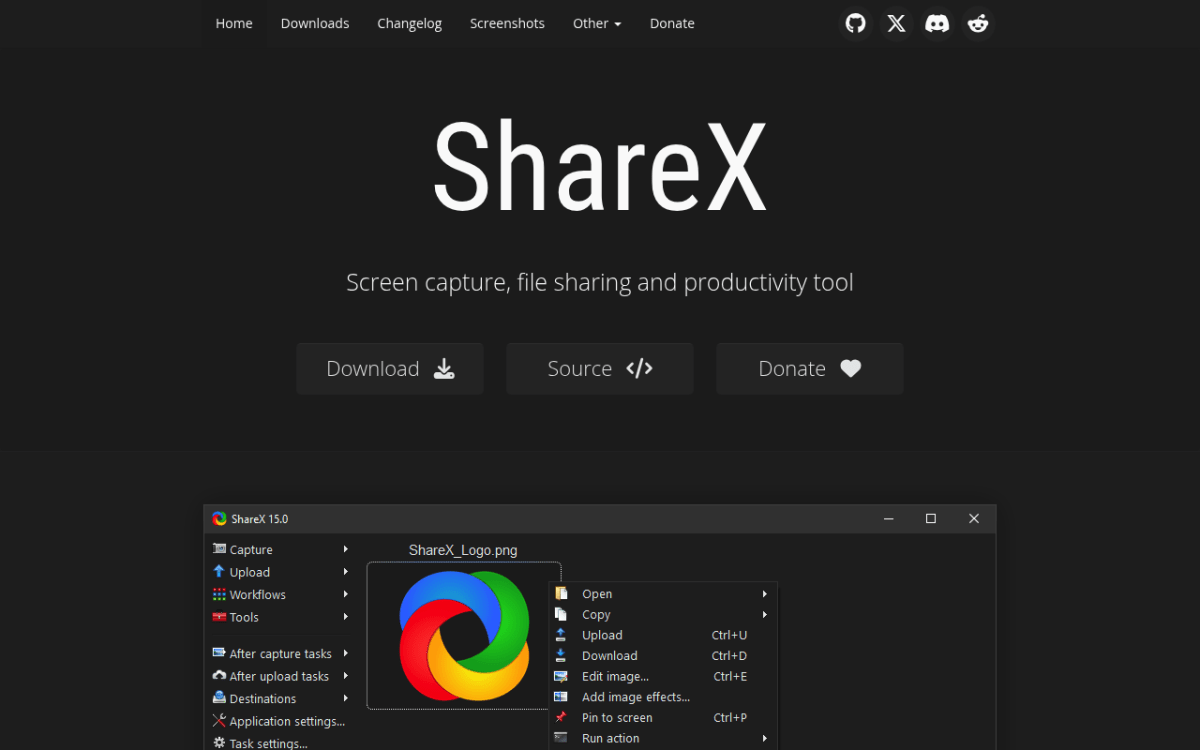
ShareX is the most feature-dense open-source screenshot tool on Windows, full stop. It does region capture, scrolling capture, window capture, screen recording, GIF recording, OCR, color picker, ruler, and a workflow engine that lets you chain actions together. The Windows community has been polishing it since 2007.
What makes ShareX safer than Lightshot: nothing uploads anywhere unless you wire it up yourself. You choose the destination: your own FTP/SFTP server, Imgur, S3, Dropbox, Google Drive, Pastebin, or dozens of other services. Many users skip cloud entirely and just save to a local folder.
Best for: developers, sysadmins, and power users who want full control.
Honest tradeoff: Steep learning curve. The settings panel is dense, and the first hour with ShareX feels like a control room. If you wanted Lightshot's simplicity, jump to Greenshot below. For a softer landing, see our ShareX review.
3. Greenshot: Best for Simple Captures
Price: Free on Windows | Platform: Windows (an older $1.99 Mac version, last updated 2020) | Rating: (4.4/5)
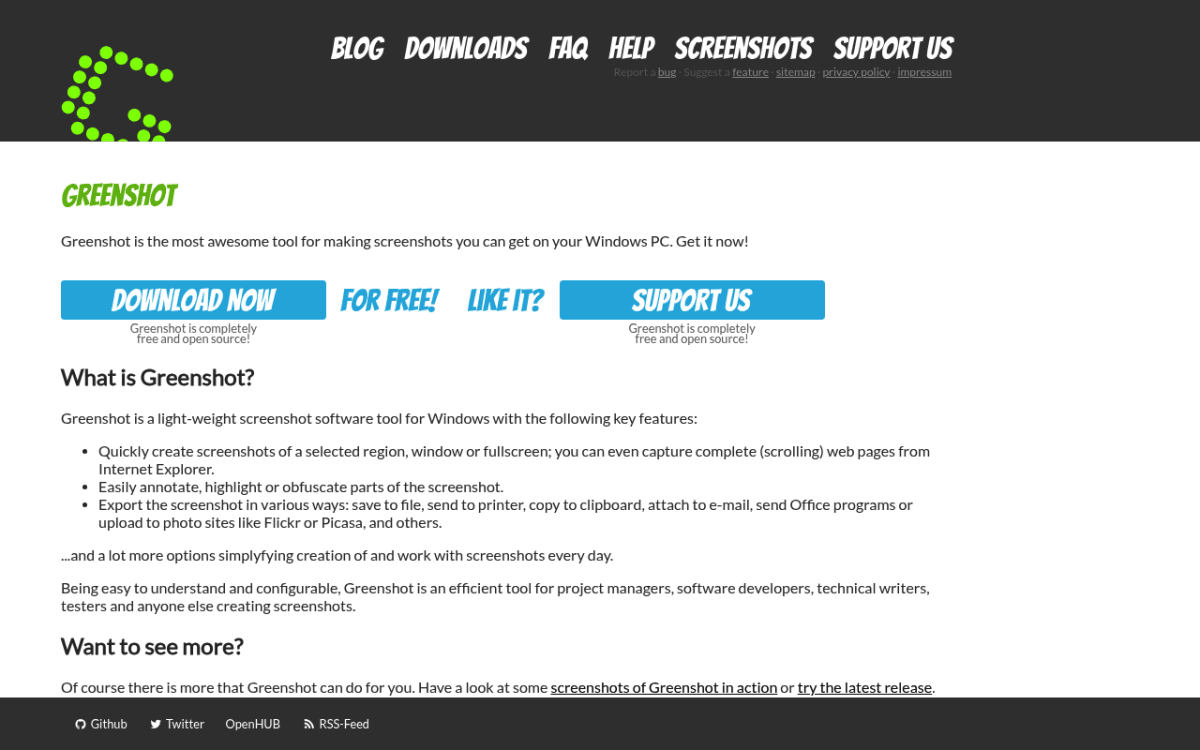
Greenshot is the spiritual successor to Lightshot for people who liked the simplicity but never trusted the upload. It is small (about a 4 MB installer), open source, and saves to a local folder by default. The capture menu is dead simple: region, window, full screen, last region. Done.
Annotation is basic but useful: arrows, text, highlight, obfuscate. The plugin system lets you send captures to Imgur, Jira, Office, or Confluence if you want, and a Windows 10 OCR plugin can pull text out of a capture. Nothing routes to a public URL automatically.
Best for: people who want Lightshot's "press a key, drag, save" workflow without the cloud.
Honest tradeoff: No screen recording. No GIF. No scrolling capture. If you only take simple screenshots, Greenshot is perfect. For a deeper walkthrough, see our Greenshot review.
4. Snagit: Best for Polished Tutorials
Price: $39/year (subscription only) | Free trial: 15 days | Rating: (4.6/5)
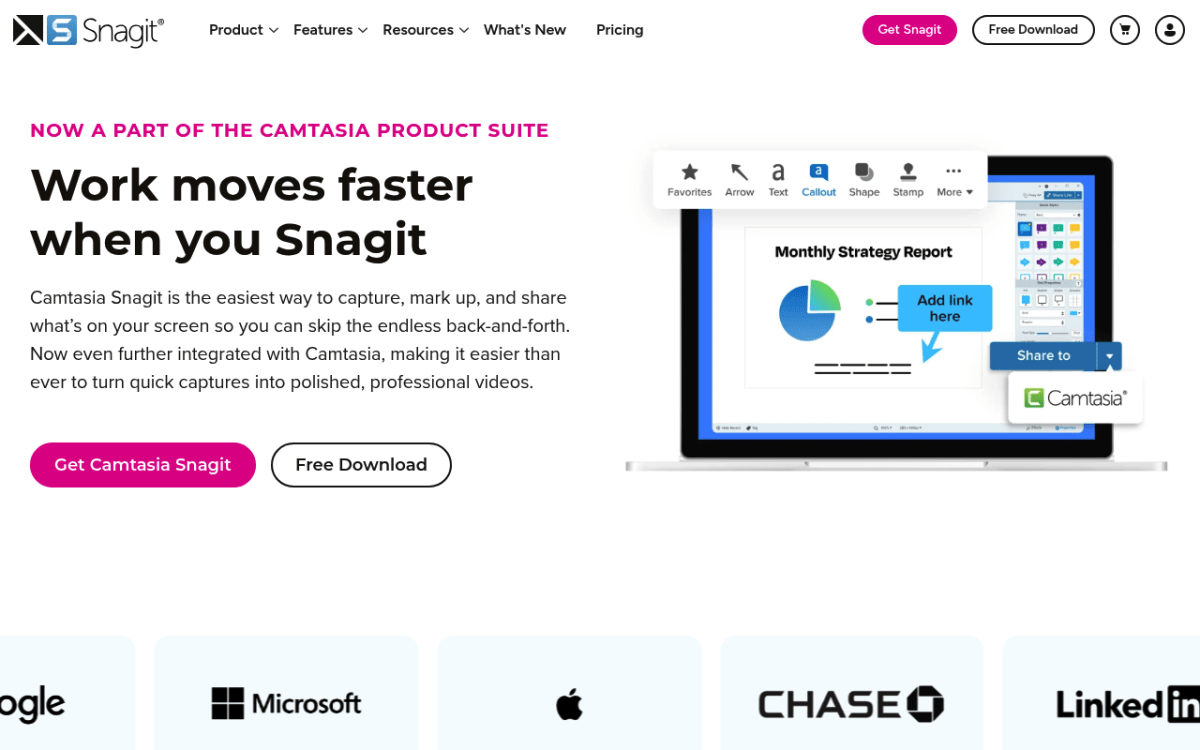
Snagit by TechSmith (now branded Camtasia Snagit) is aimed at polished screenshots, the kind you put into tutorials, support docs, and user manuals. It covers the things Lightshot users keep asking for: scrolling capture (grab a whole long webpage in one image), templates, a step-counter for numbered tutorials, smart move (drag elements around inside a screenshot like layers), and best-in-class annotation.
It also records your screen with mic, system audio, and webcam. Nothing uploads unless you turn on the Screencast.com integration, and even then, links can be set to require login.
Best for: technical writers, support teams, anyone making polished tutorials.
Honest tradeoff: Heavyweight install (1.6 GB of disk space on Windows). Overkill if all you need is "capture a region and paste it in Slack." Since Snagit 2025 it is subscription only, and a yearly fee stings if you only screenshot occasionally.
5. PicPick: Best All-in-One Designer Toolkit
Price: Free personal / Pro from $30 per year or $79 lifetime (limited-time offer) | Rating: (4.3/5)
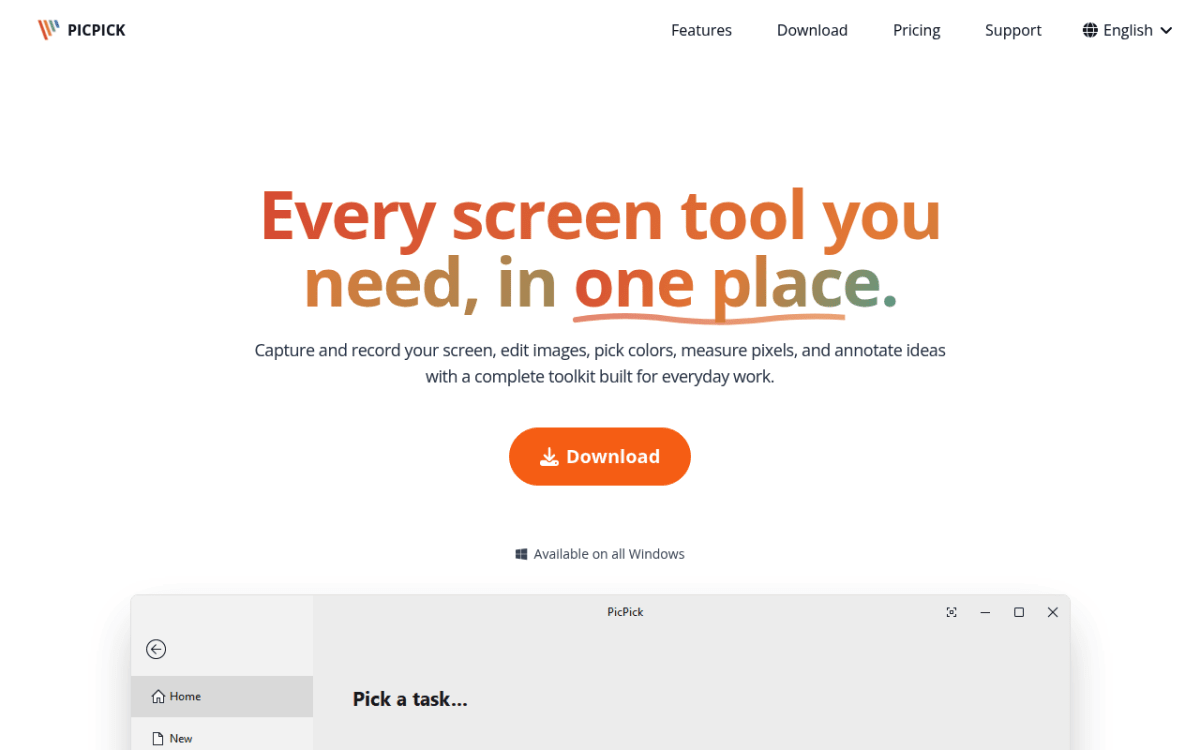
PicPick is what happens when somebody bolts a tiny Photoshop onto a screenshot tool. It does the basics (region, window, full screen, scrolling capture) and then adds a full editing canvas plus a color picker, pixel ruler, protractor, magnifier, crosshair, and whiteboard. Designers love it because they can pull a color off a webpage and measure a button spacing without leaving the app. It also has a screen recorder that saves MP4 or GIF.
Saves locally by default. Sharing is explicit: you can send captures to FTP, Dropbox, Google Drive, OneDrive, Box, or a web link, but nothing uploads unless you choose to.
Best for: designers, front-end developers, anyone who measures and picks colors all day.
Honest tradeoff: The "free for personal use" license is honor-based: if you use it for work, you need a Pro license. The free version shows ads. The interface looks dated. See our PicPick review for the full breakdown.
6. Snipaste: Best for Pin-to-Screen Workflow
Price: Free / Pro from $8.99 | Rating: (4.5/5)
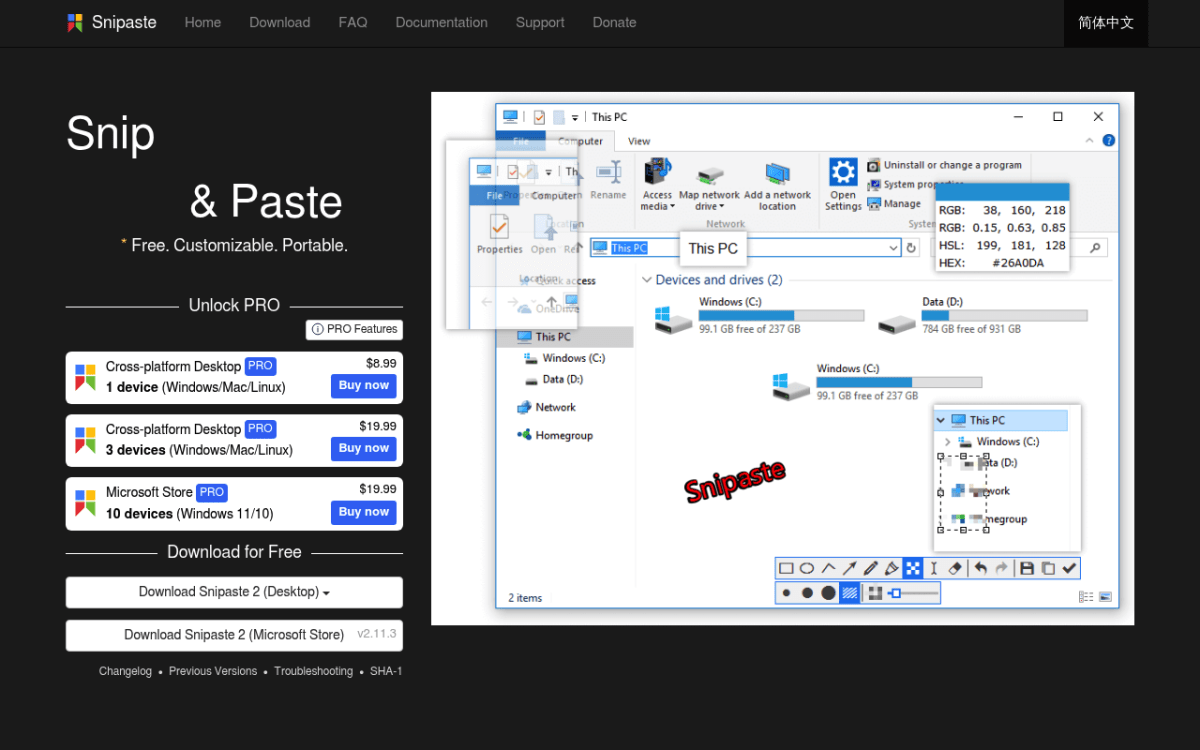
Snipaste is unusual in a good way. After you take a screenshot, you can pin it to the desktop as a floating window that stays on top of everything else. It is the perfect tool for "I need to keep this reference visible while I work in another window" (design specs, error messages, comparison screenshots).
There is no cloud component at all. No upload button, no account, no sharing service. Screenshots live on your disk or in your clipboard. That is it.
Best for: developers and designers who compare windows side by side.
Honest tradeoff: No screen recording, no scrolling capture, no advanced annotation. Snipaste is specialized: it wins at "pin a reference and get out of the way."
7. Snipping Tool (Win + Shift + S): Best Built-In
Price: Free (built-in) | Rating: (4.2/5)
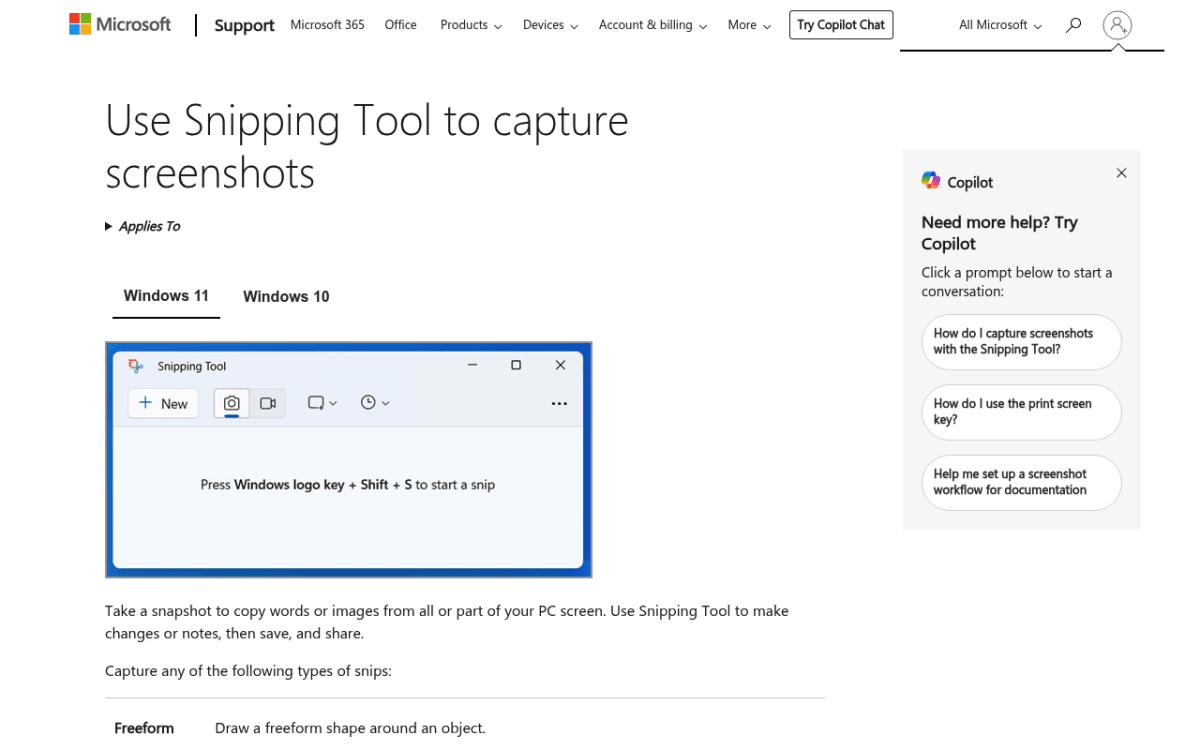
If you uninstalled Lightshot today, Windows already has a replacement waiting. Press Win + Shift + S and the Snipping Tool overlay drops down. Region, window, full screen, or freehand: pick one and drag.
Windows 11 brought big upgrades: video recording, short GIF export, OCR via the Text Actions button, and basic annotation with shapes and arrows. It is not flashy, and there is no cloud, but for the "I just need a quick capture for Teams or Slack" moment, it is enough. Zero install. Zero account. Zero uploads.
Best for: people who already left Lightshot and want zero install overhead.
Honest tradeoff: GIF export is capped at 30 seconds, and there is no advanced annotation, no scrolling capture, and no cloud links. If you want a richer toolset but still want the OS shortcut, pair Snipping Tool with Windows screenshot shortcuts for power-user workflows.
8. Flameshot: Best Open-Source In-Place Editor
Price: Free (open source) | Rating: (4.4/5)
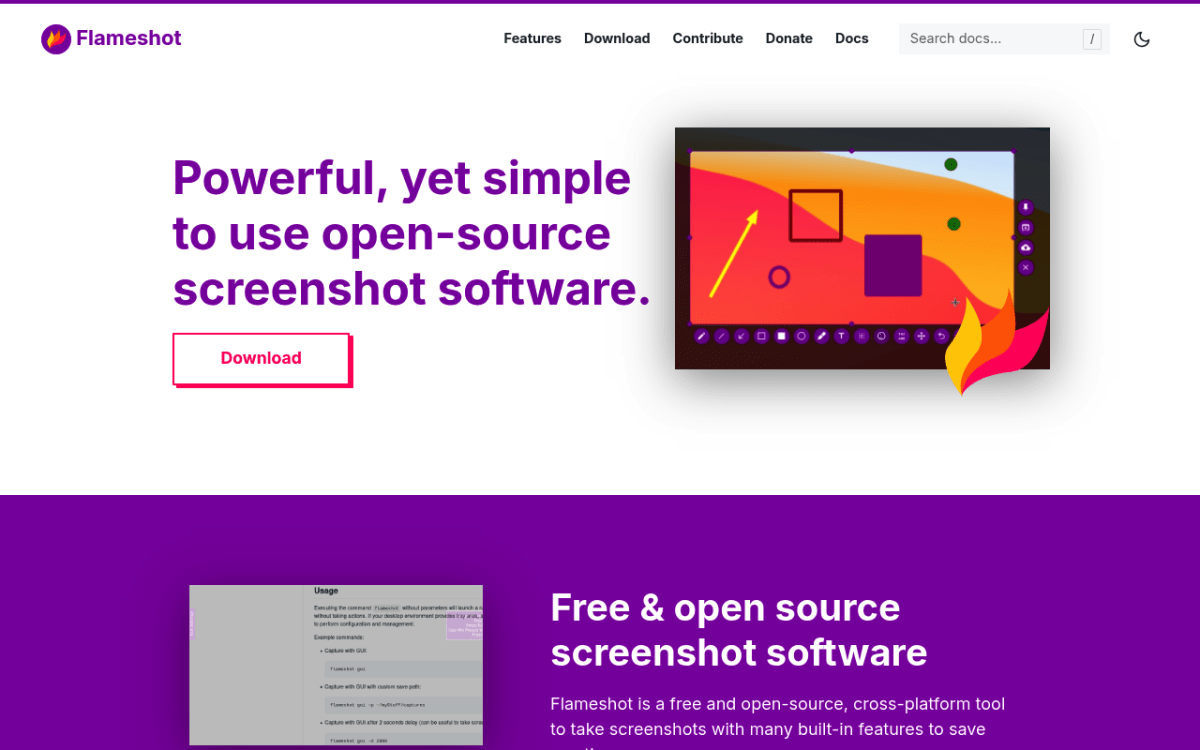
Flameshot has a Lightshot-shaped UI but lives entirely on your machine. The capture flow is the killer feature: the second you drag a region, the annotation toolbar appears on top of the capture itself. Draw an arrow, type text, blur a field, and save, all without switching to a separate editor window.
It started life on Linux and now runs on Windows and macOS too. There is no cloud upload in the official builds, so captures stay on disk or in your clipboard. The Windows port is functional but less polished than the Linux version. Still, as an open-source, in-place annotator, it is the closest match to Lightshot's vibe minus the public uploads.
Best for: open-source fans who want fast in-capture annotation.
Honest tradeoff: The Windows port still feels like a port. Some settings are buried, and the installer can trigger antivirus warnings (false positive). For setup tips, see Flameshot for Windows.

Tired of plain screenshots? Try ScreenSnap Pro.
Beautiful backgrounds, pro annotations, GIF recording, and instant cloud sharing, all in one app. Pay $49 once, own it forever.
See pricing and featuresHow to Migrate Off Lightshot Safely
Switching tools is the easy part. Cleaning up what you already uploaded is the part most people skip.
Step 1: Audit what you have uploaded. Open Lightshot, click your username, and review the "My Uploaded Images" list. Every entry is a public URL. If anything sensitive is there, it has already been indexed by scrapers, so assume it is gone.
Step 2: Request deletion. For each sensitive screenshot, click "Report" or email support@skillbrains.com with the URLs. Deletion is best-effort; some images persist in caches.
Step 3: Uninstall Lightshot. Settings → Apps → Installed apps → search for "Lightshot" → Uninstall. This stops new uploads from happening.
Step 4: Install your chosen replacement. Most of the tools above can rebind PrtSc or use Win + Shift + S as their trigger so your muscle memory carries over.
Step 5: Verify the new tool defaults to local. Before you screenshot anything sensitive, take a test capture and check where it landed. If it is in a local folder and nothing was uploaded, you are safe. If it auto-uploaded somewhere, change the default in settings.
If you want a broader look at native options, our best screenshot tools for Windows roundup covers tools beyond the Lightshot-style use case, and how to screenshot on Windows 11 walks through every built-in shortcut.
Which One Should You Pick?
Quick decision tree, based on what you cared about in Lightshot:
- One-time price, screenshots (including scrolling capture) plus recording and a video editor in one app, Windows and Mac → ScreenSnap Pro
- Simple captures, "just like Lightshot but local" → Greenshot, or just the built-in Snipping Tool
- Deep automation and custom upload targets, willing to learn → ShareX
- Polished tutorials with templates and smart move → Snagit
- All-in-one design utilities (color picker, ruler) → PicPick
- Pinned references while you work → Snipaste
- Open source + instant annotation → Flameshot
If you used Lightshot daily for work and want a real upgrade, ScreenSnap Pro is the strongest all-round replacement: cloud upload stays off unless you choose it, there are no public prnt.sc links, and you get 17 annotation tools, screen recording, and a video editor for a one-time $49. ShareX suits people who want to script every step, and Greenshot is the closest swap if you only ever used Lightshot's basic capture. You can also pair them: Snipping Tool for fast captures, plus one of the above for serious work. If you do a lot of post-capture editing, our guide on how to edit screenshots on Windows shows what each tool's annotation suite actually feels like.
Frequently Asked Questions
The Bottom Line
Lightshot earned its popularity with one of the cleanest capture workflows on Windows. It also earned its bad reputation by routing those captures through a public gallery with no real privacy story. In 2026, you do not need to make that tradeoff.
If you want the same speed Lightshot trained you to expect, with optional cloud, Scrolling Capture, Full-Page Website Capture, screen and GIF recording, a video editor, and one-time pricing, ScreenSnap Pro is the closest drop-in upgrade: $49 once on the pricing page. Pick Greenshot or Snipping Tool if you only need simple captures. Pick ShareX if you want deep automation and do not mind a learning curve. Pick Snagit if you build polished tutorials with templates and have budget for a subscription. All of them keep your screenshots out of strangers' hands by default. That alone is worth the switch.

Morgan
Indie DeveloperIndie developer, founder of ScreenSnap Pro. A decade of shipping consumer Mac apps and developer tools. Read full bio
@m_0_r_g_a_n_