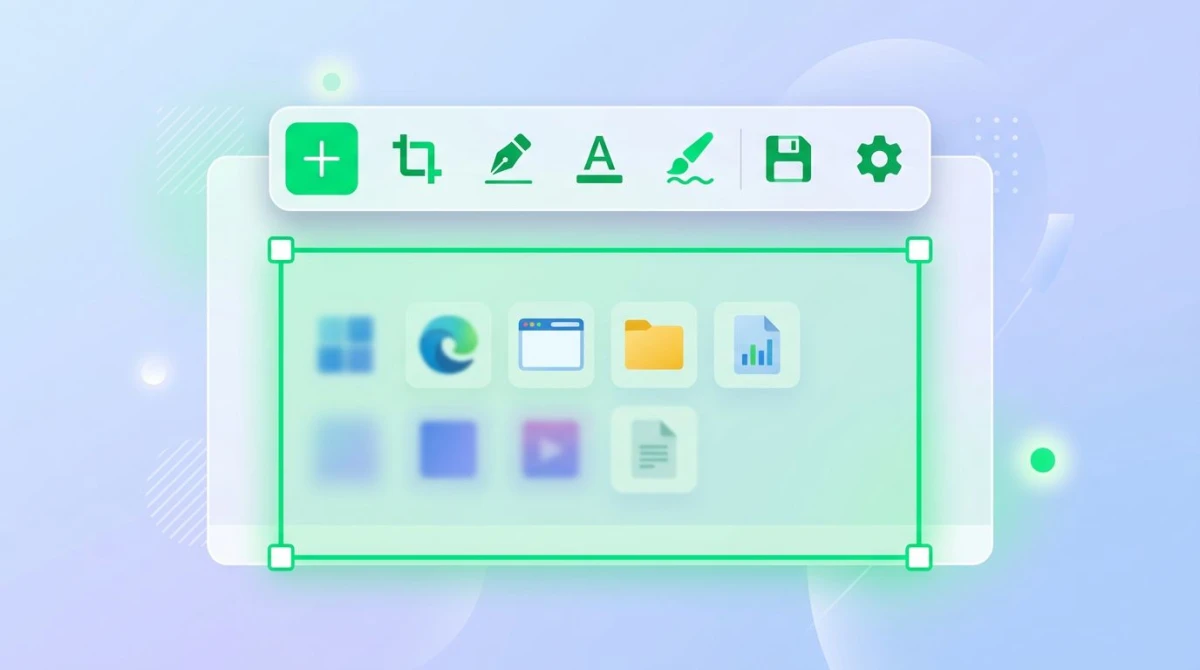
Lightshot Review 2026: Fast but Limited? (Honest Take)
Looking for a quick Lightshot review before you install it on Windows? Here's the honest verdict: Lightshot is fast, free, and light on your PC, but it ships with a serious privacy flaw that most reviews skip over. If you ever upload a screenshot to its cloud, it may be public to anyone who guesses the URL.
That doesn't mean you should avoid it. It means you need to know when it's the right tool and when it's not. In this review, we'll cover how Lightshot works, what it does well, the prnt.sc privacy issue in detail, its real limits, and four safer alternatives for Windows users in 2026.
What is Lightshot?
Lightshot is a free, lightweight screenshot tool made by Skillbrains. It runs on Windows, Mac, and as browser add-ons for Chrome, Firefox, and Opera. The app sits in your system tray, hooks into the Print Screen key, and lets you grab any part of your display in two clicks.
It was one of the first tools to offer fast screenshot sharing with a short link. Upload a shot, get a prnt.sc URL, paste it in chat. Done in seconds. That speed is why it still has millions of users in 2026, even as bigger, flashier tools came along.
The app weighs about 3 MB to install and uses 15 to 20 MB of RAM while running. A portable build is also available for USB sticks or locked-down work PCs.
How Lightshot works on Windows
Lightshot replaces the default Print Screen behavior on Windows. Hit PrtScn, drag to select a region, and a small toolbar pops up. From there you can annotate, save, or share. If you're new to the PrtScn key, see our primer on how to screenshot on Windows 11 first.
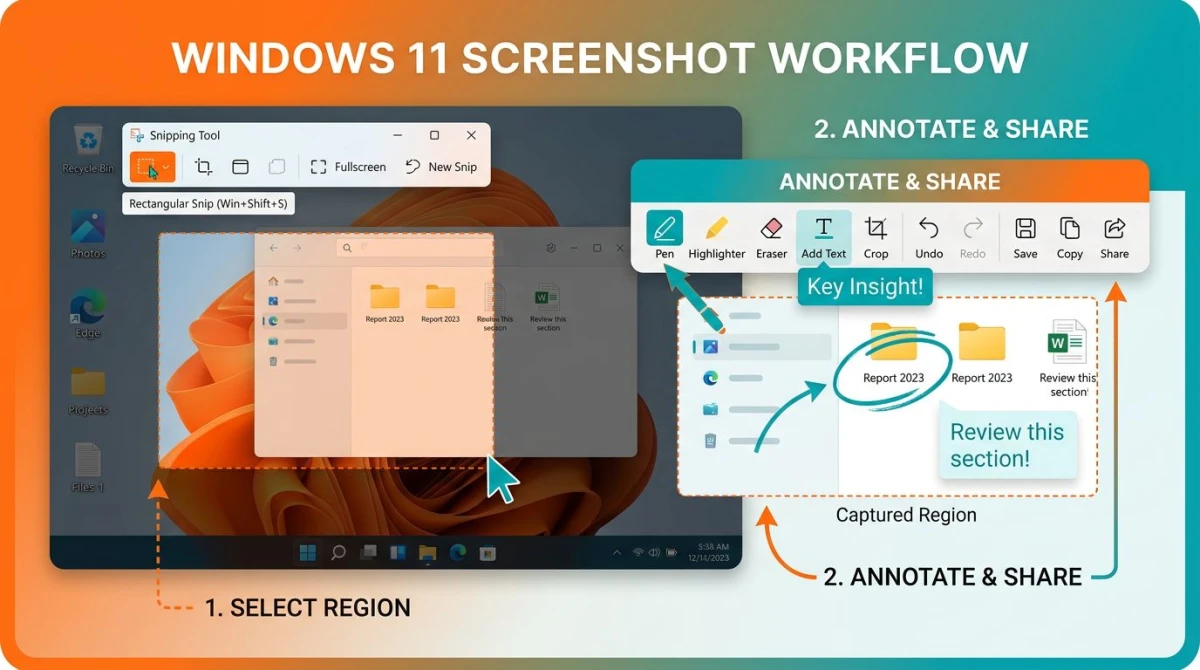
Here's the basic flow:
- Press
PrtScnto start a capture. The screen dims. - Drag to select the area you want. Lightshot shows the pixel size as you drag.
- Pick an action from the toolbar on the right: save, copy, upload, or print.
- Annotate with the tools on the bottom: pen, line, arrow, rectangle, text, color picker.
- Upload to share via a short
prnt.scURL, or save the file locally.
You can change the hotkey in Options and use Ctrl+C to copy or Ctrl+S to save during capture. If you want more Windows-native tricks, our guide on Windows screenshot shortcuts covers the built-in keys worth knowing.
What Lightshot does well
Let's give credit where it's due. Lightshot has stuck around for over a decade because it nails a few things.
Speed is the headline feature. From hotkey to shared URL, you can complete a capture in under ten seconds. No login, no onboarding, no upsell pop-up. That's rare in 2026.
The install is tiny. Under 5 MB to download, minimal RAM use at idle. On older Windows laptops with 4 GB of memory, that matters. You won't notice it running.
The interface is simple enough for anyone. Your grandparents could use it. There are no menus to dig through, no layers, no workspace concept. Grab, annotate, save. That simplicity is the whole point.
It works offline for local saves. You don't need an account. If you never click the upload button, nothing leaves your machine, which is your best defense against the privacy issue below.
Cross-platform. Same muscle memory on your Windows desktop and Mac laptop. Our Lightshot alternative for Mac article covers the macOS side.
Search by image. A hidden gem: the capture toolbar has a Google image search button.
For casual, non-sensitive screenshots (a funny meme, a public webpage, a game moment), Lightshot is still a solid pick.
The Lightshot privacy concern (read this before uploading)
This is the part most reviews gloss over. If you plan to use the cloud upload feature, you need to understand how prnt.sc links work.
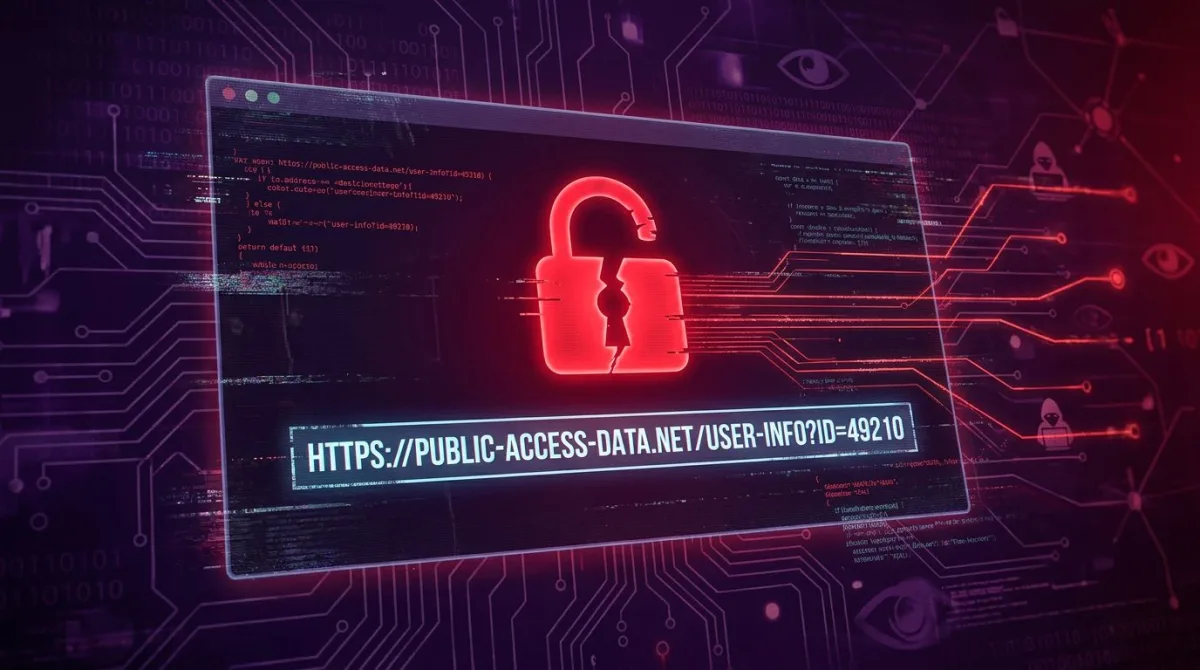
When you click the upload button, Lightshot sends your screenshot to the prnt.sc server and gives you a URL like prnt.sc/abcd12. That link has six characters at the end. It's short, which is handy for chat. But short also means guessable.
The URLs are predictable. They're not random hashes. They run in a pattern that's close to sequential. Security researchers and casual scrapers have shown you can write a script that visits random prnt.sc URLs and discover other people's uploads. This isn't a new finding: it's been documented for years, and the basic design hasn't changed.
There's no password, no expiry, no access control. Anyone with the URL (or anyone who guesses a valid one) can view your screenshot. The image sits on the server indefinitely.
What people have found in scrapes: passport photos, tax forms, banking details, private messages, work emails, and contracts under NDA. Users upload sensitive stuff all the time without realizing it's public by default.
What this means for you:
- Never upload anything with personal data. Email addresses, phone numbers, IDs, account numbers, home addresses.
- Never upload work screenshots. Internal dashboards, client data, code with API keys, anything under NDA.
- Never upload financial or medical info. Self-explanatory.
- Treat every upload as public. If you wouldn't post it on Twitter, don't upload it to
prnt.sc.
For a safer sharing flow, you can save screenshots locally and use a private cloud service, or switch to a tool that encrypts uploads. We'll cover those below. For hiding sensitive bits in screenshots you still need to share, a blur tool is the minimum you should do.
The Lightshot app itself is safe to install. Official builds from the Skillbrains site don't bundle adware, according to Microsoft's own scans. See the Microsoft Defender download guidance for how to verify any installer. The risk is in the sharing model, not the software.

Tired of plain screenshots? Try ScreenSnap Pro.
Beautiful backgrounds, pro annotations, GIF recording, and instant cloud sharing, all in one app. Pay $49 once, own it forever.
See pricing and featuresLightshot limits worth knowing
Beyond privacy, Lightshot misses a lot of features that modern workflows expect. Here's what it doesn't do.
No screen recording. You can't capture video. For that you need a free screen recorder for Windows or a dedicated app.
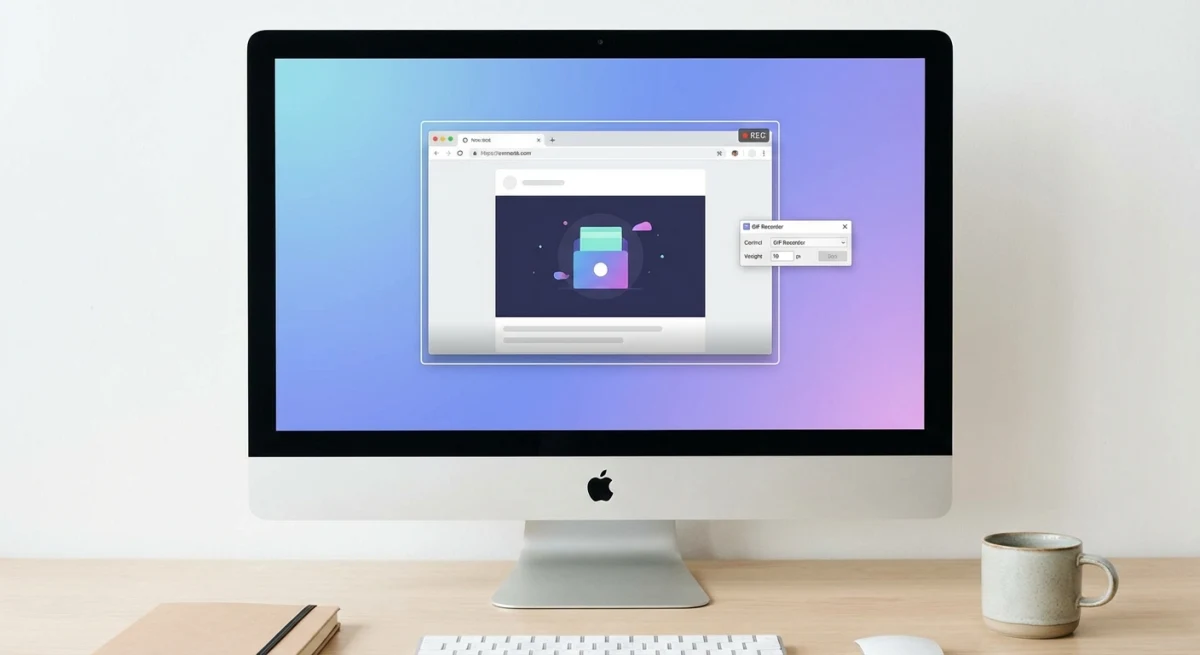
No GIF recording. Tutorials and bug reports often need motion. Lightshot can't export a GIF. See our GIF screen capture on Windows guide for tools that can.
No scrolling capture. With long webpages, chat threads, and long docs, Lightshot only grabs what's on screen. You'd need a scrolling screenshot tool on Windows for those.
Basic annotation only. You get pen, line, arrow, rectangle, text, and a color picker. No blur, no pixelate, no step counter, no emoji stamps, no drop shadow. If you need to hide sensitive info, there's no built-in blur. You have to edit elsewhere. For more polish, see our edit screenshot on Windows guide.
No backgrounds or polish. Screenshots come out as raw grabs. No gradient backdrops, no window shadows, no device frames. Fine for bug reports, weak for marketing assets or social posts.
No OCR or text extraction. Can't copy text from images. Useful for locked PDFs or old scans.
No cloud library management. Once a shot is uploaded, you can't browse, rename, organize, or bulk-delete your uploads from the app. It's fire-and-forget.
No team features. No shared folders, no comments, no permissions.
No image compression options. Every upload is full-size. If you want to trim file size first, you'd need a separate image compressor tool.
Add it up, and Lightshot is less of a screenshot suite and more of a quick-grab utility. Which is fine, as long as that's what you want.
Is Lightshot safe to use?
Short answer: the app is safe to install, but the cloud upload model is risky.
The Windows installer from the official site is clean. No malware, no bundled toolbars, no data mining beyond what's needed for uploads. Skillbrains has been a known developer since 2009.
What's risky is the prnt.sc sharing service. As covered above, its public URL design means anything you upload can be found by strangers. If you never click the upload button and only save locally, you're fine.
A safer Lightshot setup on Windows:
- Turn off auto-upload in Options.
- Use
Ctrl+Sto save locally instead ofCtrl+Dto upload. - Keep the hotkey but train yourself to use save-only.
- For sharing, move files through a private channel like Dropbox or a cloud screenshot sharing service with access control.
If that feels like extra friction for a "fast" tool, you're right. That's why many users switch once they understand the tradeoff.
Better Lightshot alternatives for Windows
If Lightshot's speed is what you love but the privacy model worries you, these four alternatives cover the bases. Each has different strengths.
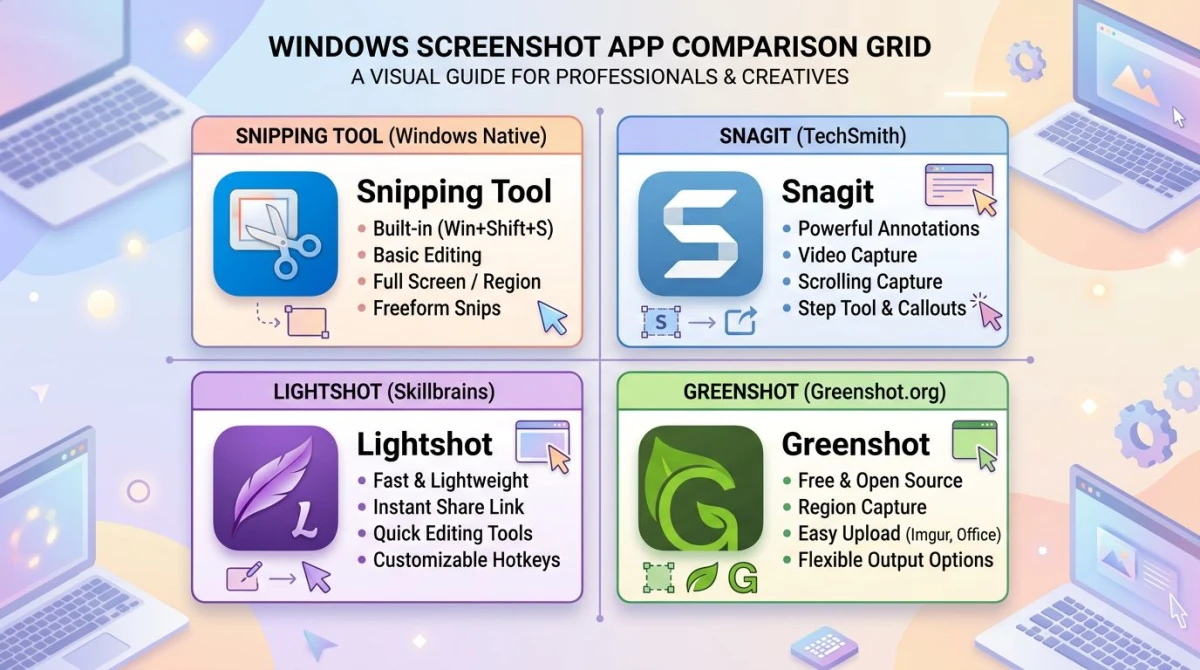
ScreenSnap Pro: fast plus private cloud ($49 one-time)
ScreenSnap Pro is built around the same "capture to share in seconds" idea as Lightshot, but with a private cloud, no watermarks, and a full annotation kit. It's $49 one-time, with no subscription.
What you get beyond Lightshot:
- 17 annotation tools including blur, pixelate, and a step counter
- 500+ gradient backgrounds for polished screenshots
- Screen recording as video
- GIF recording direct from screen
- Optional private cloud with shareable links (not public by default)
- OCR text extraction
- Webcam and system audio capture
The Quick Access Overlay keeps you in flow. Pin a screenshot to your desktop, edit it, and share it without jumping apps. Good for developers, marketers, and support teams who ship visual content daily.
Pick it if: you want Lightshot's speed with better output and no privacy risk.
ShareX: free with proper upload control
ShareX is the open-source Swiss Army knife for Windows. It's free, it has every capture mode you can think of, and (key point) you pick the upload target. Imgur, Dropbox, your own FTP, S3 bucket, or nothing at all.
The trade-off is complexity. The menus are deep, the settings are dense, and new users often feel lost on first launch.
Pick it if: you're a power user who wants full control and doesn't mind a learning curve.
Greenshot: simple with no cloud risk
Greenshot is a clean, free tool that doesn't push cloud uploads at all. Save to disk, copy to clipboard, open in an editor: that's the flow. It's been around since 2007 and feels it in the best way: stable, predictable, boring.
Annotation is basic but solid. No forced sign-ups, no tracking, no public URLs.
Pick it if: you want Lightshot's simplicity minus the upload risk.
PicPick: better editor, still free for personal use
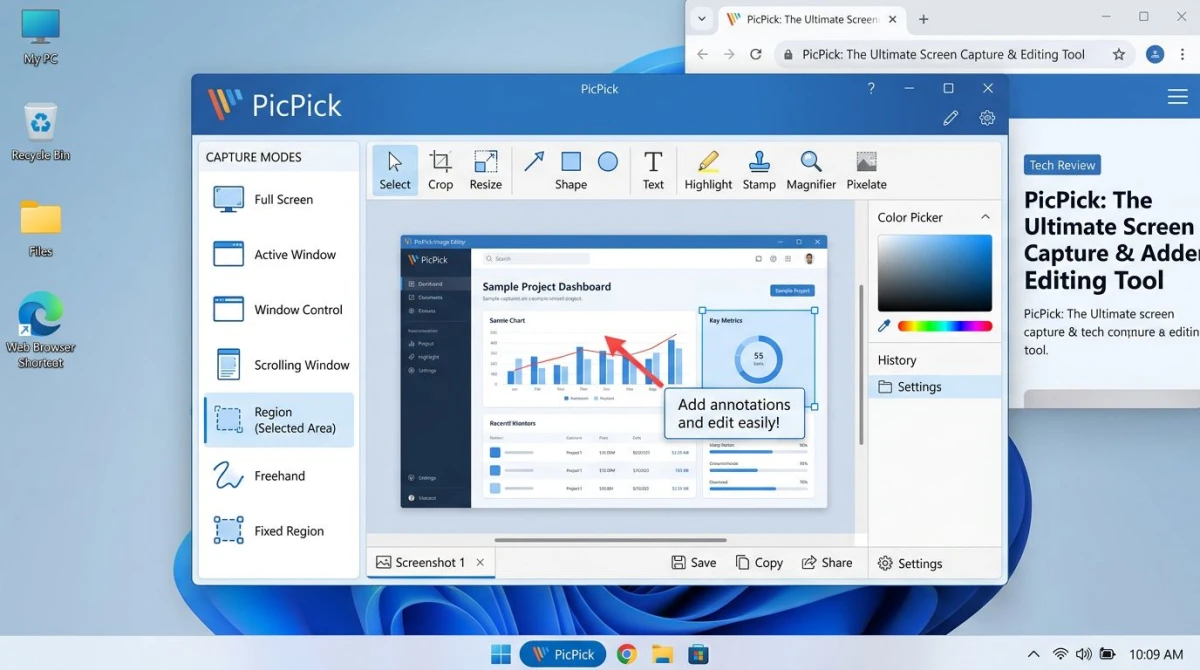
PicPick is a Windows-only screenshot tool with a built-in image editor that feels like a lighter Photoshop. Free for home use, paid for business. Its standout feature is the edit suite: layers, effects, color picker, pixel ruler, protractor.
Pick it if: you edit every screenshot and want real editing tools built in.
For a broader list, check our full guide on the best screenshot tools for Windows. If you're deciding between paid options, our Snagit vs Snipping Tool comparison covers how heavyweight tools compare to the Windows 11 default, and the overview of our own paid screenshot tool for Mac and Windows shows everything ScreenSnap Pro includes.
Verdict: when to use (and avoid) Lightshot
Use Lightshot when:
- You need a basic screenshot app on an older PC.
- You share public, non-sensitive images (memes, public webpages, game moments).
- You always save locally and never click upload.
- You want zero setup and a hotkey that just works.
Avoid Lightshot when:
- You work with client data, code, or any confidential content.
- You need blur, pixelate, or any privacy annotation tools.
- You need scrolling capture, GIFs, or screen recording.
- You want polished screenshots for marketing or social content.
- Your workflow needs OCR, backgrounds, or a cloud library.
Lightshot is a 2010s tool that hasn't changed much. That's a feature for some users and a limit for others. If its privacy model gives you pause, the alternatives above close the gap without giving up the speed you liked.
Our own ScreenSnap Pro was built on the same fast-capture philosophy, with a private cloud and the annotation polish Lightshot skipped. $49 one-time, 500+ backgrounds, 17 annotation tools, no subscriptions, no public URLs. If you want to try a Lightshot-style workflow without the risk, download ScreenSnap Pro and keep your screenshots yours.
Frequently Asked Questions

Morgan
Indie DeveloperIndie developer, founder of ScreenSnap Pro. A decade of shipping consumer Mac apps and developer tools. Read full bio
@m_0_r_g_a_n_