Snagit vs Snipping Tool (2026): Is It Worth $39 a Year?
Snagit vs Snipping Tool comes down to one question: is paying $39 a year worth it when Windows has a free screenshot tool? There is also a third path, a mid-priced option like ScreenSnap Pro that lands in the sweet spot between them.
If you grab a quick screenshot now and then, Snipping Tool does the job. But if you make guides, tutorials, or pro content every day, Snagit's extra tools can save you hours.
Here's what each tool offers so you can pick the right one.
Snagit vs Snipping Tool at a Glance
Here's a quick look at how they stack up:
| Feature | Snagit | Snipping Tool |
|---|---|---|
| Price | $39/year (subscription) | Free (Windows built-in) |
| Platform | Windows, macOS | Windows only |
| Capture Modes | Region, window, scrolling, panoramic, menu | Rectangle, free-form, window, full-screen |
| Annotation Tools | 20+ tools (arrows, callouts, blur, stamps, steps) | Basic (pen, highlighter, eraser) |
| Video Recording | Yes (with webcam overlay) | Yes (Windows 11 only) |
| OCR Text Extraction | Yes | No |
| Scrolling Capture | Yes | No |
| Cloud Sharing | Built-in (Screencast) | No |
| GIF Creation | Yes | No |
TL;DR verdict:
- Casual users: Stick with Snipping Tool. It's free and handles basic screenshots perfectly.
- Documentation creators: Snagit's scrolling capture and annotation tools justify the cost.
- Mac users: Neither is ideal, so consider a dedicated Mac alternative.
What Each Tool Does Best
Snipping Tool: Quick, Free, Zero Setup
Snipping Tool comes with every Windows PC. Press Win + Shift + S and you're taking screenshots right away, with no setup needed.
It's great for:
- Quick region or window grabs
- Simple markup with a pen and highlighter
- Pasting screenshots into emails or docs fast
It works straight from the clipboard, so copy-paste is smooth. For basic needs, it works well.
Snagit: The Professional Screenshot Powerhouse
Snagit is built for people who use screenshots every day. Think tech writers, trainers, marketers, and support teams.
What sets Snagit apart:
- Scrolling capture for long pages and docs
- Pro-grade markup that looks clean in guides
- Templates for a uniform look across all your shots
- OCR to copy text from any screenshot
- Video capture with webcam overlay for walkthroughs
The tradeoff? More to learn, and that $39 yearly fee. See our Snagit pricing breakdown for the full cost with add-ons.
Screenshot Features Compared
Both tools take screenshots, but they work in different ways.
Basic Capture Modes
Snipping Tool gives you four modes:
- Rectangle: drag to pick any area
- Free-form: draw any shape you want
- Window: grab one window
- Full-screen: capture it all
These handle most daily needs. The delay timer (up to 10 seconds) helps you catch menus and tooltips.
Snagit has all four of those, plus:
- Scrolling Capture. Grab full web pages or long docs
- Panoramic Capture. Stitch screens side by side
- Menu Capture. Auto-grabs dropdown menus
- Multi-region. Select many spots at once
Scrolling capture alone makes Snagit worth it for anyone who writes guides or docs. You simply can't do that with Snipping Tool.
What About Mac Users?
Here's what most guides miss: Snipping Tool doesn't exist on Mac. If you've switched from Windows, you might be looking for a Snipping Tool for Mac.
macOS has Screenshot.app (⌘ + Shift + 4) for basic grabs. But like Snipping Tool, it can't scroll-capture or add proper markup. Snagit runs on Mac, but many Mac users prefer lighter, Mac-native screenshot apps that feel more at home on the platform.
Annotation and Editing
This is where the gap between free and paid gets real.
Snipping Tool's Basic Markup
Snipping Tool gives you three markup tools:
- Pen. Draw lines by hand
- Highlighter. Shade areas in color
- Eraser. Wipe your marks away
That's the full list. No arrows, no text boxes, no callouts. Need those? You'll have to open Paint or another editor, which slows you down.
For quick notes, it works. For pro docs? The results look rough.
Snagit's Professional Annotation Suite
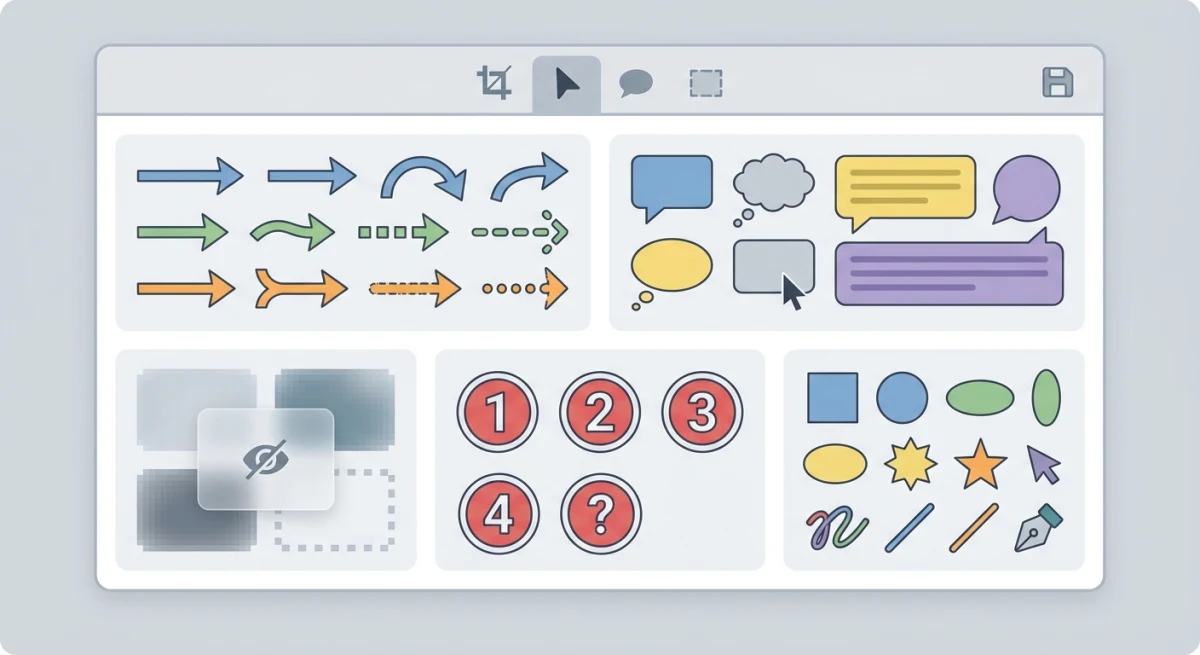
Snagit's editor is where the $39 a year starts to make sense. You get:
- Arrows and lines. Pick your own styles
- Callouts. Add text to point out UI parts
- Blur and pixelate. Hide private info
- Step numbers. Auto-count your how-to steps
- Stamps. Checkmarks, Xs, cursors, and more
- Magnify tool. Zoom into small details
- Text and shapes. Keep your brand look
The Step Tool is a standout. It adds numbers in order as you click, which is great for step-by-step guides. Check out how to annotate screenshots like a pro for more tips.
Snagit also saves your styles as presets. Set your colors and arrow looks once, and every future shot matches. That kind of polish adds up in team docs.

Tired of plain screenshots? Try ScreenSnap Pro.
Beautiful backgrounds, pro annotations, GIF recording, and instant cloud sharing, all in one app. Pay $49 once, own it forever.
See pricing and featuresRecording Capabilities
Both tools record your screen, but the gap is big.
Snipping Tool's Basic Recording
Screen recording in Snipping Tool only works on Windows 11. You get a simple region capture with no sound, no webcam, and no edits after.
For quick bug reports, it gets the job done. For lessons or slide decks, you'll need more.
Snagit's Video Tools
Snagit records with:
- Mic audio. Add your voice
- System sound. Grab what plays through speakers
- Webcam overlay. Show your face in the corner
- Basic trim. Cut the start and end
You can also turn clips into GIFs, which is handy when video won't fit in a doc or chat. Want more GIF options on Mac? Check out how to record GIFs on Mac.
The GIF Gap
Neither tool is great at making GIFs. Snagit can turn video into GIFs, but tools built for GIFs give you more control over size, quality, and frame rate.
If GIFs matter to you, ScreenSnap Pro (Mac and Windows) or ShareX (Windows) both do a better job.
Real-World Recording Scenarios
Think about what you really need:
- Bug reports: Snipping Tool works fine. Just show what's broken.
- Video lessons: Snagit's webcam and audio make content more personal. A face on screen builds trust.
- Quick how-tos for coworkers: Either works. But Snagit's GIF export means smaller files in Slack or email.
- Training docs: Snagit wins. You can add arrows and callouts after you record, which keeps the final result clean.
Is Snagit Worth $39 a Year?
Let's be real about who should pay and who shouldn't.
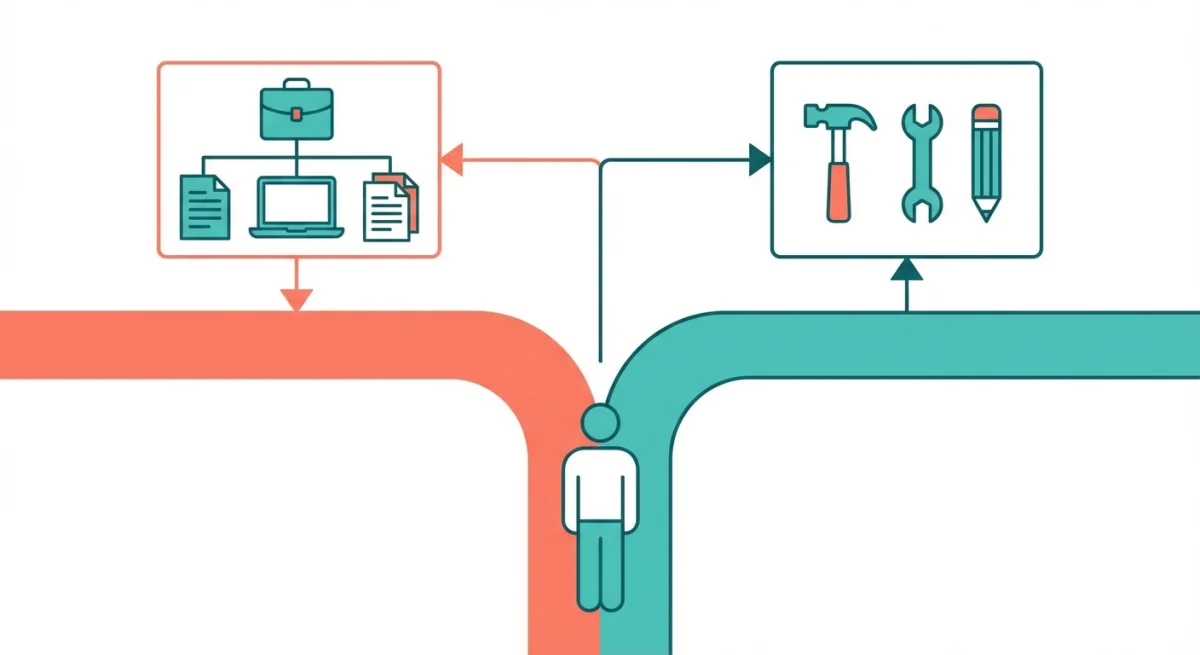
Yes, Snagit Is Worth It If You:
- Make guides every day. The markup tools and templates save real time
- Need scrolling capture. No free tool matches Snagit here
- Use both Windows and Mac. One license covers both
- Grab text from images often. OCR beats retyping by hand
- Want polished, branded shots. Your docs look sharp and uniform
For tech writers and trainers, Snagit can pay for itself in weeks. The time you save on markup and scrolling grabs adds up fast.
No, Stick With Snipping Tool If You:
- Take a few screenshots a week. Basic grabs for emails and chat
- Watch your budget. $39 a year is real money when you're on your own
- Only need pen and highlighter. Simple markup is enough
- Stick to Windows. No need for cross-platform support
There's no shame in using Snipping Tool. It's solid for basic tasks, and free beats paid when the extras won't help your day-to-day work.
The Ongoing Cost: It's a Subscription Now
Since Snagit 2025 (released February 2025), Snagit is subscription-only. New buyers pay $39 per year, and that includes every new version, so there are no separate upgrade fees. The old one-time license is gone for new buyers, though older perpetual licenses keep working.
Over three years, that's $117, and the bill keeps coming for as long as you use it. We break down the math in our Snagit pricing guide.
Best Alternatives to Both
Not sold on either? Here are better picks based on your platform.
For Mac Users
If you're on Mac, skip both. Windows tools don't feel right on macOS, and better choices exist:
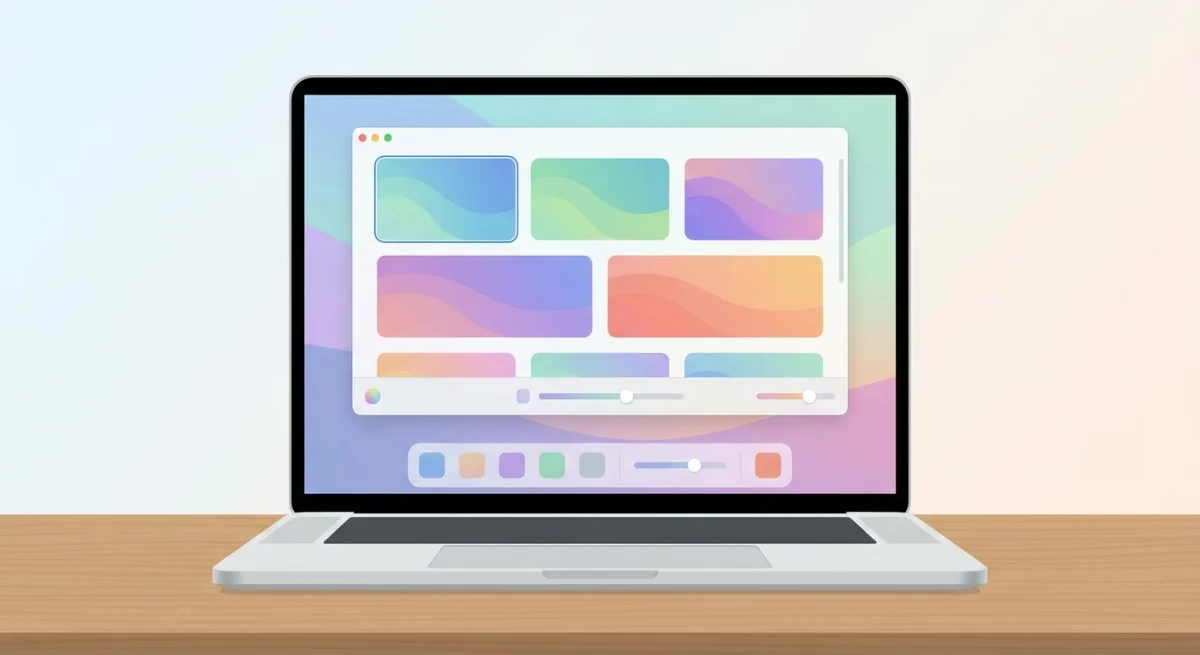
ScreenSnap Pro sits in the sweet spot: more power than the built-in Screenshot app, but lighter and cheaper than Snagit:
- One-time price (no subscription)
- Scrolling Capture. Select an area in any app, scroll down, and get one long image
- Full-Page Website Capture. Paste any URL, grab the first screen or the full page, with safe handling of infinite-scroll and lazy-loaded content
- 500+ wallpaper styles for clean shots
- Built-in GIF recording
- 17 markup tools (blur, arrows, and more)
- Quick cloud sharing
It's made for Mac users who want pro tools without Snagit's heft or yearly fees. For Acrobat PDFs, Slack threads, Excel sheets, or pages behind a login, Scrolling Capture grabs everything as you scroll. For a public web page, Full-Page Website Capture works from the URL with no scrolling at all.
CleanShot X ($29) is another strong Mac pick with scrolling capture and markup.
Shottr (free) handles basic grabs plus OCR, though it has no cloud sharing.
For Windows Users
ShareX is the power user's pick: free, open source, and packed with scrolling capture, markup, and direct uploads. The look isn't pretty, but the tools match Snagit's.
Greenshot (free) gives you good markup tools for Windows users who need more than Snipping Tool but don't want to pay $39 a year.
Lightshot (free) offers fast grabs and basic edits with cloud sharing.
The Verdict
Pick Snipping Tool if you take a few shots a week and only need basic markup. It's free, built into Windows, and does the job.
Pick Snagit if you write guides, need scrolling grabs, or want branded markup across a team. At $39 a year, it makes sense for daily use.
Pick a Mac option if you're on Apple hardware. Snipping Tool doesn't exist there, and Snagit is more tool than many Mac users need. Tools like ScreenSnap Pro, a desktop app for Mac and Windows, give you a lighter setup for a one-time price.
The best tool is the one that fits how you work. Don't pay for extras you won't touch, but don't cheap out and lose time on hacks either.
Frequently Asked Questions

Morgan
Indie DeveloperIndie developer, founder of ScreenSnap Pro. A decade of shipping consumer Mac apps and developer tools. Read full bio
@m_0_r_g_a_n_