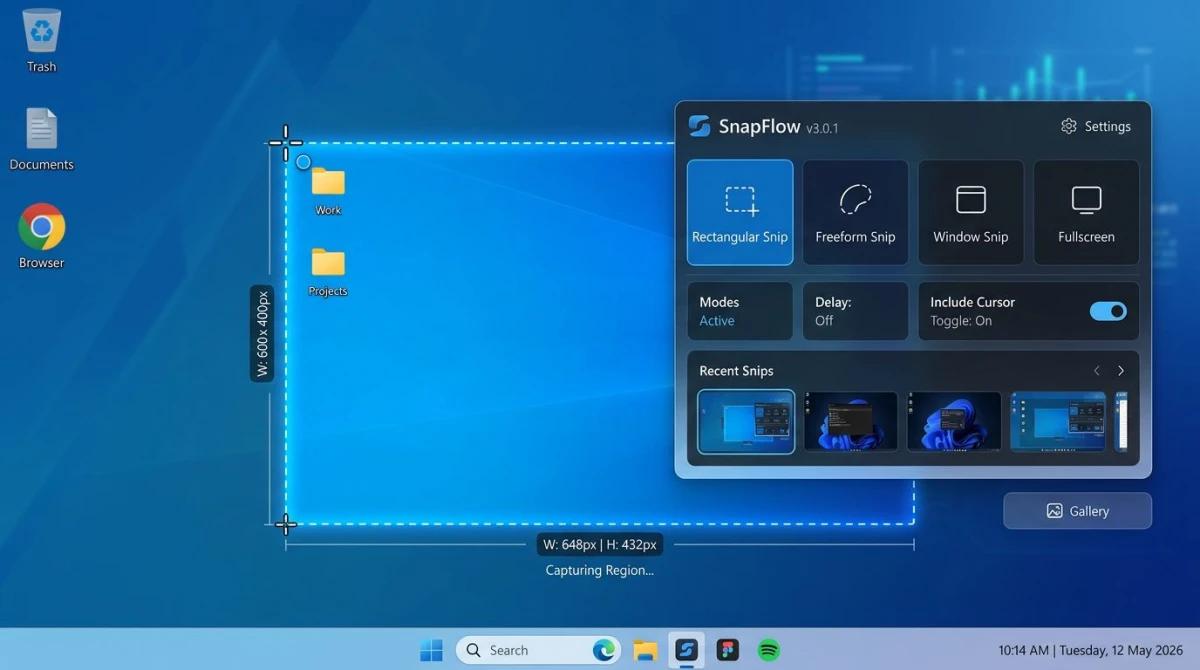
Greenshot Review 2026: Still Worth It? (Honest Take)
Our greenshot review after a week of daily use: Greenshot is still a fast, free screenshot tool for Windows. It handles basic captures and markup well. But the app feels dated in 2026, has no screen recording, no GIFs, and no cloud sharing. If you only need quick snaps for email or Office, it works. For anything modern, you'll want better.
Greenshot has been a free staple on Windows for nearly two decades. Millions of users installed it when the Snipping Tool felt too basic. But Windows 11 has caught up, new tools have raised the bar, and Greenshot's updates have slowed to a crawl.
So is it still worth using? We tested the latest build on Windows 11. This honest greenshot review covers what works, what's dated, and which free screenshot tool windows users should pick in 2026.
What is Greenshot?
Greenshot is a free, open-source screenshot tool for Windows. It was released in 2007 and has been a popular choice for users who outgrew the default Snipping Tool. The app lives in your system tray and triggers captures via hotkeys.
Key things to know upfront:
- Open-source under the GNU GPL license
- Windows-only in practice (the Mac port costs $1.99 and is abandoned)
- Free forever with optional donations
- Small footprint. Under 2 MB install, minimal RAM use
- No ads, no upsells. A rare treat in 2026
Greenshot focuses on one job: grab a region, annotate it, export it. No video, no cloud dashboard, no AI features. That simplicity is both its charm and its limit.
If you're a Mac user looking for this workflow, see our guide to Greenshot for Mac alternatives, because the Windows version doesn't really exist on macOS.
Greenshot features walkthrough
Here's what you actually get when you install Greenshot on Windows.
Capture modes
Greenshot supports four main capture types:
- Region. Drag a box around any part of the screen (
PrtScn) - Window. Click to grab a full window (
Alt + PrtScn) - Full screen. Capture everything (
Ctrl + PrtScn) - Last region. Re-capture the previous area (
Shift + PrtScn)
Every hotkey is customizable. Power users can remap them within minutes. The region tool has a magnifier, which helps when you need pixel-perfect edges.
One gap: scrolling capture only works in Internet Explorer. In Chrome, Firefox, or Edge, it fails. For long pages, you'll need a different tool. See our guide to full page screenshots on Windows for working options.
Built-in editor
After capture, Greenshot opens its editor. This is where most of the value sits.
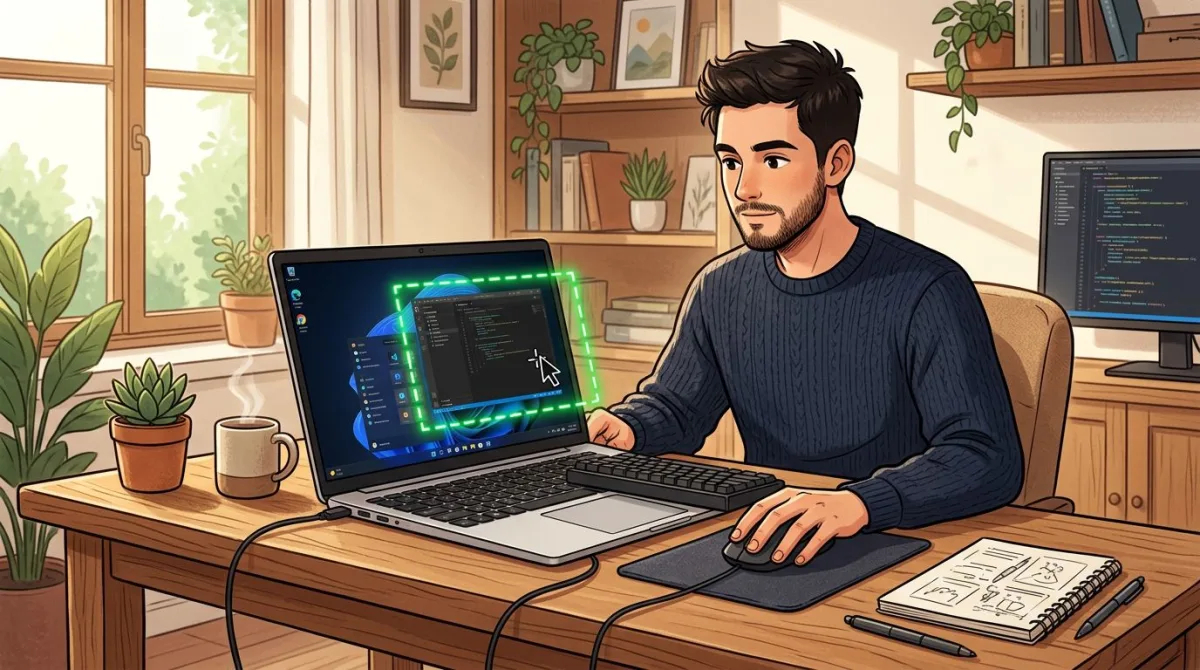
The editor includes:
- Arrows, rectangles, ellipses, and freehand lines
- Text boxes with font size and color controls
- Highlighter and obfuscation (blur or pixelate)
- Crop and resize
- Speech bubbles and numbered step counters
It's not flashy, but it covers 90% of what most people need. For more depth on editing, our edit screenshot Windows guide walks through all the built-in and third-party options.
Export options
Greenshot sends captures to several places:
- Save as PNG, JPG, GIF, BMP, or TIFF
- Copy to clipboard
- Print directly
- Send to Microsoft Office (Word, Excel, PowerPoint, Outlook)
- Upload to Imgur
- Open in external editor (Paint, Photoshop, etc.)
The Office integration is the standout. You can drop a screenshot straight into a Word doc or email without saving first. For business users who live in Office, this alone is worth the install.
What Greenshot does well
After a week of use, a few strengths stand out.
Speed
Greenshot launches fast and captures faster. Press the hotkey, drag, done. No splash screens, no login, no nag prompts. On a modern laptop, the whole loop takes under a second.
Lightweight on resources
The app uses around 30 MB of RAM at idle. Compared to Snagit (often 200+ MB) or ShareX (150+ MB), Greenshot is barely there. On older laptops or locked-down work PCs, this matters a lot.
Office integration
Drop a screenshot into Outlook, Word, or PowerPoint with one click. No save dialog, no file cleanup. For anyone who writes reports or manuals, this workflow is faster than anything else on Windows.
Hotkey freedom
Every action has a shortcut. You can remap all of them. Once you learn the keys, you almost never touch the mouse except to draw the region.
It's free and open-source
No trial timer, no feature gates, no subscription. The source is on GitHub if you want to audit it or fork it. In a world of subscription traps, this is refreshing.
Where Greenshot falls short in 2026
This is where the greenshot review gets honest. The app shows its age.
Dated user interface
The editor looks like a Windows XP app. Icons are low-res, dialogs feel cramped, and the toolbar placement is awkward on high-DPI screens. It still works, but it clashes with the clean look of modern Windows 11.
Infrequent updates
Greenshot's release cadence has slowed. The last major version shipped years ago. Small patches trickle out, but there's no sign of a full rewrite. For a project of this size, that's a concern: bug fixes and new OS support may lag.
No screen recording
Greenshot cannot record video. Period. If you need to make a tutorial, demo a bug, or share a quick clip, you'll need a separate app. That's a big gap in 2026, when most modern screenshot tools include recording. See our list of free screen recorders for Windows for picks.
No GIF creation
Want to show a short UI interaction as a GIF? Greenshot can't help. You'll need a tool like ShareX or ScreenToGif. For teams who share GIFs in chat, this is a real miss. Our GIF screen capture Windows guide covers the best options.
No cloud service
Greenshot can upload to Imgur, but that's it. There's no private cloud, no shared history, no team library. If you want an instant shareable link tied to your own account, you'll have to bolt on another service.
Broken scrolling capture
The scrolling capture only supports Internet Explorer. In 2026, almost nobody uses IE. Effectively, this feature is dead. For long-page captures, try a dedicated scrolling screenshot tool for Windows.
No modern annotation features
Missing from Greenshot:
- Emoji stickers
- Smart blur that follows faces
- Background gradients for screenshots
- Drop shadows and frames
- Auto-numbered step counters that update on edit
These are standard in newer apps. Greenshot feels frozen in 2017.
Limited OCR
Greenshot has no built-in text extraction. If you need to pull text from a screenshot, you'll reach for another tool.

Tired of plain screenshots? Try ScreenSnap Pro.
Beautiful backgrounds, pro annotations, GIF recording, and instant cloud sharing, all in one app. Pay $34 once, own it forever.
See pricing and featuresGreenshot pricing
Greenshot's pricing is its strongest selling point.
| Platform | Price | Notes |
|---|---|---|
| Windows | Free | Full open-source version, no limits |
| Mac App Store | $1.99 | Abandoned, last updated in 2019. Avoid |
| Donations | Optional | Support via PayPal or GitHub |
If you're on Windows, you pay nothing. If you're on Mac, skip the App Store version: it's not the same app and it hasn't been maintained in years.
For context, Snagit is now subscription-only at $39 per year. Greenshot being free is a huge advantage if you only need the basics. But "free" doesn't mean "best": modern paid tools often save more time than they cost.
Best Greenshot alternatives for Windows
If Greenshot's limits are holding you back, here are three alternatives worth a look.
1. ScreenSnap Pro ($34 one-time)
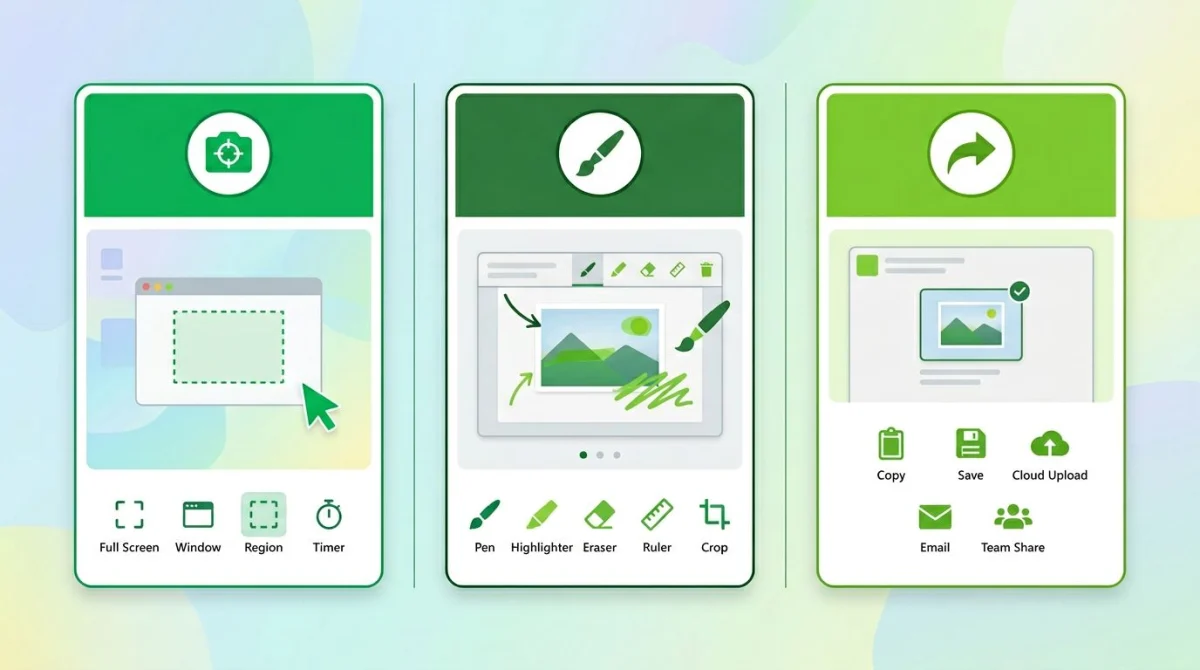
ScreenSnap Pro is a modern capture tool built for Windows and Mac. It covers everything Greenshot does, plus the big gaps: video, GIFs, cloud sharing, and a clean UI.
What you get:
- Region, window, and full-screen capture
- Screen recording (MP4 with webcam, mic, and system audio)
- Direct GIF recording with no video-to-GIF conversion
- 500+ gradient backgrounds to beautify screenshots
- 17 annotation tools (arrows, shapes, blur, pixelate, magnifier, spotlight, numbered steps) plus emojis
- OCR text extraction from any image
- Optional cloud with instant share links
- No watermarks, no subscription
Pricing: $34 one-time. Two-computer license. 30-day money-back guarantee. No subscription, no feature gates.
Why it beats Greenshot: modern UI, active development, video and GIF built in, cloud sharing on tap. You pay once and it stays yours.
Trade-off: it costs $34. Greenshot is free. If you truly don't need recording, GIFs, cloud, or backgrounds, Greenshot is enough.
2. ShareX (Free)
ShareX is the most powerful free alternative. It's open-source, packed with features, and beloved by power users.
What you get:
- 15+ capture modes including full working scrolling capture
- Screen recording (video and GIF)
- Auto-upload to 80+ destinations
- Workflow automation that chains actions after each capture
- Color picker, QR scanner, hash checker built in
Trade-off: the interface is busy. Menus go deep. First-time setup takes 10 to 15 minutes. Once dialed in, nothing free beats it.
For a direct comparison, see Snagit vs Greenshot. ShareX sits between them in power and complexity.
3. PicPick (Freemium)
PicPick is a lesser-known Windows tool that mixes screenshot capture with design features: rulers, color picker, whiteboard.
What you get:
- Full screen, window, region, scrolling, and freehand capture
- Built-in editor with layers and effects
- Pixel ruler, protractor, and magnifier
- Free for personal use
Trade-off: commercial use needs a license (around $30). The editor has a learning curve. UI is cleaner than Greenshot but still not as polished as paid modern apps.
How Greenshot compares to built-in Windows tools
Windows 11 ships with the Snipping Tool. It has improved a lot since 2021. So do you even need Greenshot?
| Feature | Snipping Tool | Greenshot |
|---|---|---|
| Region capture | Yes | Yes |
| Window capture | Yes | Yes |
| Full screen | Yes | Yes |
| Delay timer | Yes | Yes |
| Screen recording | Yes | No |
| Annotation | Basic | Full |
| Office export | No | Yes |
| Hotkey customization | No | Yes |
| Imgur upload | No | Yes |
The Snipping Tool wins on recording. Greenshot wins on annotation depth, Office integration, and hotkey control. For quick grabs, either works. For serious work, neither is ideal, since both lag behind modern tools.
For a deeper look at built-in shortcuts, read our screenshot Windows 11 guide.
Who should still use Greenshot in 2026?
After a week of testing, here's my honest take on who Greenshot still serves well.
Pick Greenshot if you:
- Only take still screenshots, never video or GIFs
- Work heavily in Microsoft Office and love the paste-to-Word flow
- Run older or locked-down Windows machines with tight RAM limits
- Hate subscriptions and want a tool that won't change business models
- Don't need cloud sharing or a history timeline
Skip Greenshot if you:
- Need to record video tutorials or GIF demos
- Want cloud sharing with private links
- Care about a modern, clean interface
- Need working scrolling capture for long pages
- Want modern features like emoji stickers, smart blur, or gradient backgrounds
For most users in 2026, the second list is longer than the first. That's why more people are switching to modern tools.
Verdict: Is Greenshot worth it in 2026?
Greenshot earns a qualified yes for a narrow group of users. It's free, lightweight, and handles the basic screenshot job without fuss. The Office integration is a real reason to keep it installed.
But for most Windows users today, Greenshot feels like using a flip phone. It works, it's cheap, but the rest of the world has moved on.
If you want a modern, maintained screenshot tool with screen recording, GIFs, cloud sharing, and a clean UI, ScreenSnap Pro covers all of it for a one-time $34. If you want free and powerful, ShareX is worth the setup time.
Try Greenshot if the free price tag and Office workflow fit your needs. Move on if you need more than basic captures.
Frequently Asked Questions

Morgan
Indie DeveloperIndie developer, founder of ScreenSnap Pro. A decade of shipping consumer Mac apps and developer tools. Read full bio
@m_0_r_g_a_n_