Scrolling Screenshot on Windows 11 and 10: 7 Free Ways
A scrolling screenshot on Windows captures an entire webpage, document, or app window that goes beyond your visible screen. It joins multiple frames into one long, seamless image. This is key for saving full-length articles, long spreadsheets, chat logs, and multi-page documents without piecing together separate captures. ScreenSnap Pro does this on Windows with Scrolling Capture: select an area, scroll down, and get one long image.
Here's the problem: Windows has no built-in scrolling screenshot feature. The Snipping Tool and Win + Shift + S shortcut capture only what's visible on screen. Unlike iOS and Android, which added scrolling capture years ago, Microsoft still hasn't built this into Windows 10 or Windows 11 as of August 2026.
The good news? ScreenSnap Pro fills the gap, and so do several free tools. Below is ScreenSnap Pro's Scrolling Capture first, then 7 free ways to take a scrolling screenshot on Windows, ranging from browser tricks you can use right now to dedicated apps that capture any scrollable window.
The easiest way: ScreenSnap Pro Scrolling Capture
ScreenSnap Pro is a screenshot app for Windows and Mac. Its Scrolling Capture grabs long content in any app window as one continuous screenshot: a long PDF in Adobe Acrobat, a Slack or Teams thread, an Excel sheet, code, a settings pane, or a web page in any browser, including pages behind a login.
How to take a scrolling screenshot with ScreenSnap Pro:
- Open Scrolling Capture from the capture toolbar or the tray menu (or assign your own shortcut in Settings)
- Select the area. You can resize it or drag it to another monitor before you start
- Click Start Capture (or press Enter)
- Scroll down yourself, slowly. A live preview beside the selection grows as new rows are added
- Click Finish. The long screenshot opens like any other capture
You scroll, ScreenSnap Pro stitches. For a clean result, select only the scrolling content and keep sticky headers, footers, and scrollbars outside the selection. If you scroll too far, the preview pauses. Scroll back to reconnect. Then annotate the capture, add a background, copy it, save it as PNG, JPEG, or WebP at full resolution, or share a link.
Have a public URL? ScreenSnap Pro's Full-Page Website Capture is the other option. Paste any URL, pick first-screen or full-page, and get a single image back. No browser extension. No DevTools. No scrolling.
The feature handles lazy-loaded images and infinite-scroll pages, since the page renders fully before capture. That avoids the usual scroll-stitching headaches: no repeating sticky headers, no broken frames where a hover effect shifted the layout, no dropped tiles on long pages.
When to use which: Scrolling Capture for anything on your screen, such as desktop apps, PDFs, chats, and pages behind a login. Website Capture for a public URL, such as articles, product pages, design references, and long-form blogs, when you want the cleanest page with no scrolling. It can't reach pages behind a login.
Prefer a free tool? The 7 methods below cover web pages, and ShareX and PicPick reach into desktop apps too.

Tired of plain screenshots? Try ScreenSnap Pro.
Beautiful backgrounds, pro annotations, GIF recording, and instant cloud sharing, all in one app. Pay $49 once, own it forever.
See pricing and featuresCan Windows take scrolling screenshots on its own?
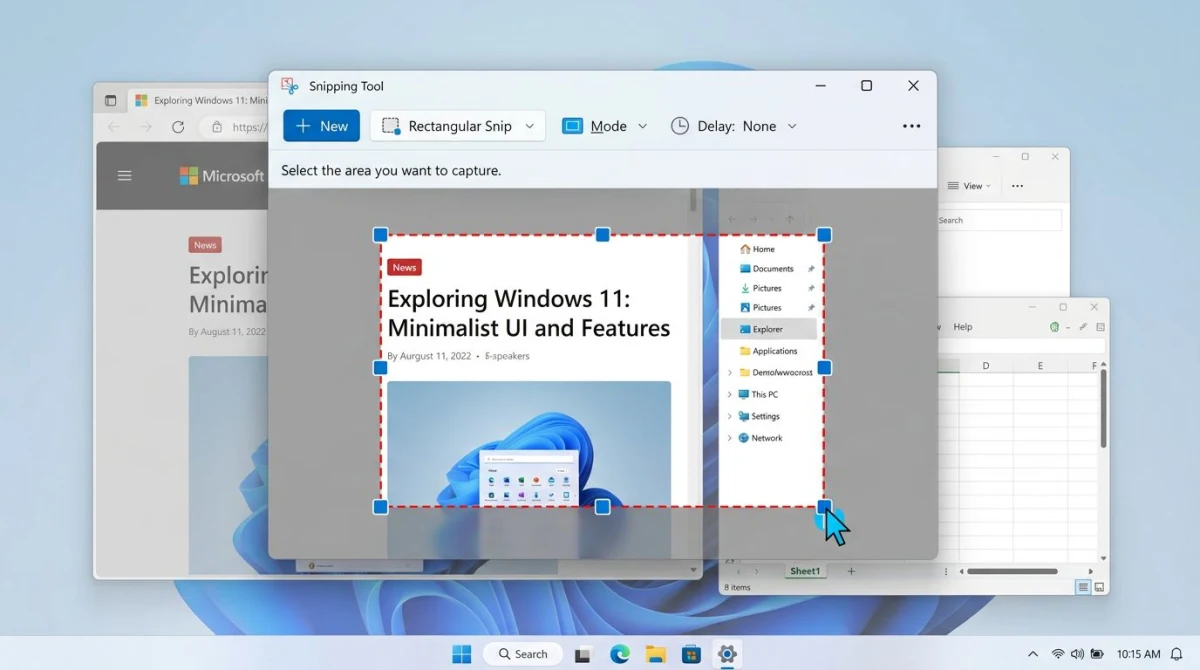
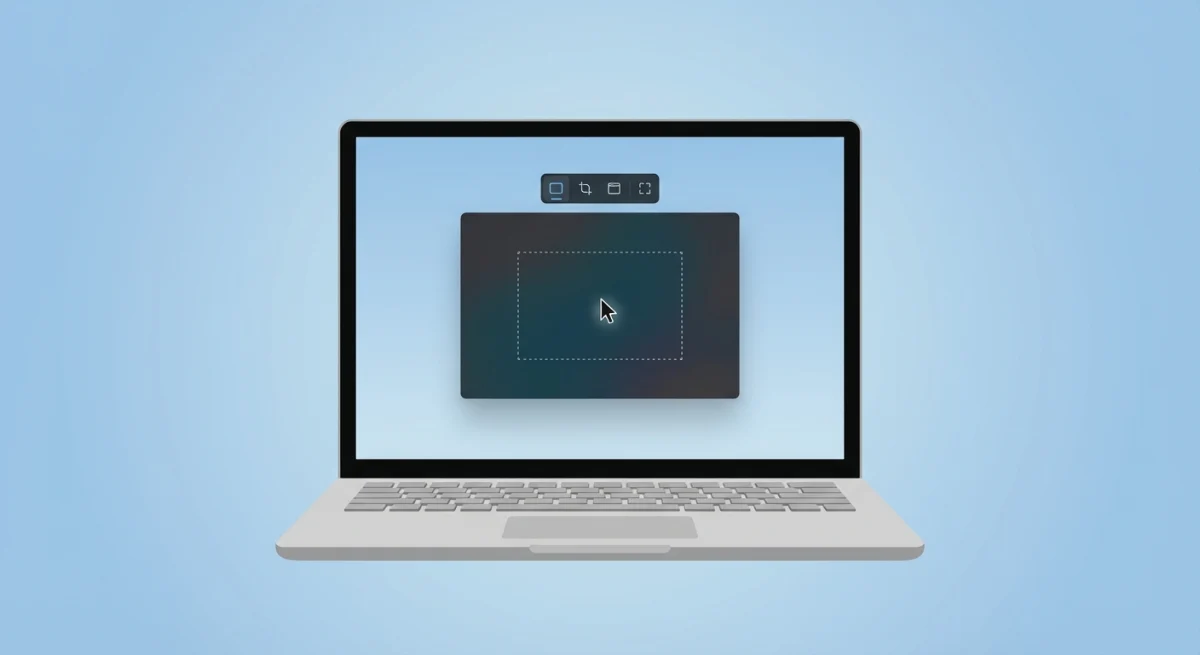
No. As of Windows 11 (2026), neither the Snipping Tool nor the older Snip & Sketch app supports scrolling capture. The built-in shortcut Win + Shift + S gives you four capture modes (rectangle, freeform, window, and full screen), but none of them scroll past what's on screen right now.
The same goes for a scrolling screenshot on Windows 10. Microsoft has updated the Snipping Tool many times, adding features like delay timers and screen recording. But scrolling capture has never been added, even in Insider Preview builds. There's been a long-standing user request for this feature, but Microsoft hasn't shown any plans to add it.
This means you need a third-party tool to take a long screenshot on Windows. The methods below are sorted from easiest (no installs) to most powerful (standalone apps).
Quick comparison: scrolling screenshot tools for Windows
| Method | Type | Cost | Best For |
|---|---|---|---|
| ScreenSnap Pro Scrolling Capture | Mac and Windows desktop app | $49 one-time | Any scrollable area: apps, PDFs, chats, logged-in pages |
| ScreenSnap Pro Full-Page Website Capture | Mac and Windows desktop app | Included | Public URLs, lazy-load, infinite scroll |
| Chrome DevTools | Built-in | Free | Web pages (no install) |
| Edge Web Capture | Built-in | Free | Edge users |
| Firefox Screenshot | Built-in | Free | Quick full-page saves |
| ShareX | Desktop app | Free | In-app scrolling, any window |
| PicPick | Desktop app | Free (personal) | In-app capture + editing |
| GoFullPage | Extension | Free | Non-technical users |
| Print to PDF | Built-in | Free | Saving long pages as one file |
| SlimSnap | Desktop app | Free during launch | Any window, frames for AI agents |
| Snagit | Desktop app | $39/year | In-app capture for teams |
1. Chrome DevTools full-page capture
If you only need scrolling screenshots of web pages, Chrome has this feature built into its developer tools. No extension needed.
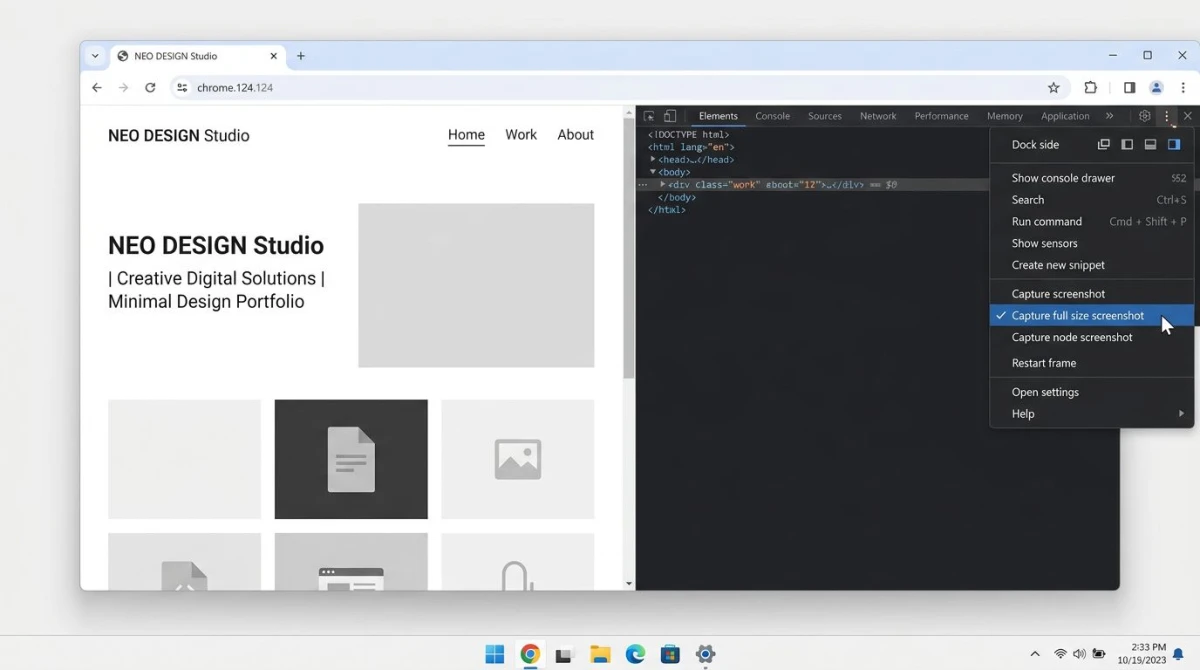
How to capture a full page in Chrome
- Open the webpage you want to capture
- Press
Ctrl + Shift + Ito open DevTools (or right-click and select Inspect) - Press
Ctrl + Shift + Pto open the Command Menu - Type screenshot and select Capture full size screenshot
- Chrome saves the entire page as a PNG file to your Downloads folder
Pro tip: You can also press F12 to open DevTools. The full-size screenshot command grabs everything from top to bottom, including content you'd need to scroll to see. Want to capture the page at a set width (e.g., mobile)? Toggle the device toolbar with Ctrl + Shift + M before taking the screenshot.
Downsides
- Only works for web pages (not desktop apps or documents)
- Fixed-position headers and footers may repeat throughout the image
- Very long pages can produce huge image files
- Requires some comfort with DevTools
This is the fastest method if you already use Chrome as your browser. For Firefox and Edge, the process is even simpler.
2. Edge Web Capture (built-in)
Microsoft Edge has an easier scrolling capture feature:
- Press
Ctrl + Shift + Sor click the three-dot menu and select Web Capture - Choose Capture full page
- The full-page screenshot opens in a markup editor
- Click Save to download
Edge's method is smoother than Chrome's DevTools since it's built for everyday users, not devs.
3. Firefox full-page screenshot
Firefox makes this the simplest of all browsers:
- Right-click anywhere on the page
- Select Take Screenshot
- Click Save full page in the top-right
- Click Download
No dev tools needed, because Firefox treats scrolling screenshots as a built-in feature.
Which browser method is best?
All three browser methods give similar results, but there are some key differences. Edge Web Capture gives you markup tools before saving, which helps if you need to highlight or annotate sections right away. Chrome DevTools offers the most control since you can change the page width before capturing, which is great for testing how a page looks on mobile.
Firefox is the fastest for everyday use. Two clicks and you have a full-page PNG. If you switch between browsers often, try putting the same extension (like FireShot) on all three for a steady scrolling capture workflow.
One limit shared by all browser methods: they only capture web pages. If you need a long screenshot of a Windows app (like a Word document, a settings panel, or a chat window), you'll need a desktop tool such as ScreenSnap Pro (above) or ShareX.
4. ShareX scrolling capture (free, open source)
ShareX is the most powerful free screenshot tool for Windows, and it has a scrolling capture feature that works on any scrollable window, not just browsers.
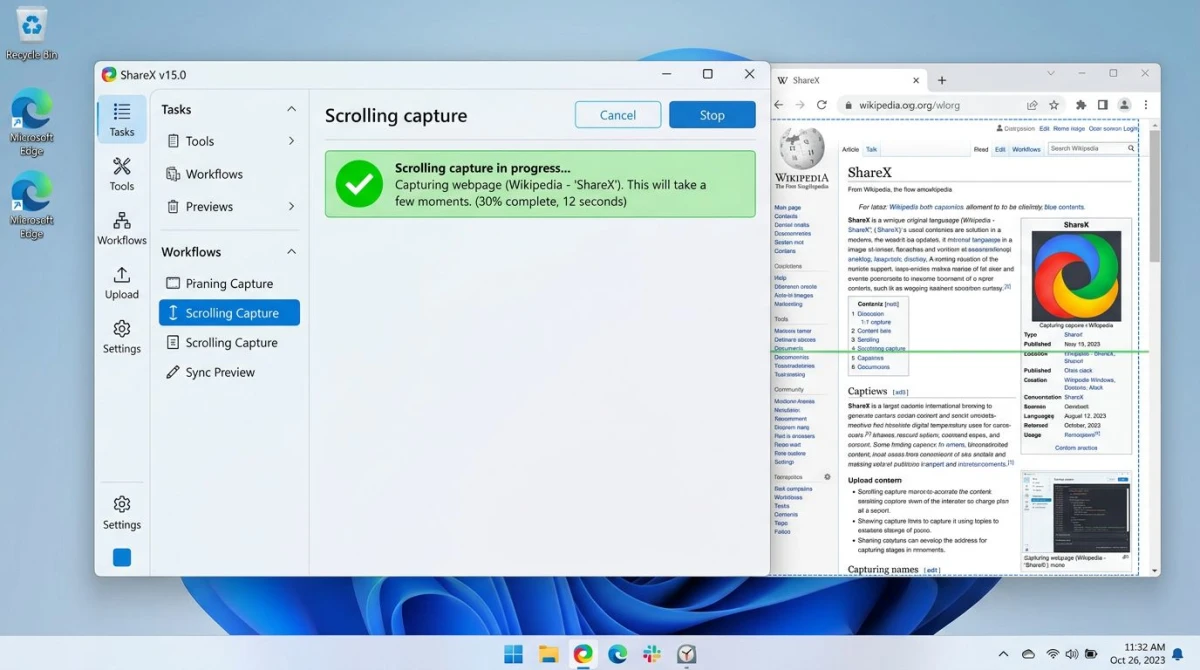
How to use ShareX scrolling capture
- Download and install ShareX (free and open source)
- Open the window you want to capture
- In ShareX, go to Capture > Scrolling capture (or set a custom hotkey under Hotkey settings > Start/Stop scrolling capture)
- Select the region you want to capture by dragging to define the exact area
- ShareX scrolls and captures the full content on its own, frame by frame
- The combined image appears in the editor, where you click Upload/Save
You can also access scrolling capture from the ShareX tray icon in the system tray. Right-click the icon, hover over Capture, and select Scrolling capture.
Tips for best results
- Exclude fixed elements. Use the region selector to crop out sticky headers and sidebars. These can cause mismatches between frames.
- Keep your cursor near the scrollbar. Hover effects on content can create uneven captures.
- Watch the status light. Green means success, yellow means partial capture, and red means the capture failed.
What makes ShareX stand out
ShareX is fully free with no watermarks, supports OCR, custom workflows, and uploads to dozens of services. The scrolling capture works on nearly any Windows app: Word, spreadsheets, chat apps, settings panels, and more.
The trade-off is that ShareX has a steep learning curve. The interface can feel like too much if you only need screenshots now and then. For a simpler screenshot workflow, tools with cleaner layouts may be a better fit.
5. PicPick scrolling window capture
PicPick is a solid option next to ShareX with a friendlier interface. It's free for personal use and comes with an image editor beside its capture tools.
How to use PicPick scrolling capture
- Download PicPick and install it
- Open the window you want to capture
- Press
Ctrl + Alt + PrintScreen(the default scrolling capture hotkey) - Click the window or region to capture
- PicPick scrolls on its own and stitches the result
- The image opens in PicPick's built-in editor
When to choose PicPick over ShareX
PicPick is the better choice if you want a built-in image editor with markup tools, rulers, and a color picker. It feels more like a classic Windows app, while ShareX leans toward power-user workflows.
The downside: PicPick's scrolling capture can struggle with moving content like endless-scroll pages or pages with lazy-loading images. For those cases, a browser method or extension works better.
What about Greenshot?
You may have seen Greenshot in other scrolling screenshot guides. Despite what some articles claim, Greenshot scrolling capture is not a real feature: the app does not support scrolling screenshots at all. It handles region, window, and full-screen captures well, but if you need to grab content beyond what's visible, you'll need ScreenSnap Pro, ShareX, PicPick, or a browser method instead.
Greenshot hasn't been updated in years, which is one more reason to look at other tools. ShareX covers everything Greenshot does and more, including the scrolling capture that Greenshot lacks.
6. Chrome extensions for scrolling screenshots
If Chrome DevTools feels too technical, browser extensions offer a one-click way to take a scrolling screenshot in Chrome. These are the most trusted Chrome screenshot extensions.
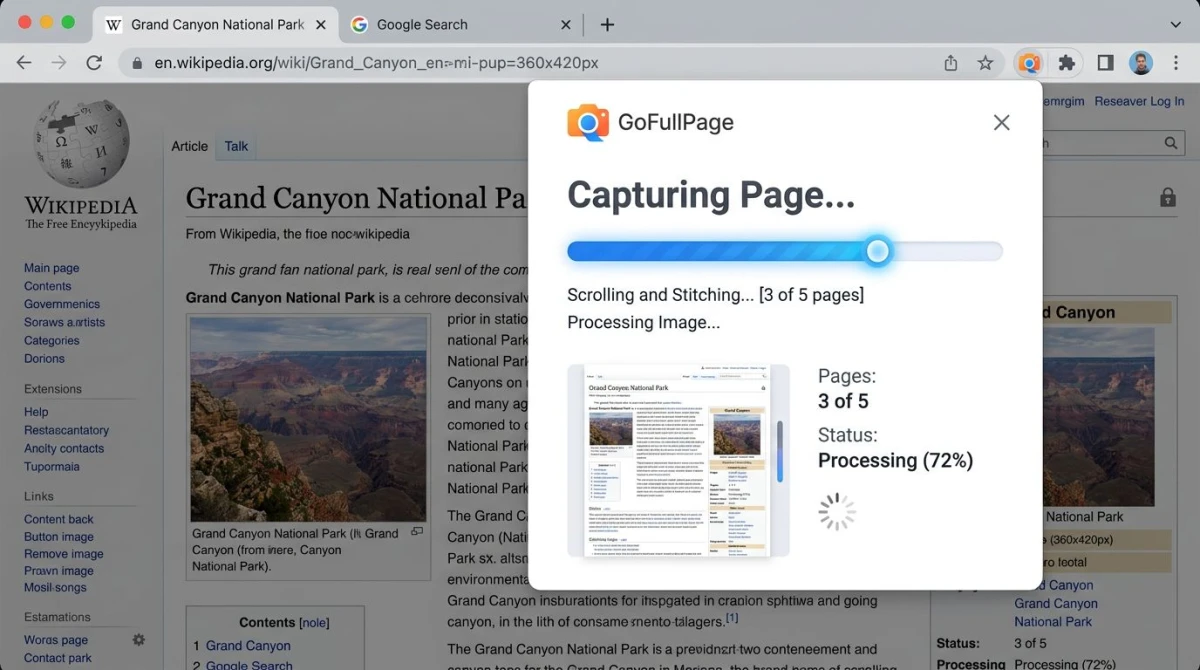
GoFullPage (recommended)
GoFullPage is the most widely used full-page screenshot extension, with over 8 million users.
- Install GoFullPage from the Chrome Web Store
- Go to the page you want to capture
- Click the GoFullPage icon in the toolbar (or press
Alt + Shift + P) - Wait while the extension scrolls and captures each section
- Save as PNG, JPG, or PDF
What makes it great: Zero setup, works on most pages, and saves in many formats. It handles sticky headers better than DevTools since it's built for this exact task.
Other reliable extensions
- FireShot. Captures full pages and lets you mark them up before saving. Also on Firefox and Edge.
- Webpage Screenshot. Lightweight option with basic editing features.
- Screen Capture. Includes video recording alongside screenshot features.
Extension downsides
- Only work inside the browser (not for desktop apps)
- Some pages block extensions from running (banking sites, work portals)
- Extension permissions can raise privacy concerns, so stick with well-reviewed options
- May slow down on very long pages (10,000+ pixels)
7. Print to PDF when you need the whole page in one file
Every browser on Windows can save a complete page with no extra software: press Ctrl + P, choose Save as PDF (or the built-in Microsoft Print to PDF printer), and click Save. The entire page lands in a single multi-page PDF, with no scrolling and no stitching.
The result is a document rather than one long image, but for archiving articles, invoices, or documentation, that's often the more useful format anyway: it stays searchable and prints cleanly. The same trick works outside the browser, too. Any Windows app with a print dialog (Word, Excel, most PDF readers) can export its full content this way, making this the only no-install method that isn't limited to web pages.
The trade-off: print stylesheets can rearrange or hide page elements, so the PDF doesn't always look like the live page. When the exact visual layout matters, use one of the image-based methods above instead.
Bonus: SlimSnap scrolling capture (free during launch)
SlimSnap is free during its launch period on Windows 10 and 11 and on Apple Silicon Macs (the developer says a paid tier is planned). Like ShareX and PicPick, it captures any scrolling window rather than only a browser tab. The difference is the output: it returns the capture as separate frames instead of one long image, and it shows a sticky header once rather than repeating it down the result.
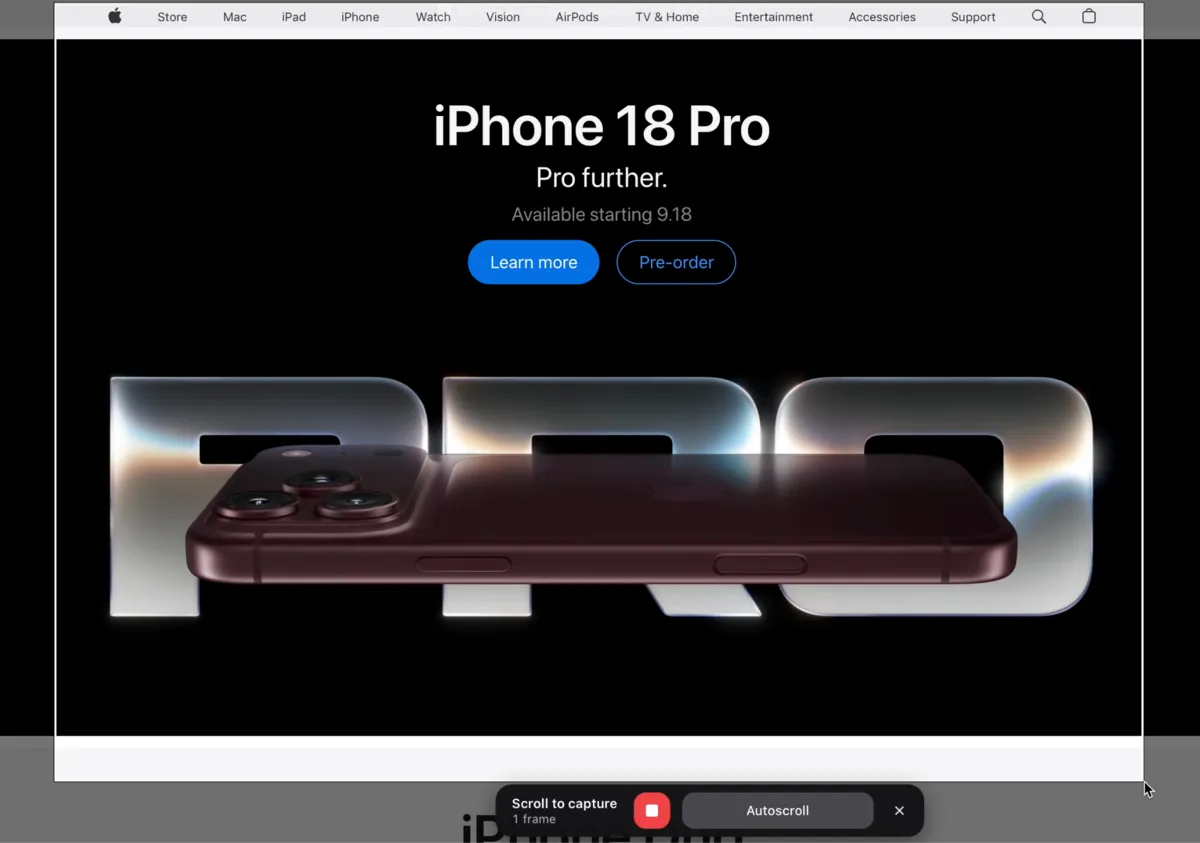
How to use SlimSnap scrolling capture
- Download SlimSnap from slimsnap.ai and install it (no account needed)
- Open the window you want to capture, such as a browser tab, a PDF viewer, or a chat thread
- Press
Ctrl + Shift + L(Cmd + Shift + Lon a Mac) and drag over the area to capture - Scroll through the content yourself, or click Autoscroll and SlimSnap scrolls for you
- Save the frames, copy them to the clipboard, or export the whole capture as one JSON file
There is no scroll speed to set and no delay to tune.
What makes SlimSnap different
Frames matter when the capture is going to an AI coding agent such as Claude Code or Cursor. Claude Code, for example, shrinks a large image before the model reads it, until its long edge fits a limit that Anthropic's vision docs put at 1,568 pixels on Claude Haiku 4.5 and 2,576 pixels on the newest Claude models. At 1,568, a 2540 by 18410 capture arrives at 216 by 1568, and body text that started at 16 pixels lands about 1.4 pixels tall. Often nothing warns you, so the agent answers from the layout and misreads the text.
Frame height is a setting. It is 5,000 pixels by default, and SlimSnap's own advice is to set it to 1,000 pixels when the frames are going to a model, because frames that short are shrunk far less and the words stay readable.
The JSON export goes a step further. It lists the text and interface elements SlimSnap detects, each with its position, so the agent reads words instead of pixels.
The trade-off: there is no cloud upload and no share link. SlimSnap's privacy policy says captures stay on your computer, so the frames go out through whatever you already use.
Bonus: Snagit scrolling capture (paid)
Snagit by TechSmith is the most polished scrolling capture tool for Windows, but it comes at a high price. If you need scrolling screenshots for work and your company covers the license, it's great.
How Snagit scrolling capture works
- Open Snagit and click the Capture button
- Select the scrolling area
- Click the arrow icons to choose scroll direction (vertical, horizontal, or both)
- Snagit captures the entire scrollable region on its own
- The result opens in Snagit's editor with markup tools
Is Snagit worth $39 a year?
Snagit's scrolling capture is among the most reliable on this list. It handles fixed headers, lazy-loading content, and side-to-side scrolling well. The built-in editor with templates, stamps, and Office tie-ins makes it ideal for docs teams.
At $39 per year (it's subscription-only now, with new versions included), it's pricey for personal use. ShareX and browser methods cover most needs at no cost. Snagit makes sense when you're creating pro-level docs or screenshots daily for work.
Pair scrolling captures with a fast screenshot workflow
Scrolling captures are only part of the picture. Most of your daily screen grabs are standard screenshots: bug reports, UI mockups, quick shares on Slack. ScreenSnap Pro covers both sides: Scrolling Capture for any app window and Full-Page Website Capture for any public URL, plus one-click region capture, 17 markup tools, gradient backgrounds, and instant cloud sharing. All of it for a one-time $49 payment.
Which scrolling screenshot method should you choose?
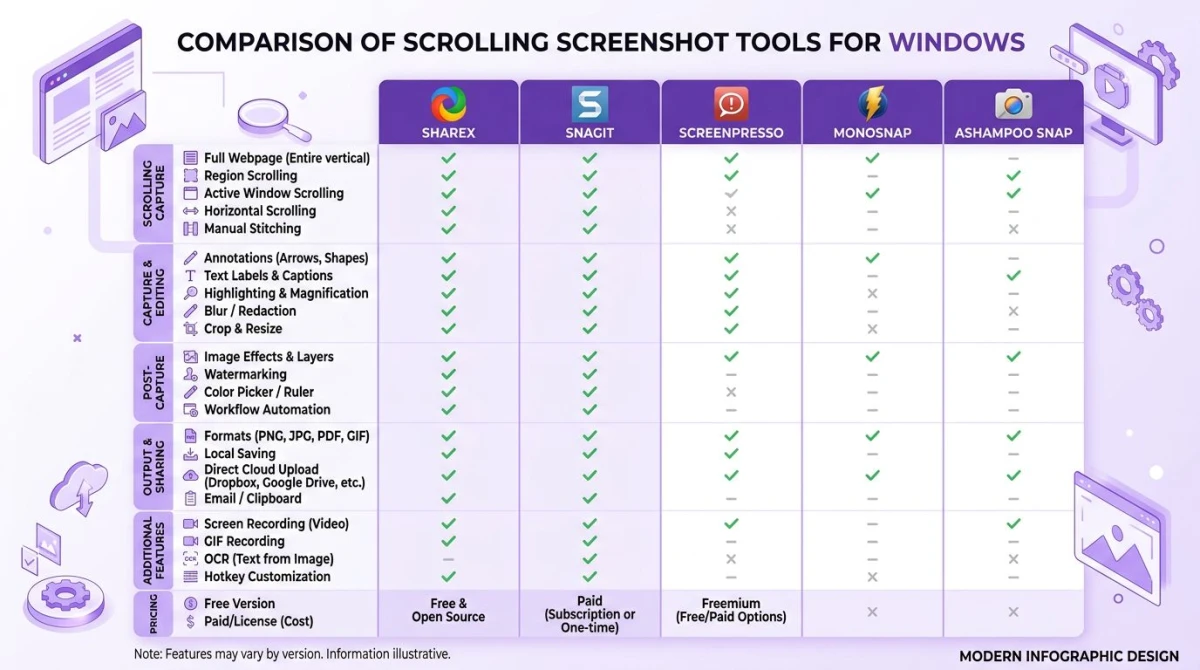
The right tool depends on what you're capturing and how often you need scrolling screenshots.
For anything on your screen (recommended): Use ScreenSnap Pro Scrolling Capture. Select the area, click Start Capture, scroll down, and click Finish. It works on PDFs, Slack threads, Excel sheets, and web pages in any browser, including pages behind a login.
For a public URL with no scrolling: Use ScreenSnap Pro Full-Page Website Capture. Paste the URL, pick first-screen or full-page, save. No extension. Handles lazy-load and infinite-scroll cleanly.
For the odd web page capture without an app install: Chrome DevTools, Edge Web Capture, or Firefox's right-click screenshot all work in the browser you already have.
For regular web captures with a one-click extension: Install GoFullPage. If you also need full-page screenshots on Mac, the same extension works across platforms.
For in-app scrolling with other tools (PDF reader, Slack, Excel, settings panels): ShareX (free) and PicPick (free for personal use) both reach inside desktop apps, with PicPick the friendlier of the two. SlimSnap does the same during its free launch and splits the result into frames, which suits captures headed to an AI coding agent. Snagit is the polished option if you do this daily for work.
For archiving a long page as a single file: Print to PDF (Ctrl + P) works in every browser and most Windows apps with nothing to install. Just remember the output is a document, not an image.
A note about Windows 10 vs Windows 11
All the methods above work on both Windows 10 and Windows 11. The only change is the built-in Snipping Tool: Windows 11 has a new version with a slightly different look, but neither version supports scrolling capture.
We re-checked Microsoft's Snipping Tool documentation in August 2026. The current build covers rectangle, freeform, window, and full-screen snips, plus video recording, text extraction, and even an AI-assisted "perfect screenshot" mode on Copilot+ PCs, but scrolling capture is still nowhere on the feature list.
If you're still on Windows 10 and using the older Snip & Sketch app, the same limit applies. Upgrading to Windows 11 won't fix your scrolling screenshot needs. You'll need one of the third-party tools above no matter which Windows version you run.
Troubleshooting common scrolling screenshot problems
Sticky headers and footers repeat in the capture
Fixed-position elements show up in every frame as the page scrolls, making headers repeat throughout your image. The fix depends on your tool:
- ScreenSnap Pro: Keep the header and footer outside your Scrolling Capture selection.
- Chrome DevTools: No built-in fix, so you'll need to remove the
position: fixedCSS in the Inspector before capturing. - ShareX: Use the region selector to exclude the header and footer areas.
- GoFullPage: Handles this on its own in most cases.
Lazy-loading images appear blank
Some websites only load images as you scroll down. If your scrolling capture runs too fast, these images show up as blank spaces. Fixes:
- Scroll through the whole page first by hand to make all images load
- Use a slower capture tool (Snagit handles this best)
- Try the browser's built-in capture method, which renders the full page before capturing
The capture freezes or produces a corrupted image
Very long pages (over 20,000 pixels tall) can overload screenshot tools. If this happens:
- Capture the page in sections and combine the screenshots afterward
- Export the page as a PDF instead (print > Save as PDF)
- Use a browser extension rather than a desktop tool for web content
Moving content disrupts the scrolling capture
Pages with auto-playing videos, GIF loops, or CSS transitions can trip up scrolling capture tools. The tool tries to match overlap between frames, and moving content shifts between captures, breaking the stitch.
The fix: pause all motion before you start the capture. In Chrome, open DevTools and press Ctrl + Shift + P, then type "Disable JavaScript" to freeze all motion. Or use the browser's built-in full-page capture (Chrome DevTools or Edge Web Capture), which draws the page in one pass without scrolling.
Output file is too large to share
A scrolling capture of a long page can easily make a 20+ MB PNG file. To cut the file size, try saving as JPG instead of PNG (most tools offer this), or use an image compressor to shrink it. You can also convert the image to another format for better compression.
Frequently Asked Questions

Morgan
Indie DeveloperIndie developer, founder of ScreenSnap Pro. A decade of shipping consumer Mac apps and developer tools. Read full bio
@m_0_r_g_a_n_