Best Screenshot Chrome Extensions (2026) | 7 Top Picks
A screenshot Chrome extension captures web pages right from your browser. Grab the whole page, a selected area, or just what's visible. No need to switch apps. For captures outside Chrome (desktop apps, menus, system dialogs), a desktop tool like ScreenSnap Pro covers what extensions can't.
Need to save a bug report? Document a long article? Create a tutorial? The right tool makes it easy.
But the Chrome Web Store has dozens of options. Which one should you pick? This guide compares the 7 best screenshot extensions for 2026. We cover free tools and pro options with annotation features.
Quick Comparison: Best Chrome Screenshot Extensions
Here's how the top tools stack up:
| Extension | Best For | Full Page | Annotation | Cloud Storage | Price |
|---|---|---|---|---|---|
| GoFullPage | Full page captures | ✅ | Basic (paid) | ❌ | Free / $12/yr |
| FireShot | PDF exports | ✅ | ✅ (Pro) | ❌ | Free / $39.95/yr or $99.95 lifetime |
| Awesome Screenshot | All-in-one | ✅ | ✅ | ✅ | Free / from $5/mo |
| Nimbus Capture (FuseBase) | Heavy annotation | ✅ | ✅ | ✅ | Free / $60/yr |
| Lightshot | Quick sharing | ❌ | Basic | ✅ | Free |
| Screenshot Tool | Minimal captures | ✅ | Basic | ❌ | Free |
| Chrome DevTools | Developers | ✅ | ❌ | ❌ | Built-in |
Pro tip: Do you capture things outside Chrome? Desktop apps, menus, or system dialogs? A desktop screenshot app for Mac or Windows might work better than a browser extension.
1. GoFullPage: Best for Full Page Screenshots (Free)
GoFullPage is the most popular Chrome screenshot extension. Over 11 million users trust it, and it holds a 4.9 star rating on the Chrome Web Store.
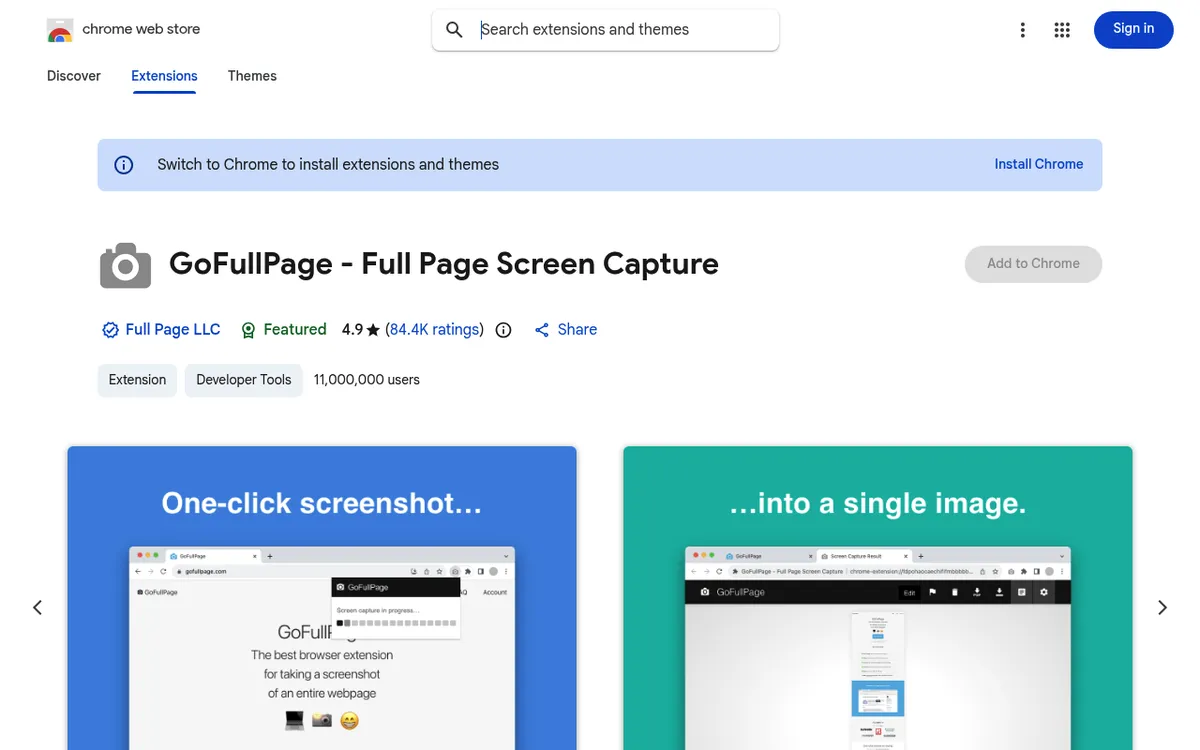
One click captures the entire page. You can also press Alt+Shift+P. The extension scrolls through and stitches everything into one image.
It handles tricky layouts well:
- Nested scroll areas
- Iframes
- Lazy-loaded content (images that load as you scroll)
Many other tools struggle with these. GoFullPage doesn't.
What we like:
- Basic captures are free, with no capture limit
- No bloat or extra permissions
- Export to PNG, JPEG, or PDF
- Screenshots stay in your browser, never on its servers
Downsides:
- The editor (crop and annotate) needs Premium at $12/year
- No cloud storage, saves locally only
- Can't capture partial regions
Best for: Developers and researchers who need scrolling screenshots of long pages. Simple and free.
2. FireShot: Best for Professionals
FireShot has been around for 15+ years. Power users love it for export options and batch captures.
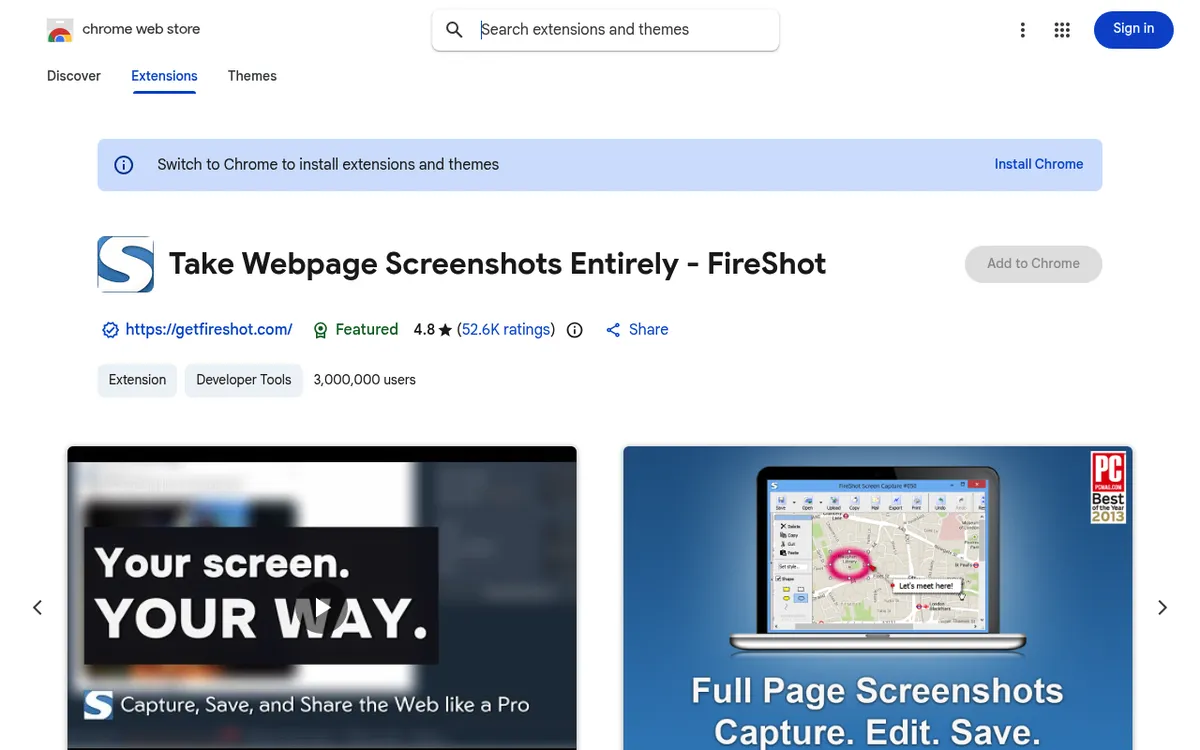
FireShot works offline. Your screenshots stay on your computer. Nothing uploads unless you choose to share.
It works across browsers too:
- Chrome
- Firefox
- Edge
- Opera
- Brave, Vivaldi, and other Chromium-based browsers
- Safari
Great for teams using different browsers.
Key features:
- Capture full pages, visible areas, or selections
- Built-in editor with arrows, shapes, and text (Pro)
- Export to PDF with clickable links
- Batch capture multiple tabs at once
- Works 100% offline
Pricing:
- Free (Lite and Standard): full page, visible area, or selection captures, saved as PDF, PNG, or JPEG
- Pro: $39.95/year, or $99.95 one-time for a lifetime license on two devices
The full editor is a Pro feature. Pro on Mac also has fewer features than Pro on Windows. The buy page showed a sale badge in October 2026, so check the current price before you buy.
Best for: People creating docs, legal archives, or training materials. Pay once, use forever.
3. Awesome Screenshot: Best All-in-One Tool
Awesome Screenshot does screenshots AND screen recording. Perfect for switching between images and videos.
It has been around for more than 10 years and has grown a lot. Now it's a full capture and editing suite.
Mac users can also get a desktop app. It costs extra though.
Key features:
- Full page, visible, and selection modes
- Screen recording with webcam overlay
- Annotation tools: arrows, text, shapes, blur, highlights
- Cloud storage for easy sharing
- Works with Slack, Trello, Jira, and Asana
Pricing:
- Free: up to 100 cloud screenshots and 20 recordings at 720p, with basic annotation
- Basic: $5/month billed yearly, or $6 month to month
- Professional: $6/month billed yearly, or $8 month to month, with unlimited recordings up to 4K and all annotation tools
Best for: Teams who use project tools. Logging bugs for Jira? See our guide on how to attach screenshots to Jira.
4. Nimbus Capture (FuseBase): Best for Annotation
Nimbus Capture excels at editing after you capture. If you spend more time marking up images than taking them, this is your tool.
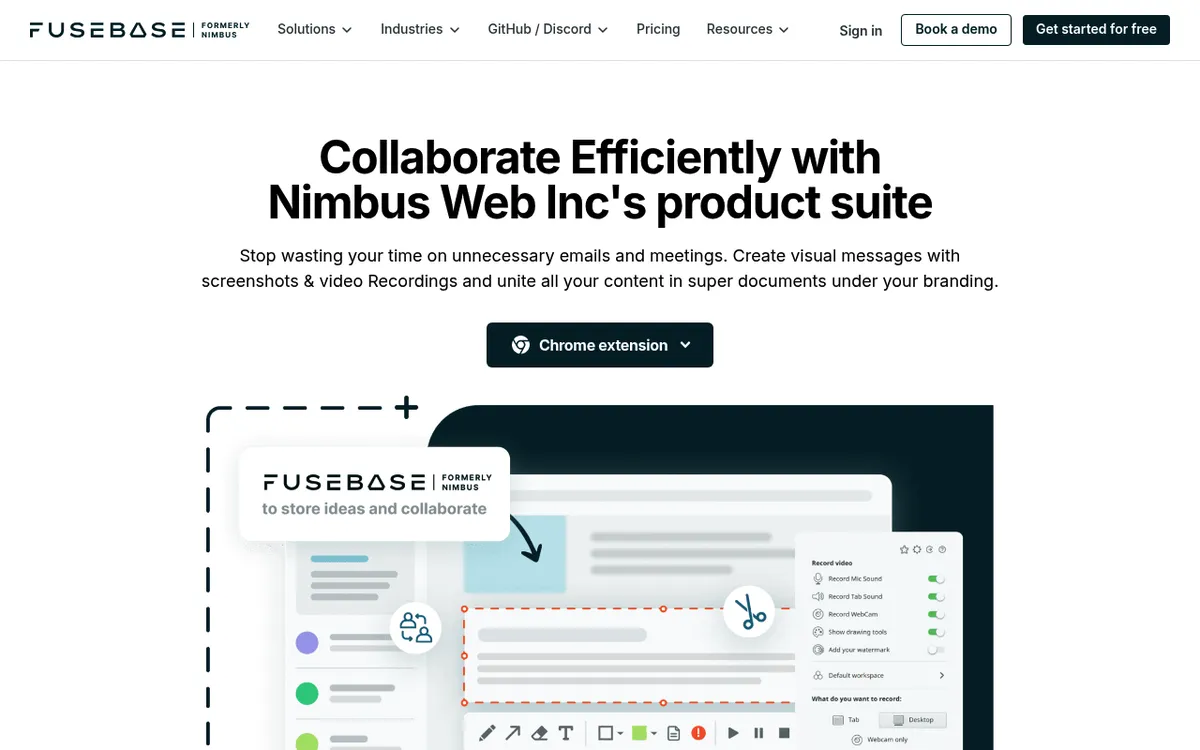
It used to be called Nimbus Screenshot. Nimbus Web now sells it under the FuseBase brand, next to its FuseBase workspace for docs (formerly Nimbus Note). The old Nimbus Screenshot listing is gone from the Chrome Web Store. The current extension is called FuseBase Pro.
The focus here is markup. Its editor rivals standalone image tools.
Annotation tools:
- Arrows, lines, and shapes in custom colors
- Text with custom fonts and sizes
- Number stamps for step-by-step guides
- Blur and pixelate for private data
- Crop, resize, and watermark
The number stamps are a standout. Drop a circled "1," "2," "3" onto your screenshot. Readers follow along fast. Most other tools make you draw these by hand.
More features:
- Full page, visible area, and selected region capture
- Screen recording with audio narration
- Share links, or save captures to your FuseBase workspace
- Delayed capture with a built-in timer
- Direct sharing to Slack, plus Google Drive and Dropbox uploads on Premium
FuseBase stores your captures in its cloud. You get a share link in one click. Handy for team reviews.
Pricing:
- Free: screenshots, plus video recording up to 5 minutes
- Pro: $60/year (unlimited recording length, MP4 and GIF export, video trim and crop, blur, and watermarks)
Best for: Tutorial creators and technical documentation. Number stamps make steps clear. If you write how-to guides, this is the tool to try.

Tired of plain screenshots? Try ScreenSnap Pro.
Beautiful backgrounds, pro annotations, GIF recording, and instant cloud sharing, all in one app. Pay $49 once, own it forever.
See pricing and features5. Lightshot: Best for Quick Sharing
Lightshot focuses on speed. Install it, hit the shortcut, drag a box, share. Done in 5 seconds.
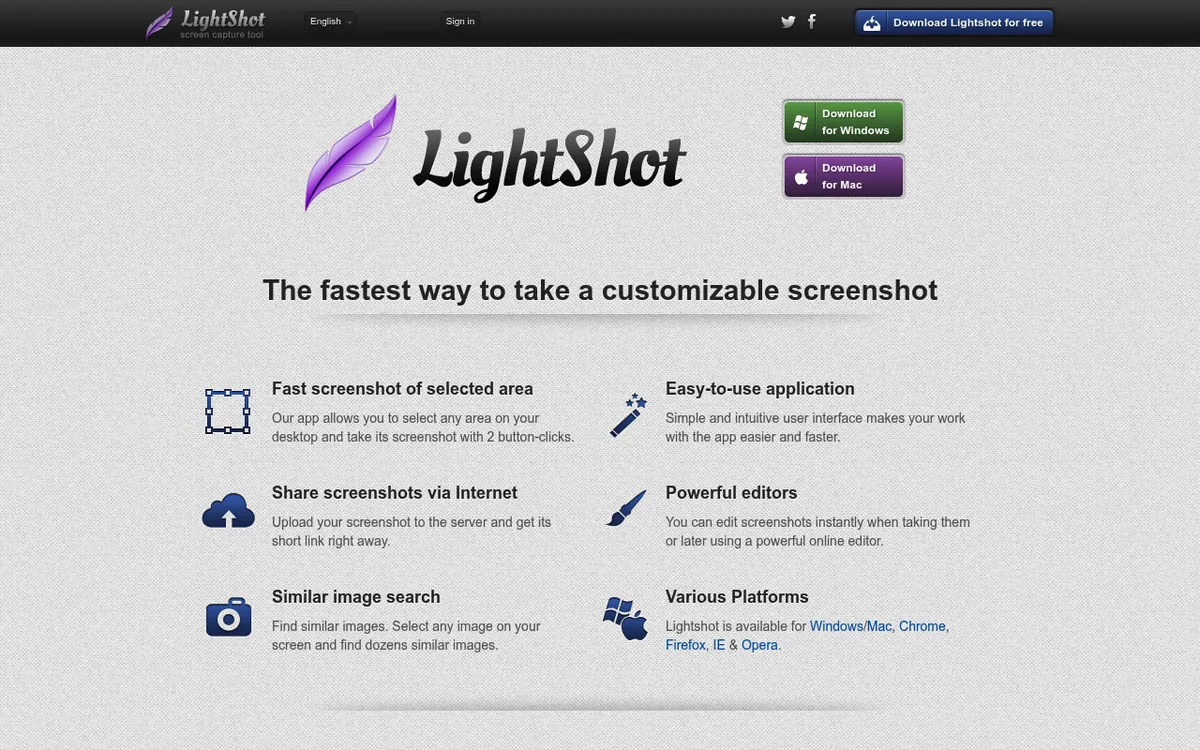
Gamers and chat support teams love it. You get quick visual context for Discord, Slack, or social media. It creates short prnt.sc links that are easy to paste anywhere.
The workflow is dead simple. Press the shortcut, drag over the area you want, and the capture floats on screen. Add a quick arrow or text label if needed. Hit the upload button and your link is on the clipboard.
Why it's fast:
- One-click upload to prnt.sc
- Simple drag-to-select area capture
- Basic annotation tools (arrows, text, shapes, pencil)
- Similar image search built in
- Desktop apps for Windows and Mac, plus Chrome, Firefox, and Opera extensions
Downsides:
- No full-page capture at all
- Very few editing options compared to Awesome Screenshot or Nimbus
- Privacy concern: every upload to prnt.sc is public to anyone with the link
- Uploads can't be made private, even in your signed-in gallery
If privacy matters, think twice. Lightshot only uploads when you hit the upload button. But every uploaded image is public. Anyone with the short link can open it.
Pricing: Free
Best for: Quick, throwaway screenshots for chat. Want more privacy? See our Lightshot alternative for Mac guide.
6. Screenshot Tool: Best Minimal Option
Don't need fancy features? Screenshot Tool keeps it simple. Capture, mark up, and save. That's it. About 1 million people use it, and it has a 4.7 star rating.
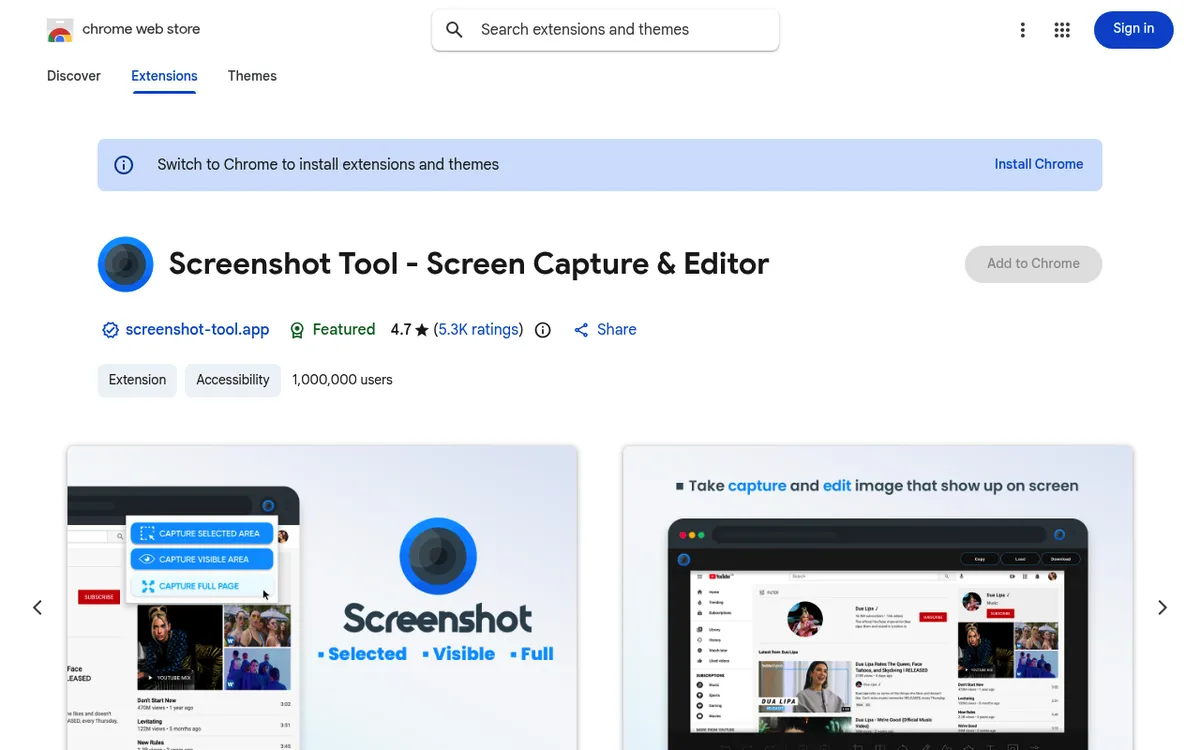
It weighs almost nothing. Your browser won't slow down. There's no account to create and no settings to tweak. Install it and start capturing.
Each capture opens in a new tab with a small editor. From there you download a PNG or copy it to the clipboard.
Why minimalists love it:
- Tiny file size, so it won't slow your browser at all
- Selected area, visible area, and full page capture modes
- A simple editor for crops, arrows, text, and shapes
- Works offline, with nothing sent to a server
- Zero setup or sign-up needed
Downsides:
- Only basic markup tools
- No cloud features or sharing links
- Only PNG export or copy to clipboard (no JPEG or PDF)
- Updates are rare (the last one shipped in January 2025)
If you need heavy markup, look at Nimbus or Awesome Screenshot. But if you grab a quick full-page capture once a week, Screenshot Tool does the job with no fuss.
Pricing: Free
Best for: Users who want the lightest tool possible. It captures pages and gets out of the way.
7. Chrome DevTools: Built-in Method for Developers
Did you know Chrome has screenshots built in? No extension needed. Just DevTools.
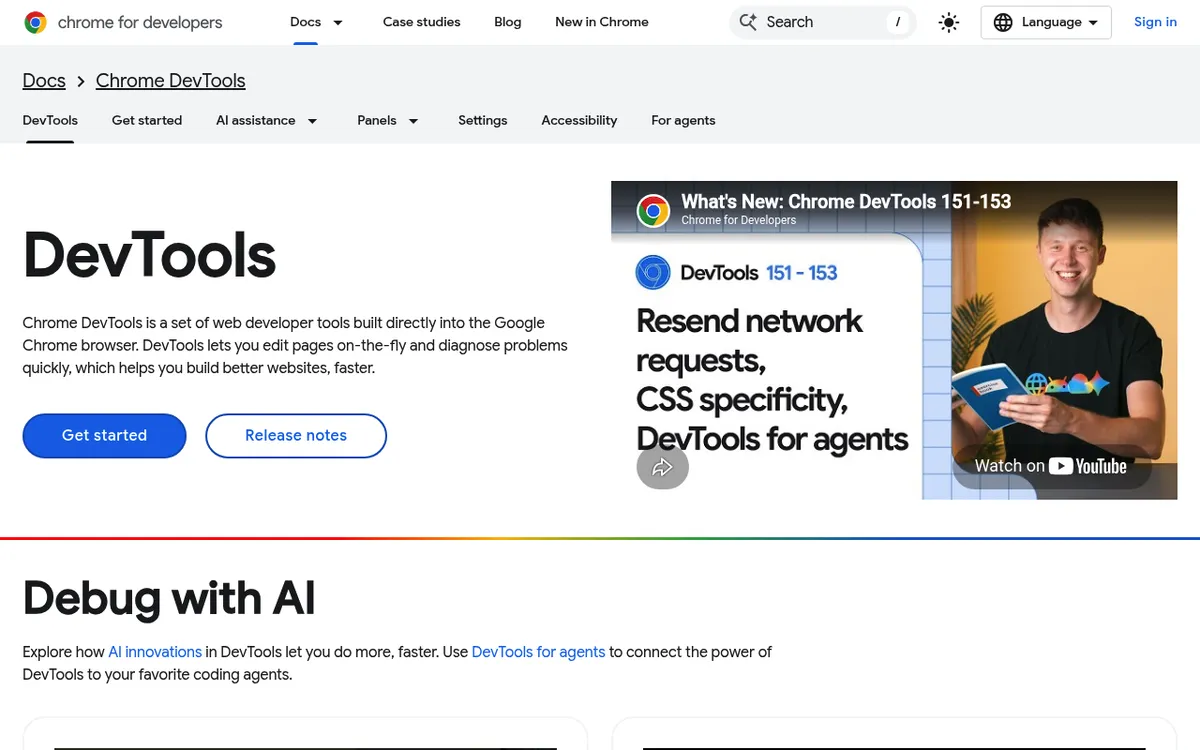
How to use it:
- Open the page you want
- Press
F12(orCmd+Option+Ion Mac) - Press
Cmd+Shift+P(Ctrl+Shift+Pon Windows) to open the Command Menu - Type "screenshot" and pick one:
- Capture full size screenshot. Whole scrollable page
- Capture screenshot. Visible area only
- Capture node screenshot. Specific HTML element
- Capture area screenshot. Custom selection
Pros:
- No extension to install
- Captures at device-specific sizes
- Great for responsive design testing
- Can screenshot specific DOM elements
Cons:
- Must open DevTools each time
- No annotation
- Slower than dedicated extensions
- Area capture doesn't work when DevTools is undocked
Bonus trick: You can emulate any device before capturing. Open the device toolbar with Cmd+Shift+M (Ctrl+Shift+M on Windows). Pick an iPhone or tablet. Then run the screenshot command. You get a pixel-perfect capture at that screen size. Designers use this to grab mobile mockups without touching a phone.
Best for: Developers testing designs or grabbing specific elements. For daily use, get a real extension.
How to Choose the Right Chrome Screenshot Extension
With seven solid options, picking one can feel overwhelming. Focus on what you do most.
Ask yourself these questions:
- Do you need full-page capture? If yes, skip Lightshot. Go with GoFullPage, FireShot, or Awesome Screenshot.
- Do you annotate screenshots? If you add arrows, text, or blur sensitive data, Nimbus or Awesome Screenshot are your best bets.
- Do you share screenshots a lot? Lightshot and Awesome Screenshot make sharing fast with cloud links.
- Is privacy a concern? FireShot works 100% offline. Your data stays local. If you need to blur sensitive info, pick a tool with good redaction.
- Do you want free or paid? GoFullPage and Lightshot are solid free options. FireShot's $99.95 lifetime license is a good-value paid choice.
Our top picks by use case:
- Casual user: GoFullPage (free, reliable)
- Content creator: Nimbus Capture (best annotation)
- Team collaboration: Awesome Screenshot (integrations galore)
- Privacy-focused: FireShot (fully offline)
- Speed demon: Lightshot (fastest workflow)
If you capture more than web pages, skip ahead to the desktop apps section. A desktop screenshot tool like ScreenSnap Pro handles everything (browser, desktop, menus) in one app on Mac and Windows. Need to convert screenshots to different formats? That's covered too.
Why Desktop Apps Beat Chrome Extensions
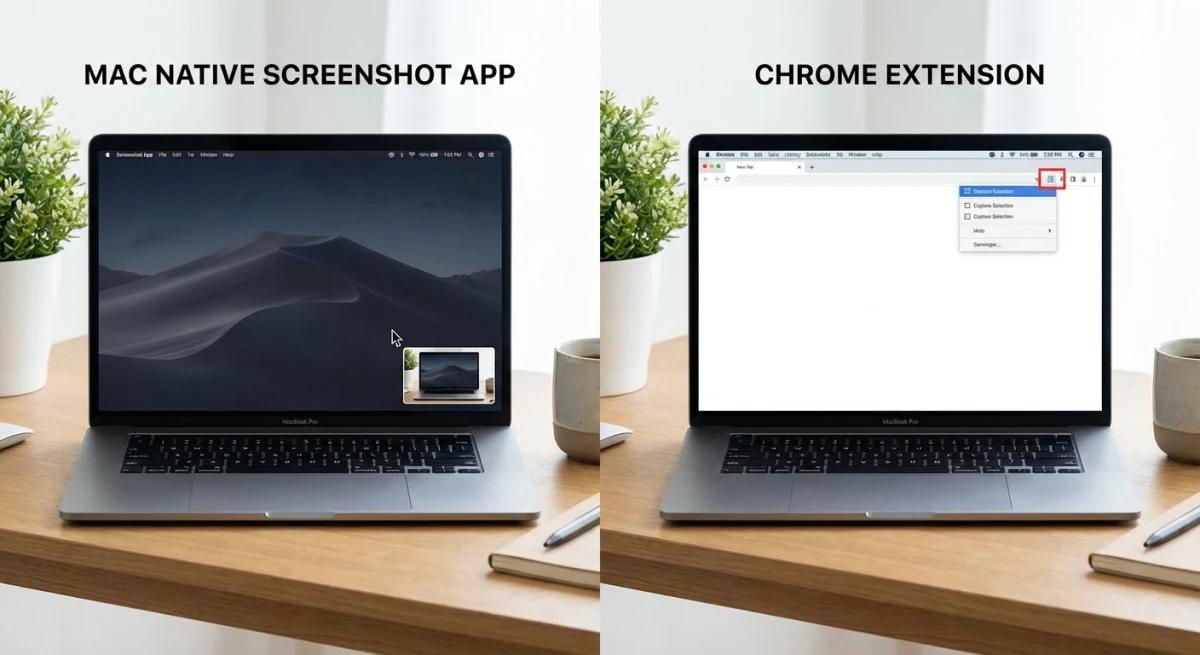
Chrome extensions are handy. But they have limits that desktop apps solve.
Extensions only work in Chrome. Need to capture Slack, a popup, Finder, or File Explorer? Extensions can't help. Desktop apps work everywhere.
Extensions need Chrome open. Close your browser, lose your tool. Desktop apps run on their own.
Extensions have basic annotation. Most offer shapes and text. Few cover the full set of pro tools, such as:
- Blur for sensitive info
- Numbered steps
- Beautiful gradient backgrounds
Cloud sharing varies. Some extensions keep your captures in their own cloud. Others have no cloud at all. Desktop apps like ScreenSnap Pro let you choose when to share.
GIF recording is rare. Only Awesome Screenshot and Nimbus record. GIF output is limited. For quality GIF recording on Mac, desktop apps are better.
Speed can suffer. Extensions run inside Chrome. Long pages and many tabs slow them down. Desktop apps run on their own and stay fast.
When to Use Extensions vs Desktop Apps
| Use Case | Best Choice |
|---|---|
| Quick webpage capture (once in a while) | Chrome extension |
| Full-page scrolling screenshots | GoFullPage or a scrolling capture app |
| Screenshot + instant annotation | Desktop app |
| Capturing desktop apps, menus | Desktop app |
| GIF recording | Desktop app |
| Cloud sharing only when you choose | Desktop app |
Use screenshots daily? A desktop app like ScreenSnap Pro gives a smoother workflow. Capture anything. Annotate fast. Share via cloud link. One tool for everything, not just your browser.

Here's what ScreenSnap Pro adds on top of what extensions do:
- 17 annotation tools, including blur, pixelate, spotlight, callouts, and numbered counters
- Area, window, full screen, and delayed capture, plus Scrolling Capture in any app (including pages behind a login) and full-page website capture from a URL
- Screen recording to MP4 at up to 60fps, or straight to GIF
- A built-in video editor with trim, cuts, auto zoom, and silence removal
- OCR, pinned screenshots, and 500+ backgrounds
It costs $49 one time. One license covers 2 seats on any mix of Mac and Windows. The catch: it's a desktop app, not a browser extension, so there's no button in your Chrome toolbar. It also can't do scrolling capture of native app windows.
Frequently Asked Questions
- GoFullPage
- FireShot
- Awesome Screenshot
- Nimbus Capture (FuseBase)
- Go to
chrome://extensions - Find your screenshot extension
- Click "Details"
- Turn on "Allow in incognito"
- GoFullPage:
Alt+Shift+P - Lightshot:
PrtScror custom - Awesome Screenshot:
Ctrl+Shift+Eor custom
Final Verdict: Which Extension Should You Pick?
For full-page captures on a budget: GoFullPage. Reliable, light, and free.
For pro documentation and PDFs: FireShot. Pay $99.95 once for a lifetime license, or $39.95 a year.
For all-in-one with recording: Awesome Screenshot. Combines screenshots and screen recording in one extension.
But if you take screenshots often, especially outside your browser, use a desktop app. Tools like ScreenSnap Pro work system-wide on Mac and Windows. Annotate fast. Share via cloud link. Record MP4 or GIF, then polish it in the built-in video editor. One-time purchase of $49.
Want to explore more? Check our full guide to the best screenshot apps for Mac or the best screenshot tools for Windows.

Morgan
Indie DeveloperIndie developer, founder of ScreenSnap Pro. A decade of shipping consumer Mac apps and developer tools. Read full bio
@m_0_r_g_a_n_