Awesome Screenshot for Mac: Best Desktop Alternatives (2026)
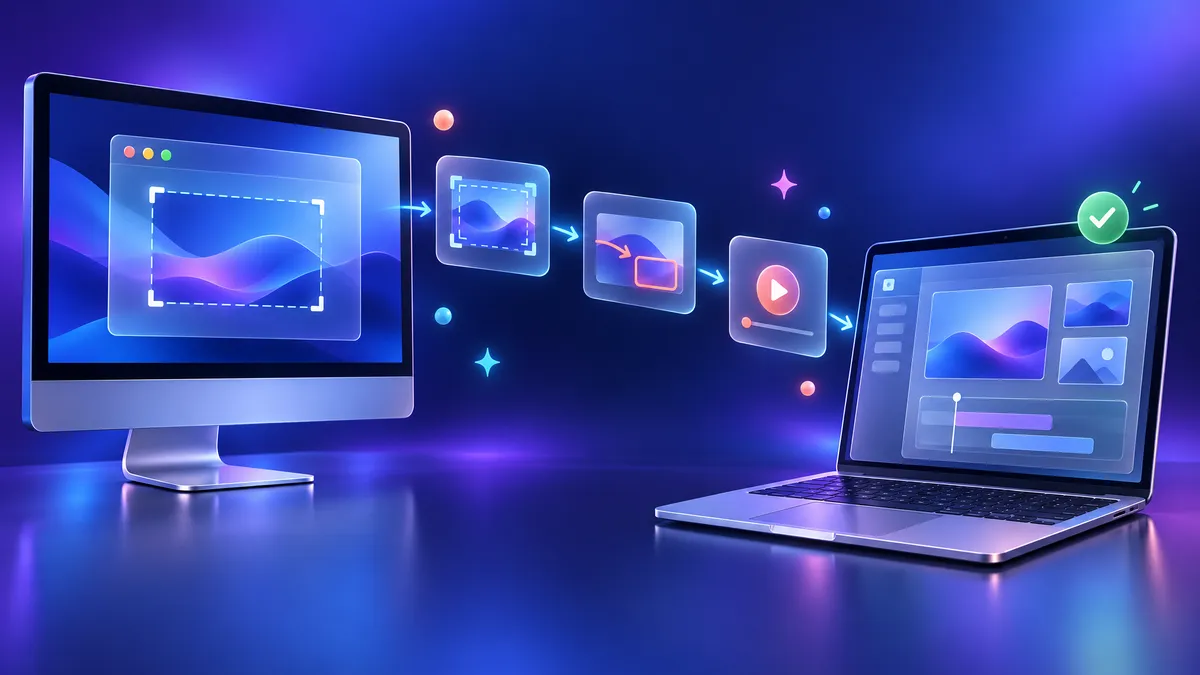
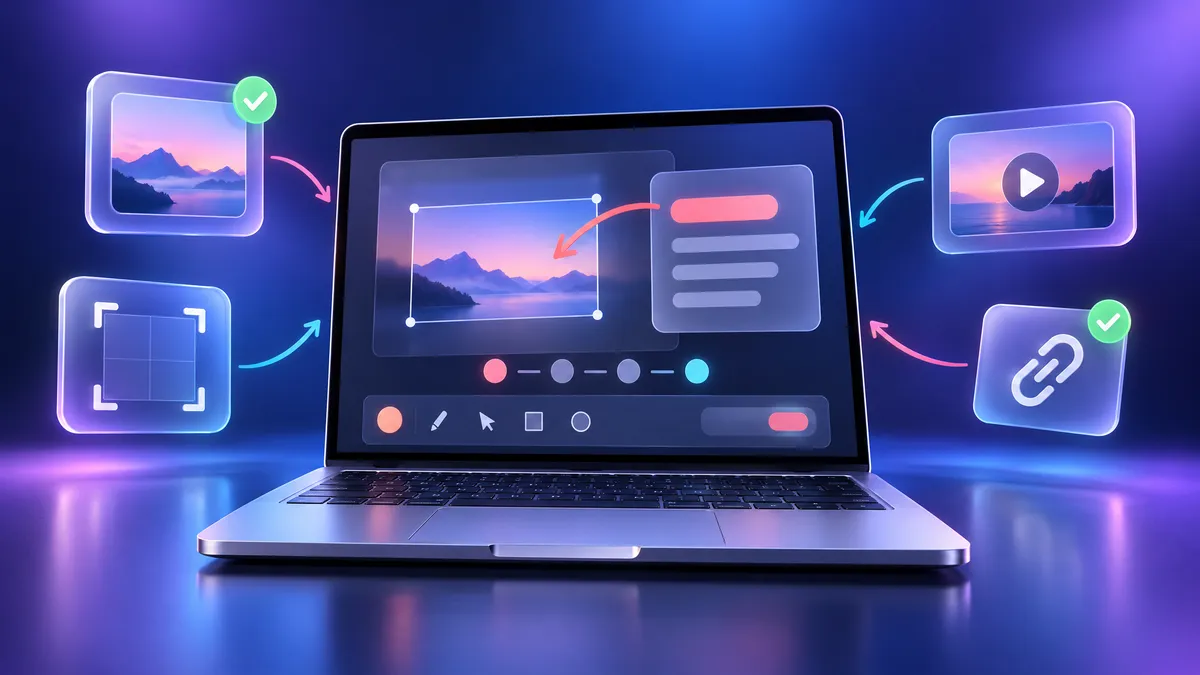
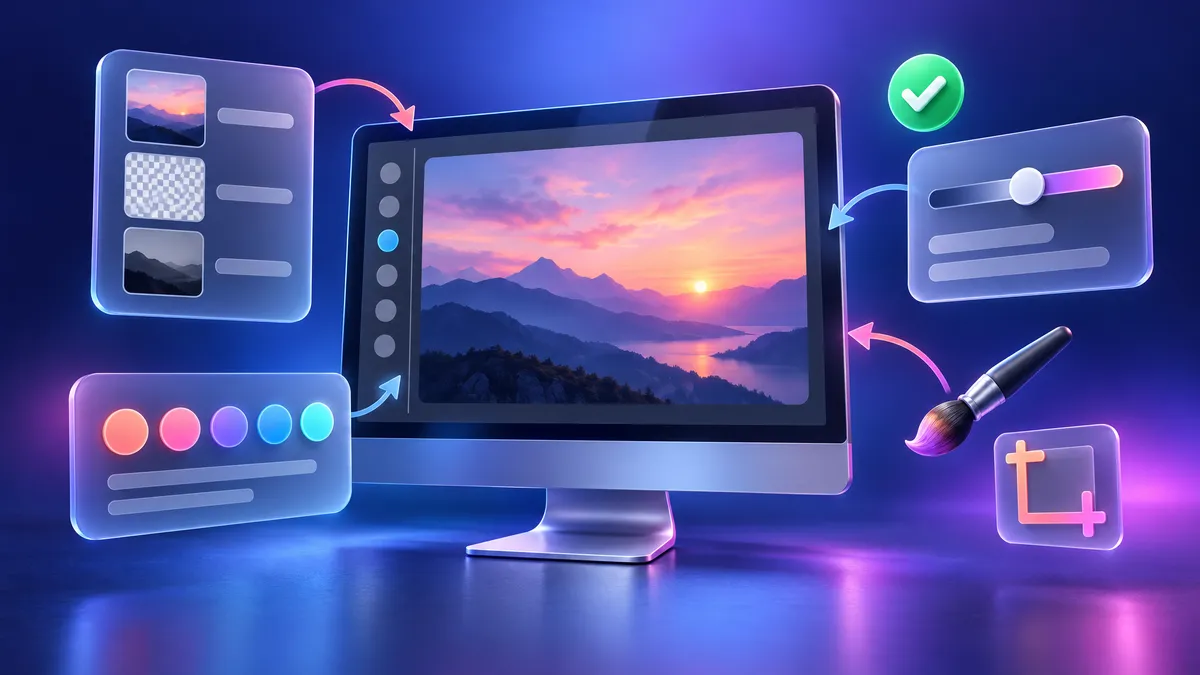
Awesome Screenshot is a Chrome extension used by over 3 million people. It takes full-page screenshots, records tabs, and adds markups. But this popular awesome screenshot extension only works inside Chrome. If you need to capture Mac apps, menus, or your desktop, you need a desktop awesome screenshot app for your Mac instead, like ScreenSnap Pro.
These five Mac desktop apps cover what most people use Awesome Screenshot for. They also capture content outside your browser. Here's how they compare.
What is Awesome Screenshot?
Awesome Screenshot is a chrome screenshot extension with a free plan.
It has been around since 2010. You can take full-page web page screenshots, record browser tabs, and add arrows or text to images.
As far as browser screenshot tools go, here's what it does well:
- Full-page captures of any web page
- Basic markup tools like arrows, text, and shapes
- Tab recording inside Chrome
- Cloud storage for sharing links
- Quick sharing without saving files first
It holds a 4.6-star rating on the Chrome Web Store. For quick web captures, it's a good tool.
But there's a big limit. The Awesome Screenshot Chrome extension only works inside the browser. You can't screenshot a Mac dialog box, a Finder window, or any native app. That's where desktop apps come in.
Why switch from a browser extension to a desktop app?
A browser extension works fine when you only capture web pages. But most Mac users need more than that.
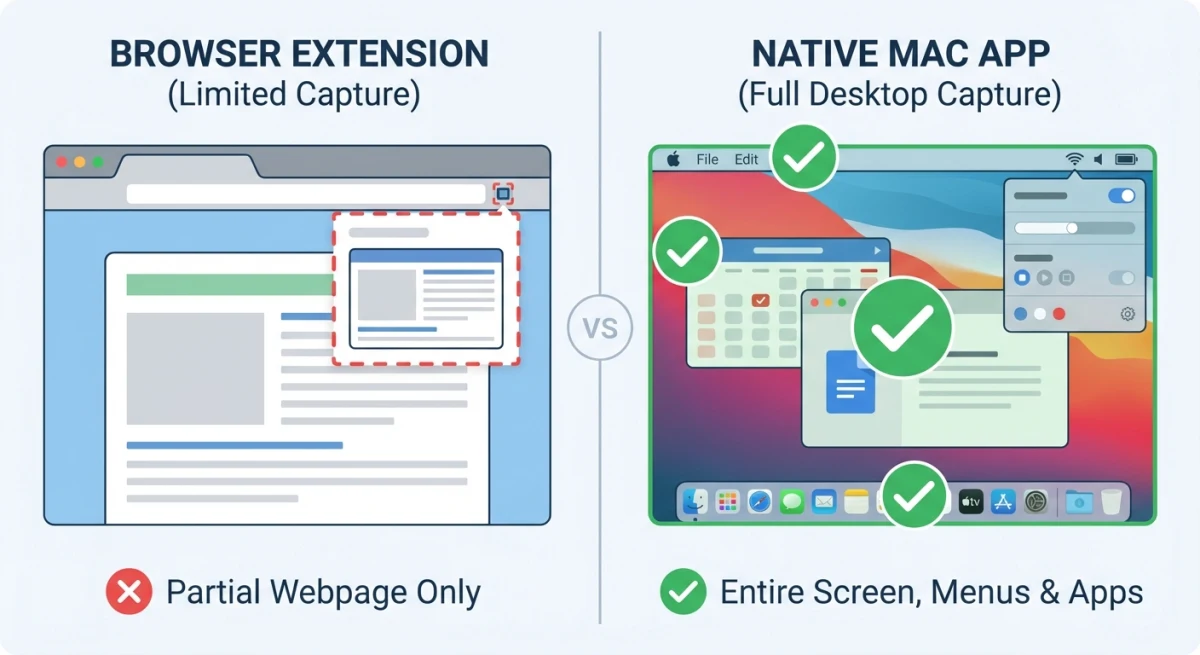
Here's what a desktop app gives you:
- Capture anything on screen. Apps, menus, pop-ups, Finder windows, your whole desktop. A Chrome extension can't see outside the browser.
- Work without a browser. Your capture tool is always ready. Use it in Xcode, Figma, Terminal, or any other app.
- Faster performance. Desktop apps don't slow down Chrome. They use system-level capture tools. That makes them quicker.
- Better markup tools. Blur, pixelate, counters, and more shapes. Most browser tools lack these.
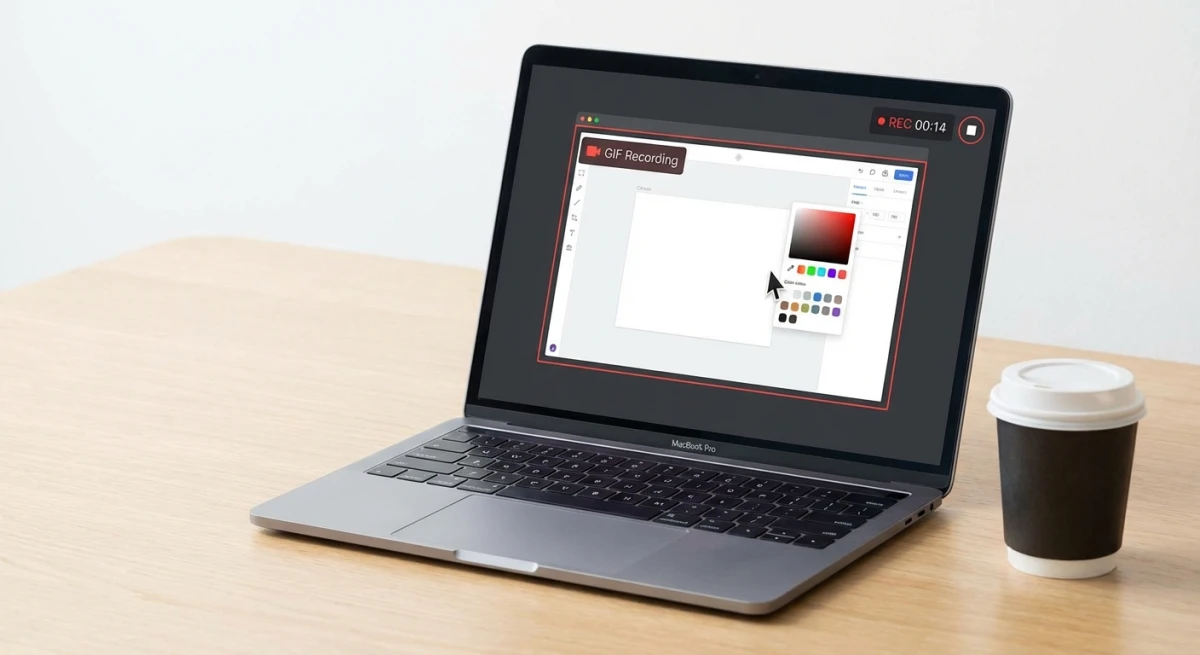
- GIF recording. Make short demos as GIF files. No need to record video and convert it later.
- System-wide shortcuts. Press a hotkey from any app to start a capture. No need to switch to Chrome first.
If you keep opening other tools to capture stuff outside Chrome, a desktop app will save you time. That's why many people look for an awesome screenshot alternative that works system-wide.
5 best Awesome Screenshot alternatives for Mac
1. ScreenSnap Pro: best all-around pick

ScreenSnap Pro is a screenshot app and screen recorder for Mac and Windows. One license includes 2 seats, in any mix of Mac and Windows. It's built for people who take lots of captures every day.
It earns the top spot because it does Awesome Screenshot's main jobs and then goes further. It grabs full web pages from a URL, records your screen to MP4 or GIF, and edits the video in the same app.
What you get:
- Capture from any app. Area, window, full screen, or on a timer. Not just your browser
- Scrolling Capture. Select an area in any app, scroll down, and get one tall image of a long page, PDF, or chat
- Full-page website capture. Paste a URL and get the full page as one image, no extension needed
- MP4 screen recording. Up to 60fps with webcam, mic, and system audio
- GIF recording. Turn your screen into a GIF file in seconds
- Built-in video editor. Trim, split, change speed, cut silences in one click, and add auto zoom that follows your cursor
- 17 annotation tools plus emoji. Arrows, shapes, text, callouts, blur, pixelate, spotlight, counters
- 500+ backgrounds. Add padding and shadow to make screenshots look polished for social media
- Cloud sharing. Get a quick share link (or turn it off and work offline)
- OCR text reading. copy text from any screenshot
- Pin captures. Keep a screenshot visible on top of other windows
- No watermarks. Every capture looks clean
Price: $49 one-time. You pay once and keep it forever, with a 30-day money-back guarantee.
This is the big difference. Awesome Screenshot pushes you to paid plans for cloud and extra features. ScreenSnap Pro gives you everything for one price. You also get free updates for life.
The background feature is great for marketers. You can add a gradient background to any screenshot in one click. No Figma or Canva needed.
Tab recording is the other reason people use Awesome Screenshot. ScreenSnap Pro records your whole screen or any area you select, then lets you cut the clip on a timeline before you share it. Here's how to screen record with audio on Mac.
Limits: There's no browser extension, no live streaming, and no captions.
2. CleanShot X: lots of features
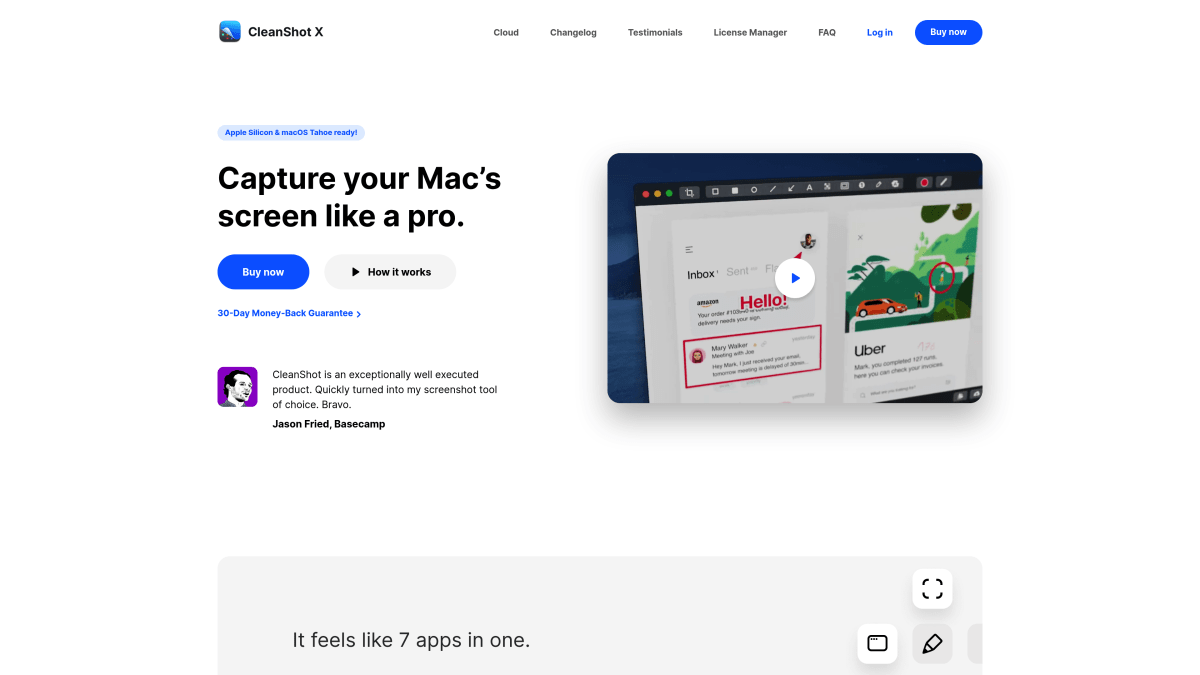
CleanShot X is a well-known Mac screenshot app. It offers scrolling capture in both browsers and native apps.
Key features:
- Scrolling screenshots (in any app, not just Chrome)
- Built-in markup editor
- Screen recording to MP4 or GIF, with a video editor added in version 5.0
- Cloud hosting via CleanShot Cloud
- Desktop cleanup before capture
- Quick access overlay
Price: $35 one-time for CleanShot Basic, with 1 year of updates and 1 GB of cloud storage. Updates after that cost $19/year. CleanShot Pro adds unlimited cloud for $10 per user/month, billed yearly.
CleanShot X feels smooth on macOS. The downside is cost. You pay $35 for the app. Then you pay $19 a year to keep getting updates, or move to Pro for unlimited cloud sharing. That adds up fast if you share a lot of screenshots.
It beats Awesome Screenshot because it captures native apps too. The scrolling capture works in Notes, Xcode, Terminal, and more.
Want more details? Read our CleanShot X alternatives guide.
3. Shottr: free and fast
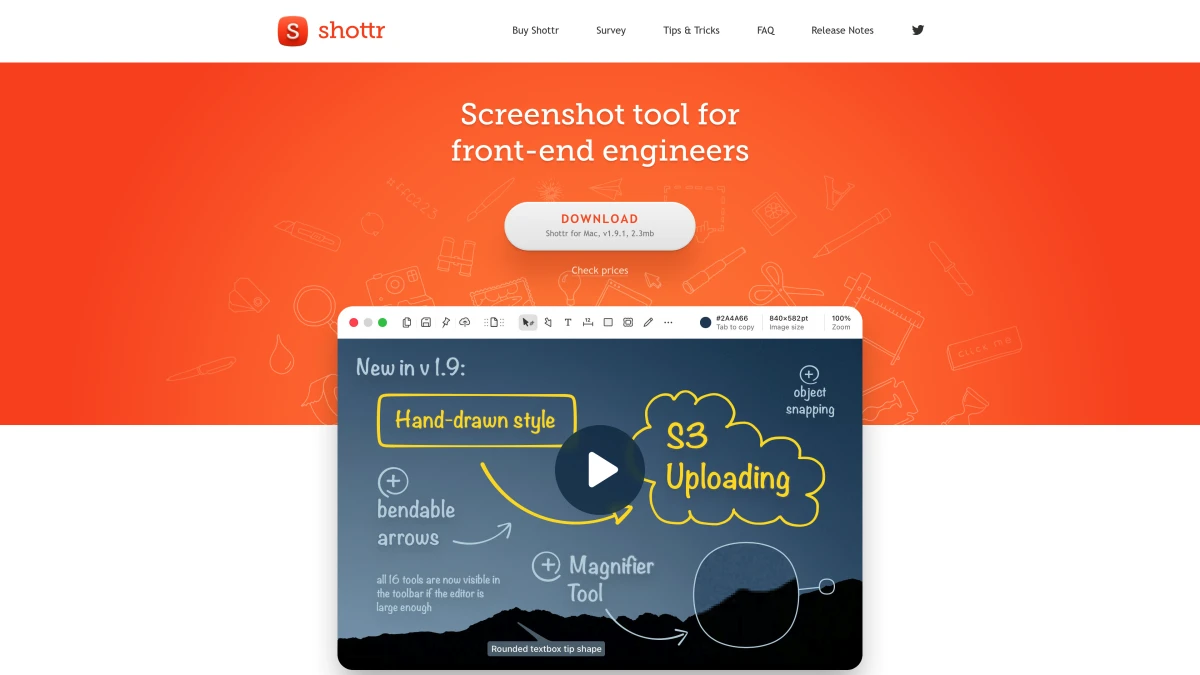
Shottr is a free screenshot tool for Mac. It starts up fast and uses very little memory.
Key features:
- Fast capture with low memory use
- OCR text reading
- Pixel measurement tools (great for designers)
- Scrolling screenshots
- Color picker
Price: Free for personal use. Work use needs a $12 one-time license ($30 for the Friends Club tier).
The tradeoff? No built-in cloud links (its S3 upload needs your own storage). No screen or GIF recording. Fewer markup tools than paid apps. Check our ScreenSnap Pro vs Shottr comparison for a full breakdown.
4. Snagit: built for teams
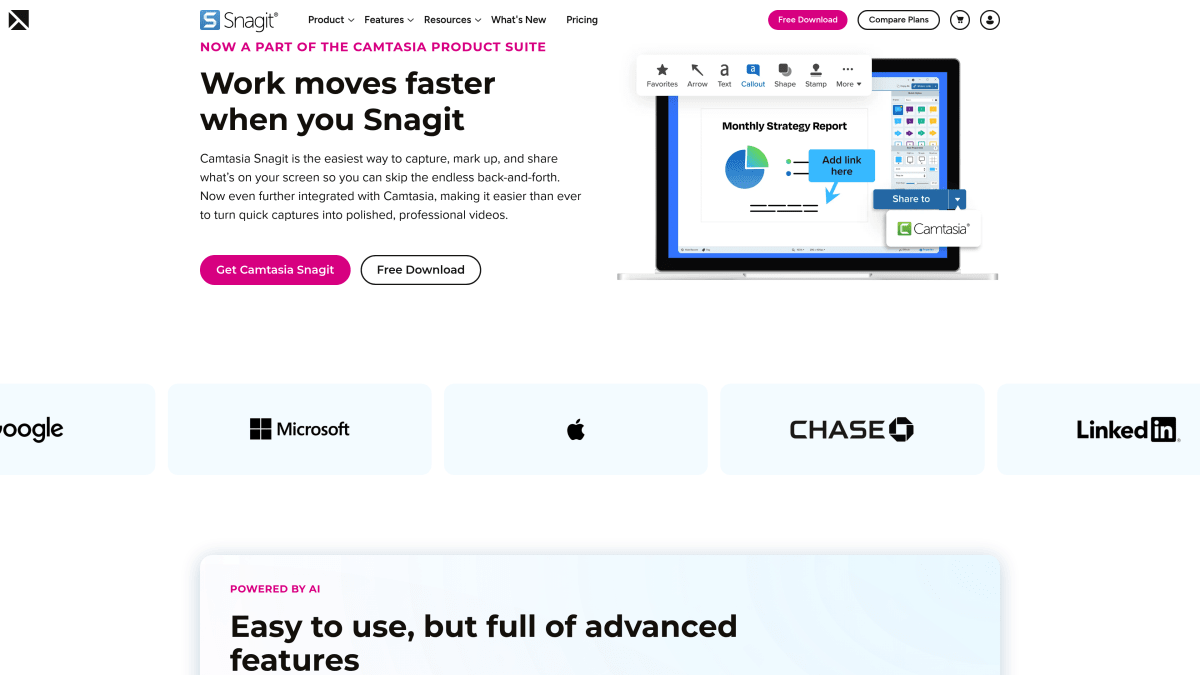
Snagit by TechSmith is popular in offices. It has scrolling capture, video recording, and a big template library.
Key features:
- Scrolling capture (full web pages, wide spreadsheets)
- Screen recording with webcam, mic, and system audio
- Ready-made templates for docs
- Stamps and pre-built markups
- Works with Microsoft Office and Google Docs
Price: $39/year for individuals, $48/year for business users. TechSmith switched from a one-time price to a yearly subscription with Snagit 2025.
Snagit has a lot of power. But most of it is aimed at large teams. You pay for templates and plug-ins you may never use.
The Step tool is nice for guides. It puts numbered circles on your screenshot. The Stamp library adds pre-made icons. These help when you write docs all day.
Curious about the cost? Read about Snagit's pricing or see our Snagit alternatives for Mac.
5. Lightshot: free and simple
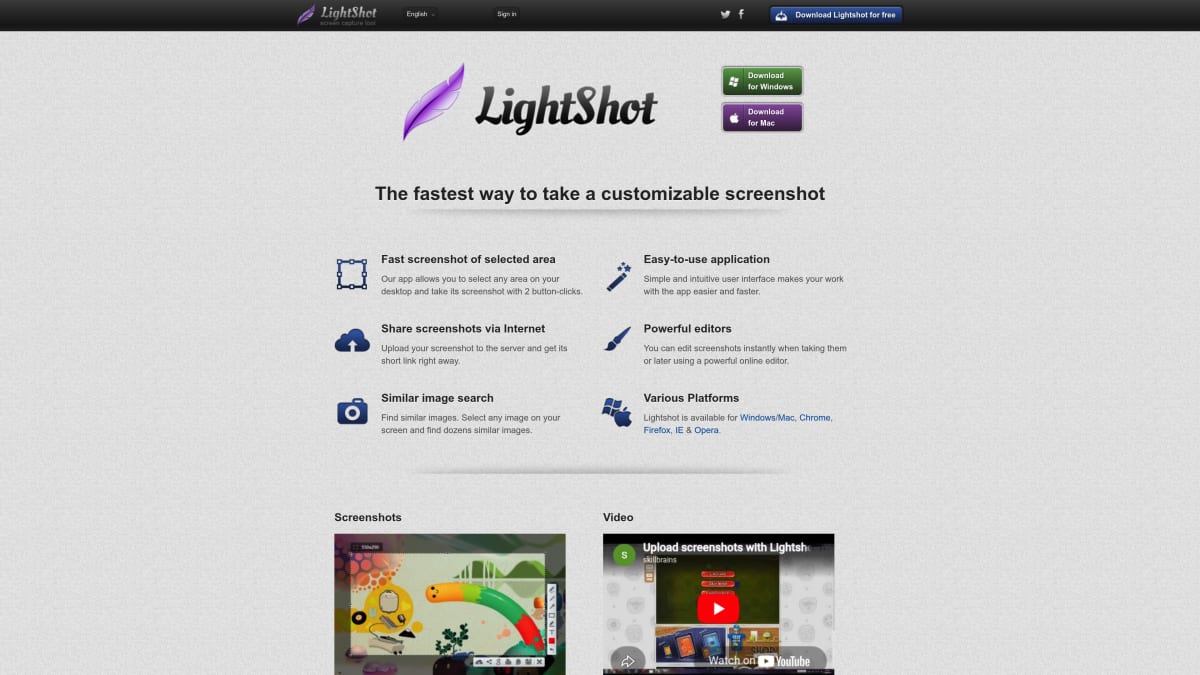
Lightshot is a free screenshot tool. It works on Mac and Windows. Think of it as Awesome Screenshot without the browser lock.
Key features:
- Quick area capture
- Basic markup (arrows, text, shapes)
- Fast upload and sharing
- Similar image search from any screenshot
Price: Free.
Lightshot covers the basics. It starts fast, stays out of the way, and lets you grab a screen region in seconds. The upload feature makes a short link you can share right away. Keep in mind that every upload is public: anyone with the link can open it.
What's missing? No GIF recording. No blur tool. No numbered steps. No way to sort old captures. It's simple and that's the point.
For more free options, see our Lightshot alternatives for Mac list.
If you used ShareX or Greenshot on Windows, these Mac apps will feel right at home. And if you want to keep a browser option alongside a desktop tool, check our best screenshot Chrome extensions list.
Browser extension vs desktop app: side-by-side
Every full page screenshot extension has the same basic limit: it can only see what's inside the browser. Here's how the Awesome Screenshot extension stacks up against Mac desktop apps.
| Feature | Awesome Screenshot | Mac Desktop App |
|---|---|---|
| Capture web pages | ✅ | ✅ |
| Capture native apps | ❌ | ✅ |
| Capture menus and dialogs | ❌ | ✅ |
| Works offline | Limited (local saves) | ✅ |
| GIF recording | ❌ | ✅ (ScreenSnap Pro, CleanShot X) |
| Video editor | Basic (cut, text, shapes) | ✅ (ScreenSnap Pro, CleanShot X) |
| System-wide shortcuts | ❌ | ✅ |
| Full-page web capture | ✅ | ✅ (ScreenSnap Pro by scrolling or from any URL, CleanShot X and Snagit by scrolling) |
| Basic markups | ✅ | ✅ |
| Blur and pixelate | Limited | ✅ |
| Cloud sharing | ✅ (with limits) | ✅ (optional) |
| Slows down browser | Yes | No |
| Needs Chrome | Yes | No |
A good desktop app covers what a browser extension does. It also does what an extension can't.
Price comparison
| Tool | Price | Model | Cloud? |
|---|---|---|---|
| ScreenSnap Pro | $49 | Pay once, own forever | Yes (optional) |
| Awesome Screenshot | Free / $5 to $8/mo | Subscription | Yes (limited free) |
| CleanShot X | $35, or $10/user/mo for Pro | One-time + optional subscription | 1 GB on Basic, unlimited on Pro |
| Shottr | Free / $12 one-time for work use | Free for personal use | S3 upload only |
| Snagit | $39 to $48/year | Yearly subscription | Yes |
| Lightshot | Free | Free forever | Basic (public links) |
If you pay for Awesome Screenshot's premium plan, a one-time app like ScreenSnap Pro gets cheaper by comparison every year you keep it.
For a bigger list, see our best screenshot apps for Mac guide.

Tired of plain screenshots? Try ScreenSnap Pro.
Beautiful backgrounds, pro annotations, GIF recording, and instant cloud sharing, all in one app. Pay $49 once, own it forever.
See pricing and featuresWhich tool fits your workflow?
- Marketers making social content → ScreenSnap Pro (backgrounds + GIF recording)
- Full-page web captures → ScreenSnap Pro (Scrolling Capture or any URL, no extension)
- Tutorials and demo videos → ScreenSnap Pro (MP4 with webcam + built-in video editor)
- Developers sharing code → ScreenSnap Pro or Shottr (OCR + markups)
- Designers measuring pixels → Shottr (pixel ruler tools)
- Office teams writing docs → Snagit (templates + integrations)
- Budget picks → Shottr or Lightshot (both free for personal use)
- Power users → ScreenSnap Pro or CleanShot X
Need to mark up screenshots often? Any desktop app on this list beats a Chrome extension for that.
Want to capture a single window or a partial screenshot? Desktop apps give you precise controls that browser tools can't match.
What to look for in a desktop screenshot app
Once you've decided to move beyond a chrome screenshot extension, here's a checklist of what matters:
- Can it capture outside Chrome? This is the main reason to switch. Make sure the app grabs any window, menu, or dialog. Test it with Finder, System Settings, and any app you use daily. Some tools claim desktop capture but only work with certain frameworks.
- Does it have blur or pixelate? You'll need to hide emails, names, or API keys before sharing screenshots. Blur is great for large areas. Pixelate works better for small text. The best apps offer both so you can pick the right one for each situation.
- Can it record GIFs? Short GIF demos work better than static images for bug reports and how-to guides. A 5-second GIF shows a workflow faster than three static screenshots. Look for apps that record straight to GIF without a video-to-GIF conversion step.
- How does sharing work? Some apps upload to the cloud and give you a link. Others save to a folder. A few do both. Think about where you share most. If it's Slack or email, clipboard support matters more than cloud links. If it's public docs, you want a hosted URL that loads fast.
- Is the price fair? Watch out for yearly plans that go up each year. A $6/month tool costs $72 after one year. A one-time purchase pays for itself quickly. Check what's included too. Some apps charge extra for cloud storage or advanced features on top of the base price.
- Does it fit in on macOS? Good Mac apps use system shortcuts and respect Dark Mode. Clunky ports feel off. They should respond instantly when you hit a hotkey. If a capture tool takes more than a second to open, you'll stop using it.
- How are file formats handled? Most Mac tools default to PNG. Look for apps that let you save as JPG, WebP, or copy straight to clipboard. If you share images online a lot, you can also use a free image format converter to switch between formats.
- Does it support multiple screens? If you use two or more monitors, confirm that the app can capture from any display. Some budget tools only work on the primary screen.
How Awesome Screenshot pricing compares
Awesome Screenshot offers a free tier, but it has limits. You get basic captures and a small amount of cloud storage. Once you need more, Basic costs $5/month billed yearly ($60/year) or $6 month to month. Professional costs $6/month billed yearly ($72/year) or $8 month to month.
Here's how that stacks up over time:
| Tool | Year 1 | Year 2 | Year 3 |
|---|---|---|---|
| ScreenSnap Pro | $49 | $49 | $49 |
| Awesome Screenshot (Professional) | $72 | $144 | $216 |
| CleanShot X (Basic) | $35 | $54 with updates | $73 with updates |
| Shottr | Free ($12 for work) | Free ($12 for work) | Free ($12 for work) |
| Snagit | $39 | $78 | $117 |
| Lightshot | Free | Free | Free |
ScreenSnap Pro costs $49 once. Awesome Screenshot Professional costs $72 every year on the yearly plan. The longer you use it, the wider the gap gets. Over three years, the extension costs $216.
The free tools (Shottr and Lightshot) cost nothing for personal use but lack screen recording, GIF recording, and a video editor. Shottr also needs a $12 license if you use it for work. They're a good start, but you may outgrow them.
If cost matters to you, a one-time purchase gives the best value. You get all updates included and never see a renewal email.
When to keep using Awesome Screenshot
Awesome Screenshot still works well in a few cases:
- You only capture web pages and never need app screenshots
- You use Chrome on many devices and want one tool everywhere
- You need quick tab recording without installing software
- You're on a shared computer where you can't install apps
The extension is good at what it does. It takes web screenshots fast. But most Mac users end up needing more.
If you work 100% in the browser and the free tier fits your needs, there's no rush to switch. But the first time you need to capture a web page screenshot along with a native app window side by side? That's your sign to pick up a desktop tool.
Tips for making the switch
Ready to move to a desktop app? Here's how to set up:
- Set up keyboard shortcuts. Most Mac apps let you pick your own hotkeys. Try
⌘ + Shift + 5or something close to what you already know. - Choose a save folder. Pick a dedicated folder for screenshots so they don't clutter your Desktop.
- Learn the markup tools. Desktop apps offer blur, arrows, text, and more. Spend five minutes exploring, since you'll use them daily.
- Try GIF recording. This is the biggest upgrade over any browser tool. Record a quick GIF for a bug report, tutorial, or demo.
- Use the clipboard. Desktop apps let you capture straight to clipboard. Paste into Slack, email, or docs with no extra steps.
How we tested these tools
We checked each awesome screenshot for Mac alternative based on what matters most to Mac users:
- Capture range. Can it grab anything on screen, not just Chrome?
- Markup quality. Does it have blur, counters, and advanced tools?
- GIF support. Can it make short demos without video software?
- Sharing speed. How fast can you go from capture to shared link?
- Fair pricing. One-time vs subscription, and what you get
- At home on macOS. Does it fit in with macOS shortcuts and Dark Mode?
We tested every tool on macOS Sequoia. We tried web pages, native apps, system menus, and multi-screen setups. Each pick works for real, daily use.
We also compared each app against the stock Awesome Screenshot Chrome extension to see where desktop tools pull ahead. The biggest wins came in capture range, markup depth, and the ability to record GIFs without converting video.
If you need to annotate images online, a free web tool handles quick markups without installing anything. And when your screenshots need to look great on social media, the screenshot background generator adds polished frames in seconds.
Frequently Asked Questions

Morgan
Indie DeveloperIndie developer, founder of ScreenSnap Pro. A decade of shipping consumer Mac apps and developer tools. Read full bio
@m_0_r_g_a_n_