Screenpresso for Mac: 6 Best Alternatives (2026)
Screenpresso is a popular Windows screenshot tool. People love it for its built-in editor, workspace, and free tier. But it doesn't work on Mac. There's no macOS version, and none is planned. Mac users can get a similar capture-and-annotate workflow from apps like ScreenSnap Pro, which also keeps a Library of past captures and records your screen.
The good news? Mac has great screenshot tools that do the same things, and sometimes more. Some are free. Some cost a one-time fee. All of them run on macOS without hacks like Wine or virtual machines.
Here are 6 alternatives that give you the same capture, annotation, and sharing features you relied on in Screenpresso.
What makes Screenpresso popular?
Before looking at alternatives, it helps to know what Screenpresso does well, so you can find the right match:
- Free tier. Usable without paying, though videos and shared captures carry Screenpresso branding.
- Built-in image editor. Arrows, text, shapes, blur, highlights, and numbered steps. The free version gets a limited editor.
- Workspace manager. All your screenshots stay organized in one panel. You can browse, search, and re-edit old captures.
- Document generator. Turn a set of screenshots into a PDF or Word doc. Great for tutorials and guides. It's a Pro feature.
- Video capture. Record your screen to MP4.
- Quick sharing. Upload to cloud and get a link in one click.
- Lightweight. Small install, fast startup.
The workspace manager and document generator are the features most people miss when switching to Mac. Keep an eye on those as we go through the options.
Why Screenpresso isn't on Mac
Screenpresso is built on .NET and Windows-only code. The maker, Learnpulse, has focused on Windows since 2008. There's no Mac port, and they haven't said they'll make one.
You could run it through Parallels or a virtual machine. But that's slow and clunky for a screenshot tool. An app that runs directly on macOS will always be faster and smoother.
What to look for in a Screenpresso alternative
When picking a replacement, check for these features:
- Good annotation tools. Arrows, text, shapes, blur, numbered steps
- Capture history. Find old screenshots without digging through folders
- Quick sharing. Cloud links, not just local files
- GIF or video recording. For demos and tutorials
- Fast startup. A screenshot tool should open in under a second
- Fair pricing. One-time purchase or free, not pricey subscriptions
6 best Screenpresso alternatives for Mac
1. ScreenSnap Pro: best all-around match
ScreenSnap Pro is the closest Mac alternative to Screenpresso. It covers the same ground (capture, annotate, record, and share) in one desktop app for Mac and Windows. It also has the part most Mac tools skip: a Library that works like Screenpresso's workspace.

Key features:
- 17 annotation tools: arrow, rectangle, filled rectangle, ellipse, filled ellipse, line, path, blur, pixelate, magnifier, highlighter, spotlight, pencil, eraser, text, callout, and counter, plus emoji
- 500+ backgrounds with padding and shadow for polished screenshots
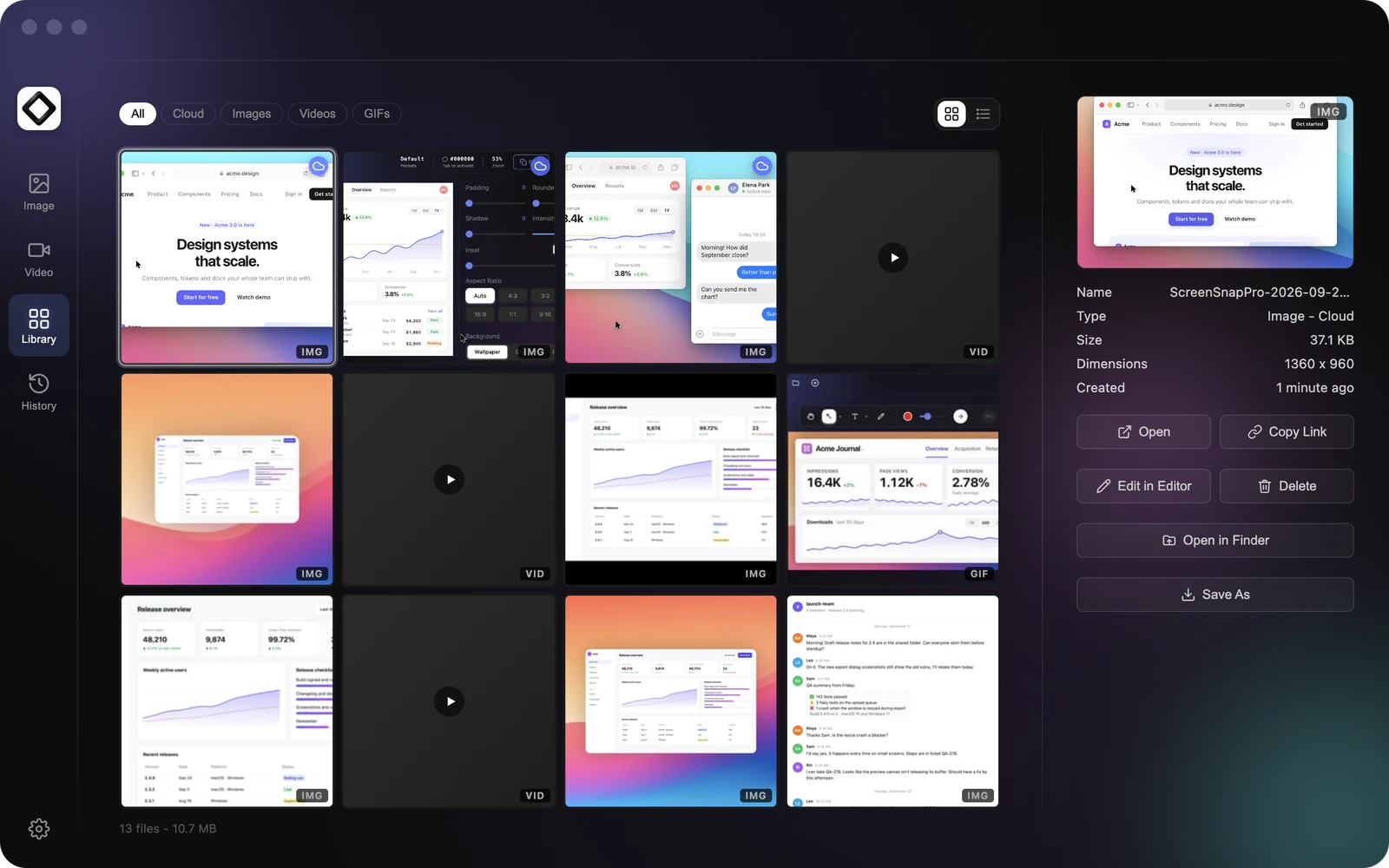
- A Library with all your screenshots, recordings, GIFs, and cloud uploads in one place
- Capture History, which keeps private copies of recent shots so you can restore one you deleted
- Screen recording to MP4 at up to 60fps with webcam, mic, and system audio
- A built-in video editor: trim, split, change speed, remove silences, add auto zoom, and export to MP4 or GIF
- Direct GIF recording for quick demos
- Cloud share links in one click
- OCR text extraction, pinned screenshots, scrolling capture of any app window, and full-page website capture from a URL
- No watermarks at all
How it compares to Screenpresso:
Screenpresso's workspace is the feature people miss most, and ScreenSnap Pro has a close match. The Library shows every capture, with filters for Cloud, Images, Videos, and GIFs in a grid or list view. From there you can copy a link, reopen a shot in the editor, or show it in Finder. The markup tools are stronger, too, with blur, pixelate, spotlight, and backgrounds. And like Screenpresso, it records video. Its editor adds split, silence removal, and auto zoom, which Screenpresso's video tools don't have.
What it lacks: there's no document generator and no automatic subtitles, which Screenpresso Pro has.
Pricing: $49 one-time. No subscription. Lifetime updates, two seats in any mix of Mac and Windows, and a 30-day money-back guarantee.
For a deeper look at the annotation tools, see our guide to annotating screenshots on Mac.
2. CleanShot X: best for organized workflows
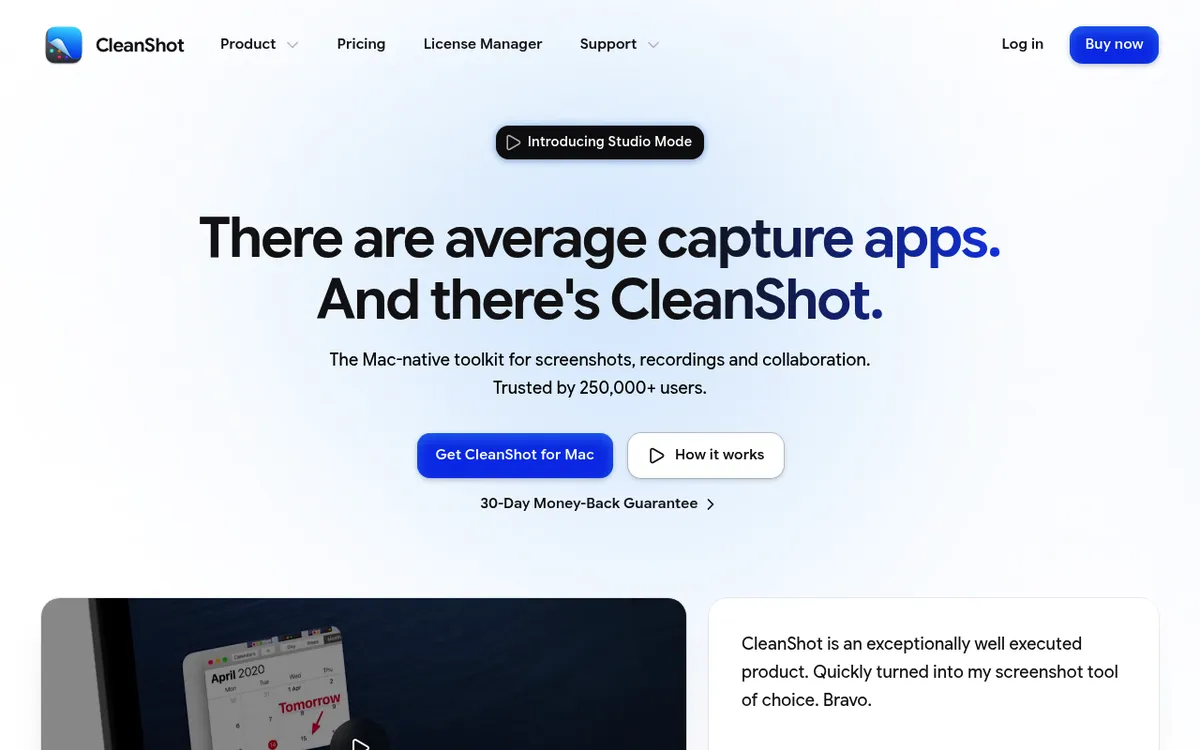
CleanShot X is another Mac tool with a Screenpresso-style workspace. Its capture history keeps your shots for up to a month. You can edit and re-share old shots from one place.
Key features:
- Capture history of up to one month, with re-edit
- Scrolling screenshots (browser + native apps)
- Built-in annotation editor with blur, counter, and spotlight
- Screen recording to MP4 or GIF, plus a video editor added in version 5.0
- On-device OCR
- CleanShot Cloud for sharing links
- Desktop cleanup before capture (hides icons)
- Quick access overlay
How it compares to Screenpresso:
CleanShot X matches Screenpresso's workspace with its capture history. It also has scrolling capture in browsers and native apps, just like Screenpresso. The downside: the one-time license includes only 1 year of updates and 1 GB of Cloud storage. Unlimited Cloud needs the Pro subscription.
Pricing: $35 one-time for CleanShot Basic (1 year of updates, 1 GB Cloud). CleanShot Pro is $10 per user/month, billed yearly, with unlimited Cloud. Needs macOS 13 or newer.
For more on CleanShot X, see our CleanShot X alternatives comparison.
3. Shottr: best free option
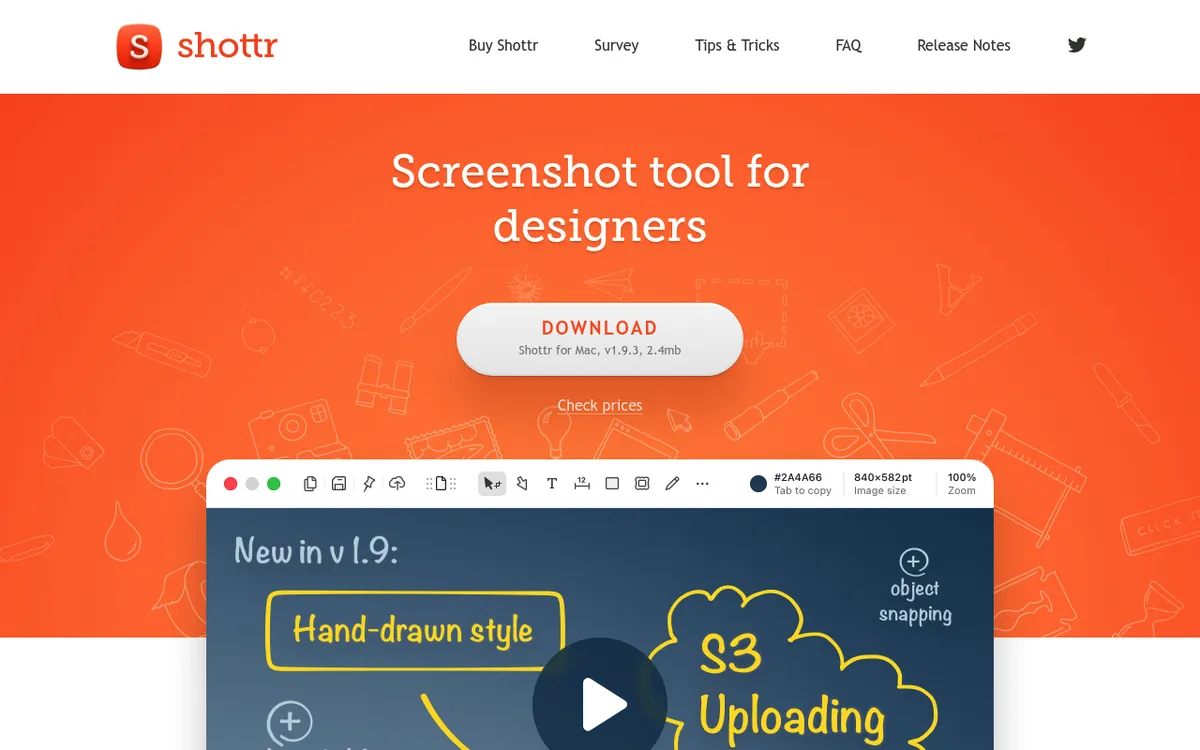
Shottr is a free, light Mac screenshot tool that rivals paid apps. If you used Screenpresso's free tier, Shottr is the natural Mac match, only without the watermark.
Key features:
- Fast area and window captures
- OCR text recognition
- Pixel measurements for designers
- Scrolling screenshots
- Basic annotation (arrows, text, shapes)
- Pixelate and gradient backgrounds
- Color picker
How it compares to Screenpresso:
Shottr matches Screenpresso's free tier and beats it with OCR and pixel tools. The markup is more basic, with no numbered steps or document maker. But there's no watermark, which is a big win.
Pricing: Free to use. After 30 days it starts asking you to upgrade. A $12 one-time Basic license is needed for commercial use ($30 for Friends Club).
Read our ScreenSnap Pro vs Shottr comparison for a full breakdown.
4. Snagit: best for documentation teams
Snagit by TechSmith is the pro choice. TechSmith now sells it as Camtasia Snagit. If you used Screenpresso's document maker to create tutorials, Snagit is the closest match on Mac.
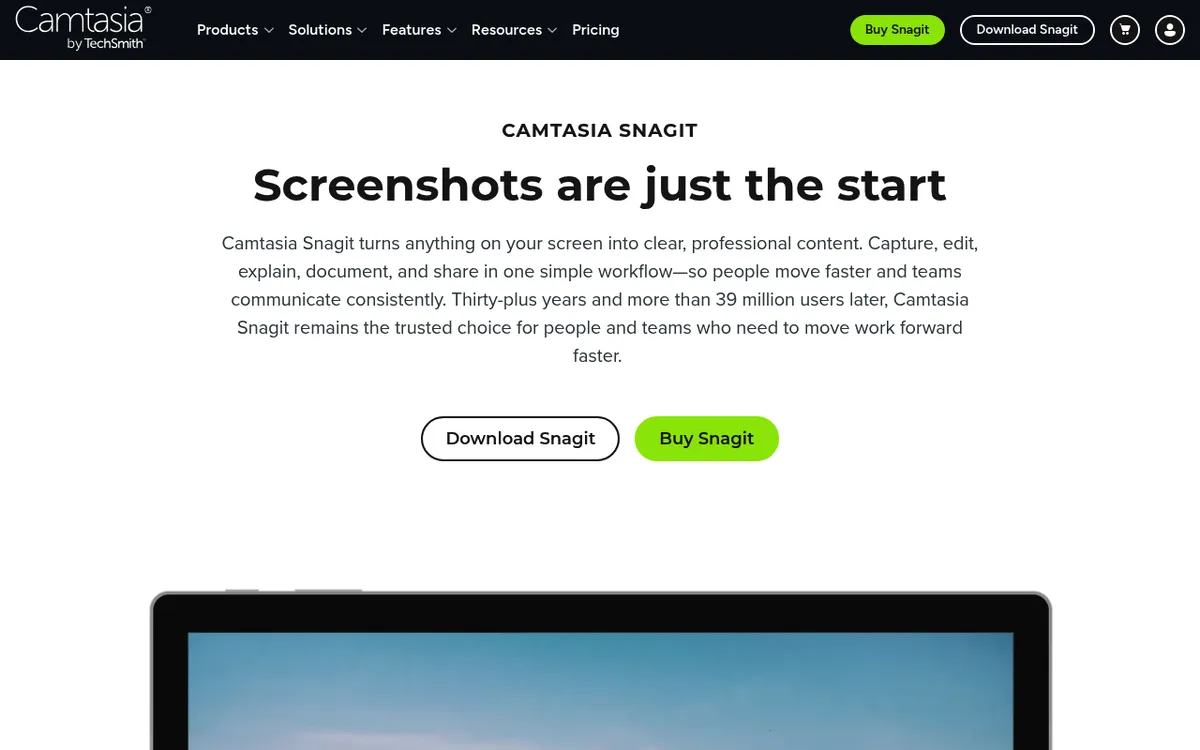
Key features:
- Step-by-step numbered annotations
- Template library for docs and guides
- Video recording with webcam, mic, and system audio
- Turn recordings into GIFs
- Scrolling capture (formerly called Panoramic)
- Sharing to Microsoft Office, Dropbox, and Google Drive
- Cross-platform (Mac + Windows)
How it compares to Screenpresso:
Snagit matches Screenpresso's document tools and goes further. The template system turns screenshots into polished PDF guides. But it's the only tool here that needs a yearly plan. Since Snagit 2025, there's no one-time license.
Pricing: $39/year (subscription only).
See our full Snagit review and Snagit alternatives for more detail.
5. Monosnap: best free cloud sharing
Monosnap is a free screenshot tool with built-in cloud storage. If you used Screenpresso's quick sharing a lot, Monosnap fills that gap nicely.
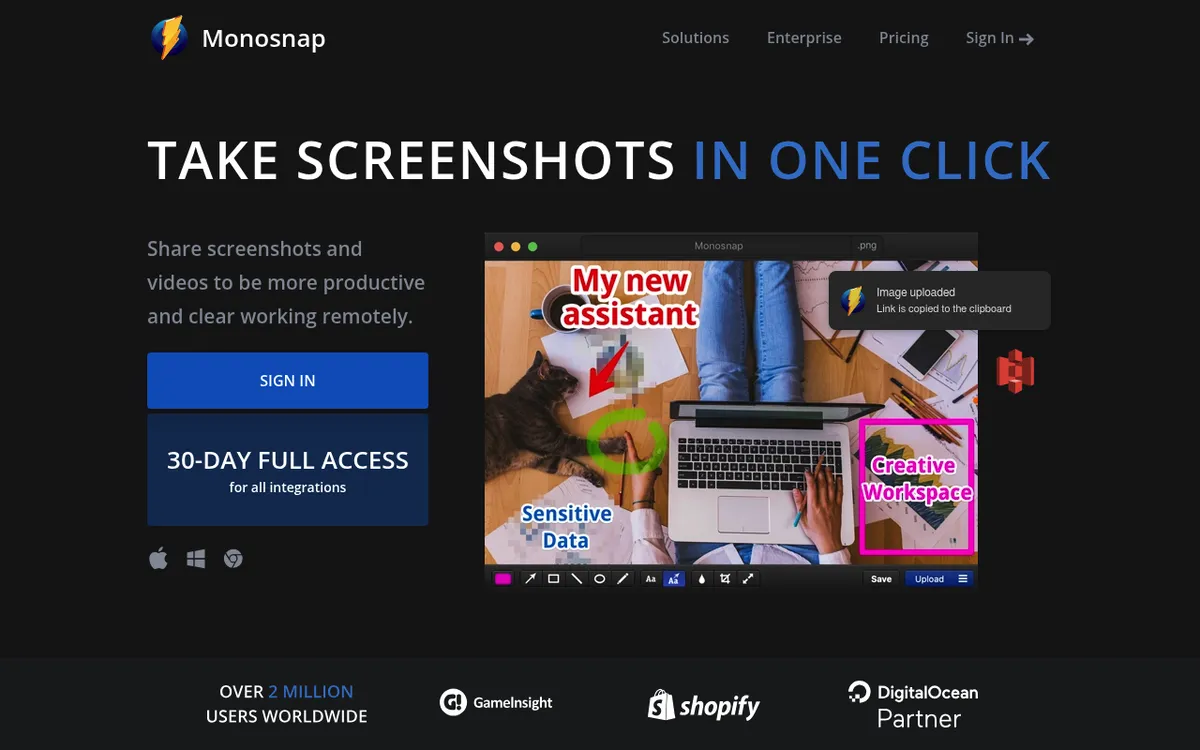
Key features:
- Area, window, and fullscreen capture
- Basic annotation tools (pen, text, arrows, shapes, blur)
- 2 GB of free cloud storage for sharing links
- Video recording (up to 5 min free)
- Uploads to Dropbox, Google Drive, S3, and more on paid plans
- Cross-platform (Mac, Windows, Chrome)
How it compares to Screenpresso:
Monosnap's free tier is generous, with 2 GB of cloud space. But it's for non-commercial use only. The markup tools are basic, though. You get blur, but no numbered steps and no backgrounds. It's best for quick captures you need to share, not heavy editing.
Pricing: Free for non-commercial use. Paid plans from $3/month ($30/year) for more cloud storage. Commercial plans start at $10/month.
6. macOS built-in tools: already on your Mac
Your Mac comes with screenshot tools that cover the basics. No install needed.
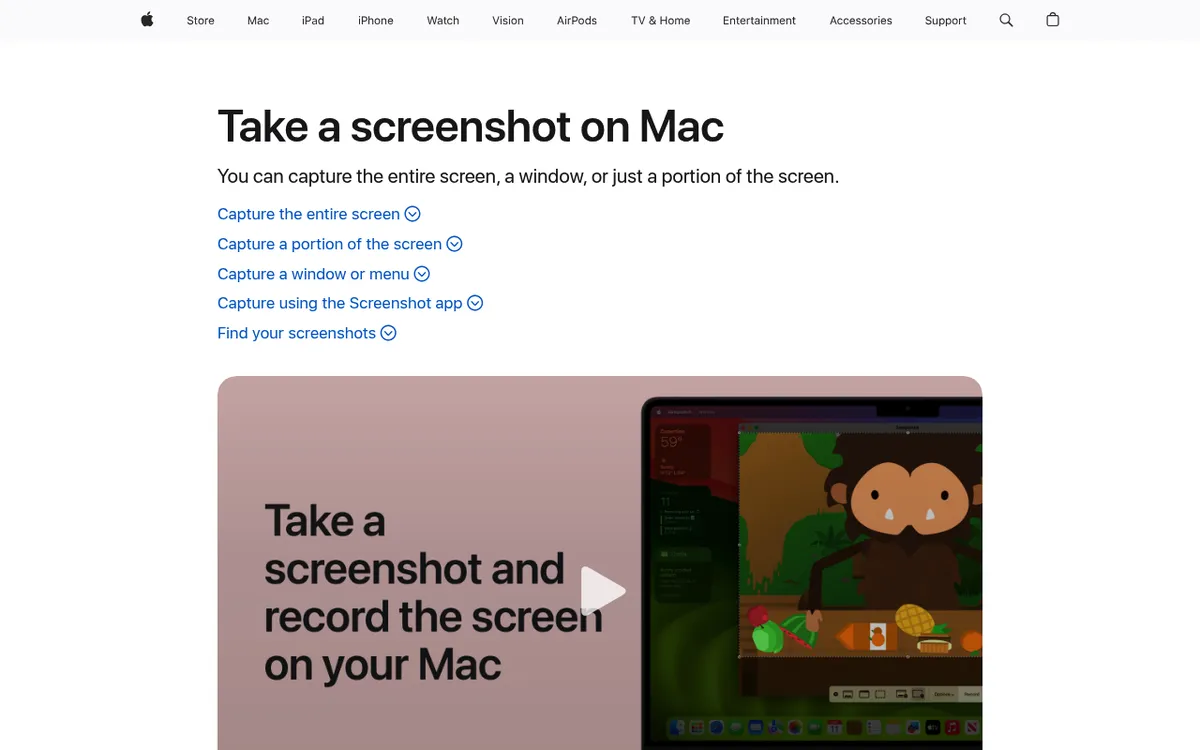
Screenshot shortcuts:
⌘ + Shift + 3: full screen⌘ + Shift + 4: select an area⌘ + Shift + 4thenSpacebarto capture a window⌘ + Shift + 5: open the screenshot toolbar
Preview for annotation:
Open any screenshot in Preview, click the Markup toolbar (pencil icon), and add text, shapes, arrows, and signatures. It's basic but free.
How it compares to Screenpresso:
The built-in tools handle captures well but lack sharing, folders, and markup features. The ⌘ + Shift + 5 toolbar can also record your screen, with system audio on macOS 27 or later. Think of them as a starting point. You'll likely want a better tool within a week or two.
For the full rundown, see our Mac screenshot shortcuts guide and edit screenshot guide.

Tired of plain screenshots? Try ScreenSnap Pro.
Beautiful backgrounds, pro annotations, GIF recording, and instant cloud sharing, all in one app. Pay $49 once, own it forever.
See pricing and featuresFeature comparison table
| Feature | Screenpresso | ScreenSnap Pro | CleanShot X | Shottr | Snagit | Monosnap | macOS |
|---|---|---|---|---|---|---|---|
| Price | Free / $30 | $49 one-time | $35 one-time | Free / $12 | $39/yr | Free / $3/mo | Free |
| Mac support | ❌ | ✅ | ✅ | ✅ | ✅ | ✅ | ✅ |
| Annotations | ✅ | ✅ (17 tools) | ✅ | Basic | ✅ | Basic | Basic |
| Blur/Pixelate | ✅ | ✅ | ✅ | ✅ | ✅ | ✅ | ❌ |
| Numbered steps | ✅ | ✅ | ✅ | ❌ | ✅ | ❌ | ❌ |
| Backgrounds | ❌ | ✅ (500+) | ✅ | ✅ | ❌ | ❌ | ❌ |
| GIF recording | ❌ | ✅ | ✅ | ❌ | ✅ | ✅ | ❌ |
| Video recording | ✅ | ✅ (+ editor) | ✅ | ❌ | ✅ | ✅ | Basic |
| Cloud sharing | ✅ | ✅ | ✅ (1 GB on Basic) | S3 only | ✅ | ✅ | ❌ |
| Workspace/History | ✅ | ✅ (Library) | ✅ | ❌ | ✅ | ❌ | ❌ |
| OCR | Pro | ✅ | ✅ | ✅ | ✅ | ❌ | Limited |
| Scrolling capture | ✅ | ✅ | ✅ | ✅ | ✅ | ❌ | ❌ |
Quick setup: get started in 5 minutes
Picked your tool? Here's how to set it up fast.
ScreenSnap Pro
- Get a license on the ScreenSnap Pro pricing page ($49 one-time)
- Open the app, which sits in your menu bar
- Press the capture shortcut to grab your first screenshot
- Use the toolbar to add arrows, text, or blur
- Click
Upload & copy linkto get a cloud link
CleanShot X
- Download and install from cleanshot.com
- Set your capture shortcut in Preferences
- Take a screenshot, which appears in your capture history
- Edit with the built-in tools
- Share via CleanShot Cloud (1 GB is included with Basic)
Shottr
- Download from shottr.cc, which is a small file
- Open the app and grant screen access
- Use the default shortcut or set your own
- Your captures open in Shottr's editor right away
macOS built-in
No setup needed. Just press ⌘ + Shift + 5 to open the toolbar. Click Options to change where files save.
Each tool takes under five minutes to set up. The hardest part is picking which one fits your needs.
Paid vs. free: which option fits?
Here's a quick guide based on your budget and needs:
Go paid if:
- You want screenshots, recording, a video editor, scrolling capture, and a capture Library in one app → ScreenSnap Pro ($49 one-time)
- You need a month of capture history with re-edit → CleanShot X ($35)
- You create team docs and tutorials → Snagit ($39/year)
Go free if:
- You need basic captures and light annotation → Shottr ($12 for commercial use)
- You need cloud sharing and don't care about editing → Monosnap (non-commercial use)
- You only need occasional screenshots → macOS built-in
The best value for most people is ScreenSnap Pro. One payment, no watermarks, and tools that match what Screenpresso Pro offers on Windows, from the workspace to video. If you used Screenpresso's free tier, Shottr gives you the same feel without a watermark.
For a wider view of what's out there, see our best screenshot apps for Mac roundup.
Switching from Screenpresso: workflow tips
Making the jump? Here's how to set up fast:
- Set up keyboard shortcuts. Configure your new tool's capture shortcut to match what you used in Screenpresso. Most Mac tools let you pick any combo. Start with our Mac screenshot shortcuts guide.
- Pick a save folder. On Screenpresso, your workspace kept everything neat. On Mac, create a Screenshots folder and point your tool there. In ScreenSnap Pro, the Library then shows that folder and your cloud uploads in one view. See how to change screenshot location.
- Learn the annotation tools. Spend five minutes clicking through each tool. Focus on blur (for hiding sensitive info) and numbered steps (for tutorials).
- Set up cloud sharing. If you shared via Screenpresso links, enable cloud sharing in your new app. ScreenSnap Pro and Monosnap both offer this. See our cloud sharing guide.
- Record video and GIFs. Screenpresso did video. ScreenSnap Pro does both: MP4 recording at up to 60fps and direct GIF recording. Its video editor handles trims and zooms. GIFs are often more useful for quick demos. See how to record GIFs on Mac.
- Export old screenshots. If you have important captures in Screenpresso's workspace, export them as PNGs before wiping your Windows setup.

Frequently Asked Questions

Morgan
Indie DeveloperIndie developer, founder of ScreenSnap Pro. A decade of shipping consumer Mac apps and developer tools. Read full bio
@m_0_r_g_a_n_