ScreenToGif for Mac: 7 Best Alternatives (2026)
ScreenToGif is a popular free Windows tool for screen GIF recording. It's great for quick demos, bug reports, and how-tos. Switched to Mac and searching for "screentogif mac"? ScreenToGif doesn't exist for macOS, but desktop apps like ScreenSnap Pro cover the same GIF-capture job on Mac.
No worries: several great Mac apps do the same job. Some are even better.
Short answer: ScreenSnap Pro is the best all-round pick, with GIF recording, a video editor, and screenshots in one app. Kap and GIPHY Capture are the best free options, and Gifox 2 is the best GIF-only app.
Why ScreenToGif Isn't Available on Mac
ScreenToGif runs on Microsoft's .NET Framework. That doesn't work on macOS. The developer has kept it Windows-only since 2013. A Mac port would mean a full rewrite.
Some users try Wine or CrossOver to run it. These hacks are spotty. They cause lag and break features. An app that runs on macOS directly is the way to go.
The good news? Mac has several screen recording tools that handle GIF capture well. Many offer extras ScreenToGif lacks, such as cloud sharing, pretty backdrops, and tighter macOS support.
What to Look for in a Mac GIF Recorder
Here's what makes a great gif screen recorder mac tool stand out:
Must-have features:
- Direct GIF export. Record straight to GIF, no video step needed
- FPS control. Tweak frame rate to balance quality and file size (10-15 FPS suits UI demos)
- Area selection. Pick full screen, a window, or a custom region
- Basic editing. Trim at a minimum; better tools add cropping, speed tweaks, and markup
- Quick sharing. Copy to clipboard, drag-and-drop, or cloud upload
- Light on resources. Recording shouldn't slow your Mac down
Nice-to-have features:
- Custom keyboard shortcuts
- Cursor highlights or click effects
- Markup tools (arrows, text, blur)
- Cloud storage with share links
- GIF shrinking and tuning
The 7 Best ScreenToGif Alternatives for Mac
1. ScreenSnap Pro: Best for Professionals
Price: $49 one-time (2 seats, Mac and Windows) | Best for: Developers, content creators, digital marketers

ScreenSnap Pro is our top pick for Mac users who want polished GIF recording. It records straight to GIF, with no video step. Your captures look sharp right away.
It takes the top spot because it covers more of the ScreenToGif job than any other app here. You get direct GIF recording, a real video editor, and a full screenshot tool in one app, for one $49 payment.
What makes it stand out is the fast workflow. Record a quick GIF, then drag it into a chat or issue, or grab a share link. Need more polish? Record a video instead. Add zoom-ins and a background in the editor, then export it as a GIF. For devs logging bugs or creators making how-tos, this saves real time.

Key features:
- Record screen as gif, no video step needed (up to 1 minute per clip)
- Screen recording to MP4 at up to 60 FPS with webcam, mic, and system audio
- Built-in video editor: trim, split, cut, speed, silence removal, auto zoom, and backgrounds
- GIF export from the editor at 10 to 50 FPS for smoother or smaller files
- 17 annotation tools plus emoji for screenshots (arrows, blur, spotlight, counter, text)
- 500+ backgrounds with padding and shadow
- Optional cloud share links for quick sharing
- Zero watermarks on any output
- OCR text capture from screenshots
Pros:
- Pay once, get lifetime updates
- One license covers 2 seats in any mix of Mac and Windows
- Separate builds for Apple Silicon and Intel Macs
- Works across any app on your Mac
- GIFs, edited videos, and screenshots in one app
- 30-day money-back guarantee
Cons:
- Not free (but priced fairly)
- Direct GIF recordings run at a fixed 12 FPS and skip the editor
- Needs macOS 15 or later, and there's no Linux version
Making how-tos? Logging bugs for Jira? Need pro-grade GIFs for social media? ScreenSnap Pro hits the sweet spot of power and ease. See our guide on how to record GIFs on Mac for step-by-step tips.
2. Kap: Best Free Open-Source Option
Price: Free (open-source) | Best for: Developers who prefer open-source tools
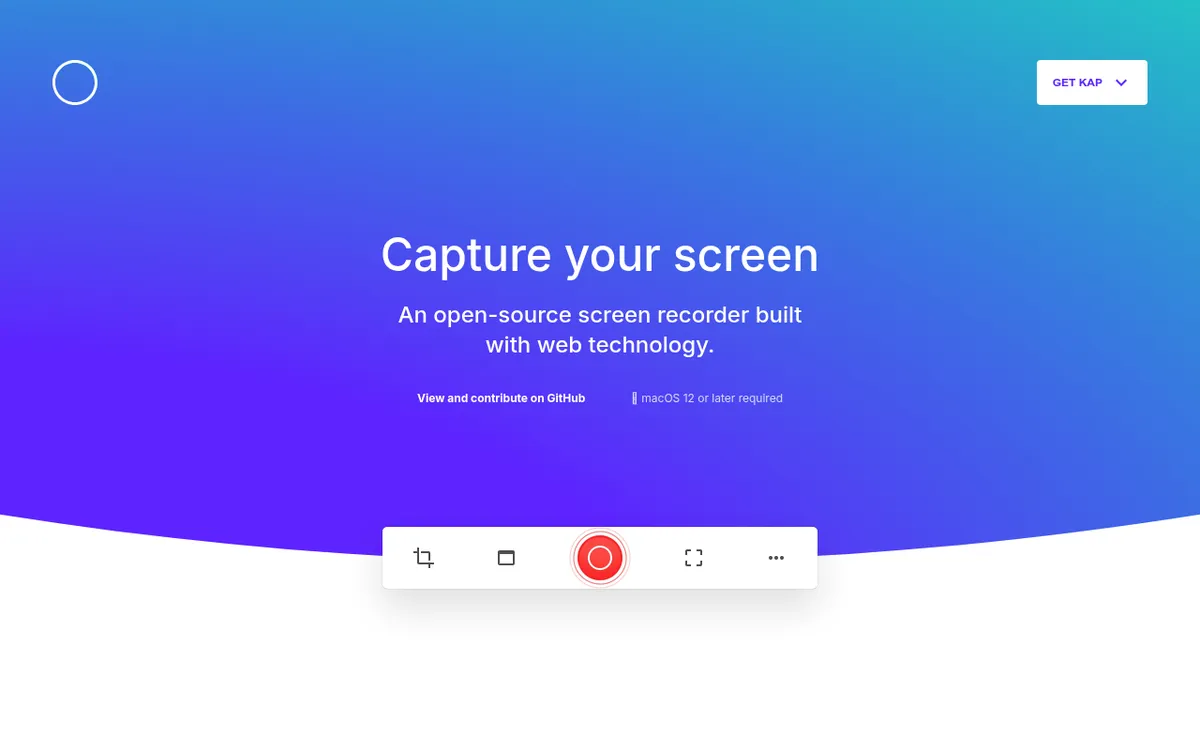
Kap is a popular open-source screen gif recorder built on Electron. It sits in your menu bar. The recording flow is simple and clean, which suits devs and tech users.
The code lives on GitHub, but updates have slowed. The latest release, v3.6.0, came out in October 2022, and it needs macOS 12 or later. If you like knowing what's running on your machine, Kap's open code is a big plus.
Key features:
- Export as GIF, MP4, WebM, or APNG with optional audio
- Highlight mouse clicks while recording
- Basic trim tools in the editor
- Plugin system for extra features
- Custom keyboard shortcuts
- Open-source (MIT license)
Pros:
- Fully free with no hidden costs
- Open-source code you can inspect
- Light on RAM and CPU
- Plugins add sharing to GIPHY, Streamable, and more
- No account or sign-up needed
Cons:
- Less editing power than paid tools
- No cloud sharing built-in
- Few updates since 2022
- UI can feel a bit rough
- Some users see the odd bug
Kap is ideal if you want a free tool. It handles the core job of gif capture mac well without extra bloat.
3. CleanShot X: Best all-in-one choice
Price: $35 one-time (Basic) or $10/user/month billed yearly (Pro) | Best for: Users who need screenshots AND GIFs
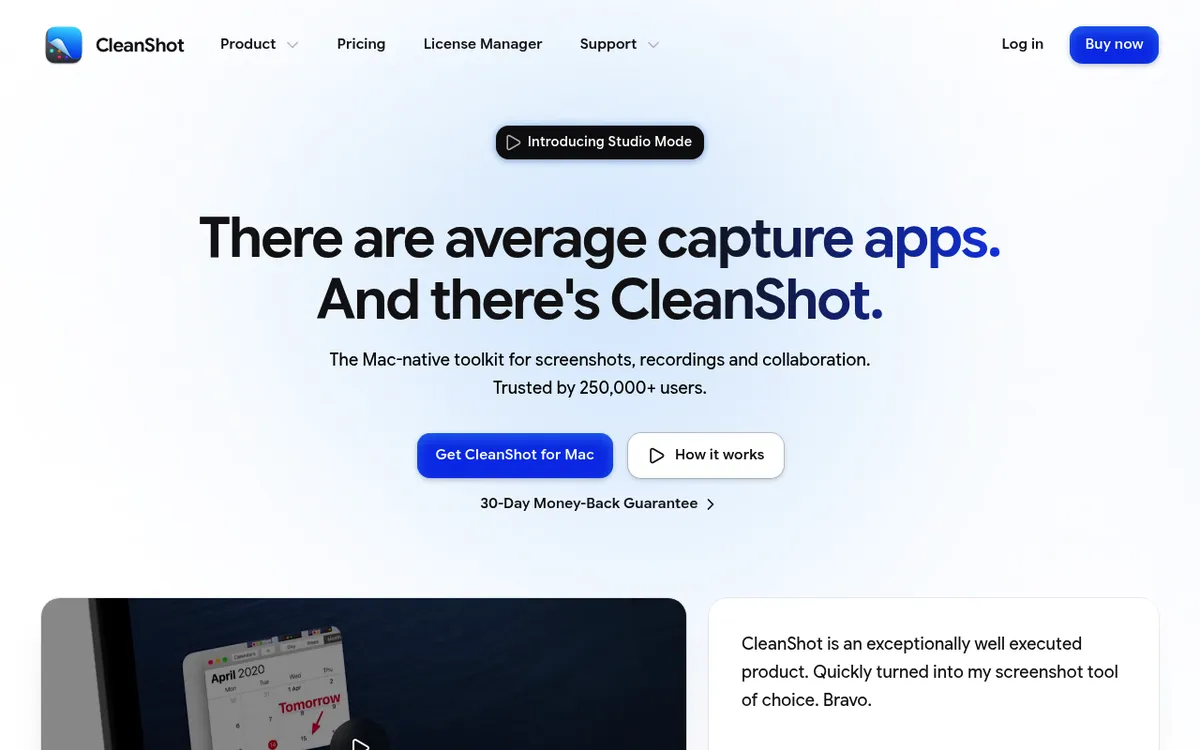
CleanShot X is best known as a powerful screenshot tool. It also packs solid GIF recording. Need one tool for all your capture needs? CleanShot X has you covered.
Mac power users love it. GIF recording isn't its main focus, but the feature works well. It fits right into CleanShot's editing and sharing flow. Version 5.0 (September 2026) added a new video editor with Smart Zooms. It needs macOS 13 or later.
Key features:
- Screen recording to MP4 or GIF
- Scrolling capture for long web pages
- Rich markup tools
- Quick access overlay for recent captures
- CleanShot Cloud: 1 GB on Basic, unlimited on Pro
- Desktop icon and wallpaper hiding
Pros:
- Full screenshot + recording toolkit
- Clean, polished interface
- One-time purchase option
- Steady feature updates
- Strong community and docs
Cons:
- GIF recording isn't the main focus
- Basic includes 1 year of updates ($19/year to renew)
- Unlimited cloud needs the Pro subscription
- Pricier than GIF-only tools
- Lots of features to learn
Need a tool for markup on screenshots AND GIF recording? CleanShot X is a solid pick. See our CleanShot X options guide.
4. GIPHY Capture: Best for social sharing
Price: Free | Best for: Social media creators
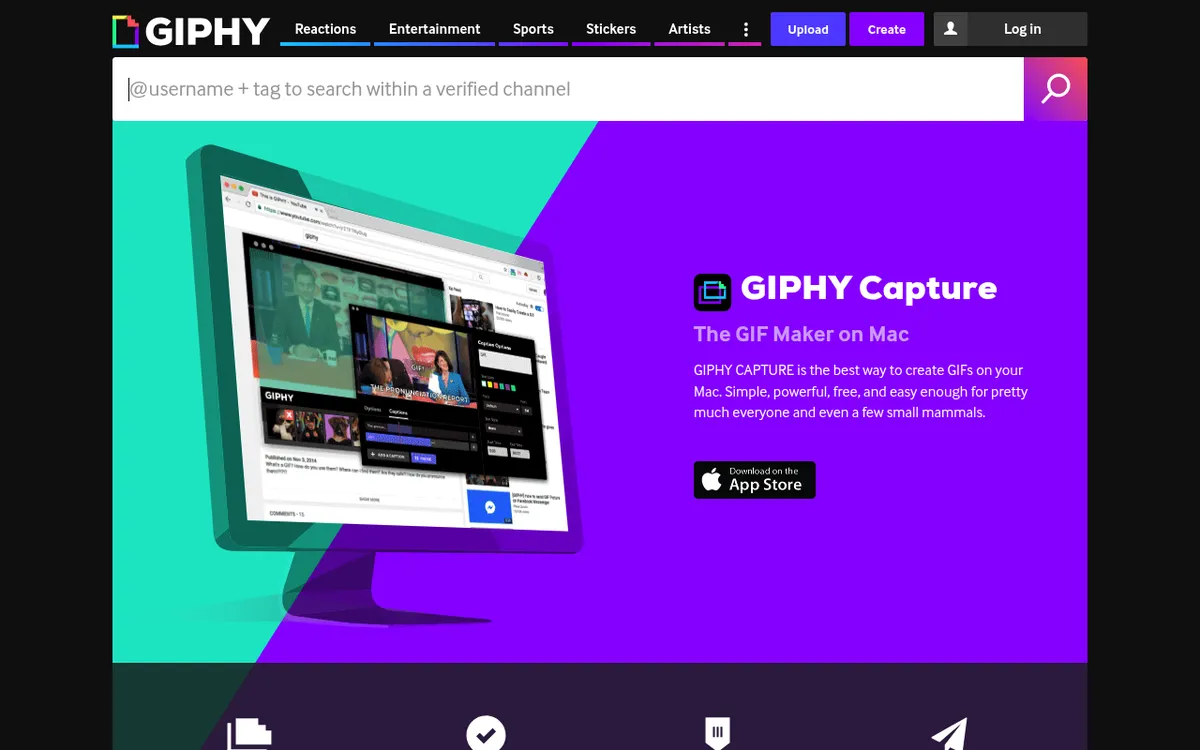
GIPHY hosts the world's largest GIF library. Their Mac app, GIPHY Capture, lets you record your screen and upload straight to their site.
The app is built for quick, fun content. It's not meant for work docs. Making reaction GIFs? Catching funny clips? GIPHY Capture fits the bill.
Key features:
- Record up to 30 seconds of screen content
- Trim and edit frame by frame
- Add captions and text overlays
- Upload straight to your GIPHY account
- Share to social platforms fast
- Tweak size and frame rate
Pros:
- Fully free
- Clean, focused interface
- Tied into the GIPHY platform
- Good for quick, casual captures
- Decent editing for a free app
- Updated in 2026 with Apple Silicon support
Cons:
- 30-second max recording time
- GIPHY account needed for cloud features
- Few markup tools
- Privacy settings need manual setup
GIPHY Capture suits casual users. It's handy for recording screen as gif and sharing on social media. For pro use or longer clips, you'll need more power.
5. LICEcap: Best light option
Price: Free | Best for: Users who want a tiny footprint
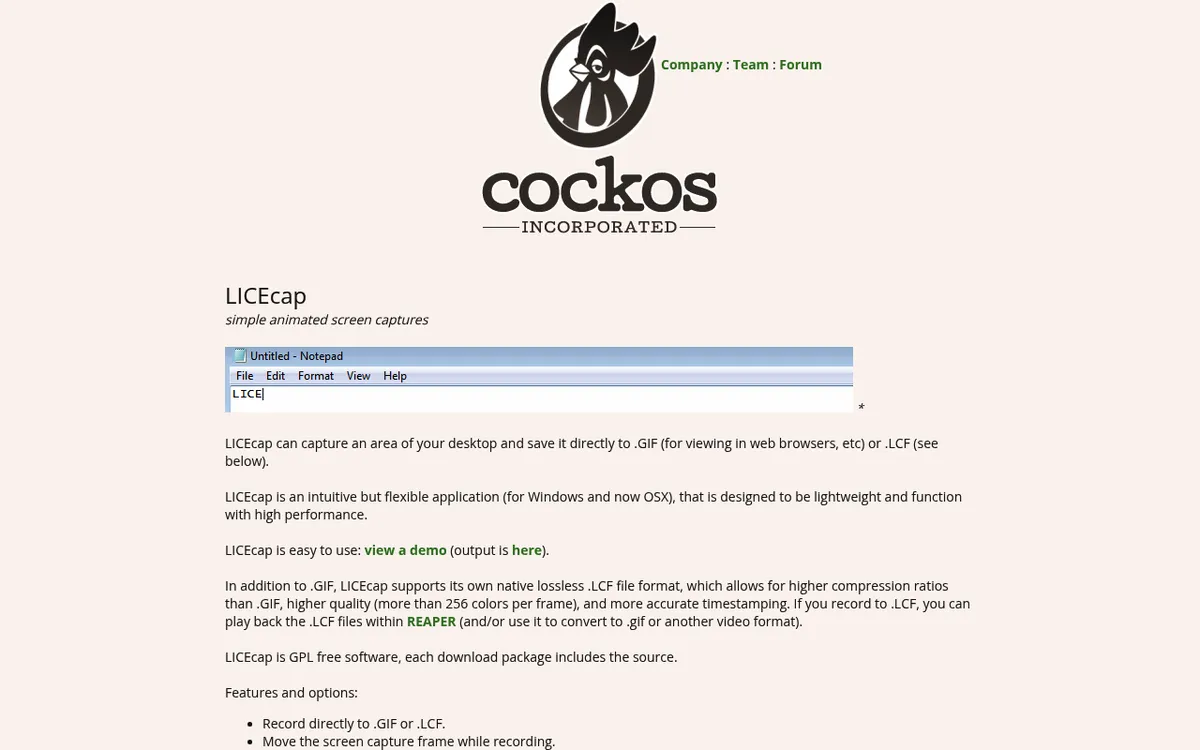
LICEcap has been around since 2011. It's one of the lightest screen gif recorder tools out there. Made by Cockos (the team behind REAPER audio). Built to be dead simple.
The UI looks old. But it runs well and barely uses any system resources. Need a quick GIF with no frills? LICEcap does the job.
Key features:
- Direct GIF recording, no extra steps
- FPS control for frame rate
- Custom capture size
- Pause and resume recording
- LCF format for higher quality
- Works on both Mac and Windows
Pros:
- Super light (under 1MB)
- Simple UI, no learning curve
- Works on Mac and Windows
- No account needed
- Stable, mature code
Cons:
- Old-looking interface
- Last update was in 2022 (the last Mac changes came in 2021)
- Official support only lists macOS up to version 12
- No editing beyond title and text frames
- Only one hotkey (Shift+Space to pause)
LICEcap is best for the simplest, lightest GIF captures. Don't expect editing or sharing tools.
6. Gifox 2: Best focused GIF tool
Price: Free Basic tier, Pro $14.99 one-time (also on Setapp) | Best for: Users who want a GIF-only app done right
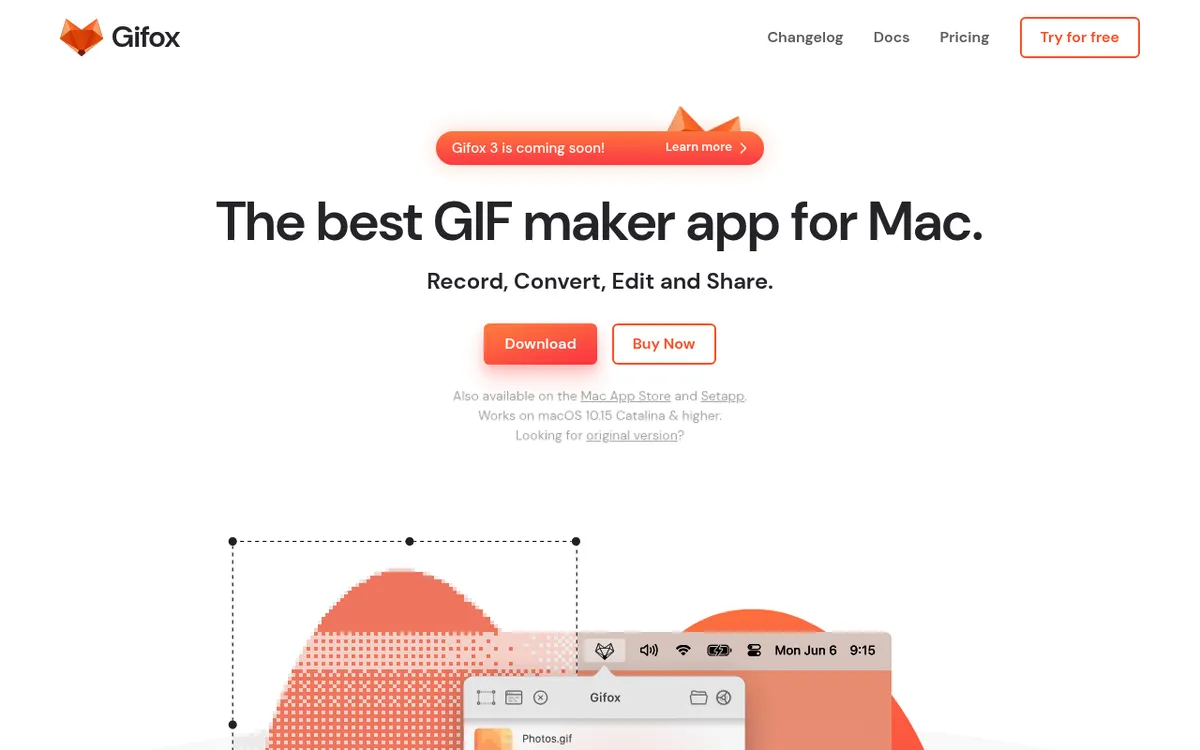
Gifox 2 is a GIF-only recording app. It lives in your menu bar. One job, done well. Made by Mac devs who know the platform.
It gives you more control over GIF output than most tools. Tweak colors, dithering, frame rate, and file size with ease. If small files matter to you, Gifox 2's settings are worth the price.
Key features:
- Window and area recording modes
- Frame rate and color depth control
- Built-in file size tuning
- Menu bar quick access
- Built-in editor (crop, trim, split, re-export)
- Drag-and-drop video to GIF conversion
Pros:
- Focused, polished Mac-native feel
- Great file size controls
- On Setapp and the Mac App Store too
- Steady updates (v2.10.0 shipped in June 2026)
- Good docs
Cons:
- Free tier limits recordings to 10 seconds with a watermark
- GIF only (no video export)
- No cloud of its own (shares to Dropbox, Google Drive, and Imgur)
Gifox 2 is solid if you want a screen to gif mac tool and nothing more. Setapp users get it bundled.
7. QuickTime Player + converter: Free built-in workaround
Price: Free (built-in) | Best for: One-off users who can't install apps
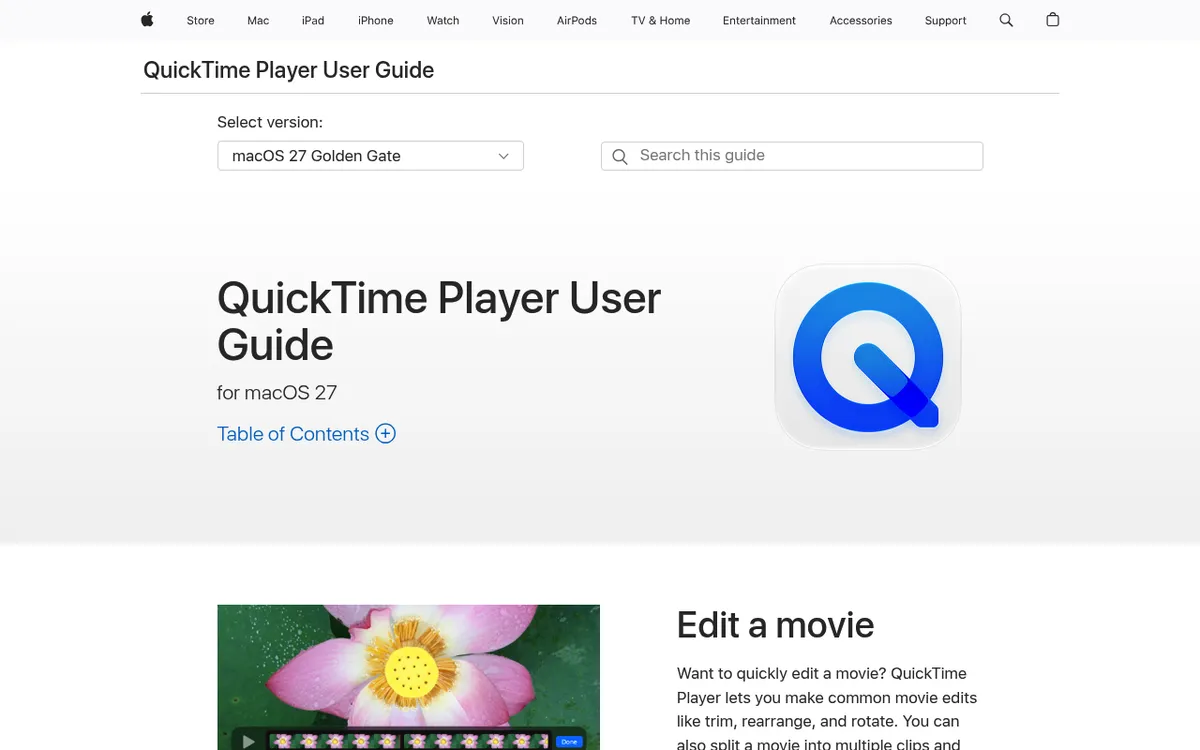
macOS ships with QuickTime Player. It records your screen to video. Add a format change step, and you can make GIFs without extra software.
This works in a pinch. Can't install apps on your machine? It'll do. But it's too clunky for regular GIF work.
The process:
- Open QuickTime Player from Applications
- Choose File → New Screen Recording
- Select recording area and click Record
- Stop recording when done
- Export as MOV file
- Convert MOV to GIF using ezgif.com or FFmpeg (see our QuickTime to GIF guide)
Pros:
- No additional installation needed
- Built into every Mac
- Full screen or selection recording
- High-quality source video
Cons:
- Requires a separate conversion step
- Only basic edits (trim, split, rotate)
- Time-consuming for regular use
- Output GIFs are often too large
- Online converters may pose privacy risks
This is a last resort. If you make GIFs more than once in a while, get a real tool.

Tired of plain screenshots? Try ScreenSnap Pro.
Beautiful backgrounds, pro annotations, GIF recording, and instant cloud sharing, all in one app. Pay $49 once, own it forever.
See pricing and featuresComparison Table: ScreenToGif Alternatives for Mac
| Tool | Price | Direct GIF | Editing | Cloud | Best For |
|---|---|---|---|---|---|
| ScreenSnap Pro | $49 one-time | ✓ | Full | Optional | Pros |
| Kap | Free | ✓ | Basic | ✗ | Devs |
| CleanShot X | $35+ | ✓ | Full | 1 GB (unlimited on Pro) | All-in-one |
| GIPHY Capture | Free | ✓ | Basic | ✓ | Social media |
| LICEcap | Free | ✓ | ✗ | ✗ | Minimalists |
| Gifox 2 | Free / $14.99 | ✓ | Basic | ✗ | GIF fans |
| QuickTime | Free | ✗ | Basic | ✗ | Pinch only |
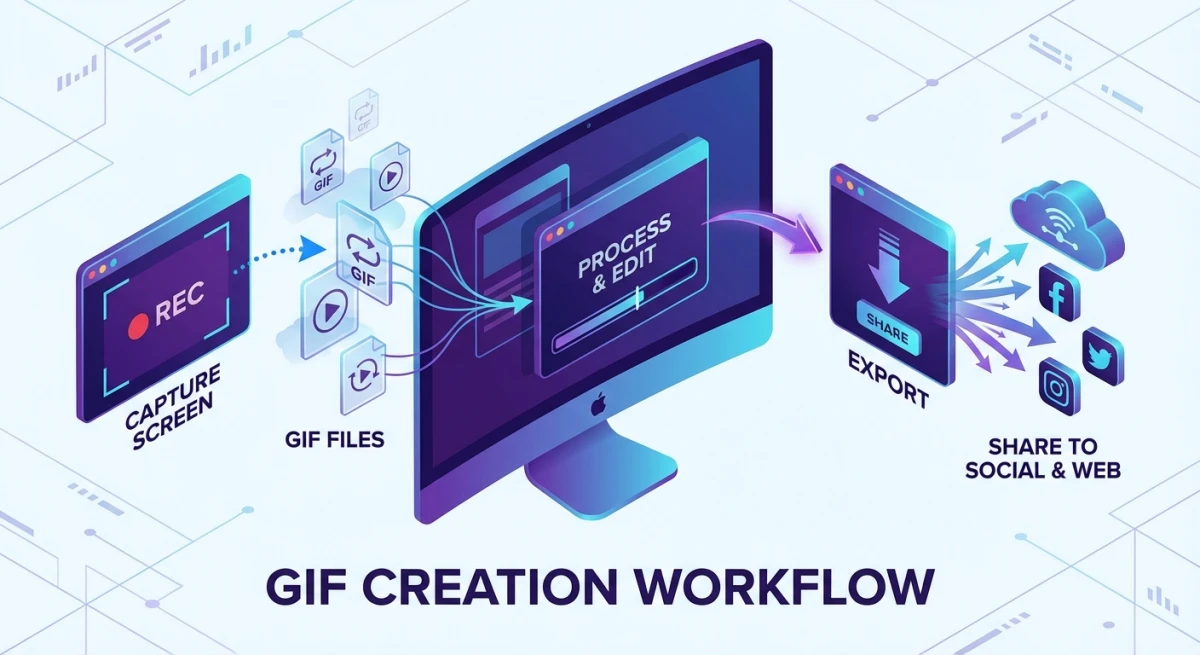
Which ScreenToGif Alternative Should You Choose?
Here's a quick decision guide:
Choose ScreenSnap Pro if:
- You make GIFs often for work
- You want cloud sharing with no monthly fees
- You like one-time pricing
- You need screenshots and markup too
- You want a video editor that exports MP4 or GIF
- Pro quality matters
Choose Kap if:
- You prefer free, open-source tools
- A basic feature set works for you
- You're a dev who values open code
- You don't need cloud sharing
Choose CleanShot X if:
- You need a full capture toolkit
- You want the most polished Mac experience
- Budget isn't the top concern
- You're fine with a subscription for unlimited cloud
Choose GIPHY Capture if:
- You mostly make casual GIFs for social
- You want to share straight to GIPHY
- 30-second clips are enough
- You value ease of use
Choose LICEcap if:
- You want the lightest tool out there
- You have simple needs, no editing
- You like proven, stable software
- You use older Mac hardware
Choose Gifox 2 if:
- You want a GIF-only app
- You're on Setapp already
- You need tight output control
- You don't need video export
Making the Switch from Windows
Moving from ScreenToGif on Windows? The switch to Mac GIF tools is smoother than you'd think.
What you'll gain:
- Tighter macOS ties
- Cloud sharing options
- Clean, modern Mac apps
- Instant share links
What you might miss:
- ScreenToGif's deep editor
- The "free and full-featured" combo
Devs jumping ship? Check our guides on Greenshot for Mac and the best screenshot apps for Mac.
Frequently Asked Questions
Start Recording GIFs on Your Mac Today
ScreenToGif isn't on Mac, but you're not missing out. The tools we've listed handle screen to gif mac tasks just as well. Some offer extras ScreenToGif lacks, such as cloud sharing, pretty backdrops, and tighter macOS support.
For most users, ScreenSnap Pro hits the mark with pro features and one-time pricing. Want a free pick? Try Kap. Either way, you'll be making sharp GIFs in minutes.
Ready to step up your GIF game? Get ScreenSnap Pro for $49 once and see why Mac users pick it over monthly plans.

Morgan
Indie DeveloperIndie developer, founder of ScreenSnap Pro. A decade of shipping consumer Mac apps and developer tools. Read full bio
@m_0_r_g_a_n_