FastStone Capture for Mac: 7 Best Alternatives (2026)
FastStone Capture is a top screenshot tool on Windows. It's light, cheap, and full of features. But here's the catch: FastStone Capture doesn't have a Mac version. And it never will. The good news is Mac alternatives like ScreenSnap Pro cover the same screen capture and recording ground. One license even covers 2 computers in any mix of Mac and Windows, so your old PC stays covered too.
Don't worry though. Several Mac apps match what FastStone offers. Some even do more. Here are the 7 best options for Windows switchers who need screen capture on macOS.
What is FastStone Capture?
FastStone Capture is a Windows-only screen capture tool. It costs $29.95 for a lifetime license, with free upgrades and a 30-day trial. For that price, you get:
- Region, window, and scrolling capture
- Screen recording
- A basic image editor
- A compact floating toolbar
Many Windows users loved it because it was cheap and worked well. No subscription needed. If that sounds like you, the options below share that same spirit.
Why FastStone Capture isn't available for Mac
FastStone's apps are all built for Windows only. They use Win32 APIs that don't exist on Mac. The developer has never hinted at a Mac version.
The problem is simple: FastStone is coded deep into Windows. Moving it to Mac would mean a full rewrite from scratch. That's not going to happen.
But here's the upside. macOS has a great set of screenshot tools. Many are better than FastStone. Apple gives developers strong tools to build with. That's why Mac screenshot apps often feel smoother than their Windows cousins.
What to look for in a FastStone alternative
Before you pick a tool, think about what you used most in FastStone:
- Capture modes. Do you need region, window, scrolling, or full-screen?
- Recording. FastStone records video. On Mac, look for MP4 for longer videos and GIF for quick demos
- Editing. Arrows, text, shapes, blur, highlights?
- Speed. Fast startup and low memory use?
- One-time pricing. No subscription?
- Shortcuts. Quick hotkeys for common tasks?

Tired of plain screenshots? Try ScreenSnap Pro.
Beautiful backgrounds, pro annotations, GIF recording, and instant cloud sharing, all in one app. Pay $49 once, own it forever.
See pricing and features7 best FastStone Capture alternatives for Mac
1. ScreenSnap Pro
Best for: Windows switchers who want one-time pricing and a familiar workflow

ScreenSnap Pro is the closest match to FastStone on Mac. Pay $49 once, own it forever. No subscription. It has 17 annotation tools, a screen recorder, a built-in video editor, and quick cloud share links. Screenshots and recordings live in one fast app.
It also fits a two-computer switch. One license includes 2 seats in any mix of Mac and Windows. So you can run it on your new Mac and keep your old PC covered, with the same tool on both.
Key features:
- Area, window, full-screen, and delayed capture, plus Area to Editor
- Screen recording to MP4 at up to 60fps with webcam, mic, and system audio
- Direct GIF recording for quick demos
- Built-in video editor: trim, split, speed, silence removal, auto zoom, and B-roll or voiceover tracks
- 17 annotation tools: arrows, shapes, text, callouts, blur, pixelate, magnifier, spotlight, highlighter, counter, and more
- 500+ backgrounds with padding and shadow for polished screenshots
- OCR text extraction from images
- Pin screenshots to keep them visible while working
- Scrolling Capture for long pages, PDFs, and chats in any app
- Full-page website capture from a URL
- Optional cloud share links for quick sharing
FastStone equivalent shortcuts:
| FastStone action | ScreenSnap Pro equivalent |
|---|---|
| Capture a region | ⌘ + Shift + 1 (Capture Area) |
| Capture a region, then edit | ⌘ + Shift + 2 (Capture Area (Editor)) |
| Capture a window | Capture Window (assign your own shortcut) |
| Screen recorder | Record Screen to MP4 or GIF, then the video editor |
Pricing: $49 one-time, with lifetime updates and a 30-day money-back guarantee. FastStone is $29.95 once, so the model feels the same.
Like FastStone, ScreenSnap Pro has scrolling capture, and it can also grab a full web page from a URL. It has no live streaming and no captions. But it adds things FastStone lacks: 500+ backgrounds that make your screenshots look professional, a Mac app, and one-click share links.
If you liked FastStone for its simple, pay-once model, ScreenSnap Pro is the natural Mac pick. You can annotate screenshots right after capture without switching apps. See ScreenSnap Pro pricing.
2. CleanShot X
Best for: Users who want the most feature-rich option
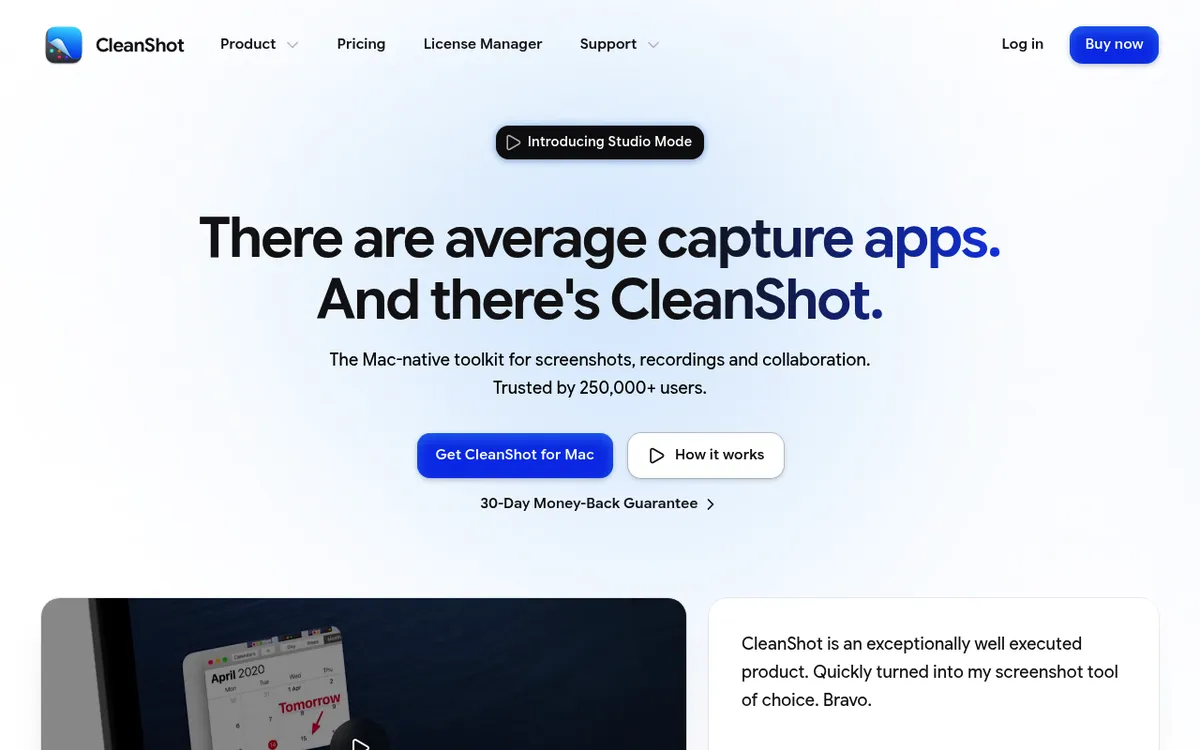
CleanShot X is the premium choice for Mac screenshots. It has scrolling capture, cloud storage, a full editor, and tons of capture modes.
Key features:
- Scrolling capture and self-timer
- Built-in annotation editor
- Screen recording to MP4 or GIF, with a video editor since version 5.0
- CleanShot Cloud for instant sharing
- Desktop overlay with capture history
- OCR text recognition
Pricing: $35 one-time for Basic (1 year of updates, 1 GB of cloud). Pro is $10 per user/month, billed yearly.
CleanShot X does almost everything FastStone does, and more. The catch? The one-time Basic plan only includes 1 GB of CleanShot Cloud and 1 year of updates. For unlimited cloud storage, you need the Pro subscription.
The editor is more powerful than FastStone's built-in one. You get text, arrows, shapes, blur, highlights, and even a step counter for tutorials. If you create documentation or how-to guides, CleanShot X handles that workflow well.
See our CleanShot X alternatives comparison for the full breakdown.
3. Shottr
Best for: Free, lightweight screenshot tool
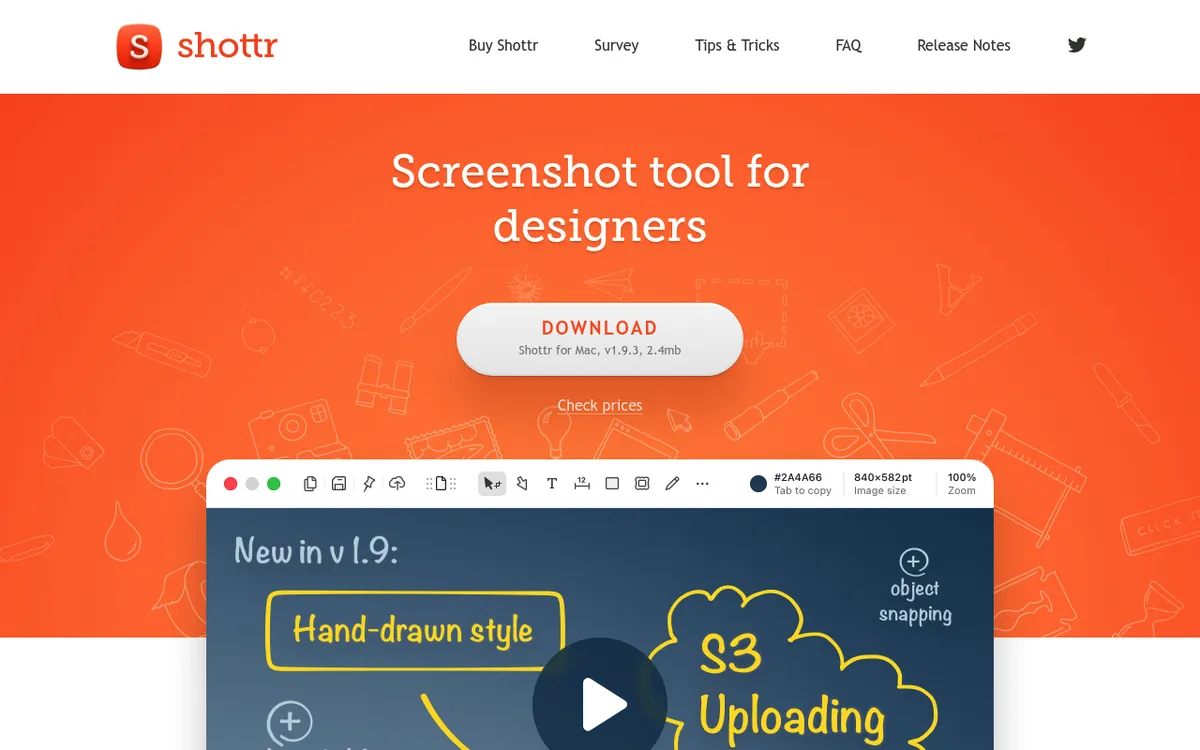
Shottr is a small Mac screenshot app you can use for free. It's fast, light, and packs a punch, just like FastStone.
Key features:
- Scrolling screenshots
- OCR and QR code reading
- Pixel-perfect measurement tools
- Basic annotation (arrows, text, shapes)
- Tiny memory footprint
Pricing: Free to use (it starts asking you to upgrade after 30 days). A $12 one-time license is needed for commercial use.
If you liked how tiny FastStone was, Shottr will feel right at home. It opens fast and uses almost no memory. The developer keeps it lean on purpose, with no bloat and no unnecessary features.
Shottr's measurement tools are unique. You can measure pixel distances, check padding, and snap to edges. Designers love this. FastStone has a basic screen ruler, but Shottr goes much further.
The main limit? No screen recording at all, video or GIF, and fewer markup tools than paid apps. It has gradient backgrounds, but no built-in share links (its S3 upload needs your own storage). Check our ScreenSnap Pro vs Shottr comparison for a full breakdown.
4. Snagit
Best for: Enterprise users and team workflows
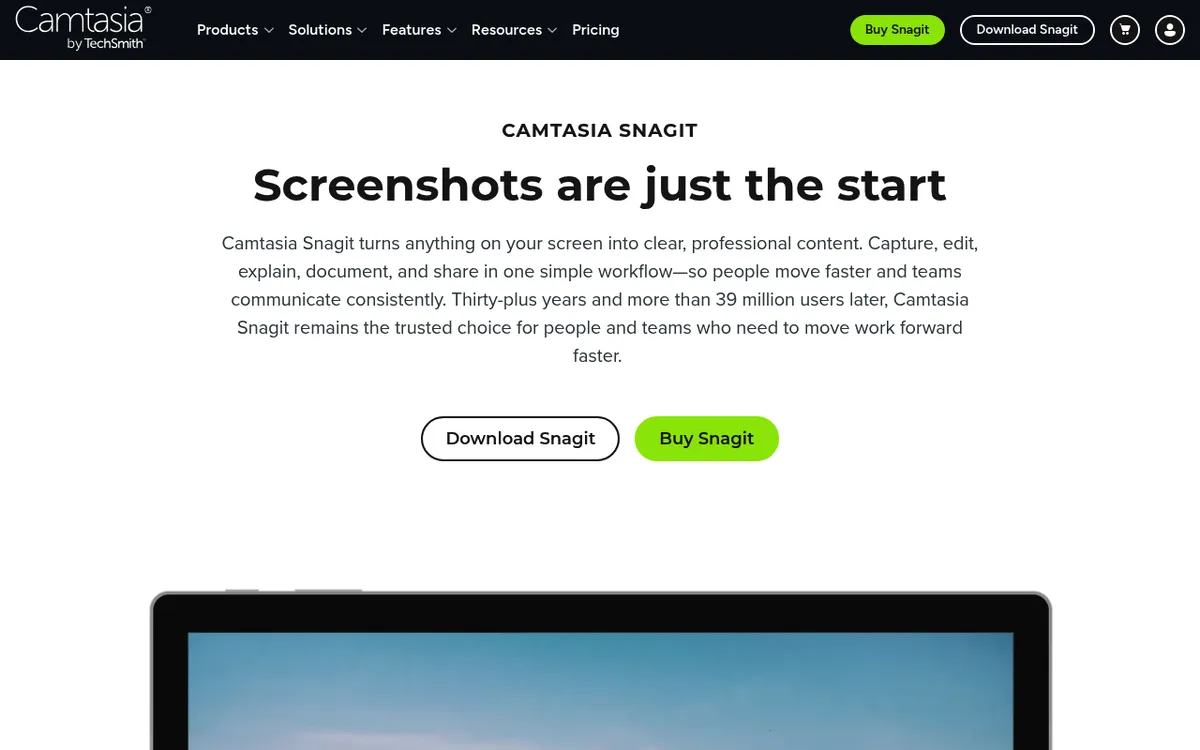
Snagit by TechSmith has been around for years. It's loaded with features: a full editor, video recording, templates, and team sharing.
Key features:
- Scrolling capture (formerly called Panoramic)
- Video recording with webcam overlay
- Step-by-step capture with auto-numbering
- Templates for documentation
- Extensive image editing tools
Pricing: $39 per year (subscription only since Snagit 2025)
Snagit does more than FastStone. But it's much heavier and costs more over time. It also dropped its one-time license, so it's now subscription only. That might annoy you if you liked FastStone's one-time price.
Where Snagit shines is team use. It connects to Slack, Microsoft Teams, and Google Drive. The template system lets you create consistent documentation fast. If your company needs standardized screenshots across a team, Snagit is built for that.
The downside? It's slow to launch, uses a lot of memory, and the subscription adds up over time. Our Snagit alternatives guide covers lighter options.
5. Monosnap
Best for: Cloud-first sharing workflow
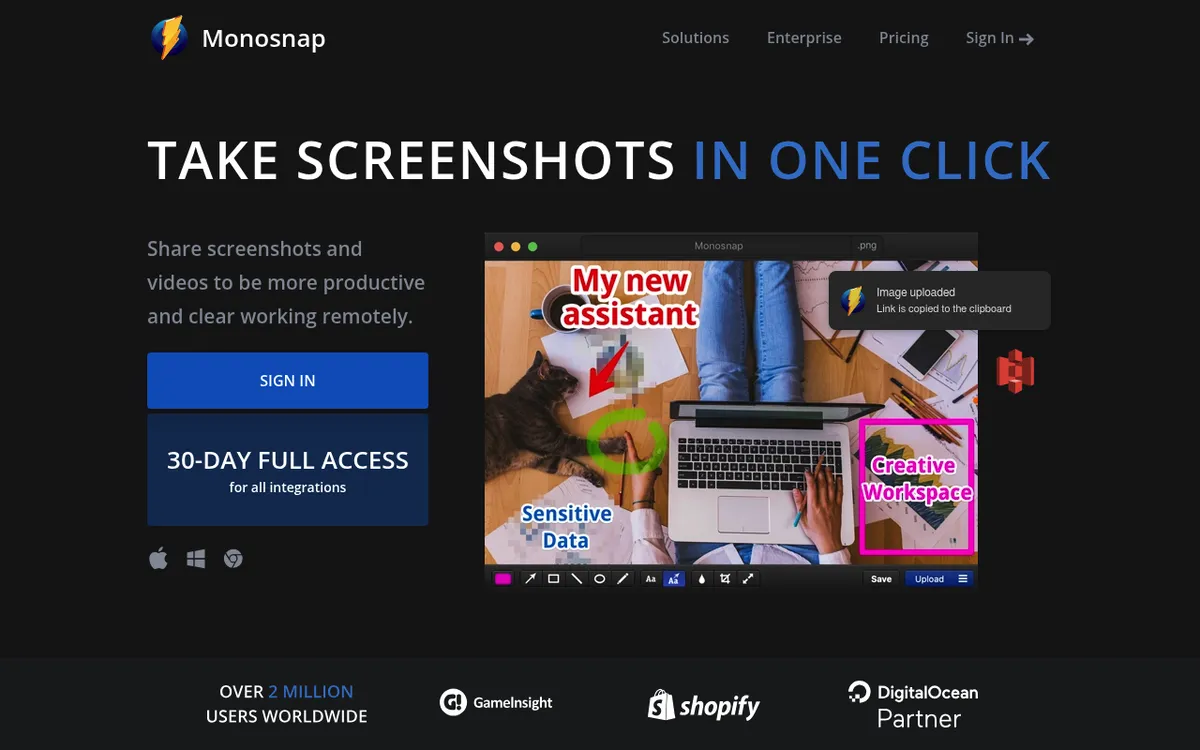
Monosnap is all about speed. Capture and share in seconds. It's free to start and works with major cloud services.
Key features:
- Region and full-screen capture
- Basic annotation tools
- Cloud storage integration (AWS, Google Cloud, Dropbox)
- Screen recording (video and GIF)
- Free tier available
Pricing: Free for non-commercial use. Paid plans start at $3/month, and commercial plans start at $10/month.
Monosnap shines at fast sharing. Its markup tools are simpler than FastStone's. But the cloud options are great if you share captures a lot.
The free tier is generous for personal use. You get basic capture, annotation, and sharing without paying anything. Videos are capped at 5 minutes, though. Paid plans add unlimited video length, more storage, and integrations like Dropbox and S3. If your workflow is capture, share, move on, Monosnap handles that loop faster than most. See our Monosnap alternatives for Mac for more options.
6. Xnapper
Best for: Beautiful, presentation-ready screenshots
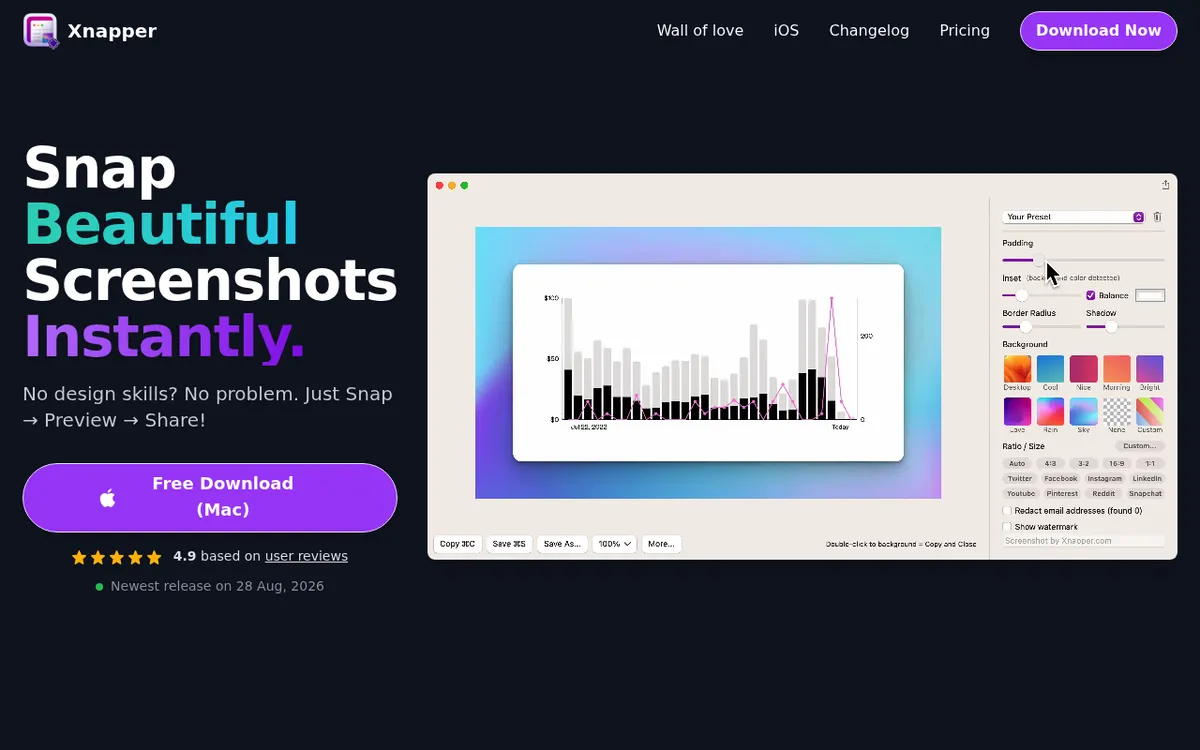
Xnapper makes your screenshots look pretty. It adds backgrounds, padding, and shadows with one click.
Key features:
- Auto-background and padding
- Smart window detection
- Redact sensitive info
- Multiple export sizes for social media
Pricing: Free with a watermark. $29.99 one-time for 1 Mac, or $54.99 for 2 Macs.
Xnapper isn't about raw capture power. It's about making screenshots look great. Perfect for social media or slide decks. See our Xnapper alternatives roundup for more options. You can also use our free screenshot background generator.
7. macOS built-in Screenshot
Best for: Basic captures without installing anything
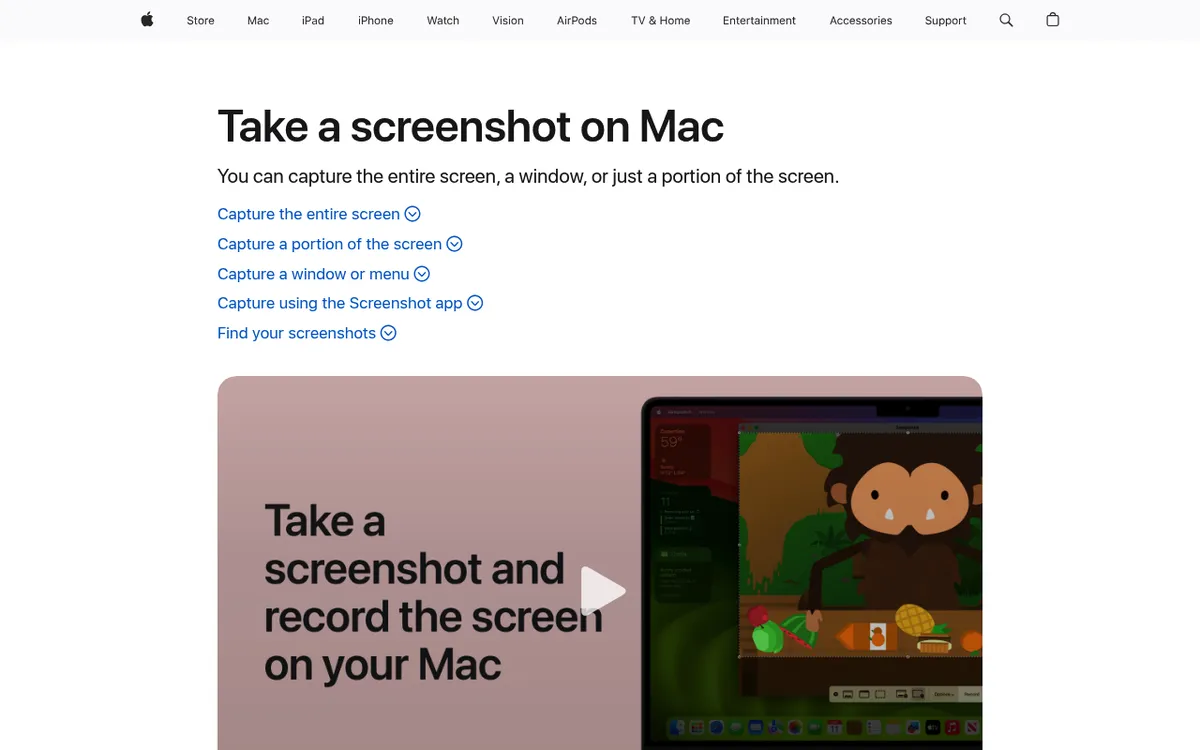
Every Mac has a built-in screenshot tool. Press ⌘ + Shift + 3 for full screen, ⌘ + Shift + 4 for a region, or ⌘ + Shift + 5 for the toolbar.
Key features:
- Region, window, and full-screen capture
- Basic screen recording (video, not GIF)
- Timer option
- Customizable save location
- Markup editor in Preview
Pricing: Free (included with macOS)
The built-in tool works well for basics. Apple has made it much better over the years. The ⌘ + Shift + 5 toolbar looks a lot like FastStone's floating bar.
But it falls short in key areas:
- No scrolling capture
- Very few markup tools
- No cloud sharing
- No GIF recording
- No blur, pixelate, or step counters
For tips on the built-in tool, see our Mac screenshot shortcuts guide. You can also change where screenshots are saved.
Feature comparison table
Here's a quick look at how these tools compare on the features that matter most:
| Feature | ScreenSnap Pro | CleanShot X | Shottr | Snagit | Monosnap | Xnapper | macOS |
|---|---|---|---|---|---|---|---|
| Region capture | ✅ | ✅ | ✅ | ✅ | ✅ | ✅ | ✅ |
| Window capture | ✅ | ✅ | ✅ | ✅ | ✅ | ✅ | ✅ |
| Scrolling capture | ✅ | ✅ | ✅ | ✅ | ❌ | ❌ | ❌ |
| GIF recording | ✅ | ✅ | ❌ | From video | ✅ | ❌ | ❌ |
| Video recording | ✅ | ✅ | ❌ | ✅ | ✅ | ❌ | ✅ |
| Annotation tools | 17 tools | Full editor | Basic | Extensive | Basic | Minimal | Markup |
| OCR | ✅ | ✅ | ✅ | ✅ | ❌ | ✅ | ❌ |
| Cloud sharing | ✅ | ✅ (1 GB on Basic) | S3 only | ✅ | ✅ | ❌ | ❌ |
| Backgrounds | 500+ | Limited | Gradients | ❌ | ❌ | Auto | ❌ |
| Mac and Windows | ✅ | ❌ | ❌ | ✅ | ✅ | ❌ | ❌ |
| One-time pricing | ✅ | ✅ | Free / $12 | ❌ | Freemium | ✅ | Free |
Which alternative is right for you?
The best pick depends on what matters most to you:
- Closest to FastStone? ScreenSnap Pro: pay once, annotate, record MP4 or GIF, and edit videos
- Still using a Windows PC too? ScreenSnap Pro covers 2 seats in any mix of Mac and Windows
- Most features? CleanShot X or Snagit do it all
- Free? Shottr is light, fast, and free to use
- Share a lot? Monosnap has the best cloud links
- Pretty screenshots? Xnapper adds polish with one click
- Keep it simple? The macOS built-in tool works for basics
Switching from Windows? Tips for your new Mac capture workflow
The hardest part of switching isn't the tool. It's the shortcuts. Here's a cheat sheet:
| Windows action | Mac equivalent |
|---|---|
Print Screen (full screen) | ⌘ + Shift + 3 |
Alt + Print Screen (active window) | ⌘ + Shift + 4, then Space |
Win + Shift + S (Snip & Sketch) | ⌘ + Shift + 4 (region select) |
Win + G (Game Bar recording) | ⌘ + Shift + 5 (recording toolbar) |
Tools like ScreenSnap Pro and CleanShot X let you set custom shortcuts. Match them to what you used on Windows. Most tools also let you copy screenshots to your clipboard for quick pasting.
For most Windows switchers, ScreenSnap Pro is the smoothest move. Same pricing model. Similar features, including screen recording and a video editor. And if you keep a Windows PC, the same license covers it. Get ScreenSnap Pro.
Need to convert screenshot formats? Or blur private info? Those are covered too.
Making the switch: FastStone to Mac tips
Switching from FastStone Capture to a Mac screenshot tool is easier than you think. Here's how to make the transition smooth.
Set up your shortcuts first
FastStone users rely on keyboard shortcuts. Before you do anything else, open your new Mac tool's preferences and set up capture hotkeys. Map them to something close to what you used on Windows. Muscle memory matters.
Most Mac screenshot apps use combinations with ⌘ (Command) and Shift. The system defaults (⌘ + Shift + 3 for full screen and ⌘ + Shift + 4 for region) work well as a starting point.
Organize your capture output
FastStone saved everything to a folder you picked. Mac tools do the same, but the default is often your Desktop. Change this early. Create a dedicated screenshots folder and point your capture tool there.
Some tools like ScreenSnap Pro and CleanShot X also offer cloud upload. That means you can get a quick share link right after capture. If you share screenshots with colleagues often, this saves a lot of time.
Learn the annotation workflow
On FastStone, you captured and edited in the same tool. Most Mac alternatives work the same way. After capturing, you'll see an annotation editor with arrows, text, shapes, and blur tools.
The key difference on Mac: many tools show a floating preview after capture. Click it to annotate. Ignore it and it saves automatically. This is faster than FastStone's workflow once you get used to it.
Handle your old screenshots
If you have a library of annotated screenshots from FastStone, they're just image files. Copy them to your Mac and they'll open fine. You can use our image format converter if you need to change formats, or the image resizer to adjust dimensions for your new workflow.
Frequently Asked Questions

Morgan
Indie DeveloperIndie developer, founder of ScreenSnap Pro. A decade of shipping consumer Mac apps and developer tools. Read full bio
@m_0_r_g_a_n_