10 Best Free Photoshop Alternatives (2026)
The best free alternatives to Photoshop are Affinity for pro-grade retouching (now a free app from Canva), Photopea for a browser-based Photoshop clone that opens PSD files, GIMP for open-source desktop editing, Krita for digital art, and Darktable for RAW photo workflows. Most of them support layers and masks, and none charge a monthly fee.
A free Photoshop alternative is any image editing tool that lets you retouch photos, create designs, or tweak images, all without paying Adobe every month. Whether you need layers, brushes, filters, or quick resizing, these editors cover the basics (and often much more) at zero cost. If most of your edits are screenshots, a dedicated capture tool like ScreenSnap Pro handles capture, annotation, and export on Mac and Windows without opening Photoshop at all.
Adobe Photoshop on its own costs $22.99/month on an annual plan. That's $275/year for software you might only use a few times a week. If you're a freelancer, student, or hobby editor, that fee adds up fast.
The good news? Free photo editors have gotten much better. Some now match Photoshop for pro-level work. Others skip the complex stuff and let you crop, resize, or remove backgrounds right in your browser, with no download needed.
Here's a look at the 10 best free Photoshop alternatives (nine free editors plus one free two-app combo) and one paid option, sorted by what they're best at.
Why look for a Photoshop alternative?
Before jumping into the list, here's why so many people are moving away from Photoshop:
- Cost. $22.99/month is a lot for casual editors. That's just the Photoshop single app plan. The Photography Plan (Photoshop plus Lightroom) is $19.99/month, and the full Creative Cloud Pro plan runs $69.99/month.
- Too much power. Most people use maybe 10% of Photoshop's features. If you just need to crop a photo, tweak brightness, or remove a background, you don't need a 4GB app.
- Too many subscriptions. Many users want to pay once (or nothing) and own their tools. Paying monthly for everything is getting old.
- Too slow for quick tasks. Opening Photoshop to resize an image is like driving a truck to the corner store. Browser-based tools handle quick edits in seconds.
The right choice depends on what you actually do. A photographer needs different tools than a social media manager. Let's match you with the best fit.
Best desktop Photoshop alternatives
1. Luminar: best for creative photo editing without Photoshop's complexity
Platform: Mac, Windows, iOS, Android, ChromeOS (web coming soon)
Price: 7-day free trial, from 99 EUR one-time purchase for desktop (129 EUR for all platforms)
Website: Luminar
Best for: photographers and photo enthusiasts who want advanced creative editing without Photoshop's complexity

Luminar is built for photo enthusiasts who want to get further than Lightroom allows, without spending years mastering Photoshop. It combines classic image editing tools with AI-assisted features that make complex edits simpler, faster and more approachable.
- AI-assisted masking and object-aware editing
- Advanced tools for portrait and landscape photography
- Generative tools to remove, replace or extend parts of an image
- Creative tools that simplify edits which would normally need more advanced Photoshop techniques
- Works as a standalone editor or as a plugin for Lightroom and Photoshop
Luminar is especially useful for photographers who want to go beyond basic adjustments without building complex edits from scratch. Many tasks that would normally need several selections, masks, layers or advanced Photoshop techniques can be done far more directly.
Photographers and photo enthusiasts already working with Adobe can also add Luminar as a plugin in their existing workflow, reaching its editing and AI features without changing how they organise their photos.
Best for: photographers and photo enthusiasts who want more creative control than Lightroom, without Photoshop's steep learning curve.
2. Affinity: best overall free alternative
Platform: Mac, Windows (iPad version coming soon)
Price: Free (needs a free Canva account; AI tools need a paid Canva plan)
Best for: Pro photo editing, retouching, combining images

Affinity Photo was already one of the strongest Photoshop rivals when it cost $70. Canva bought Serif, the company behind Affinity, in 2024. In late 2025 it relaunched Affinity as one free app that combines Photo, Designer, and Publisher, which makes it an easy pick.
What makes it stand out:
- Imports layered PSD files (some smart objects and advanced filters may flatten)
- Edits that don't destroy the original (adjustment and live filter layers)
- Refine edge selections, HDR merge, and RAW editing built in
- Vector and layout tools in the same app (the old Designer and Publisher now live inside it)
Affinity handles pro-grade retouching, image combining, and batch work. The layout takes some getting used to if you're coming from Photoshop, but the feel is close enough that you'll adjust fast.
The big news is the price: free. Before Canva bought them, Affinity Photo cost $69.99 as a one-time buy. Now photo editing, vector design, and page layout all sit in one app that costs nothing. You need a free Canva account to download it, and AI tools like Generative Fill need a paid Canva plan. Old V2 licenses still work. But those apps get no more updates, and they can't open files made in the new app. If you've been waiting for a free pro-level Photoshop alternative, the wait is over.
Best for: Photographers and designers who need Photoshop-level power at zero cost.
3. GIMP: best open-source editor
Platform: Mac, Windows, Linux
Price: Free (open source)
Best for: Photo editing, scripting, deep control
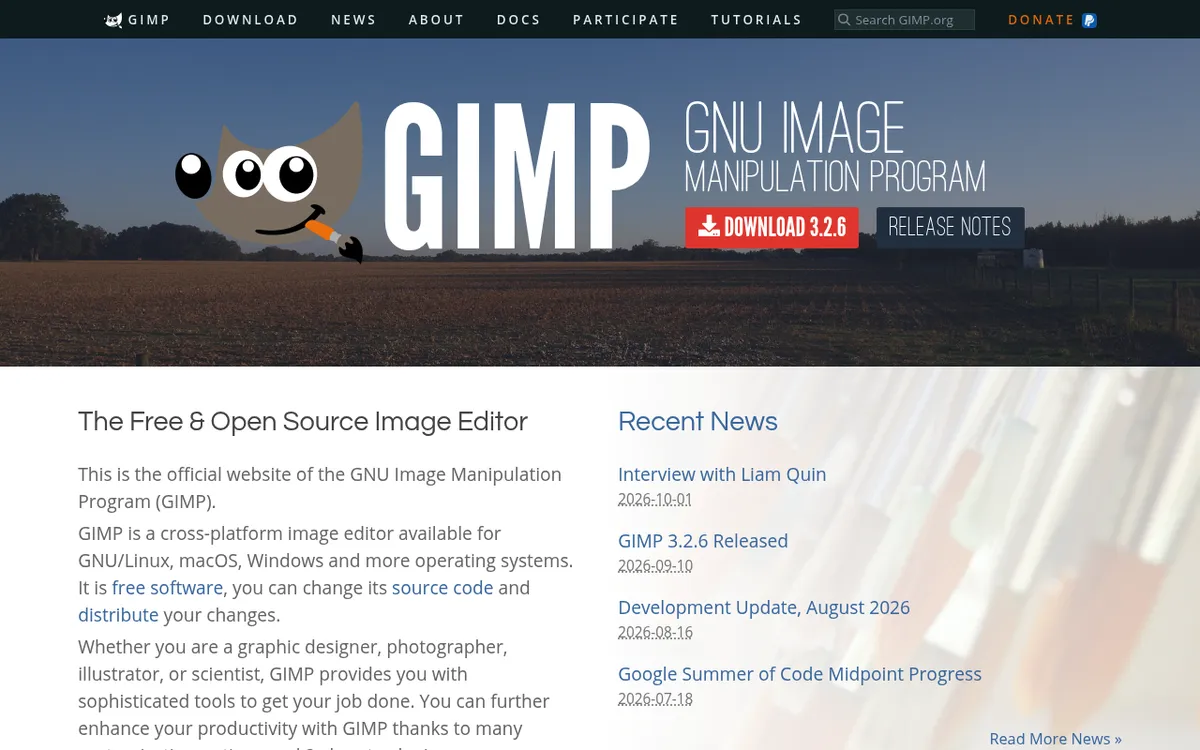
GIMP (GNU Image Manipulation Program) has been a widely used free image editor for over 20 years. It's powerful, endlessly tweakable, and fully free, with no upsells, no paid tiers, and no catches.
Key features:
- Layers, masks, and blending modes for complex edits
- Non destructive link layers and vector layers (new in GIMP 3.2)
- Script support with Python and Script-Fu for repeat tasks
- Huge plugin library (G'MIC alone adds hundreds of filters)
- Opens PSD, TIFF, RAW, and dozens of other file types
- You can rearrange every panel, menu, and shortcut
The honest tradeoff: GIMP's look feels dated next to Photoshop or Affinity. The learning curve is steeper, and some tasks take more clicks. But for users who want open-source tools and full control, nothing else comes close.
#### Getting more out of GIMP
If GIMP feels basic out of the box, plugins change everything:
- G'MIC. Adds 500+ filters and effects. Turns GIMP into a visual effects tool.
- Resynthesizer. Adds content-aware fill, similar to what Photoshop offers. Great for removing objects from photos.
- BIMP. Batch image editing. Resize, crop, or apply filters to hundreds of photos at once.
- Wavelet Decompose. Splits an image into detail layers for precise skin retouching.
You can also speed up your workflow with these tips:
- Use "Windows > Single-Window Mode" to get a layout closer to Photoshop. The floating windows confuse most new users.
- Set up custom shortcuts in Edit > Keyboard Shortcuts. Map your Photoshop muscle memory.
- Create tool presets for brushes and settings you use often. Saves time on repeat tasks.
- Try "Colors > Curves" instead of Brightness/Contrast for better control over tonal changes.
Best for: Power users, Linux users, and anyone who wants full control over their editor.
4. Krita: best for digital art and drawing
Platform: Mac, Windows, Linux, Android
Price: Free (open source)
Best for: Digital painting, drawing, concept art

Krita isn't trying to be Photoshop. It's built just for artists and illustrators, and it does that job well. If you care more about drawing and painting than photo retouching, Krita is your best bet.
Standout features:
- 100+ pro-grade brushes with deep settings
- Brush stabilizer for smooth lines
- Timeline for 2D animation
- Color tools and HDR painting support
- Wraparound mode for making seamless textures
Krita's brush engine is top-tier, and many digital artists like it more than Photoshop's brushes. It also reads PSD files, so you can move work between tools.
One thing to note: Krita can handle photo editing, but it's not built for it. If you need retouching, layer tweaks, or color fixes, go with Affinity or GIMP. Krita shines when you're making art from scratch.
Best for: Artists, concept designers, and anyone who draws on a screen.
5. Paint.NET: best lightweight editor for Windows
Platform: Windows only
Price: Free ($14.99 on the Microsoft Store, which adds automatic updates)
Best for: Quick edits, basic retouching, everyday tasks

Paint.NET fills the gap between Microsoft Paint and Photoshop. It's fast, light, and handles what most people need: cropping, color tweaks, red-eye fixes, layers, and effects.
What you get:
- Layers, blending modes, and endless undo
- Clean, simple layout that's easy to learn
- Active plugin community (adds new effects and file formats)
- Fast on modern PCs (it needs Windows 10 21H2 or newer and a 64-bit CPU)
Paint.NET won't replace Photoshop for pro work, but that's not the point. For quick edits and daily photo tasks on Windows, it's tough to beat.
One limit: Paint.NET is Windows-only. Mac users looking for something light might prefer Preview for basic tasks, or Photopea in the browser for more features.
Best for: Windows users who need more than Paint but less than GIMP.
Best online free image editors
6. Photopea: best browser-based Photoshop clone
Platform: Browser (any OS)
Price: Free (shows ads), Premium from 5 EUR/month to remove ads (one-time payments, no subscription)
Best for: PSD editing, quick pro edits without downloads

Photopea is something else. It's a full image editor that runs in your browser and looks almost the same as Photoshop. If you've used Photoshop, you already know how to use Photopea.
Why it's worth trying:
- Opens PSD, XD, Sketch, AI, and XCF files right away
- Layers, masks, smart objects, pen tool, and adjustment layers
- Files are processed on your device, with no uploads
- No account needed: open the site and start editing
- Supports CMYK for print work
The fact that this runs in a browser tab is wild. Built by one developer, Ivan Kutskir, Photopea handles complex edits, RAW photos, Liquify, and AI tools like background removal. The free version shows ads, but they stay out of the way. Premium also adds more cloud storage and monthly AI credits.
If you often edit screenshots or need to mark up images on Mac, Photopea works great alongside a screenshot tool for a smooth capture-and-edit flow.
Best for: Anyone who wants Photoshop-level features without installing a thing.
7. Canva: best for design and social media
Platform: Browser, Mac, Windows, iOS, Android, Chromebook
Price: Free, Pro at $18/month or $144/year
Best for: Social media graphics, slides, quick design work

Canva isn't a classic photo editor. It's a design platform. But for the tasks most people open Photoshop for (social posts, slides, marketing graphics), Canva does them faster and easier.
Key features:
- Thousands of ready-made templates
- Drag-and-drop with AI-powered tools
- Background remover (Pro), Magic Eraser, and AI image generation
- Brand Kit to keep your team's designs on point
- Real-time sharing with teammates
Canva's free tier is generous. You get over 1.6 million templates, 5GB of storage, basic photo editing, and up to 20 AI uses a month. The Pro plan adds premium templates, background removal, more AI uses, and brand tools.
Best for: Social media managers, marketers, and non-designers who want clean graphics fast.
8. Pixlr: best for AI-powered quick edits
Platform: Browser, iOS, Android
Price: Free, $2.49/month for Plus
Best for: Quick photo fixes, AI edits, batch work

Pixlr has two editors: Pixlr Express (simple) and Pixlr Editor (full-featured). The full version has layers, masks, and pro tools, all in the browser.
What stands out:
- AI background removal, object removal, and upscaling
- Batch editing for many photos at once
- Template library for social media
- Clean, modern look that's easy for beginners
Pixlr's AI tools handle common tasks like removing backgrounds fast and well. The free tier shows ads and limits AI credits, but basic editing is always free.
The free version works for now-and-then use. If you want no ads, unlimited saves, and 80 AI credits a month, the Plus plan at $2.49/month ($1.99/month billed yearly) is one of the cheapest paid options out there.
Best for: Quick fixes and AI-based photo edits in the browser.
9. Fotor: best for easy photo touch-ups
Platform: Browser, Mac, Windows, iOS, Android
Price: Free, Pro at $8.99/month or $39.99/year
Best for: Photo touch-ups, collages, batch editing

Fotor is all about making photos look better with less effort. Its one-tap enhance, AI scene detection, and preset filters help users who want fast results.
Notable features:
- One-tap photo enhancer powered by AI
- Collage maker with custom layouts
- Batch editing for the same look across many photos
- Templates built for product photos and ecommerce
Fotor keeps things simple. The layout guides you through edits step by step. One catch: the free Basic plan shows ads and adds a watermark to exports. You need a paid plan to remove both.
Best for: Product photographers, bloggers, and anyone who wants quick photo touch-ups.
Best for specific tasks
10. Darktable: best free Lightroom alternative
Platform: Mac (Apple silicon only), Windows, Linux
Price: Free (open source)
Best for: RAW photo editing, photography workflow

Darktable isn't a Photoshop alternative. It's a Lightroom alternative. If you shoot RAW and want editing that doesn't change the original, plus color grading and photo sorting, Darktable does all that for free.
Key features:
- RAW editing that keeps your originals safe
- Tethered shooting (camera connected to computer)
- Color tools and masking
- Optional AI object masks, denoise, and upscaling (new in 5.6, off by default)
- Photo library for sorting your shots
- Batch export with presets
The learning curve is steep, but photographers who put in the time get a tool that works like Lightroom. It costs nothing.
If you're moving from Lightroom, give it a week or two. Darktable's layout is different, and some features have odd names. The Darktable manual is thorough and worth a look.
Best for: Photographers who shoot RAW and want a full editing setup for free.
11. Photopea + Canva combo: best free workflow
For most people, the best free Photoshop setup isn't one app. It's two. Use Photopea for complex edits and Canva for design work. Together, they cover about 90% of what Photoshop does, at zero cost.
Use Photopea when you need: layers, masks, precise selections, PSD editing, or print-ready files.
Use Canva when you need: social media posts, slides, templates, or team sharing.
This combo means you never install anything, and you can work from any device with a browser.

Tired of plain screenshots? Try ScreenSnap Pro.
Beautiful backgrounds, pro annotations, GIF recording, and instant cloud sharing, all in one app. Pay $49 once, own it forever.
See pricing and featuresQuick edits without opening an editor
Sometimes you don't need an editor at all. For quick tasks like cropping, resizing, shrinking files, or changing formats, browser tools do the job in seconds, with no signup and no download.
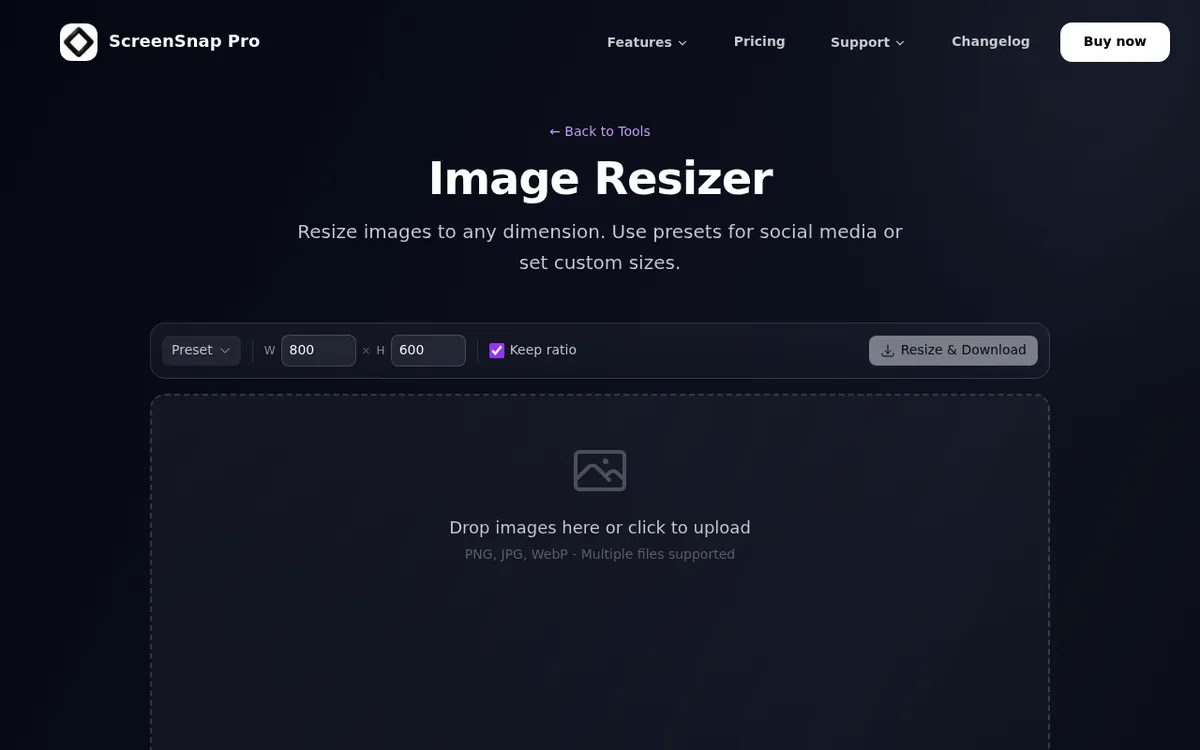
Here are common Photoshop tasks you can do right now online:
- Resize an image → Image Resizer (drag, set size, download)
- Shrink file size → Image Compressor (smaller files, same look)
- Remove a background → Background Remover (AI-powered, one click)
- Change format → Image Format Converter (PNG to JPG, WebP, HEIC, whatever works)
- Blur private info → Blur Tool (hide personal data before sharing)
- Pull text from images → OCR Tool (grab text from screenshots or scanned pages)
These handle the "80% tasks" that people often open Photoshop for. No layers, no fuss. Just get it done.
If you do these quick edits alongside Mac screenshots or Windows screenshots, a tool like ScreenSnap Pro puts it all in one app on Mac and Windows. You get 17 annotation tools, blur and pixelate, OCR, and 500+ backgrounds, plus a screen recorder with a built-in video editor. It costs $49 one-time, with no monthly fee.
Free Photoshop alternatives comparison table
| Editor | Type | PSD Support | Layers | AI Features | Best For |
|---|---|---|---|---|---|
| Affinity | Desktop | ✅ Import | ✅ | ✅ Paid Canva plan | Pro editing |
| GIMP | Desktop | ✅ Partial | ✅ | ❌ | Open-source power users |
| Krita | Desktop | ✅ Partial | ✅ | ❌ | Digital art & drawing |
| Paint.NET | Desktop | ❌ | ✅ | ❌ | Light Windows editing |
| Photopea | Browser | ✅ Full | ✅ | ✅ Basic | Browser-based PSD editing |
| Canva | Browser/App | ❌ | ✅ Limited | ✅ Yes | Design & social media |
| Pixlr | Browser/App | ✅ Partial | ✅ | ✅ AI edits | Quick AI-powered edits |
| Fotor | Browser/App | ❌ | ✅ Limited | ✅ Enhance | Fast photo touch-ups |
| Darktable | Desktop | ❌ | Safe edits | ✅ Optional AI masks | RAW photo editing |
Tips for switching from Photoshop
Moving away from Photoshop feels like a big step, but it's easier than you'd think. Here's how to make the switch smooth:
Start with your files. Export key PSD files to a flat format (PNG or TIFF) as a backup. Then open them in your new editor to make sure layers look right. Affinity and Photopea have the best PSD support.
Map your shortcuts. Most free editors let you set custom keyboard shortcuts. Spend 10 minutes mapping the keys you use most (crop, brush, selection, undo). This cuts the "feels weird" phase in half.
Don't switch all at once. Keep Photoshop around for a month. Use the free tool for daily tasks. Only open Photoshop when the new tool can't do something. After a few weeks, you'll know which features you truly miss, if any.
Learn the new names. Every editor calls things a bit different. GIMP says "Scale" instead of "Resize." Darktable says "Exposure" where Lightroom says "Brightness." A quick web search sorts out any confusion.
Find your plugins early. GIMP and Krita both gain a lot from plugins. Install G'MIC for GIMP and extra brush packs for Krita in your first week. They fill most feature gaps.
Join the community. Each of these tools has forums, Reddit groups, and YouTube channels. When you get stuck, someone has likely solved the same problem. The GIMP and Krita communities are some of the most helpful online.
How to choose the right free image editor
Still not sure which one fits? Here's a quick guide based on what you do most:
You need pro photo retouching → Affinity. It's the closest thing to Photoshop, and it's now free. Start here if you want a full-powered editor.
You want full control and open-source → GIMP. It's not the prettiest, but with the right plugins, it's the most powerful free option. Great if you're on Linux or want tools you can truly own.
You draw or paint → Krita. Made for artists, with the best free brush engine out there. If you make art from scratch, this is your tool.
You need to edit PSD files in a browser → Photopea. Opens Photoshop files natively, runs anywhere, no account needed. Perfect for quick edits on any device.
You design social media content → Canva. Templates and AI tools make it fast, even for non-designers. Pair it with Photopea for the best free combo.
You work with RAW photos → Darktable. It's a Lightroom replacement that handles the full RAW workflow for free. Steep learning curve, but worth it for photographers.
You just need quick edits (crop, resize, shrink) → Browser tools. Skip the editor. Online tools handle these tasks in seconds, no install needed.
You do a mix of everything → Try two or three. Most people don't need one tool that does it all. Affinity for heavy edits, Canva for design, and browser tools for quick fixes covers 95% of use cases.
For Mac users who work with screenshots often, pairing a good screenshot tool with one of these editors covers most daily needs. You probably don't need Photoshop at all, just the right tool for each job.
Frequently Asked Questions

Morgan
Indie DeveloperIndie developer, founder of ScreenSnap Pro. A decade of shipping consumer Mac apps and developer tools. Read full bio
@m_0_r_g_a_n_