Best Free Loom Alternatives 2026: 10 Tools Compared
A free Loom alternative is any screen recording tool that lets you capture your screen, webcam, and voice without paying a monthly subscription. The best free options work on Mac and Windows, skip watermarks, and either give you unlimited recording or a generous free tier you can grow into.
Loom popularized async video. But the free plan caps each clip at 5 minutes, limits you to 25 videos, and pushes the AI features behind a paid wall. If you're a solo creator, student, or indie founder who can't justify $15 to $20 a user every month forever, you have real options.
This guide compares ten tools, including Loom's own free plan. Some are open source, some have free tiers with caps, and one is a $34 one-time buy with no renewal. We'll be clear about which is which, so you don't end up on a 7-day trial that turns into a bill.
Short answer: ScreenSnap Pro is the best value if you record every week and can pay $34 once. If it has to cost $0, OBS Studio is the best truly free pick, ScreenRec gives you free share links, Loom Free still works for short clips, and QuickTime is already on your Mac.
If you're on one platform, our sister guides to Loom alternatives for Windows and Loom alternatives for Mac cover paid options too. For a broader free roundup, see free screen recorders for Mac and free screen recorders for Windows.
The three flavors of "free" you'll see
Not every "free" tool means the same thing. Before you pick one, know which bucket it falls into:
- Truly free, open source. No account, no caps, no upsell. OBS Studio is a well-known option here. Tradeoff: more setup, no instant share link.
- Free tier with caps. A real free plan, but with limits like 5 minutes per video, 25 videos saved, or a monthly video quota. Loom Free, ScreenPal, Vidyard, and ScreenRec fit here.
- Free trial that ends. Looks free for 7 or 14 days, then asks you to pay. Tella now works this way. We kept it in the list with a clear label, because many roundups still call it free.
We also include ScreenSnap Pro, which costs $34 once. It's not free, but the math often beats a yearly subscription. More on that below.
Quick comparison: 10 Loom alternatives at a glance
Here's how the ten options stack up. Prices verified October 2026.
| Tool | Free tier limits | Watermark? | Length cap | Platforms | Best for |
|---|---|---|---|---|---|
| ScreenSnap Pro | $34 one-time (no free tier) | No | None | Mac, Windows | Frequent users who want to skip subscriptions |
| OBS Studio | Unlimited, fully free | No | None | Mac, Windows, Linux | Power users who want full control |
| ScreenPal Free | 15 min cap, 10 hosted videos | No | 15 min | Windows, Mac, Chromebook, mobile | Quick lessons, classroom demos |
| Loom Free | 25 videos, up to 720p | Loom branding | 5 min | Mac, Windows, mobile, Chrome | Async work messages |
| Tella | No free plan, 7-day Pro trial | Tella branding | 2 hours (trial) | Web, Mac, Windows (beta) | Founders ready to pay for polish |
| Vimeo Screen Recorder | 30 min per video, 1 GB storage | On embeds | 30 min | Web (Chrome, Edge, Safari) | Anyone already on Vimeo |
| Vidyard Free | 5 videos a month | Not stated | 30 min | Mac, Windows, mobile, Chrome, Edge | Sales reps testing video |
| iSpring Free Cam | No watermark, no time cap | No | None | Windows only | Trainers on Windows |
| ScreenRec | 720p, 2 GB, 10 share links a month | No | None (free account) | Mac, Windows, Linux | Quick share links |
| QuickTime Player | Free, built into macOS | No | None | Mac only | Mac users with no install |
1. ScreenSnap Pro: pay once, then never again
Price: $34 one-time | Rating: (4.5/5)
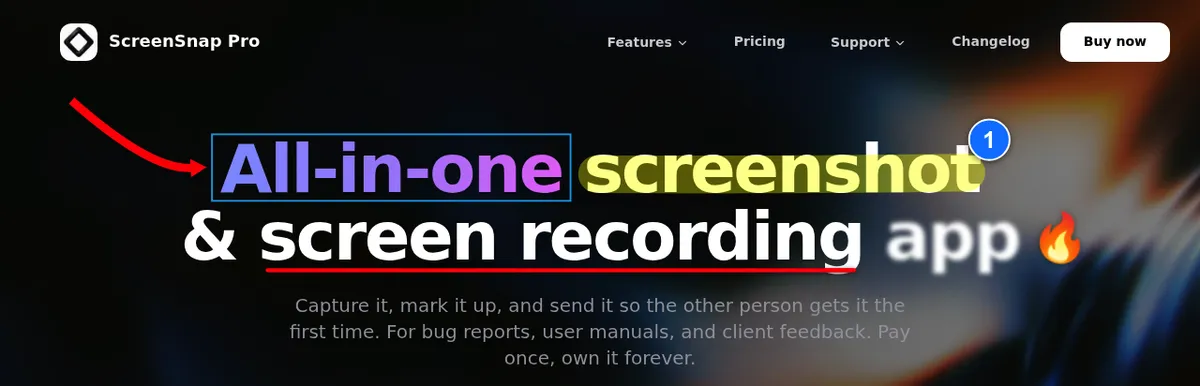
ScreenSnap Pro is not free. We're putting that up top so there's no confusion. But if you can spend $34 once instead of paying monthly forever, this is often the cheapest path. Otherwise, see the truly free options below.
It takes the top spot because it puts a screen recorder, a multi-track video editor, and a full screenshot annotation suite in one app, for one payment instead of a subscription.
The math is simple. Loom's Business plan is $180 per user per year (about $15 a month), or $18 a month if you pay monthly. ScreenSnap Pro is $34 once, and one license covers two computers in any mix of Mac and Windows. Loom bills you again every year, so the longer you keep recording, the further ahead the one-time license gets.
What you get:
- Screen recording to MP4 at up to 60fps, with system audio, mic, and webcam
- A built-in video editor with a multi-track timeline (trim, split, cut, speed), one-click silence removal, and cursor-follow auto zoom
- B-roll, music, and voiceover tracks, plus a webcam overlay, backgrounds, and aspect presets
- Direct GIF recording (no MP4 conversion needed)
- 17 annotation tools for screenshots: arrows, blur, highlighter, spotlight, callouts, counter, text, and more
- 500+ backgrounds (wallpapers, gradients, and plain colors) with padding and shadow for polished screenshots
- Optional cloud share links: click Create Link after a recording and paste the link into a chat or email
- OCR for grabbing text from any image
- Zero watermarks, ever
- Lifetime updates and a 30-day money-back guarantee
Limitations to know:
- No free tier, so you pay $34 up front
- Share links are for quick sharing, not a hosted video library like Loom's
- No captions or subtitles
- No team workspaces or collaboration features
- No browser extension and no Linux build
Best fit: developers, marketers, indie founders, and creators who record several clips a week and want to own their tool outright. If you're going to record once or twice a year, stick with the free options below.
You can also use the free ScreenSnap image annotation tool and screenshot background generator right in the browser to see the same annotation engine before you buy.
2. OBS Studio: the truly-free power option
Price: Free (open source) | Rating: (4.5/5)
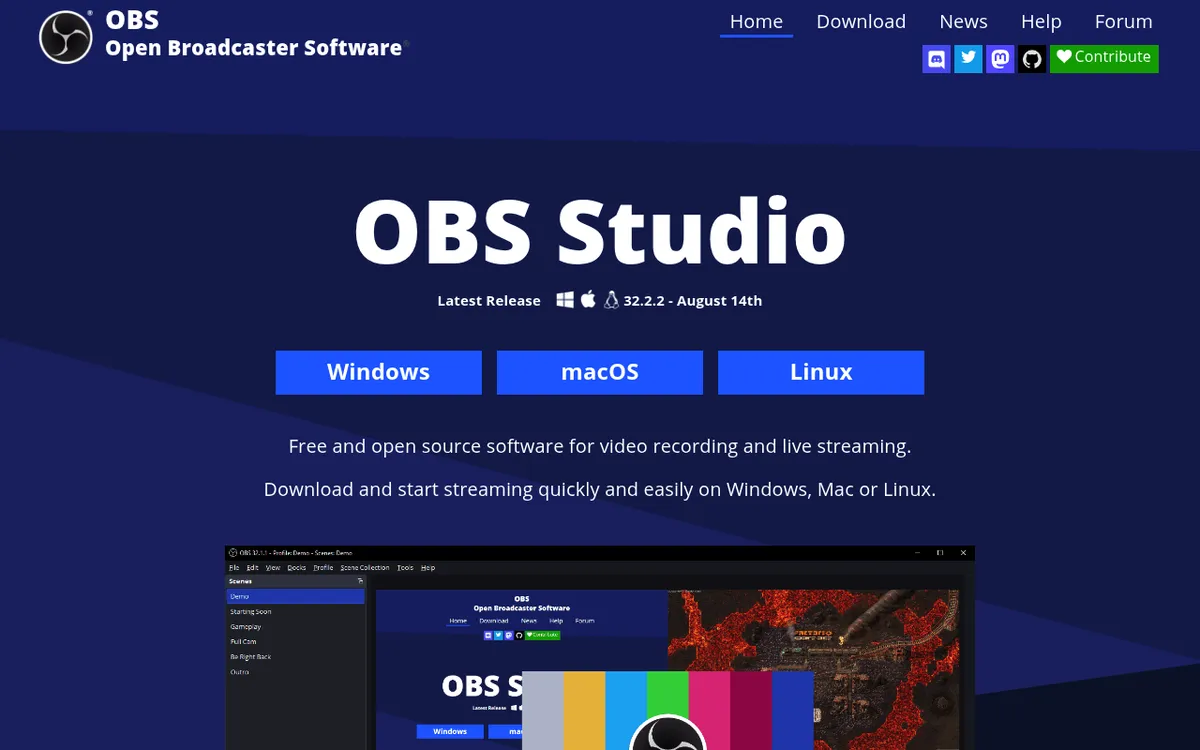
OBS Studio is a free, open-source screen recorder. It runs on Mac, Windows, and Linux, and has zero limits. No watermark, no time cap, no upsell.
It's the same tool Twitch streamers use, which tells you two things: it's powerful, and it's overkill for short async clips. The learning curve is real.
What's good:
- Unlimited recording, full quality
- Multi-source layouts (screen + webcam + overlays)
- Hotkeys for everything once you set them up
- Active community with thousands of tutorials
What's rough:
- The default UI is a wall of panels
- A new install starts with a blank scene, so you must add a Display Capture source or you'll record a black screen
- No instant share link, so you save a local MP4
- No built-in editor, so trims happen in another app
- No built-in webcam bubble (you build it yourself with sources)
- No transcript or AI features
Best fit: people who already enjoy tinkering, anyone with a privacy requirement, and creators who'd rather spend an hour learning a free tool than $180 a year on a polished one.
3. ScreenPal Free: easy, but capped at 15 minutes
Price: Free with limits, $4 to $10 per month paid (billed annually) | Rating: (3.5/5)
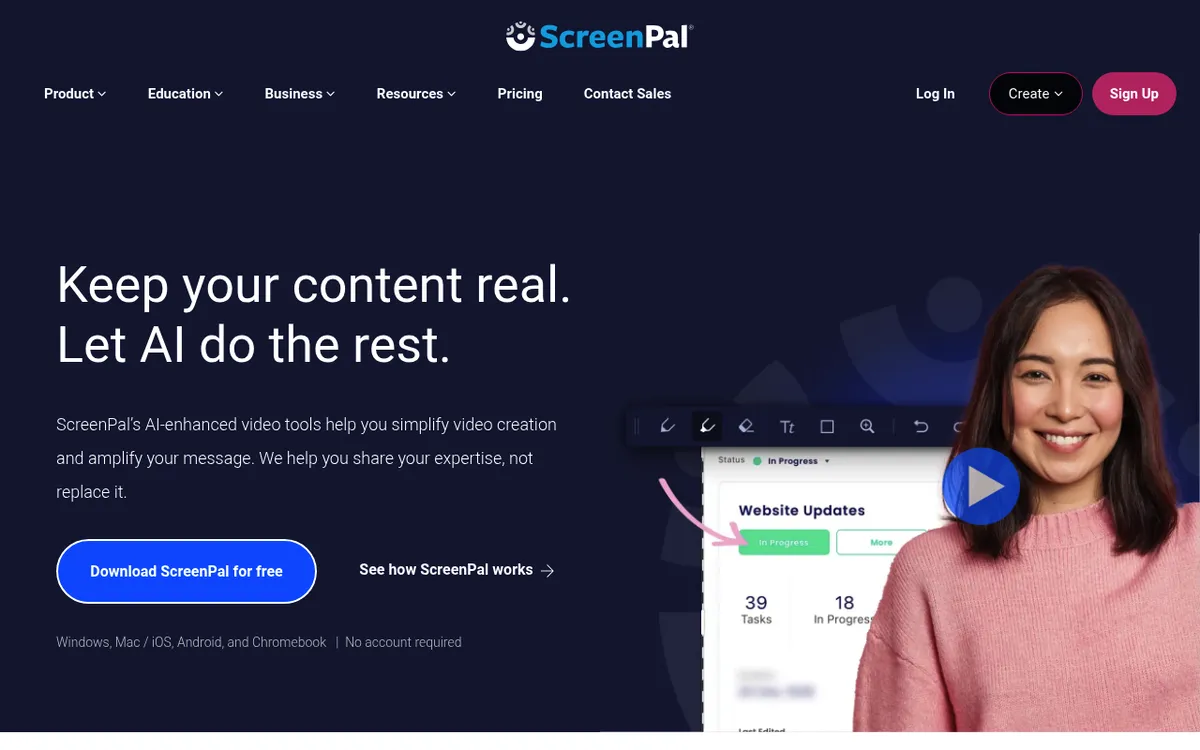
ScreenPal (formerly Screencast-O-Matic) is a beginner-friendly free screen recorder. Install, click record, done. The interface barely gets in the way.
The catch: free recordings cap at 15 minutes, the free plan hosts only 10 videos, and it can't record system audio. For classroom use or quick lessons, that's fine. For longer client work, you'll want the $4 a month Deluxe tier (billed annually).
Free plan includes:
- Up to 15 minutes per recording, with unlimited recordings
- Webcam and screen capture with mic narration
- Easy editing: crop, cut, text, shapes, music, and voiceover
- 10 hosted videos you can share
- No watermark
Best fit: teachers, students, and anyone who needs a tool that works on day one without watching tutorials.
4. Loom Free: yes, Loom itself
Price: Free with limits, $15 to $20 per user per month paid (billed annually) | Rating: (4.5/5)
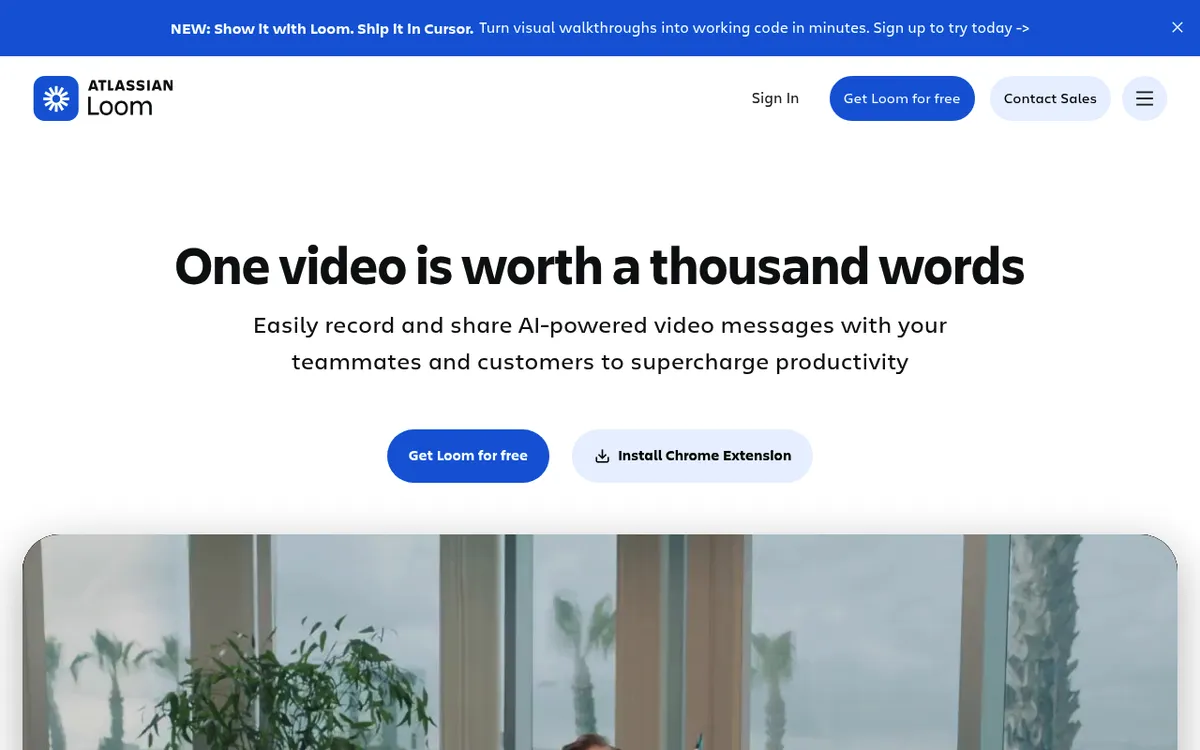
It's worth saying out loud: Loom has a free tier (now called Starter), and it's still excellent for short messages. If your only complaint is that you don't want to pay, the free plan might be enough.
Free plan includes:
- Up to 25 videos saved
- 5 minutes per screen recording
- Webcam bubble, screen, mic, and system audio
- Instant share links and viewer reactions
- Transcripts in 50+ languages
Where it bites:
- 5 minutes is short for tutorials and demos
- 25-video cap means you'll be deleting old clips
- Video quality tops out at 720p
- Loom branding stays on free videos, and removing it takes the Business plan
- Auto titles, summaries, and AI editing are paid only (Business + AI)
Best fit: anyone whose typical message is under 5 minutes. The Loom Free experience is still polished, which is why it's the comparison anchor everyone else is chasing.
5. Tella: polished, but no free plan anymore
Price: 7-day free trial, then $13 to $19 per user per month (billed annually) | Rating: (3.5/5)
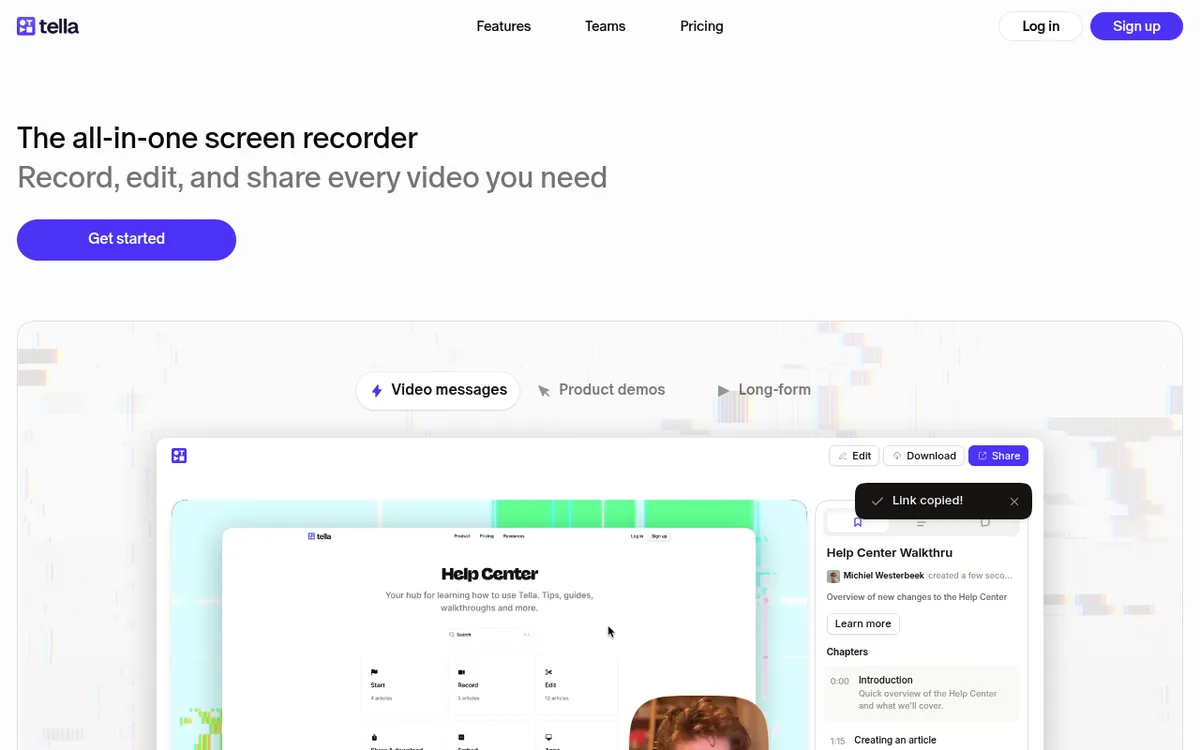
Tella is an async video tool built around polish. Layouts, backgrounds, and instant-edit cuts feel cinematic out of the box. Founders making product demos often reach for it.
Here's the catch: Tella no longer has a free plan. New workspaces get a 7-day Pro trial with no credit card, and you can extend it once by another 7 days. When the trial ends, your videos stay viewable and shareable, but recording, editing, and exporting lock until you pay. So treat Tella as a paid tool you can test for a week, not a free Loom alternative.
The trial includes:
- Clips up to 2 hours each
- Beautiful built-in layouts and backgrounds
- Screen and webcam recording in the browser, the Mac app, or the Windows app (beta)
- HD exports at 30 FPS
Best fit: founders and creators who care about polish and already plan to pay. If you need a recorder that stays free, pick another tool from this list.

Tired of plain screenshots? Try ScreenSnap Pro.
Beautiful backgrounds, pro annotations, GIF recording, and instant cloud sharing, all in one app. Pay $34 once, own it forever.
See pricing and features6. Vimeo Screen Recorder: free in the browser
Price: Free, browser-based | Rating: (4/5)
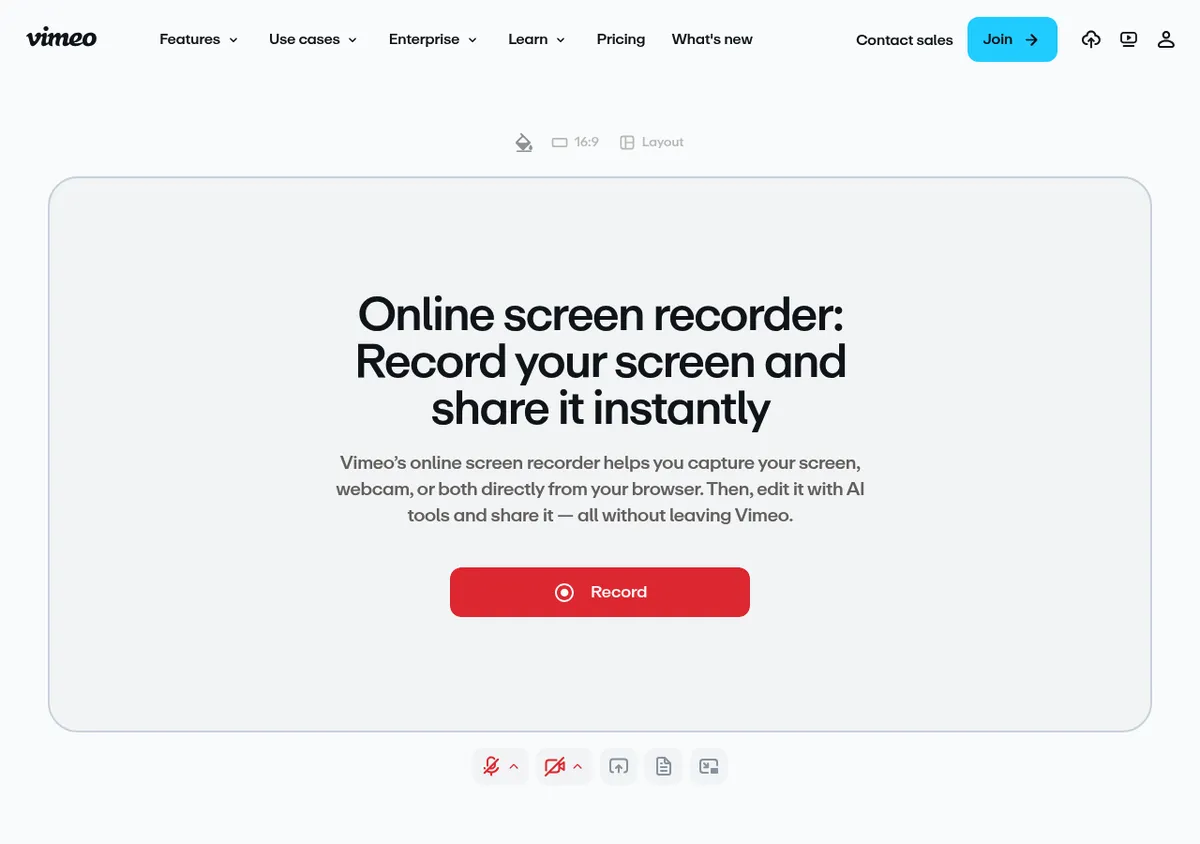
Vimeo's online screen recorder (once branded Vimeo Record) is built into Vimeo, with nothing to install. You capture your tab, screen, or webcam right in Chrome, Edge, or Safari, and recordings save straight to your Vimeo account. On the free plan, each recording can run up to 30 minutes, and you get 1 GB of total storage.
What's good:
- Real "click record, get a link" flow, right in your browser
- Auto-upload to Vimeo with sharing controls
- No watermark when you share through a Vimeo link
- Plays nicely with the rest of the Vimeo ecosystem
What's rough:
- Browser-only (no desktop app)
- 30 minutes per recording on the free plan
- Free recordings show a Vimeo watermark when embedded on other sites
- The 1 GB free storage fills up fast at HD
- You're effectively pushed toward Vimeo's paid plans, from about $12 a month billed annually
Best fit: anyone already using Vimeo or anyone who likes living inside the browser. It's the closest free experience to Loom's "stop, share link, done" loop.
7. Vidyard Free: sales-friendly, capped
Price: Free (5 videos a month), paid from $59 per seat per month (billed annually) | Rating: (4/5)
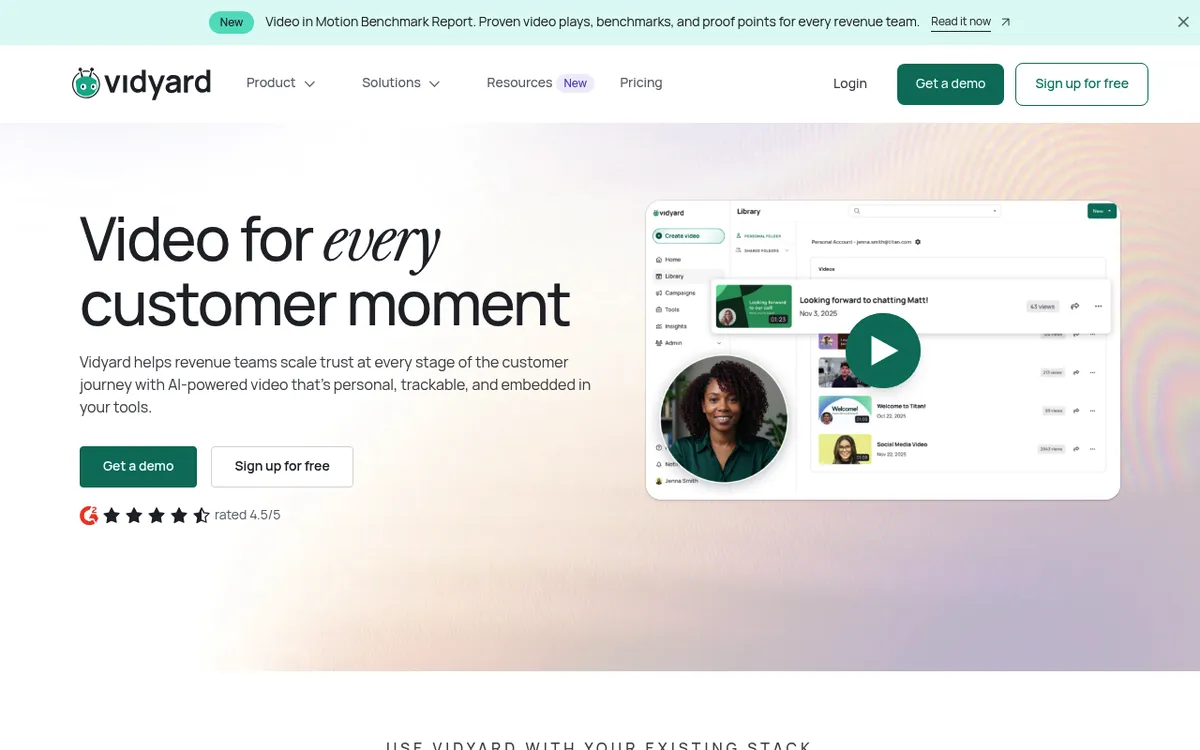
Vidyard leans into sales prospecting. Their free plan gives you 5 recorded videos a month, up to 30 minutes each, with a browser extension for Chrome and Edge and desktop apps for Mac and Windows.
If you're a sales rep testing whether async video lifts your reply rate, Vidyard Free is built for you. Just know that viewer analytics, CTAs, and the branded sharing page start on the paid Starter plan. For everyone else, it's a Loom-like flow with a tight monthly cap.
Free plan includes:
- Up to 5 recorded videos a month
- Up to 30 minutes per recording
- Chrome and Edge extension, Mac and Windows apps, plus iOS and Android apps
- Stock AI avatars plus 3 custom ones, with a 15 AI video limit
We compare it head-to-head with Loom and other tools in our Vidyard alternatives roundup and the Loom vs Vidyard breakdown.
Best fit: sales teams, recruiters, and customer-success reps. If your videos go in cold emails, Vidyard's paid analytics earn the install.
8. iSpring Free Cam: Windows-only, no watermark
Price: Free | Rating: (3.5/5)
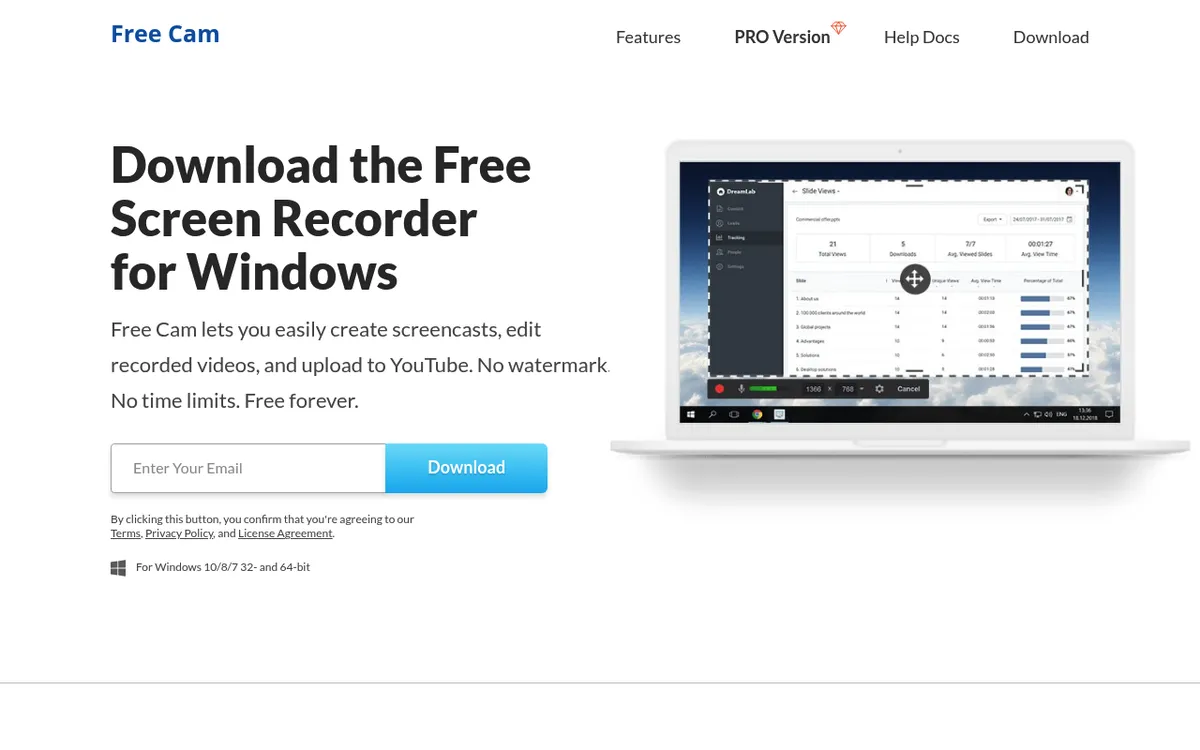
iSpring Free Cam is a hidden gem on Windows. No watermark, no time limit, no account (the download form does ask for your email). It also includes a basic editor for trimming and removing background noise.
The catch: Windows only (the site lists Windows 10, 8, and 7), exports to WMV only at 720p, and the free version doesn't include webcam recording. So it's screen and audio only, with no camera.
Free plan includes:
- Unlimited recording length
- Built-in trim, noise removal, and fades
- No watermark
- Export to WMV at 720p (you can convert to MP4 later), or upload straight to YouTube
Best fit: Windows-only trainers, e-learning creators, and anyone who needs clean screen-and-voice recordings without webcam overlay. For more options, see our training video software guide.
9. ScreenRec: instant share links, free
Price: Free, paid plans from $4.99 per month (billed annually) | Rating: (4/5)
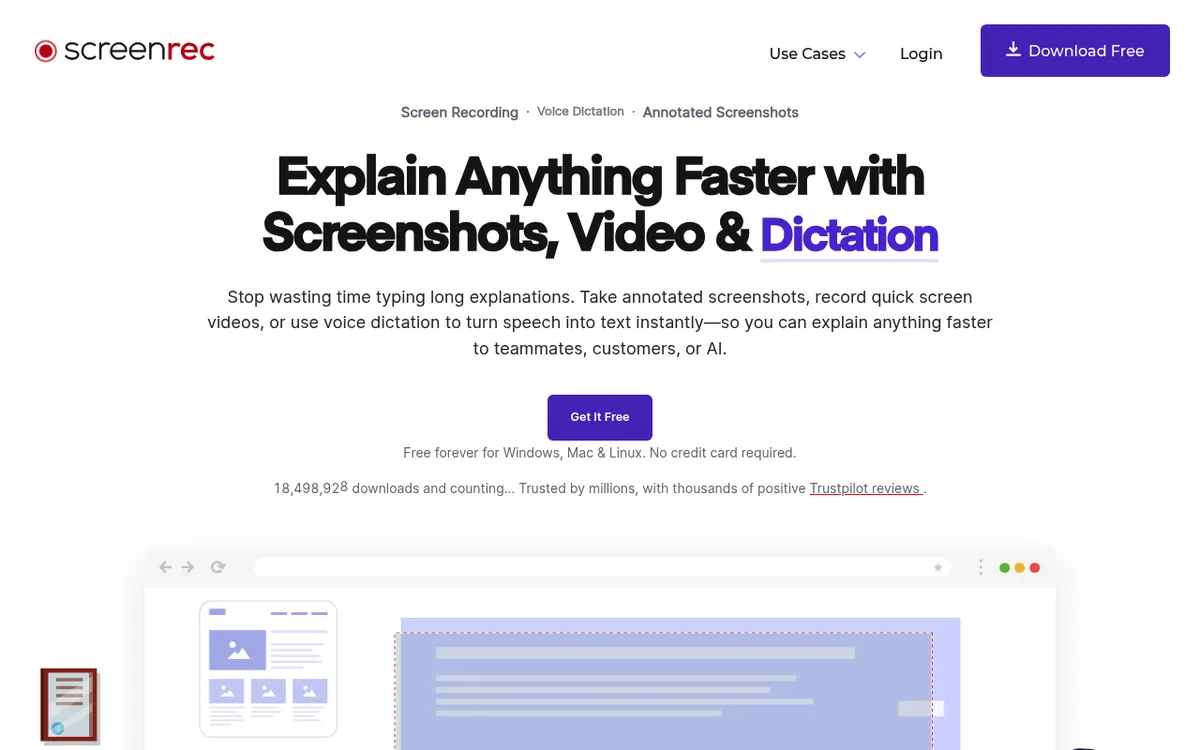
ScreenRec is one of the few free tools that copies Loom's "record, get a share link" magic. You hit record, you finish, and a link lands on your clipboard. No upload step, no waiting.
The free plan needs only an email sign-up. It includes 2 GB of cloud storage, recording up to 720p, and unlimited recording length once you register (without an account, each video stops at 5 minutes). Instant share links are capped at 10 a month, and the free plan is for personal use only. There's a small "tracking" footprint (recordings live on their cloud by default), so read the privacy terms if you handle anything sensitive.
Free plan includes:
- Unlimited recording length (with a free account)
- 2 GB free cloud storage and 2 GB of monthly bandwidth
- 10 instant share links a month
- Recording up to 720p
- No watermark
Best fit: anyone who wants Loom's share-link flow for $0, and doesn't mind the tradeoff of cloud-by-default storage.
10. QuickTime Player: free on every Mac
Price: Free, built into macOS | Rating: (3.5/5)
If you're on Mac and you want zero installs, QuickTime Player is already there. Open it, click File > New Screen Recording, and you're rolling. Add a mic and you've got narration.
What's good:
- Already installed on every Mac
- No watermark, no time cap, no account
- Basic trim and split for quick cleanups
- Exports up to 4K
What's rough:
- Mac only
- No system audio unless you add a free tool like BlackHole (Apple only documents mic input)
- No webcam bubble layered on screen capture
- No share link, so you save and upload yourself
- Saves .mov files only, not MP4
- No annotation tools
Best fit: Mac users who record once a month and don't want another app. If that's you, QuickTime is genuinely fine.
How to pick: a quick decision framework
Match the tool to your use case rather than feature counts.
You record every week and want one app for video and screenshots. Pick ScreenSnap Pro. $34 once gets you a screen recorder with a video editor, GIFs, and 17 annotation tools, with no subscription to cancel later.
You want zero cost and don't mind setup. Pick OBS Studio. Spend an afternoon on a tutorial and you'll never think about subscriptions again.
You record short async messages a few times a week. Loom Free is fine. The 5-minute cap is annoying but workable, and the share-link flow is unmatched.
You record more than 25 videos a year, or videos longer than 5 minutes. This is where Loom Free breaks down. Either spend $34 once on ScreenSnap Pro, install ScreenRec for free share links, or use OBS for unlimited control.
You're a Mac-only user who records rarely. QuickTime Player is sitting on your Dock. Use it.
You're a Windows-only trainer or teacher. iSpring Free Cam is the cleanest free pick. ScreenPal is the friendlier second option, with a 15-minute cap.
You're a sales rep testing async video. Vidyard Free lets you try it for $0. The paid analytics matter more than the recording itself.
You care about polish. ScreenSnap Pro for recording plus screenshots, with a built-in editor, auto zoom, and backgrounds. Tella if you're happy to pay a subscription for layout-heavy clips.
The hidden cost of "free": time and friction
A note on the math. Free tools cost time even when they don't cost money.
OBS will eat an afternoon. ScreenPal's 15-minute cap cuts long client demos short. Loom Free's 25-video cap means you'll be deleting old clips at the wrong moment. QuickTime has no annotation, so you'll alt-tab to another app to draw arrows.
If you're recording less than once a month, the friction doesn't matter, so pick the free tool that fits. If you're recording weekly, count the minutes you'll spend wrangling free tools over a year. Often, $34 once or even a paid subscription pays for itself in saved time.
That doesn't mean you have to pay. It means do the honest math before you commit to a tool.
Frequently Asked Questions
Bottom line
You don't have to pay a monthly fee for screen recording in 2026. If you record often enough that free-tier limits start to chafe, ScreenSnap Pro is $34 once for a full toolkit on Mac and Windows: recording, a built-in video editor, GIFs, 17 annotation tools, 500+ backgrounds, and optional cloud share links. No subscription, no watermarks, no expiration. Just the cheapest long-term path for power users.
If it has to be $0, Loom Free covers most short messages, OBS handles long-form for free, ScreenRec gives you instant share links, and QuickTime is already on your Mac.
Whichever you pick, you've got real options now. Async video shouldn't cost $180 a year unless you choose to spend it.
Documenting written processes rather than recording messages? The same no-subscription logic applies there, and our Scribe alternatives guide sorts the options by pricing model instead of by tool.

Morgan
Indie DeveloperIndie developer, founder of ScreenSnap Pro. A decade of shipping consumer Mac apps and developer tools. Read full bio
@m_0_r_g_a_n_