How to Take a Full Page Screenshot on Mac (Chrome, Safari, Firefox)
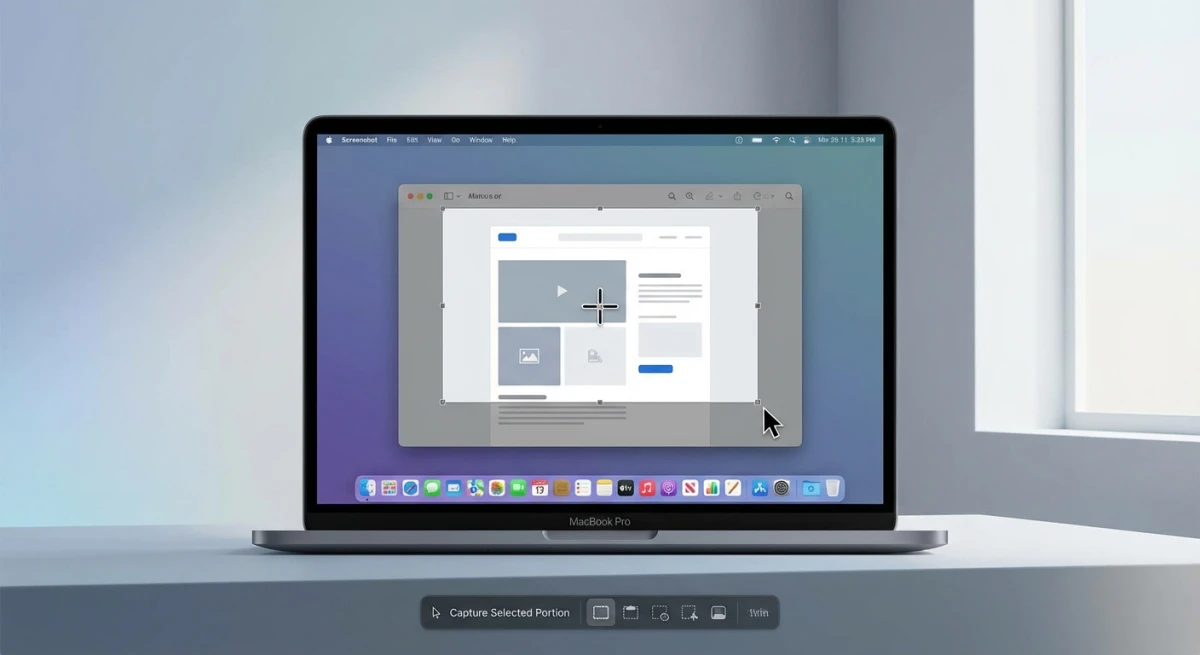
A full page screenshot grabs an entire webpage from top to bottom. It captures everything, even what you'd need to scroll to see. Normal screenshots only get what's on screen. Full page captures stitch it all into one long image. ScreenSnap Pro can take one with its Scrolling Capture, then help you mark up and share the result.
Here's the catch: macOS can't do this on its own. The built-in ⌘ + Shift + 3/4/5 shortcuts only get what's visible. Apple's Screenshot app won't scroll. So you need browser tools or apps.
Good news? Every major browser can grab full pages. Some have it built-in. Others need add-ons. This guide shows you how in Chrome, Safari, and Firefox.
Quick Look: Full Page Screenshot Methods
| Browser | Method | How Hard? | Quality |
|---|---|---|---|
| Firefox | Right-click menu | Easy | Great |
| Chrome | DevTools command | Medium | Good |
| Safari | Web Inspector | Medium | Good |
| Any browser | GoFullPage add-on | Easy | Great |
| Any app | ScreenSnap Pro / CleanShot X / Shottr | Easy | Great |
Firefox has the best built-in option. Chrome needs DevTools. Safari needs dev mode turned on. For the easiest fix across all browsers, use an add-on or app.
Firefox: Built-in Full Page Screenshots (Easiest)
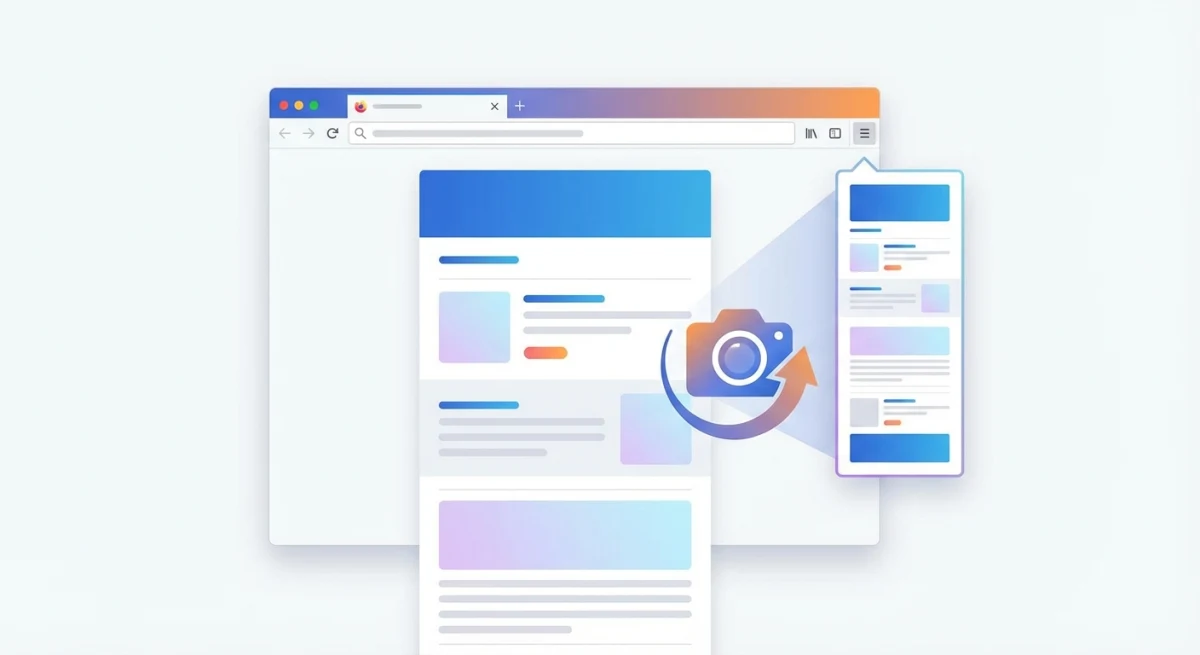
Firefox has the best native full page feature of any browser. No add-ons or dev tools needed.
How to Grab a Full Page in Firefox
- Go to the page you want to capture
- Right-click anywhere on the page
- Pick Take Screenshot
- Click Save full page in the top-right
- Click Download to save the PNG file
That's it. Firefox grabs and stitches the whole page on its own.
Other way: Click the three-dot menu in the address bar, then pick Take Screenshot.
Firefox Screenshot Choices
When you start the screenshot tool, you get three picks:
- Save visible. Only what's on screen (like
⌘ + Shift + 4) - Save full page. All content you can scroll through
- Select area. Drag to choose a region
The full page option works on most websites. It handles sticky headers and tricky layouts well.
Firefox Downsides
- Some JavaScript-heavy sites may not look right
- Very long pages make huge files (can be 20MB+)
- Content that loads on scroll may be missed
- Sticky bars sometimes show up more than once
For sites that don't work well, try the add-on method below.
Chrome: Full Page Screenshots via DevTools
Chrome has no visible full page button. But the feature exists in Developer Tools.
How to Grab a Full Page in Chrome
- Go to the page you want to capture
- Press
⌘ + Option + Ito open DevTools - Press
⌘ + Shift + Pto open the Command Menu - Type screenshot and pick Capture full size screenshot
- Chrome downloads the image on its own
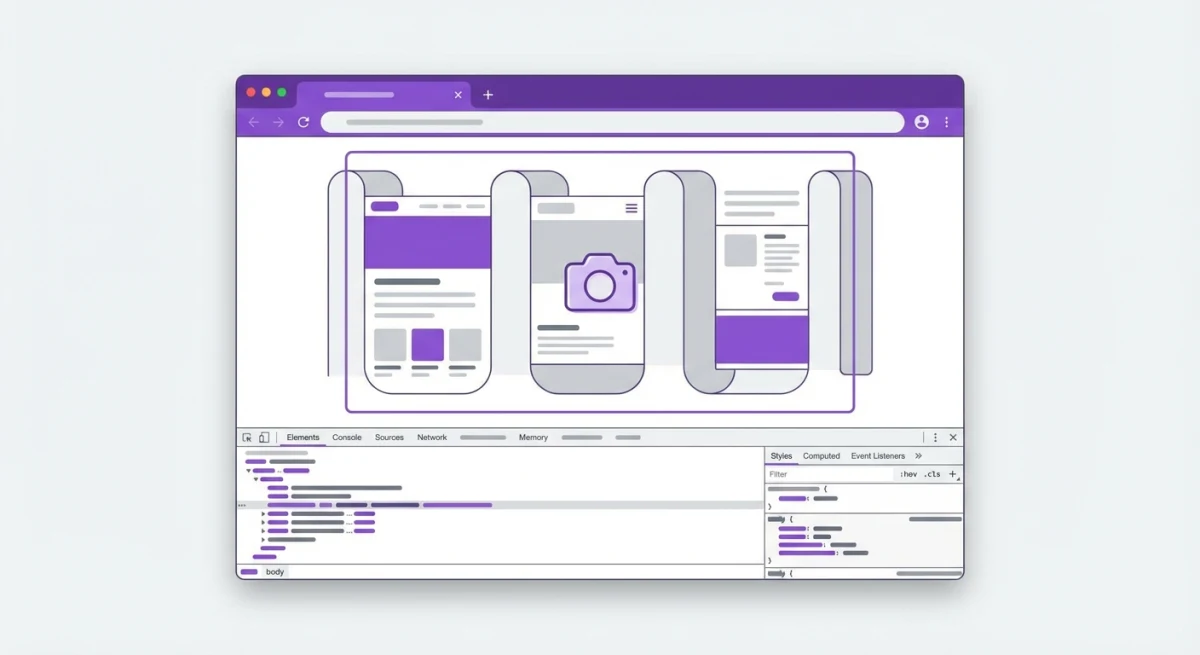
Chrome Screenshot Options
The Command Menu gives you several picks:
- Capture full size screenshot. Whole page height
- Capture screenshot. Just what you see
- Capture node screenshot. One HTML element
- Capture area screenshot. Drag to select
Changing the Width
Chrome captures at your current window width. Want wider or narrower? Here's how:
- Open DevTools
- Click the device toolbar icon (or press
⌘ + Shift + M) - Set your custom width
- Then capture the full page
This helps when you need to grab a page at a set size.
Chrome Downsides
- Needs DevTools know-how. Not easy for casual users
- Sticky headers may show up more than once
- No built-in editing. Just saves the raw image
- Can fail on very long pages due to memory limits
Safari: Full Page Screenshots via Web Inspector
Safari has full page capture too. But it's buried in dev tools and needs setup first.
Turn On Safari Developer Menu
Safari's screenshot feature needs dev mode:
- Open Safari > Settings (or press
⌘ + ,) - Click the Advanced tab
- Check Show features for web developers
Now you'll see a "Develop" menu in the menu bar.
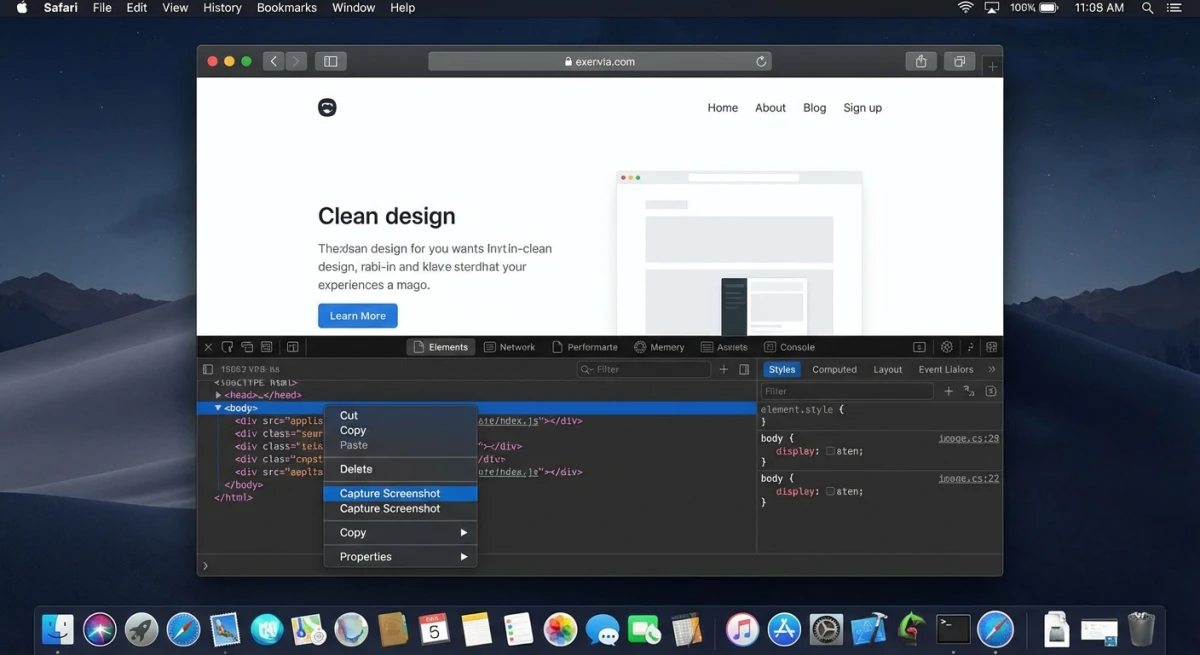
How to Grab a Full Page in Safari
- Go to the page you want to capture
- Right-click on the page and pick Inspect Element
- In Web Inspector, find the
tag in the Elements tab - Right-click on
- Pick Capture Screenshot
- Safari saves a full-page screenshot
Safari Downsides
- Setup needed. Must turn on dev mode first
- Less easy. You have to dig through the DOM
- No command menu. Hard to remember the steps
- Hit-or-miss results on some complex pages
Safari's method works but isn't as smooth as Firefox. For daily use, an add-on is better.
GoFullPage Add-on (Any Browser)
Want a simple, steady setup across browsers? The GoFullPage add-on works great.
Get GoFullPage
- Chrome: Chrome Web Store
- Edge: In the Edge Add-ons store
Note: GoFullPage is for Chrome/Edge only. Firefox users can use the built-in feature (right-click > Take Screenshot). It works just as well.
How to Use GoFullPage
- Go to any webpage
- Click the GoFullPage icon in your toolbar
- Wait for the add-on to scroll and capture
- Download as PNG, JPG, or PDF
GoFullPage scrolls the page for you. It grabs each part and stitches them together. Handles sticky headers well and gives clean results.
GoFullPage Features
- Free tier covers basic captures
- Auto-scrolling does the work for you
- Multiple formats (PNG, JPG, PDF)
- Handles sticky headers better than DevTools
- Works the same way across browsers
Paid features: cropping, editing, markup.
For a look at other tools, see our full scrolling screenshot guide.

Tired of plain screenshots? Try ScreenSnap Pro.
Beautiful backgrounds, pro annotations, GIF recording, and instant cloud sharing, all in one app. Pay $49 once, own it forever.
See pricing and featuresThird-Party Apps for Full Page Screenshots
Browser methods only work for web pages. For full page captures in other apps (PDFs in Preview, docs in Pages, long chat threads), you need a special app.
ScreenSnap Pro
ScreenSnap Pro has Scrolling Capture, which works in any app: web pages in any browser (including pages behind a login), PDFs in Preview, docs in Pages, and long chat threads.
How it works:
- Open Scrolling Capture from the capture toolbar or the menu bar menu
- Select the area, then click Start Capture (or press Enter)
- Scroll down yourself, slowly, while the live preview grows
- Click Finish
Have a public URL? Its Website Capture grabs the full page from the link alone, with no scrolling at all.
The long screenshot opens like any other capture, so you can polish and share it fast:
- Add nice backgrounds to make screenshots pop
- Mark up with arrows, shapes, and text to show key parts
- Blur private info before sharing
- Get instant cloud links instead of sending large files
For markup and sharing after your capture, ScreenSnap Pro adds a pro touch in seconds. Learn more about how to mark up screenshots like a pro or blur private info.
Cost: $49 one-time, for Mac and Windows
CleanShot X
CleanShot X is another good choice for scrolling captures outside the browser.
How it works:
- Start scrolling capture via hotkey
- Select the scrollable area
- Scroll by hand or use auto-scroll
- CleanShot stitches the result
Cost: $29/year
Shottr (Free)
Shottr is a free, light screenshot app that does scrolling capture.
Best for: Devs who need quick captures without paying. Also has OCR and basic markup tools.
PDF Export: Another Option
If you need a document instead of an image, PDF export is often better than full page screenshots.
How to Export a Webpage as PDF
This works in any browser:
- Go to the page you want to capture
- Press
⌘ + Pto open Print dialog - Click the PDF dropdown in the bottom-left
- Pick Save as PDF
- Choose where to save
When PDF Works Better
- Text stays searchable and you can copy it
- Multi-column layouts look better
- You need to print the content later
- Archiving for later (timestamps, sources)
When Screenshots Work Better
- Sharing in chat (Slack, Discord) where images show inline
- Docs with markup
- Visual look. PDF layouts can shift
- Just parts of pages
Fixing Full Page Screenshot Problems
Sticky Headers Show Up More Than Once
Fixed nav bars can repeat in your capture. Here's how to fix it:
- Use Firefox, which handles sticky items best
- Try the GoFullPage add-on, built for this issue
- Hide the bar first: right-click > Inspect > delete the header before capturing
Missing Images or Content
Sometimes lazy-loaded images or endless scroll content won't show. To fix:
- Scroll through the whole page first, then capture
- Wait for all images to load
- For endless scroll, stop where you want the capture to end
Files Are Too Big
Full page screenshots can be 20MB+ for long pages. To shrink them:
- Capture only what you need
- Use TinyPNG to compress
- Save as JPG instead of PNG
- Split into smaller screenshots and use our free combine images tool to stitch them back together
Browser Freezes
If your browser locks up during capture:
- Try a different browser
- Close other tabs to free up memory
- Capture very long pages in parts
Items Look Wrong
Moving content or animations may not capture right. Try:
- Waiting for the page to fully load
- Turning off animations if you can
- Using Reader Mode to simplify the page
- Grabbing just that item instead
Tips for Better Full Page Screenshots
Before Capturing
- Close popups and cookie banners. They'll show up more than once
- Close chat widgets and floating buttons
- Wait for images to load. Especially on slow connections
- Think about browser width. Resize first if needed
- Log in if needed. Grab the content you actually want
For Different Uses
Docs:
- Use the same browser width for all captures
- Turn on "Show Mouse Pointer" if showing how to do something
- Consider Reader Mode for articles
Archiving:
- Include the URL bar for reference
- Add the date to file names
- PDF may be better for long-term storage
Sharing:
- Compress large files before sending
- Use cloud links (ScreenSnap Pro) to skip size limits
- Add markup to show key parts
File Format Tips
| Format | Best For | Size |
|---|---|---|
| PNG | Screenshots with text, UI captures | Larger |
| JPG | Photos, image-heavy pages | Smaller |
| Storage, printing, text you can search | Varies |
Frequently Asked Questions
Which Method Should You Use?
For web pages (once in a while):
Use Firefox's built-in capture. Right-click > Take Screenshot > Save full page. Free, easy, great quality.
For web pages (all the time):
Get the GoFullPage add-on. Same setup across browsers, handles tricky pages well.
For non-browser content (PDFs, apps, docs):
You need an app with scrolling capture. ScreenSnap Pro's Scrolling Capture works in any app and adds markup and sharing. Shottr is free. CleanShot X is another paid option.
For docs and storage:
Export to PDF. Keeps searchable text and formats better for long-term use.
For marked-up captures:
Use ScreenSnap Pro or CleanShot X. Capture, mark up, and share without switching apps.
Wrapping Up
Taking a full page screenshot on Mac needs browser tools or an app, since macOS doesn't do scrolling capture:
- Firefox: Best built-in feature, in the right-click menu
- Chrome: DevTools Command Menu (
⌘ + Shift + P) - Safari: Web Inspector, needs setup
- Any browser: GoFullPage add-on
- Any app: ScreenSnap Pro's Scrolling Capture, CleanShot X, or Shottr
For web content, Firefox's built-in feature covers most needs. For anything else, or to mark up and share like a pro, ScreenSnap Pro captures long content in any app and adds editing and cloud sharing to your workflow.
Before you capture, prep the page. Close popups. Wait for content to load. Pick your target width. You'll get cleaner, more useful results.
Related guides:

Morgan
Indie DeveloperIndie developer, founder of ScreenSnap Pro. A decade of shipping consumer Mac apps and developer tools. Read full bio
@m_0_r_g_a_n_