YouTube Screenshot in Full Quality: 5 Free Ways (2026)
The fastest way to screenshot a YouTube video at full quality: right-click the video twice in Chrome, Edge, or Brave, then choose "Copy video frame" or "Save video frame as…" This captures the frame at the video's real resolution (often 1080p or 4K), not just your screen's resolution. No extension, no app. Below are 5 methods covering Chrome, Mac shortcuts, browser extensions, online tools, and desktop apps.
Most people use their Mac or PC's built-in screenshot tool. That captures the video at your screen's quality, not the video's full quality. If you're watching a 4K video on a 1080p screen, you lose half the detail. The tricks below fix that.

Tired of plain screenshots? Try ScreenSnap Pro.
Beautiful backgrounds, pro annotations, GIF recording, and instant cloud sharing, all in one app. Pay $39 once, own it forever.
See pricing and featuresWhy Screenshot YouTube Videos?
Here are the main reasons people want to screenshot YouTube video content:
- Make thumbnails. Creators often pull frames from their own videos
- Save reference pics. Great for tutorials and how-to guides
- Capture memes. That perfect face won't screenshot itself
- Save quick info. Charts, graphs, or text that flashes by
- Grab wallpapers. 4K travel videos make great desktop backgrounds
- Fair use needs. Screenshots for reviews and teaching are usually okay
No matter your reason, you want the sharpest frame you can get.
Method 1: Right-Click "Copy Video Frame" (Chrome, Edge, Brave)
This is the newest and best way to grab YouTube screenshots at full video quality. Google added this trick to Chrome (and similar browsers) in 2024, but most people don't know about it yet.
How to use it:
- Open the YouTube video in Chrome, Edge, or Brave
- Set the video quality to the highest available (4K if supported)
- Pause at the exact frame you want
- Right-click twice on the video (the first click opens YouTube's menu, the second opens the browser menu)
- Select "Copy video frame" or "Save video frame as..."
- Paste into any image editor or save directly
Why this rocks: You get the video's full quality, not just your screen's quality. A 4K video gives you a huge 3840×2160 image, even on a smaller 1080p screen.
On Mac: After you copy the frame, open Preview and press ⌘ + N to make a new image from your clipboard. Then save it.
The catch: This only works in Chrome, Edge, and Brave. Firefox and Safari can't do this yet.
Method 2: Mac Screenshot Keyboard Shortcuts
If you're on a Mac and don't need the video's full quality, the built-in screenshot shortcuts are the fastest way to go.
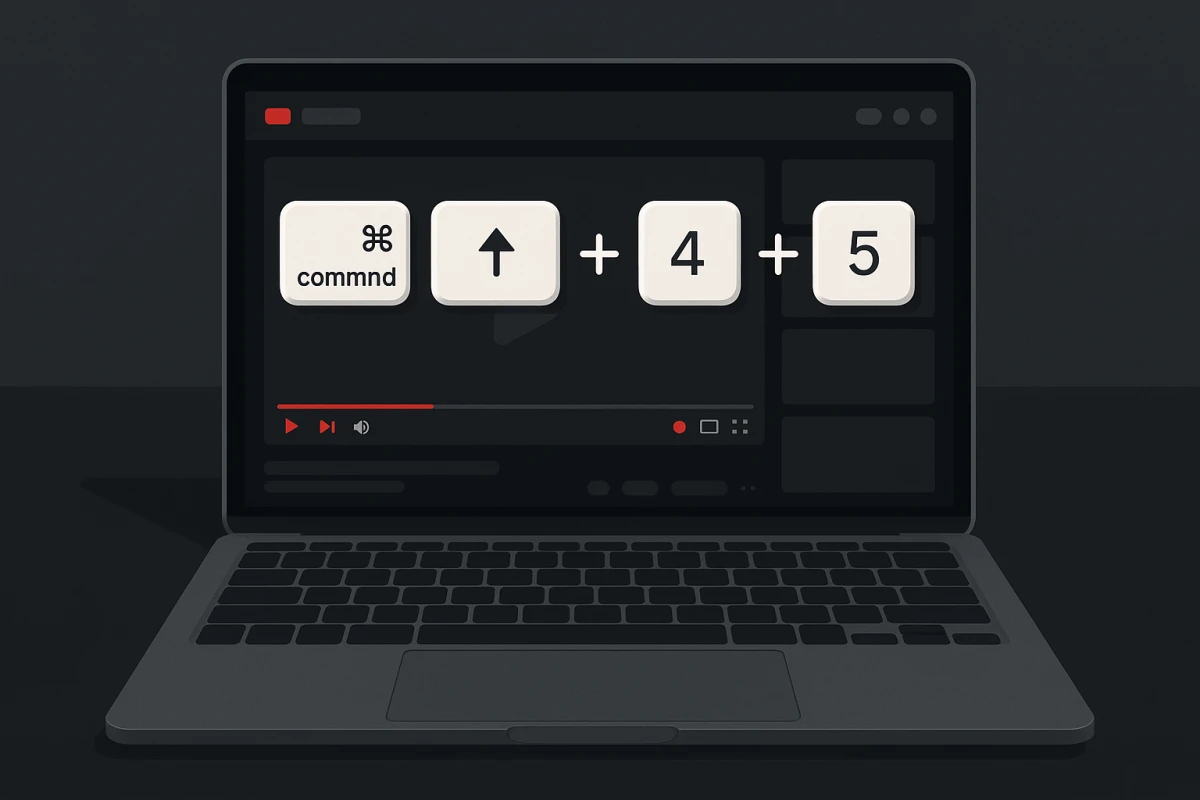
The key shortcuts:
| Shortcut | Action |
|---|---|
⌘ + Shift + 3 | Capture entire screen |
⌘ + Shift + 4 | Capture selected area |
⌘ + Shift + 4, then Space | Capture specific window |
⌘ + Shift + 5 | Open Screenshot app with options |
Best practice for YouTube:
- Enter fullscreen mode (
Fkey on YouTube) - Pause the video at your desired frame
- Press
⌘ + Shift + 3for full screen or⌘ + Shift + 4to select just the video
Pro tip: Want to change where your screenshots land? Check out our guide on changing screenshot location on Mac.
The downside? Your screenshot quality matches your screen, not the video. On a 1440p display, you top out at 2560×1440, even from an 8K video.
Windows users: The same shortcuts are Win + Shift + S for the Snipping Tool, or PrtScn to grab the whole screen. Same limits apply.
Quick copy trick: Add Control to any Mac screenshot shortcut to copy to clipboard instead of saving a file. For example, ⌘ + Control + Shift + 4 lets you pick an area and paste right into any app. See our screenshot to clipboard guide for more.
Method 3: Browser Extensions for YouTube Screenshots
Browser add-ons put a screenshot button right on the YouTube player. Handy if you grab YouTube screenshots often.
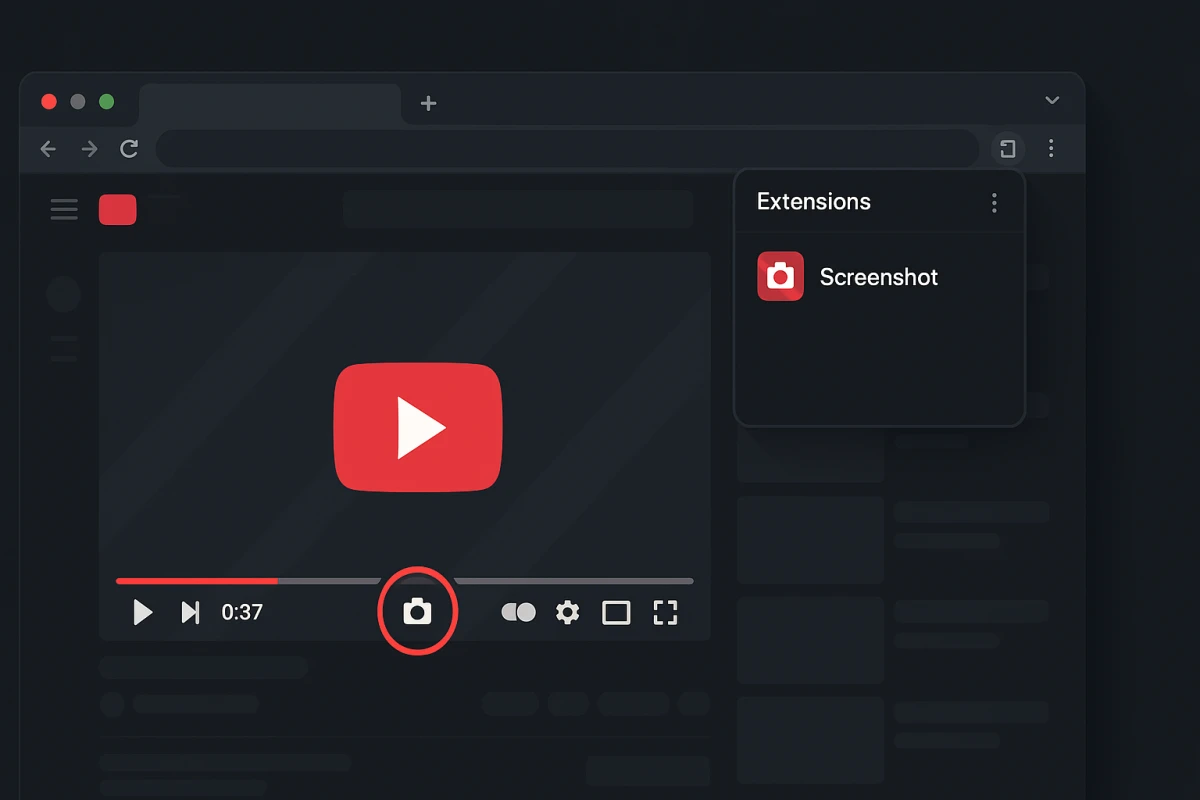
Top picks:
For Chrome:
- Screenshot YouTube Video: adds a camera icon to the player
- YouTube Screenshot Button: one-click saves with hotkey support
For Firefox:
- YouTube Screenshot Button: adds a screenshot link plus a
Shift + Ahotkey - YouTube Video Screenshot Tool: fits neatly into the settings menu
How extensions work:
- Install the extension from your browser's store
- Navigate to any YouTube video
- Look for the new screenshot button (usually in the player controls)
- Click to capture the current frame
- Image downloads automatically or copies to clipboard
Heads up: Watch out for add-on permissions. Some ask to read all your sites when they only need YouTube access.
Method 4: Online YouTube Screenshot Tools
Some websites let you grab YouTube frames without adding anything to your browser. Just paste the video link, find your frame, and save. These work on any device with a web browser, including Chromebooks, work computers with locked-down policies, and machines you have borrowed.
Popular options:
- youtubescreenshot.com. Paste the link, use the slider to find your frame, download as PNG or JPEG
- YouTubeScreenshot.net. Similar approach, also grabs video thumbnails
- Kapwing. More of a video editor, but can export individual frames
How online tools typically work:
- Copy the YouTube video URL from your browser
- Paste it into the tool's search box
- Wait for the video to load in their player
- Scrub through the timeline or enter a specific timestamp
- Click the screenshot/capture button
- Download the image (usually PNG format)
The tradeoffs: These sites come with some catches you should know about. Most are ad-heavy and might try to upsell you on premium features. Some only capture at 720p even if the original is 4K. A few require you to create an account before downloading. And they won't work offline or with private/unlisted videos.
When they're actually useful: Online tools shine when you can't install anything: shared computers, Chromebooks, or strict IT policies. They're also handy for quick one-off grabs when you don't want to bother with extensions.
Thumbnail shortcut: If you only need the video thumbnail (not a custom frame), you don't need any tool at all. Right-click the video on YouTube, pick "Copy video URL," then swap the video ID into this URL pattern: https://img.youtube.com/vi/VIDEO_ID/maxresdefault.jpg. Replace VIDEO_ID with the 11-character code from the YouTube URL.
Method 5: Desktop Screenshot Apps for Mac
For pro-quality YouTube screenshots with quick editing, Mac screenshot apps give you the most options.
ScreenSnap Pro grabs any video frame with one shortcut. Then you can mark it up, add nice backgrounds, and share, all in seconds. Great for creators who need polished images, not just raw frames.
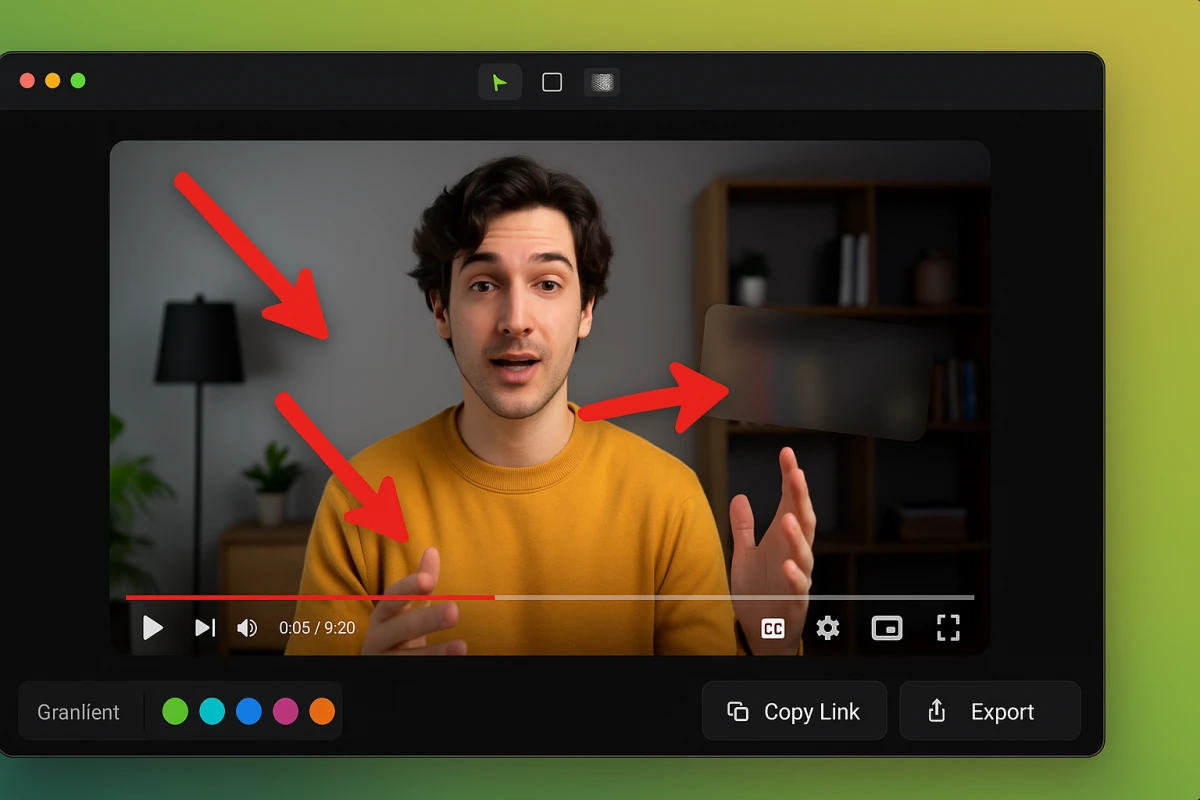
How it works:
- Play your YouTube video (any browser works)
- Press the capture shortcut when you see the perfect frame
- Annotate immediately: add arrows, blur sensitive info, or highlight details
- Add a gradient background for a polished look
- Copy to clipboard or get an instant shareable link
If you often mark up screenshots or need to add backgrounds for slides and social media, a pro tool saves a lot of time. No more: capture → open editor → export.
Other Mac apps: The built-in Screenshot app (⌘ + Shift + 5) handles basic stuff. For more power, tools like ScreenSnap Pro add annotation and cloud sharing, while CleanShot X and Snagit offer extras like scrolling capture.
How to Get the Highest Quality YouTube Screenshot
No matter which way you go, these tips help you get the sharpest frames:
1. Max Out Video Quality First
Before you screenshot, click the gear icon in YouTube's player and pick the highest quality. If the video has 4K or 8K, choose it, even if your screen can't show it all. The Copy Video Frame trick still grabs the full quality.
2. Pause at the Perfect Moment
Here's a handy trick: while paused, press . (period) to move one frame forward, or , (comma) to go back one frame. This gives you exact control over which frame you grab.
Pro tip for frame-by-frame navigation: Most YouTube videos run at 24, 30, or 60 frames per second. That means even one second of footage contains dozens of slightly different images. The comma and period keys let you step through frame-by-frame until you find exactly the right expression, moment, or composition.
This is especially useful for:
- Action shots. Catching the perfect mid-motion freeze
- Facial expressions. Finding the exact right reaction
- Text on screen. Waiting for text to be fully visible and not blurry
- Transitions. Grabbing a frame right before or after a cut
3. Go Fullscreen
Press F to go fullscreen before you capture. This hides the browser bar and YouTube's buttons from your shot. (The Copy Video Frame trick already cuts these out for you.)
4. Check Your Screen Size
If you're using system screenshots (not Copy Video Frame), your image size depends on your display. Hook up a bigger external monitor if you need larger images.
5. Save as PNG
When you can, save as PNG instead of JPEG. You'll avoid blurry spots from JPEG's shrinking. If file size matters, you can always shrink your images later.
6. Turn Off Hardware Speed-Up (If Broken)
If your YouTube screenshots come out black or glitchy, try this fix. In Chrome, go to Settings → System → and turn off "Use hardware acceleration when available." Restart the browser and try again.
7. Think About the Original Video
Keep in mind: YouTube shrinks all uploaded videos. Even if the original was shot in perfect 8K, YouTube's processing affects the result. Pro channels (official music videos, studio content) tend to look sharper than casual uploads.
Method Comparison: Which Should You Use?
| Method | Best For | Quality | Ease of Use |
|---|---|---|---|
| Copy Video Frame | Maximum quality captures | Video resolution | Medium |
| Mac Shortcuts | Quick casual screenshots | Screen resolution | Easy |
| Browser Extensions | Frequent YouTube screenshots | Video resolution | Easy |
| Online Tools | No-install situations | Varies | Medium |
| Screenshot Apps | Professional workflows | Screen resolution + editing | Easy |
Our pick: Start with Copy Video Frame (Method 1) for the best quality. If you need quick edits or a polished look, use a Mac screenshot app.
Editing Your YouTube Screenshots
Once you've grabbed the perfect frame, you might want to clean it up before sharing. Here's what people often do:
Cropping: Cut out black bars or parts you don't want. Most videos don't match standard screen shapes, so you'll often see bars on the sides or top/bottom.
Blurring private info: If your screenshot shows usernames, emails, or other private stuff from the video, blur those parts before posting.
Adding markup: Arrows, circles, and text labels help point out what you're talking about. Key for tutorials or bug reports, and our free image annotation tool adds all three in the browser if you would rather not install anything.
Better backgrounds: Raw screenshots can look flat. A nice gradient behind them makes them pop in slides, posts, and docs.
Format swaps: If your shot saved as PNG but you need JPEG (or the other way around), our free image format converter does it fast.
Legal Stuff
Quick note on copyright: Taking screenshots of YouTube videos for personal use, reviews, teaching, or critique is usually fine under fair use. But using them to make money, or claiming them as your own work, can get you in trouble.
When in doubt:
- Give credit to the creator
- Use shots for reviews, teaching, or commentary
- Don't turn whole videos into image sets
- Check YouTube's Terms of Service for details
Frequently Asked Questions

Morgan
Indie DeveloperIndie developer, founder of ScreenSnap Pro. A decade of shipping consumer Mac apps and developer tools. Read full bio
@m_0_r_g_a_n_