How to Screenshot on Android: Every Brand (2026)
Taking a screenshot on Android is straightforward once you know the right method for your phone. Whether you own a Samsung Galaxy, Google Pixel, or OnePlus device, every Android phone can capture your screen in seconds. For desktop captures alongside your phone, a tool like ScreenSnap Pro covers Mac and Windows.
The universal how to screenshot Android method works across all brands: press Power + Volume Down simultaneously. But most manufacturers add their own shortcuts: palm swipes, three-finger gestures, and smart features that make screen capture even faster.
Android screenshot shortcuts: quick reference
Here's every method at a glance. Find your brand and pick the shortcut that works best for you.
| Brand | Primary Method | Bonus Method |
|---|---|---|
| All Android | Power + Volume Down | Google Assistant: "Take a screenshot" |
| Samsung Galaxy | Power + Volume Down | Palm swipe, Edge Panel, Bixby |
| Google Pixel | Power + Volume Down | Quick Tap (back tap), Power Menu |
| OnePlus | Power + Volume Down | Three-finger swipe down |
| Xiaomi | Power + Volume Down | Three-finger swipe, notification shade |
| Huawei | Power + Volume Down | Knuckle tap, three-finger swipe |
Universal method: Power + Volume Down
This works on every Android phone running Android 4.0 or later, which covers virtually all devices in use today.
- Open the screen you want to capture.
- Press the Power button and Volume Down button at the same time.
- Hold both buttons for about one second until the screen flashes.
- A screenshot preview appears in the bottom-left corner.
Pro tip: The timing can feel tricky at first. Press both buttons simultaneously rather than one before the other. If you press Power alone, you'll lock your screen. If you press Volume Down alone, you'll lower the volume.
On older phones (Android 3.x and below), this shortcut may not work. In that case, try holding the Power button and tapping Screenshot from the power menu.
Google Assistant screenshot
You can also use your voice. Say "Hey Google, take a screenshot" and your phone captures whatever is currently on screen. This works hands-free and is great when you can't easily reach both buttons.
Samsung Galaxy: Palm swipe, Edge Panel, and Bixby
Samsung packs more screenshot options than any other Android brand. Beyond the standard button combo, you get gesture controls and smart capture tools.
Palm swipe to capture
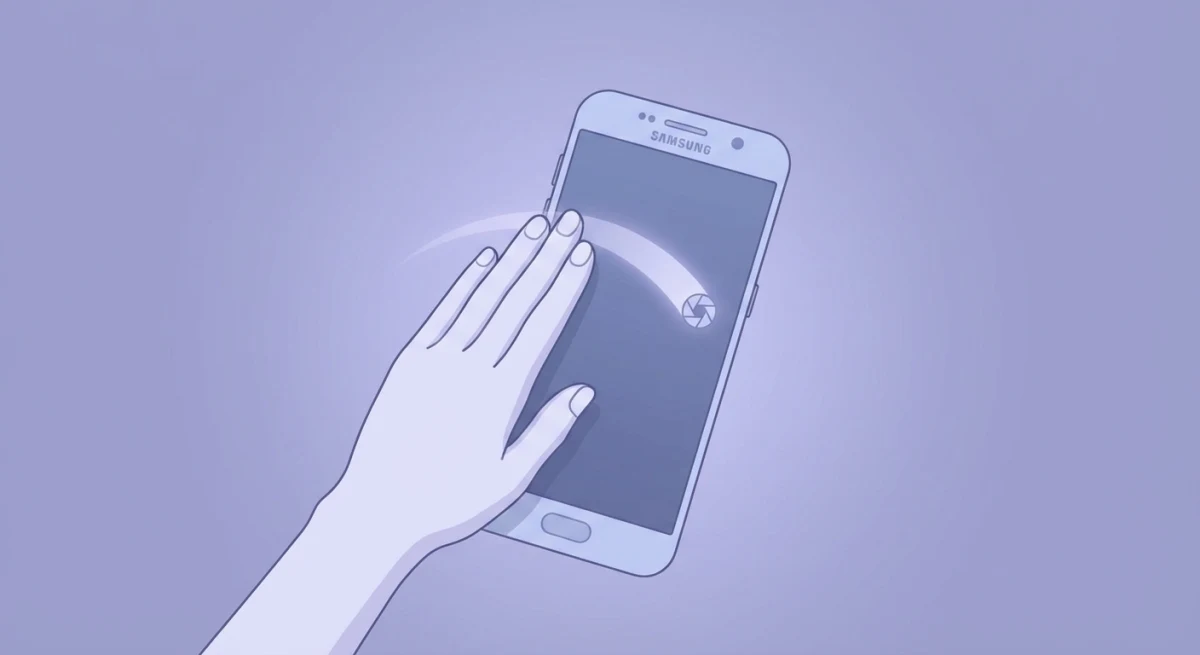
This is Samsung's signature screenshot gesture:
- Go to Settings → Advanced Features → Motions and Gestures.
- Toggle on Palm Swipe to Capture.
- Swipe the edge of your hand horizontally across the screen.
The phone vibrates and captures the screen. It feels more natural than pressing buttons once you get used to it.
Edge Panel screenshot
If you use Samsung's Edge Panel:
- Swipe inward from the Edge Panel handle on the right side.
- Swipe until you find the Smart Select panel.
- Choose Rectangle, Oval, or Pin to Screen.
- Drag to select the area you want to capture.
Smart Select lets you capture a specific portion of the screen rather than the entire display, which is useful when you only need part of a conversation or a single element.
Bixby voice command
If Bixby is enabled, say "Hey Bixby, take a screenshot." This works similarly to Google Assistant but uses Samsung's built-in voice assistant.
Samsung screenshot toolbar
After taking any screenshot on Samsung, a toolbar appears at the bottom with these options:
- Scroll capture. Extend the screenshot down the page
- Crop. Trim to a specific area
- Tag. Add searchable tags
- Share. Send immediately
Google Pixel: Power Menu and Quick Tap
Google keeps things clean with a few well-designed options beyond the standard shortcut.
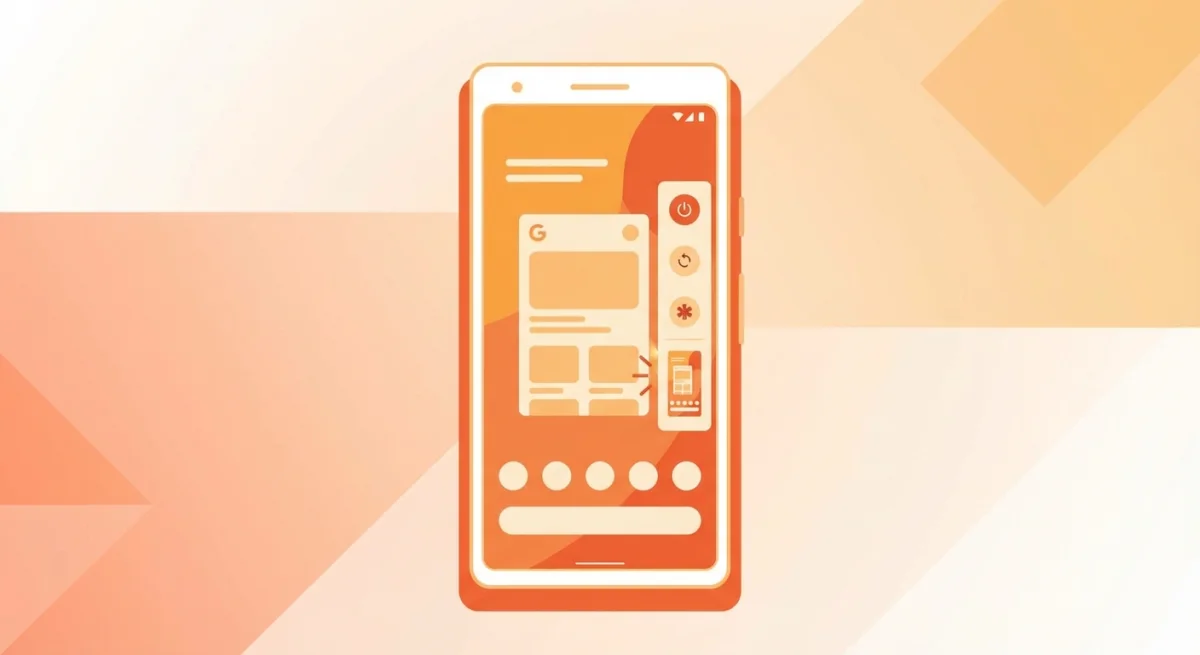
Power Menu screenshot
- Press and hold the Power button.
- Tap Screenshot from the menu that appears.
This is helpful when the button combo feels awkward or if your volume button is hard to reach.
Quick Tap (Pixel 6 and later)
Quick Tap lets you double-tap the back of your phone to trigger actions, including screenshots:
- Go to Settings → System → Gestures → Quick Tap.
- Toggle it on and select Take Screenshot.
- Double-tap the back of your Pixel to capture.
The double-tap needs to be firm, because a light tap won't register. It takes a few tries to find the right spot and pressure.
Recent Apps screenshot
- Swipe up from the bottom and hold to open Recent Apps.
- Navigate to the app you want to screenshot.
- Tap Screenshot below the app preview.
This captures the app even if you're not actively using it, which is handy for grabbing screens from multiple apps quickly.
OnePlus: three-finger swipe
OnePlus offers one of the fastest screenshot gestures on Android.
Three-finger swipe down
- Go to Settings → Buttons & Gestures → Quick Gestures.
- Enable Three-finger Screenshot.
- Swipe down with three fingers on any screen.
The gesture is quick and intuitive. Once enabled, you'll rarely use the button combo again. OnePlus also supports partial screenshots: after the three-finger swipe, tap the partial screenshot icon to crop immediately.
Other OnePlus methods
- Long screenshot: After capturing, tap Expanded Screenshot in the toolbar to scroll and capture a longer page.
- Smart Sidebar: Swipe inward from the edge to access quick tools, including screenshot.

Tired of plain screenshots? Try ScreenSnap Pro.
Beautiful backgrounds, pro annotations, GIF recording, and instant cloud sharing, all in one app. Pay $34 once, own it forever.
See pricing and featuresHow to take scrolling screenshots on Android
A scrolling screenshot (also called a long screenshot Android capture) lets you grab an entire webpage, chat thread, or settings page that extends beyond one screen.
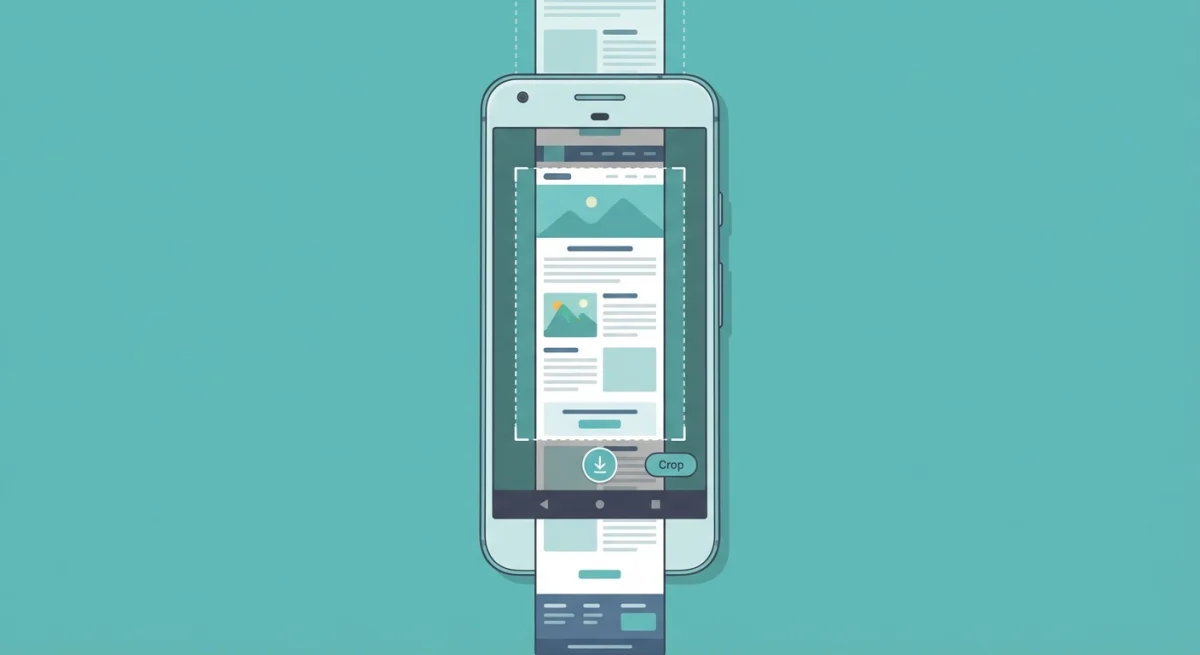
Android 12 and later (built-in)
Google added native scrolling screenshots in Android 12:
- Take a regular screenshot (Power + Volume Down).
- Tap Capture More in the screenshot preview.
- Drag the crop handles to select how much of the page to include.
- Tap Save.
This works in most apps that support scrolling content. Some apps block this feature for security (banking apps, for example).
Samsung scrolling screenshot
Samsung's scroll capture works on older Android versions too:
- Take a screenshot using any method.
- Tap the Scroll Capture button (downward arrows icon) in the toolbar.
- Keep tapping to extend the capture further down.
- Tap the screen when you've captured enough.
OnePlus expanded screenshot
After taking a screenshot on OnePlus, tap Expanded Screenshot and the phone automatically scrolls and captures. Tap the screen to stop.
If you work with long screenshots often, you might want to combine multiple screenshots later on your Mac for documentation or presentations.
How to edit screenshots on Android
Every Android phone includes basic editing tools that appear right after you capture a screenshot.
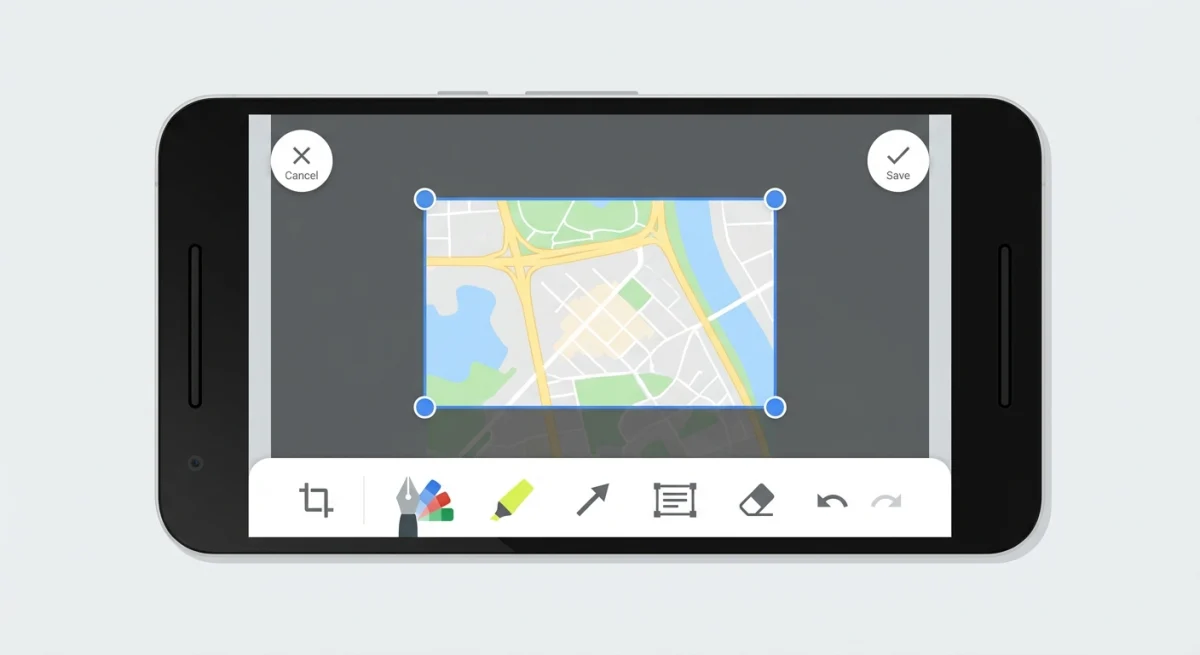
Built-in editing options
After taking a screenshot, tap the preview thumbnail to open the editor:
- Crop and rotate. Trim edges or change orientation
- Draw. Freehand markup with pen tool
- Text. Add labels or notes
- Filters. Adjust brightness, contrast, warmth
- Stickers/emoji. Available on Samsung and some other brands
Google Photos editor
For more advanced edits:
- Open Google Photos and find your screenshot.
- Tap Edit at the bottom.
- Use tools like Markup, Crop, Adjust, and Filters.
Google Photos also offers a Magic Eraser on Pixel phones to remove unwanted elements from screenshots.
Samsung Photo Editor
Samsung's built-in editor is more capable than stock Android:
- Draw with S Pen (Galaxy Note/Ultra series)
- Extract text (OCR) from screenshots
- Sticker and emoji overlays
- Advanced filters and effects
For professional-level screenshot annotation with features like numbered steps, blur, and polished backgrounds, you can transfer your captures to Mac and use a dedicated tool like ScreenSnap Pro.
Where Android screenshots are saved
The Android screenshot location depends on your device and storage settings:
| Location | How to Find It |
|---|---|
| Google Photos | Collections → On this device → Screenshots |
| File Manager | Internal Storage → Pictures → Screenshots |
| Samsung Gallery | Albums → Screenshots |
| Notification | Tap the screenshot notification immediately after capture |
Screenshots save as PNG files by default. The filename format is typically Screenshot_YYYYMMDD_HHMMSS.png.
Running out of space? You can compress your screenshots to reduce file sizes without noticeable quality loss.
Best Android screenshot apps (third-party)
The built-in tools handle most needs, but these apps add extra power:
Screenshot Easy
- Floating button overlay for quick access
- Shake-to-capture gesture
- Custom file naming
- Free with ads
Screen Master
- Scrolling capture with better app compatibility
- Annotation tools built in
- Blur and pixelate features
- Web page capture mode
LongShot
- Specialized for scrolling screenshots
- Stitches multiple captures automatically
- Works with apps that block native scroll capture
- Free with a pro upgrade
AZ Screen Recorder
- Primarily a screen recorder but includes screenshot tools
- No root required
- Floating control button
- Good for capturing gameplay
For most users, the built-in screenshot tools are sufficient. Third-party apps help when you need scrolling capture in apps that block the native feature, or when you want more annotation options.
Android vs iPhone vs Mac screenshots compared
| Feature | Android | iPhone | Mac |
|---|---|---|---|
| Basic shortcut | Power + Vol Down | Side + Vol Up | ⌘ + Shift + 3 |
| Partial capture | Samsung Smart Select | Markup crop | ⌘ + Shift + 4 |
| Scrolling screenshot | Built-in (Android 12+) | Full Page (Safari only) | Third-party tools |
| Gesture capture | Palm swipe, 3-finger | Back Tap | Touch Bar (older Macs) |
| Save location | Pictures/Screenshots | Photos app | Desktop by default |
| Built-in editing | Basic markup | Markup | Screenshot app |
| Voice command | "Hey Google" | "Hey Siri" | Dictation |
Android offers the most screenshot gesture options of any platform. iPhones keep things simpler with fewer but consistent methods. Macs provide the most keyboard shortcuts and advanced capture modes.
How to transfer Android screenshots to Mac
If you use both an Android phone and a Mac, here's how to move your screenshots over for editing or sharing.
AirDroid / Nearby Share
AirDroid connects Android and Mac wirelessly:
- Install AirDroid on your Android phone.
- Open
web.airdroid.comon your Mac. - Scan the QR code to connect.
- Drag and drop screenshots between devices.
Google Photos sync
The easiest automatic method:
- Enable Google Photos backup on your Android.
- Open
photos.google.comon your Mac. - Download any screenshot you need.
USB transfer
For bulk transfers:
- Connect your Android to Mac via USB-C cable.
- Install Android File Transfer on your Mac.
- Navigate to Pictures → Screenshots.
- Drag files to your Mac.
Once your screenshots are on your Mac, tools like ScreenSnap Pro let you add professional annotations, beautiful backgrounds, and instant sharing links. These are features that go beyond what's available on Android.
Frequently Asked Questions

Morgan
Indie DeveloperIndie developer, founder of ScreenSnap Pro. A decade of shipping consumer Mac apps and developer tools. Read full bio
@m_0_r_g_a_n_