App Store Screenshot Sizes 2026: Every Device, Every Size
An App Store screenshot shows off your iOS app's interface and key features. It's what users see on your product listing. These images matter a great deal. Studies show screenshots influence up to 60% of install decisions. If you build them with a screenshot app like ScreenSnap Pro, getting the export dimensions right is half the battle.
Getting your dimensions right isn't just about meeting Apple's rules. It's about making your app look great on every device. That includes the newest iPhone 17 Pro Max and iPad Pro.
This guide covers every screenshot size you'll need in 2026. We've included the newest devices like iPhone Air and iPad Pro M5. You'll also find Apple's guidelines, design tips, and practical advice.
Why App Store Screenshots Matter
Your screenshots show up in two key places:
- Search results. Right next to your app name
- Product page. Where users decide to download
In search, they give users an instant first impression. That's why getting them right is so important.
Here's what you need to know:
- First impressions count: Users decide to download within 3-7 seconds
- Visual storytelling: Screenshots show your app's value faster than text
- Conversion boost: Good screenshots can increase downloads by 25-35%
- ASO factor: Apple uses them when ranking your app
The good news? You don't need a design team. With the right sizes and a few best practices, you can create professional visuals yourself.
Required App Store Screenshot Sizes (2026)
Apple needs specific sizes based on your target devices. Most apps must submit two sizes:
- 6.9" iPhone screenshots (for modern iPhones)
- 13" iPad screenshots (for iPads)
Apple auto-scales these for smaller devices. You don't need to upload every size. But you can if you want pixel-perfect control.
iPhone Screenshot Sizes
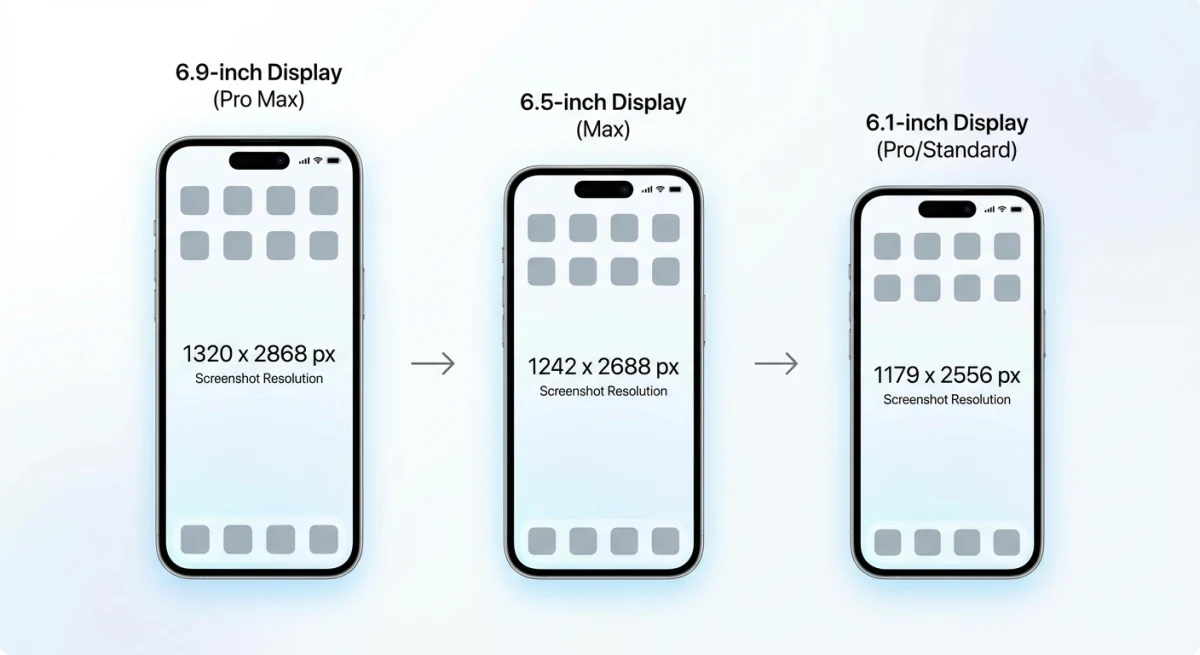
Here are all accepted iPhone dimensions:
| Display Size | Devices | Portrait (px) | Landscape (px) | Required? |
|---|---|---|---|---|
| 6.9" | iPhone Air, 17 Pro Max, 16 Pro Max, 16 Plus, 15 Pro Max, 15 Plus, 14 Pro Max | 1260 × 2736 or 1290 × 2796 or 1320 × 2868 | 2736 × 1260 or 2796 × 1290 or 2868 × 1320 | Yes |
| 6.5" | iPhone 14 Plus, 13 Pro Max, 12 Pro Max, 11 Pro Max, 11, XS Max, XR | 1284 × 2778 or 1242 × 2688 | 2778 × 1284 or 2688 × 1242 | Only if no 6.9" |
| 6.3" | iPhone 17 Pro, 17, 16 Pro, 16, 15 Pro, 15, 14 Pro | 1179 × 2556 or 1206 × 2622 | 2556 × 1179 or 2622 × 1206 | No (scaled from 6.5") |
| 6.1" | iPhone 16e, 14, 13, 12, X series | 1170 × 2532 or 1125 × 2436 or 1080 × 2340 | 2532 × 1170 or 2436 × 1125 or 2340 × 1080 | No (scaled from 6.5") |
| 5.5" | iPhone 8 Plus, 7 Plus, 6S Plus | 1242 × 2208 | 2208 × 1242 | No (scaled from 6.1") |
| 4.7" | iPhone SE (2nd/3rd gen), 8, 7, 6S | 750 × 1334 | 1334 × 750 | No (scaled from 5.5") |
Pro tip: Just upload the 6.9" size for most apps. Apple handles scaling automatically.
iPad Screenshot Sizes
If your app runs on iPad, you'll need iPad-specific screenshots:
| Display Size | Devices | Portrait (px) | Landscape (px) | Required? |
|---|---|---|---|---|
| 13" | iPad Pro M5, M4, 6th-1st gen, iPad Air M3, M2 | 2064 × 2752 or 2048 × 2732 | 2752 × 2064 or 2732 × 2048 | Yes |
| 12.9" | iPad Pro (2nd gen) | 2048 × 2732 | 2732 × 2048 | No (scaled from 13") |
| 11" | iPad Pro M5-1st gen, iPad Air, iPad (A16/10th), iPad mini | 1488 × 2266 or 1668 × 2420 or 1668 × 2388 or 1640 × 2360 | 2266 × 1488 or 2420 × 1668 or 2388 × 1668 or 2360 × 1640 | No |
| 10.5" | iPad Pro, iPad Air 3rd gen, iPad 7th-9th | 1668 × 2224 | 2224 × 1668 | No |
| 9.7" | iPad Pro, iPad Air 1-2, older iPads, iPad mini 2-5 | 1536 × 2048 or 768 × 1024 | 2048 × 1536 or 1024 × 768 | No |
Mac Screenshot Sizes
Mac apps need a 16:10 aspect ratio:
| Resolution | Notes |
|---|---|
| 1280 × 800 | Minimum size |
| 1440 × 900 | Standard |
| 2560 × 1600 | Best for Retina |
| 2880 × 1800 | High-end showcase |
When capturing Mac app screenshots, show the actual macOS interface. Include window chrome and menu bars where it makes sense.
Apple Watch Screenshot Sizes
| Device | Screenshot Size |
|---|---|
| Apple Watch Ultra 3 | 422 × 514 px |
| Apple Watch Ultra 2, Ultra | 410 × 502 px |
| Apple Watch Series 11, 10 | 416 × 496 px |
| Apple Watch Series 9, 8, 7 | 396 × 484 px |
| Apple Watch Series 6, 5, 4, SE | 368 × 448 px |
| Apple Watch Series 3 | 312 × 390 px |
Important: Use the same size across all languages for your Watch app.
Apple TV and Vision Pro
| Device | Screenshot Size |
|---|---|
| Apple TV | 1920 × 1080 or 3840 × 2160 px |
| Apple Vision Pro | 3840 × 2160 px |
Apple's Screenshot Guidelines & Requirements
Beyond sizes, Apple has strict rules about content. Follow these to get approved.
File Format Requirements
- Formats: PNG or JPEG (.jpg, .jpeg)
- Color space: RGB only (no CMYK)
- Transparency: Not allowed, so flatten your images
- Max file size: 10MB per screenshot
- Max screenshots: 10 per language
Content Rules
Your screenshots must:
- Show real app content: only screens from your actual app
- No hands holding phones: device mockups are fine, hands aren't
- Be accurate: don't show features that aren't in the current version
- Be honest: screenshots must match the real user experience
Check Apple's official specs for full details. Misleading screenshots get rejected.
How to Create App Store Screenshots on Mac
You don't need fancy software to create pro-looking screenshots. Here's a simple workflow:
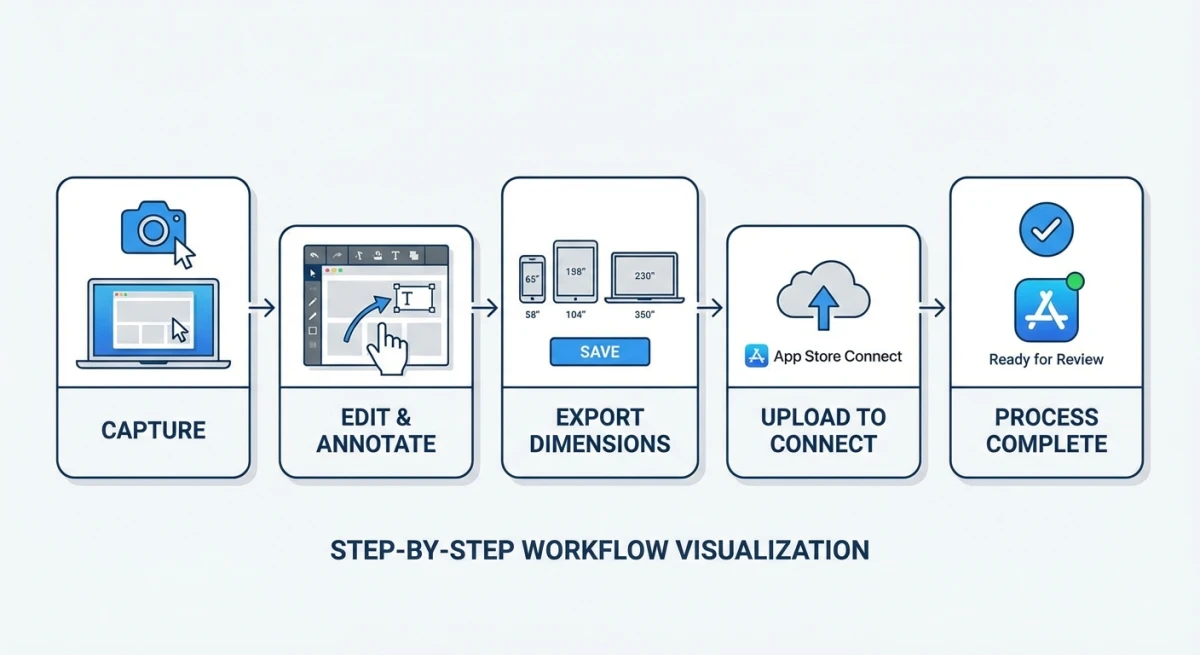
Step 1: Capture Your Screenshots
For iOS apps, use Xcode's Simulator:
- Open your app in iOS Simulator
- Pick the target device (like iPhone 15 Pro Max)
- Press
⌘ + Sto save a screenshot - It saves to your Desktop
For Mac apps, use built-in Mac screenshot shortcuts:
⌘ + Shift + 3: Capture full screen⌘ + Shift + 4: Capture a selection⌘ + Shift + 4thenSpacecaptures a window
Step 2: Add Polish and Context
Raw screenshots often need work. Consider adding:
- Backgrounds. Colors or gradients that pop
- Captions. Short headlines for key features
- Device frames. Optional, but looks polished
- Annotations. Arrows or callouts for specific features
ScreenSnap Pro makes this quick. You can add backgrounds and annotate in seconds, with no Photoshop needed.
Step 3: Export at Correct Dimensions
Double-check your final images match Apple's exact pixels. If you need to resize images for different device sizes, our free social media image resizer can help you hit exact dimensions quickly. Common mistakes:
- Wrong dimensions by a few pixels
- Using CMYK instead of RGB
- Leaving transparency in PNG files
Step 4: Upload to App Store Connect
In App Store Connect:
- Go to your app → App Store → Screenshots
- Pick the device size
- Drag and drop in order
- Put your best screenshot first, since it shows in search results

Tired of plain screenshots? Try ScreenSnap Pro.
Beautiful backgrounds, pro annotations, GIF recording, and instant cloud sharing, all in one app. Pay $49 once, own it forever.
See pricing and featuresScreenshot Design Best Practices
Here's how to make screenshots that actually get downloads:
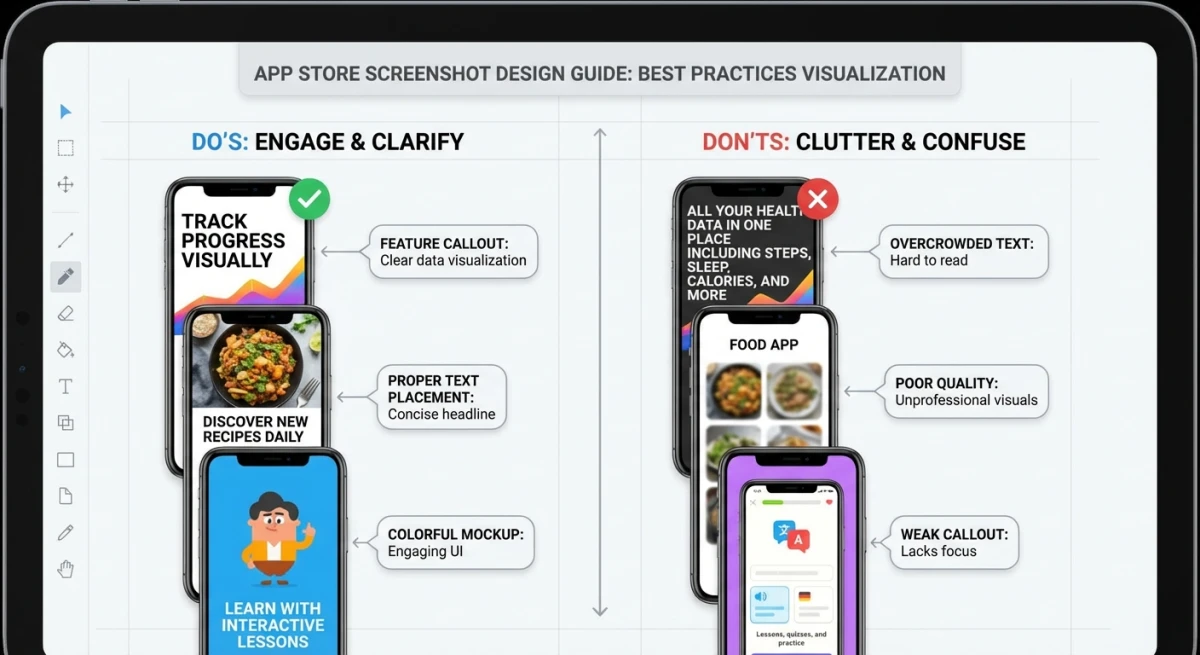
1. Lead with Your Best Feature
Your first screenshot shows up in search results. Make it count. Show your app's most compelling feature.
2. Use Clear, Benefit-Focused Captions
Focus on benefits, not features:
- ❌ "Cloud sync feature"
- ✅ "Access your files anywhere"
Keep captions short. Users skim fast. Aim for 3-5 words max, and if the caption sits on the screenshot itself you can add the text to the image in the browser instead of reopening your design file.
3. Tell a Visual Story
Order your screenshots to flow naturally:
- Hook them with your main value
- Show key features in action
- Prove it's easy to use
- End with a bonus benefit
4. Stay Consistent
Use the same colors, fonts, and layouts across all screenshots. This looks professional and builds trust.
5. Design for Scrolling
Users scroll sideways through screenshots. Try creating "connected" images that flow into each other.
6. Localize for Different Markets
You can upload different screenshots for each language. For international markets, consider:
- Translating caption text
- Using local imagery
- Highlighting locally relevant features
This can really boost downloads abroad.
Tools for Creating App Store Screenshots
You don't need to be a designer. Here are your options:
For Mac App Developers
Building a Mac app? Screenshot tools like ScreenSnap Pro speed things up:
- Capture your app window with one shortcut
- Add a pro background with one click
- Add annotations to highlight features
- Export at exact App Store dimensions
You can go from capture to App Store-ready in minutes.
For iOS App Developers
- Simulator + Design Tool. Capture from Xcode, polish in Figma or Sketch
- Screenshot generators. AppLaunchpad or Previewed make mockups auto
- Manual. Screenshot from device, edit in any image app
Quick Reference: Minimum Required Screenshots
| Platform | Required Sizes |
|---|---|
| iPhone | 6.9" (or 6.5" if no 6.9") |
| iPad | 13" |
| Mac | Any 16:10 ratio (min 1280 × 800) |
| Apple Watch | Device-specific size |
| Apple TV | 1920 × 1080 or 3840 × 2160 |
App Preview Video Sizes
Apple also lets you upload app preview videos. These autoplay on your listing and can boost conversions.
Video Requirements
- Length: 15-30 seconds
- Max file size: 500MB
- Format: H.264 or ProRes 422 (HQ only)
- File types: .mov, .m4v, .mp4
- Resolution: Must match screenshot sizes for that device
Video Dimensions
Use the same pixels as your screenshots:
| Device | Portrait Video | Landscape Video |
|---|---|---|
| iPhone 6.9" | 1290 × 2796 | 2796 × 1290 |
| iPhone 6.5" | 1242 × 2688 | 2688 × 1242 |
| iPad 13" | 2048 × 2732 | 2732 × 2048 |
| iPad 11" | 1668 × 2388 | 2388 × 1668 |
Video Content Rules
Like screenshots, videos must show real app footage:
- ✅ Actual screen recordings
- ✅ Simple text explaining features
- ✅ Natural taps and scrolling
- ❌ Actors or lifestyle shots
- ❌ Marketing slogans
- ❌ Features that don't exist
You can upload up to 3 preview videos per language. Portrait videos replace your first screenshot. Landscape videos show in search.
Pro tip: If you need to record a GIF demo of your Mac app, that workflow helps with video previews too.
Common Mistakes to Avoid
Here are the most common screenshot problems, and how to fix them:
Technical Errors
- Wrong resolution. Even 1 pixel off causes upload errors
- Wrong aspect ratio. Don't stretch or crop wrong
- Transparency in PNG. Must be flattened
- CMYK color. Convert to RGB first
Content Mistakes
- Old UI. Screenshots showing an outdated version
- Overpromising. Showing features that don't exist
- Too much text. Walls of words users won't read
- Poor contrast. Text that's hard to read
Strategy Errors
- Burying the lead. Not showing your best feature first
- Being generic. Not standing out from competitors
- Same screenshots everywhere. English-only for all markets
- Forgetting iPad. Missing required iPad shots
How to Fix Common Issues
Getting rejected? Try this:
- Upload errors: check pixels exactly (even 1 off fails)
- Content rejection: remove anything that's not from your app
- Quality issues: make sure text is readable, images aren't blurry
- Missing screenshots: verify you have all required sizes
When in doubt, start fresh. Capture new screenshots from Simulator at the right size. This avoids scaling problems.
Frequently Asked Questions
Conclusion
Getting your App Store screenshot sizes right is step one toward a great listing. This guide covers all the 2026 requirements for iPhone, iPad, Mac, and other Apple devices.
Here's what to remember:
- 6.9" iPhone and 13" iPad are your required baselines
- Apple scales automatically for smaller devices
- Follow content rules strictly to avoid rejection
- Design for the scroll, since the first screenshot matters most
- Localize for international markets when you can
Building a Mac app? ScreenSnap Pro streamlines your whole workflow. Capture, annotate, and export at exact App Store sizes, all without design software.
You've got all the dimensions, guidelines, and tips. Now go create screenshots that show off your app at its best.

Morgan
Indie DeveloperIndie developer, founder of ScreenSnap Pro. A decade of shipping consumer Mac apps and developer tools. Read full bio
@m_0_r_g_a_n_