PicPick Review 2026: Hidden Gem for Windows Screenshots
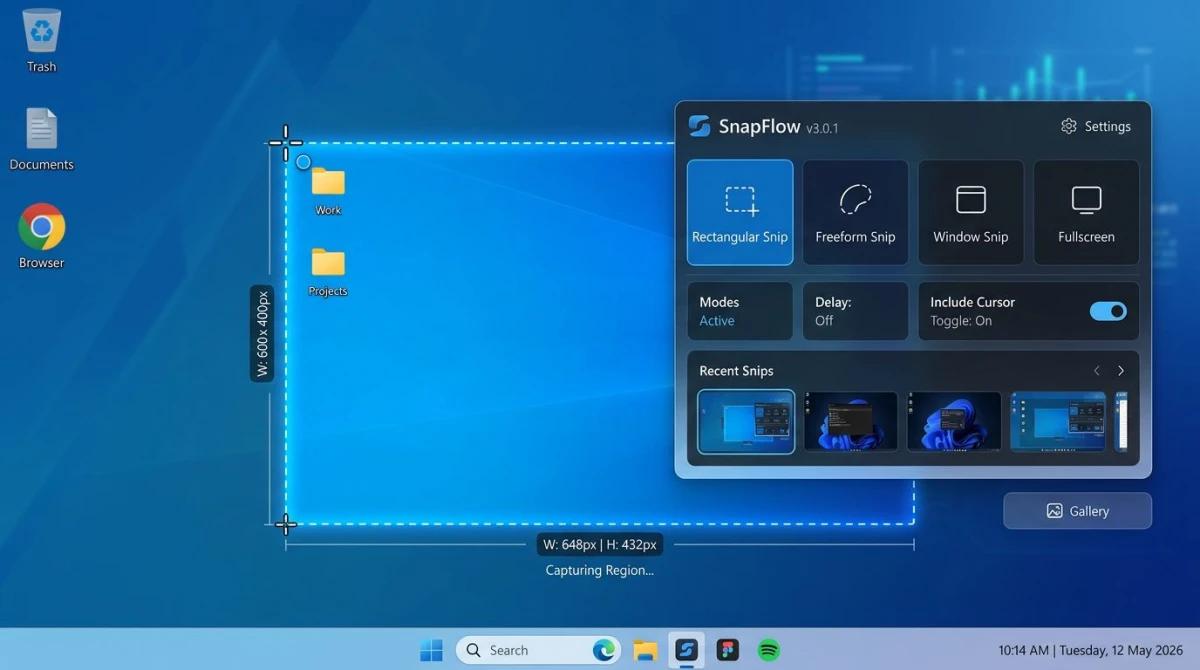
This PicPick review takes a fresh look at one of the most underrated Windows screenshot tools in 2026. PicPick bundles a capture tool, an image editor, and a full set of design utilities into one free app. Designers, web developers, and technical writers on Windows keep coming back to it for a reason.
But PicPick isn't perfect. It skips screen recording, its UI shows its age, and the free-versus-paid rules confuse new users. We spent a week putting it through real work to see where it shines and where it falls short.
TL;DR: PicPick is a free all-in-one screenshot tool for Windows. It pairs five capture modes with a full image editor and design tools like a color picker, pixel ruler, and whiteboard. Skip it if you need screen recording, cloud sharing, or Mac support.
What is PicPick?
PicPick is a free screenshot and image editor for Windows built by NGWIN. It launched in 2007 and has been updated steadily ever since. The app is free for personal use. Commercial users pay for a license.
Think of it as a Swiss Army knife for anyone who works with images on Windows. In one install you get:
- Five screenshot capture modes
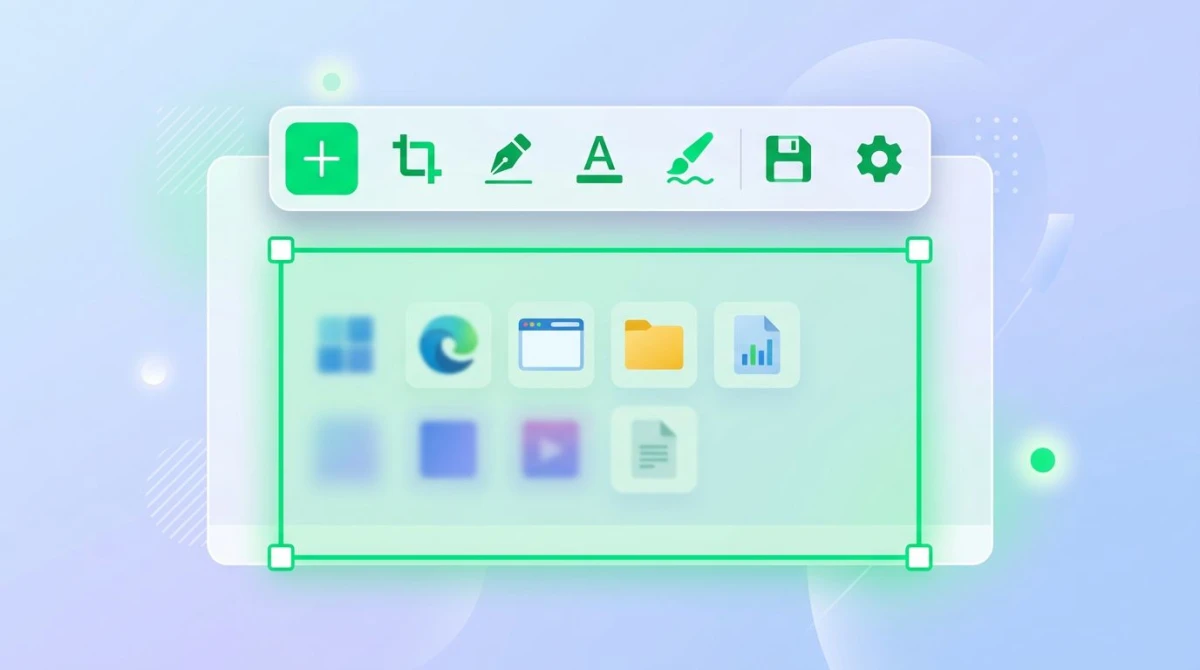
- A full image editor with effects and annotation
- A color picker, pixel ruler, protractor, and magnifier
- A whiteboard you can draw on over your desktop
- Direct uploads to cloud storage and Office apps
That combo is rare. Most free tools pick one lane. PicPick tries to cover the whole workflow from capture to polished image. For many users, that's enough to skip other tools entirely. If you want a wider field of options first, our guide to the best screenshot tools for Windows lines them up side by side.
You can run PicPick as a standard install or as a portable app on a USB drive. The portable version is handy for support techs and sysadmins who move between machines.
Screenshot capture features
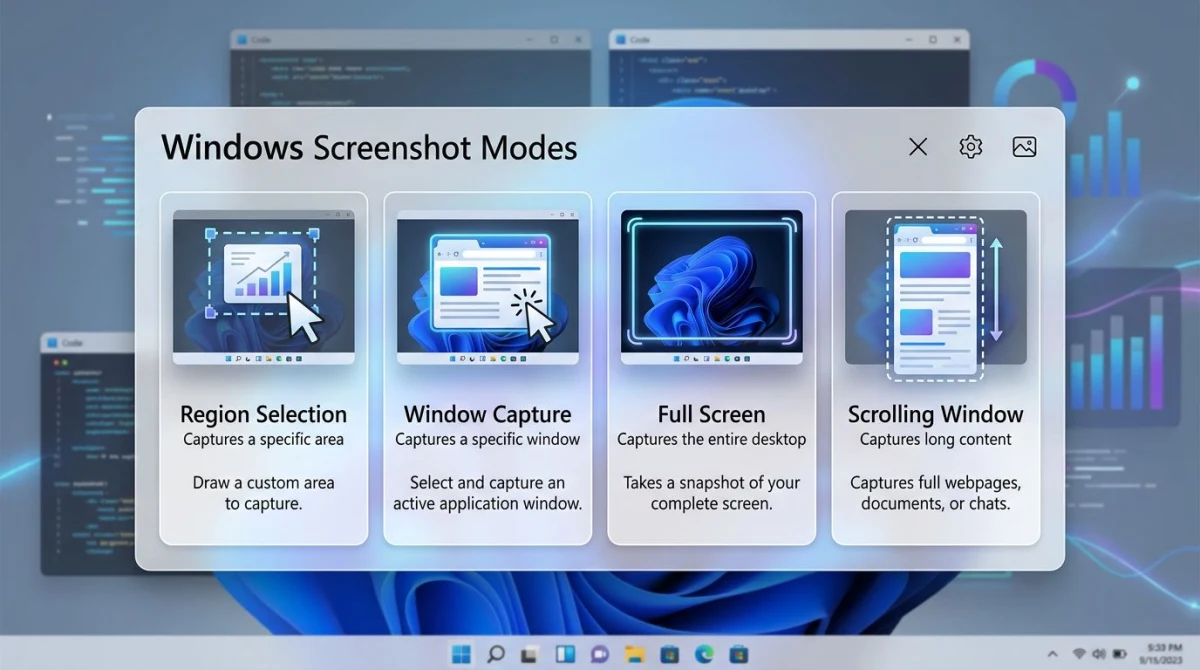
PicPick's capture engine is where most users start. Press the Print Screen key or a custom hotkey and a menu pops up with five modes.
Full screen
Captures every pixel on your primary monitor. Multi-monitor setups can grab all screens or one at a time. Useful for dashboards, slide decks, or bug reports where context matters.
Active window
Grabs just the current app window, including or excluding the title bar. The edges stay crisp, and you don't need to crop out the desktop wallpaper. If you later need to trim further, try our crop screenshot on Windows walkthrough.
Window control
Lets you pick any on-screen element: a button, a menu, a panel. Hover and PicPick highlights the boundary. Click to capture. This is great for UI design work and documentation.
Region
Click and drag to select any rectangle. A magnifier pops up so you can line up pixel edges. PicPick also shows the exact size and coordinates as you drag.
Fixed region
Set a size like 1080x1080 or 1200x630, then click once to place it. Perfect for social media crops and blog thumbnails where you need the same dimensions every time.
Scrolling window
This mode captures long pages that don't fit on screen. It works for web pages, PDFs, chat logs, and Word documents. Results are hit or miss across apps, but when it works it beats stitching manual screenshots. For deeper coverage, see our guide to scrolling screenshots on Windows.
Extras that save time:
- Delay timer for menus and tooltips that vanish under the cursor
- Auto-save to a folder with naming rules
- Hotkey customization so Print Screen can trigger any mode
- Clipboard copy by default for quick pasting
If you already use the built-in tools and want to compare, our Windows screenshot shortcuts cheat sheet shows every native option.
Image editor walkthrough
After a capture, PicPick drops the image into its built-in editor. This is where it pulls ahead of simple tools like Lightshot or the Snipping Tool.
The editor uses a ribbon layout that will feel familiar if you've used older Microsoft Office. It's dense, but every tool is one or two clicks away.
Core editing:
- Resize by percentage or pixels
- Crop freehand or to a ratio
- Rotate, flip, and mirror
- Adjust brightness, contrast, and color balance
- Apply effects like blur, pixelate, grayscale, and sharpen
- Add drop shadows, borders, or frames around a capture
Annotation tools:
- Text with custom fonts and outlines
- Shapes: rectangles, circles, lines, polygons
- Arrows with adjustable heads
- Highlighter and pen for freehand notes
- Stamps like arrows, numbers, and icons
- Speech and thought bubbles for UX mockups
The blur and pixelate tools hide sensitive data fast. The stamp library is cleaner than what you get in Greenshot or ShareX. For tutorial makers, the numbered-step stamps save real time. You can also lean on our edit screenshot on Windows guide if you want a broader editing playbook.
One small gripe: undo history is shallow. A few clicks and you lose older steps. Save a working copy early and often.
Design tools that set PicPick apart
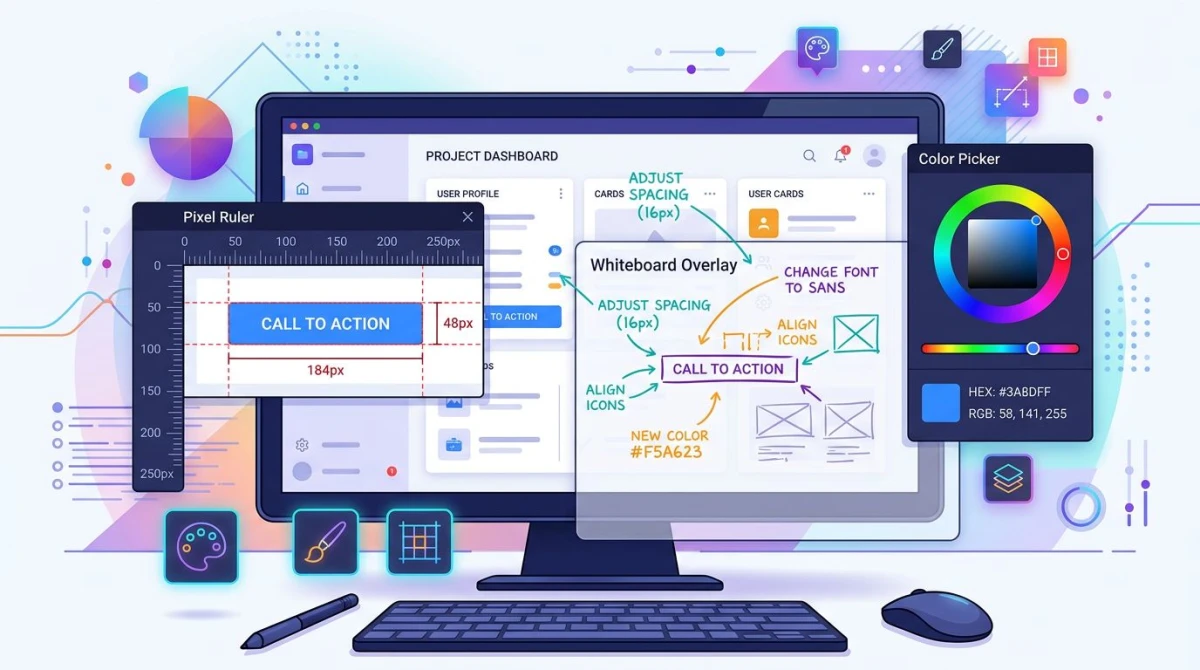
Here's where PicPick leaves the rest of the pack behind. It includes a full set of design utilities that most screenshot tools skip. You can launch each from the tray icon without taking a screenshot first.
Color picker
Hover anywhere on screen and PicPick shows the exact color value. It returns hex, RGB, HSV, and CMYK. A running palette saves your recent picks. The magnifier zooms to the pixel level so you can sample thin UI borders without missing. This is a favorite feature for web designers matching brand colors across tools.
Pixel ruler
A draggable on-screen ruler that measures any distance in pixels, points, or inches. Rotate it vertically, change the DPI, or make it semi-transparent. Perfect for spacing issues in a Figma export or a web mockup. It's one of the few pixel ruler tools for Windows that still works well on 4K and high-DPI displays.
Whiteboard
Toggle the whiteboard and draw over any window or the full desktop. Use arrows, shapes, and text to explain a design in a screen-share. The drawing clears when you close it. Teachers and support agents love this one for live walkthroughs.
Crosshair
Puts reference lines across your screen for alignment. Web developers use it to check pixel alignment against a grid. Photo editors use it as a framing guide.
Magnifier
A floating lens that zooms on whatever your cursor touches. Zoom levels go up to 20x. Useful for pixel-level corrections in an image or for anyone with a small screen.
Protractor
Measures angles on screen. A niche tool, but if you build diagrams or icons, it saves a lot of math.
The design tools alone make PicPick worth installing for UI designers and front-end developers. No other free Windows screenshot tool packs this many extras.

Tired of plain screenshots? Try ScreenSnap Pro.
Beautiful backgrounds, pro annotations, GIF recording, and instant cloud sharing, all in one app. Pay $34 once, own it forever.
See pricing and featuresPicPick limitations
Honest reviews need honest caveats. PicPick has a few gaps you should know about before installing.
No screen recording or GIF. PicPick cannot record video or animated GIFs. If you make tutorials, you'll need a second app. A free screen recorder for Windows, like OBS, or a paid tool fills the gap. If you want GIF recording built in, our GIF screen capture on Windows guide covers apps that do it.
Windows only. There's no official PicPick for Mac build. Mac users looking for a similar mix of capture and design tools should skip to the alternatives section below.
Dated UI. The ribbon interface looks like Office 2010. It works, but it feels heavy on modern 4K monitors. Some icons are small, and the layout can't be simplified.
Free vs Pro confusion. The free version is truly free for personal use. Commercial use requires a paid license, but the app doesn't always make that line clear. The installer even bundles optional third-party offers. Untick those carefully.
No built-in cloud. You can upload to Dropbox, OneDrive, Google Drive, or FTP. But there's no native cloud that gives you a short shareable link like CleanShot Cloud, Droplr, or ScreenSnap Pro. That slows sharing if your team lives in Slack or Discord.
Scrolling capture is uneven. It works in Chrome and most Office apps. It fails in Edge, some Electron apps, and chat tools. Keep a backup plan.
Auto-save options are limited. You can pick a folder and naming rule, but you can't branch by app or capture type. Power users often wire that up with a third-party script.
PicPick pricing
PicPick's pricing is simple once you cut through the website copy.
| Plan | Price | Best For |
|---|---|---|
| Personal | Free | Home users, students, hobbyists |
| Commercial Single | $30 per year | Freelancers, one seat in a business |
| Commercial Team | Quote-based | Companies, multi-seat licenses |
The free plan unlocks every feature. NGWIN only asks that commercial users pay for the license. That's generous compared to Snagit, which locks core features behind a subscription of $39 per user per year.
Commercial licensing is an annual fee. If you'd rather pay once, a PicPick alternative like ScreenSnap Pro costs $34 one time and never asks again.
PicPick vs alternatives
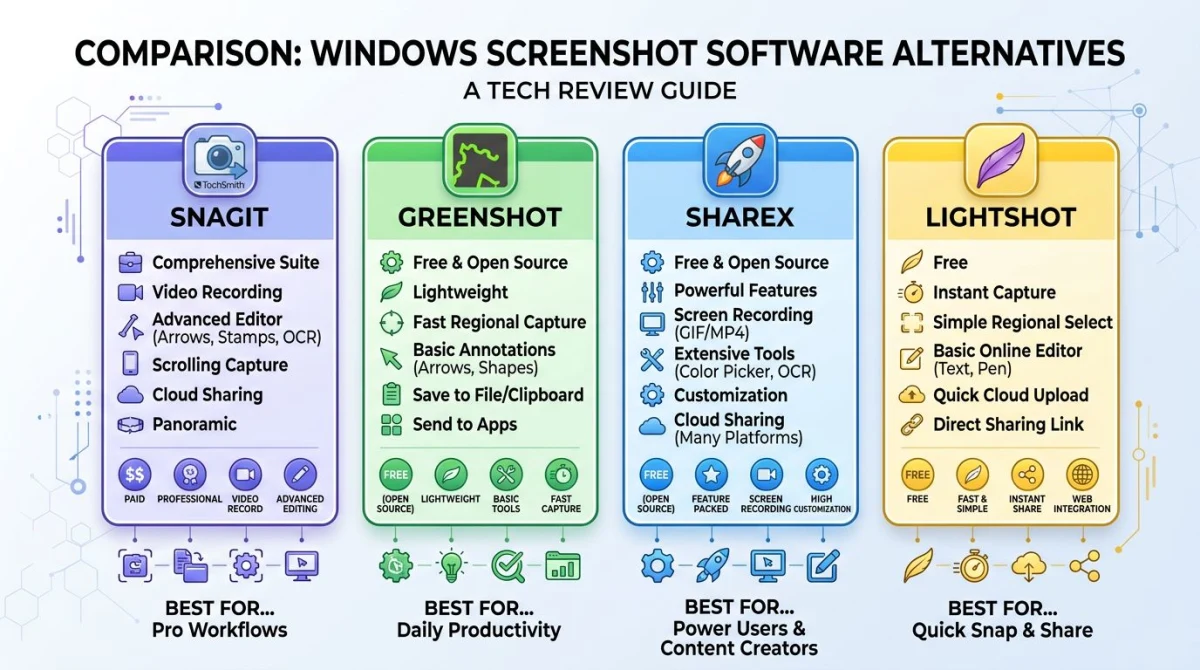
PicPick is strong, but it isn't the right pick for every workflow. Here's how it stacks up against three popular rivals.
ScreenSnap Pro ($34 one-time, cross-platform)
ScreenSnap Pro runs on both Mac and Windows for a single $34 payment. It covers the gaps PicPick leaves open: screen recording, GIF recording, cloud sharing with short links, and 500+ gradient backgrounds for polished screenshots. The annotation set includes 17 tools with blur, pixelate, arrows, shapes, and step counters, plus emoji. It's the natural upgrade for anyone who wants PicPick's breadth plus recording and cross-platform support.
Pick ScreenSnap Pro when you need:
- Screen recording and GIFs, not just screenshots
- Instant shareable links for Slack and Discord
- A modern interface that works across Mac and Windows
- A one-time price instead of an annual license
ShareX (free, more features, steeper curve)
ShareX is free and open source. It's one of the most feature-packed Windows screenshot tools. Upload destinations, OCR, custom workflows, URL shorteners: ShareX covers a lot of ground. That power comes with a steep learning curve. The settings menu has hundreds of options. Beginners often bounce off it.
Pick ShareX when you need:
- Maximum customization and automation
- Free tools without compromise
- A tool you're willing to configure for an hour
Pick PicPick instead if you want a friendly UI with a real image editor. For a broader list of options, see our roundup of the best screenshot tools for Windows or the full-page screenshot on Windows walkthrough.
Greenshot (free, simpler, lighter)
Greenshot is a lightweight open-source screenshot tool. It focuses on the core flow: capture, annotate, save, share. No design tools, no image effects, no whiteboard. Just a fast, no-drama screenshot app.
Pick Greenshot when you need:
- A lean tool with no learning curve
- Basic capture and annotation only
- The lightest footprint possible
Pick PicPick when you also want the image editor and design utilities.
Quick feature table
| Feature | PicPick | ScreenSnap Pro | ShareX | Greenshot |
|---|---|---|---|---|
| Screenshot modes | 5 | 5 | 6+ | 4 |
| Image editor | Full | Full | Basic | Basic |
| Screen recording | No | Yes | Yes | No |
| GIF recording | No | Yes | Yes | No |
| Color picker | Yes | No | Yes | No |
| Pixel ruler | Yes | No | Yes | No |
| Cloud sharing | Via 3rd party | Native | Yes | Via plugin |
| Mac support | No | Yes | No | No |
| Price | Free / $30/yr | $34 one-time | Free | Free |
Verdict: Who should use PicPick?
PicPick is a hidden gem for anyone doing UI design or documentation on Windows. If you spend your day capturing screens, measuring pixels, matching colors, and annotating screenshots, it covers a lot for a free tool.
Use PicPick if you:
- Design on Windows and need color and ruler tools
- Write docs or bug reports with heavy annotation
- Want a full image editor without a monthly fee
- Don't need screen recording or cloud links
Skip PicPick if you:
- Make tutorials and need video or GIF recording
- Work across Mac and Windows
- Want native cloud sharing with short links
- Can't stand the ribbon-style UI
For designers who also need recording, cloud links, and cross-platform support, ScreenSnap Pro fills every gap. It costs $34 one time, works on Mac and Windows, and ships with 500+ backgrounds, 17 annotation tools, and GIF and video recording. Try ScreenSnap Pro if you want PicPick's breadth plus modern polish.
For related help on Windows, the official Windows snipping guidance from Microsoft is a handy companion to any third-party tool.
Frequently Asked Questions

Morgan
Indie DeveloperIndie developer, founder of ScreenSnap Pro. A decade of shipping consumer Mac apps and developer tools. Read full bio
@m_0_r_g_a_n_