LiceCap for Mac Review 2026: Free GIF Recorder Worth It?
LiceCap is a free, open-source tool that records your screen straight to GIF. Cockos (the team behind REAPER) first released it back in 2010. That makes it one of the oldest GIF recorders still around for Mac and Windows, long before modern apps like ScreenSnap Pro appeared on the scene.
But the last big update came in June 2022. Is LiceCap still worth using on your Mac in 2026? Let's find out.
What is LiceCap?
LiceCap puts a resizable frame on your screen. Whatever falls inside that frame gets saved as a GIF. That's it: no bells, no whistles, no learning curve.
The app is under 1MB and barely uses any system resources. If you need a quick screen to GIF on Mac without heavy software, LiceCap has been a go-to for over a decade.
How to install LiceCap on Mac
You have two ways to get LiceCap on Mac:
Direct download
- Visit cockos.com/licecap
- Download the macOS DMG (under 1MB)
- Drag LiceCap to your Applications folder
- Right-click → Open on first launch (bypasses Gatekeeper)
Homebrew install
If you use Homebrew, it's even faster:
brew install --cask licecap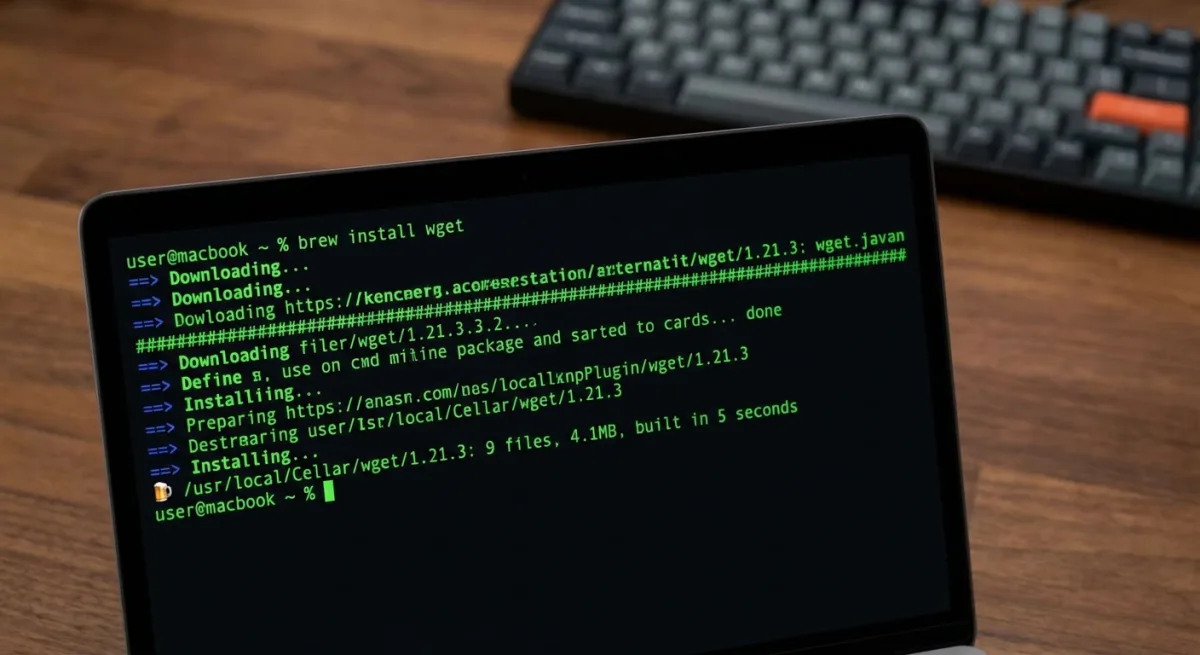
macOS compatibility
LiceCap v1.32 works with macOS 10.7 through 12.x on both Intel and Apple Silicon (M1). But if you're on macOS 13 Ventura or later, you may hit screen recording permission issues. Apple has locked down permissions with each release, and LiceCap hasn't been updated to keep up.
How LiceCap compares to macOS built-in tools
macOS has its own built-in screenshot tools. Press ⌘ + Shift + 5 and you get screen recording, but it saves to MOV, not GIF.
Turning MOV into GIF adds extra steps and often makes larger files. LiceCap skips all that and records straight to GIF. But the built-in tool stays up to date with every macOS release.
If you only need GIFs now and then, LiceCap fills the gap. For more than basic capture, ScreenSnap Pro combines screenshots, GIF recording, and screen recording with annotation tools.
How to use LiceCap on Mac
You can learn LiceCap in about 10 seconds:
- Launch LiceCap. A transparent frame appears on screen
- Resize the frame by dragging corners to cover the area you want to capture
- Set your frame rate in the bottom bar (default is fine for most uses)
- Click Record and choose where to save the file
- Perform your actions on screen
- Click Stop when finished
Your GIF saves right away. No extra steps, no export dialog.
Recording tips
- Lower frame rates (8-10 FPS) make smaller files but choppier motion
- Higher frame rates (15-20 FPS) look smoother but make larger GIFs
- You can move the capture frame while recording (handy for following a cursor)
- Use
Shift + Spaceto pause/resume recording - LiceCap can insert text frames between pauses, great for step-by-step tutorials
Output formats
LiceCap saves in two formats:
- GIF. Works everywhere
- LCF. Cockos' own lossless format with better compression and more than 256 colors per frame (plays in REAPER)
For most people, GIF is the right choice. LCF is niche and needs special software to view.
Who LiceCap works best for
LiceCap shines in a few key spots. If you're a developer writing docs and need to show a quick UI action, it's perfect. Open it, drag the frame, record, done.
It's also great for bug reports. Instead of typing "click the button and watch the dropdown flicker," record a 3-second GIF that shows the problem. Teams on GitHub Issues or Slack will love the clarity.
Where LiceCap falls short is any work that needs polish. If you're making tutorials, marketing content, or customer-facing docs, you'll miss having annotations, screenshot backgrounds, and editing tools.

Tired of plain screenshots? Try ScreenSnap Pro.
Beautiful backgrounds, pro annotations, GIF recording, and instant cloud sharing, all in one app. Pay $39 once, own it forever.
See pricing and featuresLiceCap pros and cons
Here's an honest breakdown of what LiceCap does well, and where it falls short in 2026.
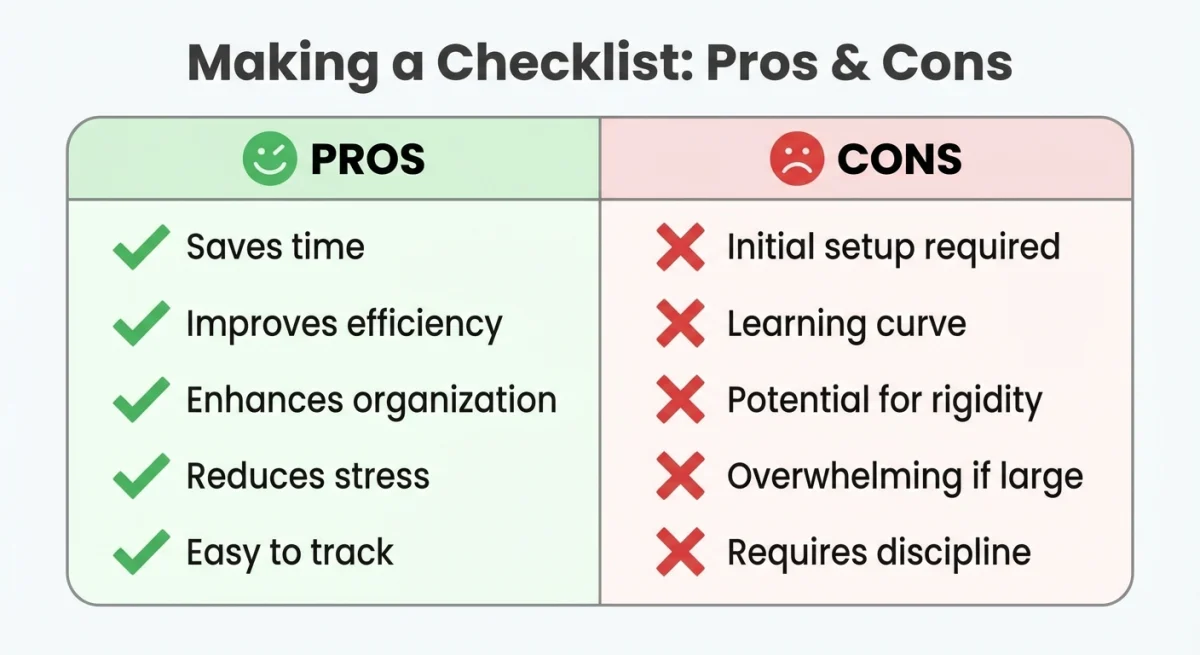
Pros ✅
- Totally free. No trial limits, no watermarks, no upsells
- Super lightweight. Under 1MB, barely touches your CPU
- Dead simple. Zero learning curve, works right away
- Open source. GPL licensed, full source code on GitHub
- Moveable frame. Move the capture area while recording
- Pause/resume. Add text frames between sections
Cons ❌
- No editing tools. Can't trim, crop, or annotate after capture
- Old-school look. The UI hasn't changed since its early days
- No cloud sharing. You save files locally and share by hand
- 256-color GIF limit. No modern formats like WebP or MP4
- No retina support. GIFs may look blurry on high-DPI screens
- macOS issues. No updates since 2022, newer macOS versions may need workarounds
- GIF-only output. No way to convert GIFs to MP4 or other formats
Best LiceCap alternatives for Mac in 2026
If LiceCap's limits are holding you back, these Mac apps offer more features while keeping GIF recording simple.
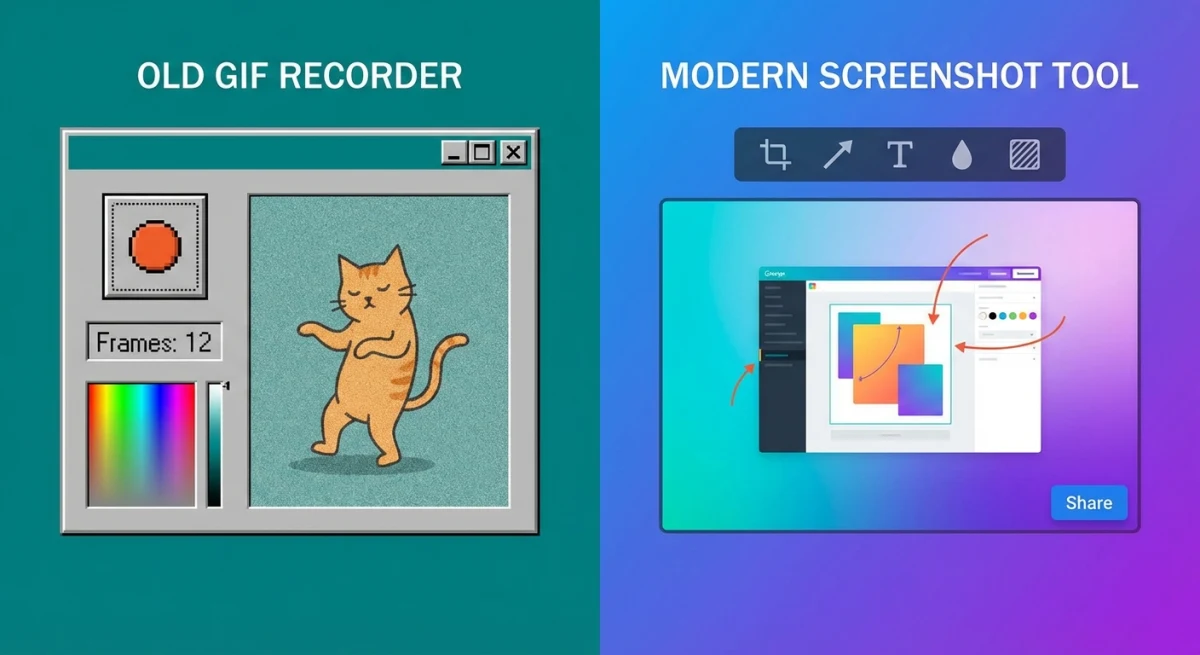
ScreenSnap Pro
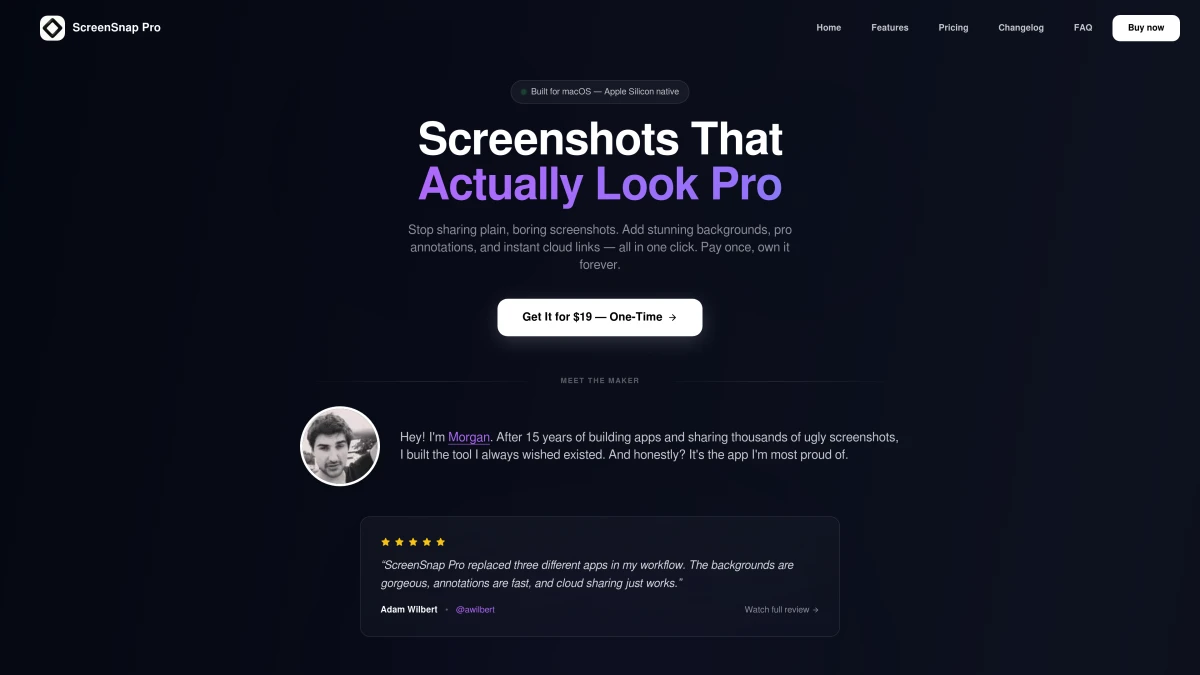
ScreenSnap Pro handles screenshots, GIF recording, and screen recording in one app. You get 15 annotation tools, 500+ wallpapers, instant cloud sharing, and OCR text extraction.
The big plus: ScreenSnap Pro is a one-time purchase, so you pay once and own it forever. No subscriptions. If you've outgrown LiceCap and want pro-quality output without monthly fees, it's worth a look.
Best for: Users who need GIF recording plus annotations, cloud sharing, and screenshot tools in one app.
Kap
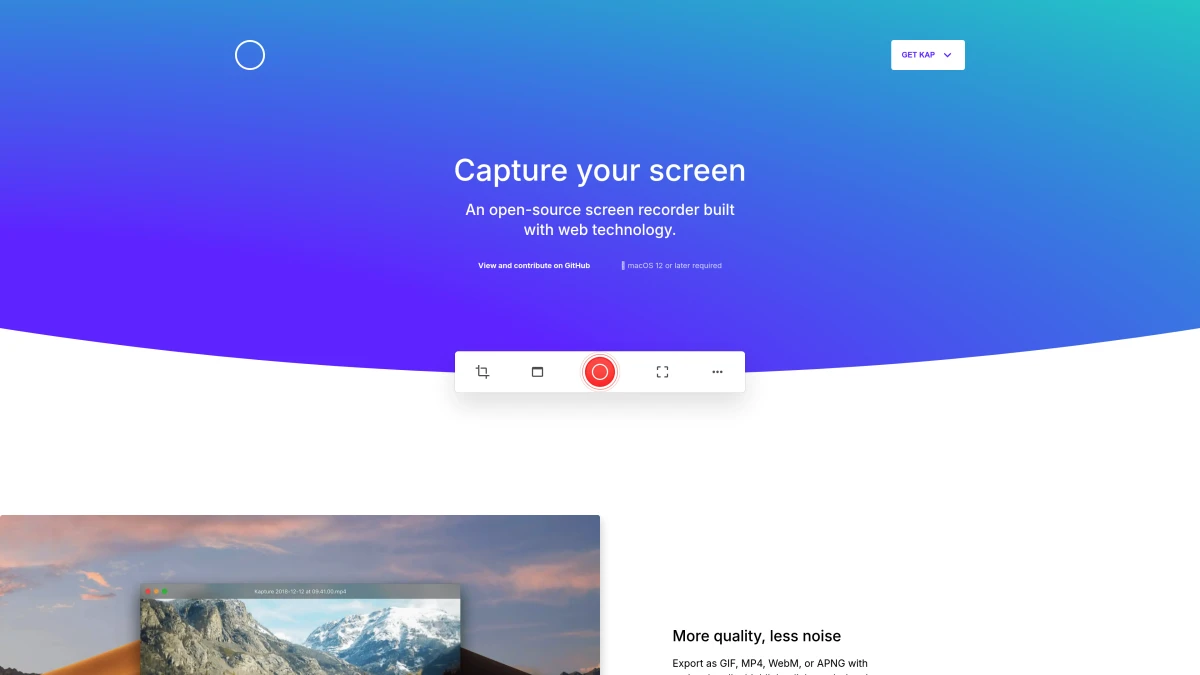
Kap is a free, open-source screen recorder made for Mac. It exports to GIF, MP4, WebM, and APNG, far more options than LiceCap's GIF-only output. The UI is modern and clean.
Best for: Developers who want a free, open-source upgrade with more export formats. See our full Kap review for details.
GIPHY Capture
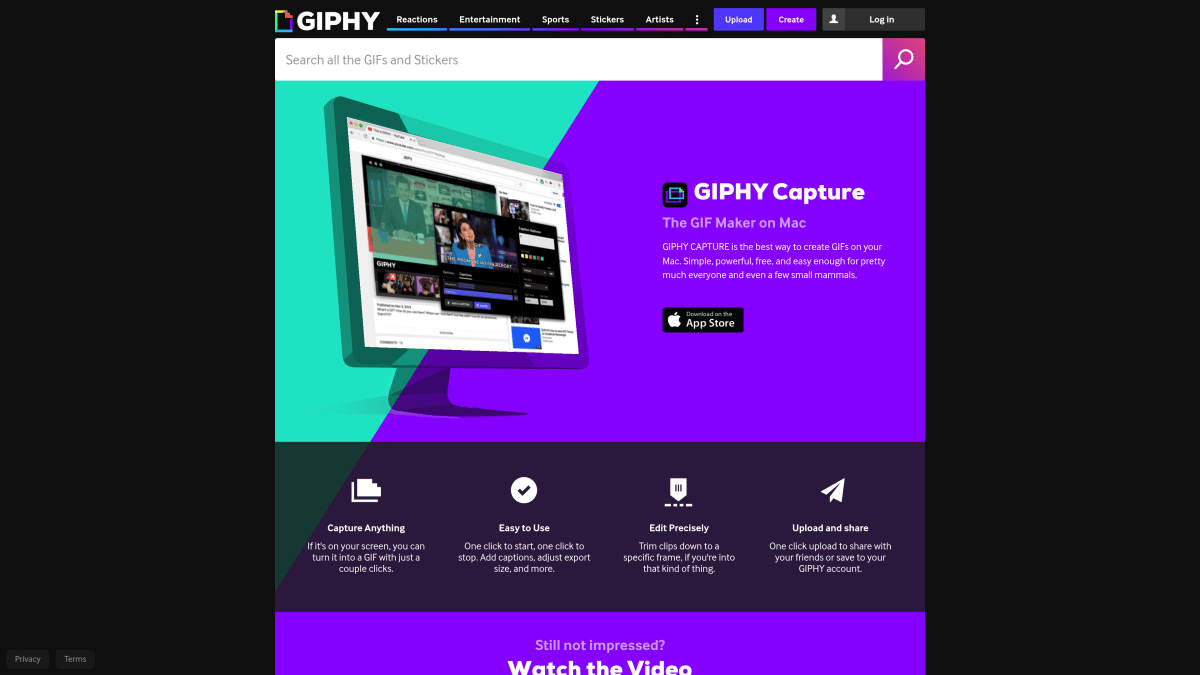
GIPHY Capture (formerly GifGrabber) is another free GIF capture tool for Mac. It has basic trimming and caption tools that LiceCap lacks, plus direct uploads to GIPHY.
Best for: Social media creators who want quick GIF sharing with basic editing.
CleanShot X
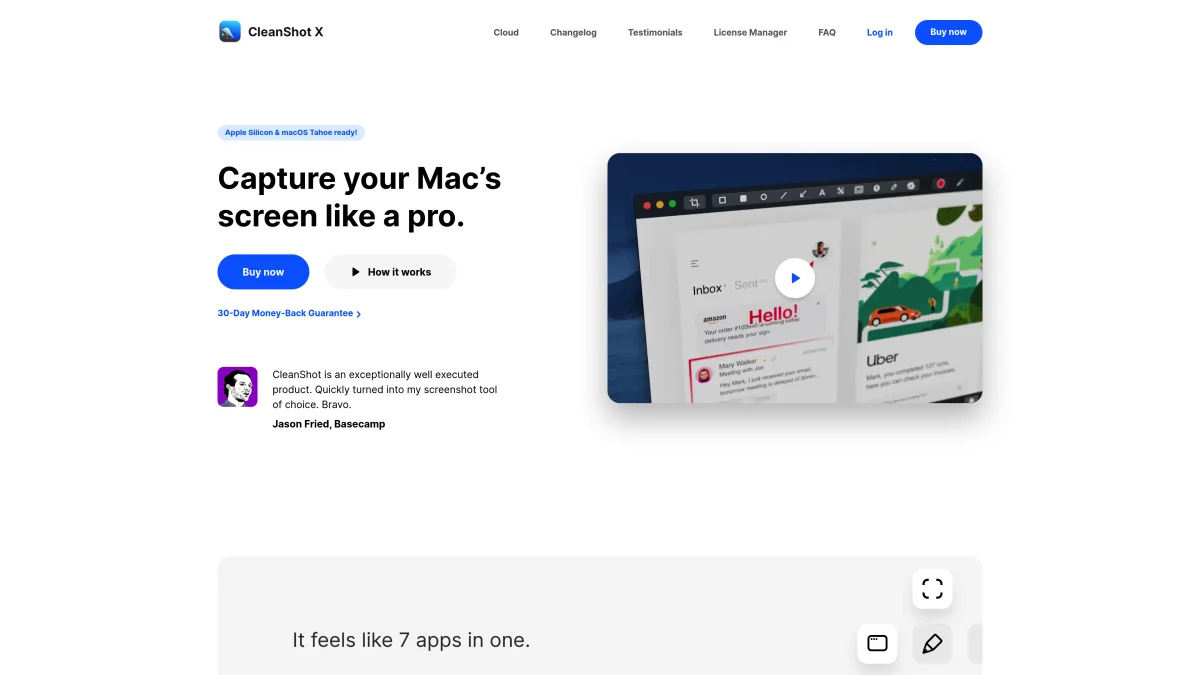
CleanShot X is a premium screenshot and recording tool with GIF support, scrolling capture, and built-in annotations. It costs more and uses a subscription for cloud features.
Best for: Power users who want the most complete Mac capture toolkit. See our CleanShot X alternatives guide.
macOS built-in Screenshot + QuickTime
Don't forget what's already on your Mac. Press ⌘ + Shift + 5 to start recording. It saves to MOV, which you can convert to GIF with free tools. No extra app needed and always up to date, but the extra step adds friction.
Best for: Users who rarely need GIFs and don't want to install anything.
Quick comparison
| Feature | LiceCap | ScreenSnap Pro | Kap | GIPHY Capture | CleanShot X |
|---|---|---|---|---|---|
| Price | Free | One-time | Free | Free | $29+ |
| GIF recording | ✅ | ✅ | ✅ | ✅ | ✅ |
| Annotations | ❌ | ✅ (15 tools) | ❌ | Basic | ✅ |
| Cloud sharing | ❌ | ✅ | ❌ | GIPHY only | ✅ (paid) |
| Export formats | GIF, LCF | GIF | GIF, MP4, WebM | GIF | GIF, MP4 |
| Backgrounds | ❌ | ✅ (150+) | ❌ | ❌ | ✅ |
| OCR | ❌ | ✅ | ❌ | ❌ | ✅ |
| Last updated | 2022 | 2026 | 2025 | 2023 | 2026 |
Common LiceCap issues on modern macOS
Since LiceCap hasn't been updated since 2022, you may run into these problems on newer Macs:
Screen recording permissions: macOS 13+ needs you to grant screen recording access. Go to System Settings → Privacy & Security → Screen Recording and add LiceCap. You may need to restart the app after.
Black or blank recordings: Some users see blank GIFs on Apple Silicon Macs. This is usually a permissions issue. Make sure LiceCap has both Screen Recording and Accessibility access turned on.
Retina display quality: LiceCap doesn't capture at retina resolution. Your GIFs may look blurry on high-DPI screens. There's no fix for this, because it's a core limit of the app.
Gatekeeper warnings: The app isn't notarized with Apple, so you'll see a security warning on first launch. Right-click the app and select Open to get past this. It's safe as long as you got it from the official site.
If these are dealbreakers, the alternatives above all work with macOS Sequoia and beyond.
Is LiceCap still worth it in 2026?
For basic GIF recording, yes. LiceCap still does what it promises: capture a screen area to GIF with zero friction. If you need a quick GIF once a week and don't care about editing or sharing, it works fine.
For regular use, probably not. No updates means possible issues with newer macOS versions. No annotation tools, no cloud sharing, and no modern export formats make it feel dated next to current options.
Here's a simple guide:
- Stick with LiceCap if you record GIFs rarely and want the smallest possible tool
- Switch to Kap if you want a free upgrade with more export options
- Try ScreenSnap Pro if you need GIF recording plus screenshots, annotations, and cloud sharing in one tool
The good news? LiceCap set the bar for simple GIF recording. Every tool that followed learned from its keep-it-simple approach.
Frequently Asked Questions

Morgan
Indie DeveloperIndie developer, founder of ScreenSnap Pro. A decade of shipping consumer Mac apps and developer tools. Read full bio
@m_0_r_g_a_n_