10 Best Snagit Alternatives for Windows (2026)
Looking for the best Snagit alternatives for Windows? Snagit is still a solid tool. But in 2025, TechSmith moved it to a $39 per year subscription. That change pushed many long-time users to shop around. The good news: Windows has more strong screenshot apps in 2026 than ever. Several are free or one-time buys that beat Snagit on price and speed.
Short answer: ScreenSnap Pro is the best overall pick, ShareX is the best free one, and Greenshot is the simplest.
This guide covers 10 real Snagit alternatives for Windows, tested and ranked. Each pick has a price, a strengths summary, honest limits, and a clear "best for". We also break down the 5-year cost of staying with Snagit versus switching.
Why people leave Snagit in 2026
Snagit has been the default Windows screenshot tool since the early 2000s. So why are people shopping for alternatives?
The price hike hurt. Snagit is now a $39 per year subscription. The old $63 perpetual license is gone for new buyers. Five years of Snagit now costs $195. You lose access the day you stop paying.
It is bloated for simple jobs. Snagit ships a full editor, a screen recorder, and a library. If you only grab a region and paste into Slack, most of the app sits unused.
The capture-then-edit flow is slow. Snagit pushes every shot into its editor by default. Fine for tutorials. Annoying for quick shares.
GIFs take an extra step. Snagit records video first, and you then turn the clip into a GIF. Many tools below record straight to GIF.
If any of those hit home, the list below is for you. We are not bashing Snagit. It is still a good product. We just want to help you find a better fit.
What Snagit still does well
A fair word for the incumbent. Snagit is strong at four things:
- Scrolling capture. Long pages and docs in one image.
- Step-by-step layouts. Turn five shots into a tutorial in one click.
- OCR text grab. Fast and accurate.
- Polished editing. The bundled editor is full and stable.
If you build training docs all day and live in the Snagit editor, the tools below will not match it feature for feature. The list is for people who use part of Snagit, not the whole thing.
Snagit alternatives for Windows: quick comparison
| Tool | Price | Cloud Sharing | GIF Recording | Cross-Platform | Best For |
|---|---|---|---|---|---|
| ScreenSnap Pro | $49 one-time | Yes (optional) | Yes | Mac + Windows | Best overall |
| ShareX | Free | Yes | Yes | Windows only | Power users |
| Greenshot | Free | Limited | No | Windows + Mac (paid) | Simplicity |
| PicPick | Free / $30/yr | Yes | Yes | Windows only | Designers |
| Lightshot | Free | Yes (Prntscr) | No | Windows + Mac | Quick captures |
| Screenpresso | Free / $29.99 | Yes | Yes | Windows only | Tutorials |
| Snipping Tool | Free (built-in) | No | Yes | Windows only | Casual use |
| Flameshot | Free | No | No | Windows + Linux + Mac | Open-source fans |
| Monosnap | Free / from $3/mo | Yes | Yes | Windows + Mac | Cloud-first teams |
| OBS Studio | Free | No | No | Windows + Mac + Linux | Long screen recordings |
1. ScreenSnap Pro: best overall Snagit alternative
Price: $49 one-time | Rating: (5/5)

Want a Snagit-class tool without the subscription? ScreenSnap Pro is the closest match on price and features. It runs on Windows and Mac. You get 17 annotation tools, a screen recorder with GIF output, and a built-in video editor. Cloud links are there if you want them. Pay $49 once and you are done.
What you get vs Snagit
- Screenshot capture. Area, window, full screen, delayed, and Area to Editor
- Scrolling Capture. Select an area in any app, scroll down, and get one long image of a PDF, a Slack thread, or a spreadsheet
- Full-Page Website Capture. Paste the URL of any public page and get a first-screen or full-page shot in desktop, phone, or tablet size, with no repeated sticky headers
- Screen recording. MP4 at up to 60fps with webcam, mic, and system audio
- GIF recording. Record straight to GIF, no conversion step
- Built-in video editor. A multi-track timeline to trim, split, cut, and change speed. One-click silence removal, auto zoom that follows your cursor, webcam overlay, and tracks for B-roll, music, and voiceover
- 17 annotation tools. Arrows, shapes, text, blur, pixelate, magnifier, spotlight, callouts, step counter, plus emoji
- 500+ backgrounds. One-click polish with padding and shadow
- Cloud sharing. Optional share links, or local-only
- OCR. Copy text from any image
- Pin screenshots. Keep a capture on top while you work
- $49 one-time. Lifetime updates, two seats in any mix of Mac and Windows, and a 30-day money-back guarantee
Honest limitations
- No templated step-by-step layouts
- No team workspaces. Single-user app, no shared folders
- No captions or live streaming. Use OBS Studio if you need to stream
Where it beats Snagit
- 5-year cost: $49 vs $195. Pay once, own forever
- A real video editor in the same app. Snagit can trim clips, merge them, and reduce noise. Timeline editing lives in Camtasia, a separate product
- Two seats, paid once. Any mix of Mac and Windows, with no yearly renewal
- Direct GIF recording. No convert-from-video dance
Best for
Developers, marketers, designers, support teams: anyone who wants Snagit's job done without subscriptions. For a wider category look, see our best screenshot tools for Windows roundup.

Tired of plain screenshots? Try ScreenSnap Pro.
Beautiful backgrounds, pro annotations, GIF recording, and instant cloud sharing, all in one app. Pay $49 once, own it forever.
See pricing and features2. ShareX: best free Snagit alternative
Price: Free, open-source | Rating: (4.5/5)
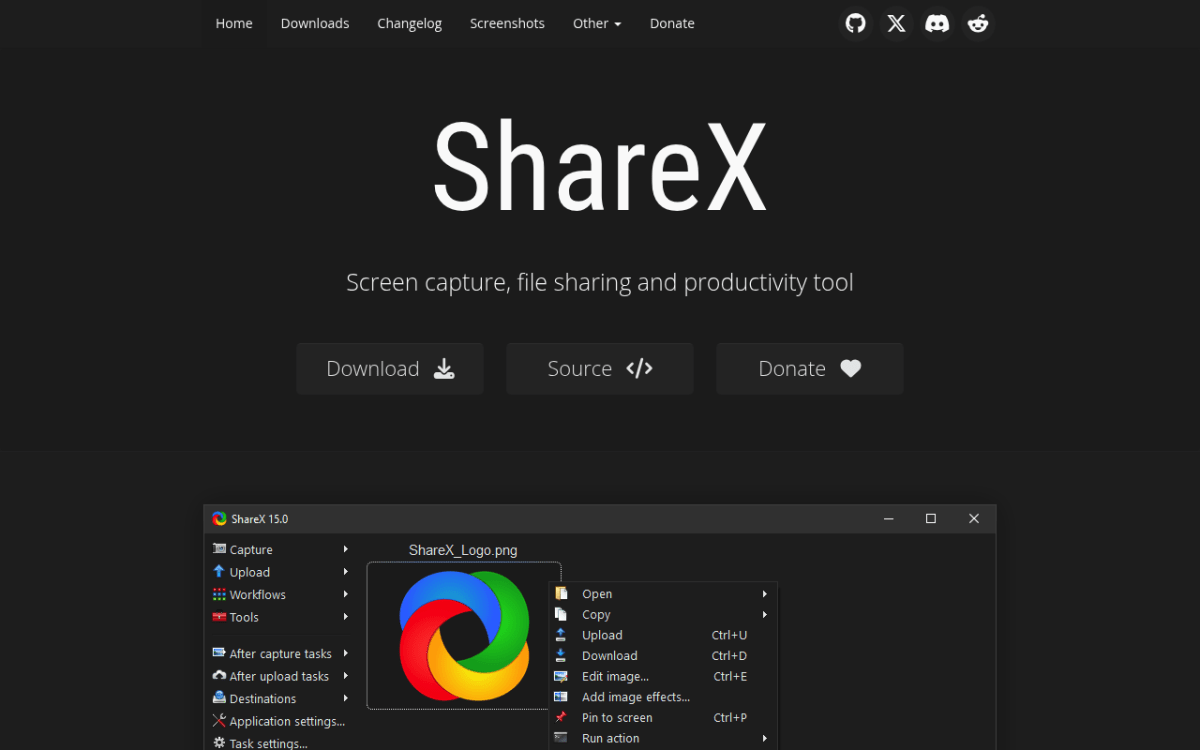
ShareX is the most powerful free screenshot tool on Windows. It captures shots. It records screen video and GIFs. It supports 70+ upload targets. You can build custom workflows. The catch: the UI is dense and the learning curve is real.
What you get
- Every capture mode. Region, window, full screen, scrolling, OCR, color picker
- Screen recording. MP4 or GIF, via FFmpeg
- 70+ upload destinations. Imgur, Drive, Dropbox, FTP, S3
- Modern image editor. 18 annotation tools and a background beautifier, rebuilt in 2026 (v20)
- Custom workflows. Chain capture, annotate, upload, copy link, notify in one keystroke
- Free and open source. No nags, no upsells, no telemetry
Honest limitations
- Steep learning curve. First-run setup takes time
- Windows only. No Mac or Linux build
- Dated main window. Functional, not pretty, though the 2026 image editor is modern
- No video editor. Video trimming is only in test (dev) builds so far
Where it beats Snagit
- Free. No subscription, no yearly fee
- Scrolling capture is built in
- Custom automations. The killer feature
See our full ShareX review for Windows or ShareX vs Snagit head-to-head.
Best for
Developers and power users willing to trade an afternoon of setup for a tool that does exactly what they want.
3. Greenshot: best simple free Snagit alternative
Price: Free (Windows), $1.99 on Mac | Rating: (4/5)
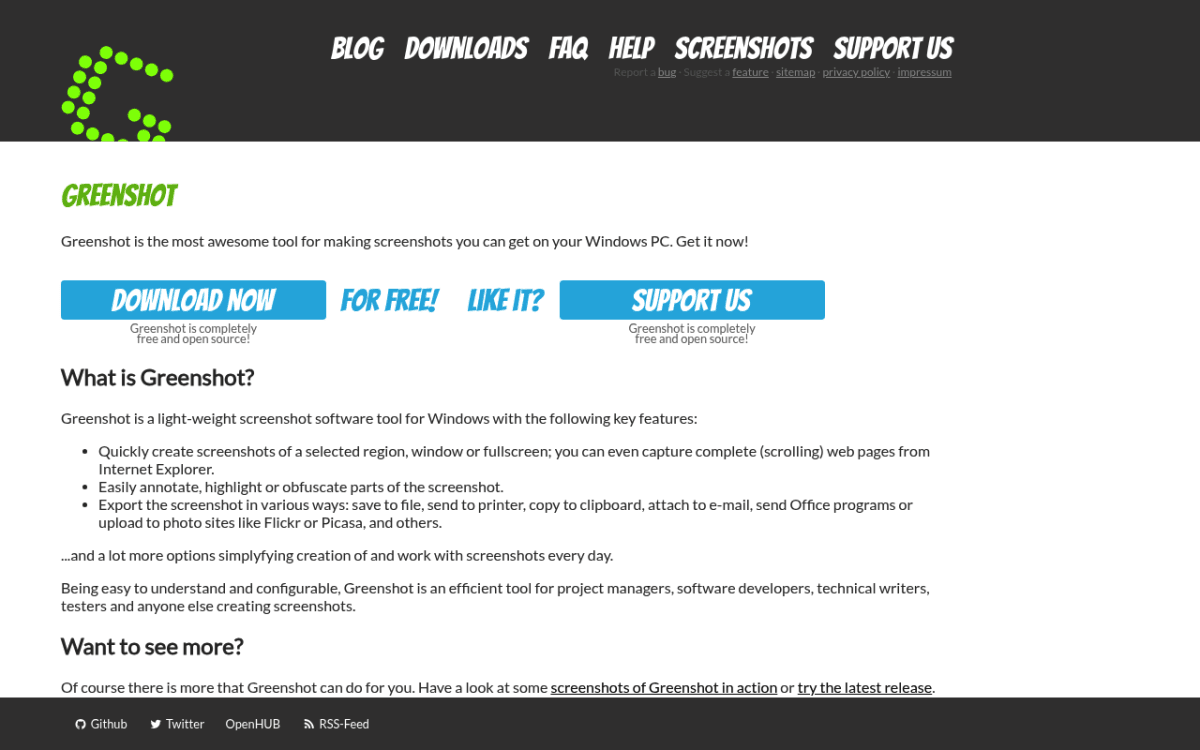
Greenshot is what most people actually want when they say they need a screenshot tool. Small. Fast. Free on Windows. Gets out of your way. Press Print Screen, pick a region, mark it up, export. That is the whole app.
What you get
- Region, window, and full-screen capture with hotkeys
- Built-in editor. Arrows, text, shapes, highlight, obfuscate
- Export to clipboard, file, email, Office
- Plugins. Imgur, Jira, Confluence
- Tiny footprint. Under 5 MB
Honest limitations
- No screen recording. Screenshots only
- No native cloud sharing. Imgur via plugin or manual upload
- No real scrolling capture. It only works in Internet Explorer
- Mac version is paid ($1.99) and has not been updated since 2020
Where it beats Snagit
- Free on Windows. Full stop
- Faster install and launch
- No subscription, no yearly renewals
See our Greenshot review for Windows or Snagit vs Greenshot.
Best for
Anyone who wants a no-nonsense free screenshot tool that does 80% of Snagit's job and never asks for money.
4. PicPick: best for designers
Price: Free for personal use, Pro from $30/year or $79 lifetime (sale prices) | Rating: (4/5)
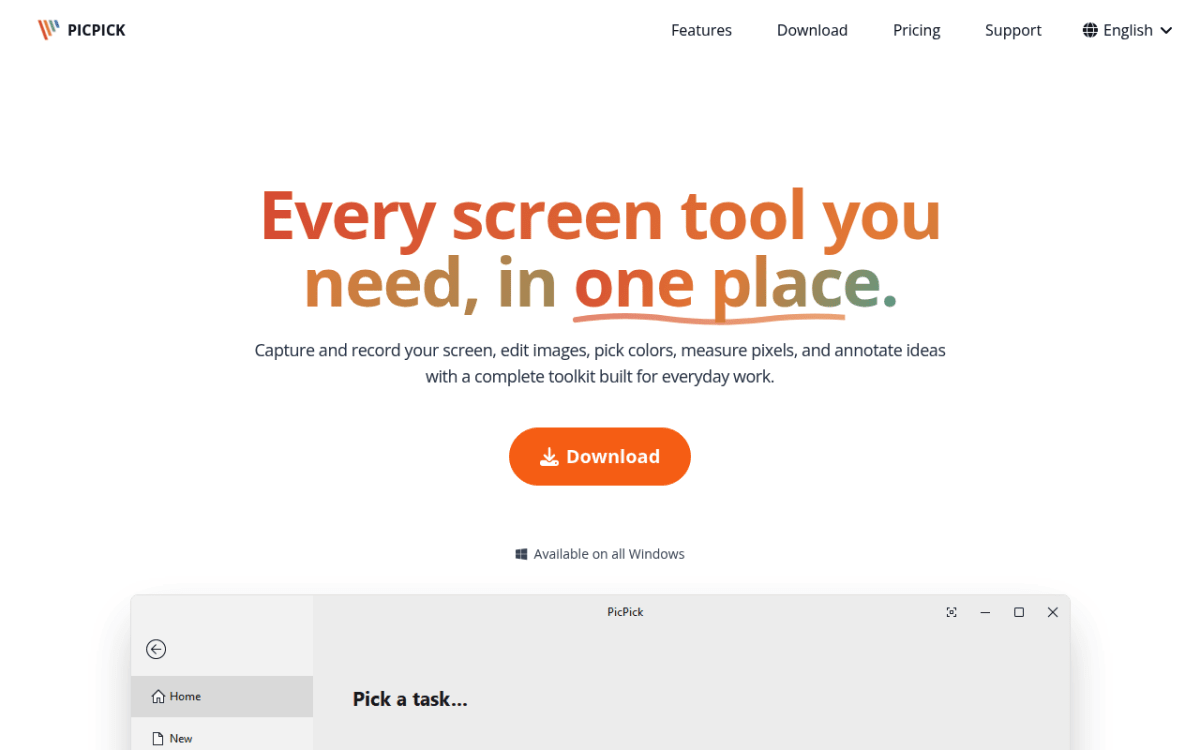
PicPick is the Swiss Army knife of Windows screenshot tools. Beyond capture and markup, it includes a color picker, pixel ruler, protractor, crosshair, and whiteboard. It is the only tool here that truly rivals Snagit's editor for design work.
What you get
- All standard capture modes. Region, window, scrolling, full screen
- Screen recorder. MP4 or GIF, with system audio, mic, and a webcam overlay
- Built-in image editor with effects, filters, layers
- Designer tools. Color picker (RGB, HEX, HSV), pixel ruler, protractor
- Dozens of export destinations. File, clipboard, Dropbox, Google Drive, OneDrive, FTP, email, web link
- Native multi-monitor support
Honest limitations
- Free tier is personal only. Work use needs Pro ($30/year or $79 lifetime)
- Free version shows ads and has no auto updates or support
- Windows only
Where it beats Snagit
- Built-in color picker and ruler. Designers love this
- Cheaper over time. $79 lifetime vs $195 for five years of Snagit
- Smaller, faster app
See our PicPick review for Windows.
Best for
UI/UX designers, front-end developers, anyone whose workflow includes color sampling and pixel measuring. If you bounce between Snagit and a color picker app, PicPick replaces both.
5. Lightshot: best for quick one-off captures
Price: Free | Rating: (3.5/5)
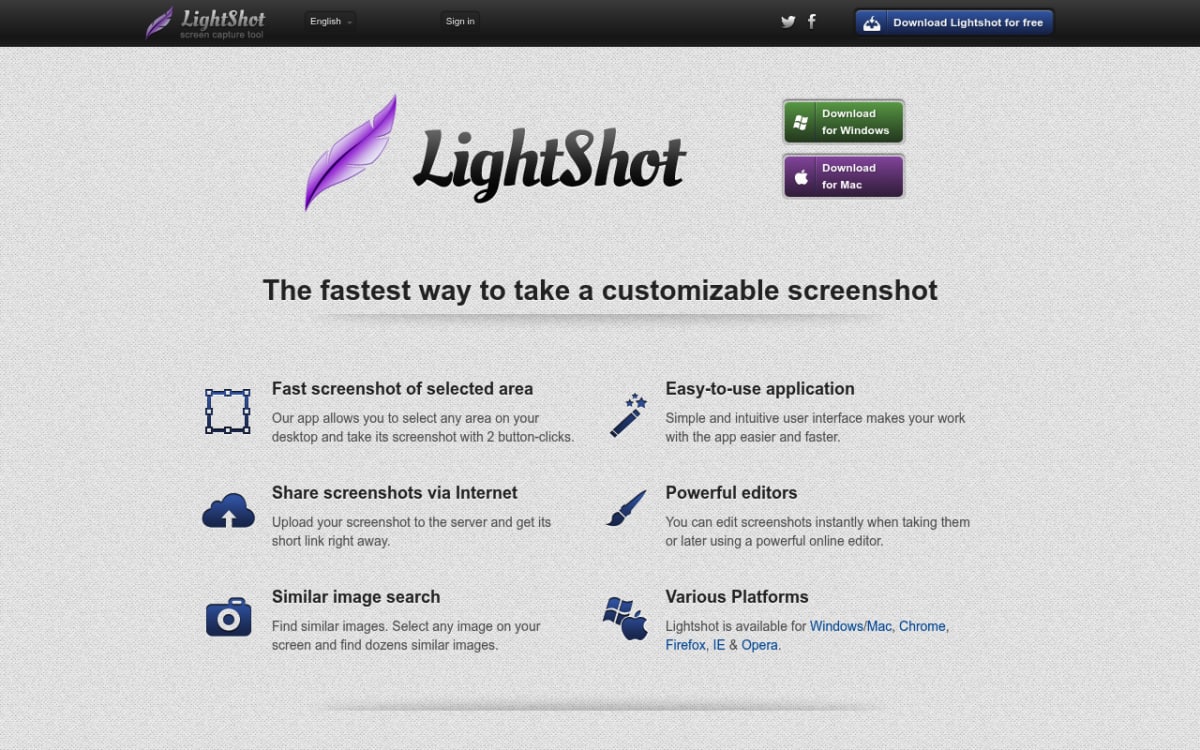
Lightshot is the simplest tool here. Press hotkey, drag a region, mark it up, share via prnt.sc link. No editor. No library. No settings.
What you get
- Region capture with on-the-spot annotation
- One-click upload to prnt.sc with a shareable link
- Similar image search. Find similar images online
- Windows and Mac
- Free, no account
Honest limitations
- prnt.sc uploads are public. Anyone with the short link can open them, and uploads cannot be made private. Do not use it for anything sensitive.
- Region and full-screen capture only. No window mode
- No screen recording, no GIFs
- Basic annotation. Arrows, text, lines, rectangles
- Privacy practices have been questioned in the past
Where it beats Snagit
- Instant shareable link
- Free, tiny install
- Region capture is faster than launching Snagit
See our Lightshot review for Windows.
Best for
Quick one-off captures where you do not care about privacy and want a public link in three seconds. Great for memes and casual chat. Not great for work or anything confidential.
6. Screenpresso: best for tutorial creators
Price: Free (with limits) / $29.99 one-time Pro | Rating: (4/5)
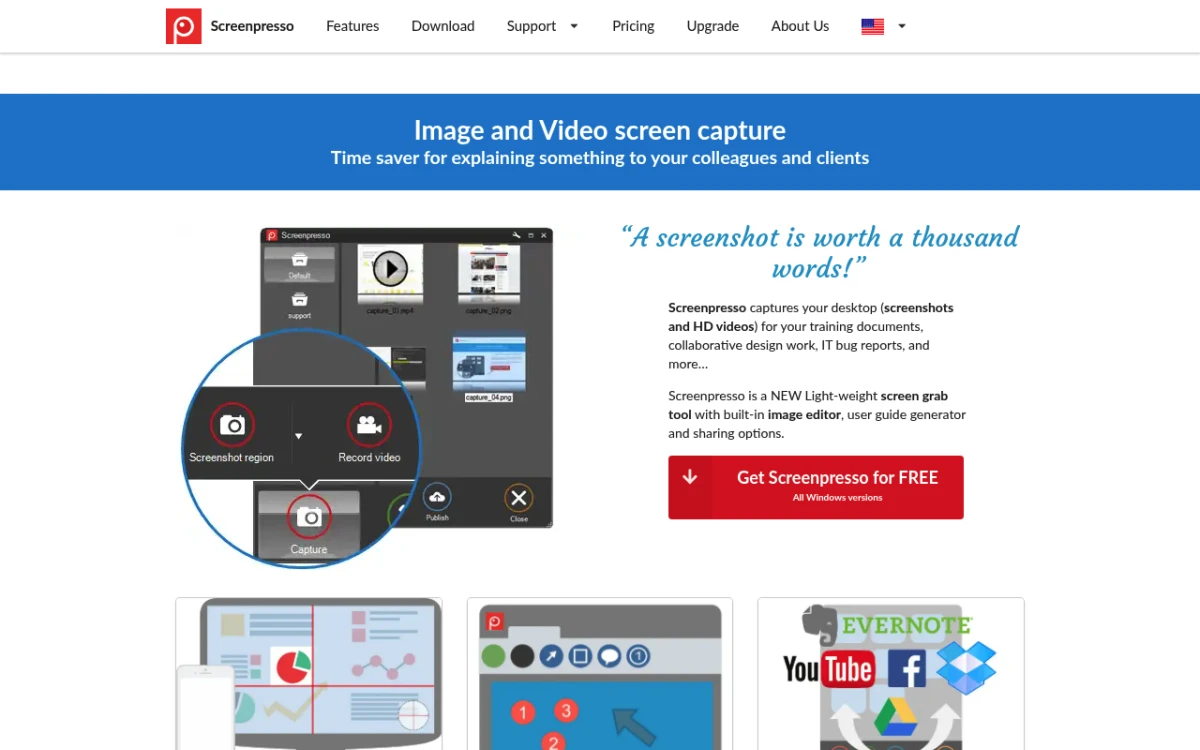
Screenpresso is built for the tutorial and docs crowd. It captures shots, records video and GIFs, and stitches captures into PDF or Word guides. The closest free-to-cheap match for Snagit's docs workflow.
What you get
- Region, window, scrolling, and full-screen capture
- Screen recording. Video and GIF, with audio
- Built-in editor. Arrows, callouts, step numbering, blur
- PDF and Word export. Documentation in one click
- Workspace library. Organize captures by project
Honest limitations
- Free tier adds branding to videos and shares, and its image editor is limited
- Windows only
- Pro is needed for advanced video and PDF export
- Annotation library is smaller than PicPick or ScreenSnap Pro
Where it beats Snagit
- Cheaper Pro. $29.99 one-time vs $195 over 5 years
- Documentation export built in
- Smaller install footprint
Best for
Tech writers, support agents, and trainers who turn captures into step-by-step guides.
7. Snipping Tool: best free built-in option
Price: Free, built into Windows 11 | Rating: (3.5/5)
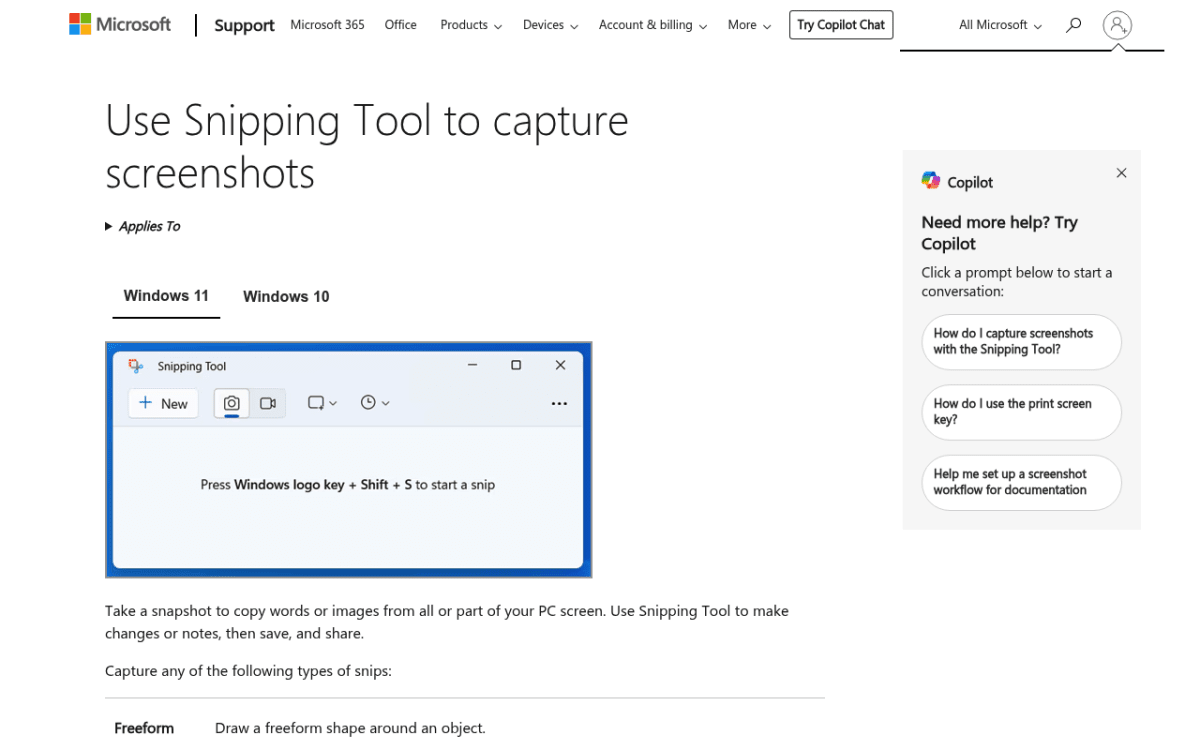
The Snipping Tool is already on your PC. Microsoft quietly added real features over the past two years. Screen recording (MP4 and now GIF). OCR. Basic markup. For casual use, it is enough.
What you get
- Region, window, full-screen capture via
Win + Shift + S - Screen recording as MP4
- GIF export (added in 2025, first 30 seconds only)
- Basic OCR. Text grab on most images
- Light annotation. Pen, highlighter, shapes
- Free, no install, always on
Honest limitations
- No cloud sharing. Manual upload only
- Basic annotations. No blur, step counter, or callouts
- No scrolling capture
- No library beyond OneDrive sync
Where it beats Snagit
- Already installed. Zero setup
- Free forever
- Lightweight. No background process
See our best Snipping Tool alternatives roundup. For partial screenshots or cropping, the built-in tool covers most cases. For long pages, see the full-page screenshot guide.
Best for
Anyone who only captures once or twice a week and does not want to install anything. If you hit problems, see Snipping Tool not working.
8. Flameshot: best open-source cross-platform pick
Price: Free, open-source | Rating: (4/5)
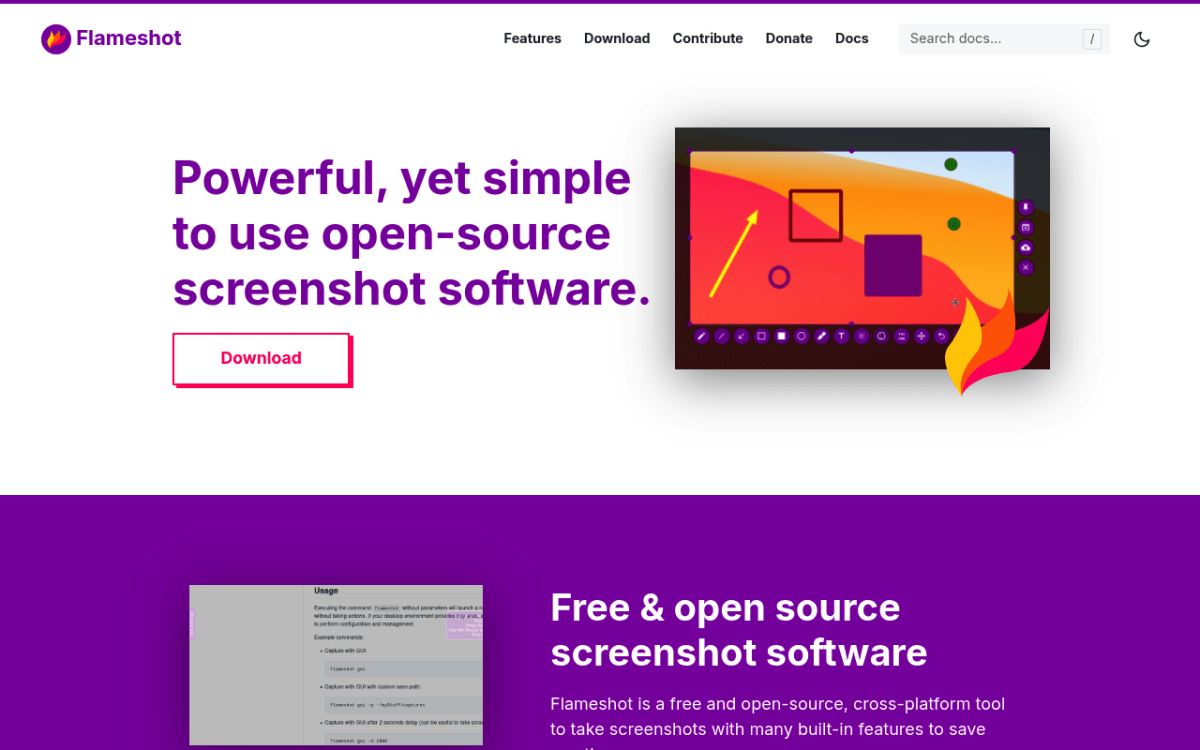
Flameshot is a Linux favorite. The Windows build is stable too. The big draw is cross-platform consistency. Same UI on Windows, Mac, and Linux.
What you get
- Region capture with on-the-spot annotation. Like Lightshot but with more tools
- Pin to screen. Keep a capture floating while you work
- Annotations. Arrows, rectangles, blur, text, step counter
- Same UI on Windows, Mac, Linux
- Open source. Actively maintained on GitHub
Honest limitations
- No screen recording, no scrolling capture
- No cloud upload. Official builds dropped the Imgur uploader in v13 (2025)
- Windows build is less polished than Linux
- No native library. Files only
Where it beats Snagit
- Free, open source, no telemetry
- Same tool on every desktop OS. Useful for hybrid teams
- Faster to launch and capture
See our Flameshot for Windows review.
Best for
Developers and sysadmins working across Windows, Mac, and Linux who want one screenshot tool everywhere.
9. Monosnap: best cloud-first alternative
Price: Free / Non-commercial from $3/mo or $30/yr / Commercial from $10/mo or $60/yr | Rating: (3.5/5)
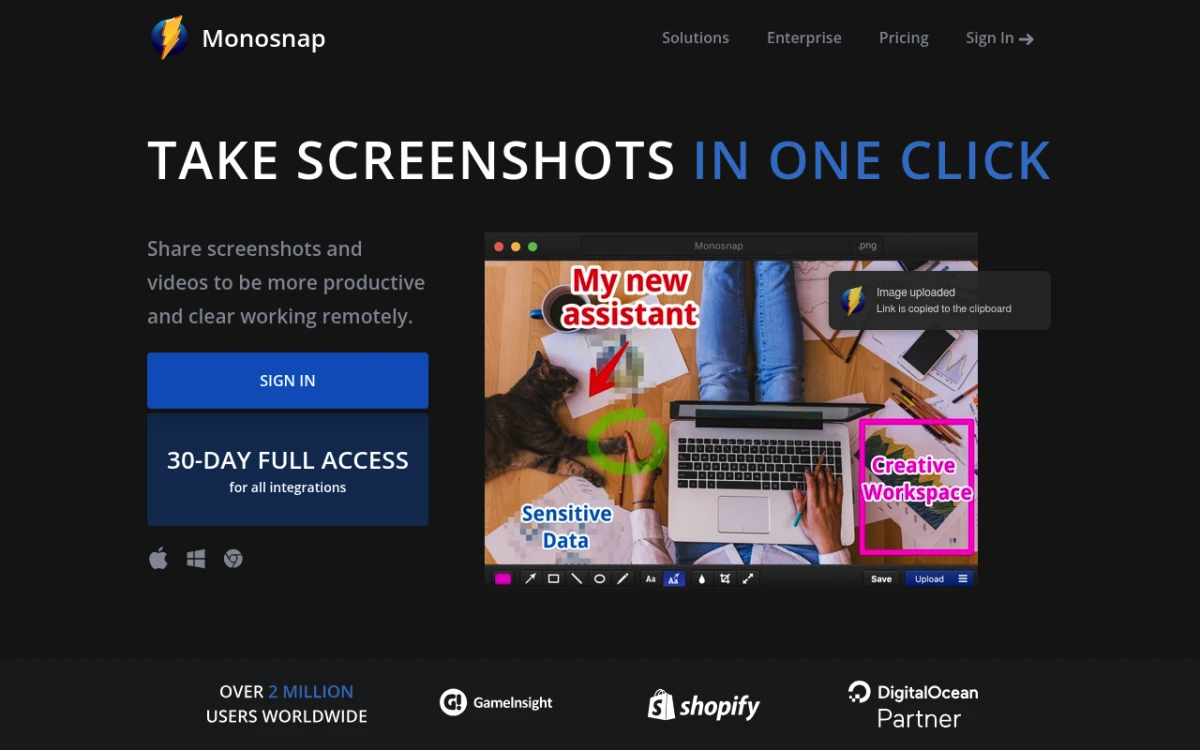
Monosnap leans hard on cloud storage and team sharing. Free tier: 2 GB online storage, 5-minute video capture, and shareable links, for non-commercial use only. Paid plans add more storage, unlimited video, and links to S3, Dropbox, Google Drive and more. Commercial plans add team management.
What you get
- Screenshot capture. Region, window, full screen
- Screen recording. MP4 video and GIF
- 2 GB free cloud storage with shareable links
- External storage. AWS, Google Cloud, Dropbox
- Cross-platform. Windows, Mac, Chrome extension
Honest limitations
- Free tier limits. 2 GB cap, 5-minute videos, 100 MB max file size, non-commercial use only
- UI feels older
- Cloud integrations last 30 days on Free. After that, S3, Dropbox, and Google Drive need a paid plan
- Subscription pricing. Same trap that pushed people off Snagit
Where it beats Snagit
- Free cloud sharing out of the box
- Cross-platform from one account
- Cheaper personal plan. $30/year for non-commercial use vs Snagit's $39 (work use needs Commercial, from $60/year)
Best for
Small teams who need shared cloud storage and do not want to set up their own S3 bucket.
10. OBS Studio: best for long screen recordings
Price: Free, open-source | Rating: (4/5)
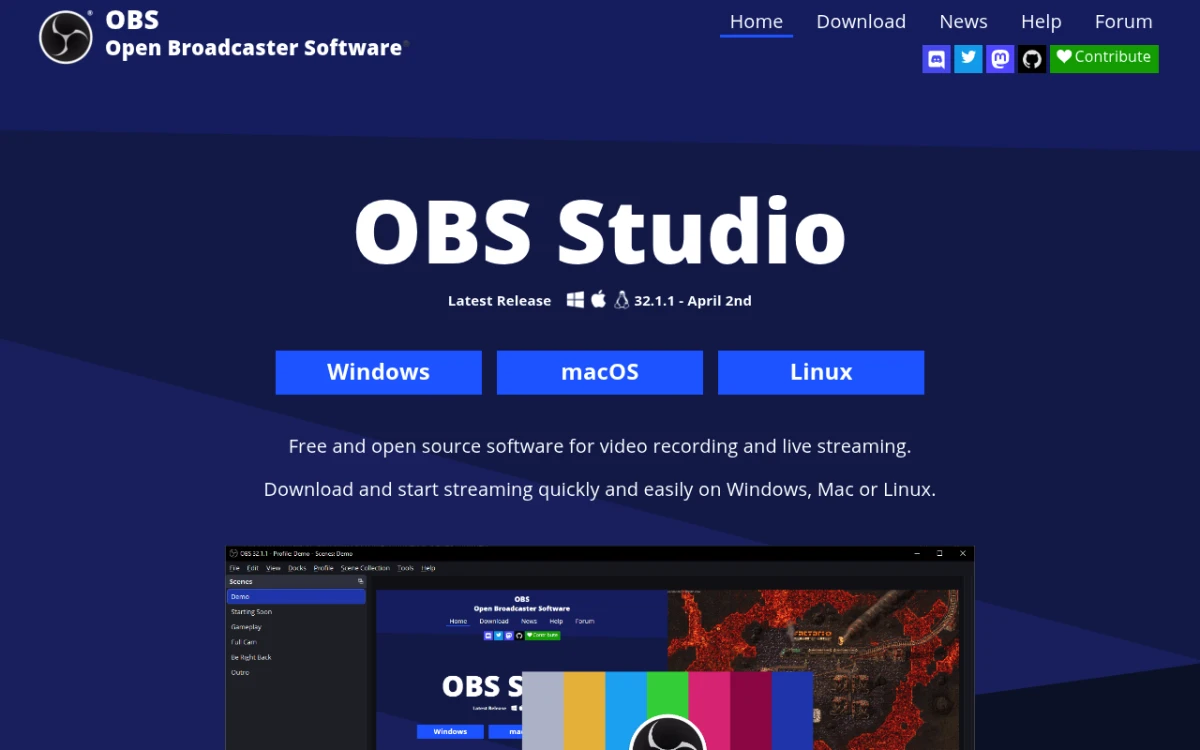
OBS Studio is not really a Snagit alternative. It is a Snagit-video-mode alternative. If you mostly use Snagit to record long tutorials or streams, OBS is free, more powerful, and the field standard.
What you get
- Unlimited screen recording at any frame rate your PC supports
- Multi-source scenes. Webcam, multiple monitors, browser sources
- Streaming to Twitch, YouTube, any RTMP target
- Multi-track audio
- Plugins for everything
Honest limitations
- No screenshots. Record only
- No built-in editor. Pair with Clipchamp
- Steep learning curve
- Heavy on system resources during long recordings
Where it beats Snagit
- Records longer, higher quality, free
- Unmatched plugin ecosystem
- Industry standard for streamers and YouTube creators
See free screen recorder for Windows and OBS Studio alternatives.
Best for
Anyone who uses Snagit's video recorder for sessions over five minutes. For mostly screenshots, OBS is overkill.
The 5-year TCO: Snagit vs ScreenSnap Pro
Here is what five years of Snagit looks like versus a one-time ScreenSnap Pro license.
| Year | Snagit (total paid) | ScreenSnap Pro (total paid) |
|---|---|---|
| Year 1 | $39 | $49 |
| Year 2 | $78 | $49, no renewal |
| Year 3 | $117 | $49, no renewal |
| Year 4 | $156 | $49, no renewal |
| Year 5 | $195 | $49 |
Snagit subscribers pay $195 over five years. The moment renewals stop, access stops too. ScreenSnap Pro costs $49 one time, includes lifetime updates, and you own it after purchase.
Even if you only stay two years on Snagit, you have spent $78 on a tool you no longer have access to. A ScreenSnap Pro license is $49 once and never expires.
If Snagit's specific features (templated layouts, PDF export) are non-negotiable, the cost is worth it. If you use Snagit because you always have, the savings are real.
Feature comparison: what each tool covers
| Feature | ScreenSnap Pro | ShareX | Greenshot | PicPick | Lightshot | Screenpresso | Snipping Tool | Flameshot | Monosnap | OBS Studio |
|---|---|---|---|---|---|---|---|---|---|---|
| Screenshot capture | Yes | Yes | Yes | Yes | Yes | Yes | Yes | Yes | Yes | No |
| Screen recording | Yes | Yes | No | Yes | No | Yes | Yes | No | Yes | Yes |
| GIF recording | Yes | Yes | No | Yes | No | Yes | Yes | No | Yes | No |
| Scrolling capture | Yes | Yes | No | Yes | No | Yes | No | No | No | No |
| Cloud sharing | Optional | Yes | Plugin | Yes | Yes | Yes | No | No | Yes | No |
| OCR | Yes | Yes | Yes | No | No | Yes (Pro) | Yes | No | No | No |
| 15+ annotation tools | Yes (17) | Yes (18) | No | Yes | No | Yes | No | No | No | No |
| Cross-platform | Mac + Win | Win only | Win + Mac | Win only | Win + Mac | Win only | Win only | All three | Win + Mac | All three |
| One-time price | Yes ($49) | Free | Free | Yes ($79) | Free | Yes ($29.99) | Free | Free | No | Free |
How to migrate from Snagit to a new tool
If you decide to switch, here is the four-step plan to do it without losing captures.
- Export your Snagit library. Open Snagit, File > Export > Library, save to a folder. PNG/JPG works for everything except templated layouts (export to PDF).
- Install your new tool. ScreenSnap Pro is a single installer. ShareX needs about 20 minutes of settings tuning. Snipping Tool is already on your PC.
- Rebind your shortcut. Snagit's default is
Print Screen. Match it in your new tool so muscle memory does not break. ScreenSnap Pro, ShareX, and Greenshot all let you rebind in settings; Snipping Tool usesWin + Shift + S. - Uninstall Snagit. Once the new tool sticks, remove Snagit via Settings > Apps > Installed apps. Keep the export folder.
For more on built-in capture options, see screenshot on Windows 11. To edit a screenshot on Windows after capture, most tools above include an editor, but you can also use a free image annotation tool in your browser.
Which Snagit alternative should you actually pick?
A decision tree to make this concrete:
- I want the closest match to Snagit, no subscription: ScreenSnap Pro ($49 one-time)
- I want free and I do not mind a learning curve: ShareX
- I want free and I want it simple: Greenshot
- I am a designer and need a color picker + ruler: PicPick
- I just need quick public-link captures: Lightshot (but avoid for sensitive content)
- I build tutorial docs: Screenpresso
- I only capture once a week: the built-in Snipping Tool is enough
- I use Windows, Mac, and Linux: Flameshot
- My team needs shared cloud captures: Monosnap
- I mostly record long videos: OBS Studio
If you are still on the fence, ScreenSnap Pro is the safest default. It does ninety percent of what Snagit does, adds a full video editor, costs $49 once instead of $39 per year, and works on both Mac and Windows from a single license. The 30-day money-back guarantee means trying it costs nothing if it does not fit.
Frequently Asked Questions
Final pick
Snagit is still a fine product. But at $39 per year forever, it is no longer the obvious default for Windows users in 2026.
If you want one recommendation: ScreenSnap Pro. $49 once, screenshots, GIF recording, screen video with a built-in editor, 17 annotation tools, 500+ backgrounds on Windows and Mac. It is a paid app with no trial version, so the 30-day money-back guarantee is your safety net if it turns out not to fit. If it does not, ShareX and Greenshot (both free) are the best fallbacks.
The upgrade path from Snagit in 2026 is shorter and cheaper than it has ever been. Pick the tool that fits how you actually work, not the one on your taskbar since 2018.

Morgan
Indie DeveloperIndie developer, founder of ScreenSnap Pro. A decade of shipping consumer Mac apps and developer tools. Read full bio
@m_0_r_g_a_n_