9 Best ShareX Alternatives for Windows (2026)
ShareX is the most powerful free screenshot tool on Windows. It does scrolling capture, 70+ upload spots, and just about any workflow you can set up. But that same depth scares off most users in a week, because the menu-of-menus UI feels more like a cockpit than a screenshot app.
If you tried ShareX and bounced, you are not alone. This is the top reason people look for ShareX alternatives. They want capture, markup, and quick sharing without the setup tax. (For more on ShareX itself, see our full ShareX review.)
We tested 9 alternatives on Windows 10 and 11. Here is how they stack up on UI, markup, recording, cloud sharing, and price.
Short answer: ScreenSnap Pro is the best all-round pick if you can pay once. It does screenshots, screen recording, and video editing in one clean app for $49. Greenshot is the best free swap, and Snagit suits teams that pay for a subscription.
Quick comparison: 9 ShareX alternatives at a glance
| Tool | Price | Scrolling capture | Annotation | Screen recording | Cloud upload | Best for |
|---|---|---|---|---|---|---|
| ScreenSnap Pro | $49 one-time | Yes | 17 tools + emoji | Yes, plus video editor | Optional share links | Screenshots + video in one app, Win and Mac |
| Greenshot | Free | IE only | Basic | No | Imgur, Dropbox | Lightweight ShareX replacement |
| Snagit | $39/year | Yes | Premium | Yes | Screencast, Drive, Dropbox | Power users with budget |
| PicPick | Free / $30 per year | Yes | Yes | Yes | Drive, Dropbox, OneDrive | All-in-one image editor |
| Lightshot | Free | No | Basic | No | prntscr.com (public) | Fastest grab-and-share |
| Snipaste | Free / PRO from $8.99 | No | Yes | No | No | Pin-to-screen workflow |
| Snipping Tool | Built-in | No | Basic | Yes (Windows 11) | No | Quick captures, no install |
| Screenpresso | Free / €29.99 | Yes | Yes | Yes | Screenpresso Cloud + more | Docs and tutorials |
| Flameshot | Free | No | Great | No | No | Linux refugees on Windows |
How we picked these 9 ShareX alternatives
We started with every tool that shows up in Reddit threads, Microsoft Store, and blog roundups for "ShareX alternative Windows." Then we filtered for three things: active in 2026, runs on Windows 10 or 11, and has a clear edge over ShareX (simpler UI, better markup, cloud sharing, or cross-platform).
We did not include dead tools like Skitch and Jing, even when they still rank in old lists. We also skipped Linux-only picks like Spectacle and Shutter, because this is a Windows guide.
#1 ScreenSnap Pro: Polished workflow plus cross-platform
Best for: users who want capture, markup, screen recording, and sharing in one designed app, not a config sprawl.

ScreenSnap Pro takes the parts of ShareX most people use (region capture, markup, screen recording, optional share links) and ships them in one clean app. It takes the top spot because it covers both big ShareX jobs, screenshots and screen video, with a real video editor and a one-time $49 price. One license includes two seats in any mix of Windows and Mac, which helps if you switch machines. The 17 markup tools cover arrows, shapes, text, callouts, blur, pixelate, spotlight, magnifier, highlighter, and counters, plus emoji. The 500+ backgrounds turn flat shots into the polished screenshots you see on product pages.
Strengths:
- 17 markup tools plus emoji, and 500+ backgrounds with padding and shadow
- Capture an area, window, or full screen, on a delay, or straight into the editor
- Scrolling Capture: scroll down any window yourself (long PDFs, Slack threads, Excel sheets, pages behind a login) and get one long screenshot
- Website Capture: paste any public URL and get a full-page or first-screen shot, no browser needed
- Screen recording to MP4 at up to 60fps with webcam, mic, and system audio, plus direct GIF recording
- Built-in video editor: trim, split, cut, speed, auto zoom, one-click silence removal, MP4 or GIF export
- OCR text grab and pin-to-screen
- Optional cloud share links (or keep files local)
- No watermarks, no subscription
- Runs on Windows and Mac with one $49 license
Weaknesses:
- No 70+ custom upload spots like ShareX
- No layer-based image editor like PicPick
- No live streaming or captions
Pricing: $49 one-time. Lifetime updates and a 30-day money-back guarantee. The license covers two computers, Mac or Windows.
Hotkey: Ctrl+Shift+1 for area capture. Ctrl+Shift+2 sends an area straight to the editor. Full screen and window have no default, so set your own. To use PrtScn, first turn off "Use the Print Screen button to open screen capture" in Windows Settings.
Pick this if: you want screenshots and screen video in one polished app, without ShareX's config sprawl.
#2 Greenshot: Lightweight ShareX replacement
Best for: ShareX users who want the same feature set with a quieter UI.
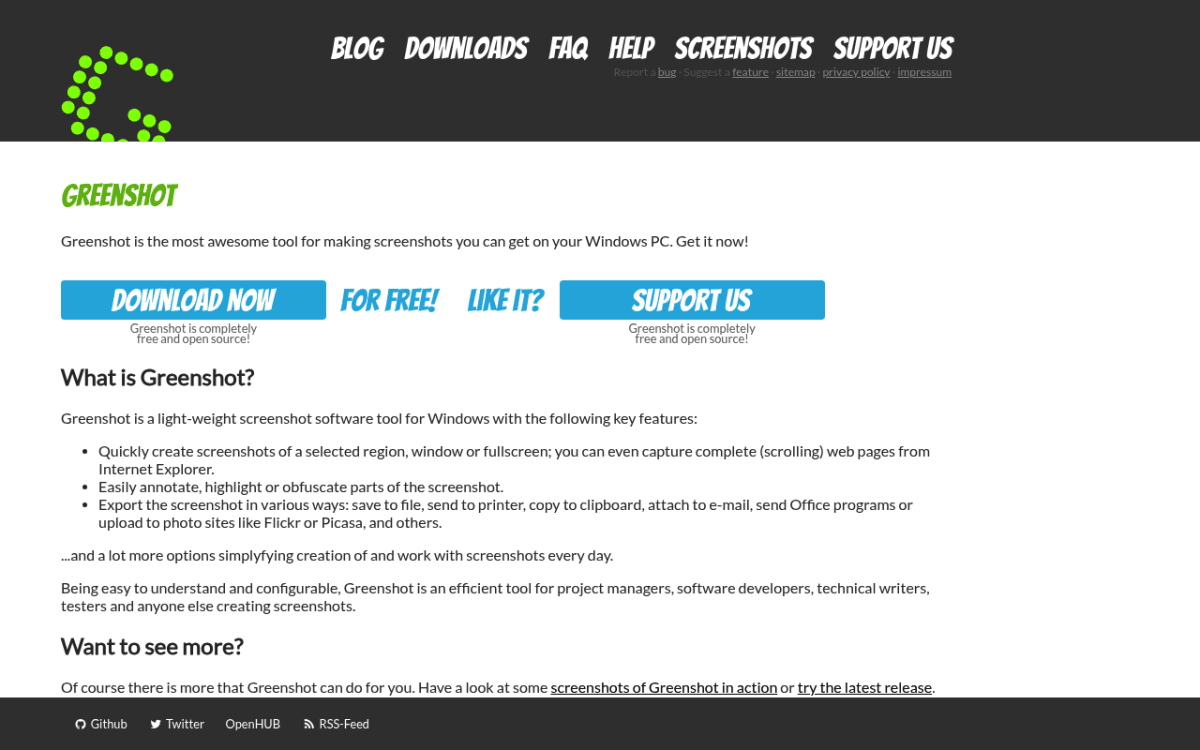
Greenshot is the closest thing to ShareX with the noise turned down. It is open source, free forever, and has been around since 2007. That helps (rock-solid stability) and hurts (the UI looks dated). It covers region, window, and full-screen capture, and exports to Imgur, Dropbox, Office, and email. Its scrolling capture only works in Internet Explorer, so on modern Windows you can treat it as missing. If you mostly used the basics of ShareX, Greenshot will feel like a clean swap.
For more, see our Greenshot review and our ShareX vs Greenshot piece.
Strengths:
- Free and open source
- Still updated (version 1.3.323 shipped in October 2026)
- Export to Imgur, Dropbox, Office, and email
- Low memory use
Weaknesses:
- UI feels mid-2010s
- Scrolling capture only works in Internet Explorer
- No GIF or video
- Markup is basic (arrows, text, blur)
Pricing: Free.
Hotkey: PrtScn for region. Custom.
Pick this if: you want ShareX's core capture features minus the menu overload.
#3 Snagit: Power users with budget
Best for: people who screenshot for a living and have a tool budget.
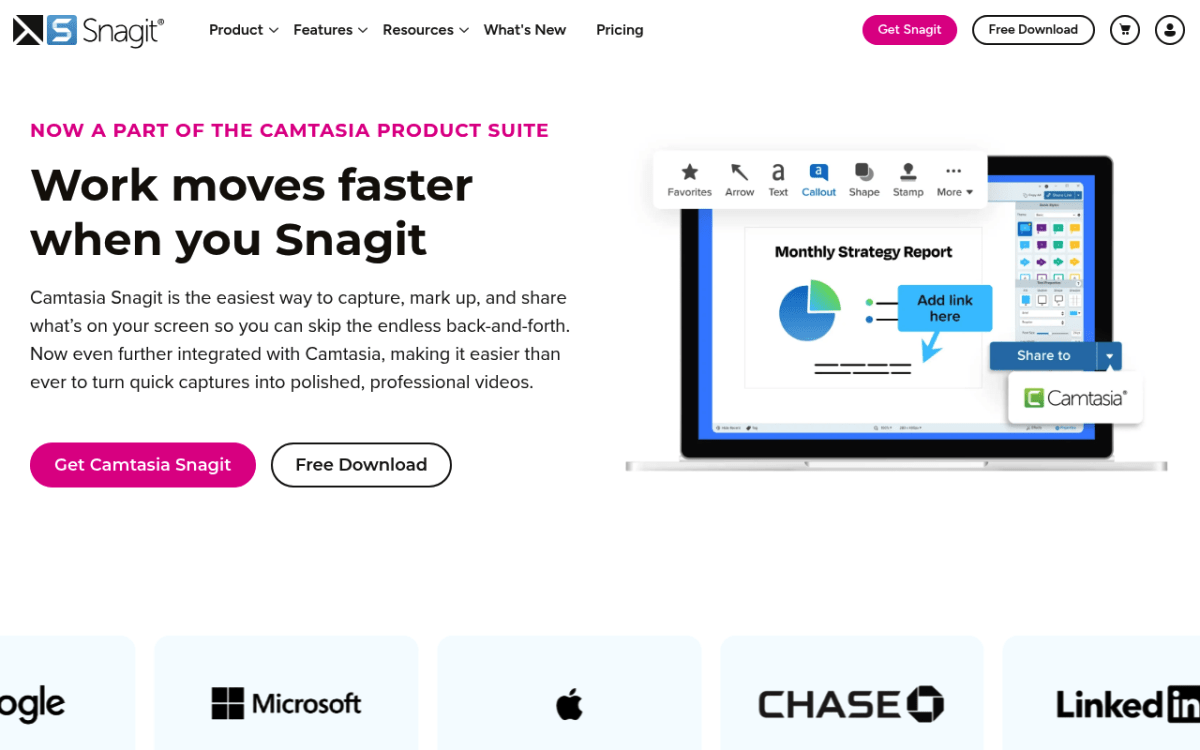
Snagit from TechSmith is the premium pick. Its markup library is the best in this list. Scrolling capture works well, and it now includes the old Panoramic mode. The built-in library lists every capture you have ever taken. Video, GIF, and screenshots all live in one app. The catch is the price: since Snagit 2025 it is subscription only, at $39 per year for one user.
For the head-to-head, see ShareX vs Snagit.
Strengths:
- Top-tier markup library
- Scrolling capture for long pages and wide spreadsheets
- Video, GIF, and screenshots in one app
- Capture library with auto-tags
Weaknesses:
- $39 per year, with no one-time license
- Can feel bloated for simple jobs
- Overkill for casual use
Pricing: $39 per year (Individual). Subscription only.
Hotkey: PrtScn for region. Fully remappable.
Pick this if: you screenshot for a living and your team pays.
#4 PicPick: All-in-one image editor
Best for: people who want screenshot plus image editor in one tool.
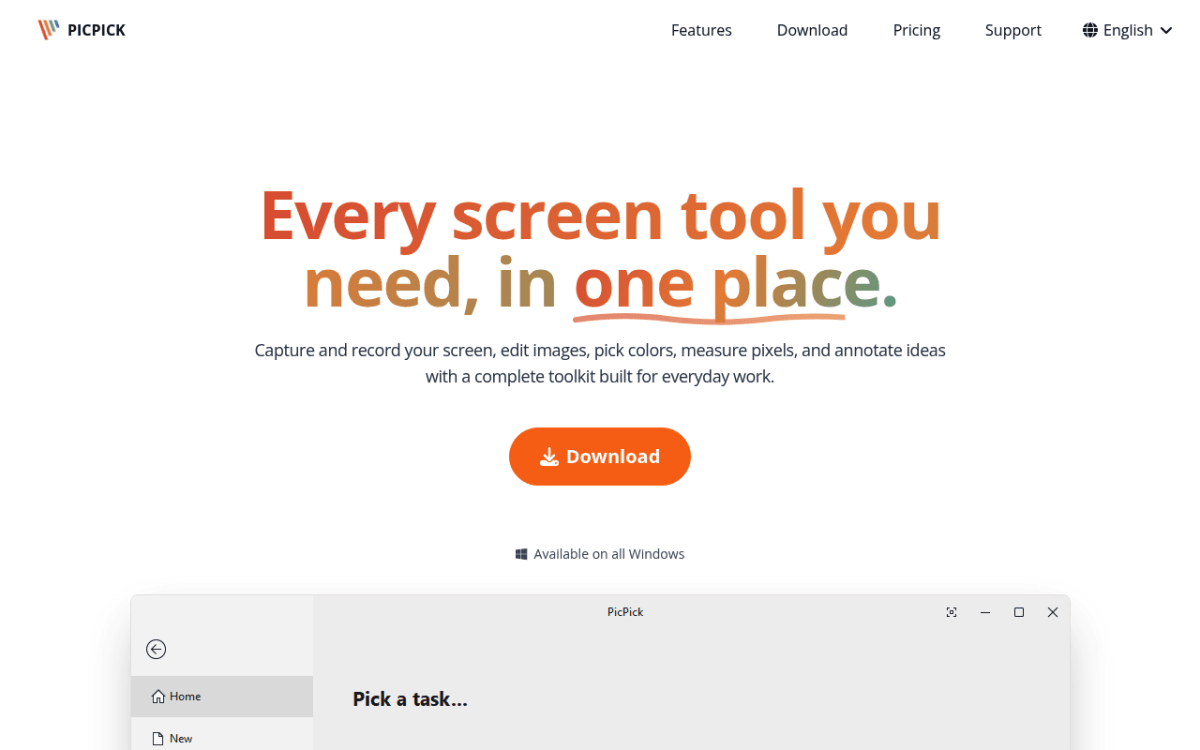
PicPick bundles a Paint.NET-style image editor with a full capture kit. Scrolling capture works. The color picker and pixel ruler help designers. The magnifier is great for QA. The trade-off is a busy toolbar, since PicPick puts every option up front, which can feel as cluttered as ShareX in a new way.
For more, see our PicPick review.
Strengths:
- Built-in image editor (layers, filters, effects)
- Scrolling capture, color picker, pixel ruler
- Screen recorder that saves MP4 or GIF
- Magnifier and protractor for design work
- Free for personal use
Weaknesses:
- Busy toolbar
- Ads in the free tier
- Paid license if you earn money with it
Pricing: Free for personal use. Commercial use needs Pro, at $30 per year or $79 for a lifetime license (both listed as limited-time offers).
Hotkey: PrtScn for full screen. Region is Shift+PrtScn.
Pick this if: you want screenshot plus image editor and do not mind a busy UI.
#5 Lightshot: Fastest grab-and-share
Best for: people who paste screenshots into chat 50 times a day.
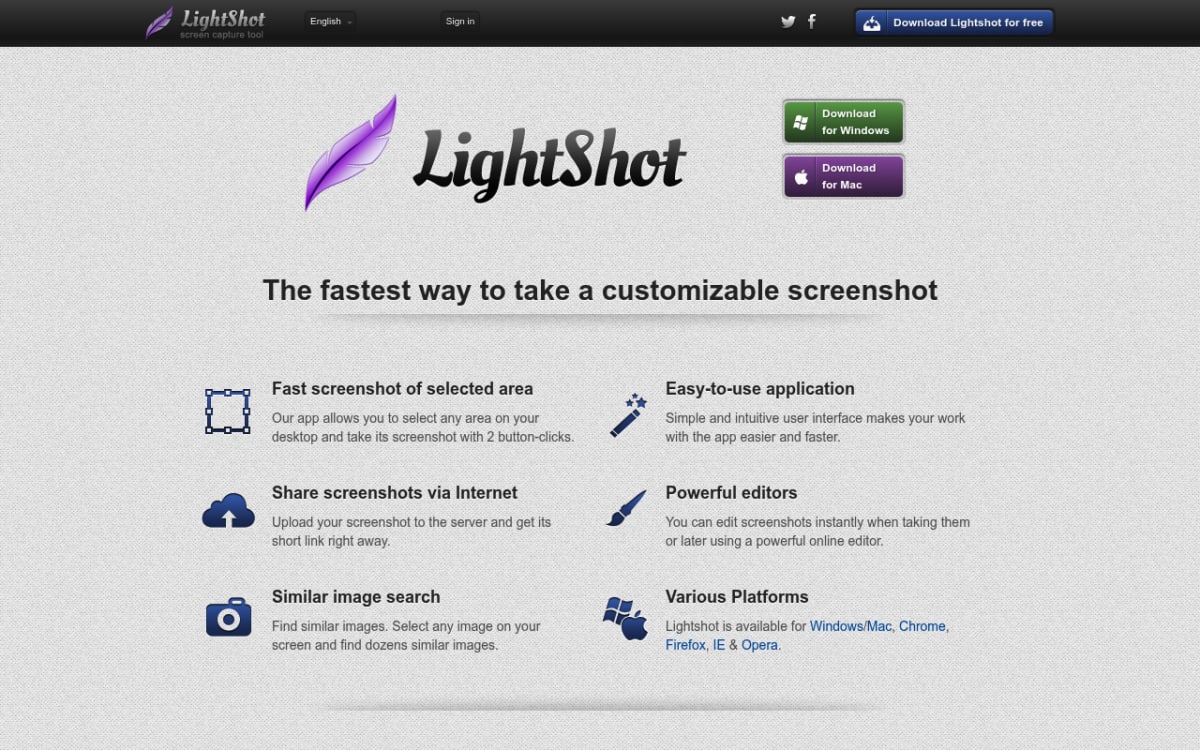
Lightshot is the fastest tool here for one job: grab a region, mark it up, get a share URL. Two clicks and you have a prntscr.com link in your clipboard. The markup tools are basic but cover the common cases (arrow, text, box, highlight). The install is tiny.
The catch: every image you upload to prntscr.com is public. Anyone with the link can open it, and you cannot make an upload private. If you capture anything sensitive, save it to disk instead of uploading it. For more, see our Lightshot review.
Strengths:
- Fastest capture-to-share flow on Windows
- Tiny install, low memory use
- Dead-simple markup
- Free with no ads in the app
Weaknesses:
- Every prntscr.com upload is public to anyone with the link
- No scrolling, no GIF, no video
- Small markup kit
Pricing: Free.
Hotkey: PrtScn for region.
Pick this if: you share screenshots to chat all day and skip the heavy edits.
#6 Snipaste: Pin-to-screen workflow
Best for: designers and devs who compare two screen areas side by side.
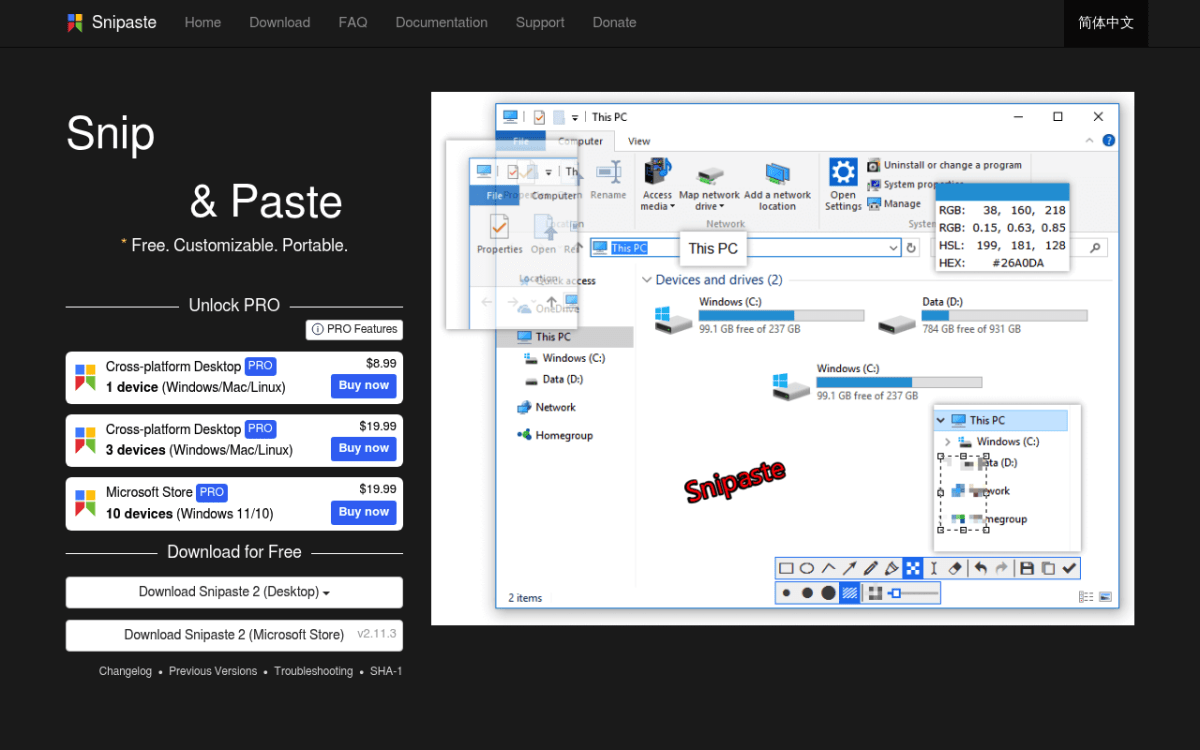
Snipaste is built around one feature: you can pin any screenshot on top of any window. ScreenSnap Pro and Flameshot can pin too, but Snipaste makes it the heart of the app. Grabbed a CSS reference? Pin it next to your editor. Snipped a Figma frame? Pin it next to the build. The UI is clean and modern. The color picker and magnifier round out the kit.
Strengths:
- Pins screenshots on top of any window
- Clean modern UI
- Color picker and magnifier built in
- Free for personal use, with no ads
- Also runs on Mac and Linux
Weaknesses:
- No cloud upload
- No GIF or video
- Niche workflow (pinning is not for everyone)
Pricing: Free for personal use. Snipaste 2 PRO starts at $8.99 for one device, and business use of Snipaste 2 needs it.
Hotkey: F1 for snip, F3 to pin.
Pick this if: you often compare two screen areas side by side.

Tired of plain screenshots? Try ScreenSnap Pro.
Beautiful backgrounds, pro annotations, GIF recording, and instant cloud sharing, all in one app. Pay $49 once, own it forever.
See pricing and features#7 Snipping Tool: Quick captures, no install
Best for: people who need 1 or 2 screenshots a week and skip the install step.
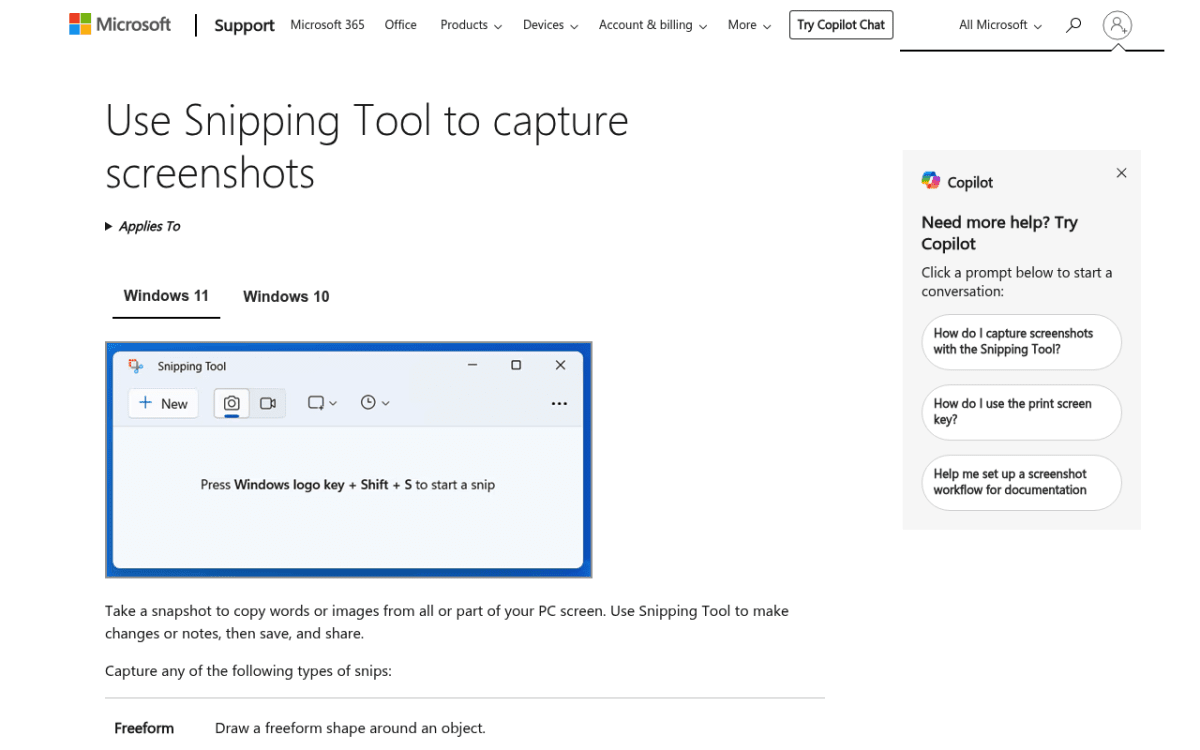
The built-in Snipping Tool ships with Windows 10 and 11. Win+Shift+S works in any app. You get a basic markup bar after the capture. On Windows 11 it can also record your screen to MP4, and recent versions export short GIFs (up to 30 seconds). It is not as flexible as ShareX, but for casual use it is right there in the OS.
For more tricks, see our Windows screenshot shortcuts guide. If yours suddenly stops working, our Snipping Tool fix guide covers the common causes.
Strengths:
- Already installed on Windows 10 and 11
- Win+Shift+S works in any app
- Screen recording on Windows 11
- No third-party app needed
Weaknesses:
- No cloud sharing
- No scrolling or panoramic capture
- Limited markup
- No auto-naming or library
Pricing: Free (built in).
Hotkey: Win+Shift+S.
Pick this if: you take a few screenshots a week and want zero install.
#8 Screenpresso: Docs and tutorials
Best for: people who write step-by-step docs or training material.
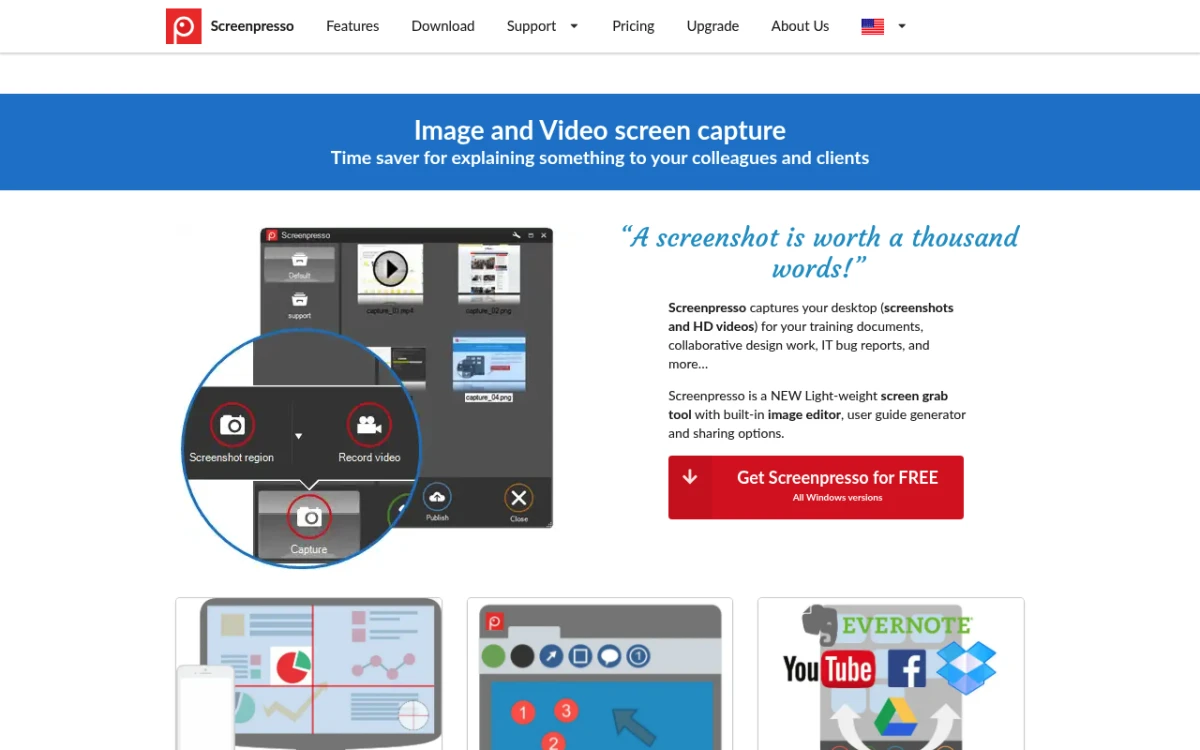
Screenpresso is built around tutorials. It keeps your captures in a workspace so you can find them later. It supports scrolling capture, records video, and has a doc-builder that turns a row of screenshots into a polished PDF or Word file. If you write user guides or runbooks, this is the closest tool to a one-stop shop.
Strengths:
- Workspace that keeps your capture history
- Scrolling capture and video
- Doc builder for step-by-step guides
- Multi-monitor support
Weaknesses:
- Pro features paywalled (full image editor, OCR, doc builder)
- Free version adds branding to videos and shares
- Current versions need Windows 11
- UI is plain, not pretty
Pricing: Free with limits. Pro is €29.99 one-time per user (prices vary by region), with one year of upgrades included.
Hotkey: PrtScn for region.
Pick this if: you write step-by-step docs or training content.
#9 Flameshot: For Linux fans on Windows
Best for: people who used Flameshot on Linux and want the same UX on Windows.
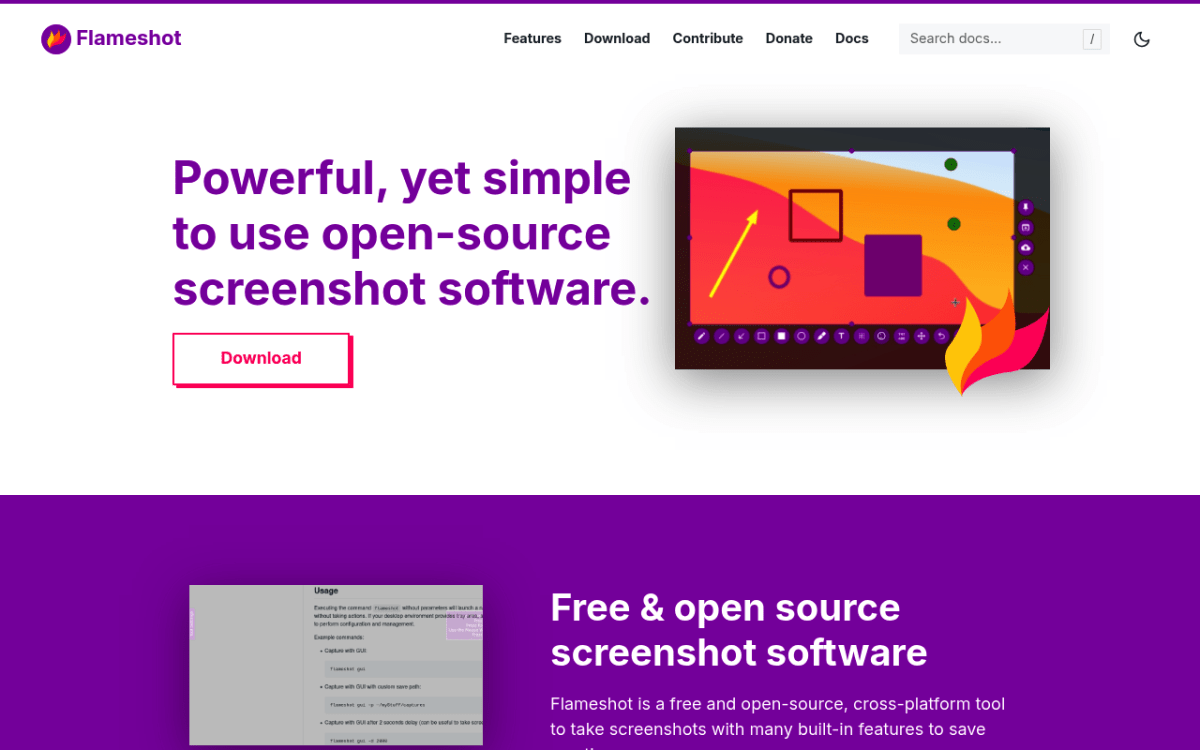
Flameshot is the screenshot tool a lot of Linux users miss when they switch to Windows. The on-screen markup bar is great: arrows, shapes, text, blur, and pixelate all live in a floating ring around your pick. It is free, open source, and ships with no telemetry. The Windows port works but is less stable than the Linux build.
For more, see our Flameshot for Windows review.
Strengths:
- Clean on-screen markup bar
- Open source with no telemetry
- Free forever
- Pin tool keeps a capture on screen
Weaknesses:
- Windows port still rough in places
- No cloud upload in official builds (Imgur upload was turned off in v13)
- No scrolling capture
- No GIF or video
- Setup feels Linux-y for Windows users
Pricing: Free.
Hotkey: PrtScn for region (set in config).
Pick this if: you came from Linux and want a familiar Flameshot UX on Windows.
Hotkey cheat sheet
Switching from ShareX means retraining muscle memory. Here are the default hotkeys for each tool so you can pick one that fits your habits.
| Tool | Region | Full screen | Window |
|---|---|---|---|
| ScreenSnap Pro | Ctrl+Shift+1 | None (set your own) | None (set your own) |
| Greenshot | PrtScn | Ctrl+PrtScn | Alt+PrtScn |
| Snagit | PrtScn | None (set your own) | PrtScn, then click a window |
| PicPick | Shift+PrtScn | PrtScn | Alt+PrtScn |
| Lightshot | PrtScn | None | None |
| Snipaste | F1 | None | None |
| Snipping Tool | Win+Shift+S | Win+PrtScn (Windows) | Alt+PrtScn (Windows) |
| Screenpresso | PrtScn | PrtScn, then pick the screen | PrtScn, then pick a window |
| Flameshot | PrtScn (config) | None | None |
Every tool here except Snipping Tool lets you remap hotkeys in settings. Pick one set and stick with it.
Common issues when switching from ShareX
Moving to a new screenshot tool is usually painless. A few quirks come up enough to flag.
My ShareX hotkeys do not work in the new tool
ShareX lets you bind almost any key to any task. Most alternatives use a simpler shortcut system, so your custom binds will not carry over. Open the new tool's settings, find the hotkeys section, and remap them to what your fingers know. ScreenSnap Pro, Greenshot, Snagit, and PicPick all support full hotkey remapping.
I cannot find my old screenshot folder
ShareX saves to %USERPROFILE%\Documents\ShareX\Screenshots by default. Your old captures are still there. Point your new tool at the same folder (or copy the files into the new tool's library) and you keep the history.
My custom upload destination is gone
This is the hardest gap to fill. ShareX's 70+ uploaders are unique. Greenshot covers Imgur, Dropbox, and Office. Snagit shares to TechSmith's Screencast, Dropbox, Google Drive, OneDrive, and Office apps. Lightshot only uploads to prntscr.com. If you used ShareX with a custom S3 bucket or self-hosted endpoint, no alternative will match that out of the box. The closest workaround: keep ShareX installed for upload only, and use a new tool for capture.
How to grab long pages and windows
ScreenSnap Pro gives you two ways. Scrolling Capture works in any window: select the area, click Start Capture, scroll down slowly, and click Finish. That gets long PDFs, Slack threads, Excel sheets, and pages behind a login into one screenshot. For a public URL, Website Capture grabs the whole page (or just the first screen) with no scrolling at all. Lightshot, Snipaste, Snipping Tool, and Flameshot still do not handle long captures, and Greenshot only does it in Internet Explorer. For free workarounds, like the full-page capture built into Edge and Firefox, see our scrolling screenshot guide.
PicPick, Snagit, and Screenpresso can also scroll inside apps like PDF readers, Slack, and Excel.
Which tool has the best markup tools?
Markup is where these tools differ most. ShareX gives you everything but the setup is a slog. Here is how the alternatives stack up:
- Best for polish: ScreenSnap Pro (17 tools plus emoji and 500+ backgrounds)
- Deepest library: Snagit (premium library, callouts, stamps)
- Best free: Flameshot (on-screen bar is great)
- Best for quick fixes: Lightshot (basic but instant)
- Most flexible: PicPick (full image editor)
If you need to blur out sensitive info often, ScreenSnap Pro, Snagit, Flameshot, and PicPick all have one-click blur or pixelate. Greenshot has a basic blur. Lightshot does not.
Frequently Asked Questions
Which ShareX alternative should you pick?
Three buckets cover most readers:
- You want simple, polished screenshots plus screen recording, and you do not mind paying once: ScreenSnap Pro.
- You want free with ShareX-like features minus the clutter: Greenshot or PicPick.
- You just want to send screenshots to chat fast: Lightshot or the built-in Snipping Tool.
For more, see our best screenshot tools for Windows roundup and the best Snipping Tool alternatives guide.
If you want the polished route, ScreenSnap Pro is $49 once with no subscription, and the license covers two computers. If it does not suit you, the 30-day money-back guarantee has you covered.

Morgan
Indie DeveloperIndie developer, founder of ScreenSnap Pro. A decade of shipping consumer Mac apps and developer tools. Read full bio
@m_0_r_g_a_n_