Fix Snipping Tool Not Working Windows 11 (2026 Guide)
Quick fix: the fastest way to fix Snipping Tool on Windows 11 is to repair it: go to Settings → Apps → Installed apps → Snipping Tool → Advanced options → Repair (then Reset if Repair doesn't work). That clears most crashes and "this app can't open" errors. If Win + Shift + S does nothing at all, turn on Clipboard History with Win + V first. The full 12-fix list is below, fastest first.
If you are not sure what the app should be doing in the first place, how to use the Snipping Tool covers every feature it ships with.
You hit Win+Shift+S, and nothing happens. Or the Snipping Tool opens, you drag a region, and the app crashes. Or Windows tells you "This app can't open." If any of that sounds familiar, you're in the right place.
This guide walks through 13 fixes for the snipping tool not working problem, ordered from fastest to most advanced. Most people are up and running after fix 1 or 2. If you've been at this for a while, skip to the PowerShell reinstall.
The 30-second fix (works for most people)
If you don't have time to read, try this first:
- Open Settings (Win+I) > Apps > Installed apps.
- Find Snipping Tool, click the three dots, then Advanced options.
- Scroll down and click Repair.
- Try Win+Shift+S again.
That fixes roughly 7 out of 10 cases. If it's still broken, keep reading.

Tired of plain screenshots? Try ScreenSnap Pro.
Beautiful backgrounds, pro annotations, GIF recording, and instant cloud sharing, all in one app. Pay $34 once, own it forever.
See pricing and featuresOne symptom this guide does not cover: if the capture saves but the image is a solid black rectangle, that is a different cause. See why a screenshot comes out black.
Why Snipping Tool is not working on Windows 11
A few common culprits cause the snipping tool shortcut not working issue:
- Clipboard history is off. Win+Shift+S copies to the clipboard first. If clipboard history is disabled and no notification pops up, the snip looks lost.
- Focus Assist or Do Not Disturb is on. The tool fires, but the "click to annotate" toast never appears.
- Expired certificate bug. Microsoft shipped a version with a certificate that expired on October 31, 2023. Older un-updated installs still hit this.
- Corrupt app package. A failed Windows update can leave the Snipping Tool app package damaged.
- Print Screen remap conflict. Third-party tools (ShareX, Greenshot, OneDrive) may steal the hotkey.
- Wrong default app. After a Windows update, the screenshot default sometimes flips to something else.
One last tip before the fixes: if you've been trying random things for 20 minutes, reboot your PC first. A fresh start resolves a surprising number of stuck-service problems for free. Then work down this list in order.
Fix 1: Repair and reset the Snipping Tool app
This is the single highest-hit fix for a snipping tool app broken state.
- Press Win+I to open Settings.
- Go to Apps > Installed apps.
- Search "Snipping Tool," click the three-dot menu, choose Advanced options.
- Scroll to the Reset section.
- Click Repair first. It keeps your settings.
- If Repair doesn't help, click Reset. That wipes app data but keeps the install.
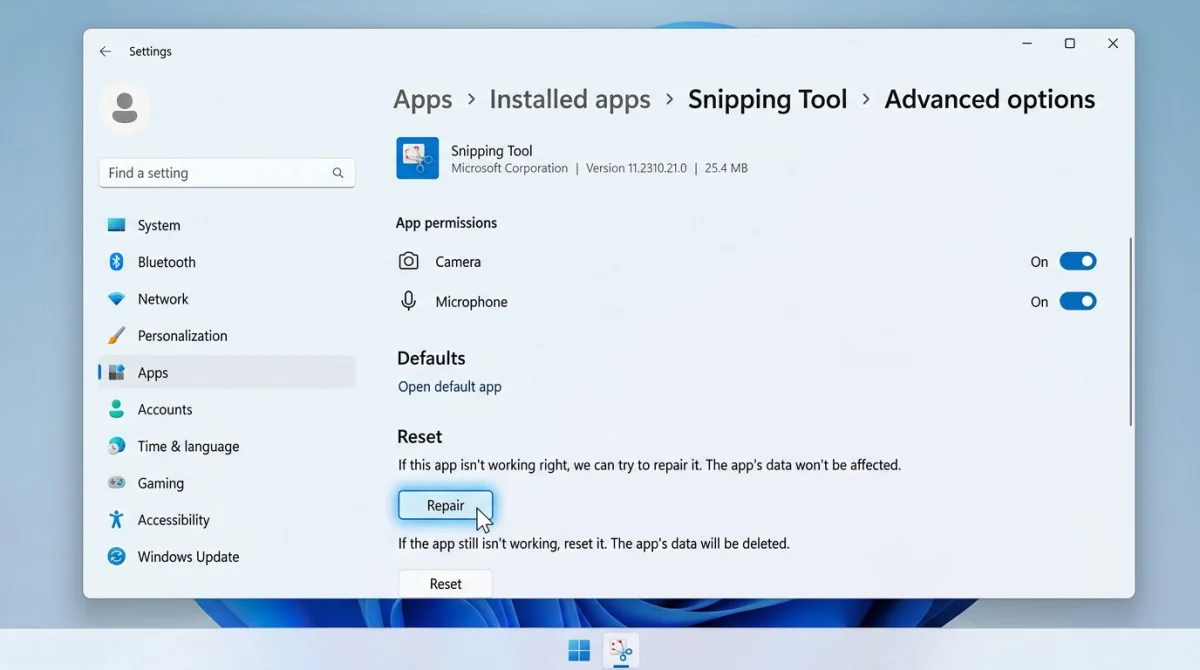
Try Win+Shift+S again. If the tool now opens but your screenshots vanish, that points to a clipboard issue. On to fix 2.
Fix 2: Turn on Clipboard History
Snipping Tool copies each snip to the clipboard. If clipboard history is off and no toast notification fires, you may think the app is broken when it's actually working fine.
- Press Win+V.
- If clipboard history is off, click Turn on.
- Take a snip. You should see it listed.
If the snip shows up in Win+V but no notification appears, the tool is fine. You just need to enable notifications. Move to fix 3.
Fix 3: Enable Snipping Tool notifications
- Open Settings > System > Notifications.
- Make sure the master toggle at the top is On.
- Scroll down to the app list and find Snipping Tool.
- Toggle it On, and open the row to confirm "Show notification banners" is enabled.
No banner means no "click to annotate" prompt. The snip is saved, but you can't edit it. This is one of the most common reasons people think snipping tool won't open when it's actually working silently.
Fix 4: Turn off Focus Assist and Do Not Disturb
Focus Assist (renamed "Do Not Disturb" in recent Windows 11 builds) blocks the Snipping Tool toast.
- Open Settings > System > Notifications.
- Turn Do not disturb Off.
- Expand Turn on do not disturb automatically and disable any rules that might trigger during your work hours.
Try a capture again. If the toast shows up this time, you've found the problem.
Fix 5: Check the Print Screen key setting
Windows 11 can route the PrtScn key to launch Snipping Tool. If that setting is off, the key does nothing, which feels like the tool is broken.
- Go to Settings > Accessibility > Keyboard.
- Find Use the Print screen key to open screen snipping.
- Toggle it On.
Press PrtScn. The snipping overlay should appear. Win+Shift+S also still works as a separate shortcut.
Fix 6: Restart Windows Explorer
Sometimes the shell gets stuck and overlays (including Snipping Tool's dim layer) stop rendering.
- Press Ctrl+Shift+Esc to open Task Manager.
- On the Processes tab, find Windows Explorer.
- Right-click it and choose Restart.
Your taskbar will flicker for a second. Try Win+Shift+S. A surprising number of win shift s not working reports clear up with this single step.
Fix 7: Update Windows and the Snipping Tool
An old build can carry the expired certificate bug or other patched issues.
- Update Windows: Settings > Windows Update > Check for updates > install everything.
- Update the app: open the Microsoft Store > Library (bottom left) > Get updates.
Restart your PC after both finish. For historical context on why Microsoft ships these patches, the Microsoft release health dashboard tracks known issues by build.
Fix 8: Run SFC and DISM scans
When the problem isn't in the Snipping Tool package itself but in Windows system files, these two built-in scans clean things up.
- Click Start, type "cmd," right-click Command Prompt, choose Run as administrator.
- Run this first:
sfc /scannowWait for it to finish. If it reports repaired files, reboot and test.
- Still broken? Run:
DISM /Online /Cleanup-Image /RestoreHealthThis pulls clean component files from Windows Update. It can take 10-20 minutes. Reboot when it's done.
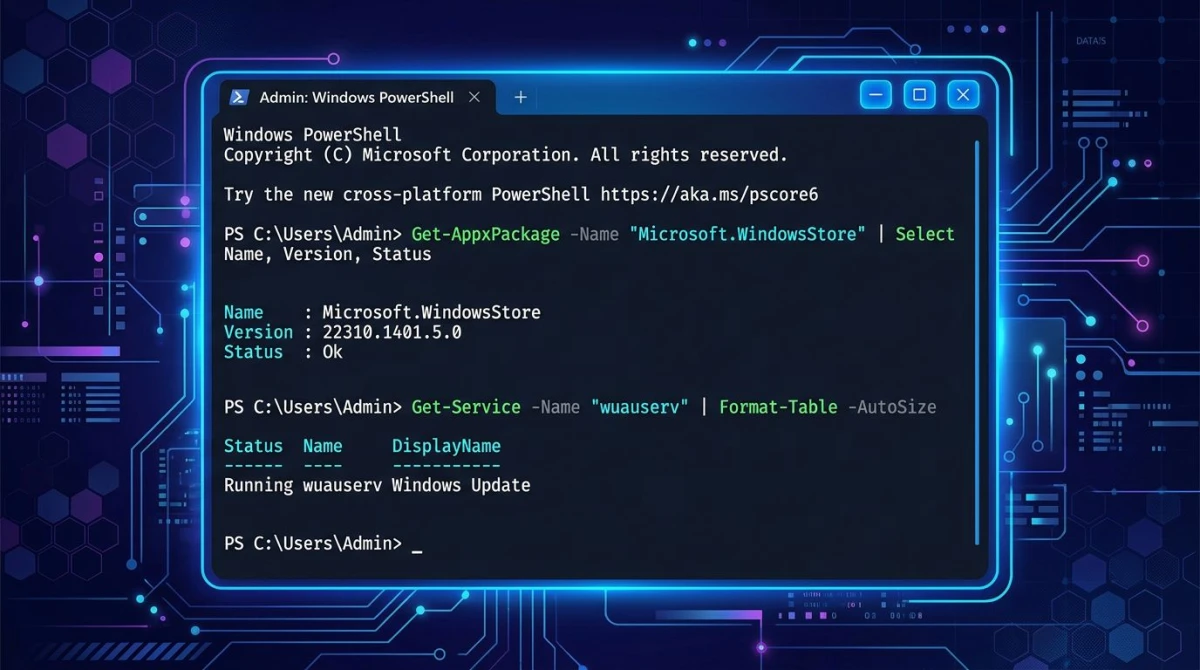
Fix 9: Reinstall Snipping Tool via PowerShell
If reset didn't help and the app shows "this app can't open," a clean reinstall usually does the trick.
- Click Start, type "powershell," right-click Windows PowerShell, choose Run as administrator.
- Remove the app:
Get-AppxPackage *ScreenSketch* | Remove-AppxPackage- Reboot your PC.
- Open the Microsoft Store, search "Snipping Tool," and click Install.
This wipes every trace of the broken install. It's the most reliable fix for a reset snipping tool that still won't cooperate.
Fix 10: Check third-party hotkey hijackers
Apps that capture PrtScn or Win+Shift+S will block Snipping Tool silently. The usual suspects:
- OneDrive (Settings > Backup > "Automatically save screenshots I capture to OneDrive")
- Dropbox (Preferences > Backups > "Share screenshots using Dropbox")
- ShareX, Greenshot, Lightshot, Flameshot
- PowerToys Keyboard Manager custom remaps
Open each one, disable its screenshot hotkey, and test. If you only use one of these, it may be more reliable than Snipping Tool anyway. See our best snipping tool alternatives for Windows for the current lineup.
Fix 11: Test a new Windows user profile
If nothing above works, the issue may be tied to your user profile, not the OS.
- Go to Settings > Accounts > Other users.
- Click Add account > I don't have this person's sign-in information > Add a user without a Microsoft account.
- Sign into the new account and try Win+Shift+S.
If it works in the new profile, your main profile has a broken Snipping Tool setting or a corrupt AppData folder. Copying settings over from the new profile is faster than a full OS reinstall.
Fix 12: Clean boot to rule out background apps
A clean boot starts Windows with only Microsoft services. It's a fast way to prove whether a background app is the real villain.
- Press Win+R, type
msconfig, press Enter. - On the Services tab, check Hide all Microsoft services, then click Disable all.
- Click Startup > Open Task Manager. Disable every startup item.
- Reboot.
Test Snipping Tool. If it works now, re-enable services one group at a time until the tool breaks again. The last group you turned on is your problem. When you're done, reverse all the changes in msconfig and Task Manager so your PC boots normally.
Fix 13: Use a reliable alternative
If you've tried all 12 fixes and Snipping Tool still crashes, it's time to accept that the free built-in tool isn't serving you. You have three good options:
- Win+PrtScn. Saves a full-screen PNG to Pictures > Screenshots. No app needed.
- Xbox Game Bar (Win+G): built into Windows 11, handles region and window capture.
- A dedicated screenshot app. See our best screenshot tools for Windows or windows screenshot shortcuts guide.
For people who need screenshot software that just works every time, ScreenSnap Pro is worth a look. It's $34 one-time (no subscription), runs on Windows and Mac, and covers screenshots, GIFs, screen recording, and 17 annotation tools in a single app. If Snipping Tool keeps breaking after Windows updates, a $34 one-time purchase beats troubleshooting every quarter.
Quick troubleshooting table
| Symptom | Try this first |
|---|---|
| Win+Shift+S does nothing | Fix 1 (Repair), Fix 10 (hotkey conflict) |
| Snipping Tool won't open | Fix 1 (Repair), Fix 9 (PowerShell reinstall) |
| App opens, crashes on capture | Fix 1 (Reset), Fix 8 (SFC/DISM) |
| No notification after snip | Fix 2 (Clipboard), Fix 3 (Notifications), Fix 4 (Focus Assist) |
| "This app can't open" error | Fix 9 (PowerShell reinstall) |
| Certificate error | Fix 7 (Update Windows) |
| PrtScn does nothing | Fix 5 (Accessibility > Keyboard) |
When Snipping Tool is working again
Once you're back up, it's worth learning a few keyboard shortcuts so you don't waste time on menus next time:
- Win+Shift+S. Region snip
- PrtScn. Opens Snipping Tool (if enabled in Accessibility)
- Win+PrtScn. Full screen saved to Pictures > Screenshots
- Alt+PrtScn. Active window to clipboard
For the full list, see our screenshot on Windows 11 guide. If you're also on a Mac, the Mac screenshot shortcuts post has the macOS equivalents.
Need to mark up a capture after you take it? A free image annotation tool like our image annotation tool works right in the browser, no install needed.
A small habit that saves pain later
Once a month, check for Windows updates and Microsoft Store app updates together. Most Snipping Tool failures we see in the wild trace back to a skipped patch. Ten minutes every four weeks is the cheapest insurance policy in Windows.
And if you use Snipping Tool daily for work, pin it to your taskbar. The app launches faster from the taskbar than from the Start search box, and you can right-click the icon to access recent snips without opening the main window. Small detail, but it pays off over hundreds of captures.
Frequently Asked Questions
Wrapping up
Nine times out of ten, a broken Snipping Tool comes back to life after Repair or Reset in Advanced options. If that fails, the PowerShell reinstall clears almost every remaining case. When even that doesn't stick, it's usually a third-party hotkey conflict or a corrupt user profile.
If Snipping Tool breaks again after the next Windows update (and it will for some people), remember that a paid tool like ScreenSnap Pro costs less than an hour of troubleshooting and doesn't depend on Microsoft shipping a clean build. $34 one-time, works on Windows and Mac, no subscription. Your time is worth more than free.

Morgan
Indie DeveloperIndie developer, founder of ScreenSnap Pro. A decade of shipping consumer Mac apps and developer tools. Read full bio
@m_0_r_g_a_n_