Win+Shift+S Not Working: 8 Fixes for Windows 11 (2026)
Quick fix: Win + Shift + S most often stops working because Clipboard History is turned off. Press Win + V and turn it on (or go to Settings → System → Clipboard). That restores the screenshot overlay in most cases. If it still fails, repair the Snipping Tool under Settings → Apps → Installed apps → Snipping Tool → Advanced options → Repair. The full 8-fix checklist is below.
You hit Win + Shift + S. Nothing happens. No overlay, no crosshair, no dimmed screen. The shortcut that usually pops up the Snipping Tool just dies in silence. If win shift s not working is your new daily problem, you are not alone, and most fixes take under a minute.
The most common cause is not a broken keyboard or a corrupt app. It is Clipboard History being turned off, which quietly breaks the overlay flow on Windows 11. The second most common cause is a stuck Snipping Tool that needs a one-click repair. The rest come down to Focus Assist, keyboard remap tools, and profile quirks.
This guide walks through 8 fixes in the order that actually works. Start at the top and stop as soon as the shortcut comes back.
Quick answer: why Win+Shift+S stops working
Before you dive in, here are the three causes that fix 80% of cases:
- Clipboard History is off. The Snipping Tool overlay depends on it. Press
Win + Vand turn it on. - Snipping Tool needs a repair. Open Settings, find the app, and click Repair. One click, no data loss.
- Focus Assist or Do Not Disturb is on. The overlay can be blocked by notification rules.
If none of those three fix it, keep reading. The remaining five fixes cover keyboard remap tools, PowerShell reinstall, and profile resets.
One symptom this guide does not cover: if the capture saves but the image is a solid black rectangle, that is a different cause. See why a screenshot comes out black.
Why Win + Shift + S fails in the first place
The shortcut does not take a screenshot directly. It triggers an overlay that the Snipping Tool paints on top of your screen. That overlay is only one of the app's two surfaces, and how to use the Snipping Tool explains the difference. You then draw a region, and the image lands in your clipboard and the notification tray.
That overlay is what breaks. It can be blocked by any of the following:
- The Snipping Tool app being stopped, frozen, or half-loaded
- Clipboard History being turned off (Windows 11 requires it for the overlay flow)
- Focus Assist or Do Not Disturb muting the notification that triggers the overlay
- A third-party tool reserving the
Win + Shift + Scombo first - A gaming keyboard with Game Mode disabling the Windows key
- A corrupt Snipping Tool install after a Windows Update
- A broken Windows user profile
Each fix below targets one of these causes. They are ordered by speed and impact, with quick wins first.
Fix 1: Turn on Clipboard History
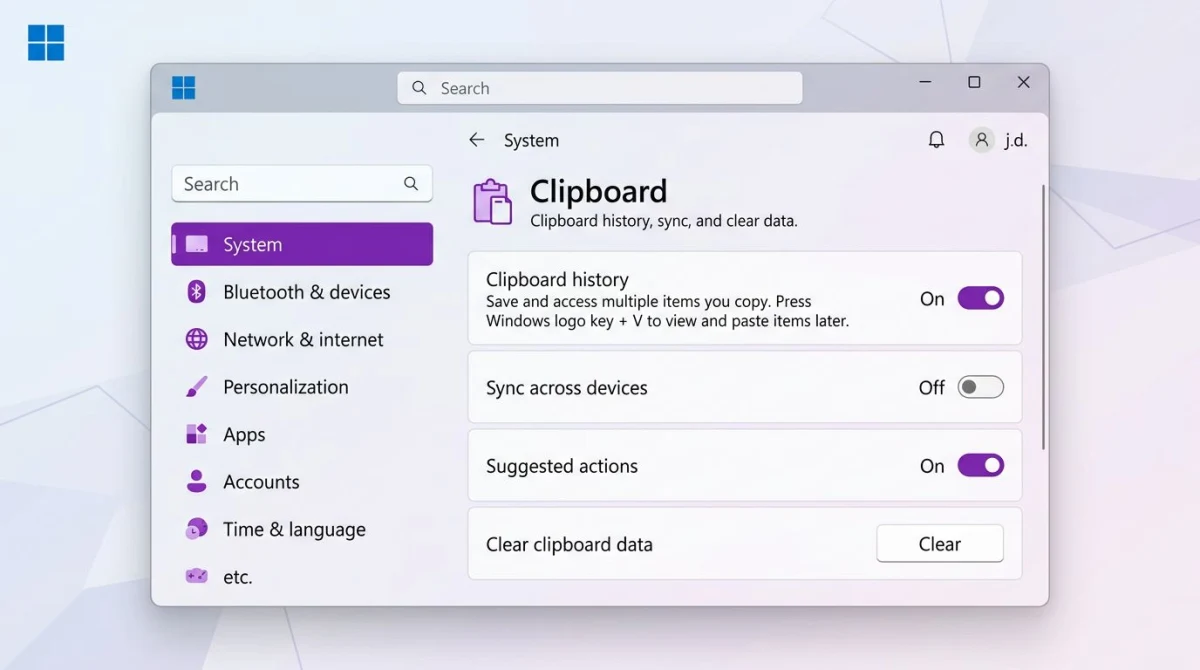
This is the fix most guides skip. On Windows 11, the Snipping Tool overlay writes to the clipboard as part of its capture flow. If Clipboard History is off, the overlay can silently fail.
Fast method: Press Win + V. A clipboard panel pops up. If you see a Turn on button, click it. That is your fix.
Settings method:
- Open Settings (press
Win + I) - Go to System > Clipboard
- Toggle Clipboard history on
- Try
Win + Shift + Sagain
If the overlay comes back, you are done. If not, move to Fix 2.
For a full tour of every built-in capture method, see our Windows screenshot shortcuts guide or our deeper screenshot on Windows 11 walkthrough.
Fix 2: Enable Snipping Tool notifications
The Snipping Tool uses notifications to fire the overlay action on Windows 11. If notifications are off for this one app, the shortcut can look dead even when it is working behind the scenes.
- Open Settings (
Win + I) - Go to System > Notifications
- Scroll down to the app list
- Find Snipping Tool
- Turn the toggle On
Make sure Notifications at the top of the page is also on. If the master switch is off, every app toggle under it is ignored.
Fix 3: Turn off Focus Assist or Do Not Disturb
Focus Assist (called Do Not Disturb on newer Windows 11 builds) mutes notifications. Since the overlay depends on a notification hook, Focus Assist can block the shortcut without any visible error.
- Open Settings > System > Notifications
- Click Do not disturb to expand it
- Toggle it Off
- Scroll down to Automatic rules and turn those off too
Focus Assist has sneaky auto-rules that turn it on when you run a full-screen app, play a game, or duplicate your display. If your shortcut works some of the time but not others, one of those rules is the cause.
Fix 4: Repair or reset the Snipping Tool
Windows 11 has a built-in repair option for most Microsoft Store apps. It takes about 10 seconds and does not delete your settings.
- Open Settings > Apps > Installed apps
- Search for Snipping Tool
- Click the three-dot menu, then Advanced options
- Scroll down and click Repair
- Wait for the checkmark, then test
Win + Shift + S
If Repair does not fix it, come back to the same screen and click Reset. This wipes the app's cache and settings, but it is the next fastest thing to a reinstall.
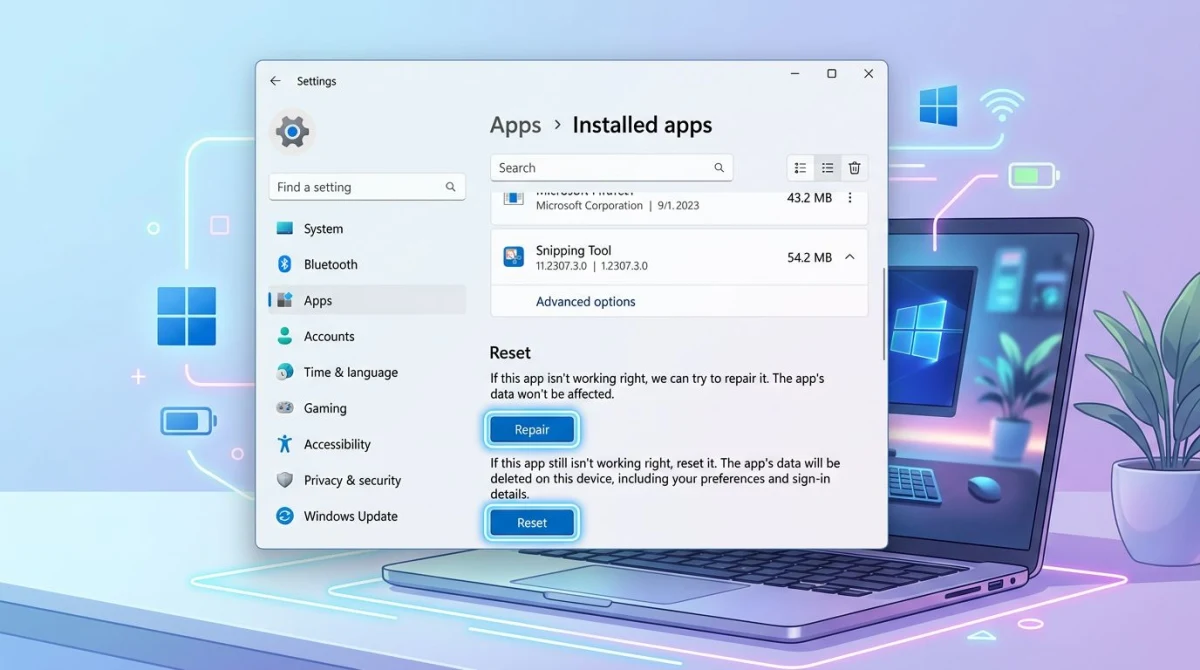
Microsoft covers this flow in its official Snipping Tool support page.

Tired of plain screenshots? Try ScreenSnap Pro.
Beautiful backgrounds, pro annotations, GIF recording, and instant cloud sharing, all in one app. Pay $34 once, own it forever.
See pricing and featuresFix 5: Restart Windows Explorer
Windows Explorer owns the shell: the taskbar, the notification area, and the overlay layer. When Explorer gets stuck, shortcuts that rely on shell hooks (including Win + Shift + S) can die quietly. A restart is instant and does not log you out.
- Press
Ctrl + Shift + Escto open Task Manager - Click the Processes tab
- Find Windows Explorer
- Right-click it and choose Restart
Your taskbar will flicker for a second. Then try the shortcut again. If this fixes it, the problem will usually come back after the next Windows Update, so keep Fix 4 and Fix 7 handy.
Fix 6: Check for keyboard remap conflicts
This is the fix most troubleshooting guides miss. Any tool that remaps keys can silently steal Win + Shift + S before Windows sees it. The most common culprits:
- PowerToys Keyboard Manager. If you ever set up a custom shortcut, check that it does not include
Win + Shift + S - AutoHotkey scripts that run at startup
- Logitech Options, Razer Synapse, Corsair iCUE. Gaming and productivity mouse software often owns the Windows key combos
- SharpKeys or any registry-level remap tool
How to check:
- Open PowerToys > Keyboard Manager > Remap a shortcut
- Scroll through every entry for
Win + Shift + S - Delete any conflicting entry
If you use a gaming keyboard, check the vendor app too. Many gaming keyboards ship with Game Mode that disables the Windows key by default. Look for a dedicated physical key or a Fn combo (often Fn + Win) that toggles it on and off. If the Windows key light is off, the shortcut cannot fire.
Quick test: open Notepad and press Win + R. If the Run dialog does not pop up, the Windows key itself is disabled.
Fix 7: Reinstall Snipping Tool with PowerShell
If Repair and Reset failed, you need a clean reinstall. Uninstalling from Settings and redownloading from the Microsoft Store works, but PowerShell is faster and more reliable.
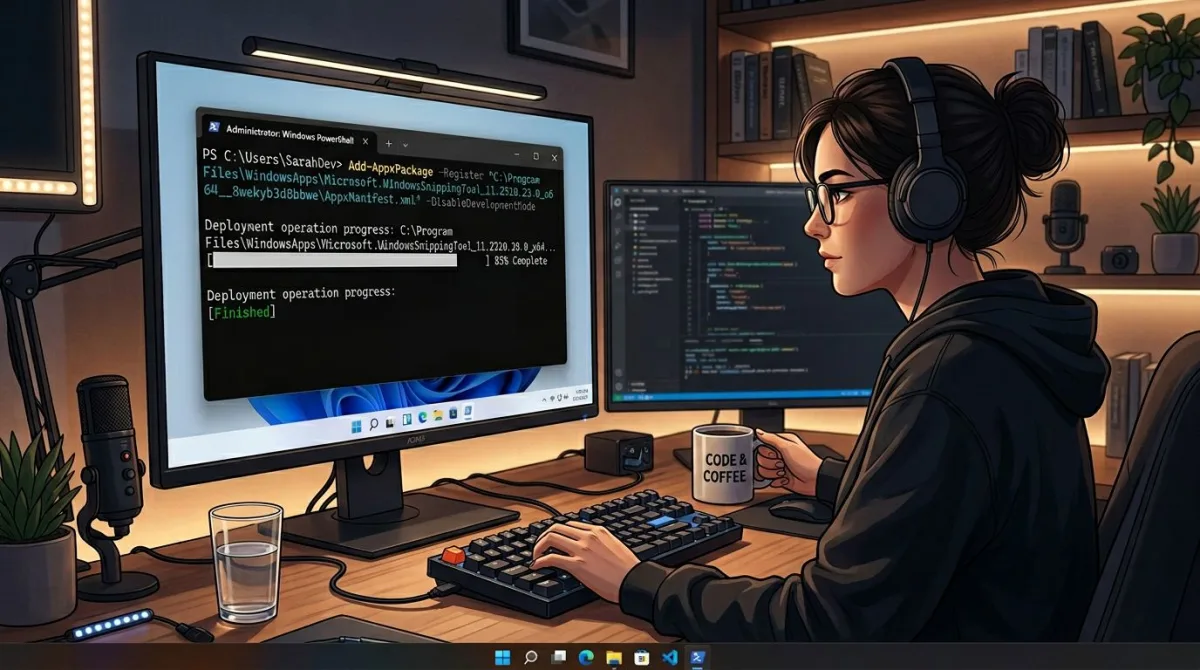
- Right-click the Start button and choose Terminal (Admin)
- Click Yes on the UAC prompt
- Paste this command to remove the Snipping Tool:
Get-AppxPackage *Microsoft.ScreenSketch* | Remove-AppxPackage- Then paste this command to reinstall it fresh:
Get-AppxPackage -AllUsers *Microsoft.ScreenSketch* | Foreach {Add-AppxPackage -DisableDevelopmentMode -Register "$($_.InstallLocation)\AppXManifest.xml"}- Reboot your PC and test the shortcut
If the second command fails because the package is already gone, just install Snipping Tool from the Microsoft Store by name. It will come back with default settings.
Fix 8: Create a new Windows user profile
This is the last-resort fix. If none of the above worked, your Windows user profile is likely corrupt, usually from a bad update or a third-party app that wrote to the wrong registry path.
- Open Settings > Accounts > Other users
- Click Add account
- Choose I don't have this person's sign-in information
- Choose Add a user without a Microsoft account
- Set a username and password
- Sign out and sign in as the new user
- Test
Win + Shift + S
If the shortcut works on the new profile, your old profile is the problem. Copy your files over (C:\Users\OldName\ to C:\Users\NewName\) and set the new profile as your main one. It is a pain, but it is faster than a full Windows reset.
When none of the fixes work
If you have tried all eight fixes and Win + Shift + S is still dead, the shortcut itself is likely the issue rather than your setup. A pending Windows feature update, a bad driver, or a deep OS bug can keep it broken for weeks.
You have two options:
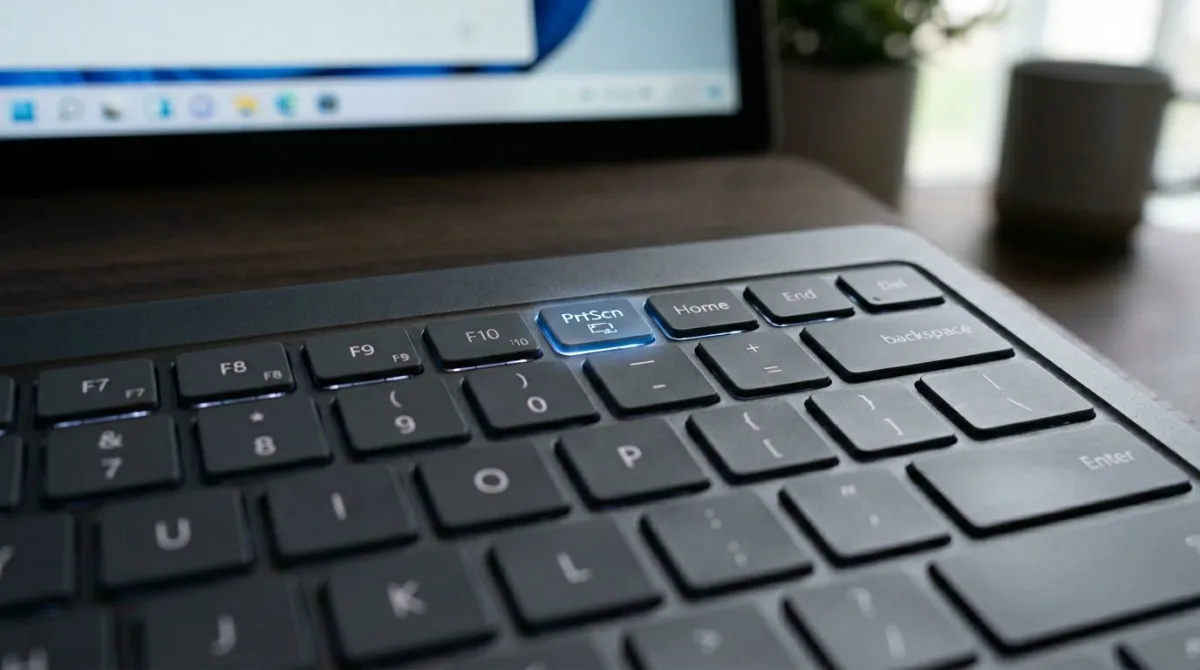
Option 1: Use the Print Screen alternative. Windows 11 lets you bind the PrtScn key to open the snipping overlay. Go to Settings > Accessibility > Keyboard and turn on Use the Print screen key to open screen snipping. It is the same overlay, just a different trigger.
Option 2: Switch to a screenshot tool that is not tied to the Windows shortcut. Any good third-party app uses its own hotkey, which the Windows overlay bug cannot touch.
If you want a deeper look at third-party tools built for Windows, see our roundup of the best Snipping Tool alternatives for Windows or our best screenshot tools for Windows roundup. If you only need region captures specifically, our partial screenshot on Windows guide covers every option.
Third-party tools that are not tied to Win + Shift + S
These apps run their own capture engine and use their own hotkey. When Windows breaks, they keep working.
ScreenSnap Pro: a paid-once option
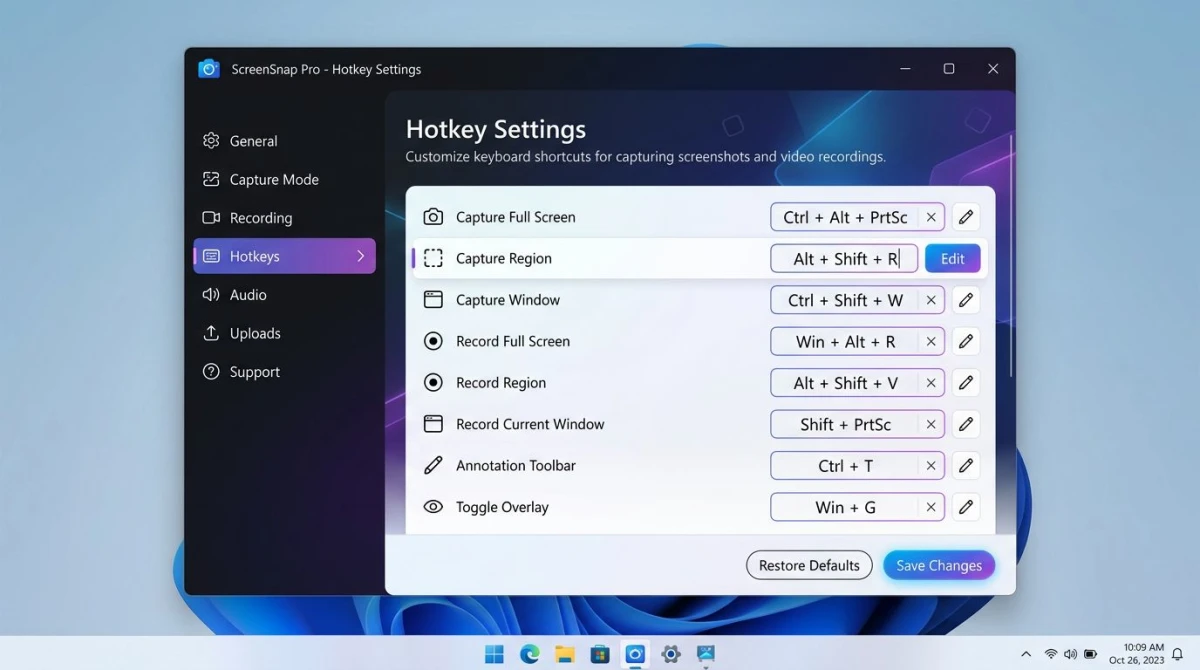
ScreenSnap Pro is a screenshot tool with its own hotkey (you can rebind it to almost any key combination, a function key on its own, or Print Screen). It works on Windows and Mac with one $34 license. No subscription. No Snipping Tool dependency.
If Win + Shift + S keeps breaking after every Windows Update, ScreenSnap Pro's own hotkey is unaffected by Snipping Tool bugs. You also get 17 annotation tools, 500+ gradient backgrounds, GIF recording, OCR text extraction, and optional cloud sharing, none of which the built-in tool offers. For a head-to-head feature look, see our Snagit vs Snipping Tool comparison.
ShareX: free and open source
ShareX is free, Windows-only, and very powerful. It lets you bind any hotkey you want to region, window, or full-screen capture. The upload targets list is huge: imgur, Dropbox, FTP, custom endpoints. The UI is dated, but it works.
If you never want to pay for a screenshot tool, ShareX is the one.
Greenshot: light and simple
Greenshot is another free tool, simpler than ShareX. It binds PrtScn by default and opens its own overlay. Good if you want a quiet tool that does one thing well.
FAQ
Wrap-up
Most of the time, win shift s not working comes down to Clipboard History being off, a stuck Snipping Tool, or Focus Assist blocking the overlay. The first three fixes clear 80% of cases. If they do not, the PowerShell reinstall covers another 15%. The last 5% is a corrupt profile or a third-party remap tool.
If the shortcut keeps breaking every few weeks, it is worth moving to a tool that does not depend on it. A third-party app with its own hotkey keeps working no matter what Windows does.

Morgan
Indie DeveloperIndie developer, founder of ScreenSnap Pro. A decade of shipping consumer Mac apps and developer tools. Read full bio
@m_0_r_g_a_n_