Print Screen Not Working Windows 11: 10 Fixes (2026)
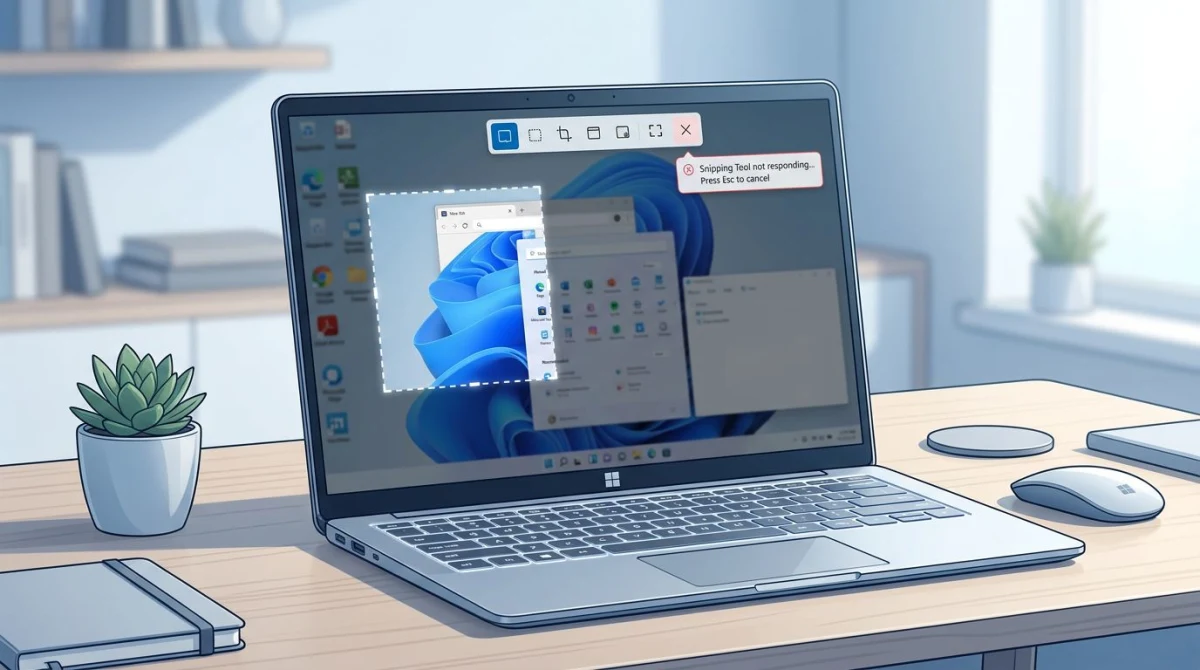
Print Screen not working on Windows 11? The most common cause in 2026 is not a broken key or a bad driver. It is a new Windows 11 setting that changed what print screen does. After the 24H2 update, the PrtScn key opens the Snipping Tool by default. If you expected it to copy the full screen like before, it looks like nothing happened.
No Print Screen key on your keyboard at all? Our computer screenshot guide covers the keyboards that ship without one.
Below are 10 fixes, ordered by how often each one is the real cause. Most readers will be back on track after Fix 1 or Fix 2. The rest cover everything else: F-Lock keys, OneDrive stealing your screenshots, keyboard drivers, and a clean software workaround if your hardware key stays dead.
What does Print Screen do on Windows 11 in 2026?
Print Screen (PrtScn) on Windows 11 24H2 opens the Snipping Tool by default. It no longer copies the full screen to the clipboard unless you change a setting in Accessibility. If your PrtScn key seems broken, the first thing to check is this toggle rather than your hardware.
This change rolled out with the Windows 11 24H2 update. Older Windows versions copied the whole screen to the clipboard when you pressed PrtScn. The new behavior surprises people. They press the key, expect a clipboard copy, and see a small snipping overlay, or nothing at all if the overlay is behind another window.
The good news: this is a two-click fix. And if you liked the old behavior, you can turn it back on.
One symptom this guide does not cover: if the capture saves but the image is a solid black rectangle, that is a different cause. See why a screenshot comes out black. And if PrtScn works but returns one very wide image of every display stitched together, the key is fine. That is a multi-monitor setup behaving normally, so read how to screenshot only one monitor instead.
Fix 1: Change the Print Screen key setting (most common fix)
If you are on Windows 11 24H2 or later, this is the first thing to try. Windows now lets you pick what PrtScn does.
- Press
Win + Ito open Settings. - Go to Accessibility in the left sidebar.
- Click Keyboard.
- Find Use the Print Screen key to open screen snipping.
- Toggle it off if you want PrtScn to copy the full screen to the clipboard (old behavior).
- Leave it on if you want PrtScn to open the Snipping Tool (new default). If you keep the new default, how to use the Snipping Tool covers what the app can do.
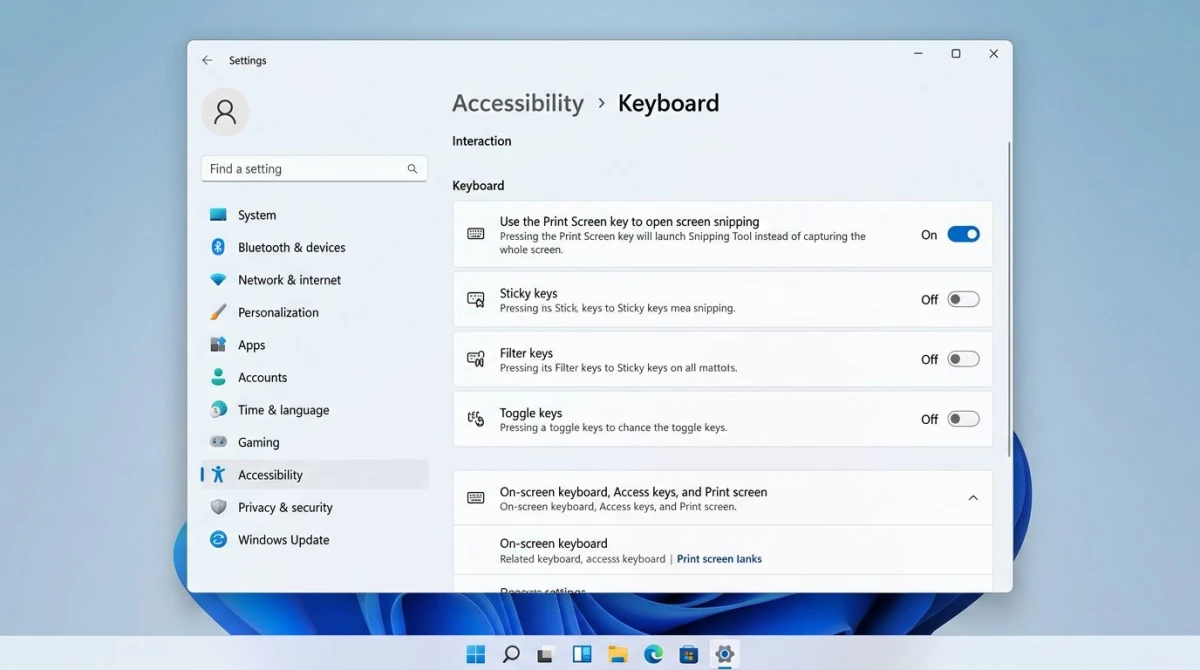
Sign out and sign back in if the change does not take effect right away. Most people think their key is broken when it is just doing a different job. For the full set of built-in shortcuts, see our Windows screenshot shortcuts guide.
Fix 2: Look for F-Lock or press Fn + PrtScn
On most laptops, the Print Screen key shares a row with the F-keys. If F-Lock is off, you have to hold the Fn key to trigger PrtScn. If F-Lock is on, the F-keys work on their own but media keys (volume, brightness) need the Fn modifier.
Try this:
- Press
Fn + PrtScnonce. If it works, F-Lock is off. - Look for an F-Lock key on your keyboard. It is often
Fn + Escor a small lock icon on F1, F9, or F12. - Press the F-Lock key once, then press PrtScn again.
HP, Dell, and Lenovo laptops all handle this a bit differently. Dell uses Fn + Esc on most models. HP uses Fn + Shift on some business laptops. Lenovo ThinkPads often have a dedicated Fn Lock indicator on the Fn key itself.
If you swapped to a new external keyboard recently and PrtScn stopped working, F-Lock is the most likely cause.
Fix 3: Close OneDrive and Dropbox (the silent screenshot thieves)
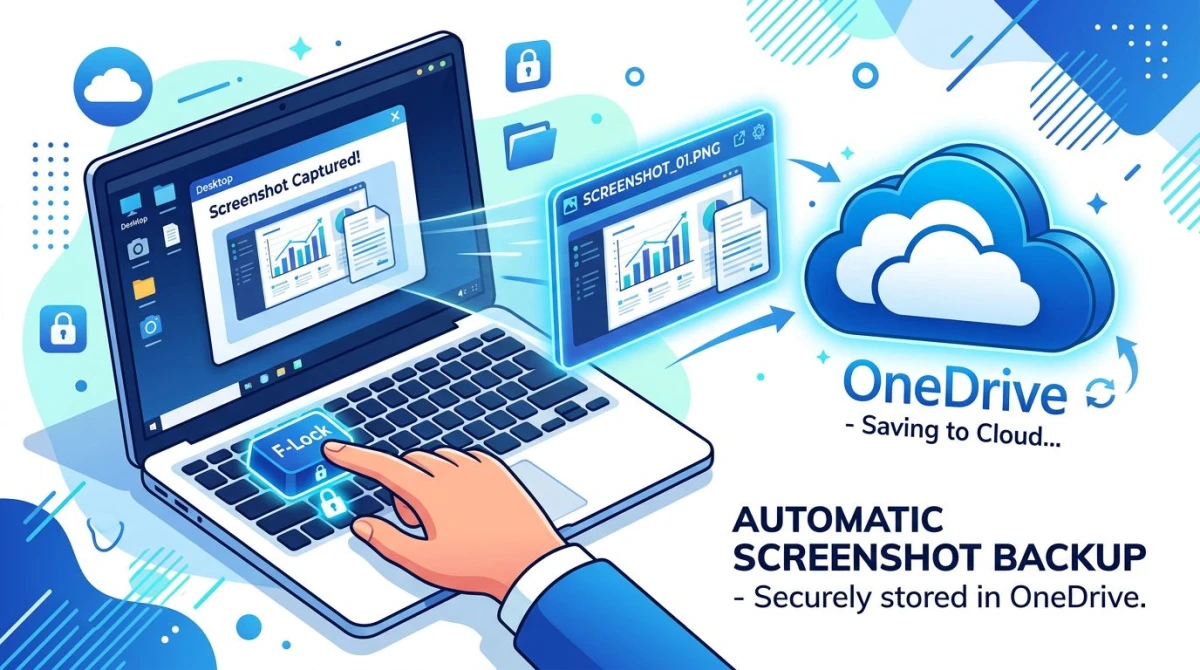
OneDrive and Dropbox both have a feature that auto-saves your screenshots to the cloud. When you press PrtScn, they grab the image before anything else can. If you paste into an image editor and nothing shows up, one of these apps is the culprit.
To check OneDrive:
- Click the OneDrive cloud icon in the system tray.
- Click the gear icon, then Settings.
- Go to the Backup or Sync and backup tab.
- Find Automatically save screenshots I capture to OneDrive.
- Turn it off.
To check Dropbox:
- Click the Dropbox icon in the system tray.
- Click your avatar, then Preferences.
- Go to the Backups tab.
- Uncheck Share screenshots using Dropbox.
After you turn these off, your screenshots will land in the clipboard the way they used to. If you want the auto-save feature back but do not want it to eat your clipboard, use Win + PrtScn instead, which always saves to the Screenshots folder regardless of what OneDrive is doing. Not sure where those go? Our guide on where screenshots go on Windows covers every default path.
Fix 4: Update your keyboard driver
A bad or outdated keyboard driver can break single keys. This is less common than people think, but it does happen after a big Windows update.
- Right-click the Start button.
- Click Device Manager.
- Expand Keyboards.
- Right-click your keyboard (often "HID Keyboard Device" or the brand name).
- Click Update driver → Search automatically for drivers.
If Windows says the best driver is already installed, try the next step:
- Right-click the keyboard again.
- Click Uninstall device.
- Restart your PC. Windows will reinstall the driver on boot.
External keyboard users should also check the manufacturer's site. Logitech, Razer, Corsair, and Keychron all ship custom drivers and firmware that can affect PrtScn behavior.
Fix 5: Try alternate screenshot shortcuts
Even if PrtScn itself is dead, Windows gives you four other ways to grab a screen. Use them while you fix the key, or keep them as a permanent swap.
| Shortcut | What it does |
|---|---|
Win + Shift + S | Opens Snip & Sketch overlay (region, window, full screen) |
Win + PrtScn | Saves full screen to Pictures/Screenshots |
Alt + PrtScn | Copies active window to clipboard |
Win + G | Opens Xbox Game Bar; click the camera icon |
Win + Alt + PrtScn | Game Bar screenshot of active window |
Win + Shift + S is the one to memorize. It works on every modern Windows 11 build, gives you region select, and copies straight to the clipboard. For a walkthrough of every built-in option, our Windows 11 screenshot guide has the full tour.

Tired of plain screenshots? Try ScreenSnap Pro.
Beautiful backgrounds, pro annotations, GIF recording, and instant cloud sharing, all in one app. Pay $34 once, own it forever.
See pricing and featuresFix 6: Test for a stuck or dead key
Sometimes the key is just broken. Dust, spills, and worn switches all kill individual keys. Before you blame software, run a quick hardware test.
- Open keyboard-test.space or a similar free keyboard tester in your browser.
- Press every key on the top row, including PrtScn.
- Watch the on-screen keyboard light up. If PrtScn does not register, the key is dead.
- Try an external USB keyboard on the same PC. If PrtScn works there, your built-in keyboard needs repair or replacement.
If the key is physically dead on a laptop, you have three options: use an external keyboard, remap another key to act as PrtScn with a tool like PowerToys Keyboard Manager, or swap to a third-party capture app with its own hotkey.
Fix 7: Disable background apps that capture PrtScn
Any app with a "screen capture" hotkey can steal PrtScn the moment you press it. The usual suspects:
- Xbox Game Bar. Has its own capture hotkeys
- Snagit. Binds PrtScn by default
- Greenshot. Binds PrtScn by default (see our Greenshot review for details)
- Lightshot. Binds PrtScn on install
- ShareX. Binds PrtScn unless you change it
- NVIDIA ShadowPlay. Uses
Alt + F1but can interfere
Open each app's settings and check its hotkey binding. If two apps both want PrtScn, whichever loads last wins, and the other stops working. Pick one, free the key for the others, and restart.
For Xbox Game Bar:
- Press
Win + Ito open Settings. - Go to Gaming → Game Bar.
- Turn off Allow your controller to open Game Bar.
- Open Game Bar (
Win + G), click the gear icon, and clear any PrtScn-based hotkeys.
Fix 8: Run the Windows Keyboard Troubleshooter
Windows 11 still ships a built-in keyboard troubleshooter. It is buried, but it catches the edge cases the other fixes miss.
- Press
Win + Ito open Settings. - Go to System → Troubleshoot → Other troubleshooters.
- Find Keyboard and click Run.
- Follow the prompts.
The troubleshooter will check for stuck keys, bad settings, and filter key issues (a setting that ignores brief or repeated key presses, which is great for accessibility but bad for PrtScn on some keyboards).
While you are in that screen, also run the Windows Store Apps troubleshooter if you think the Snipping Tool itself is broken. That is a different problem from PrtScn not working, but the symptoms overlap.
Fix 9: Run SFC and DISM scans
If nothing else has worked, your system files might be damaged. Two built-in commands will check and repair them.
- Press
Win + Xand click Terminal (Admin). - Run
sfc /scannowand wait for it to finish. - If SFC reports damaged files it cannot fix, run
DISM /Online /Cleanup-Image /RestoreHealth. - Restart your PC.
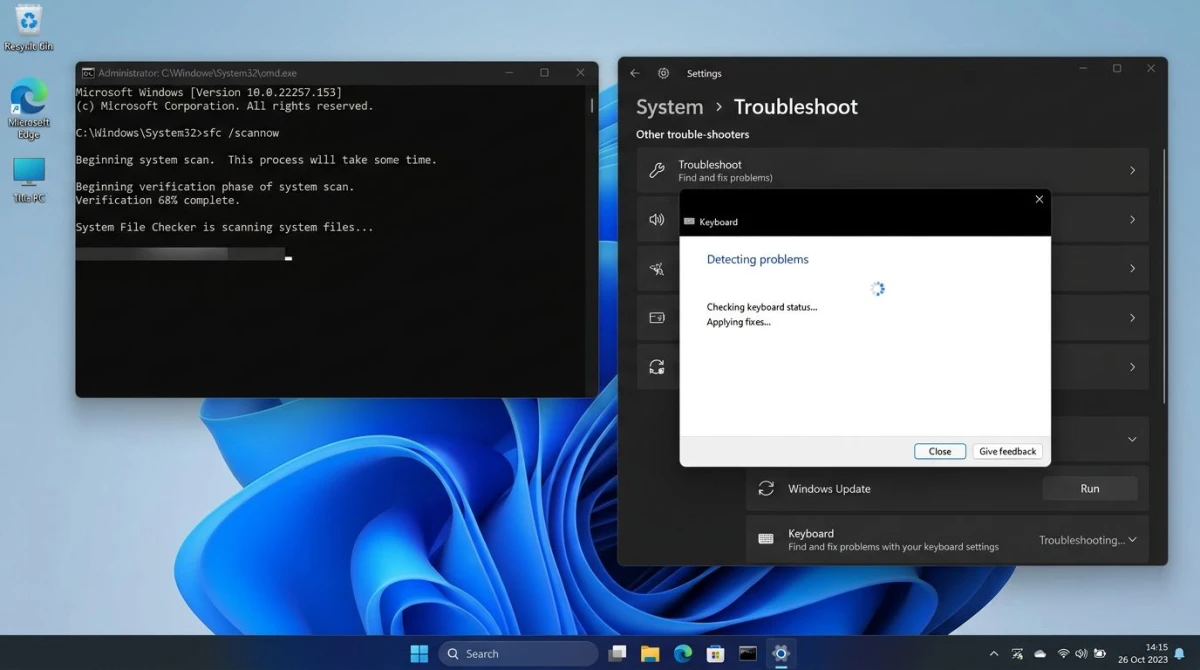
This takes 10 to 20 minutes but fixes a surprising range of weird Windows bugs, including PrtScn issues. You can read more about these commands on Microsoft Support.
Fix 10: Test with the On-Screen Keyboard
This one is less a fix and more a final test. If the on-screen keyboard's PrtScn works but your physical key does not, the problem is your hardware rather than Windows.
- Press
Win + Ctrl + Oto open the On-Screen Keyboard. - Click the PrtScn key on it.
- Open Paint or another image editor and press
Ctrl + V.
If your screen pastes in, your PC and Windows are fine. Your keyboard is the problem. Time for a repair, replacement, or external keyboard.
If nothing pastes even from the on-screen keyboard, something is intercepting every screenshot, usually OneDrive, Dropbox, or a capture app. Back to Fix 3 and Fix 7.
What if the Print Screen key just will not cooperate?
Sometimes all ten fixes run their course and the PrtScn key still does nothing useful. The culprit can be worn laptop switches, a flaky external keyboard, or a remapped key you forgot about. At that point the cleanest fix is a screenshot tool with its own hotkey that does not depend on PrtScn at all.
A dedicated screen capture tool lets you:
- Pick any hotkey you want (not just PrtScn)
- Capture region, window, or full screen from one shortcut
- Annotate right away without a trip through Paint
- Save or share without hunting for the file
ScreenSnap Pro is one option. It runs on Windows and Mac, costs $34 once (no subscription), includes 17 annotation tools and 500+ backgrounds, and binds to whatever hotkey you want. If PrtScn is permanently busted on a work laptop, it is a reliable way to get past it. Free alternatives like ShareX and Greenshot work too, so see our best snipping tool alternatives for Windows roundup for a side-by-side comparison.
Quick troubleshooting flowchart
Not sure where to start? Run this quick check.
- On Windows 11 24H2 or newer? → Fix 1 (Settings toggle)
- On a laptop? → Fix 2 (F-Lock / Fn key)
- Using OneDrive or Dropbox? → Fix 3 (disable screenshot upload)
Win + Shift + Sworks but PrtScn alone does nothing? → Fix 7 (background app stole the hotkey)- No key on your keyboard responds? → Fix 10 (on-screen keyboard test)
- Everything else failed? → Fix 9 (SFC and DISM)
About 80% of the time, the answer is Fix 1 or Fix 3. Start there before you open Device Manager.
Frequently Asked Questions

Morgan
Indie DeveloperIndie developer, founder of ScreenSnap Pro. A decade of shipping consumer Mac apps and developer tools. Read full bio
@m_0_r_g_a_n_