Xbox Game Bar Not Working: 10 Fixes (2026)
You hit Win + G, and nothing shows up. Or the Xbox Game Bar opens but the record button is gray. Or you start a clip, hear the chime, and end up with a zero-byte file. If any of that sounds familiar, you are in the right place.
This guide walks through 10 fixes for the xbox game bar not working problem, ordered from quickest to most advanced. Most people are back to recording after fix 1 or 2. If you have been at this for a while, skip to the PowerShell re-register step.
Quick checklist before you start troubleshooting
Run through these five checks first. They take two minutes and solve most cases.
- Reboot the PC. A restart clears stuck Gaming Services and fixes a surprising number of Game Bar issues for free.
- Try Win + G on the desktop. Some apps block overlays. Check the Game Bar works on your desktop before blaming a specific game.
- Confirm you signed in. Xbox Game Bar needs a Microsoft account. Open the Xbox app and sign in if you see a prompt.
- Check if you are in full-screen exclusive mode. Older games that use exclusive full-screen can hide the overlay. Switch the game to borderless windowed and try again.
- Close other overlays. NVIDIA GeForce Experience, Discord, and Steam overlays can fight Game Bar for the same hotkey.
Still no luck? Work through the fixes below in order. Each one is a five-minute task or less.
Why Xbox Game Bar is not working
A few common culprits cause the xbox game bar won't open issue:
- Game Bar is turned off in Settings. A clean install of Windows 11 sometimes ships with it disabled.
- The Microsoft Store version is out of date. Microsoft ships fixes often. A stale build can crash on launch.
- The app package is corrupt after a Windows update. You will see a white screen or no response at all.
- Graphics drivers are stale. Game Bar uses hardware encoding for clips. An old driver can break recording without breaking the UI.
- Hotkey conflict. Another app grabbed Win + G before Game Bar could.
- Gaming Services crashed. This background service runs the capture engine. If it is not running, nothing records.
Now the fixes.
Fix 1: Enable Xbox Game Bar in Settings
This is the first thing to try if win + g not working at all.
- Press Win + I to open Settings.
- Go to Gaming > Xbox Game Bar.
- Toggle Open Xbox Game Bar using this button on a controller and the main Xbox Game Bar switch to On.
- Press Win + G to test.
If the toggle is already on, flip it off, wait five seconds, then flip it back on. That re-registers the shortcut.
On Windows 11 24H2, the toggle moved under Settings > Gaming > Game Bar Controller. Same result, different path.
Fix 2: Update Xbox Game Bar from the Microsoft Store
A stale version is the second-most-common cause of a game bar stopped working state. Updates ship often and fix known bugs.
- Open the Microsoft Store.
- Click your profile icon, then Downloads.
- Click Get updates.
- Wait for Xbox Game Bar to update. Let related apps update too, since Gaming Services and the Xbox app work together.
- Reboot and try Win + G.
If the Store says the app is up to date but Game Bar still fails, move on to the reset in fix 3.
Fix 3: Repair and reset the app
Windows has a built-in repair for Store apps. It fixes corrupt files without touching your settings.
- Press Win + I > Apps > Installed apps.
- Find Xbox Game Bar, click the three-dot menu, and pick Advanced options.
- Scroll to the Reset section.
- Click Repair first. It keeps your settings.
- If Repair does not help, click Reset. That wipes app data but keeps the install.
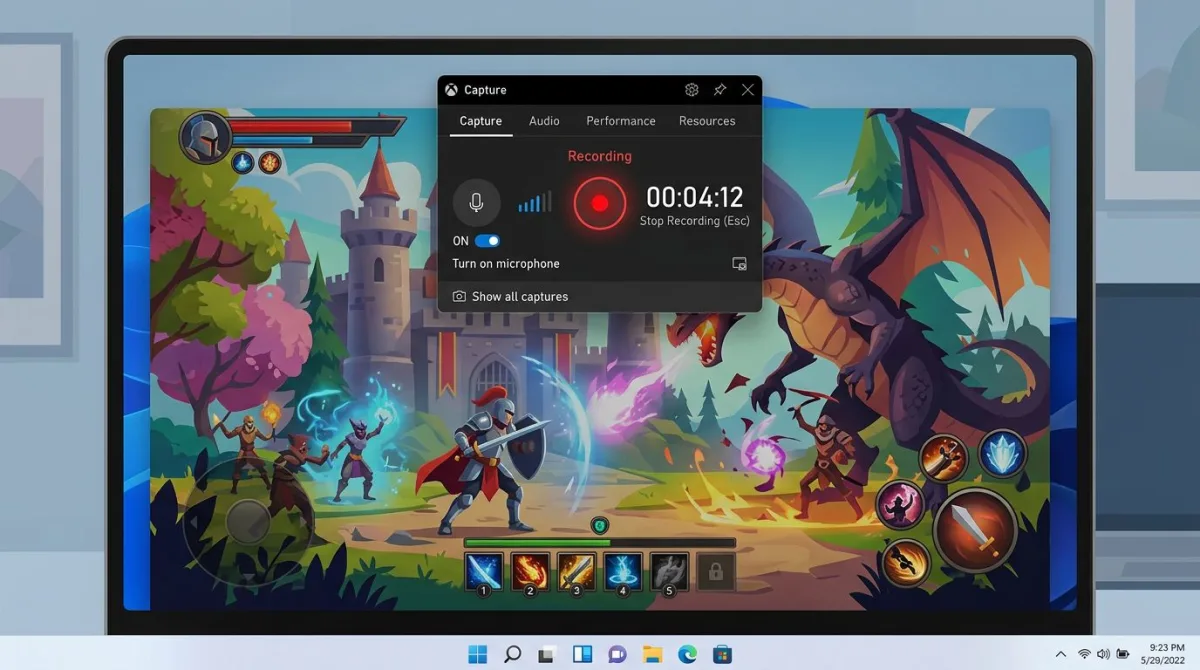
After the reset, press Win + G. If the bar opens but xbox game bar not recording, jump to fix 5 on drivers.
Fix 4: Re-register Xbox Game Bar with PowerShell
When Repair and Reset both fail, this is the fix that saves most people. It rebuilds the app package from scratch.
- Right-click the Start button, pick Terminal (Admin).
- Paste this command and hit Enter:
Get-AppxPackage Microsoft.XboxGamingOverlay | Reset-AppxPackage- Wait for it to finish. You may see a progress bar.
- Reboot.
If Reset-AppxPackage is not available on your Windows build, use this instead:
Get-AppxPackage Microsoft.XboxGamingOverlay | Foreach {Add-AppxPackage -DisableDevelopmentMode -Register "$($_.InstallLocation)\AppXManifest.xml"}This forces Windows to re-register the app. Nine times out of ten, this fixes a game bar missing problem after a big update.

Tired of plain screenshots? Try ScreenSnap Pro.
Beautiful backgrounds, pro annotations, GIF recording, and instant cloud sharing, all in one app. Pay $34 once, own it forever.
See pricing and featuresFix 5: Update your graphics drivers
Xbox Game Bar records with your GPU's hardware encoder. If the driver is old, the UI works but clips fail. This shows up as a "nothing was recorded" toast or a tiny, broken MP4 file.
- Open Device Manager (Win + X > Device Manager).
- Expand Display adapters.
- Right-click your GPU and pick Update driver > Search automatically.
- For the latest build, grab drivers from the vendor:
- NVIDIA: GeForce Experience or the NVIDIA driver download page
- AMD: AMD Software: Adrenalin Edition
- Intel: Intel Driver & Support Assistant
Reboot after the install. Then try to record a clip with Win + Alt + R. If the clip saves but is empty, check fix 6.
Fix 6: Restart Gaming Services
Gaming Services is the background engine for Game Bar captures. If it crashes, the toolbar opens but nothing records.
- Press Ctrl + Shift + Esc to open Task Manager.
- Go to the Services tab.
- Find GamingServices and GamingServicesNet.
- Right-click each and pick Restart.
If either service is missing, reinstall Gaming Services from the Microsoft Store page. After install, reboot and test Win + G again.
Fix 7: Turn on Game Mode
Game Mode is not required for Xbox Game Bar, but turning it on re-primes the capture pipeline. It is a simple toggle worth trying.
- Press Win + I > Gaming > Game Mode.
- Toggle it On.
- Open the game or app you want to record.
- Press Win + G.
If Game Bar still says "Nothing to record. Play for a bit first," move to the captures tab in Settings and toggle Record what happened on. That unlocks the background recording buffer.
Fix 8: Check for keyboard shortcut conflicts (Win + G)
Other overlays and macros love Win + G. A shortcut conflict is a common reason for a xbox game bar disabled feel even when the app is installed.
Check these apps, one at a time:
- NVIDIA GeForce Experience / NVIDIA App. Go to Settings > Keyboard shortcuts. Change the overlay hotkey to Alt + Z or disable it.
- Discord. User Settings > Keybinds. Remove any Win + G bindings.
- Steam. Settings > In-Game. Change the Big Picture overlay hotkey.
- Logitech G Hub / Razer Synapse. Macro profiles sometimes eat Windows key combos. Disable any active profile and test.
If Win + G starts working after you close one of these apps, you found the culprit. Change that app's hotkey so you can use both.
You can also change the Game Bar shortcut itself. Open Settings > Gaming > Xbox Game Bar > Keyboard shortcuts and pick a new combo like Ctrl + Alt + G.
Fix 9: Reinstall Xbox Game Bar from scratch
If nothing above works, do a clean reinstall. This wipes the package and grabs a fresh copy from the Store.
- Open Terminal (Admin).
- Run this to remove the app for your user:
Get-AppxPackage Microsoft.XboxGamingOverlay | Remove-AppxPackage- Reboot.
- Open the Microsoft Store and search for Xbox Game Bar. Click Install.
- Also reinstall Gaming Services if you removed it in fix 6.
- Sign into the Xbox app once the install finishes.
- Press Win + G.
A clean reinstall fixes the stubborn game bar not working windows 11 cases where every other fix leaves a phantom bug behind. It is also the right move after a botched Windows feature update.
For the official Microsoft steps on opening Game Bar, check Microsoft's Game Bar support page.
Fix 10: Try an alternative if Game Bar stays broken
If you spent an hour on fixes and Game Bar still fails, you have a rough install. The pragmatic move is to pick a tool that just works. Here are three options we trust.
ShareX (free)
ShareX is the open-source pick for Windows users who want full control. It records the screen, captures regions, and uploads to tons of services. It is a power tool, so expect to spend 10 minutes in Settings to get it where you want it.
OBS Studio (free)
OBS is the standard for streamers and creators. It is overkill for a quick clip, but if you record often, it beats Game Bar on quality and stability. The learning curve takes an afternoon.
ScreenSnap Pro ($34 one-time)
If you want Game Bar's "hit a shortcut, get a clip" feel without the bugs, ScreenSnap Pro handles screenshots, screen recording, webcam, system audio, and GIF recording in one app. It's a screen recorder for Windows 10 and 11, ships with 17 annotation tools, and costs $34 once. No subscription. No watermark.
It is also cross-platform, so the same license covers Mac. For folks who record tutorials, bug repros, or clip highlights, it is the calmest option on this list. You can read more in our screen recording guide for Windows or the step-by-step record gameplay on PC tutorial.
Related Windows troubleshooting guides
If Game Bar is part of a bigger problem, these sibling guides help:
- Win + Shift + S not working on Windows: fix the screenshot shortcut
- Snipping Tool not working on Windows: for broken snips and missing notifications
- Print Screen not working on Windows 11: if the PrtScn key stopped working after 24H2
- Loom alternatives for Windows: if you moved past Game Bar and want team-ready recording
Frequently Asked Questions

Morgan
Indie DeveloperIndie developer, founder of ScreenSnap Pro. A decade of shipping consumer Mac apps and developer tools. Read full bio
@m_0_r_g_a_n_