Xbox Game Bar Guide for Windows (2026)
Xbox Game Bar is a free overlay built into Windows 10 and Windows 11 that lets you record your screen, take screenshots, and track performance without installing a thing. Press Win + G and it pops up over whatever you are doing. Despite the name, it works with most apps (not just games), so it is the fastest way to grab a clip of Chrome, a meeting, or a tutorial on your PC.
This guide covers every way to use the game bar windows ships with: how to turn it on, record gameplay, snap screenshots, track FPS, rebind shortcuts, and work around its quirks. We will also look at where it falls short and what to reach for when it does.
What is Xbox Game Bar (Win + G)
Xbox Game Bar is Microsoft's built-in capture and overlay tool. It ships with every copy of Windows 10 and Windows 11. The overlay is a set of floating widgets (Capture, Performance, Audio, Xbox Social) that you pin wherever you want on screen.
It was built for gamers first, which is why the name says "Xbox." But it records almost any foreground app, takes screenshots, and shows FPS and CPU load live. It is free, signed by Microsoft, and free of upsells.
Key things Xbox Game Bar can do:
- Record the active app as an MP4 video
- Record the last 30 seconds (Game DVR background recording)
- Take a full-screen screenshot with a shortcut
- Show live FPS, CPU, GPU, and RAM usage
- Switch audio outputs on the fly
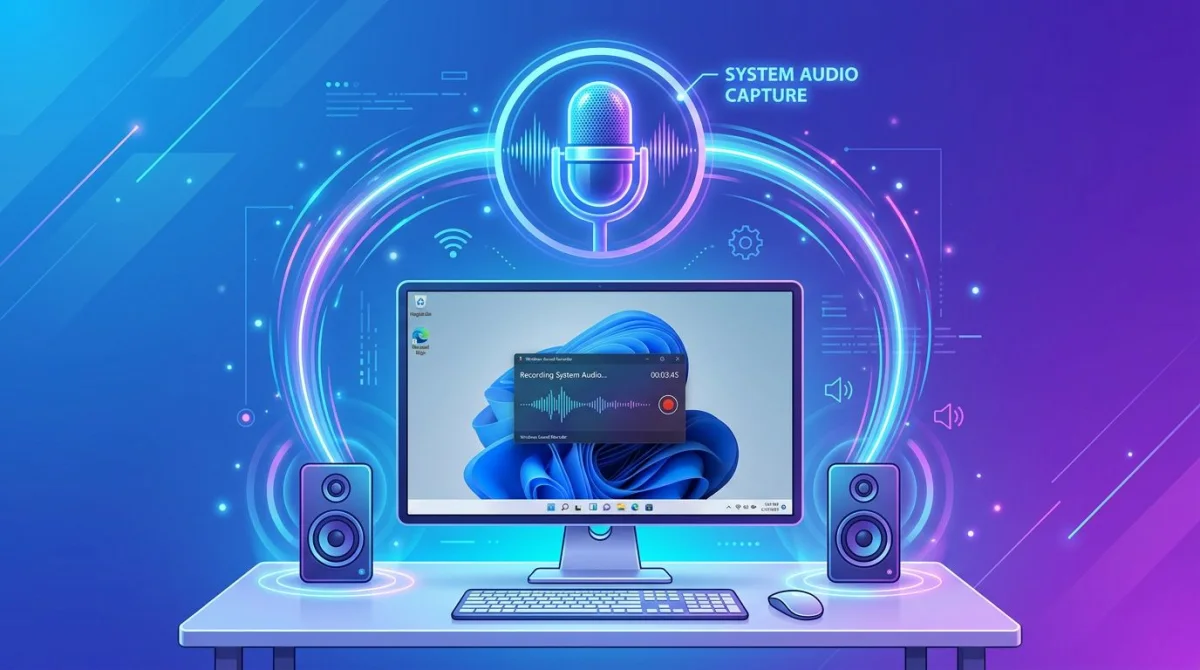
- Capture microphone input during a recording
- Broadcast to a few streaming services (limited)
Key things it cannot do:
- Record the Windows desktop or File Explorer
- Record more than one app at a time
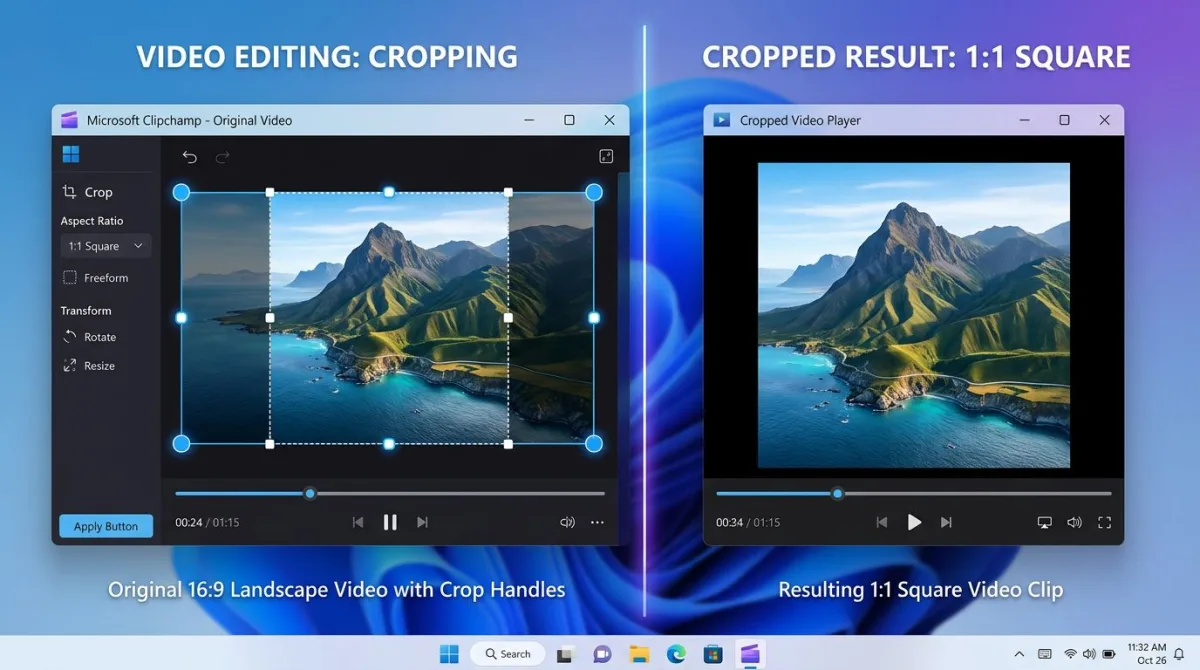
- Crop, trim, or edit clips (it only saves them)
- Add annotations, arrows, or text on top of footage
- Save clips as GIFs (MP4 only)
If you need any of those, you will want a helper tool, which we cover below.
How to enable Xbox Game Bar on Windows
Xbox Game Bar is usually on by default. If the shortcut does nothing, enable it manually.
- Press
Win + Ito open Settings. - Go to Gaming in the left sidebar.
- Click Xbox Game Bar.
- Toggle Allow your controller to open Xbox Game Bar on (or leave the keyboard shortcut on).
- On Windows 11, also check Gaming > Captures and make sure Record what happened is on if you want background recording.
Press Win + G to test. The overlay should appear within a second. If it still does not open, the app itself may be missing, so reinstall it from the Microsoft Store Xbox Game Bar listing. Microsoft's official Xbox Game Bar support page has the latest steps if yours still will not launch.
First-run tip: The first time Game Bar opens, it asks if the current app is a game. Say yes. That unlocks recording for that app going forward. Many desktop apps are not flagged as games by default.
Taking a screenshot with Xbox Game Bar
The fastest way to grab a screenshot from Game Bar is the direct shortcut.
Win + Alt + PrtSc: snap the active window right away, no overlay needed.Win + G, then click the camera icon in the Capture widget for the same result, just with a preview.
Both methods save a PNG to:
C:\Users\[you]\Videos\CapturesYes, screenshots land in the Videos folder, not Pictures. That trips people up. You can change the location in Settings > Gaming > Captures if you would rather keep captures somewhere else. (Steam's own F12 screenshots go somewhere else entirely. See where the Steam screenshot folder lives.)
Game Bar screenshots are always full screen of the active app. No region select, no window picker. If you need a partial grab, use Win + Shift + S (Snipping Tool) instead. Our guide to partial screenshot on Windows shows how to pick a region in one motion.
Recording gameplay with Win + Alt + R
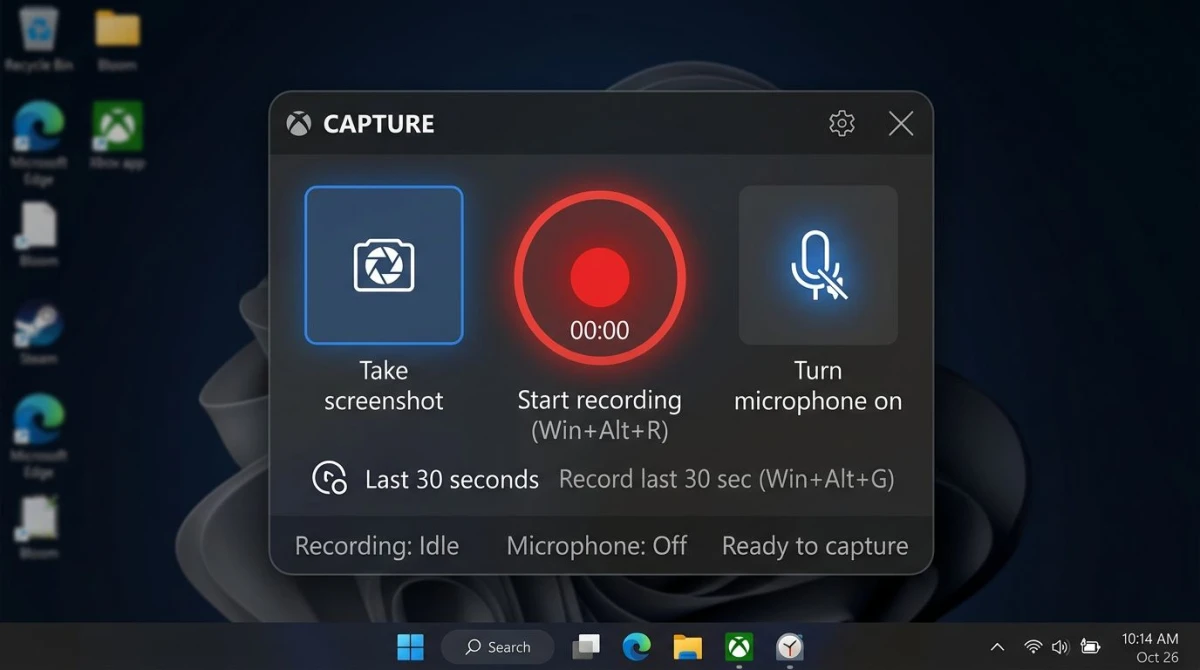
Recording is where Game Bar earns its name. The shortcut Win + Alt + R starts and stops a recording of the active app.
Step-by-step
- Open the app or game you want to record.
- Press
Win + Alt + Rto start. A small timer appears in the top-right corner. - Press
Win + Alt + Mat any time to toggle your microphone on or off. - Press
Win + Alt + Ragain to stop. - The MP4 clip is saved to
C:\Users\[you]\Videos\Captures.
What you can tweak
Open Settings > Gaming > Captures to change:
- Max recording length. 30 minutes up to 4 hours.
- Video quality. Standard or High (the High setting uses more space but looks sharper).
- Frame rate. 30 FPS or 60 FPS.
- Record audio. System, mic, or both.
- Mic volume and system volume sliders.
For higher bitrate, richer codecs, or multi-track audio, Game Bar will not cut it. A free tool like OBS Studio or our paid option are covered in the alternatives section.
Common gotcha
If you hit Win + Alt + R and nothing happens, the app is probably not flagged as a game. Open Game Bar with Win + G, then click the three-dot menu on the Capture widget and toggle Remember this is a game. After that, the shortcut will work.
Background recording and Game DVR
Game DVR is the "wait, I wish I had recorded that" feature. With it on, Windows is always buffering the last 30 seconds of the active app. When something cool happens, press Win + Alt + G to save what just happened.
How to turn it on:
- Open Settings > Gaming > Captures.
- Toggle Record what happened on.
- Set the buffer length (15 seconds up to 10 minutes).
Background recording uses your GPU at all times, which drops a few FPS in demanding games. If you notice stutter, turn it off and record manually with Win + Alt + R instead.
DVR only works for one app at a time, whichever one has focus. If you alt-tab to Chrome and back, the buffer resets.
Audio settings and the mixer
The Audio widget is one of the most useful parts of Game Bar. It shows every audio source on your PC, live, with volume sliders.
To open it, press Win + G, then click the speaker icon. You will see two tabs:
- Mix. Per-app volume and mute controls. Drop the Spotify bar without leaving the game.
- Voice. Choose which microphone and speakers Game Bar uses for recordings.
This matters a lot for recordings. If the game audio is too loud relative to your voice, slide it down in Mix before you hit record. You can also pick a specific microphone under Voice > Input, which is handy if you have both a headset mic and a USB mic.
For a deeper dive into recording with audio properly, we have a dedicated guide on screen record with audio on Windows.

Tired of plain screenshots? Try ScreenSnap Pro.
Beautiful backgrounds, pro annotations, GIF recording, and instant cloud sharing, all in one app. Pay $39 once, own it forever.
See pricing and featuresPerformance monitoring (FPS, CPU, GPU, RAM)
The Performance widget turns Game Bar into a lightweight version of MSI Afterburner. It shows FPS, CPU load, GPU load, VRAM, and RAM live, all in one place.
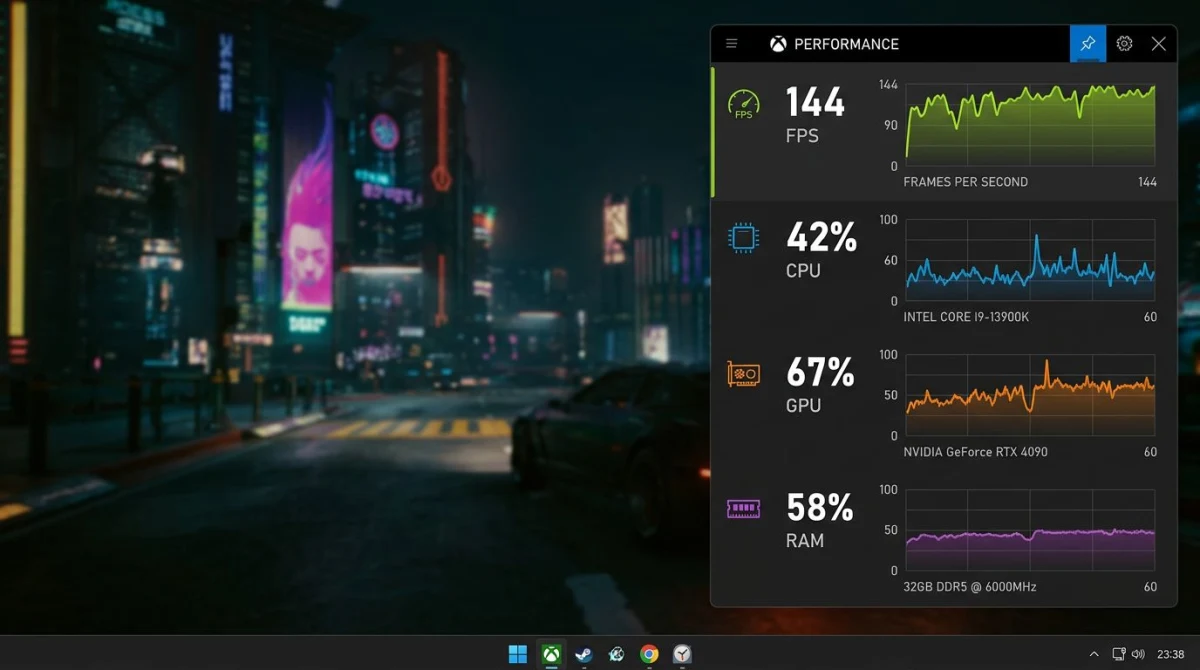
How to pin it
- Press
Win + Gto open Game Bar. - Click the Performance widget (the pulse icon).
- Hit the pin icon in the top-right of the widget.
- Close Game Bar. The widget stays on top of your game.
What each graph means
- CPU. Total processor load across all cores. Anything past 90% means you are CPU-bound.
- GPU. Main graphics card load. 99% while gaming is normal and good.
- RAM. System memory in use. If it is pegged, close some Chrome tabs.
- VRAM. Video memory in use. Games that spill over VRAM stutter.
- FPS. Frames per second for the active game. Needs admin access the first time you enable it.
Heads up: FPS tracking asks for admin rights once. Click Request access and agree. After that, it remembers.
Widgets, overlays, and what else is in there
Beyond Capture, Audio, and Performance, Game Bar ships a few more widgets. Some are handy, most are skippable.
- Xbox Social. Friends list, party chat, invites.
- Looking for Group. Matchmaking for Xbox Live games.
- Spotify. Control playback without alt-tabbing.
- Resources. A quick task manager. Close hung apps without breaking fullscreen.
- Gallery. Thumbnails of every clip and screenshot.
You can add, remove, and rearrange widgets from the widget menu icon at the top of the bar. Drag them to position, then pin the ones you want always visible.
Game Bar Windows keyboard shortcuts cheat sheet
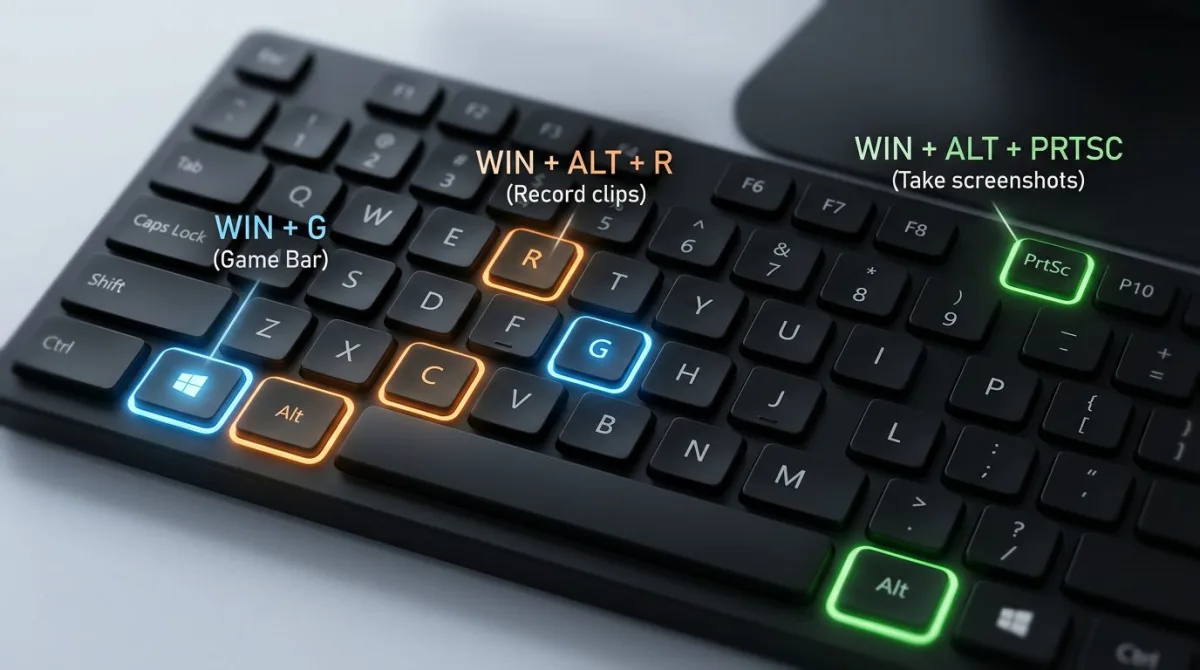
Keep this table nearby. Most of the Game Bar's value is in the shortcuts, not the overlay.
| Shortcut | What it does |
|---|---|
Win + G | Open or close Xbox Game Bar |
Win + Alt + R | Start or stop a recording |
Win + Alt + G | Save the last 30 seconds (DVR) |
Win + Alt + PrtSc | Take a screenshot of the active window |
Win + Alt + M | Toggle microphone during recording |
Win + Alt + B | Start or stop broadcasting |
Win + Alt + W | Show webcam in the broadcast |
Win + Alt + T | Show or hide recording timer |
Changing the shortcuts
Not a fan of the defaults? Go to Settings > Gaming > Xbox Game Bar and scroll to Keyboard shortcuts. You can rebind every major action, or add your own second hotkey for each one. Great if the Win + Alt combos clash with a game.
For more Windows capture keys, our roundup of the best screenshot tools on Windows covers every major PrtSc, Win+S, and Snipping Tool option in one place.
Xbox Game Bar limitations (the honest list)
Game Bar is great for a built-in tool. But it has real walls. Knowing them up front saves hours.
- No desktop recording. Game Bar flat-out refuses to record the Windows desktop, File Explorer, or the Start menu. You have to launch an app first.
- One window at a time. You cannot record two apps side by side, or a full multi-monitor view.
- MP4 only. There is no GIF export, no WebM, no image sequence.
- No editing. Clips save as-is. You cannot trim the start, cut silent parts, or add captions.
- No region capture. Screenshots are always the full active window, with no drag-to-select.
- Background tax. With DVR on, expect 2 to 5% lower FPS in demanding games.
- Permissions can get sticky. Some anti-cheat systems block Game Bar's overlay hooks, so recordings come out black.
- Recording cap. The default limit is 30 minutes. You can push it to 4 hours, but long recordings eat a lot of disk.
If any of those hit your workflow, you need a step up.
Better alternatives when Game Bar falls short
ScreenSnap Pro ($39 one-time)
For anyone who wants the ease of Game Bar plus real editing and sharing features, ScreenSnap Pro is a clean fit. It records screen, webcam, mic, and system audio. It captures region, window, or full screen. It records GIFs directly, with no MP4 conversion step. And it is a one-time $39 payment, so no subscription stacking.
Where it beats Game Bar:
- Records the desktop, File Explorer, and anything else Game Bar refuses
- 15 annotation tools (arrows, text, blur, counter) built in
- 500+ gradient backgrounds for polished screenshots
- GIF recording without a separate converter
- Works on both Windows and Mac with one license
If you record tutorials, bug reports, or social clips regularly, the time saved pays back the $39 in a week.
OBS Studio (free, open source)
OBS is the pro pick for streamers and serious creators. It handles multi-source scenes, custom bitrate, every codec, multi-track audio, and streaming to Twitch or YouTube. Learning curve is steeper than Game Bar, but it is free. Need GIFs instead of MP4s? Our GIF screen capture on Windows guide covers lightweight tools that export directly to GIF.
ShareX (free, Windows only)
Best for power users who live in screenshots. ShareX does region capture, scrolling capture, OCR, and automatic cloud upload. It records MP4 and GIF. It is free and open source. If OCR is the feature pulling you in, our OCR software for Windows roundup compares ShareX to other text-extraction tools.
Other built-ins
- Snipping Tool. Best for region screenshots and quick video clips (
Win + Shift + S). - PowerPoint. Has a hidden screen recorder in the Insert tab.
- Steam. If you play on Steam,
F12saves a screenshot to your Steam library.
For cropping screenshots after you take them, see our crop screenshot on Windows guide.
Troubleshooting common Xbox Game Bar issues
"This app can't open" error. Game Bar got uninstalled or corrupted. Open Microsoft Store, search "Xbox Game Bar," and click Install.
Recording shortcut does nothing. The app is not flagged as a game. Open Game Bar over it and toggle Remember this is a game in the Capture widget menu.
Black screen in the saved file. Some DRM-protected apps (Netflix, anti-cheat games) block overlays. Switch to a different source.
No audio in the clip. Open Settings > Gaming > Captures > Audio and make sure Record audio when I record a game is on. Also check the mic under the Game Bar Voice tab.
Overlay does not appear. Press Win + Alt + PrtSc to confirm the service is running. If that works but Win + G does not, the shortcut may be off in Settings.
FPS counter needs admin. Click Request access the first time you pin Performance. Game Bar remembers after a restart.
Clips are huge. Drop video quality to Standard and frame rate to 30. You can also compress finished clips, and our GIF compressor tool handles GIFs too.
Game Bar slows my game. Turn off Record what happened (DVR). The live buffer costs a few FPS. Manual Win + Alt + R has less overhead.
For broader help, see our free screen recorder for Windows roundup.
Frequently Asked Questions
Wrapping up
The game bar windows ships with is a solid free tool. It records games and most apps, snaps quick screenshots, and tracks FPS in real time, and it does all of that without installing anything. Memorize Win + G, Win + Alt + R, and Win + Alt + PrtSc and you have a full capture workflow for free.
Its limits are real, though. No desktop recording, no region capture, no GIF export, no editing. When you hit one of those walls, a lightweight paid option like ScreenSnap Pro picks up where Game Bar stops: region and window capture, GIF recording, built-in annotation, $39 once. OBS Studio is the free alternative if you are patient with setup.
For most people, Game Bar plus one helper tool covers everything you will need to capture on Windows.

Morgan
Indie DeveloperIndie developer, founder of ScreenSnap Pro. A decade of shipping consumer Mac apps and developer tools. Read full bio
@m_0_r_g_a_n_