How to Screenshot a Webpage on Windows (2026)
To screenshot a webpage on Windows, press Win + Shift + S for the visible area or use your browser's built-in tool for the full page: Chrome DevTools, Edge Web Capture, or Firefox's screenshot menu. You can also install a browser extension like GoFullPage for a one-click capture.
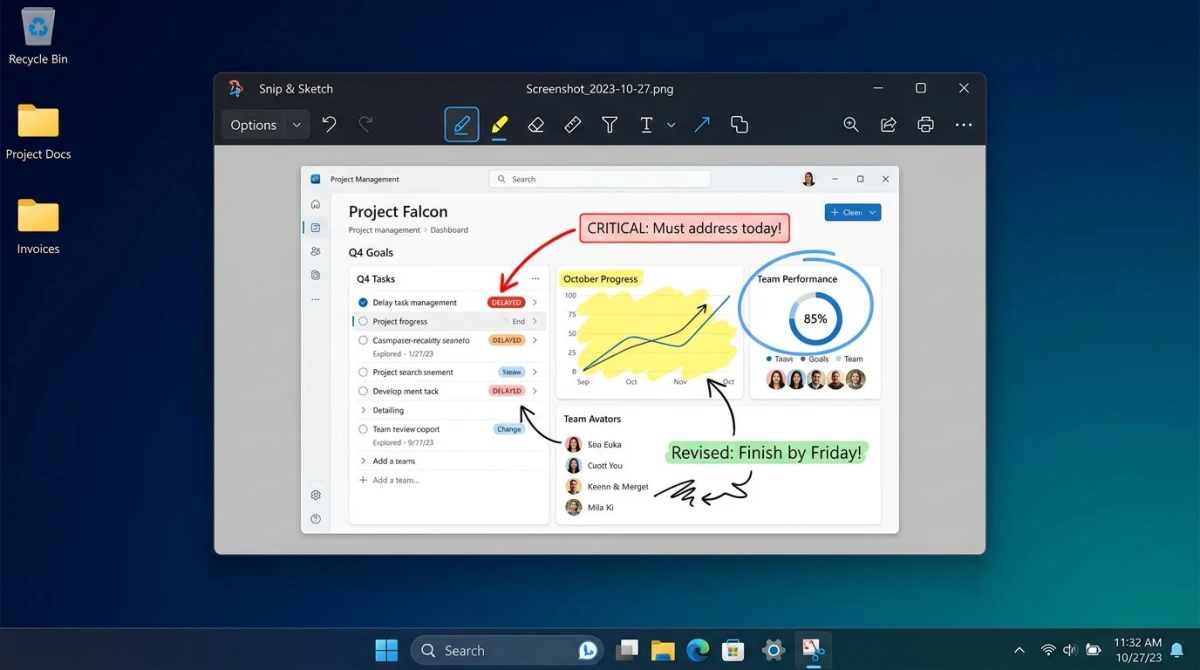
Taking a screenshot of a webpage sounds simple. But Windows makes it harder than it should be. The built-in Snipping Tool only grabs what's on screen. For a full webpage screenshot on Windows (top to bottom, including the scrolling part), you need a browser trick or a third-party tool.
This guide covers six ways to capture a webpage on Windows 10 or Windows 11. Some are free and built in. Others need an extension. All of them work today with Chrome, Edge, or Firefox.
Quick comparison: how to screenshot a webpage on Windows
| Method | Works on | Full page? | Best for |
|---|---|---|---|
| Win + Shift + S | All browsers | Visible area only | Quick clips |
| Chrome DevTools | Chrome / Brave | Yes | Developers |
| Edge Web Capture | Edge | Yes | Everyday use |
| Firefox Screenshot | Firefox | Yes | One-click saves |
| Browser extensions | Any | Yes | Non-tech users |
| Dedicated tools | Any | Visible area | Pro workflows |
Pick the method that matches your browser and your end goal. If you just need a quick clip of what's on screen, start with Method 1. For a full page, skip to Method 2, 3, or 4.
Method 1: Win + Shift + S (visible area only)
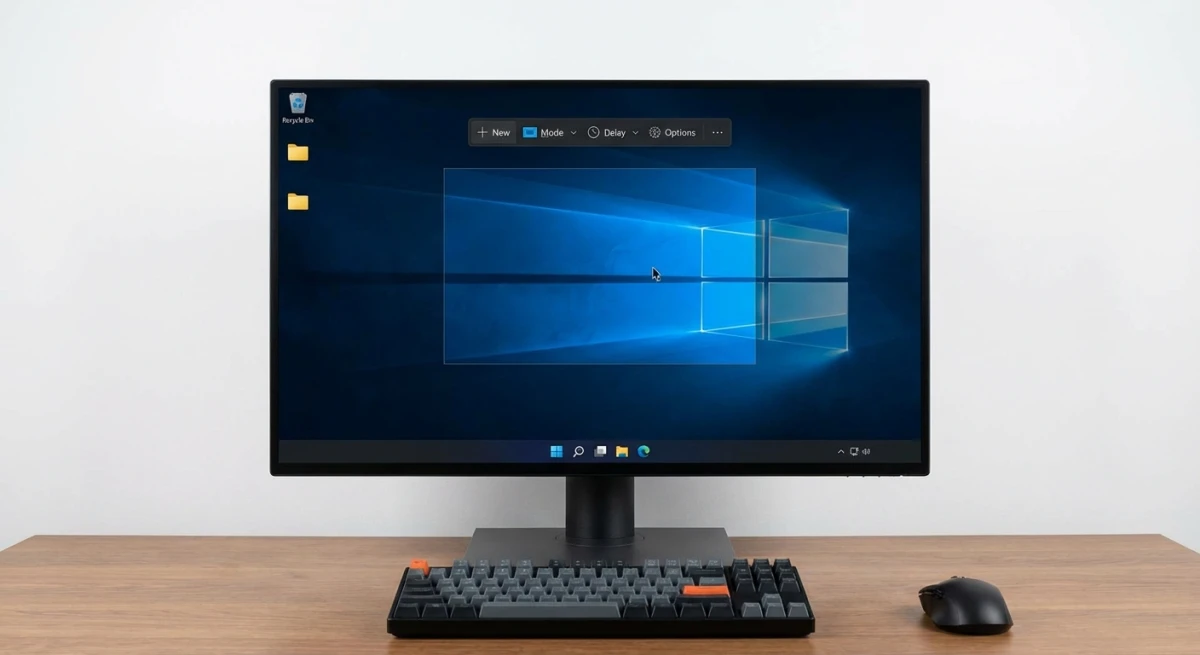
The fastest way to screenshot a webpage on Windows is the built-in Snipping Tool. It works in every browser but only captures what you see on screen.
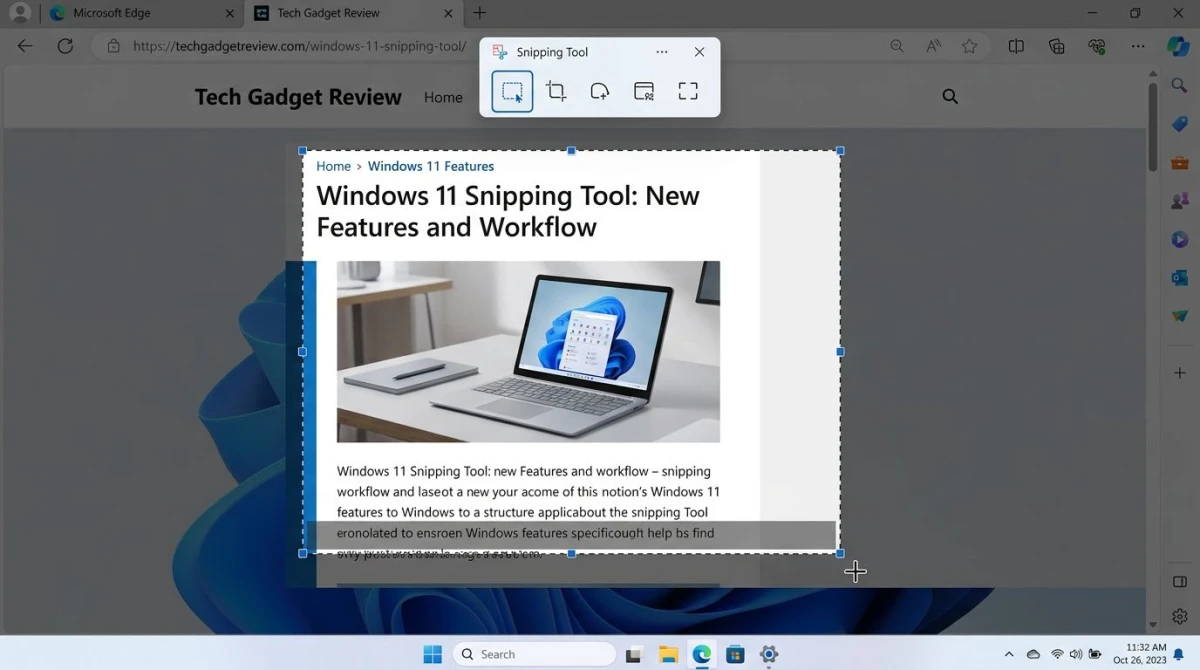
How to use Win + Shift + S
- Open the webpage you want to capture
- Press
Win + Shift + Son your keyboard - Your screen dims and four snip options appear at the top
- Pick rectangle, freeform, window, or full screen
- Drag to select the area you want
- The snip is copied to your clipboard and saved to Pictures > Screenshots
That's it. Paste the image into Slack, email, or a doc with Ctrl + V. You can also open the Snipping Tool app to edit the snip, add arrows, or crop it.
Pros: Free, built in, no setup.
Cons: Can't scroll. If the webpage is longer than your screen, you miss everything below the fold.
If the shortcut doesn't respond, see our guide to Win + Shift + S not working. For more built-in shortcuts, check our Windows screenshot shortcuts cheat sheet.
Method 2: Chrome DevTools (full page in Chrome)
Chrome has a hidden full page screenshot command baked into its developer tools. No extension needed. It works on any webpage and grabs the entire page in one image.
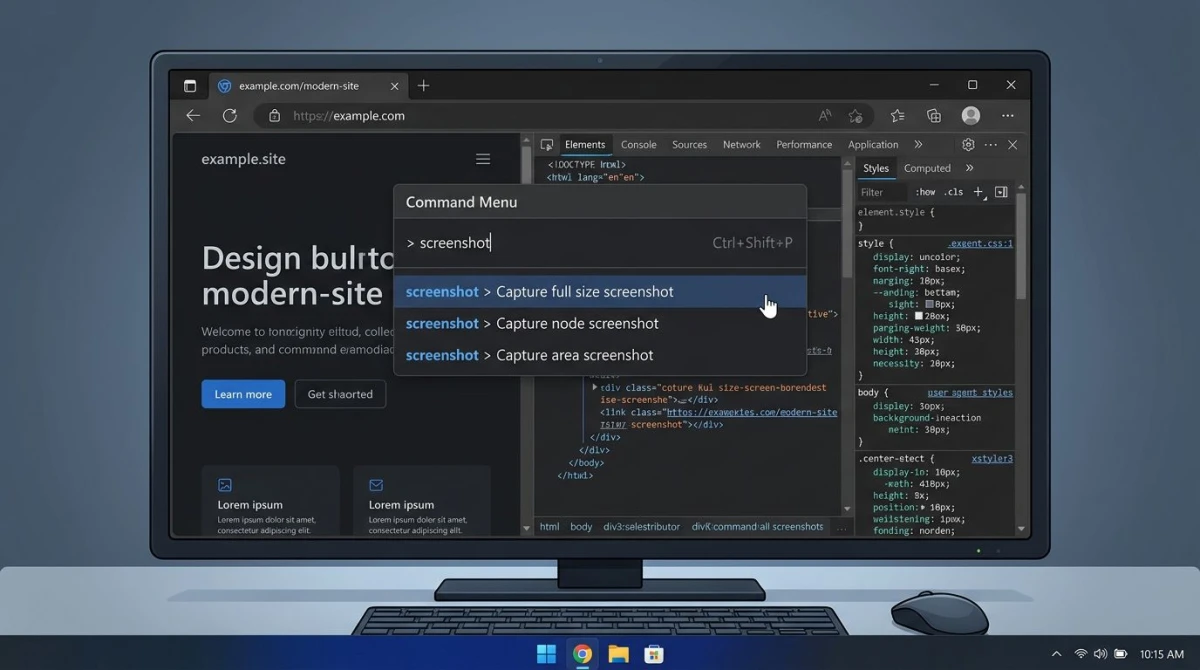
How to capture a full webpage in Chrome on Windows
- Open the page you want to save in Chrome
- Press
Ctrl + Shift + Ito open DevTools - Press
Ctrl + Shift + Pto open the Command Menu - Type screenshot in the search box
- Click Capture full size screenshot
- Chrome saves a PNG of the whole page to your Downloads folder
The image runs from the top of the page to the very bottom, even if the page takes dozens of scrolls to read. This also works in Brave, Edge (with DevTools), and most Chromium browsers.
Pro tip: Press Ctrl + Shift + M first to toggle the device toolbar. You can pick a custom width, which is great for grabbing a phone-sized view of a site while you're on your desktop.
Heads up: fixed headers and sticky banners may show up more than once in the final image. Chrome has no fix for this yet. Very long pages also make huge files. A 10,000-pixel-tall PNG can hit 5 MB or more, so you may want to compress the image before sharing it.
This method is built for webpages only. For a long app window or a long PDF, see our scrolling screenshot guide for Windows.
Method 3: Edge's built-in Web Capture
Microsoft Edge has the easiest full page screenshot tool of any Windows browser. It needs no DevTools and no extension, just a shortcut.
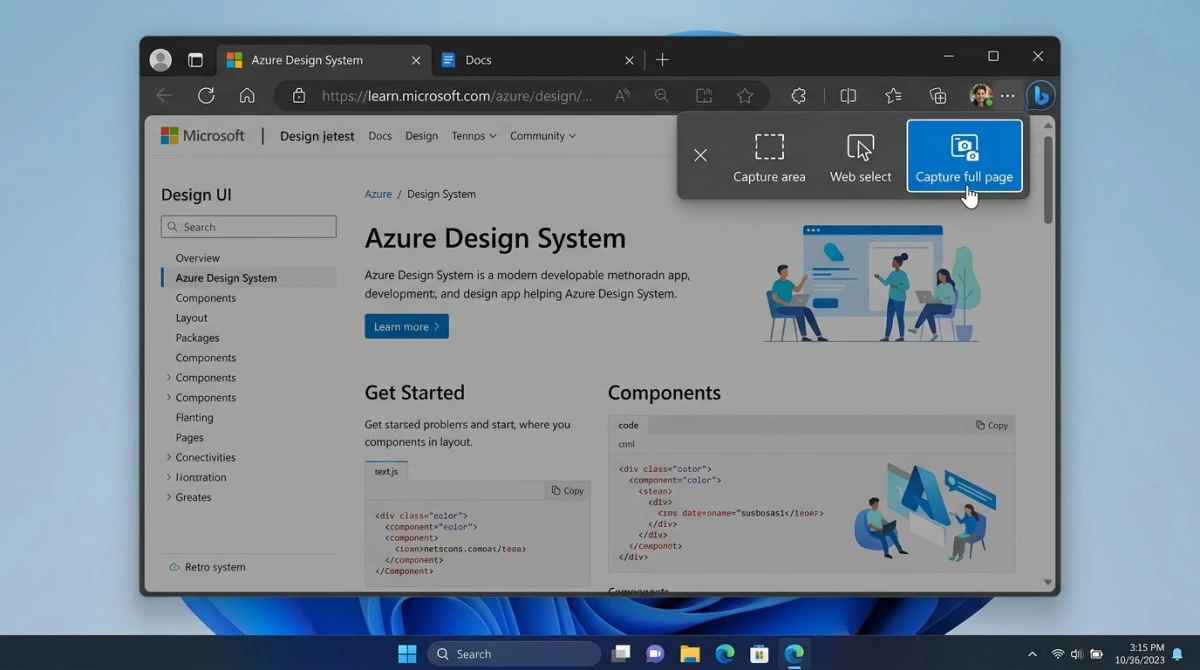
How to screenshot a full webpage in Edge
- Open the webpage in Microsoft Edge
- Press
Ctrl + Shift + Sto open Web Capture (or click the three-dot menu > Screenshot) - Click Capture full page at the top of the overlay
- Edge saves the full page and opens it in a built-in editor
- Draw on the image with the markup tools if you want
- Click Save to download or Copy to paste into another app
Edge saves the image as a JPEG. You can also pick Capture area from the same menu for a quick visible-only snip.
Edge's markup tools are simple: pen and highlighter only. If you need arrows, text, or shapes, you'll want a dedicated screenshot editor instead.
For the official docs, see Microsoft's Edge support hub.
Method 4: Firefox screenshot tool
Firefox has a fast built-in tool for a full webpage screenshot on Windows. It's even simpler than Edge's.
How to screenshot a webpage in Firefox
- Open the page in Firefox on Windows
- Right-click any empty spot on the page
- Click Take Screenshot from the menu
- Pick Save full page in the top right of the overlay
- Click Download to save it as PNG
That's three clicks. Firefox also has a keyboard shortcut if you set it: Ctrl + Shift + S opens the screenshot tool in recent versions.
You can also hover over an element and Firefox will highlight just that section. Click it, and you get a clean screenshot of only that block, whether that's a header, a card, a form, or a single image. This is great for grabbing one part of a busy page.
Pros: Built in, no config, works on every site.
Cons: Only saves as PNG. If you need JPG, you can convert PNG to JPG in a few clicks.

Tired of plain screenshots? Try ScreenSnap Pro.
Beautiful backgrounds, pro annotations, GIF recording, and instant cloud sharing, all in one app. Pay $39 once, own it forever.
See pricing and featuresMethod 5: Browser extensions (GoFullPage, Awesome Screenshot)
If you switch browsers often or want one-click capture in Chrome, an extension is the simplest path. Two stand out.
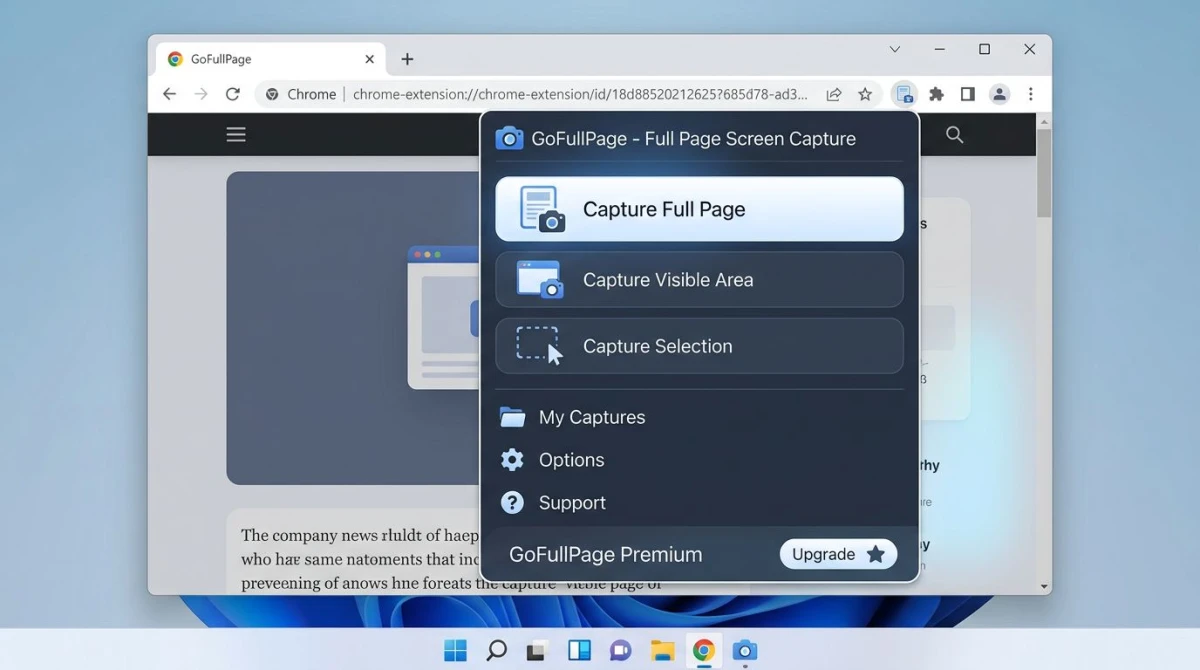
GoFullPage
GoFullPage is the most popular full page screenshot extension for Chrome. It's free and has over 10 million users.
- Install GoFullPage (Full Page Screen Capture) from the Chrome Web Store
- Pin the icon to your toolbar
- Click the camera icon on any page
- Watch the extension scroll and stitch the page into one image
- Save as PNG, JPEG, or PDF
It works on nearly every site. Some one-page apps (like Gmail or Twitter) don't cooperate, because those use virtual scrolling and defeat the stitching trick.
Awesome Screenshot
Awesome Screenshot is a heavier option that also records short videos. It works in Chrome, Firefox, and Edge.
- Full page or visible area capture
- Built-in editor with arrows, text, and blur
- Cloud upload with a shareable link
- Free tier is enough for most users
Both extensions are fine choices. Use GoFullPage for pure screenshots. Use Awesome Screenshot if you also want to annotate or record.
Method 6: Dedicated tools (ScreenSnap Pro, ShareX)
Browser tools are great for webpages. But if you want to screenshot anything on your Windows PC and not just web content, a dedicated app is faster.
ScreenSnap Pro (simple and polished)
ScreenSnap Pro is a screenshot and GIF recording app for Windows and Mac. It covers quick snips, region capture, and window capture with a clean overlay.
- Instant region, window, or full screen capture
- 15 annotation tools: arrows, text, blur, highlighter, counter
- 500+ gradient backgrounds for polished social-ready shots
- Cloud upload with one-click shareable links
- No watermarks, no subscription, just $39 one time
Honest note: ScreenSnap Pro does not do scrolling screenshots yet. For a full webpage, stick with a browser method above. For every other capture on Windows (chat windows, apps, dashboards), ScreenSnap Pro is faster than the Snipping Tool.
ShareX (free and powerful)
ShareX is free, open source, and Windows-only. It's loved by power users for a reason: it does almost everything.
- Region, window, full screen, and (with extra setup) scrolling capture
- Dozens of post-capture actions: upload, annotate, OCR, resize
- Keyboard shortcuts for every action
- Cloud upload to many services
The trade-off is the learning curve. ShareX has hundreds of settings. If you want a no-fuss tool, skip it. If you love tweaking, it's the best free option on Windows. For a full walkthrough, read our ShareX review.
How to capture the full scrolling webpage on Windows
Here's the bad news: Windows has no system-wide scrolling screenshot tool. No Snipping Tool update. No PowerToys add-on. No keyboard shortcut. This has been a user request for years, but Microsoft hasn't added it.
So how do you get a full scrolling capture of a webpage on Windows 11?
Inside a browser: Use Chrome DevTools (Method 2), Edge Web Capture (Method 3), or Firefox's screenshot tool (Method 4). All three capture the full scrolling page natively.
Outside a browser: For a long chat window, a long PDF in Adobe Reader, or a long Excel sheet, you need a tool like PicPick, ShareX, or Snagit. These apps scroll the window for you and stitch the frames into one image. See our full guide on scrolling screenshots for Windows.
For a general how-to on long webpage captures, our full page screenshot on Windows article walks through each browser in more detail.
Capturing with a URL and timestamp watermark
If you're saving a webpage as proof (for legal notes, research, or QA bug reports), raw screenshots aren't enough. You need the URL and the date stamped on the image.
A few options:
Firefox's Print to PDF: Press Ctrl + P and pick Save as PDF as the destination. Firefox prints the URL, date, and page title in the footer by default. The PDF works as timestamped proof and you can convert the PDF to an image if you want a PNG.
Chrome Print to PDF: Same shortcut (Ctrl + P), then pick Save as PDF. Click More settings and check Headers and footers. Chrome adds the URL, title, and date automatically.
GoFullPage PDF export: The extension can save directly as PDF with page headers that include the URL.
Manual annotation: If you use ScreenSnap Pro or ShareX, add a text box with the URL and date on top of the image after capture. It's quick and gives you full control.
For legal-grade proof, pair any of these methods with a timestamp service or an email-to-self so the capture is on record.
Frequently Asked Questions
The bottom line
Windows makes webpage capture harder than it needs to be, but the fix is easy: your browser already has the tool. Chrome, Edge, and Firefox all do full page screenshots in a few clicks. Use Win + Shift + S for quick visible clips. Use a dedicated app like ScreenSnap Pro when you need a clean, annotated capture of anything else on your screen. At $39 one-time, with 15 annotation tools and 500+ backgrounds, it's a simple upgrade over the built-in Snipping Tool.
Pick one method, try it on the next page you need to save, and you'll never go back to the old scroll-and-paste routine.

Morgan
Indie DeveloperIndie developer, founder of ScreenSnap Pro. A decade of shipping consumer Mac apps and developer tools. Read full bio
@m_0_r_g_a_n_