15 Best Screenshot Markup Tools 2026: Mac, Windows, Web & Mobile
A markup tool lets you draw on screenshots: arrows, text, shapes, highlights, blur, callouts. Bug reports, design feedback, documentation, training materials: the right tool turns a plain screenshot into something clear and actionable. Below are 15 tested markup tools across Mac, Windows, web, and mobile, with honest verdicts on which to pick per use case.
Short answer: ScreenSnap Pro is the best all-round screenshot and annotation tool on Mac and Windows. It captures, marks up, and records in one app for a one-time $34. Shottr is the best free pick on Mac, ShareX on Windows, and Annotely in the browser.
What makes a good markup tool?
Not every markup app is worth your time. Here's what to look for:
- Core tools. Arrows, boxes, circles, text, and freehand drawing at a minimum. The best apps also include blur for hiding private info, step numbers, and emoji.
- Speed. The app should open fast and stay out of your way. If it takes longer to mark up than to type it out, skip it.
- Export. Copy to clipboard, save as PNG/JPG, or share a link. Cloud sharing helps for team work.
- Platform. Does it run where you work? Some are Mac-only, others web-based, a few run everywhere.
- Price. Ranges from free to team plans billed every month. Pricier doesn't always mean better.
Best overall markup tool (Mac and Windows)
ScreenSnap Pro
Best for: Capture, markup, and recording in one app on Mac and Windows
ScreenSnap Pro combines screenshot capture with a full annotation toolkit and a screen recorder. After you take a screenshot, the editor opens immediately, with no exporting or switching apps.
What you get:
- 17 annotation tools: arrow, rectangle, filled rectangle, ellipse, filled ellipse, line, path, blur, pixelate, magnifier, highlighter, spotlight, pencil, eraser, text, callout, and counter, plus emoji
- 500+ wallpaper backgrounds for screenshots with padding and shadow
- Screen recording to MP4 at up to 60fps with webcam, mic, and system audio, plus direct GIF recording
- A built-in video editor with trim, split, speed, silence removal, and auto zoom that follows the cursor
- OCR text extraction from any image
- Optional cloud share links for quick sharing
- Pin screenshots to keep them visible while you work
Pricing: $34 one-time. No subscription. One license covers 2 computers in any mix of Mac and Windows, with lifetime updates and a 30-day money-back guarantee.

The one-time price is a standout. Most competitors charge monthly or annually, which adds up fast. With ScreenSnap Pro you pay once instead of every month or year, and you own it forever. It takes the top spot because one payment gets you capture, 17 markup tools, a recorder, and a video editor on both Mac and Windows.
Limitations: No scrolling capture of native app windows, no Linux version, no browser extension, and no team workspaces.
Best Mac markup tools
Mac has the strongest selection of native markup apps. Here are the top picks for annotating screenshots on macOS.
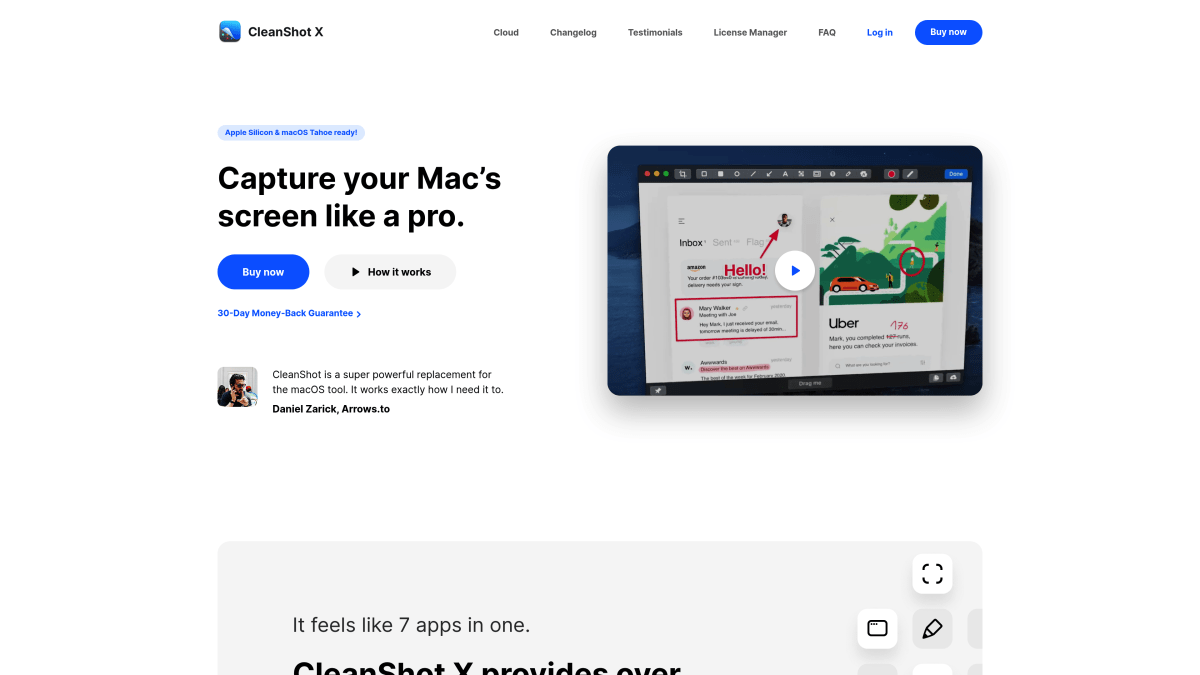
CleanShot X
Best for: Power users who want every feature
CleanShot X is a Mac screenshot app with markup tools. It does screenshots, screen recording, scrolling capture, and markup all in one.
Key tools: Arrows, shapes, text, blur, crop, highlights, and step badges. The editor is smooth and fast.
Pricing: $35 one-time for CleanShot Basic, with 1 year of updates and 1 GB of Cloud storage. CleanShot Pro costs $10 per user/month billed annually and adds unlimited Cloud storage and team features. The base app works great for local markup.
Shottr
Best for: Free and lightweight
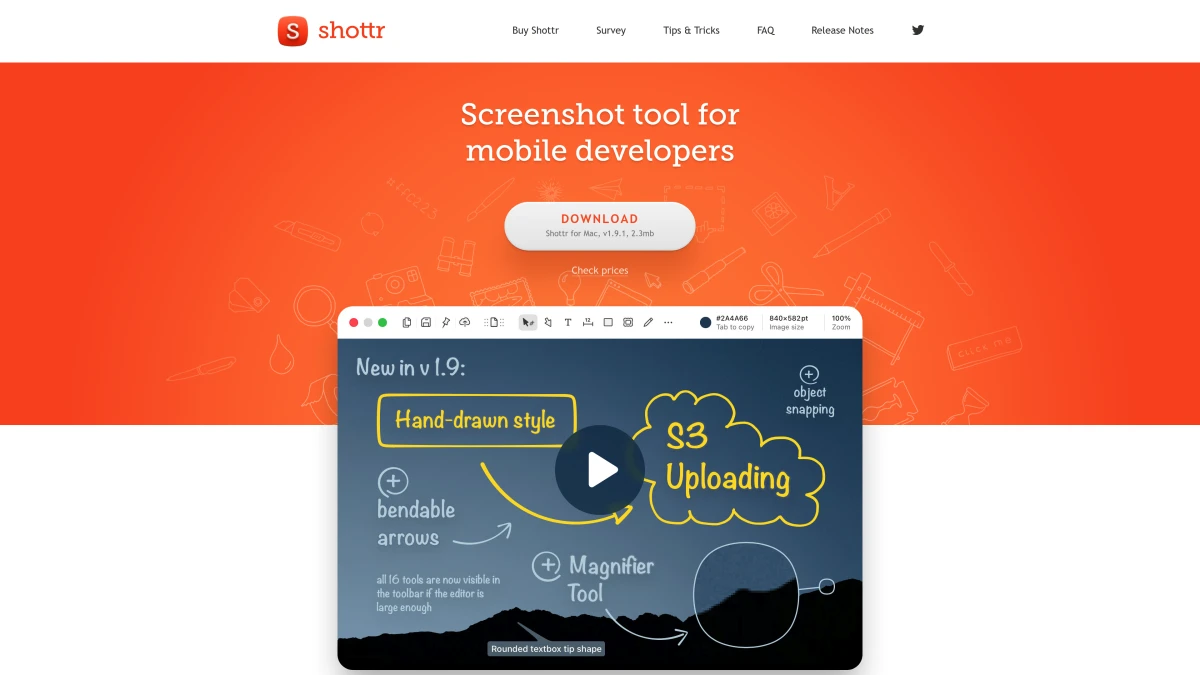
Shottr is a fast, free screenshot tool for Mac with basic markup features. It handles arrows, text, shapes, and pixelation without any bloat.
Limitations: No built-in cloud share links (S3 upload needs your own bucket), no GIF recording, fewer annotation tools than paid options. But for quick markups, it's hard to beat at zero cost. See our Shottr review for a deeper look.
Pricing: Free to use, with an upgrade reminder after 30 days. A $12 one-time Basic license is required for commercial use.
Preview (built-in)
Best for: Quick markups without installing anything
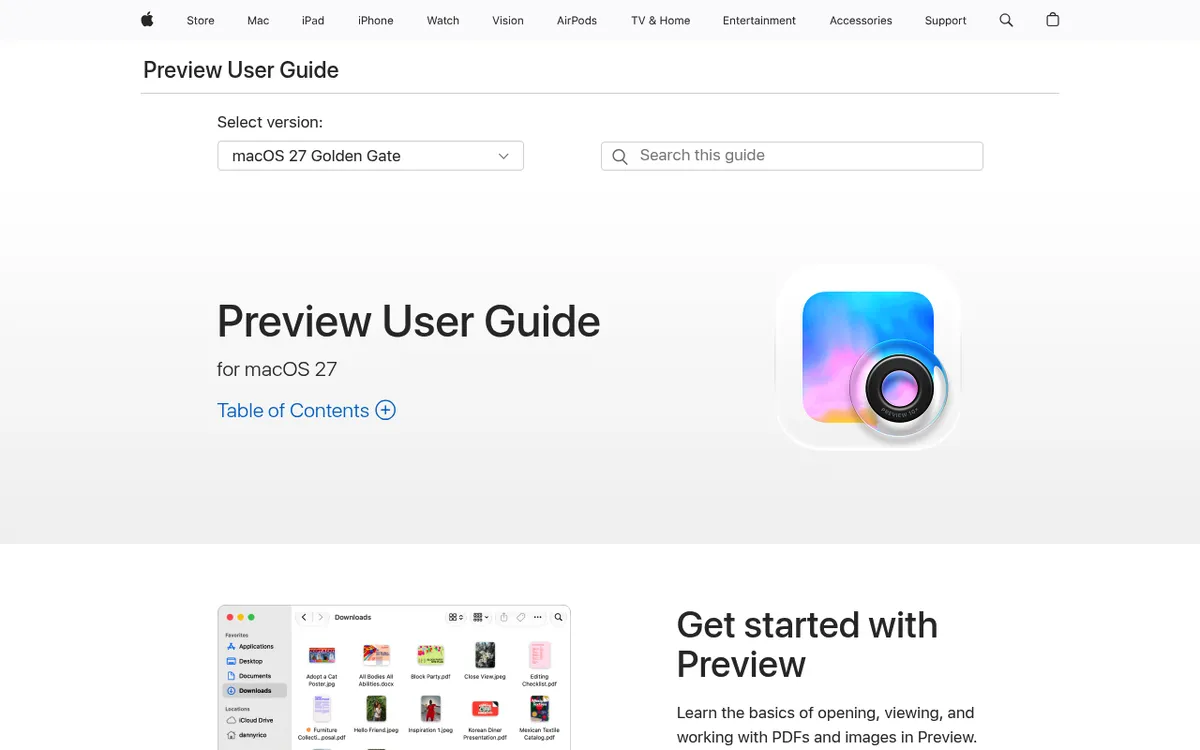
Every Mac comes with Preview, which includes a Markup toolbar for basic annotation. Open any image, click the Markup button, and you get shapes (including arrows, a highlight, and a zoom lens), text, and signatures.
Limitations: No blur or pixelate tool, no numbered steps, and no cloud share links. It works for simple tasks but falls short for professional documentation.
Apple's Preview documentation covers all the built-in tools.
One tool we left off the list on purpose: Skitch. It is still free on the Mac App Store and its pink arrows are iconic, but Evernote stopped updating it in 2016, so it now runs through Rosetta on Apple silicon. We covered what still works in Skitch for Mac if you are deciding whether to keep it around.
Best Windows markup tools
Windows has fewer built-in options, but third-party tools fill the gap well. The Snipping Tool has gotten better in Windows 11, but it still lacks blur, step numbers, and cloud sharing, all of which these apps offer. ScreenSnap Pro, the overall pick above, is a full Windows app too, with the same editor and recorder.
ShareX
Best for: Free and feature-packed (Windows)
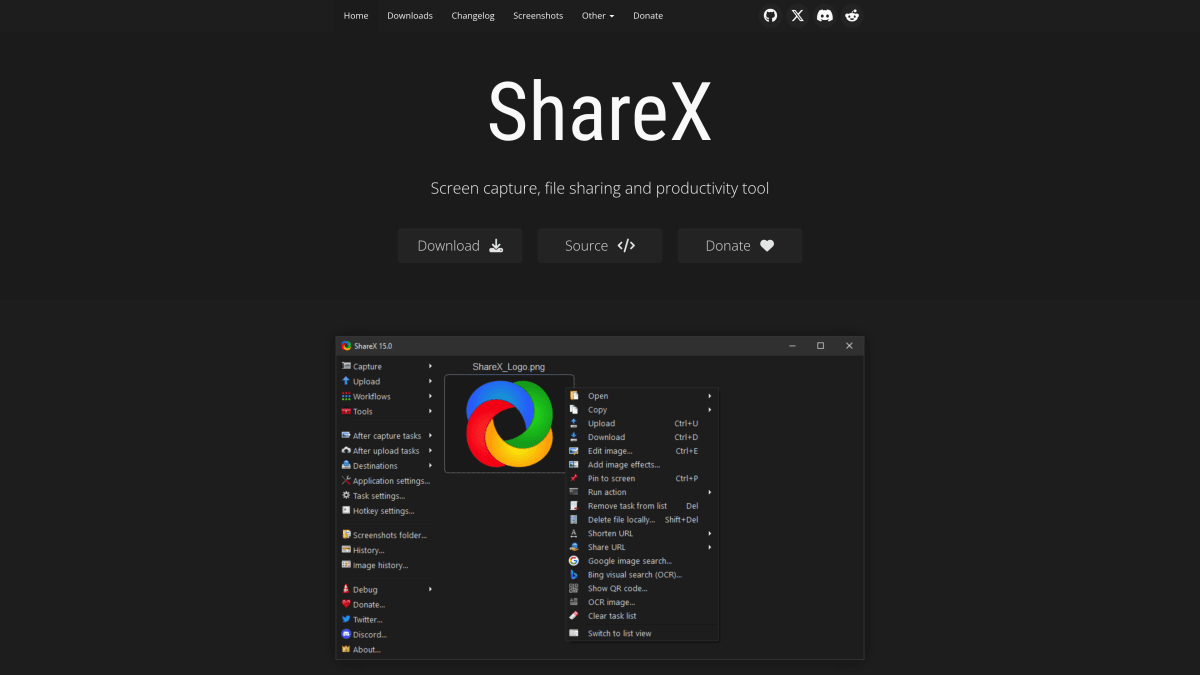
ShareX is open-source and does screenshots, screen recording, GIFs, and markup. The editor has arrows, shapes, text, blur, step numbers, and speech bubbles. You can set up one-click flows: capture, mark up, upload, and copy the link in one go.
Pricing: Free.
Catch: The main window and settings menus are deep and can feel messy at first, though the image editor got a modern redesign in 2026. Once you learn it, ShareX does almost all that paid tools can. Mac users can check our ShareX for Mac guide for similar options.
Greenshot
Best for: Simple, fast annotation on Windows
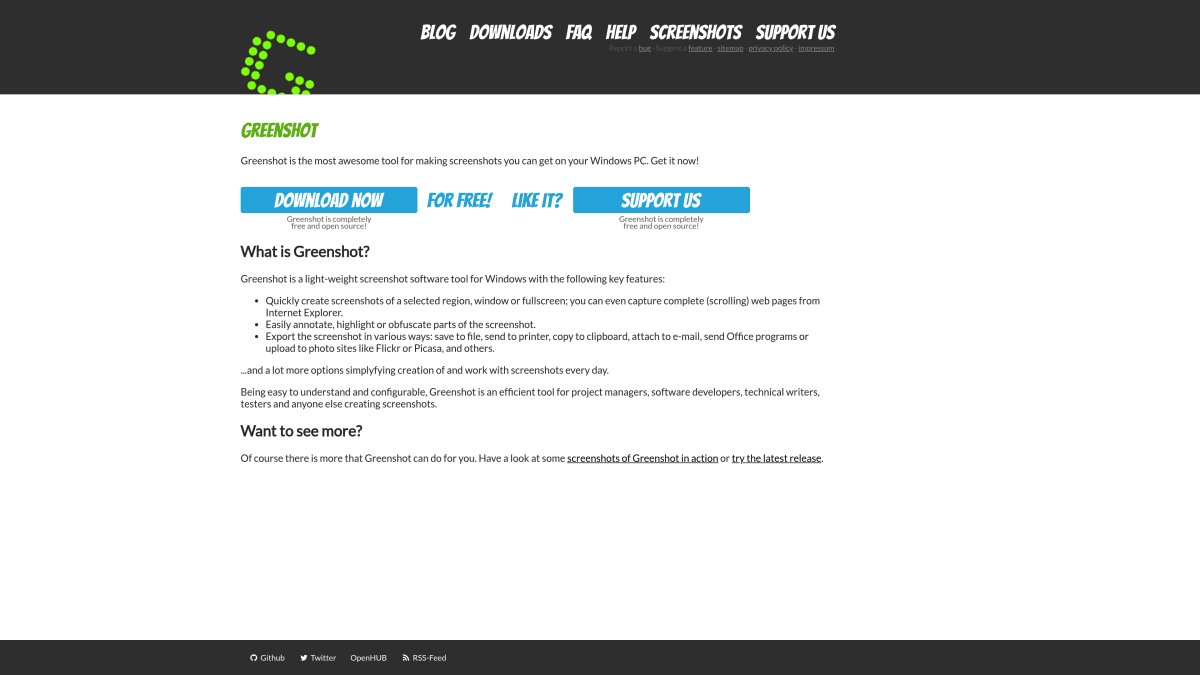
Greenshot takes screenshots and opens them in a fast editor with arrows, text, shapes, highlights, and blur. It's lighter than ShareX and much easier to learn. The editor loads in under a second, which is a big deal when you mark up many screenshots each day.
Pricing: Free on Windows. The Mac App Store version costs $1.99 but is outdated, with no update since 2020. See Greenshot for Mac picks if you're on macOS.
Snagit
Best for: Enterprise documentation teams
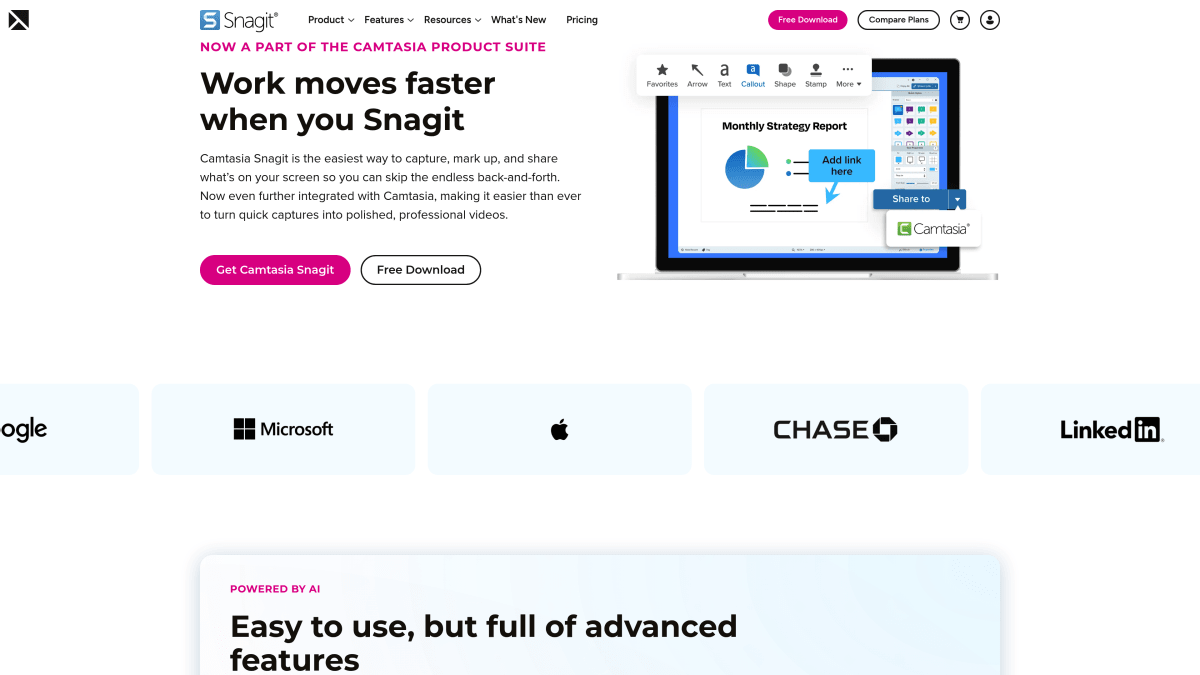
Snagit by TechSmith is a screenshot markup tool aimed at enterprise teams. Step tools, smart move (rearrange UI elements in screenshots), templates, and scrolling capture support documentation at scale.
Snagit's "Smart Move" feature stands out. It finds UI elements in your screenshot and lets you drag or delete them, which is handy for rearranging menus or hiding private info without retaking the shot. The "Simplify" tool swaps real text and icons with plain shapes, great for public docs where you need to hide details.
Pricing: $39 per year. Since Snagit 2025, TechSmith sells it only as a subscription, with no one-time license. The cost can creep up over the years. See our Snagit pricing guide for the full breakdown. Mac users may prefer lighter options.
Best free online markup tools
No install needed. Open a browser, upload your image, annotate, and download.
Annotely
Best for: Quick browser-based annotations
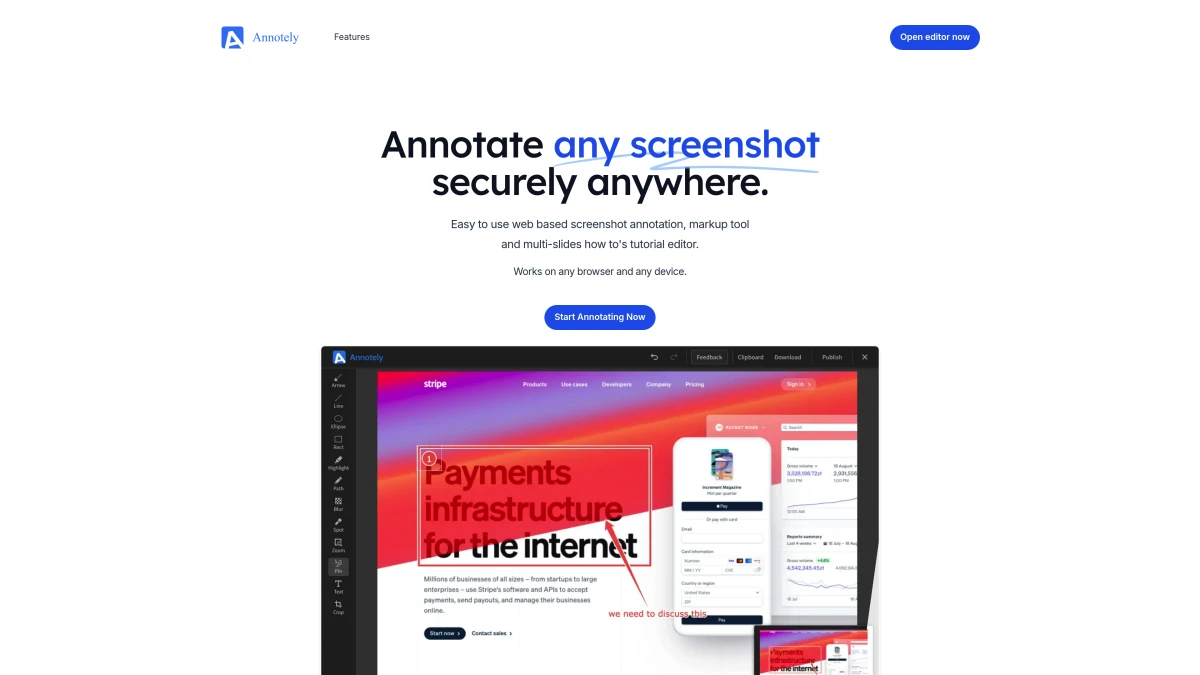
Annotely is a free web tool with a clean interface. Upload an image and add arrows, shapes, text, blur, and numbered steps. Export as PNG or copy to clipboard.
Limits: No account needed, and there is no paid plan. The project runs on donations. It covers arrows, shapes, text, blur, and numbered pins, which is more than enough for one-off annotations when you don't want to install anything.
ScreenSnap Pro Image Annotation Tool
Best for: Free online markup without sign-up
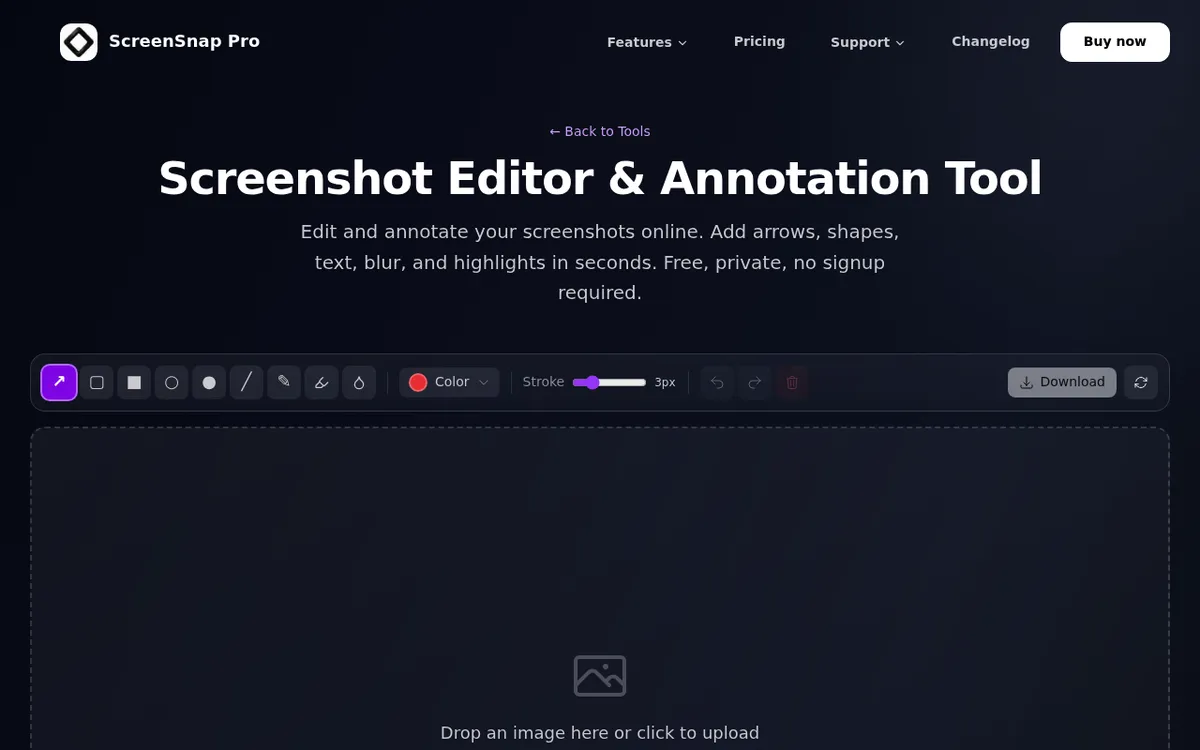
The free ScreenSnap Image Annotation tool works in any browser. Upload a screenshot, add arrows, text, shapes, highlights, and blur, then download the result as a PNG. No account required, no watermark, and your image is processed locally in the browser.
It's useful when you're on a shared computer or need a quick markup without opening a desktop app.
Pixelied
Best for: Design-focused markup
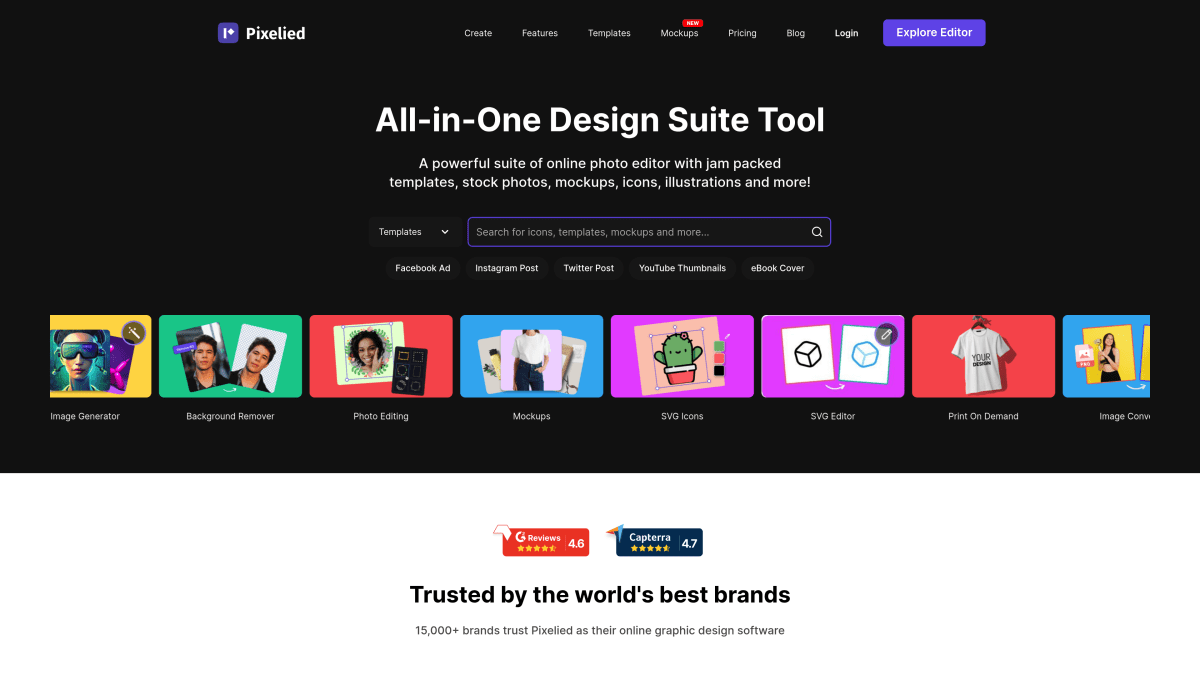
Pixelied is primarily an image editor, but it handles markup tasks well. Add text overlays, arrows, shapes, and filters. The free plan covers basic editing tools and 200+ templates.
Best suited for: Social media graphics and marketing images where you need both design and annotation features.
Pricing: Free plan available. Pro is $47/year and Pro+ is $79/year, both billed annually.

Tired of plain screenshots? Try ScreenSnap Pro.
Beautiful backgrounds, pro annotations, GIF recording, and instant cloud sharing, all in one app. Pay $34 once, own it forever.
See pricing and featuresBest markup tools for team collaboration
When multiple people need to review and mark up the same image, individual annotation apps won't cut it. These tools are built for team feedback.

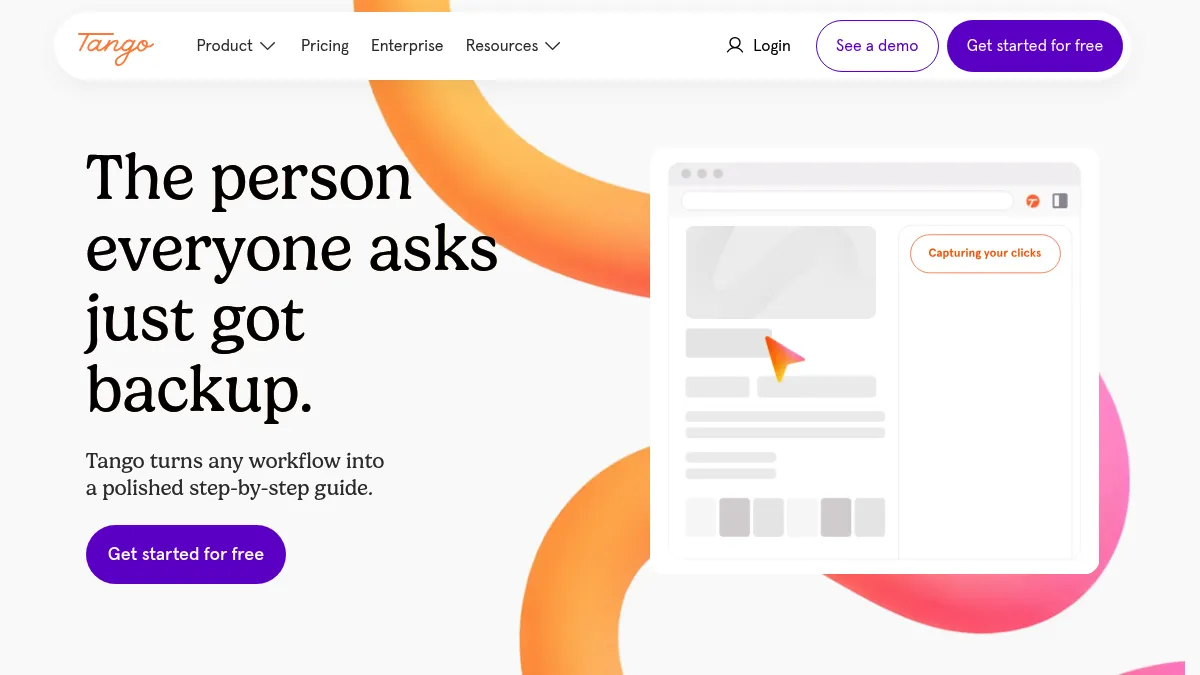
Tango
Best for: Teams that reuse screenshots in shared how-to guides
Tango is a browser extension that captures a process as you click through it and builds a step-by-step guide on its own. Each step gets a screenshot zoomed in on the element you clicked, with the click already marked, so you skip the capture, crop, and annotate loop for every image.
When the automatic markup isn't enough, the screenshot editor lets you crop, zoom, and add arrows, rectangles, and text. Blur a customer name in one step, and Tango offers to blur the same area in every other step of the guide.
Key features: Auto-annotated screenshots for every step, batch blur across a whole guide, a shared Team Library for everyone in the Workspace, sharing by link or embed (embeds update when you edit the original), and PDF export on paid plans.
Pricing: Free for up to 10 users and 5 guides in the Team Library. Pro is $15/user/month billed annually for Workspaces of 3+ members, or $22/user/month for 1 to 2 members. Enterprise is custom-priced and adds automatic PII detection and redaction.
Pick Tango when the same screenshots end up in onboarding or training docs that a whole team relies on, not for one-off feedback on a design file.
Markup.io
Best for: Design and web review teams
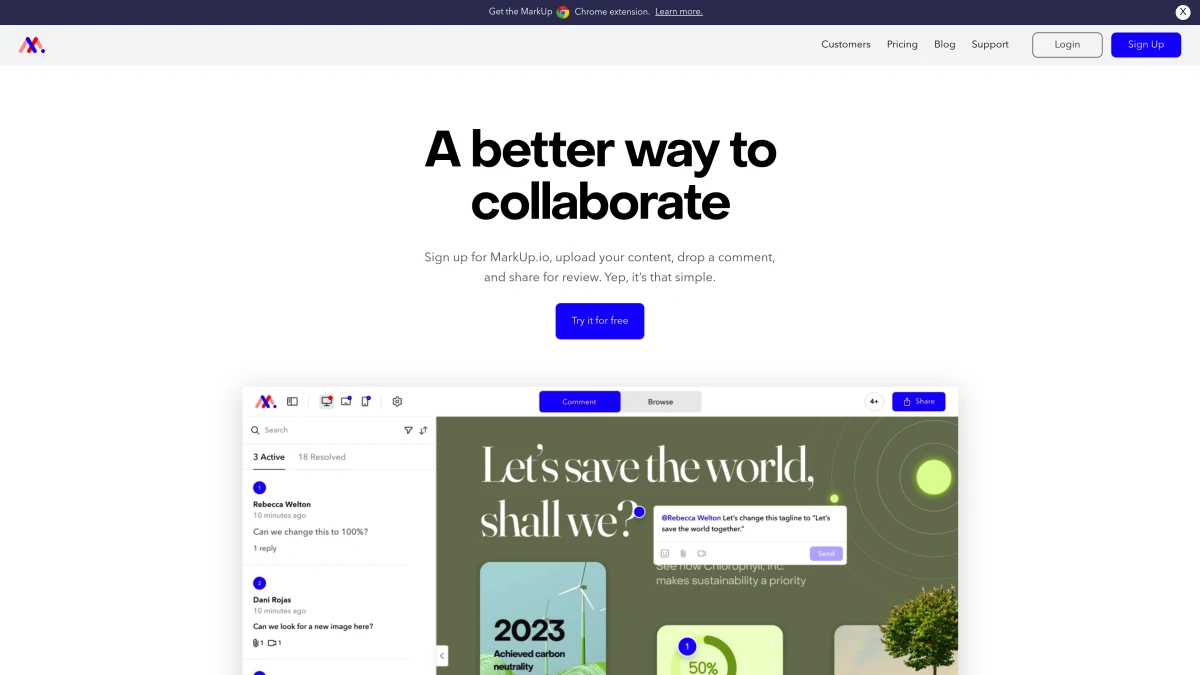
Markup.io lets teams annotate websites, images, PDFs, and videos in a shared workspace. Point, click, and comment. Everyone sees each other's feedback in context.
Key features: Live website annotation (point at real elements), version tracking, integrations with Slack, Trello, and Asana.
Pricing: No permanent free plan. A 14-day trial (credit card required) leads into Pro, which starts at $79/month for 50 MarkUps, with unlimited users on every plan. Worth it for design agencies that review dozens of assets weekly.
Filestage
Best for: Approval workflows
Filestage focuses on review and approval cycles. Upload images, get stakeholder feedback with pinned comments, track versions, and manage sign-off, all in one place.
Pricing: A free plan covers 1 active project and 5 new files per month. Paid plans start at €199/month billed yearly (Starter). Aimed at agencies and marketing teams, not individual users. The price reflects the workflow automation: approval chains, version history, and stakeholder management save hours on large projects.
Best mobile markup apps
Quick annotations on your phone for when you need to mark up a screenshot before sending.
Snap Markup (iOS and Android)
Snap Markup adds arrows, shapes, text, magnifiers, and blur to photos on iPhone, iPad, and Android. Clean interface, no subscription.
Pricing: $1.99 one-time on the App Store, with no in-app purchases. The Android version is free, though Google Play lists ads and in-app purchases.
Built-in iOS and Android markup
Both iOS (Markup in Photos/Screenshots) and Android (Google Photos editor) include basic annotation. They handle text, drawing, and shapes, enough for casual use but limited for professional work.
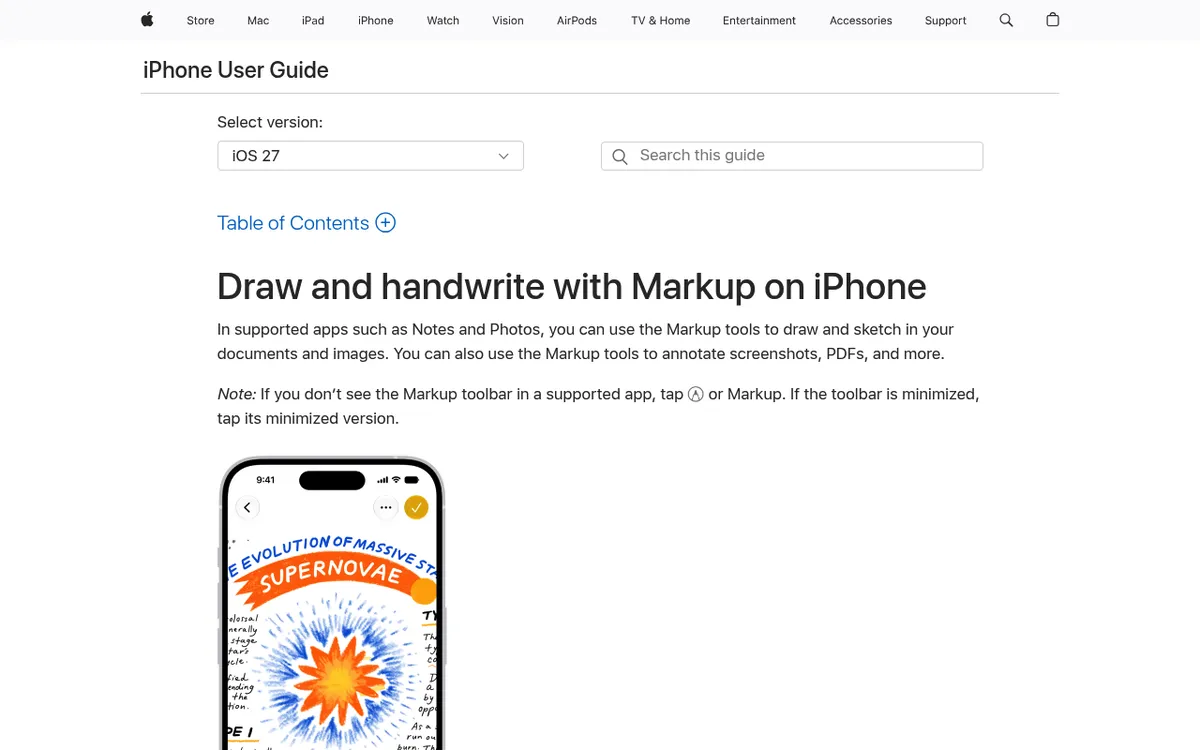
On iPhone, tap the screenshot thumbnail right after capture to open the Markup editor. You get a pen, marker, pencil, text, shapes, and a ruler for straight lines. Draw an arrow in one stroke and pause, and it snaps into a clean arrow. Android varies by manufacturer. In Google Photos, tap Edit, then Markup, to get a pen, highlight, and text.
Neither platform offers blur, numbered steps, or cloud sharing. For those features on mobile, you'll need a third-party app.
Markup tool comparison table
Here's how the top tools stack up:
| Tool | Platform | Arrows | Blur | Steps | Cloud Share | Price |
|---|---|---|---|---|---|---|
| ScreenSnap Pro | Mac/Windows | ✅ | ✅ | ✅ | ✅ | $34 one-time |
| CleanShot X | Mac | ✅ | ✅ | ✅ | ✅ (1 GB on Basic) | $35 one-time, Pro $10/user/mo |
| Shottr | Mac | ✅ | ✅ | ❌ | ❌ | Free, $12 for commercial use |
| Preview | Mac | ✅ | ❌ | ❌ | ❌ | Free (built-in) |
| ShareX | Windows | ✅ | ✅ | ✅ | ✅ | Free |
| Greenshot | Windows | ✅ | ✅ | ❌ | ❌ | Free |
| Snagit | Mac/Win | ✅ | ✅ | ✅ | ✅ | $39/year |
| Annotely | Web | ✅ | ✅ | ✅ | ❌ | Free |
| Tango | Web (Chrome extension) + Desktop | ✅ | ✅ | ✅ | ✅ | Free/$15/user/mo |
| Markup.io | Web | ✅ | ❌ | ❌ | ✅ | From $79/mo (trial, no free plan) |
| Filestage | Web | ✅ | ❌ | ❌ | ✅ | Free, paid from €199/mo |
Markup tools for specific use cases
The best tool depends on what you're marking up. Here's a quick guide by task.
Bug reports and QA testing
When filing bugs, you need arrows to point at the issue, text to describe what's wrong, and blur to hide any user data on screen. The best picks: ScreenSnap Pro (Mac and Windows), ShareX (Windows), or Annotely (web). All three have blur and step numbers, so you can show exact repro steps in one image. If the bug only shows up in motion, ScreenSnap Pro can also record the repro as an MP4 or GIF.
Pro tip: Add a numbered step counter to each action in the bug flow. A screenshot with steps 1 → 2 → 3 marked on it beats a long text description every time.
Design feedback and reviews
When giving notes on a design, show exactly where the problem is. For quick notes over Slack or email, a screenshot with arrows and text from ScreenSnap Pro or CleanShot X gets the point across faster than typing it out.
When a whole team reviews the same file, pin your comments to exact spots instead. Markup.io shines here, since you can point at a real website element and leave a comment. For static mockups, Filestage tracks versions and sign-offs so nothing gets lost.
Docs and tutorials
Step-by-step guides need numbered badges, arrows, and clear text labels. ScreenSnap Pro and ShareX have counter tools that number each step, which work well for guides and how-to posts. Snagit works well too: its step tool auto-numbers each click.
For blog posts and tech docs, use clean backgrounds behind your screenshots. ScreenSnap Pro's background feature makes screenshots look polished without extra editing.
Social media and marketing
Screenshots shared on social media need to look sharp and branded. Use a tool with background gradients and clean export (no watermarks). ScreenSnap Pro and CleanShot X both export clean images at high quality. For social-ready sizes, the free ScreenSnap social media image resizer handles the cropping.
How to use markup tools well
Having the right tool is half the battle. Here are tips that apply regardless of which app you choose:
Use numbered steps for tutorials. If your screenshot shows a multi-step process, tools with a counter or step badge (ScreenSnap Pro, Snagit, ShareX) make your instructions clearer than arrows alone.
Blur before sharing. Any screenshot that contains emails, names, account numbers, or passwords should be pixelated before you share it. This is especially important for bug reports and support tickets.
Keep annotations minimal. Two or three clear annotations beat ten cluttered ones. Readers should understand the point at a glance. If you need to mark up many areas, consider breaking it into multiple screenshots.
Match your export format to the destination. PNG for documentation and presentations (lossless). JPG for email and chat (smaller files). If you need to convert between formats, a quick converter handles it in seconds.
Save originals. Annotate copies, not originals. You might need the clean screenshot later for a different context.
Which markup tool should you choose?
The best tool depends on what you're doing and where you work.
For quick screenshots and annotations on Mac or Windows: ScreenSnap Pro gives you capture and markup in one step. The 17 annotation tools plus emoji cover everything from arrows to blur, the recorder and video editor handle quick demos, and the $34 one-time price makes it the best value here. If you edit screenshots regularly, this saves real time.
For free Mac markup: Shottr handles the basics well. Pair it with Preview for simple jobs. You won't get cloud sharing or GIF recording, but the price is right.
For Windows power users: ShareX is a free, open-source option. The interface takes time to learn, but the feature set rivals paid tools.
For enterprise documentation: Snagit's step tool and smart move features are built for professional docs at scale.
For team reviews: Markup.io if you need live website annotation. Filestage if you need formal approval workflows.
For occasional one-off annotations: Use a free online tool like the ScreenSnap Image Annotation tool or Annotely. No install, no sign-up.
For hiding sensitive data in screenshots: Make sure your tool has blur or pixelate. ScreenSnap Pro, CleanShot X, ShareX, and Greenshot all include it. Preview and basic mobile markup apps don't.
Frequently Asked Questions

Morgan
Indie DeveloperIndie developer, founder of ScreenSnap Pro. A decade of shipping consumer Mac apps and developer tools. Read full bio
@m_0_r_g_a_n_