Bug Report Template: Write Reports That Get Fixed Fast
A bug report template is a simple form for writing down software problems. It helps you share all the details that developers need to find and fix the issue, especially annotated screenshots from a tool like ScreenSnap Pro. The difference between a bug that gets fixed in hours versus one that sits for weeks? It often comes down to how well you wrote it up.
Many bug reports get closed as "can't reproduce" or "works for me." Why? They lack key details. A vague report like "the button doesn't work" makes developers guess. They waste time playing detective instead of fixing the problem.
The good news? Writing clear bug reports isn't hard. With the right template and a few tips, you can get your bugs fixed much faster. This guide gives you free templates for GitHub, Jira, and more. Plus, you'll learn how to add screenshots and GIFs that make your reports stand out.
What Makes a Good Bug Report (And Why Most Fail)
Most bug reports fail for the same reasons. They're too vague. They skip important details. Or they can't be reproduced. When a developer gets a report like "the app crashes sometimes," they have nowhere to start.
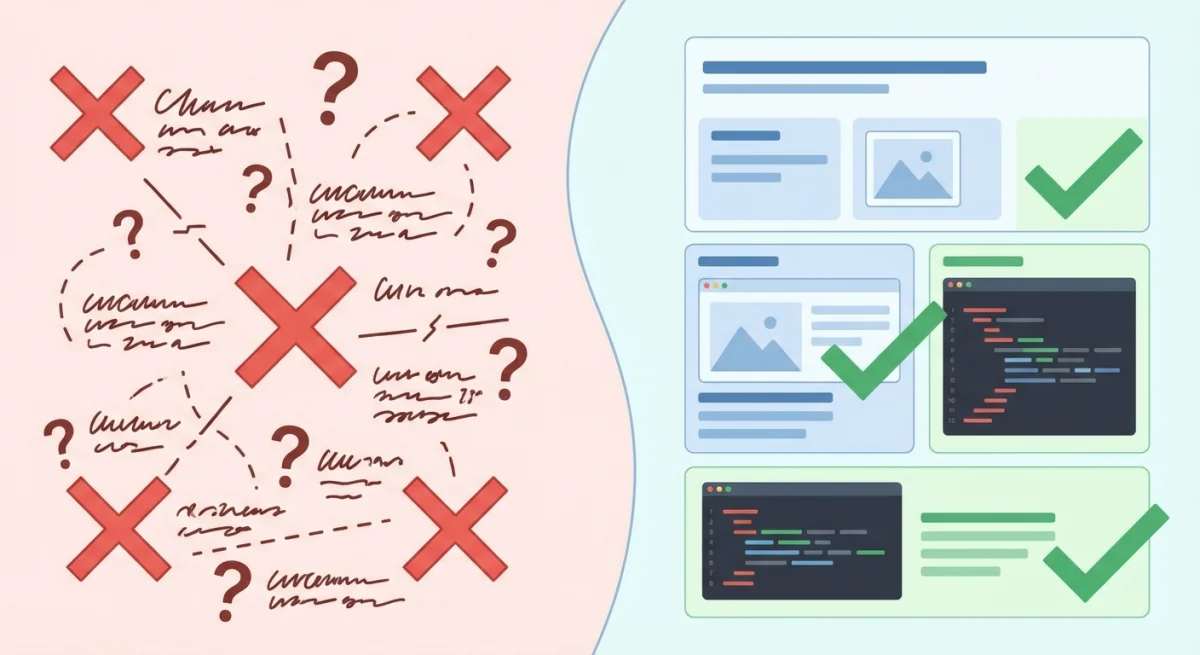
A good bug report answers four simple questions:
- What happened? Describe what went wrong
- What should have happened? The result you expected
- How can I see it? Exact steps to make it happen again
- What's the context? Your browser, OS, and app version
The secret weapon most reports miss? Pictures. An annotated screenshot with arrows pointing to the broken element beats a long description. A short GIF showing the bug in action removes all doubt.
Think like a developer. Would you rather read "the dropdown menu is broken" or watch a 5-second GIF showing exactly how clicking the menu freezes the page?
Essential Elements of Every Bug Report
Here's what every bug report should include. Miss any of these, and you risk delays or "can't reproduce" responses.
Title/Summary
Keep it short and searchable. Name the feature and describe the issue briefly.
Bad: "Bug in checkout"
Good: "CHECKOUT - Submit button won't click after applying discount code"
A clear title helps developers find your report later. It also helps them spot duplicates before creating new tickets.
Environment Details
Bugs often show up only in certain setups. Always write down:
- Device/OS: MacBook Pro M2, macOS Sonoma 14.3
- Browser: Chrome 121.0.6167.85
- App version: 2.4.1
- Connection: WiFi, 100 Mbps
This matters a lot. A bug might only appear on Safari mobile. Or only on the staging server. Without these details, developers waste time trying to reproduce issues that don't exist on their machine.
Steps to Reproduce
Number each step. Be exact about what you clicked, typed, or chose.
Example:
- Log in with test account (user@test.com)
- Go to Settings → Profile
- Change display name to "Test User"
- Click "Save Changes"
- Watch: spinner appears but never stops
Good steps are like a recipe. Anyone who follows them should see the same result. Don't skip steps that seem obvious, because they might be the key to the bug.
Expected vs. Actual Result
Always include both. This shows developers the gap between what should happen and what does happen.
Expected: Profile updates and a success message appears
Actual: Spinner runs forever, no message, changes not saved
Be specific here. Don't just say "it doesn't work." Describe exactly what you see on screen.
Visual Proof
This is where most bug reports fall short. And where you can make yours shine. We'll cover this in depth below.
Severity and Priority
Not all bugs are equal. A simple rating helps teams decide what to fix first.
| Severity | What It Means | Example |
|---|---|---|
| Critical | System crash or data loss | App crashes on startup |
| Major | Core feature broken | Can't complete checkout |
| Minor | Feature works but poorly | Slow loading on search |
| Low | Visual issues | Misaligned button |
Free Bug Report Templates
Copy these templates right into your issue tracker. Change the fields to match your team's needs.
Bug Report Template for GitHub Issues
GitHub Issues is one of the most popular bug tracking tools. The platform supports issue templates that prompt users for key info automatically.
## Bug Description
[One clear sentence about the issue]

## Environment
- **OS:** [e.g., macOS Sonoma 14.3]
- **Browser:** [e.g., Chrome 121]
- **App Version:** [e.g., 2.4.1]

## Steps to Reproduce
1. [First step]
2. [Second step]
3. [Keep going until the bug shows up]

## Expected Behavior
[What should happen]

## Actual Behavior
[What actually happens]

## Visual Evidence
[Attach screenshot or GIF here]

## Additional Context
[Any other helpful info]

## Severity
- [ ] Critical - System crash/data loss
- [ ] Major - Core feature broken
- [ ] Minor - Feature degraded
- [ ] Low - Visual issue
Pro tip: Save this as .github/ISSUE_TEMPLATE/bug_report.md in your repo. GitHub will show it whenever someone opens a new issue. This ensures every bug report follows the same format.
Bug Report Template for Jira
Jira is widely used by enterprise teams. Here's how to set up your bug tickets:
| Field | Value |
|---|---|
| Issue Type | Bug |
| Summary | [FEATURE] Brief description of issue |
| Description | Detailed explanation with context |
| Steps to Reproduce | Numbered list of actions |
| Expected Result | What should happen |
| Actual Result | What actually happens |
| Environment | OS, browser, app version |
| Attachments | Screenshots, GIFs, logs |
| Severity | Critical/Major/Minor/Low |
| Priority | High/Medium/Low |
| Assignee | [Developer name] |
Jira tip: Use labels like ui-bug, api-bug, or mobile-bug to help filter reports. Create custom fields for info your team needs often, like "Customer Impact" or "Revenue Affected."
Bug Report Template for Email or Slack
No formal bug tracker? Use this simple format that works anywhere:
🐛 BUG: [Brief title]

What happened:
[Description]

Steps I took:
1. [Step 1]
2. [Step 2]
3. [Step 3]

Expected: [What should happen]
Actual: [What happened]

My setup: [Browser, OS, app version]

📎 [Attach screenshot/GIF]
This format works great for quick reports in Slack threads or email. It's easy to read and covers all the basics.
Bug Report Template for QA Teams
QA teams often need more structure. Here's an expanded template for formal testing:
## Bug ID: [Auto-generated or manual]
## Date Found: [YYYY-MM-DD]
## Found By: [Tester name]
## Test Case: [Link to related test case if applicable]

## Summary
[One-line description]

## Environment
- Test Environment: [Dev/Staging/Prod]
- OS: [e.g., Windows 11]
- Browser: [e.g., Firefox 122]
- Build/Version: [e.g., 3.2.1-beta]
- Test Data Used: [e.g., Account #12345]

## Preconditions
[Any setup needed before starting steps]

## Steps to Reproduce
1. [Step 1]
2. [Step 2]
3. [Step 3]

## Expected Result
[What should happen per the spec]

## Actual Result
[What actually happens]

## Visual Evidence
[Screenshots, GIFs, video links]

## Logs/Console Output
[Any relevant error messages or stack traces]

## Severity: [Critical/Major/Minor/Low]
## Priority: [High/Medium/Low]
## Regression: [Yes/No - did this work before?]
Bug Tracking Spreadsheet Template
For teams using Excel or Google Sheets, include these columns:
- Bug ID
- Date Reported
- Reporter
- Title/Summary
- Steps to Reproduce
- Expected Result
- Actual Result
- Environment
- Severity
- Priority
- Status (New/In Progress/Resolved/Closed)
- Assigned To
- Screenshot Link
- Resolution Notes
- Date Fixed
Spreadsheet tip: Use data validation for Severity, Priority, and Status columns. This keeps data clean and makes filtering easy. Add conditional formatting to highlight Critical bugs in red.
How to Capture the Perfect Bug Screenshot
Screenshots are the most useful attachment in any bug report. But a raw screenshot often isn't enough. You need to guide the developer's eye to the exact problem.
Why Screenshots Are the Best Attachment
Developers love visual proof because it:
- Cuts down back-and-forth questions by 60% or more
- Speeds up bug reproduction a lot
- Removes doubt about which element is affected
- Shows the exact UI state when the bug happened
A screenshot of an error message captures the exact words, time, and context. You might forget these details in a text description.
How to Annotate Screenshots for Bug Reports
Raw screenshots help. Annotated screenshots help way more. Here's how to make your images developer-friendly:
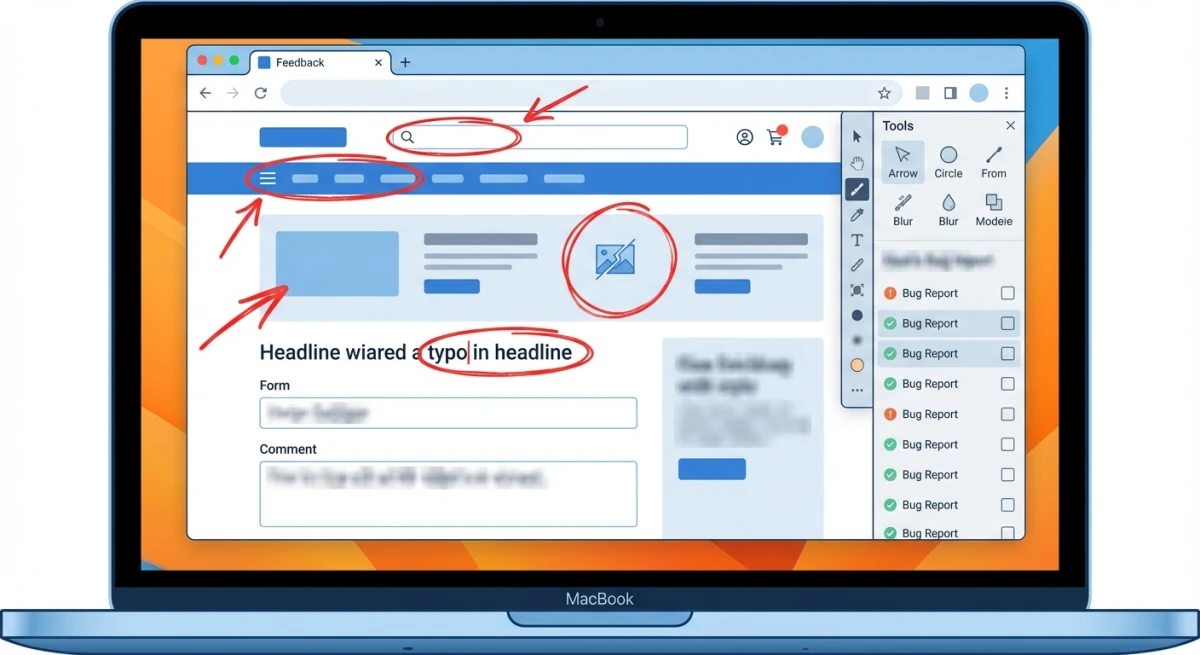
Use arrows and shapes to point out the problem. Draw a red circle around the broken button. Add an arrow to the error message. This tells developers exactly where to look.
Add numbered markers for bugs with many steps. If the issue touches several UI parts, use markers (1, 2, 3) to show the order.
Blur private data before sharing. If your screenshot shows personal info, API keys, or customer data, blur those areas. This is crucial when bug reports go to external contractors.
Show the full screen when you can. Sometimes cropping too tight removes important context. Show the whole page so developers understand the bigger picture.
Tools like ScreenSnap Pro include built-in markup tools. You get arrows, shapes, text labels, blur, and numbered counters. Perfect for technical documentation. Capture, annotate, and share in seconds, all in one app.
Recording GIFs for Interaction Bugs
Some bugs can't be shown in a still image. You need a GIF if the issue involves:
- Animation glitches
- Hover state problems
- Race conditions (element appears then vanishes)
- Multi-step interactions
- Timing-related bugs
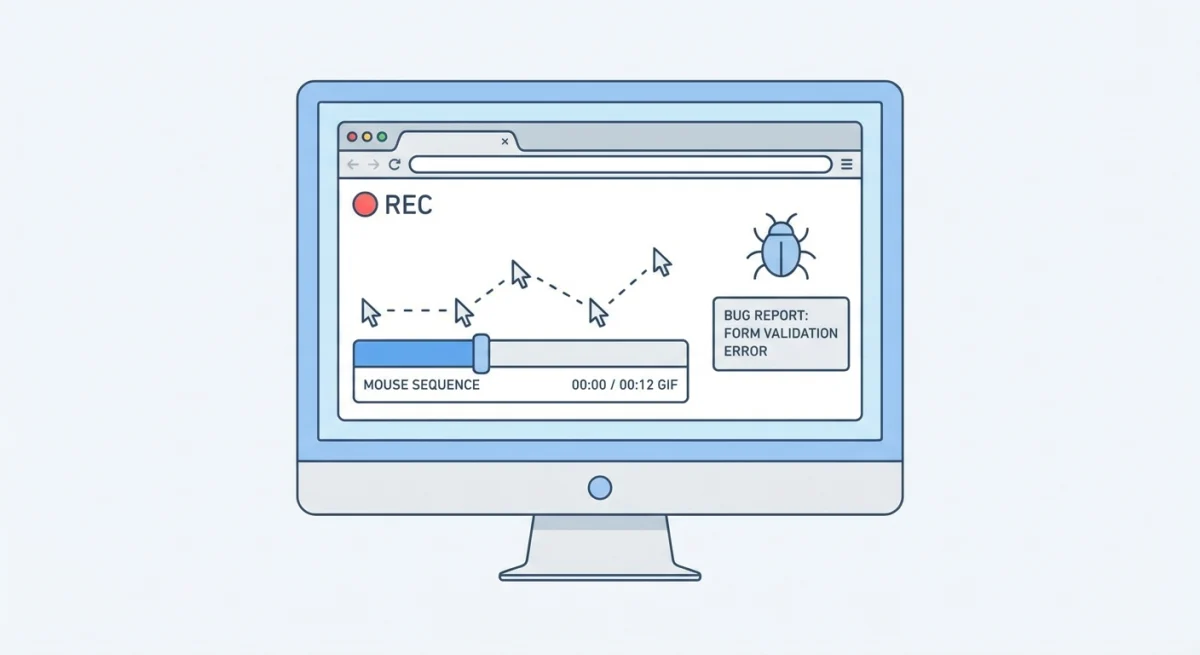
A 5-10 second GIF showing the bug is worth more than any description. It removes all guesswork about what "flickering" or "jumping" looks like.
Tips for recording bug GIFs:
- Keep clips short (under 15 seconds)
- Move your mouse slowly so viewers can follow
- Show the bug happening at least once
- Start with a second of normal behavior for contrast
If your GIF files are too big for your bug tracker, you can compress them before uploading.

Tired of plain screenshots? Try ScreenSnap Pro.
Beautiful backgrounds, pro annotations, GIF recording, and instant cloud sharing, all in one app. Pay $34 once, own it forever.
See pricing and featuresBug Report Examples: Good vs. Bad
Let's look at real examples. See how much difference clear writing makes.
Example 1: UI Bug
Bad report:
"The signup form is broken."
Good report:
Title: SIGNUP - Email field rejects valid .co.uk emails
>
Environment: Chrome 121, macOS Sonoma, Production
>
Steps:
1. Go to /signup
2. Type "user@company.co.uk" in email field
3. Tab to next field
>
Expected: Field accepts valid .co.uk email
Actual: Shows "Invalid email format" error
>
Screenshot: [Image with arrow pointing to the error and the valid email visible]
>
Severity: Major (blocks UK users from signing up)
See the difference? The good report gives developers everything they need to find and fix the issue.
Example 2: API Error
Bad report:
"Getting errors when I submit the form."
Good report:
Title: API - 500 error on POST /api/orders with 50+ cart items
>
Environment: Firefox 122, Windows 11, Staging server
>
Steps:
1. Add 50+ items to cart (use bulk add script)
2. Go to checkout
3. Click "Place Order"
>
Expected: Order goes through
Actual: 500 Internal Server Error shows up
>
Console log: Error: Maximum payload size exceeded>
Severity: Major (affects high-volume customers)
The console log is key here. It gives developers a strong hint about the root cause.
Example 3: Performance Issue
Bad report:
"The page is slow."
Good report:
Title: PERF - Dashboard takes 8+ seconds with 1000+ records
>
Environment: Safari 17, MacBook Air M1, 8GB RAM, Production
>
Steps:
1. Log in as admin (has 1247 records)
2. Click Dashboard
3. Wait for page load
>
Expected: Page loads in under 3 seconds
Actual: Takes 8-12 seconds, browser shows "Page Unresponsive"
>
GIF: [Recording of the loading spinner and browser warning]
>
Severity: Major (affects admin users daily)
Numbers matter for performance bugs. "8+ seconds" is much better than "slow."
Example 4: Mobile App Bug
Bad report:
"App crashes on my phone."
Good report:
Title: CRASH - App closes when opening camera in dark mode
>
Device: iPhone 14 Pro, iOS 17.2
App Version: 4.1.2
Network: WiFi
>
Steps:
1. Enable dark mode in iOS settings
2. Open the app
3. Tap the camera icon on home screen
>
Expected: Camera opens
Actual: App closes instantly, returns to home screen
>
Crash log: [Attached from Settings > Privacy > Analytics]
>
Severity: Critical (core feature unusable for dark mode users)
Reproduction rate: 100% on my device
Mobile bugs need device details. iOS version and dark mode were the key factors here.
Bug Severity and Priority: What's the Difference?
These terms sound alike but mean different things. Getting them right helps teams focus.
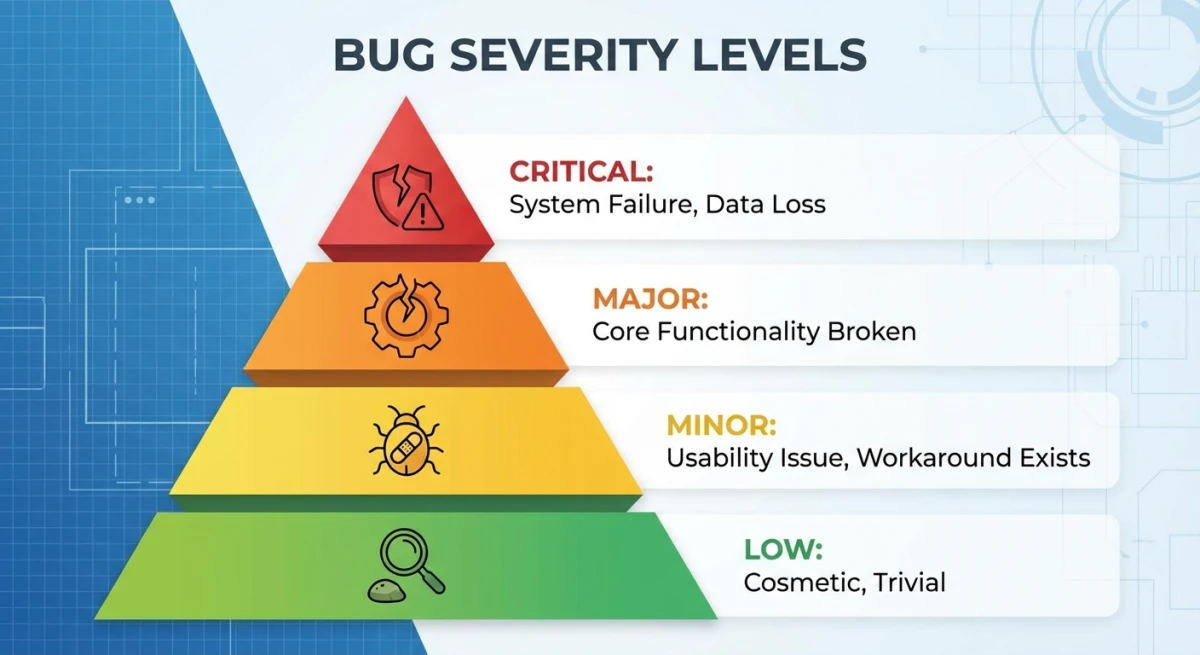
Severity = How bad is the impact on the system?
Priority = How fast does it need to be fixed?
A typo on the CEO's bio page is low severity (cosmetic) but might be high priority (investors will see it). A crash in a rarely-used feature is high severity (critical) but could be low priority (few users affected).
Severity Levels Explained
| Level | Impact | Examples |
|---|---|---|
| Critical | System failure, data loss, security holes | App crashes on launch, payment data exposed |
| Major | Core feature broken, many users affected | Can't checkout, search gives wrong results |
| Minor | Feature works but poorly, workaround exists | Slow export, formatting issues |
| Low | Cosmetic issues, minor annoyances | Button slightly off, typo in tooltip |
Priority Levels Explained
| Level | Response Time | When to Use |
|---|---|---|
| High | Fix right away | Many users hit, no workaround, losing money |
| Medium | Fix this sprint | Some users hit, workaround exists |
| Low | Fix when time allows | Few users, minor impact |
Common Bug Report Mistakes to Avoid
Even experienced testers make these errors. Dodge them to make your reports better.
1. Being Too Vague
"The button doesn't work" tells developers nothing. Which button? What happens when you click? What should happen? Get specific.
2. Skipping Reproduction Steps
If developers can't see the bug, they can't fix it. Always list exact steps, even if they seem obvious.
3. Leaving Out Environment Details
A bug in Safari might not show up in Chrome. Always note your browser, OS, and app version.
4. Forgetting Screenshots
A picture beats a paragraph. Take and annotate screenshots for every bug. No exceptions.
5. Combining Multiple Bugs
One bug per report. Mixing issues makes tracking messy and delays fixes.
6. Using Emotional Words
"This terrible bug is ruining everything!" doesn't help. Stick to facts about what's broken and who's affected.
7. Not Searching for Duplicates
Check if someone else reported the same bug. Duplicates waste everyone's time.
8. Guessing the Cause
Say what you saw, not what you think caused it. "The CSS is broken" is a guess. "The button text overlaps the icon" is what you observed.
Tips for Different Types of Bugs
Mobile App Bugs
Include phone model, OS version, and whether the app was in the foreground or background. Network type (WiFi vs. cellular) often matters too.
API Bugs
Share the full request (endpoint, method, headers, body) and full response. Network tab screenshots are gold.
Intermittent Bugs
Note how often it happens (e.g., "3 out of 10 tries"). Look for patterns (e.g., "only after 5+ minutes idle").
Security Bugs
Follow your company's disclosure rules. Don't put sensitive details in public trackers. Use private channels for security issues.
Frequently Asked Questions
Wrap Up: Better Reports, Faster Fixes
Good bug reports make developers' lives easier. When you include clear steps, details about your setup, and visual proof, you're giving them a map to the solution.
These templates and tips work with any bug tracker. Jira, GitHub Issues, Trello, or a simple spreadsheet. The basics stay the same. Be specific. Show, don't just tell. Include everything needed to see the bug.
For teams that document lots of bugs with screenshots, tools like ScreenSnap Pro speed things up. Built-in markup tools, GIF recording, and instant cloud sharing let you go from spotting a bug to submitting a full report in seconds.
Your developers will thank you. And your bugs will actually get fixed.

Morgan
Indie DeveloperIndie developer, founder of ScreenSnap Pro. A decade of shipping consumer Mac apps and developer tools. Read full bio
@m_0_r_g_a_n_