7 Best Gifski Alternatives for Mac in 2026
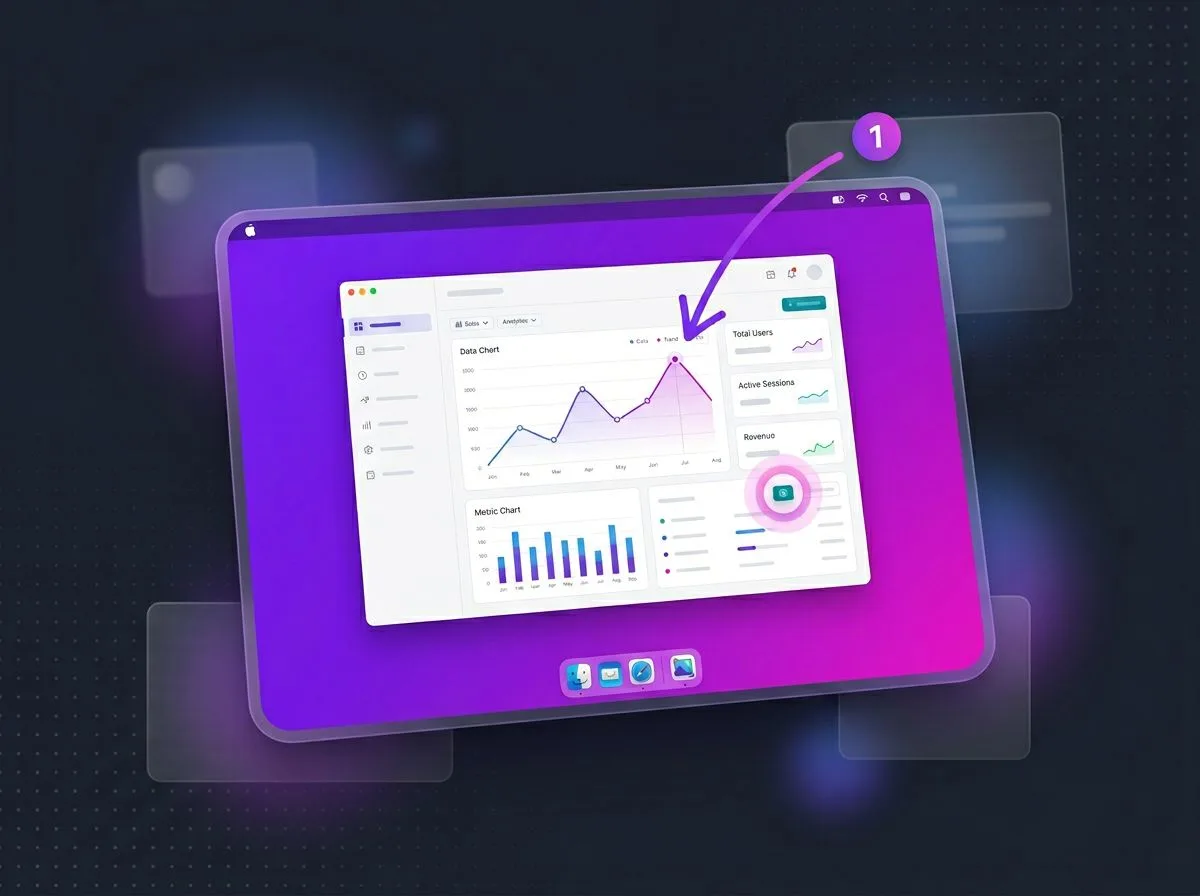
Gifski is a popular video-to-GIF converter for Mac. Sindre Sorhus built it to make high-quality GIFs with rich colors. But there's a catch: Gifski only converts existing videos. It can't record your screen. For that, you'll need a different tool — like our screenshot and screen-recording app ScreenSnap Pro.
Looking for a gif maker mac users love? This guide covers seven Gifski alternatives. They offer direct screen recording, annotation tools, and cloud sharing. These are features Gifski doesn't have.
What is Gifski?
Before exploring alternatives, let's cover what Gifski does well—and where it falls short.
Gifski is a macOS app. It turns video files into GIFs. The app uses smart color handling. Your GIFs look great and stay small.
The app is:
- Free
- Fast
- Simple to use
Drop a video in. Adjust settings. Export your GIF. That's it.
Gifski's Strengths
- Great GIF quality — Uses thousands of colors per frame
- Simple interface — Drag, drop, adjust, export
- Free and open-source — No cost or watermarks
- Active updates — Sindre Sorhus keeps it fresh
- Native Mac feel — Fits right in on your Mac
Gifski's Limitations
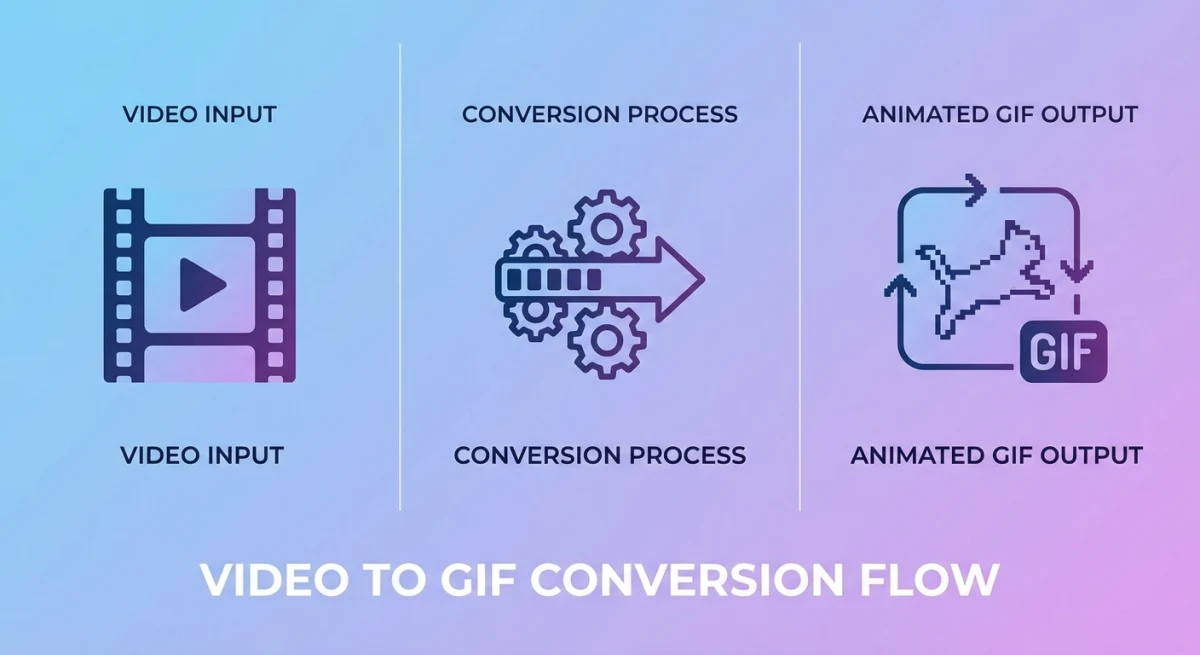
Here's where Gifski users often hit walls:
- No screen recording — You need an existing video file. Gifski can't capture your screen.
- No annotation tools — Can't add arrows, text, or blur areas.
- No cloud sharing — No way to make shareable links.
- Two-step workflow — Record first, then convert. That's extra work.
- No editing features — Beyond basic trim, there's no frame or speed control.
If you mainly need to convert MOV to GIF on Mac, Gifski excels. But if you want direct screen-to-GIF recording, you need something else.
Why Look for Gifski Alternatives?
Users search for Gifski alternatives for several reasons:
Direct screen recording. This is the biggest gap. Want to make a tutorial GIF? With Gifski, you must:
- Open QuickTime
- Record your screen
- Save the video
- Open Gifski
- Convert to GIF
That's two apps and five steps. A gif recorder mac tool that captures directly is much faster.
All-in-one workflows. Pros want to capture, edit, and share in one app. No juggling tools. No switching windows.
Cloud sharing. Quick links make sharing easy. Drop a GIF link in Slack. No file uploads needed. Gifski saves files locally. You share them yourself.
Markup and editing. Bug reports need arrows. Tutorials need step numbers. Sensitive info needs blur. Gifski has none of these.
One-time pricing. Some users prefer paying once. They want to skip free tools with limits. They want to skip monthly fees too.
7 Best Gifski Alternatives for Mac
Here are seven gif maker mac tools worth trying. They range from free open-source apps to premium all-in-one tools.
1. ScreenSnap Pro — Best for Direct Recording + Annotation
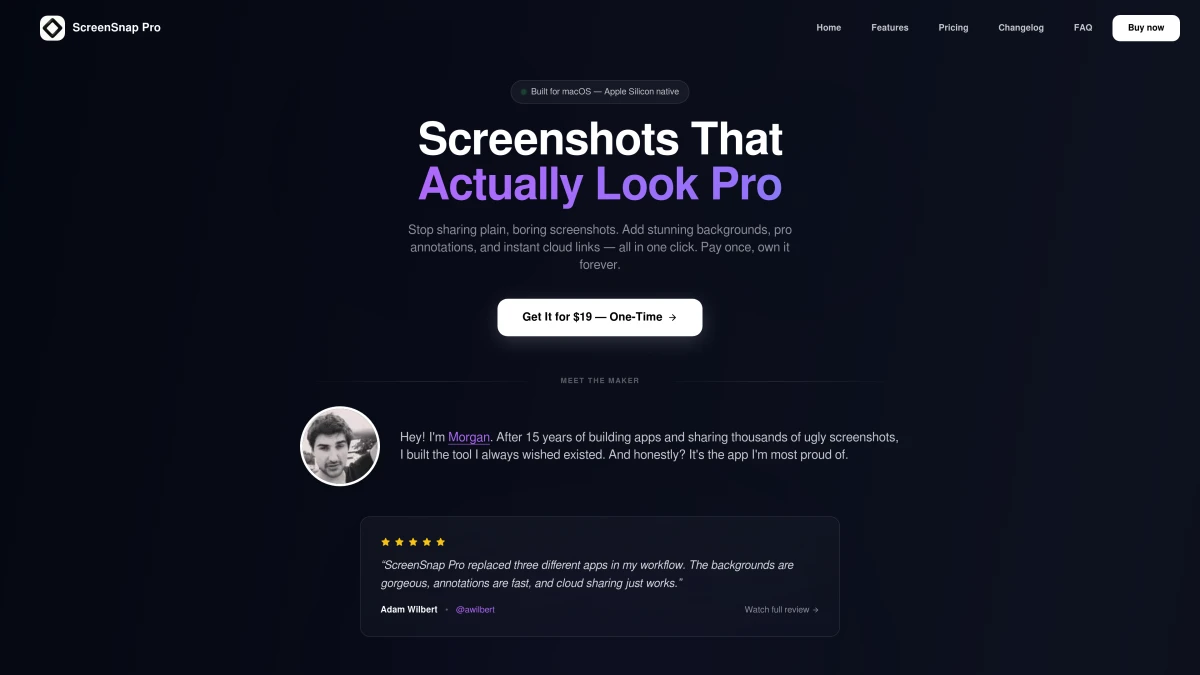
Price: One-time purchase | Best for: Professionals who need speed and quality
ScreenSnap Pro solves Gifski's biggest gap. It records your screen as a GIF. No video file needed. No extra steps.
Key features:
- Direct screen-to-GIF recording
- 15 markup tools (arrows, shapes, text, blur, counters)
- Instant cloud sharing with links
- 500+ wallpapers for clean visuals
- OCR text grab from any image
Who it's for:
- Devs making bug reports
- Designers making quick demos
- Creators building tutorials
Direct recording saves time. The markup tools let you add context in the same app.
How the workflow compares:
With Gifski:
- Open QuickTime
- Start screen recording
- Stop and save video
- Open Gifski
- Import video
- Export GIF
With ScreenSnap Pro:
- Press hotkey
- Record screen
- Done — GIF ready with shareable link
That's 6 steps vs 3. For folks making multiple GIFs daily, this adds up fast.
Pay once, own forever. No fees. All future updates are free too.
2. Gifox — Best for Screen Recording Focus
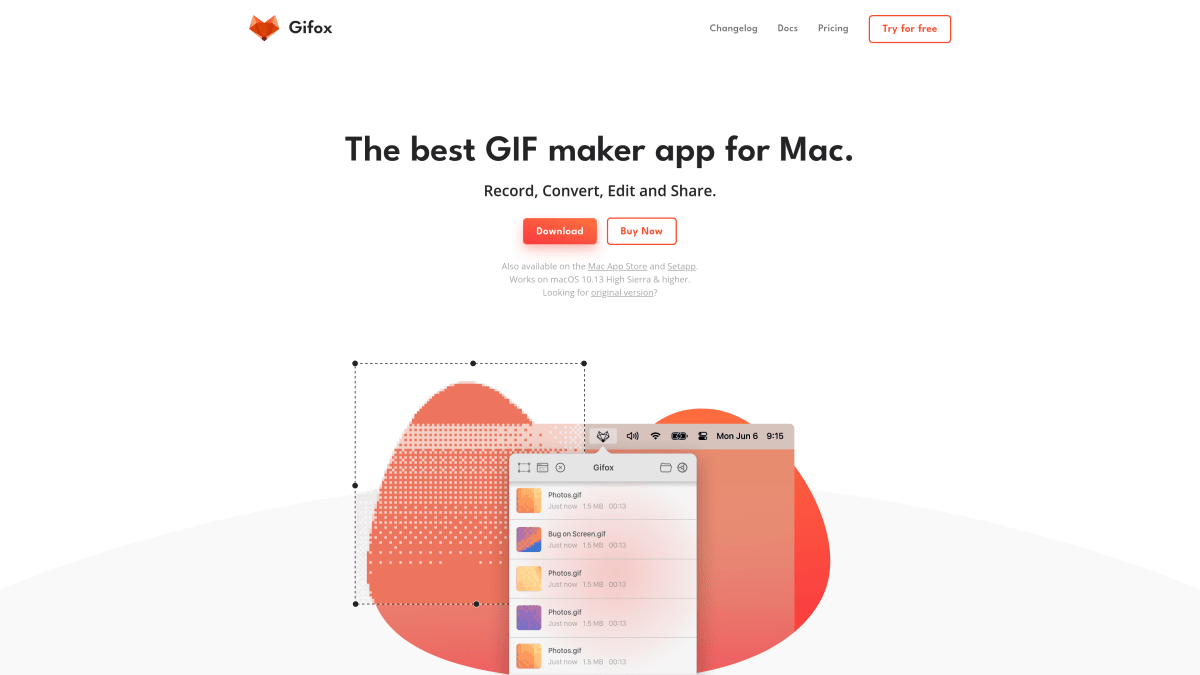
Price: $14.99 one-time | Best for: Users who want dedicated GIF recording
Gifox gives Gifski users what they often want: screen-to-GIF recording with quality settings.
Key features:
- Direct screen recording to GIF
- Window and area capture modes
- Frame rate and size controls
- Menu bar quick access
- Good file size and quality
Gifox doesn't match Gifski's color tricks. But for most uses, the output looks great.
How it works:
- Click the menu bar icon
- Pick window or area
- Press a hotkey to record
- Stop when done
- GIF is ready
It lacks markup tools and cloud sharing. You'll need other apps for those.
3. Kap — Best Free Open-Source Option
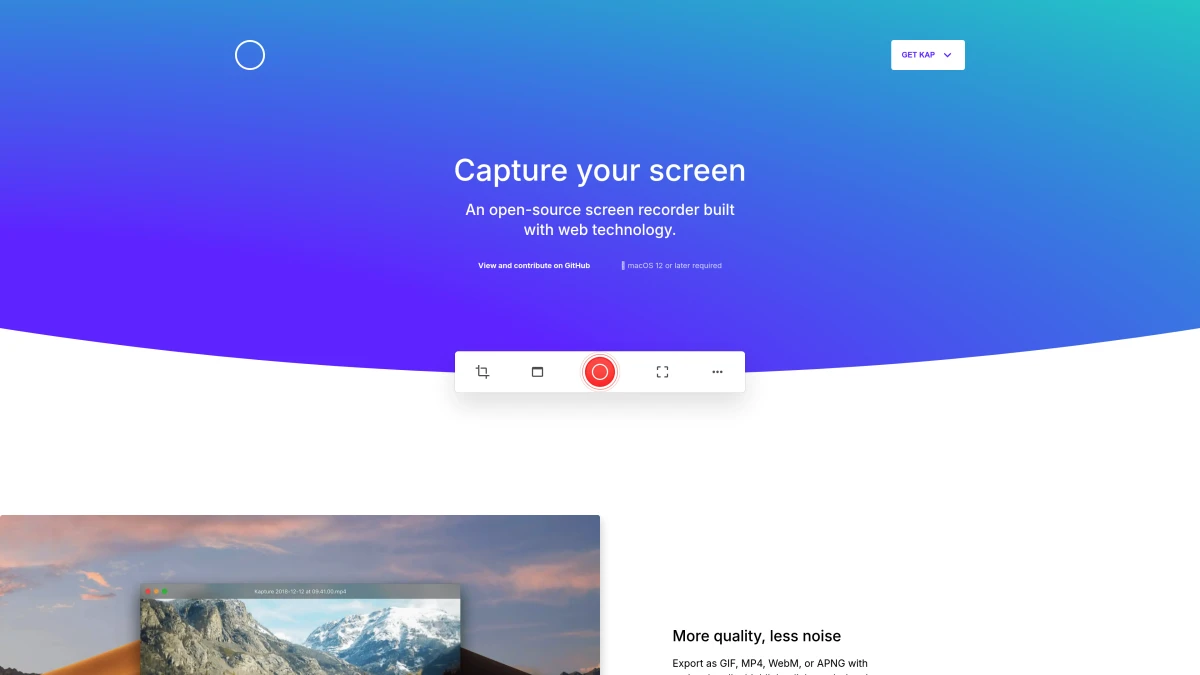
Price: Free | Best for: Developers and open-source enthusiasts
Kap is a free screen recorder. It's open-source and built with web tech.
Key features:
- Direct screen capture
- Exports to GIF, MP4, WebM, and APNG
- Plugin system for extras
- Keyboard shortcuts
- Active community
Kap won't match Gifski's GIF quality. But it's free and does a lot.
Plugin highlights:
- Upload to cloud services
- Custom export formats
- Link with other tools
For devs who value open-source, Kap is a natural fit.
Check out our Kap screen recorder review for a deeper look.
4. CleanShot X — Best Premium All-in-One
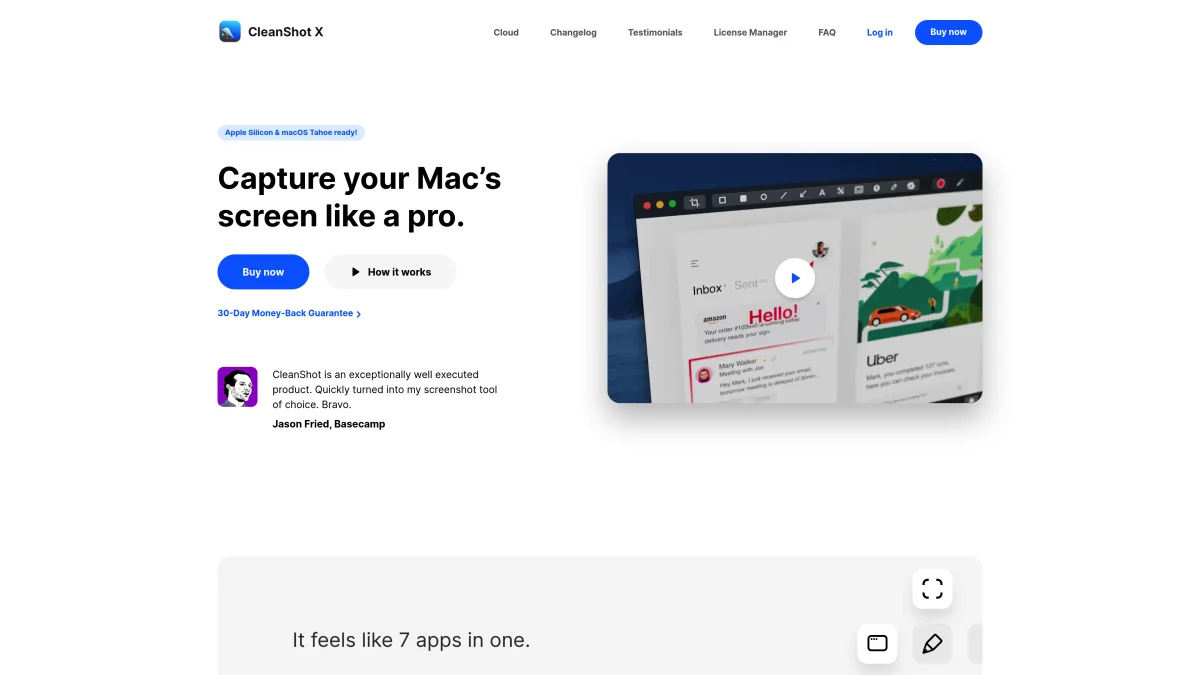
Price: $39 one-time (cloud extra) | Best for: Power users who want everything
CleanShot X is a Swiss Army knife for screen capture. It handles:
- Screenshots
- Screen recording
- GIFs
- Scrolling capture
- And more
Key features:
- Direct GIF recording
- Strong markup tools
- Cloud hosting (paid add-on)
- Scrolling capture
- OCR and text grab
- Self-timer for precise capture
- Background hiding during recording
GIF quality is good. Not quite Gifski-level. But CleanShot X shines in workflow. Capture, mark up, share—all in one app.
The cloud feature (CleanShot Cloud) requires an extra subscription. Without it, you get local files only. For teams that share lots of screenshots and GIFs, that subscription adds up.
If you take lots of screenshots with your GIFs, this covers both.
5. GIPHY Capture — Best Free Simple Option
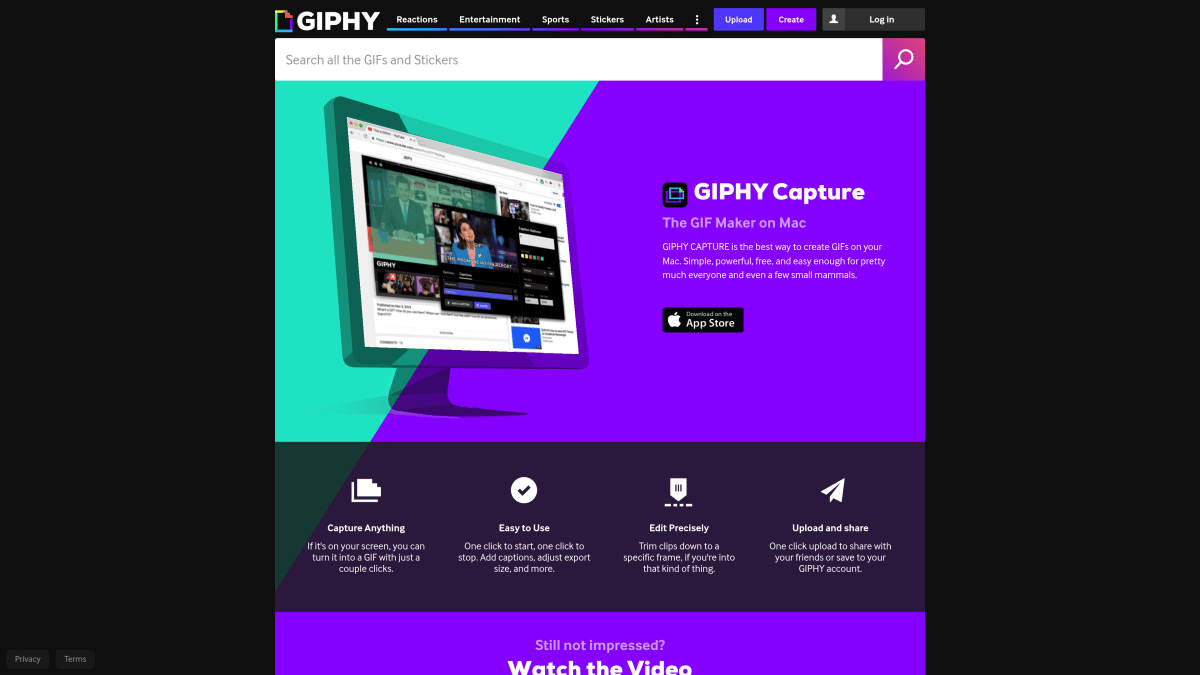
Price: Free | Best for: Casual users who want zero friction
GIPHY Capture is free and simple. Here's how it works:
- Click to start
- Click to stop
- Trim if needed
- Export your GIF
Key features:
- Direct screen recording
- Basic trim and loop controls
- Upload to GIPHY
- No cost, no watermarks
The catch: GIPHY Capture hasn't been updated since 2017. It still works on newer Macs. But you might hit bugs.
What it lacks:
- No markup tools
- No private cloud (only public GIPHY)
- Basic quality settings
For quick, casual GIFs, it works. For pro needs, look elsewhere. We've got more options in our GIPHY Capture alternatives guide.
6. LICEcap — Best Lightweight Option
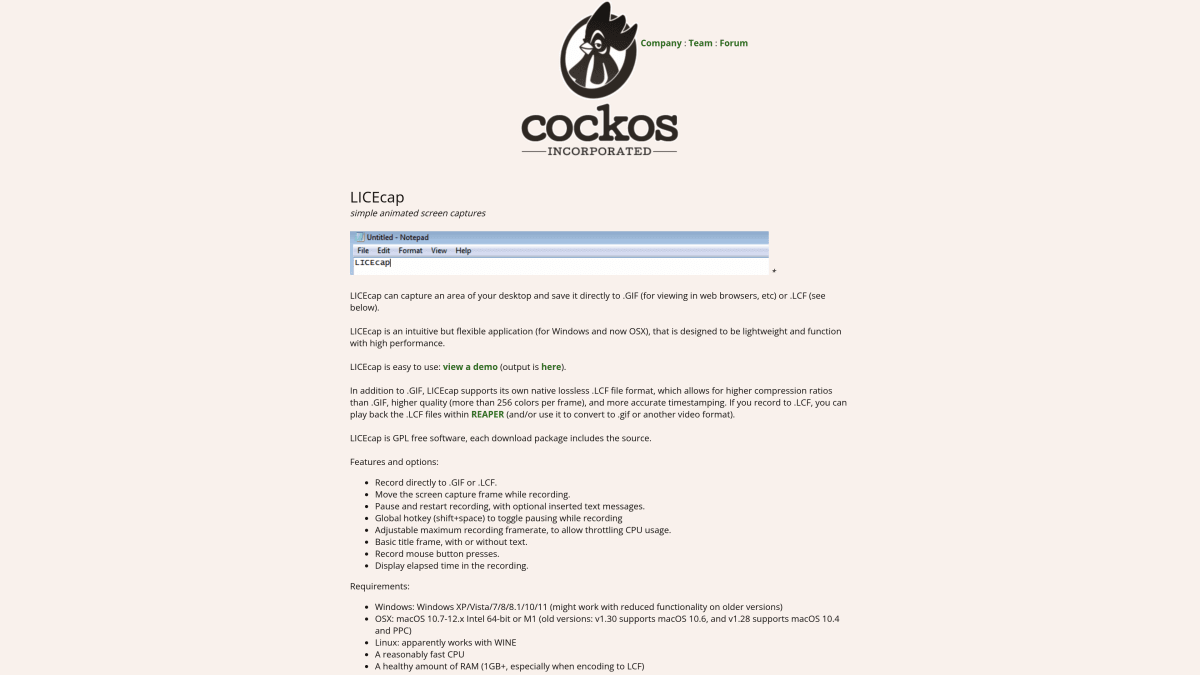
Price: Free | Best for: Users who want minimal resource usage
LICEcap is a small GIF recorder. It's been around for years. It stays popular for one reason: it's simple.
Key features:
- Tiny app size
- Direct GIF recording
- Frame rate controls
- Works on older Macs
- Works on Mac and Windows
Honest take: The design looks dated. Output won't win awards. But it uses few resources and just works.
Good for quick internal use. Not ideal when quality matters.
7. Drop to GIF — Best Gifski-Like Converter
Price: Free | Best for: Users who want conversion only (like Gifski)
Drop to GIF is the closest match to Gifski's main job: turning video files into GIFs.
Key features:
- Drag-and-drop to convert
- Quality controls
- Simple design
- Free on the App Store
If you just need video-to-GIF and want a Gifski swap, Drop to GIF works. It won't add screen recording, markup, or cloud features. That's not what it's for.

Tired of plain screenshots? Try ScreenSnap Pro.
Beautiful backgrounds, pro annotations, GIF recording, and instant cloud sharing — all in one app. Pay $39 once, own it forever.
See what it doesGifski Alternatives Comparison Table
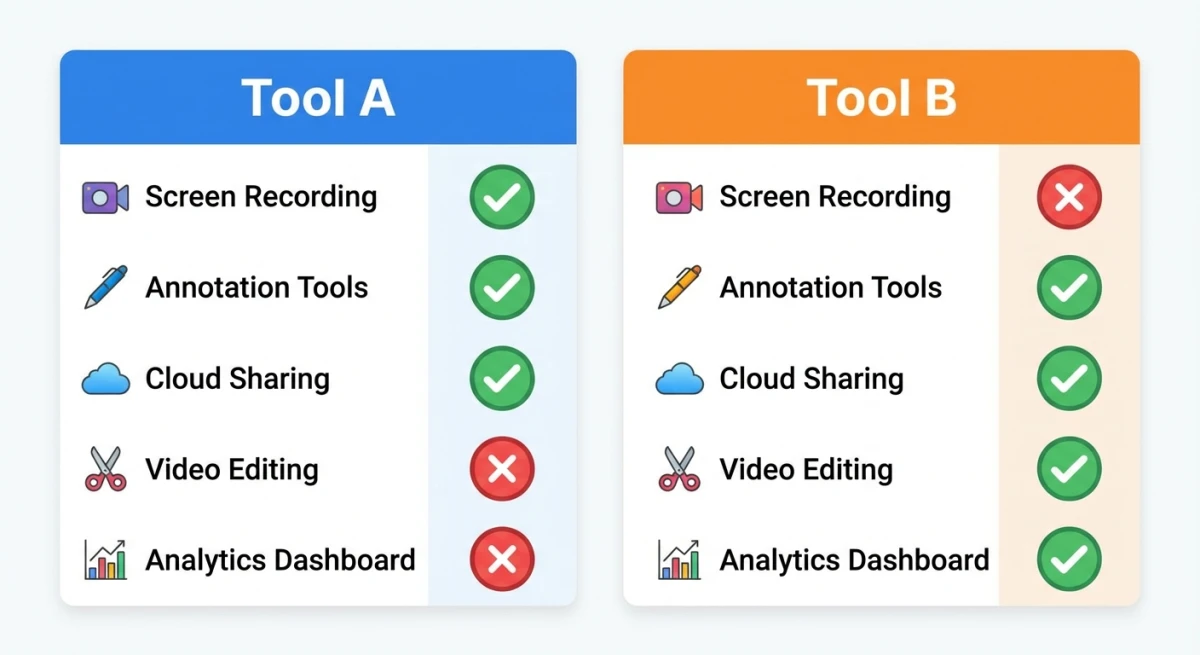
| Tool | Price | Screen Recording | Annotation | Cloud Sharing | Quality |
|---|---|---|---|---|---|
| Gifski | Free | ❌ | ❌ | ❌ | ⭐⭐⭐⭐⭐ |
| ScreenSnap Pro | One-time | ✅ | ✅ | ✅ | ⭐⭐⭐⭐ |
| Gifox | $14.99 | ✅ | ❌ | ❌ | ⭐⭐⭐⭐ |
| Kap | Free | ✅ | ❌ | Plugin | ⭐⭐⭐ |
| CleanShot X | $29+ | ✅ | ✅ | Subscription | ⭐⭐⭐⭐ |
| GIPHY Capture | Free | ✅ | ❌ | GIPHY only | ⭐⭐⭐ |
| LICEcap | Free | ✅ | ❌ | ❌ | ⭐⭐ |
| Drop to GIF | Free | ❌ | ❌ | ❌ | ⭐⭐⭐⭐ |
Reading the Table
Quality ratings explained:
- ⭐⭐⭐⭐⭐ — Best-in-class GIF output with rich colors
- ⭐⭐⭐⭐ — Great quality for most professional uses
- ⭐⭐⭐ — Good enough for casual sharing and internal docs
- ⭐⭐ — Basic quality, works but not impressive
Price considerations:
- "Free" tools have no cost but may lack features or updates
- "One-time" means you pay once and own it forever
- "Subscription" means ongoing payments for full features
Feature gaps to note:
Gifski leads on quality but lacks screen recording. Tools with screen recording sacrifice some quality to add convenience. For most uses, four-star quality looks great. The gap only shows in complex animations with many colors.
Which Alternative Should You Choose?
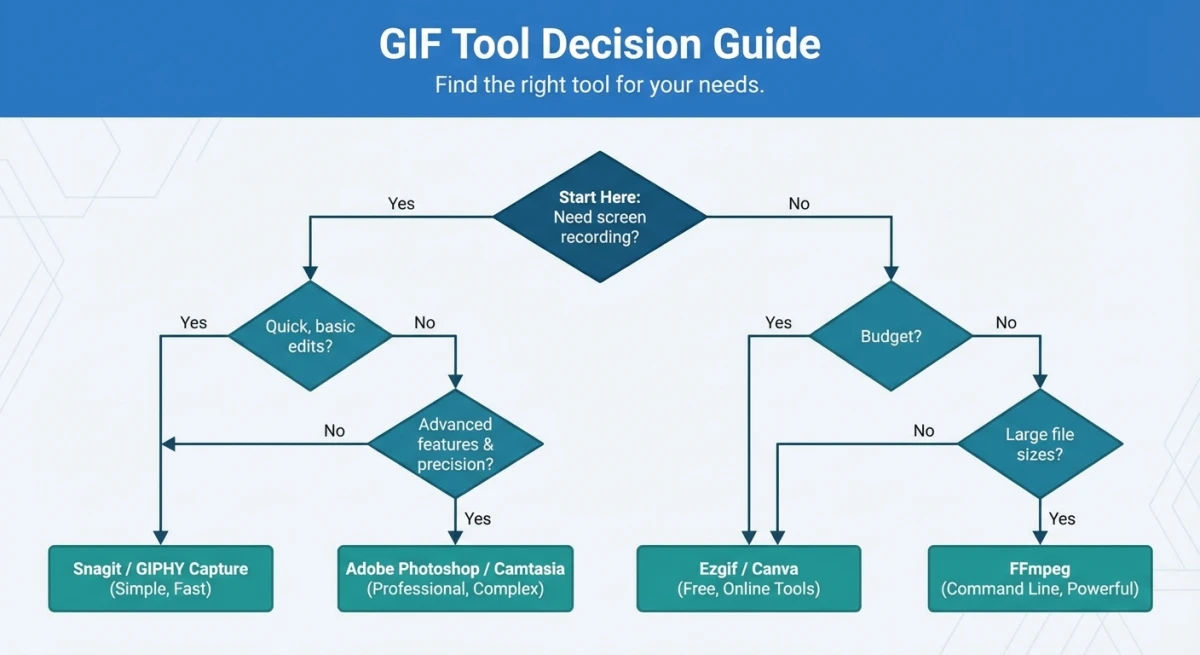
The right pick depends on your needs. Think about these questions first:
- Do you need screen recording, or just video conversion? If you only convert existing videos, stick with Gifski. If you need to capture your screen, you need a different tool.
- How often do you share GIFs? For frequent sharing, built-in cloud saves time. For personal use, local files work fine.
- What's your budget? Free tools exist but have limits. Paid tools add features and polish.
- Do you need markup? Bug reports and tutorials benefit from arrows and annotations. Casual GIFs don't need them.
Here's a quick guide:
Choose Gifski if:
- You have video files ready
- You want the best GIF quality
- You don't need screen recording
Choose ScreenSnap Pro if:
- You need direct screen recording
- You want markup tools
- You want instant cloud sharing
- You prefer one-time pricing
Choose Gifox if:
- You want focused GIF recording
- You don't need extras
- You like simple tools
Choose Kap if:
- You prefer free, open-source apps
- You're a dev
- Lower quality is okay
Choose CleanShot X if:
- You need screenshots AND GIFs
- You're okay paying for cloud
- You want an all-in-one tool
Choose GIPHY Capture if:
- You want free and simple
- It's just for casual use
- You're okay with old software
Choose LICEcap if:
- You need something light
- You have older hardware
- Basic quality is enough
Choose Drop to GIF if:
- You just want video-to-GIF
- You want a Gifski swap
Tips for Better GIF Quality
Any tool you pick, these tips help make better GIFs.
Keep Recordings Short
Aim for 5-15 seconds. Longer GIFs get huge. A 30-second GIF can hit 50MB or more.
If you need to show more, try:
- Breaking it into multiple GIFs
- Using video instead
- Speeding up slow parts
Choose Your Frame Rate Wisely
Frame rate affects smoothness and file size.
| Frame Rate | Use Case | File Size |
|---|---|---|
| 10 fps | Simple tutorials | Smallest |
| 15 fps | Most GIFs | Good balance |
| 24 fps | Smooth motion | Medium |
| 30 fps | High quality | Largest |
For most uses, 15 fps works great. It's smooth and looks natural. Going to 30 fps doubles file size for a small boost.
Pick the Right Size
Record at the size you need. Full-screen captures look nice. But they're often too big.
Sizes that work well:
- 600px wide — Good for blogs
- 800px wide — Good for docs
- 1200px wide — Good for slides
Smaller means faster loading.
Keep It Clean
GIFs compress better with:
- Solid backgrounds
- Less movement
- Fewer fast changes
- Simple visuals
A clean desktop beats a messy one.
Trim Hard
Cut frames you don't need:
- Remove cursor moving to record
- Cut pauses at the start and end
- Skip repeat actions
Every frame adds size. Be ruthless.
Test Quality Settings
Most tools let you tweak quality. Try this:
- Export at high quality
- Export at medium quality
- Compare them
Often you can't tell the gap. But file size drops a lot.
Try Other Formats
Sometimes GIF isn't the best pick. Consider:
- WebM — Smaller, good quality, works in browsers
- MP4 — Best size, plays everywhere
- APNG — Like GIF but better, less support
For the web, video formats often work better. They load faster and look sharper.
For more guidance, check our complete guide on how to record GIFs on Mac. You might also find our GIF screen capture tools comparison helpful.
FAQ
Wrapping Up
Gifski is great at what it does: turning video into high-quality GIFs. But if you need screen recording, markup, or cloud sharing, you'll need another tool.
For most users who want a complete gif recorder mac setup, ScreenSnap Pro is a solid pick. Record, mark up, and share—all in one app. No two-step process.
The tools above cover every need. Free to paid. Simple to full-featured. Pick the one that fits your work and start making better GIFs today.

Morgan
Indie DeveloperIndie developer, founder of ScreenSnap Pro. A decade of shipping consumer Mac apps and developer tools. Read full bio
@m_0_r_g_a_n_