Record Screen as GIF on Windows (2026): 5 Methods
You can record your screen as a GIF on Windows in seconds with a free tool like ScreenToGif, LICEcap, or ShareX. No video-to-GIF conversion step required. The trick is picking a tool that saves a GIF file directly. Skip the MP4 detour and your whole workflow gets faster, cleaner, and easier to share in Slack, GitHub, and docs.
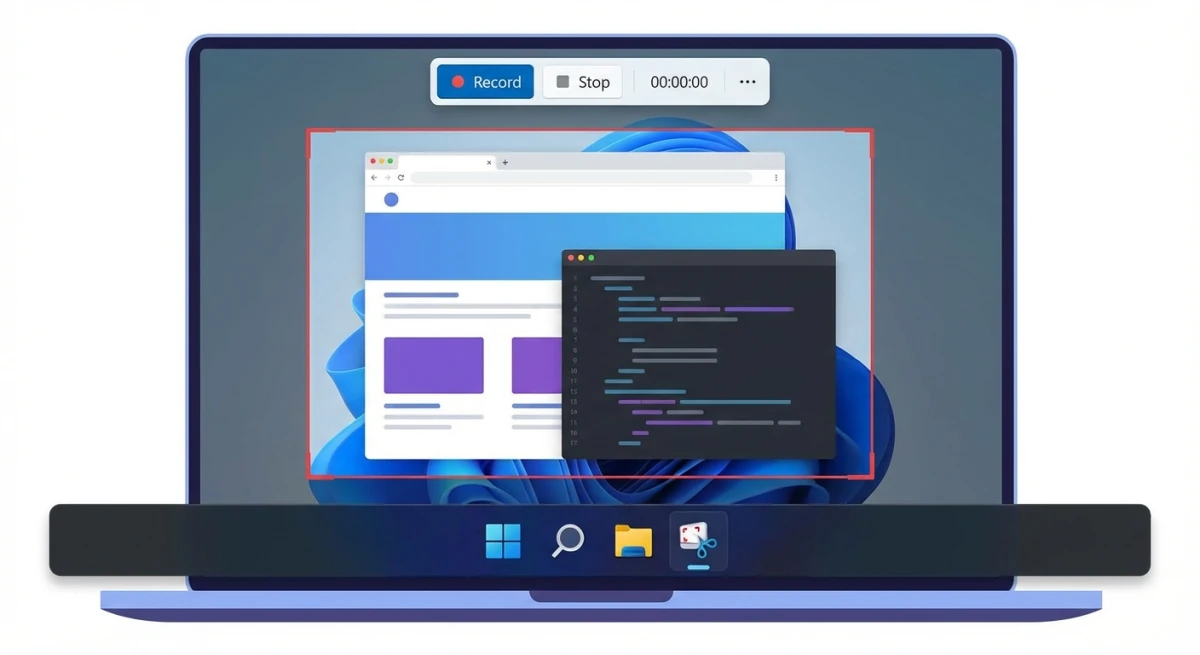
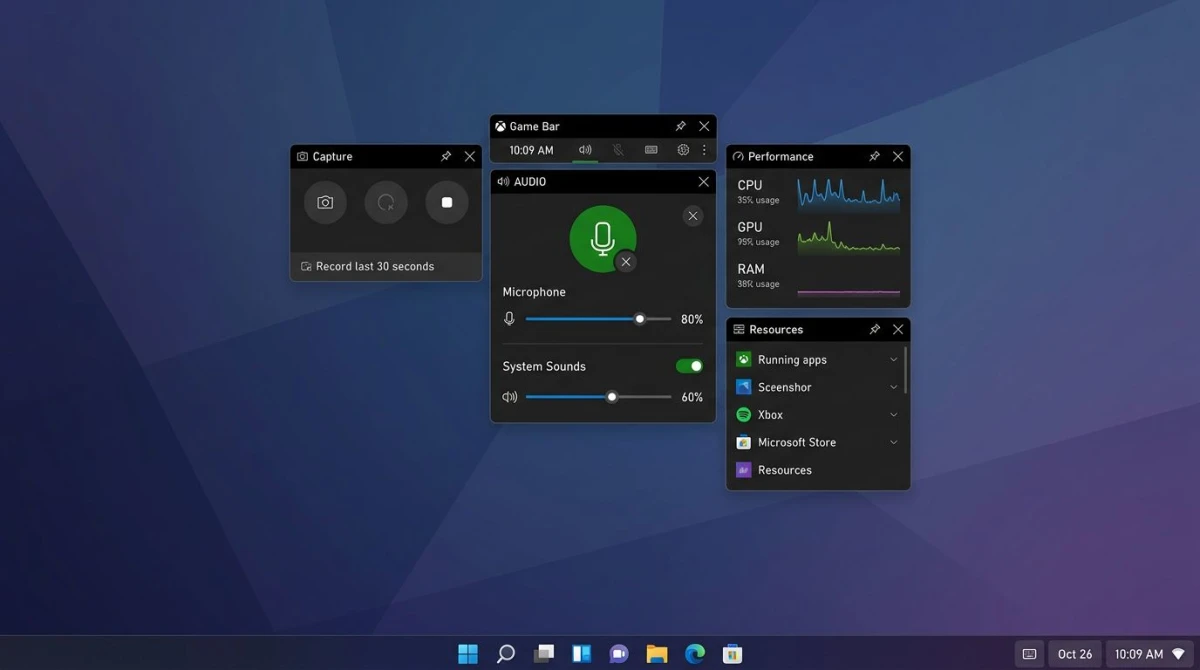
Windows doesn't include a built-in GIF recorder. The Xbox Game Bar and Snipping Tool only save video. So if you want to record as GIF without any extra steps, you need a dedicated app that writes GIFs the moment you stop recording.
This guide walks through five free methods to record screen to GIF on Windows, plus the settings that keep file sizes small. If you're looking for a broader roundup of tools, see our GIF screen capture on Windows guide first.
Why record directly to GIF (vs record MP4 then convert)
Most screen recorders save video files. That's fine for long tutorials, but for a 5-second UI demo it's overkill. Here's why direct GIF recording wins for quick shares:
- No extra step. You stop recording and the GIF is ready. No export, no re-encoding, no waiting on FFmpeg.
- Smaller working files. A GIF recorder captures at a lower frame rate on purpose. You skip the bloated MP4 stage entirely.
- Better for chat. Slack, Discord, GitHub issues, and email all play GIFs on their own. Video attachments often need a click to play.
- Easier to trim frame-by-frame. GIF tools like ScreenToGif let you delete individual frames after recording. Video editors don't work that way.
One tradeoff: GIF tools cap frame rates around 30 FPS, and many recommend 15 FPS for smaller files. For buttery-smooth 60 FPS, record video and convert later. For most bug reports and UI demos, a direct GIF recorder is the faster pick.
Method 1: ScreenToGif (free, open-source)
Best for: Power users who want a built-in frame editor.
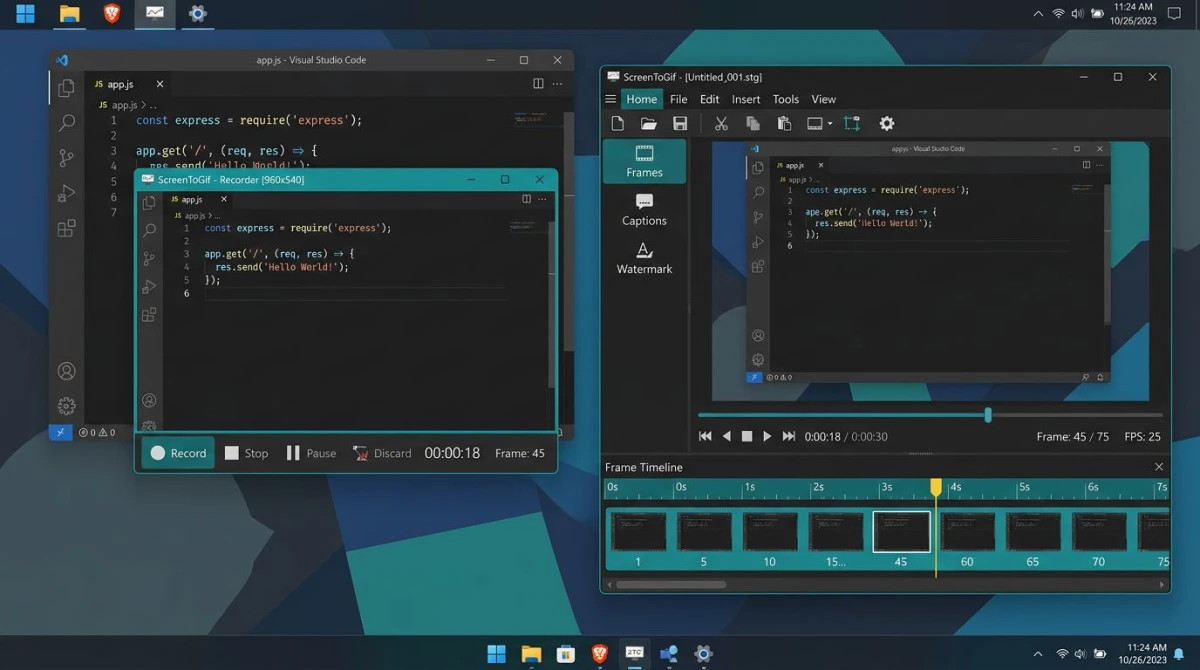
ScreenToGif is the most popular free GIF recorder for Windows. It's open-source, under 10 MB, and ships with a full frame editor. You can record, trim, delete frames, add text, and export, all in one app.
What sets it apart is the editor. After you stop recording, ScreenToGif drops every frame into a timeline. You can cut a clip down to the exact 3 seconds you need, then remove duplicate frames to shrink file size.
How to record as GIF with ScreenToGif
- Download ScreenToGif from the official site (installer or portable)
- Open the app and click Recorder on the launch screen
- Resize the capture frame over the area you want to record
- Set frame rate to 15 FPS for a good balance of quality and file size
- Press F7 to start recording (or click Record)
- Press F8 to stop when done
- Edit the clip in the frame editor to trim, crop, or add captions
- Click File > Save As and choose GIF
Pros:
- Totally free with no watermarks
- Full frame-by-frame editor built in
- Portable version runs with no install
- Active development and big community
Cons:
- Frame editor takes time to learn
- No cloud sharing built in
- Windows only
Pro tip: Use Reduce Frame Count in the editor to shrink files fast. It finds near-identical frames and removes extras.
Method 2: LICEcap (simple)
Best for: People who want the smallest, simplest GIF recorder possible.
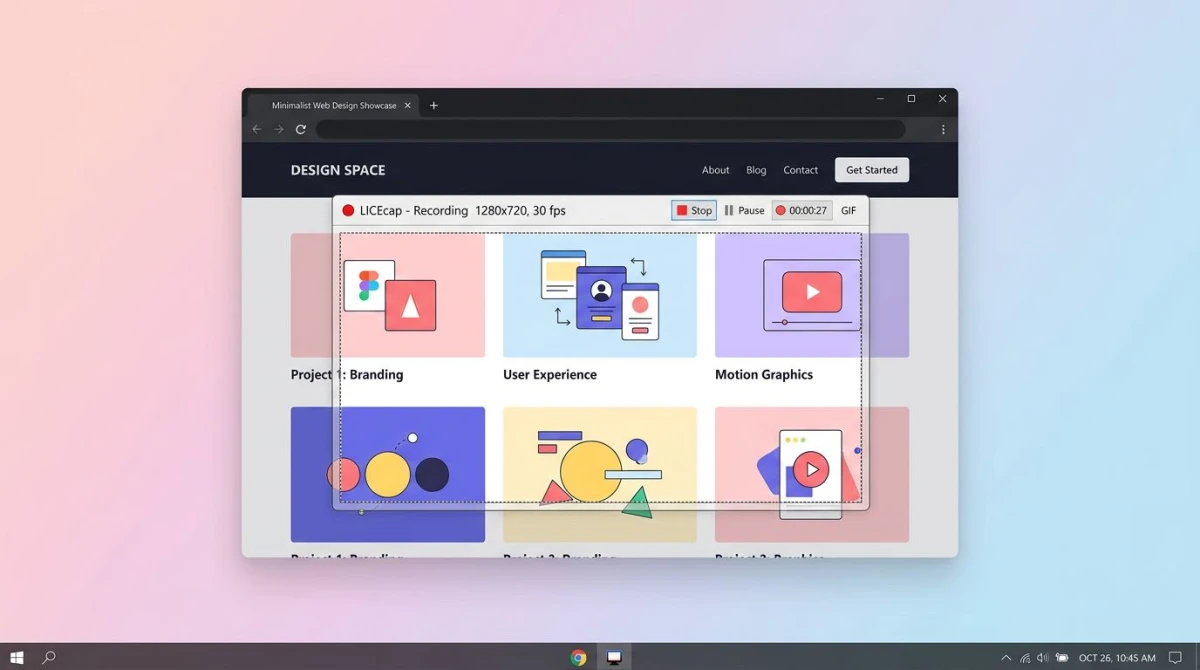
LICEcap is a tiny app (under 500 KB) that does one thing: record your screen as a GIF. No editor, no cloud, no menus to dig through. You pick a frame, hit Record, and get a GIF file.
The interface looks dated, but the tool works. LICEcap runs on almost any Windows PC and barely touches your CPU.
How to record as GIF with LICEcap
- Download LICEcap from cockos.com/licecap
- Open the app and a transparent frame window appears
- Drag and resize the frame over what you want to capture
- Set FPS to 15 (default is 8, which looks choppy)
- Click Record, pick a filename, then click Save
- Click Stop when you're done
Pros:
- Tiny download (under 500 KB)
- Simple, easy for anyone
- Low CPU and memory use
- Works on older PCs
Cons:
- No editing at all
- Outdated interface
- No cloud or sharing features
- Saves to file right away (no preview)
LICEcap is a good pick if ScreenToGif feels like overkill. Great for quick, one-off captures on an older machine.
Method 3: ShareX (free, powerful)
Best for: Users who already use ShareX for screenshots.
ShareX is a free, open-source screenshot tool that also records GIFs. If you've been using ShareX for captures, there's no reason to install a second app.
ShareX uses FFmpeg under the hood, so the GIF output is high quality. The downside is that the GIF option is buried a few menus deep, and the UI feels cluttered at first.
How to record as GIF with ShareX
- Open ShareX from your taskbar or Start menu
- Click Capture in the sidebar
- Choose Screen recording (GIF)
- Drag to select the area you want to record
- Recording starts right away because there's no start button
- Click Stop in the tiny toolbar (or press Shift+Print Screen)
- Find the GIF in
Documents\ShareX\Screenshotsor the history panel
Pros:
- Free and open-source
- Handles screenshots, video, and GIFs in one app
- Many upload targets (Imgur, Google Drive, FTP)
- Automation and custom hotkeys
Cons:
- Cluttered interface at first
- No frame editor for GIFs
- Windows only
- Output settings are buried
Pro tip: Set a hotkey in Hotkey settings for Screen recording (GIF). One key press can start a capture from any app.
For a broader comparison of GIF tools, see our best GIF screen capture tools roundup.
Method 4: ScreenSnap Pro (screen → GIF directly)
Best for: People who want a clean, fast capture-to-share flow.
ScreenSnap Pro records your screen straight to GIF with no intermediate MP4 step. Press a shortcut, drag over the area, and the GIF is ready. It also uploads to the cloud and gives you a shareable link, which is handy for team workflows.
Unlike ScreenToGif or LICEcap, ScreenSnap Pro bundles screenshot tools, GIF recording, and video recording in one app. You don't need four tools open at once.
How to record as GIF with ScreenSnap Pro
- Click the ScreenSnap Pro icon in your system tray
- Choose Record GIF (or use your custom hotkey)
- Drag to select the area you want to capture
- Click Start to begin
- Click Stop when finished
- Share right away: copy the cloud link, drag into chat, or save locally
ScreenSnap Pro costs $34 one-time, with no monthly fee. You get 17 annotation tools, 500+ gradient backgrounds for screenshots, and the option to disable cloud features if you'd rather keep things local. It's a paid pick, so skip it if free tools cover your needs.

Tired of plain screenshots? Try ScreenSnap Pro.
Beautiful backgrounds, pro annotations, GIF recording, and instant cloud sharing, all in one app. Pay $34 once, own it forever.
See pricing and featuresMethod 5: Greenshot with GIF plugin
Best for: Greenshot users who want to stay in one tool.
Greenshot is a popular free screenshot app on Windows. It doesn't record GIFs on its own, but a community plugin adds basic GIF capture. The plugin isn't polished, but it's free and works for short clips.
If you don't already use Greenshot, though, pick ScreenToGif or LICEcap, since they're purpose-built for GIFs.
How to record as GIF with Greenshot + plugin
- Install Greenshot from getgreenshot.org
- Download a third-party GIF plugin (check the Greenshot forum for current links)
- Drop the plugin DLL into Greenshot's plugin folder
- Restart Greenshot
- Right-click the tray icon and pick Record GIF
- Drag the capture region and start recording
- Click Stop to save
Pros:
- Free, sticks with Greenshot's familiar UI
- Good if you already rely on Greenshot
Cons:
- Plugin isn't official (reliability varies)
- No frame editor
- Limited format and quality settings
- Setup takes effort
If you just need a solid Windows screen recorder (video, not GIF), see our free screen recorder for Windows guide.
Best settings for small file size
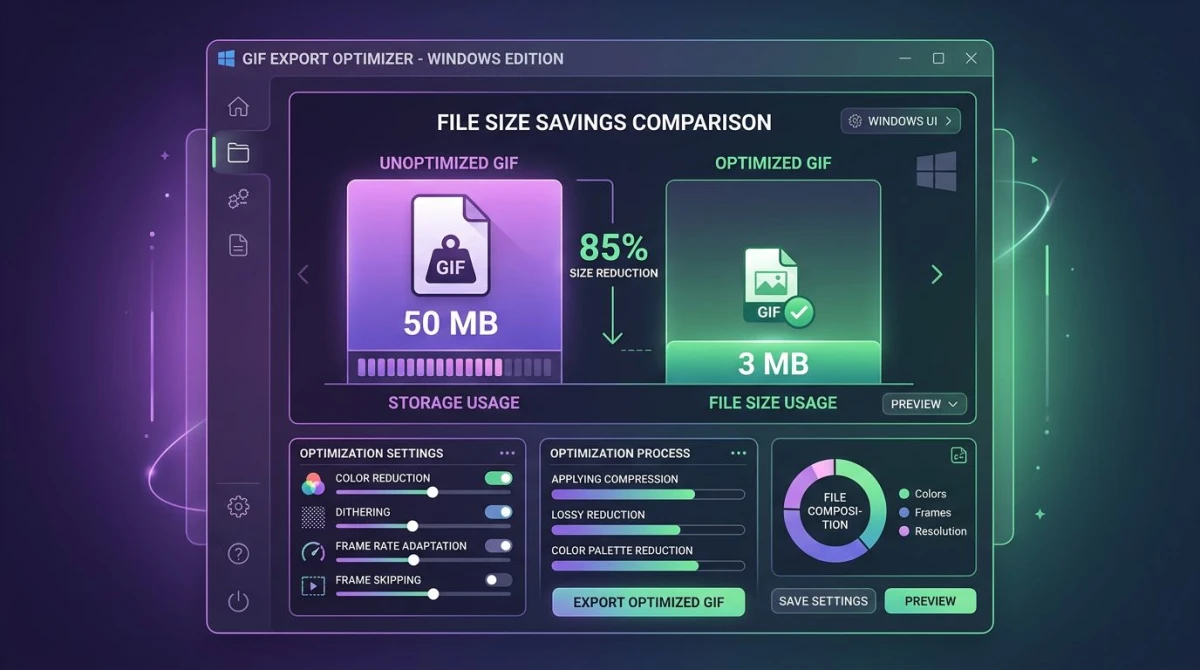
GIFs are big by default. A 10-second clip at full HD can easily pass 20 MB. These settings keep files small without hurting quality.
Frame rate: 12 to 15 FPS. Most UI demos look smooth at 12 FPS. Above 20 FPS rarely helps and doubles file size.
Capture size: 800px wide or less. A 1920×1080 GIF is huge. Shrink the window to 800, 640, or 480px. Chat apps resize GIFs anyway.
Color palette: 128 colors. Fewer colors mean smaller files. 128 is plenty for flat UI recordings. Keep 256 only for photo-heavy content.
Length: under 10 seconds. Short clips load faster. Split long demos into two or three GIFs instead.
Remove duplicate frames. Tools like ScreenToGif spot near-identical frames and cut them. This alone can trim file size by 30 to 50%.
If your GIF is still too big, run it through a GIF compressor to shrink it further without re-recording.
How to trim and optimize GIFs after recording
Even careful recording leaves extra frames at the start and end. Here's how to clean up a finished GIF fast.
Trim the ends. Most people record a second or two of dead time before and after the action. Open the GIF in ScreenToGif, select the extra frames, and hit Delete. Your clip tightens up right away.
Crop unused space. If your recording frame was a bit bigger than the action, crop the GIF to the action itself. Smaller canvas = smaller file. Our GIF cropper guide walks through the easiest ways on Windows.
Re-order or loop. Sometimes you want the GIF to repeat a key moment. ScreenToGif lets you copy frames and paste them in new positions. Use this for step-by-step demos where you want to linger on the result.
Compress without re-recording. If the GIF is ready but too big to share, compress it. Our reduce GIF file size guide covers seven methods, from ScreenToGif's built-in tools to online compressors.
Convert to MP4 when sharing fails. Some platforms (Twitter, old forum software) don't play GIFs well. A GIF-to-MP4 converter swaps the format in seconds. The file often shrinks by 80% in the process.
Embedding GIFs in docs, Slack, GitHub
A GIF is only useful if you can drop it where teammates will see it. Here's how the main tools handle GIFs in 2026.
Slack. Drag the GIF into any channel or DM. It plays inline at full size. If the file is over 5 MB, compress it first or you may see a preview warning.
Discord. Drag the file into a chat. GIFs under 8 MB play inline on free accounts, up to 25 MB on Nitro.
GitHub issues and pull requests. Drag the GIF into the comment box. GitHub uploads it and inserts a markdown link. This is the fastest way to report a UI bug.
Microsoft Teams. Click the paperclip icon, pick your GIF, and send. Teams plays GIFs inline if they're under 4 MB.
Google Docs and Notion. Both support drag-and-drop. Docs plays GIFs in view mode; Notion plays them inline on any page.
Email. Gmail, Outlook, and Apple Mail all play GIFs inline. Keep files under 5 MB to avoid spam filters stripping them.
For recording workflows that need audio (not just silent GIFs), see our screen record with audio on Windows guide, which covers microphone, system audio, and mixing.
FAQ
Pick the right tool and start recording
The fastest way to record screen to GIF on Windows is to stop converting and start recording as GIF directly. ScreenToGif is the strongest free pick thanks to its frame editor. LICEcap wins on simplicity, ShareX on all-in-one convenience.
If you want cloud sharing baked in, ScreenSnap Pro handles GIFs, screenshots, and video in one app for $34 one-time, with no subscription and no watermarks, on both Windows and Mac.
Whichever tool you pick: keep frame rate at 12 to 15 FPS, crop tight, trim the ends. A 5-second GIF beats a 30-second one every time.

Morgan
Indie DeveloperIndie developer, founder of ScreenSnap Pro. A decade of shipping consumer Mac apps and developer tools. Read full bio
@m_0_r_g_a_n_