




Screen Recorder for Windows
Record your full Windows 11 desktop with system audio, microphone, and webcam, then export a clean video or GIF. No watermark, no subscription. Pay $29 once, own it forever.

Why the built-in Windows 11 recorders fall short
Windows 11 ships with two recorders, and both hit a wall fast. Xbox Game Bar (Win + Alt + R) records inside a single app or game only. Try to capture the desktop, File Explorer, or a workflow that moves between windows and it refuses with a "nothing to record" message. That rules out most tutorials, bug reports, and demo videos.
The Snipping Tool added screen recording in Windows 11 and it is genuinely handy for a quick clip. But there is no webcam overlay, no GIF export, and nothing to help you annotate or share the result. Reach for a third-party tool instead and you often trade one problem for another: Bandicam, for example, stamps a watermark across every video until you pay.
ScreenSnap Pro is a screen recorder for Windows that closes those gaps in one app: full desktop recording with system audio, microphone, and webcam, GIF export, and clean watermark-free output, for a one-time $29.
Everything a screen recorder for Windows should include
Six things you stop thinking about once they just work.
Record the whole desktop
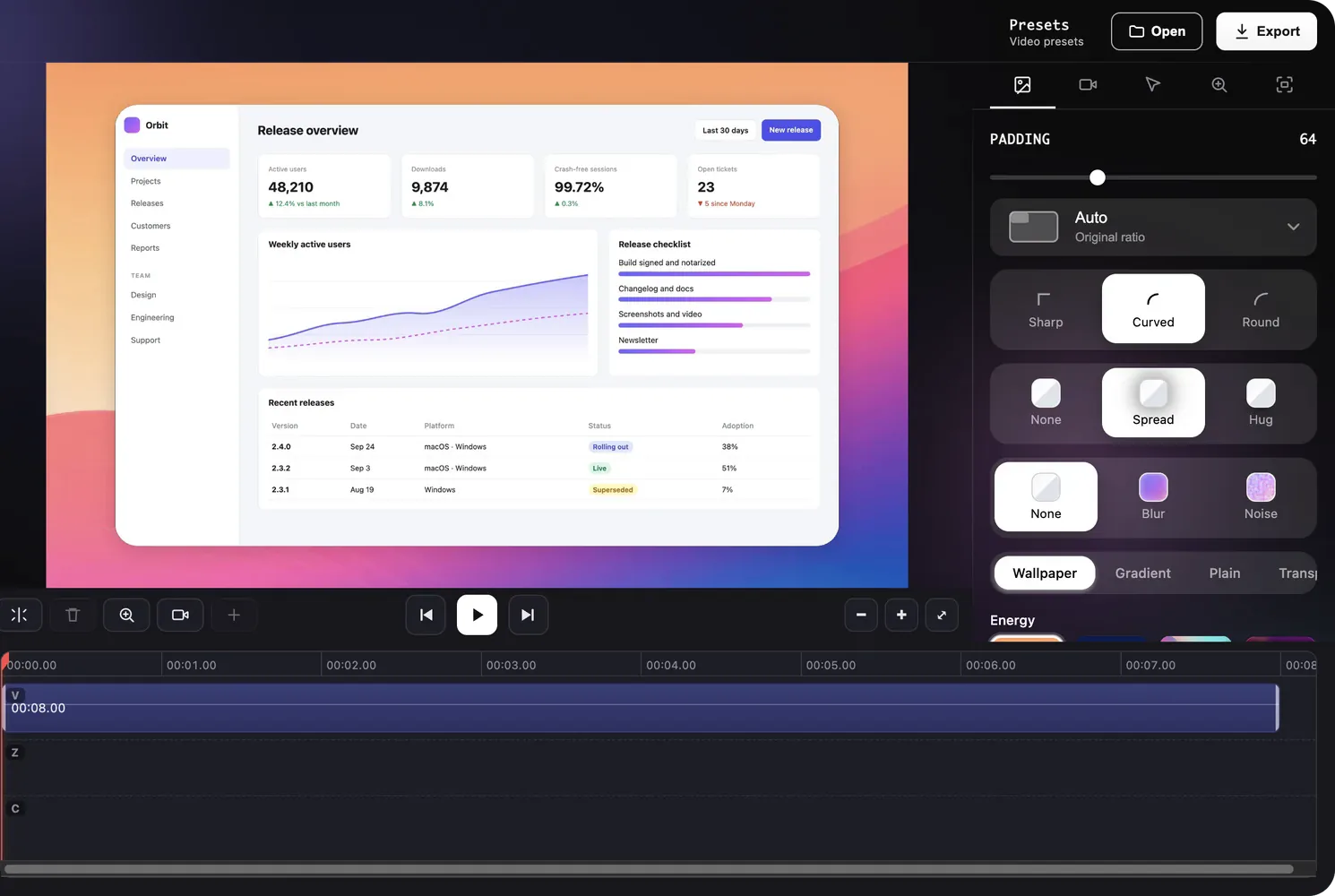
Capture a region, a single window, or the entire screen, including File Explorer, the desktop, and workflows that jump between apps. No 'nothing to record' errors.
System audio and mic together
Toggle system sound and microphone independently and record both on the same take. Voiceover a demo while the app audio stays in the recording.
Webcam overlay
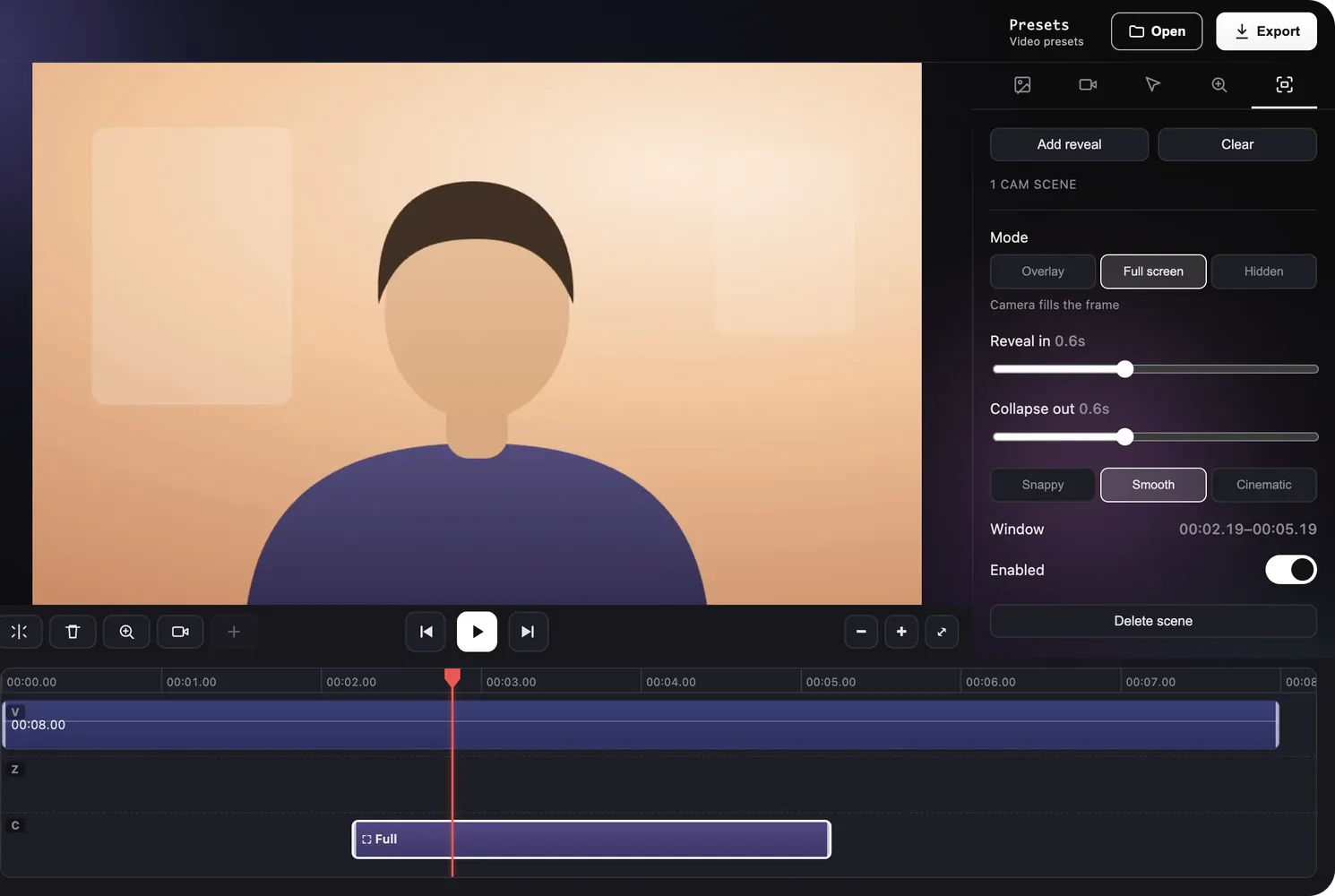
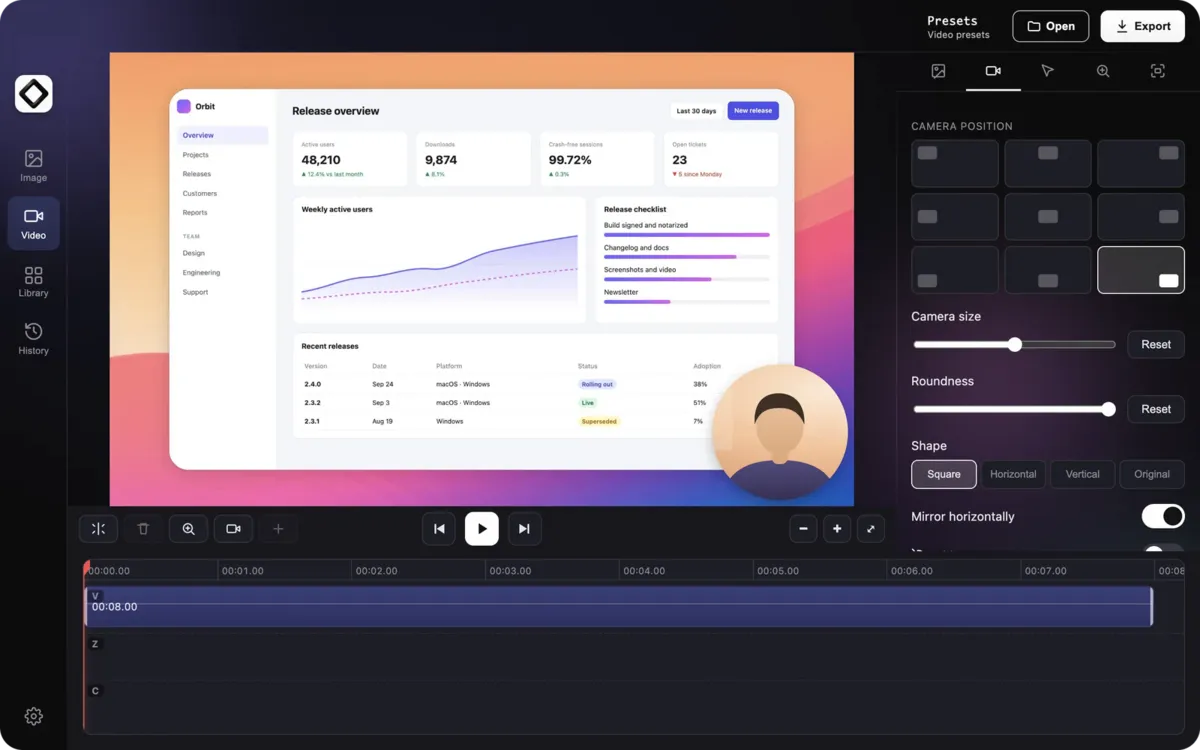
Add a picture-in-picture face cam to any recording. Useful for tutorials, code walkthroughs, and async updates where a face builds trust.
GIF export built in
Record straight to GIF, no video conversion step. Perfect for bug reports, pull requests, docs, and Slack messages that autoplay inline.
No watermark, ever
Every video, GIF, and screenshot exports clean. No logo in the corner, no branding stamped over your work, nothing to crop out later.
Instant private share links
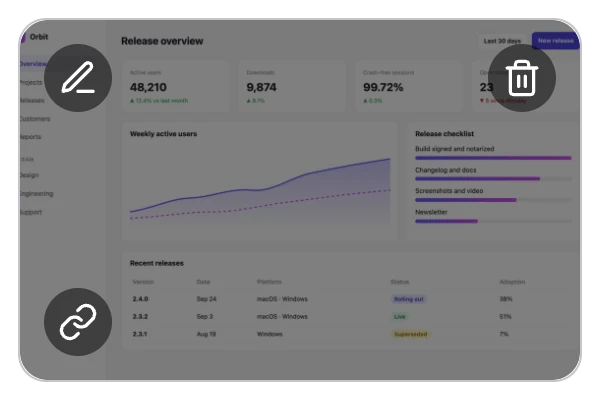
Upload a finished recording to private cloud storage and copy a share link in one click. Optional: everything also works fully offline.
Recording is half the story. ScreenSnap Pro is also a full screenshot tool: region, window, or full-screen captures, 15 annotation tools, 160+ gradient backgrounds, and OCR text extraction from any image. One app replaces two or three.

How to record your screen on Windows 11
Install ScreenSnap Pro
Get ScreenSnap Pro from the pricing page; the installer link and license key arrive by email right after checkout. It runs on Windows 10 and Windows 11 (64-bit) and takes under a minute to set up.
Choose what to capture
Start a screen recording and pick a region, a single window, or the full screen. Unlike Xbox Game Bar, the desktop and File Explorer are fair game.
Pick your audio and webcam sources
Toggle system audio, microphone, and webcam overlay on or off before recording. Check your hardware first with the free mic test and webcam test tools if you want to be sure. Try the free microphone test and webcam test in your browser.
Stop, export, share
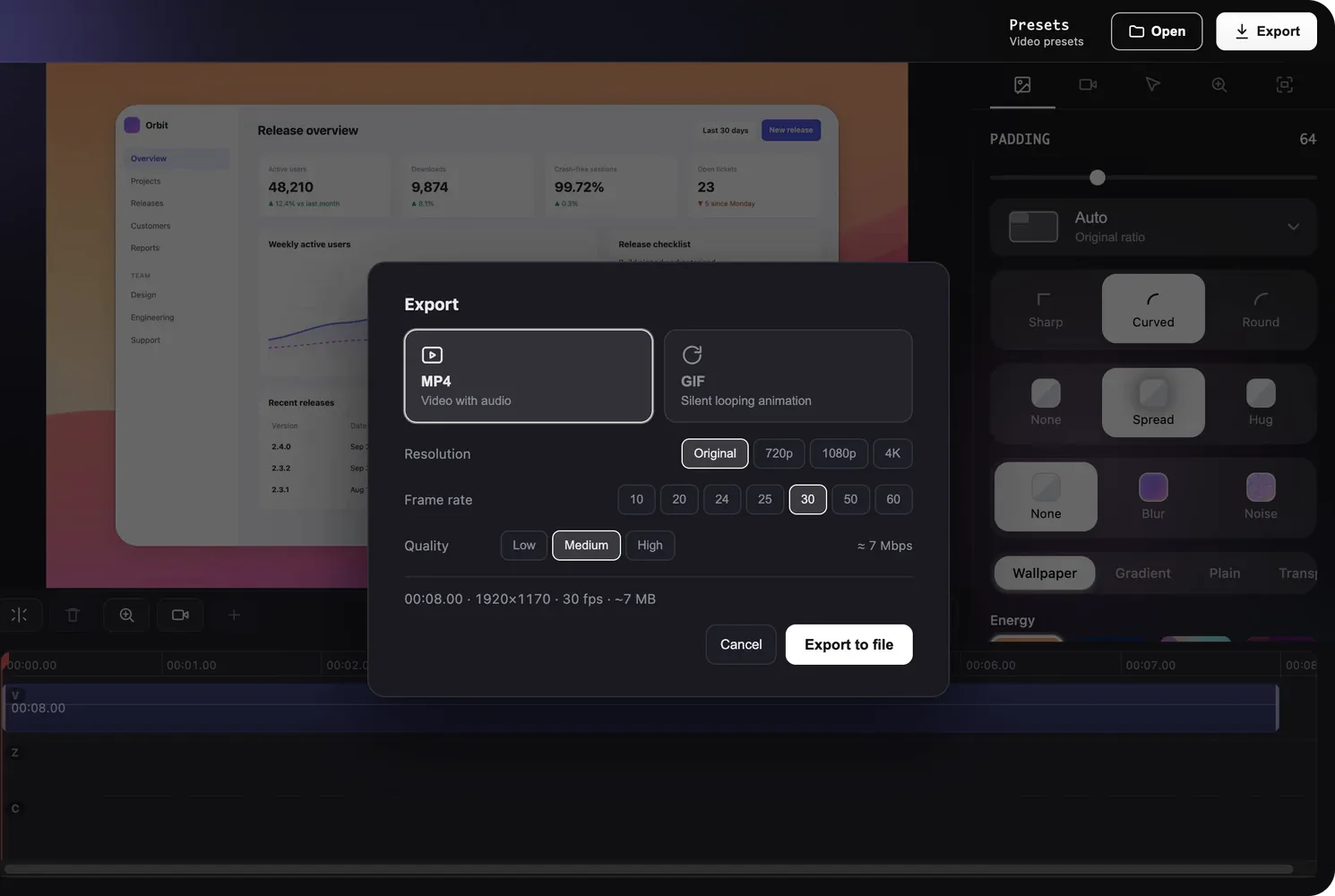
End the recording and save it as a video or a GIF. Copy a private cloud share link, or keep the file local. There is no watermark on anything.
Want more detail, including the built-in Windows methods? Read the full guides on how to screen record on Windows and how to screen record with audio on Windows. Making animations for docs or pull requests? See how to record your screen as a GIF on Windows.
The best screen recorder for Windows: an honest comparison
Every tool below is good at something. Here is where each one actually stands for everyday desktop recording on Windows 10 and 11.
| Feature | ScreenSnap Pro | Xbox Game Bar | Snipping Tool | OBS Studio | Bandicam |
|---|---|---|---|---|---|
| Records desktop and File Explorer | Yes | No, single app only | Yes | Yes | Yes |
| System audio + mic together | Yes | Yes | Yes, on recent builds | Yes | Yes |
| Webcam overlay | Yes | No | No | Yes | Yes |
| GIF export | Yes | No | No | No | No |
| Watermark-free | Yes | Yes | Yes | Yes | Paid only |
| Screenshots + annotation included | Yes, 15 tools | Screenshots only | Basic | No | Basic |
| Price | $29 one-time | Free, built in | Free, built in | Free, open source | Free with watermark |
To be fair to the competition: OBS Studio is free, open source, and the right choice for live streaming or multi-scene production. Its cost is complexity, and there is no built-in GIF export, annotation, or sharing. If OBS feels like overkill, see our roundup of OBS Studio alternatives for Windows.
Xbox Game Bar is already on your PC and fine for gameplay clips. Snipping Tool covers quick one-off recordings. Bandicam is a capable recorder, but the free version watermarks every video, so budget for the license. And if you are comparing screenshot-first tools, see how ScreenSnap Pro stacks up against ShareX, the Windows power-user favorite.
One price, no subscription
$29 one-time
Your purchase includes 2 license keys, and each key activates on up to 2 computers, so one purchase covers up to 4 machines in any mix of Windows and Mac. Lifetime updates included, and a 30-day money-back guarantee if it is not for you.
Comparing free options first? Here is our honest list of free screen recorders for Windows.
Screen recorder for Windows: frequently asked questions
Is there a good free screen recorder for Windows 11?
Yes. Xbox Game Bar and the Snipping Tool are free, built into Windows 11, and fine for quick single-app clips. OBS Studio is free and very capable if you invest time in setup. The trade-off is workflow: none of them combine desktop recording, webcam overlay, GIF export, and instant share links in one tool, which is the gap ScreenSnap Pro fills for a one-time $29.
How do I record my screen with audio on Windows?
In ScreenSnap Pro, start a screen recording, then toggle on system audio and microphone before you hit record. Both tracks are captured together, so app sound and your voiceover land in the same file. No virtual audio cables or driver setup are needed on Windows 10 or 11.
Which screen recorder has no watermark?
ScreenSnap Pro never adds a watermark to any recording, GIF, or screenshot. Xbox Game Bar, the Snipping Tool, and OBS Studio are also watermark-free. Bandicam is the common trap: its free version stamps a watermark across every video until you buy a license.
What is the best screen recorder for Windows?
It depends on the job. For gameplay clips, Xbox Game Bar is already installed. For streaming and multi-scene production, OBS Studio is the standard. For everyday work recordings that need full desktop capture, system audio plus mic, webcam overlay, GIF export, and clean output with no watermark, ScreenSnap Pro is built exactly for that middle ground.
Can Xbox Game Bar record the desktop or File Explorer?
No. Xbox Game Bar only records inside a single app or game. It cannot capture the Windows desktop, File Explorer, or a workflow that moves between multiple windows. If you try, you will see an error like 'There's nothing to record'. ScreenSnap Pro records the entire screen, including the desktop and every window on it.
Does ScreenSnap Pro work on Windows 10 as well as Windows 11?
Yes. ScreenSnap Pro runs on Windows 10 and Windows 11 (64-bit), and also on macOS 15 and later. One purchase includes 2 license keys, each activating on up to 2 computers, in any mix of Windows and Mac.
Record your Windows screen the easy way
Full desktop recording with system audio, mic, and webcam. Video or GIF. No watermark. $29 once.