Screen Studio vs Loom 2026: Polished Demos vs Async
Screen Studio vs Loom is really a question about what kind of video you want to make. Screen Studio is a Mac-only desktop app that turns raw recordings into polished, auto-zoomed product demos. Loom is a cross-platform async-video tool built around fast recording and an instant share link. Different jobs, different prices, different winners.
This guide compares both in 2026 across pricing, features, editing depth, sharing speed, and use cases, plus what to pick if you do a bit of both.
TL;DR: Screen Studio vs Loom at a Glance
Here's the head-to-head, summarized. Use it as your fast filter, then read the sections below for the why.
| Dimension | Screen Studio | Loom | Winner |
|---|---|---|---|
| Pricing (2026) | $149 one-time | Free / $15 seat / Enterprise | Depends on use |
| Platforms | macOS only | Mac, Windows, iOS, Android, web | Loom |
| Auto-zoom on cursor | Yes (signature feature) | No | Screen Studio |
| Mouse smoothing | Yes | No | Screen Studio |
| Webcam bubble | Yes (stylized) | Yes (basic) | Both |
| Editing depth | Timeline, on-rails, broadcast-grade | Trim only | Screen Studio |
| Export quality | Up to 4K, broadcast-ready | Web resolution | Screen Studio |
| Time to share | 5-30 min (render + upload) | Seconds (instant URL) | Loom |
| AI features | None | AI summary, titles, transcript | Loom |
| Free tier | No (one-time only) | Yes (5-min cap, 25 videos) | Loom |
| Best for | Marketing demos, launch videos | Async team messages, support replies | Both, different jobs |
| Subscription? | No | Yes | Screen Studio |
Quick Verdict
Pick Screen Studio if you make polished product demos on a Mac and want the auto-zoom, smoothed cursor, and clean export that win Twitter/X and YouTube. Pick Loom if you want to record fast, drop a share link in Slack, and move on, since it works across any platform and has a free tier.
Most indie founders end up using both. Screen Studio for launch videos. Loom for "here's the bug, here's how to repro it" messages.
Pricing Reality in 2026
This is the easiest filter. Both apps changed pricing recently, so check current numbers before you buy.
Screen Studio Pricing
Screen Studio is a one-time purchase. The price climbed from $89 to $149 for the base license. There's no subscription tier, but yearly updates after the first year are an extra fee.
- License: $149 one-time, single user
- Updates: First year free, then a renewal fee for new versions
- Free tier: None, just a free trial with no permanent free plan
- Refund: 14-day money-back guarantee
For more on the price jump and what it means, see our Screen Studio alternative roundup for Mac.
Loom Pricing
Loom uses a freemium SaaS model. The free plan is real, but the cap is tight.
- Starter (Free): 25 videos, 5-minute cap per video, basic editing
- Business: $15/seat/month (annual), unlimited videos and length, AI features, custom branding
- Enterprise: Custom pricing, SSO, advanced admin, salesforce integrations
If your team only sends short async messages, the free tier covers it. If you do training, sales walkthroughs, or anything over 5 minutes, you're on Business, which adds up across a team.
The 2-Year Math
Here's a rough 2-year cost projection for a single creator:
- Screen Studio: $149 (one-time), maybe $50-99 if you want the year-2 update
- Loom Business: ~$360 over 2 years for one seat
- Loom Free: $0, but you'll hit the 5-min cap fast on demos
For a 5-person team on Loom Business, that's roughly $1,800/year. The math changes the conversation quickly.
Feature-by-Feature Comparison
Pricing is the easy filter. Features are where the two tools really separate.
Auto-Zoom on Cursor (Screen Studio Wins)
Screen Studio's signature trick is automatic zoom on click. You record normally. The app detects your clicks and zooms in on each one with a smooth easing curve. Then it pans back out.
The result looks like a senior video editor spent hours on it. You spent zero hours on it.
Loom has no equivalent. You can manually trim and crop, but there's no auto-detected zoom. For a product demo where attention needs to land on a specific button, this is a huge gap.
Mouse Animation Smoothing (Screen Studio Wins)
Real cursor movement is jittery. Screen Studio smooths the cursor path between clicks, so it glides instead of jerking around. Combined with the auto-zoom, it makes recordings feel deliberate.
Loom records your raw cursor. It's fine for async messages where casual is the point. It's not fine for marketing.
Webcam Bubble (Both, Different Quality)
Both apps put a circular webcam feed on your recording.
- Screen Studio: Stylized bubble, soft drop shadow, smooth corner positioning, you can drag it during edit
- Loom: Functional bubble, fixed corner, you can hide or move pre-record but not finesse during edit
Screen Studio's bubble looks more professional. Loom's gets the job done.
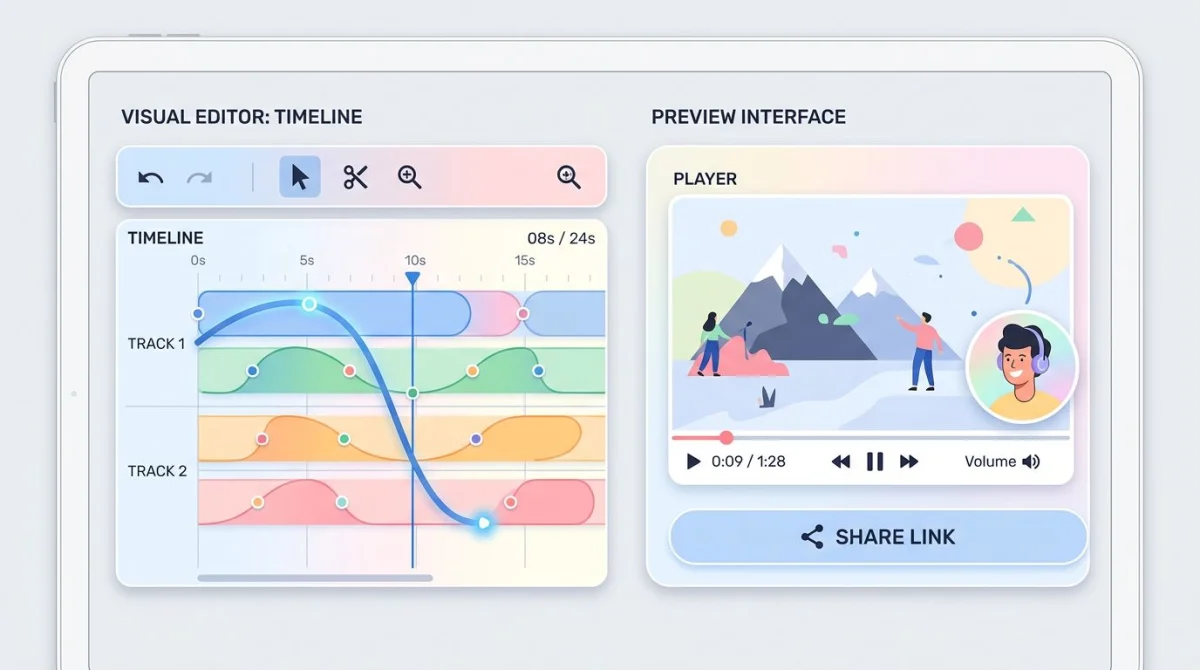
Editing Depth (Screen Studio Wins)
Screen Studio has an on-rails timeline. You can:
- Trim, split, ripple-delete clips
- Adjust zoom curves and timing
- Tweak background gradients, padding, shadows
- Add captions and animated text
- Control playback speed per segment
Loom has a basic editor: trim start, trim end, blur a region, stitch clips. That's mostly it. The Business plan adds AI-generated chapters and titles.
If you need real editing, this isn't a contest.
Export Quality (Screen Studio Wins)
Screen Studio exports up to 4K with full bitrate control. The output is clean enough for marketing pages, app store videos, and YouTube uploads.
Loom exports web-grade video that's fine for a Slack share but not great for a homepage hero. You can download Loom recordings as MP4, but they're encoded for streaming, not for editing further.
Speed: Record to Share (Loom Wins, Big)
This is where Loom dominates.
- Loom workflow: Click record. Talk for 3 minutes. Click stop. Loom uploads while you're still talking. The URL is in your clipboard the moment you stop.
- Screen Studio workflow: Click record. Record. Stop. Edit (5-30 minutes). Render (a few minutes). Export. Then upload to YouTube, Vimeo, or self-host.
For an internal "here's how the bug happens" message, that 30-minute Screen Studio workflow is overkill. Loom is the right tool.
For a launch video that 50,000 people will see on Twitter/X, those 30 minutes of polish are worth it. Screen Studio is the right tool.

Sharing (Loom Wins)
- Loom: Instant URL, viewable in any browser, comments and reactions on the page, embed code for docs
- Screen Studio: Export a file. You host it yourself or upload to YouTube, Vimeo, or your CMS. No native sharing layer.
Loom is built around the share link. Screen Studio is built around the file. That's a different philosophy.
AI Features (Loom Wins)
Loom Business adds AI on top of the recording layer:
- Auto-generated titles
- AI summary and chapters
- Transcript with searchable text
- Automatic action items extraction (rolling out)
Screen Studio has no AI feature set as of 2026. It's a polish tool, not a content layer.
Platforms (Loom Wins, Decisively)
- Screen Studio: macOS only. No Windows version. The team has said they don't plan to build one.
- Loom: macOS, Windows, iOS, Android, browser extension (Chrome/Edge/Firefox), web app
If your team is mixed Mac and Windows, Screen Studio is a non-starter for half of them. For Windows users looking at this comparison who want polished demos, see our best training video software guide for cross-platform options.
Use Cases: When to Pick Which
Different jobs, different tools. Here's how it breaks down.
Use Screen Studio When You're Making
- A product launch video for your homepage
- A YouTube tutorial or course module
- A Twitter/X demo clip that needs to look pro
- An app store preview video
- A Product Hunt launch video
- Any recording where the polish itself is the message
Use Loom When You're Making
- An async update for your team in Slack
- A bug report that includes a video repro
- A sales follow-up after a demo call
- A customer support reply explaining a fix
- A "loom me your screen" feedback request
- Anything where speed matters more than polish
Use Both When You're an Indie Founder
This is the realistic answer for most readers. You'll record async messages all week long, and Loom Free or Business handles it. Two or three times a year, you'll need a real launch video, which Screen Studio handles.
The combined cost is still cheaper than either tool's enterprise tier.
What About the Auto-Zoom Specifically?
Screen Studio's auto-zoom is the feature that ate the polish-recording market. Here's why it matters.
When you record a software demo, attention has to land on small UI targets: a button, a checkbox, a menu. Without zoom, viewers squint. With manual zoom in most editors, you spend hours marking keyframes. Screen Studio detects clicks and applies a tasteful zoom-in, hold, zoom-out around each one automatically.
A 3-minute recording becomes a 3-minute polished demo without any edit work. That's why Screen Studio commands $149 despite Loom's free tier. They're not competing on the same axis.


Tired of plain screenshots? Try ScreenSnap Pro.
Beautiful backgrounds, pro annotations, GIF recording, and instant cloud sharing, all in one app. Pay $34 once, own it forever.
See pricing and featuresEditing & Annotation Workflow
The brief calls out annotation and markup as a gap in most comparisons. Here's the honest detail.
Screen Studio Annotation
Screen Studio is light on annotation. You can:
- Add background gradients and padding
- Place animated text overlays with timing
- Adjust cursor color and size
- Add captions (manual or imported SRT)
You cannot draw arrows, circle UI elements, or add stamps mid-recording. For that, you record with another tool that has annotation, then bring the result into Screen Studio for polish, or you live without it.
Loom Annotation
Loom is also light. You can:
- Use the drawing tool live during recording (Mac, Chrome extension)
- Blur sensitive regions in post
- Add timestamped comments via viewer reactions
Neither tool is a real annotation suite. If annotation is core to your workflow, you'll want a dedicated screenshot/recording tool with markup baked in.
Sharing & Cloud Workflow
This is where the two tools' philosophies are most visible.
Loom's Sharing
Every Loom recording is a hosted URL by default. The viewer page shows:
- The video player
- Comments and emoji reactions
- A transcript (Business plan)
- A "reply with video" button for back-and-forth
There's no file to manage. The link is the artifact. You can also download as MP4 if you need it locally, but the default workflow is link-first.
Screen Studio's Sharing
Screen Studio produces a file. What you do next is up to you:
- Upload to YouTube (manual, but free hosting)
- Upload to Vimeo (better for unlisted/embed)
- Self-host on your CMS (most control)
- Email it (small files only)
There's no built-in cloud or URL layer. You're responsible for distribution.
For marketing content, this is a feature, because you control where the video lives. For internal async, it's a chore.
Troubleshooting Common Issues
A gap in most comparison articles. Here are real issues users hit and how to fix them.
Screen Studio: Render Takes Forever
Screen Studio renders are CPU-bound. On older Intel Macs, a 3-minute recording can take 10-15 minutes to export at 4K.
Fix: Drop export to 1080p for web. Save 4K only for archival. On M-series Apple Silicon, renders are much faster, usually under 2 minutes for a 3-minute recording.
Screen Studio: Zoom Effects Look Choppy on Some Sites
Auto-zoom can feel jarring on web pages with scroll-jacking or fixed headers.
Fix: Manually adjust zoom curves on those segments, or disable auto-zoom for that clip.
Loom: 5-Minute Cap on Free Plan
The most common Loom complaint. You record a 7-minute walkthrough and Loom shows the last 5 minutes only.
Fix: Upgrade to Business or split into two parts. Most async messages should be under 5 minutes anyway.
Loom: Recording Quality is Soft
Loom defaults to web-friendly bitrates. On a 4K display, the recording can look soft.
Fix: In Loom desktop settings, switch to "HD" recording. Quality and file size both go up.
Loom: Webcam Permission Denied
After OS updates, Loom often loses camera and mic permissions silently.
Fix: Mac → System Settings → Privacy & Security → Camera, toggle Loom. Windows → Settings → Privacy → Camera. Restart Loom.
Both: Audio Out of Sync
Long recordings sometimes drift, usually because of a sample rate mismatch between mic and system audio.
Fix: Use a single audio source where possible. If you need both, set them to 48 kHz in your OS sound settings before recording.
Other Options Worth Considering
Screen Studio and Loom aren't the only choices, especially if you don't fit either's sweet spot.
- CleanShot X (Mac): Strong all-rounder for screenshots and short recordings, lighter polish than Screen Studio
- OBS Studio (free, all platforms): Most powerful free recorder, steeper learning curve, no auto-zoom
- FocuSee: Cross-platform Screen Studio competitor with auto-zoom on Windows and Mac
- Vidyard: Closer in shape to Loom; see our Loom vs Vidyard comparison for that head-to-head
- ScreenSnap Pro: If you want one-time pricing AND a simpler workflow than Screen Studio AND don't need cloud-hosted share links, ScreenSnap Pro covers screenshots, GIFs, and video on Mac and Windows for $34 one-time
If you're on Windows specifically and Loom isn't quite right, see our Loom alternatives for Windows guide.
Decision Framework
Use this flowchart to skip the analysis paralysis.
Question 1: Are you on Windows?
- Yes → Screen Studio is out. Use Loom or a Screen Studio alternative.
- No (Mac) → Continue.
Question 2: Is the video for marketing/launch/external use?
- Yes → Screen Studio. The polish is the point.
- No → Continue.
Question 3: Do you need a share link in seconds?
- Yes → Loom.
- No, file is fine → Could go either way.
Question 4: Will you make more than 25 videos in a year?
- Yes → Loom Business or Screen Studio (one-time).
- No → Loom Free covers it.
Question 5: Do you need AI summary/transcript?
- Yes → Loom Business.
- No → Either tool works.
Migration: Switching Between the Two
Migration isn't the right framing here. The two tools solve different problems, so most teams end up adding one to the other rather than replacing.
If you're "switching from Loom to Screen Studio," you've decided your videos need more polish. Keep Loom for async; add Screen Studio for marketing.
If you're "switching from Screen Studio to Loom," editing time isn't worth it for internal use. Keep Screen Studio for launch videos; move daily recordings to Loom.
Frequently Asked Questions
Final Verdict
Screen Studio and Loom are not really competitors. They serve different jobs.
- Screen Studio is a polish machine. Mac-only, $149 one-time, the auto-zoom and smoothed cursor make every recording look pro. Best for marketing, launch videos, and YouTube tutorials where the polish itself is the message.
- Loom is a speed machine. Cross-platform, free or $15/seat, instant share links and AI summaries. Best for async team messages, bug reports, sales follow-ups, and support replies where the message is the message.
Most indie founders and creators end up using both. A single Screen Studio license for the few moments a year that need real polish, plus Loom Free or Business for the daily async flow. That combination covers more ground than either tool alone, and the total cost is still less than a Loom Enterprise seat.
If you only buy one, ask yourself which problem you have more of: "this needs to look pro" (Screen Studio) or "I need to send this in 30 seconds" (Loom). The answer is usually obvious once you frame it that way.

Morgan
Indie DeveloperIndie developer, founder of ScreenSnap Pro. A decade of shipping consumer Mac apps and developer tools. Read full bio
@m_0_r_g_a_n_