Cap.so Review 2026: The Open-Source Loom Alternative
Our short cap screen recorder review: Cap.so is a fast, open-source Loom alternative that now works well on Windows and Mac. It splits recording into two clear modes: Instant for quick shares and Studio for polished 4K edits. Pricing starts free and tops out at around $8/month, half of Loom. It is not perfect, but for most teams in 2026, it is a real switch.
Cap has quietly become the most-starred open-source screen recorder on GitHub, with over 18,000 stars. Loom users are switching. Developers love the self-host option. And the Windows build finally feels native.
This cap so review is based on a week of daily use on Windows 11. We cover the good, the rough edges, the price, and how Cap stacks up against Loom, OBS, and our own app. No hype and no pressure, just what we found.
What is Cap?
Cap is an open-source screen recorder and video messaging tool built by CapSoftware. Think of it as the indie answer to Loom. You record your screen, your face, or both, then share a link. The person on the other end watches in their browser.
The big twist: the whole app is on GitHub under AGPLv3 and MIT licenses. You can read the code, run your own server, or just use the free desktop app. That is rare in this space.
Quick facts about Cap in 2026:
- Open-source. 18.3k GitHub stars, active community
- Cross-platform. Native Mac and Windows apps built on Tauri
- Two modes. Instant (Loom-style) and Studio (edit before share)
- Self-host option. Bring your own S3 bucket and custom domain
- Free tier. Studio mode is free for personal use
Cap is made by a small team, but the pace is fast. The app ships multiple updates a month. The GitHub repo shows 75 releases and hundreds of merged pull requests.
Cap's two modes explained
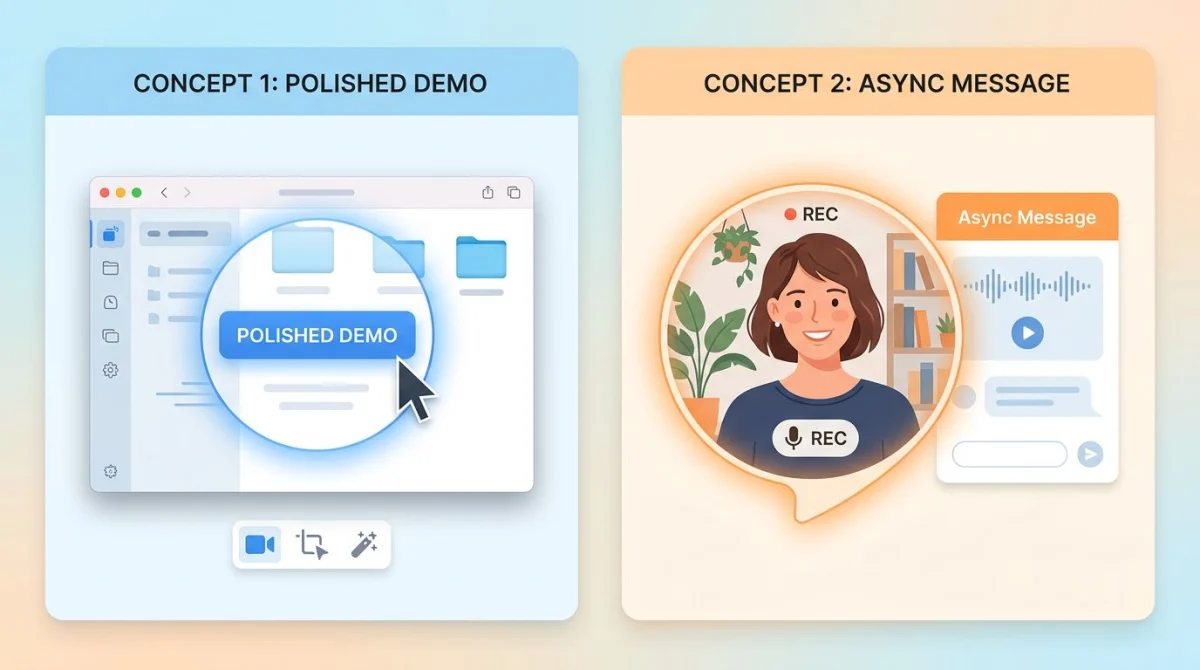
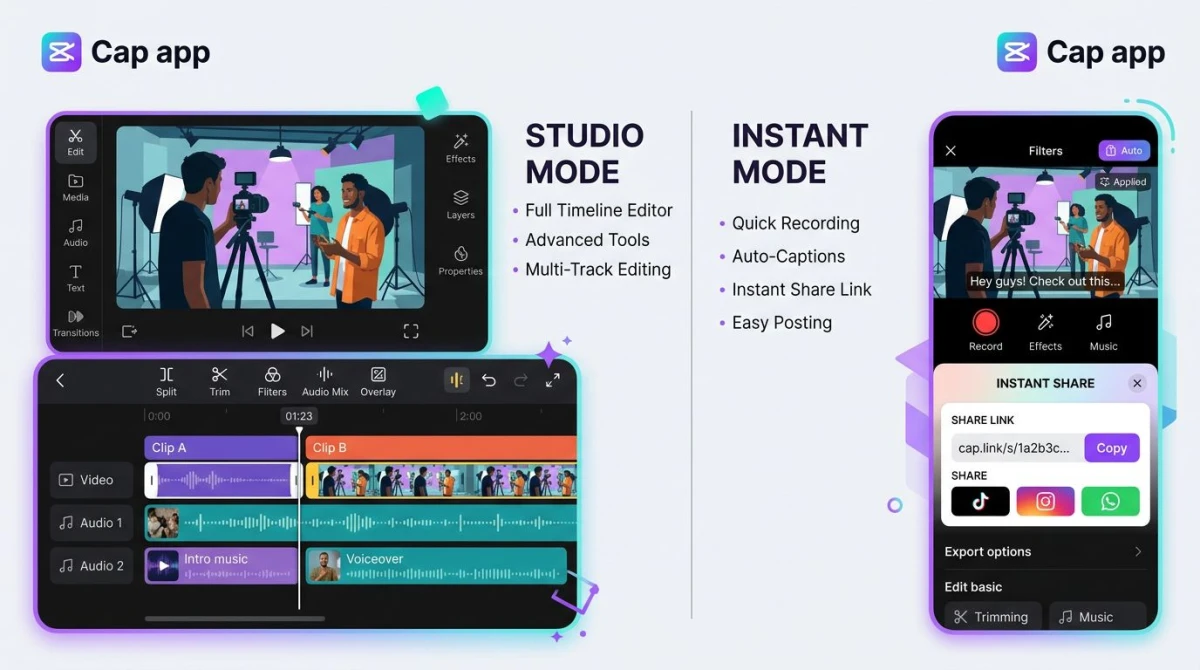
Cap is built around two recording modes. Most other tools pick one lane. Cap runs both, and the split matters.
Instant Mode
Instant Mode is the Loom replacement. You hit record, talk through your screen, and stop. Cap uploads the video while you record, so the moment you hit stop, a shareable link is ready.
The link opens in any browser. No app to install for viewers. Comments thread under the video. Captions generate on the fly. For quick bug reports, async standups, or client walk-throughs, this is the fastest path from idea to link.
The free plan caps Instant Mode videos at five minutes. That is enough for most messages. Paid plans remove the limit.
Studio Mode
Studio Mode is the serious one. It records locally at up to 4K and 60 frames per second. Your webcam and screen save as separate tracks, which is a bigger deal than it sounds.
After recording, Cap opens its built-in timeline editor. You can:
- Reposition or resize the webcam bubble
- Trim dead space from the start or end
- Zoom into the cursor automatically
- Add smooth background music
- Export as MP4 or share as a Cap link
Studio Mode is free for personal use. No watermark, no time limit. That alone beats most paid tools.
Cap pricing in 2026
Cap's pricing is one of the clearest win columns. Here is how it breaks down this year.
| Plan | Price | What you get |
|---|---|---|
| Free | $0 | Unlimited Studio Mode, 5-min Instant Mode |
| Cap Pro | ~$8/month | Unlimited length, custom domain, AI summaries |
| Self-hosted | Free (your infra) | Bring your own S3 and server |
| Desktop License | ~$29/year | Commercial use of the desktop app |
For comparison, Loom Business starts at $18 per user per month. Cap is roughly half that at the paid tier, and free is a real free, not a trial.
The self-host option is the sleeper pick. If you already pay for AWS or Cloudflare R2, you can point Cap at your own bucket. Your recordings live on your infra. For teams with privacy rules or GDPR exposure, that is a big deal.
What Cap does well
After a week of testing, a few things stood out. These are the reasons we think Cap earned its GitHub stars.
Open-source transparency. Nothing is hidden. The code is public. You can audit what leaves your machine. For privacy-minded teams, this is the whole ball game.
Loom video importer. Switching tools is usually a pain. Cap has a built-in importer that pulls your Loom library into Cap. No copy-paste, no lost links. This alone removed a big blocker for teams we know.
Separate webcam and screen tracks. Most tools bake the webcam bubble into the final video. Cap keeps them separate. Want to move your face from the corner after the fact? Done. Want to drop your face entirely for one scene? Also done.
Cursor auto-zoom. Cap watches your cursor and smoothly zooms in when you click something small. This single feature makes basic recordings look produced without any work on your part.
Cross-platform parity. The Mac and Windows apps feel nearly identical in 2026. That was not true a year ago. If your team is mixed, Cap works for everyone.
Cap also plays nicely with other Windows capture workflows. If you want to keep your existing keyboard shortcuts, Cap does not fight the OS. See our guide on how to screen record on Windows for the full picture.
Where Cap falls short in 2026
Cap is good. It is not flawless. A fair review has to name the rough spots.
Multi-monitor edge cases on Windows. A few users on GitHub still report that multi-screen setups can pick the wrong display, or capture both screens stretched across one canvas. We saw this once during testing on a triple-monitor rig. A restart fixed it, but the bug is real.
Fewer integrations than Loom. Loom has a decade of Slack, Notion, Gmail, and Jira integrations. Cap has some, but the list is shorter. If your team lives inside one of those tools, check the Cap integrations page before switching.
Team analytics are lighter. Loom gives managers deep view stats: who watched, how far they got, when they dropped off. Cap tracks basic views and comments. Enough for most teams. Not enough for a sales org that runs on video metrics.
Younger product. Cap ships fast, which is great, but also means you hit small bugs more often than with mature tools. If you need rock-solid stability today, this matters. If you tolerate a rough edge for a better long-term bet, it does not.
Cap vs Loom: the comparison that matters
Cap.so positions itself as the Loom alternative. Here is how the two actually stack up in 2026.
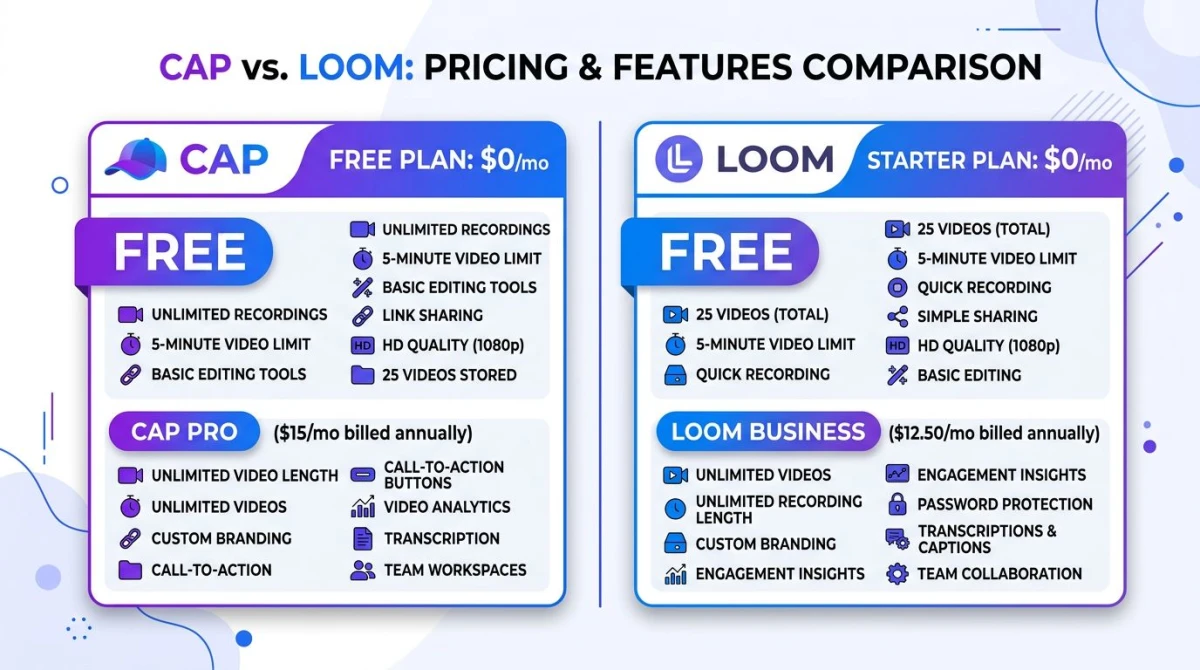
| Feature | Cap | Loom |
|---|---|---|
| Open-source | Yes | No |
| Instant share link | Yes | Yes |
| Webcam overlay | Yes (movable) | Yes (baked in) |
| Auto captions | Yes | Yes |
| Built-in editor | Yes | Yes |
| Team dashboards | Basic | Deep |
| Integrations | Growing | Mature |
| Self-host option | Yes | No |
| Free plan | Yes, real | Limited trial feel |
| Paid plan | ~$8/mo | $18/mo |
If you want the cheapest, most open option with room to self-host, Cap wins. If you run a large sales team that lives on Loom's analytics, Loom still wins, at least for now.
For most developers, indie teams, and content creators, Cap beats Loom on both price and philosophy.

Tired of plain screenshots? Try ScreenSnap Pro.
Beautiful backgrounds, pro annotations, GIF recording, and instant cloud sharing, all in one app. Pay $39 once, own it forever.
See pricing and featuresCap vs ScreenSnap Pro
People ask us this one a lot, so we will be direct. Cap and ScreenSnap Pro are not really the same product. They just both touch the word "recording."
Cap is an open-source async video tool. You make a recording, share a link, get comments. The business model is SaaS with a generous free tier and a self-host escape hatch. Great for team videos, tutorials, and async updates.
ScreenSnap Pro is a $39 one-time desktop app focused on screenshots, GIFs, and short recordings. No cloud required. No server to manage. You pay once and own it forever. Great for developers, designers, and marketers who want polished visuals fast.
Pick Cap if:
- You want an open-source Loom replacement
- You share recordings as links, not files
- You might self-host one day
Pick ScreenSnap Pro if:
- You want one-time pricing with no subscription
- You work mostly in screenshots and GIFs, with occasional recordings
- You want 500+ backgrounds, OCR, and 15 annotation tools built in
Different strengths, different workflows. We respect what Cap is building. They respect one-time pricing shoppers who land on us.
Cap vs OBS Studio
OBS is the other open-source name people bring up. The comparison is fair but short.
OBS is a streaming and multi-track recording powerhouse. It has scenes, transitions, multi-source audio mixing, and a plugin ecosystem. If you are live-streaming on Twitch or YouTube, OBS is still the tool.
Cap is an async recorder. No scenes, no streaming, no plugin bazaar. You record, you share. That is the whole loop.
For async team videos, Cap wins on ease. For streaming, OBS wins on power. Many creators run both.
How to install the Cap screen recorder on Windows
Installing the Cap screen recorder on Windows is painless. Here is the short version.
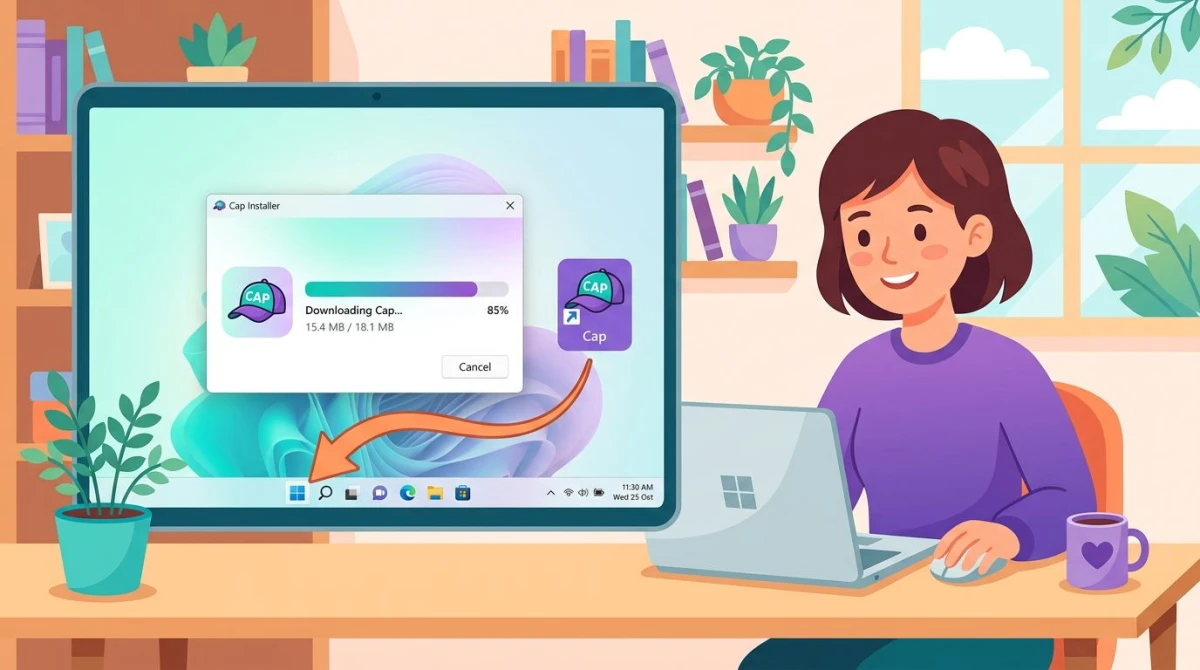
- Go to cap.so and click Download for Windows
- Run the
.exeinstaller (about 60 MB) - On first launch, Cap asks for screen and mic permissions, so allow both
- Sign in with Google, GitHub, or email
- Pick Instant or Studio mode and hit record
The installer is signed, and Windows Defender does not complain. If you see a permission prompt, follow Microsoft's guide on managing camera app permissions to approve Cap.
Your first recording is ready in under two minutes, including the download.
Who should use Cap
Cap is not for everyone. But it is a strong fit for some clear groups.
- Open-source fans. If license freedom matters to you, Cap is the only serious player.
- Privacy-focused teams. Self-hosting means your videos never leave your infra.
- Loom refugees. If Loom's price or Atlassian pivot scares you, the migration path is smooth.
- Developers. Cap feels built for developers: fast, scriptable, and honest about what it does.
- Budget-conscious creators. Free Studio Mode with no watermark is the best free offer in screen recording.
If you also care about audio quality, pair Cap with a good mic setup. Our guide on how to record screen with audio on Windows covers mic selection and the OS audio trick that saves most recordings.
Who should look elsewhere
Cap is not the right pick for every workflow. Skip it if you match these:
- You need deep viewer analytics. Stick with Loom for now.
- You want a one-time purchase. Look at ScreenSnap Pro ($39 lifetime, no cloud required).
- You stream on Twitch or YouTube Live. Use OBS.
- You want max customization on Windows. See our ShareX review, the Windows power-user's tool of choice.
- You just need quick snaps, not videos. Any of the free Windows screen recorders in our roundup will do.
Cap is great at async video. It is not great at being all things to all people.
Our verdict
Cap.so is the first open-source screen recorder we recommend without caveats for most small teams and creators. In 2026, it is:
- Cheaper than Loom
- More private than CloudApp or Zight
- Easier than OBS
- More modern than anything free
The multi-monitor bug is annoying. The integration gap is real. But the trajectory is clear: Cap is gaining 1,000+ GitHub stars a month. The product is getting better every release.
For most teams thinking about switching from Loom, the answer is yes. For teams who want screenshots, GIFs, and recordings in one paid-once app, ScreenSnap Pro is still the $39 shortcut.
Either way, the good news is that Loom's monopoly on async video is over.
Frequently Asked Questions

Morgan
Indie DeveloperIndie developer, founder of ScreenSnap Pro. A decade of shipping consumer Mac apps and developer tools. Read full bio
@m_0_r_g_a_n_