Best Camtasia Alternatives for Mac (2026): 9 Tested Picks
The best Camtasia alternative for Mac depends on what you actually need. For polished demo videos with auto-zoom, pick Screen Studio. For full-featured editing, ScreenFlow. For capture-plus-share at one-time $39 across Mac and Windows, ScreenSnap Pro. For free, OBS Studio or QuickTime Player.
That is the short answer. The rest of this guide is the long one. Below are nine Camtasia alternative Mac picks, grouped by what each does well, with honest tradeoffs. Some are free. Some are a single one-time payment. None of them will bill you $299 just to record your screen.
Quick rundown of the 9 picks:
- ScreenSnap Pro. Best one-time price for capture, screen recording, and GIFs ($39 lifetime, Mac + Windows)
- Screen Studio. Best for polished demo videos with auto-zoom and smooth cursor ($229 one-time, Mac-only)
- ScreenFlow. Best heavy editor and closest feature-for-feature Camtasia replacement on Mac ($169 one-time)
- CleanShot X. Best for screenshot-heavy workflows ($29 one-time, optional cloud)
- OBS Studio. Best free option for power users and streamers
- QuickTime Player. Best built-in tool, already on every Mac
- Descript. Best transcript-based editor for podcasters and async teams
- ScreenPal. Best cloud-hosted budget option for teachers
- Loom. Best for async team videos and quick walkthroughs
Why look for a Camtasia alternative on Mac
Camtasia is a real product, not a punching bag. It has been around since 2002, the timeline editor works, and the callouts look clean. If you are a course creator who lives inside it, you have no reason to leave.
But on a Mac in 2026, three things keep pushing people toward something else.
The price is high for what most people use. Camtasia starts at $299.99 one-time or $179 per year for the Create plan. If you record a tutorial a month and trim a few seconds off the end, that is a lot to pay for a feature set you barely touch.
It feels heavy on Mac. Camtasia is built cross-platform first, and Mac users often report it feels less native than ScreenFlow or Screen Studio. App launch is slow. Exports can drag. UI elements look like they came from a Windows app and got translated.
It is overkill for short content. Most Mac creators want capture, trim, and share. That is three steps. Camtasia gives you a full non-linear editor with quizzes, SCORM export, and behavior tracking. If you are not building LMS courses, you are paying for shelves you never open.
If any of that hits home, the list below has a better fit. Need a broader view of Mac options? Our best screen recorder for Mac guide covers the full landscape, including the no-cost picks.
What Camtasia still does well
Before we praise the alternatives, let us be fair to Camtasia. Four things keep it on the short list for some users.
Record-and-edit in one app. Camtasia bundles the recorder and the timeline editor. You hit record, stop, and drop straight into a cut. No round-trip to a second tool. Most Mac alternatives split these two jobs. Screen Studio and ScreenFlow include both, but ScreenSnap Pro, CleanShot X, and OBS do not.
Callouts, cursor smoothing, and zoom-and-pan. Camtasia's effect library is mature. Animated callouts that match your brand. Cursor smoothing that hides shaky tracking. Zoom-and-pan moves that draw the eye where you want. Screen Studio does cursor and zoom better, but Camtasia still wins on raw callout variety.
Quiz and SCORM export. If you ship courses to a learning management system, Camtasia generates SCORM 1.2 and 2004 packages with interactive quizzes baked in. No other tool on this list does that natively. ActivePresenter is the only free option that comes close.
Cross-platform project files. A Camtasia .tscproj file opens on Mac and Windows. If your team has both, that matters. None of the Mac-native picks below offer this, because moving a Screen Studio or ScreenFlow project to Windows is impossible.
If you need all four of those things, stay with Camtasia. Honestly. The tools below are for people who need only a subset: usually the capture, basic editing, and sharing parts, without the LMS workflow.
For a deeper comparison between Camtasia and one of the most common alternatives, our Snagit vs Camtasia post breaks down the two TechSmith products head to head.
Quick comparison table
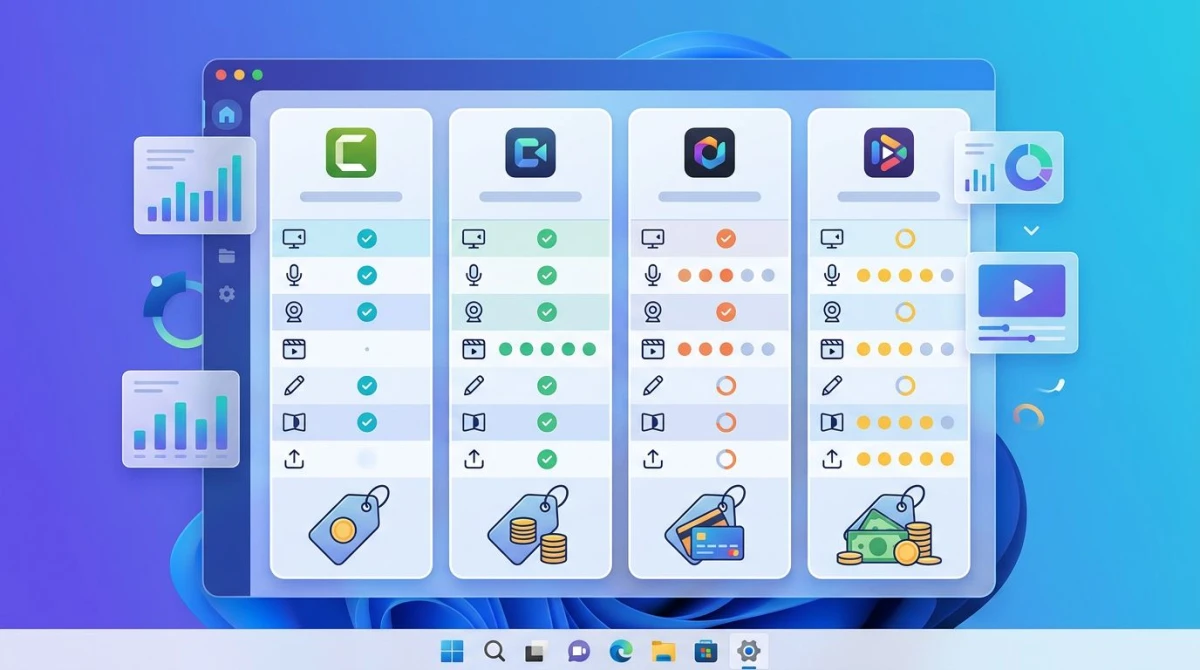
Every Camtasia alternative roundup I read while researching this one had paired comparisons ("Tool X vs Camtasia") but never a single side-by-side. Here is the side-by-side.
| Tool | Price | Built-in Editor | Mac-Native | Best for |
|---|---|---|---|---|
| ScreenSnap Pro | $39 one-time | Trim + annotate | Yes | Capture + GIF + share, Mac & Windows |
| Screen Studio | $229 one-time | Yes (light) | Yes | Polished demo videos |
| ScreenFlow | $169 one-time | Yes (full NLE) | Yes | Heavy editing, course recording |
| CleanShot X | $29 one-time (+$8/mo cloud) | Trim + annotate | Yes | Screenshots + short recordings |
| OBS Studio | Free | No (record only) | Yes | Streaming, power-user recording |
| QuickTime Player | Free (built-in) | Trim only | Yes | Quick one-off captures |
| Descript | $12-$24/mo | Yes (transcript-based) | Yes | Podcasts, async edits |
| ScreenPal | Free / $4-$15/mo | Yes (light) | Yes | Teachers, training, cloud sharing |
| Loom | Free / $12.50/mo | Light trim | Yes | Async team videos |
| Camtasia | $299 one-time / $179/yr | Yes (full NLE + LMS) | Yes (heavy) | LMS courses, quizzes, SCORM |
Read the table by the "Best for" column, not the price. A free tool you cannot stand to use costs more than $39 spent well.
The 9 picks
1. ScreenSnap Pro: best one-time price for capture, recording, and GIFs
Price: $39 one-time (lifetime updates, 2-computer license) | Rating: (4.7/5)
ScreenSnap Pro is a Mac and Windows app that bundles screenshots, screen recording, GIF capture, and a fast annotation toolkit into a single $39 one-time purchase. It is not a timeline editor. It does not export SCORM. What it does, it does fast.
Shines for:
- Region, window, or full-screen capture with hotkeys
- Screen recording as MP4 with optional webcam, mic, and system audio
- Direct screen-to-GIF without exporting video first
- 15 annotation tools (arrows, shapes, text, blur, pixelate, counter)
- 500+ gradient backgrounds for one-click polish
- Optional cloud upload with instant shareable links
- OCR text extraction from any image
- Zero watermarks, ever
Not for:
- Multi-track timeline editing (there is no NLE here)
- SCORM course export
- Scrolling screenshots
- Linux
Best fit: Mac creators who need a fast capture-to-share workflow. Developers filing bug reports with annotated screenshots. Marketers making short polished social clips and product GIFs. Anyone who switches between Mac and Windows on the same license. The $39 vs $299 math is the whole pitch. If you do not need Camtasia's timeline, you do not need to pay for it.
Where it actually beats Camtasia on Mac: the GIF workflow. Camtasia can export an MP4 to GIF, but it is a three-step round trip and the file sizes get rough. ScreenSnap Pro records the screen directly to GIF: you pick the region, hit record, and the output is a ready-to-share .gif you can drop into a Slack thread, a docs page, or a GitHub issue. For product teams who live in async docs, that single feature is the reason this tool exists.
Where it does not beat Camtasia: if you produce 30-minute tutorials with chapter markers, animated lower thirds, and quiz overlays, ScreenSnap Pro is not the tool. It is a capture-and-share app, not a video production suite. Pair it with iMovie or Final Cut if you need an editor; or just admit you need ScreenFlow.
2. Screen Studio: best for polished demo videos
Price: $229 one-time (Mac-only) | Rating: (4.8/5)
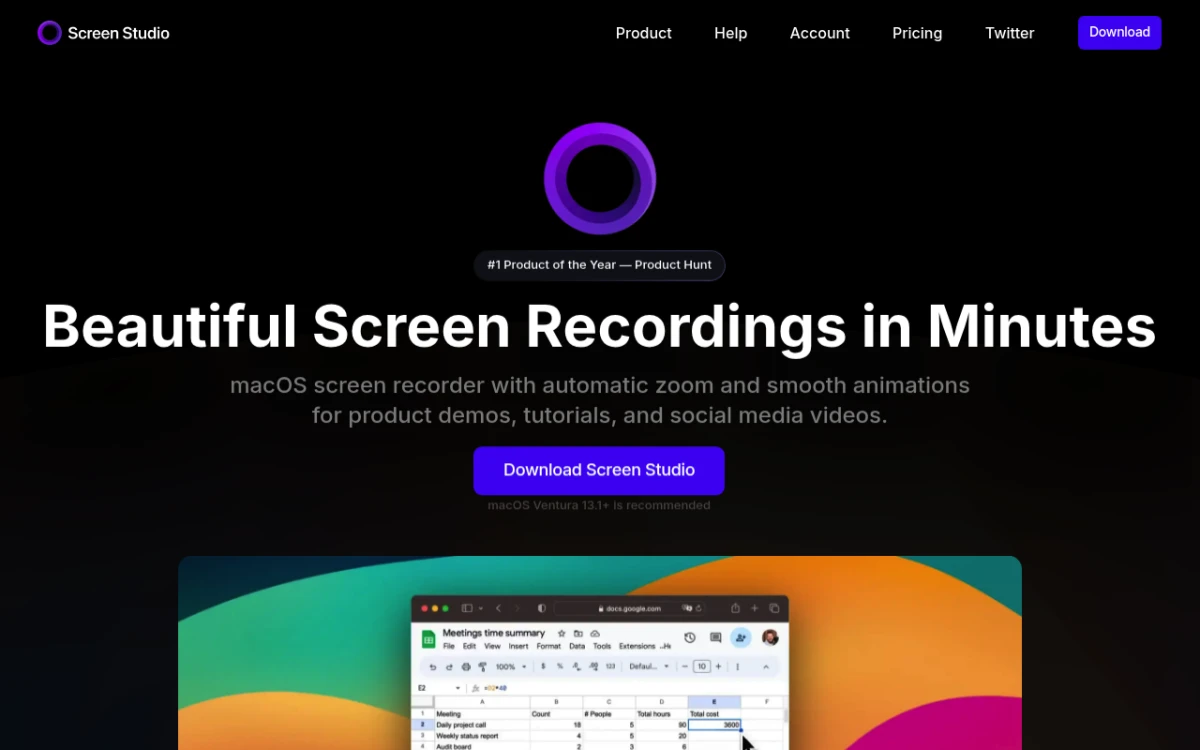
Screen Studio is the polished-demo-video tool. Hit record, click around your app, stop, and Screen Studio auto-generates smooth zooms that follow your cursor, plus cinematic exports with built-in cursor effects. The result looks like it came out of a Pixar studio with two passes of grading.
Shines for: product demo videos, App Store preview videos, polished tutorials, marketing reels. Auto-zoom is the killer feature, because it watches where your cursor goes and zooms in for you, with motion blur that feels editorial.
Not for: anything outside Mac. There is no Windows version and no plans for one. Also not for true multi-track editing, since Screen Studio is for short polished clips, not a 30-minute course.
Best fit: founders and marketers who post product demos on social, and indie devs making App Store videos. If your job is to make a 60-second clip look like a million dollars, this is the tool. For the deeper write-up, see our Screen Studio alternatives for Mac post, which covers when not to use it too.
Why it is worth $229: Screen Studio's auto-zoom is the feature that converts skeptics. Most demos look amateur because the host left the cursor sitting in a static frame. Screen Studio watches the cursor path during recording, then on export it animates a smooth zoom into the area you were clicking, then back out when you move away. The math is built into the engine, so you do not lay out keyframes. You just record naturally and the polish appears. That alone saves hours of timeline work per video. For a five-person marketing team that ships demo clips weekly, the price pays for itself inside two weeks.
3. ScreenFlow: best for heavy editing on Mac
Price: $169 one-time (Mac-only, free trial) | Rating: (4.5/5)
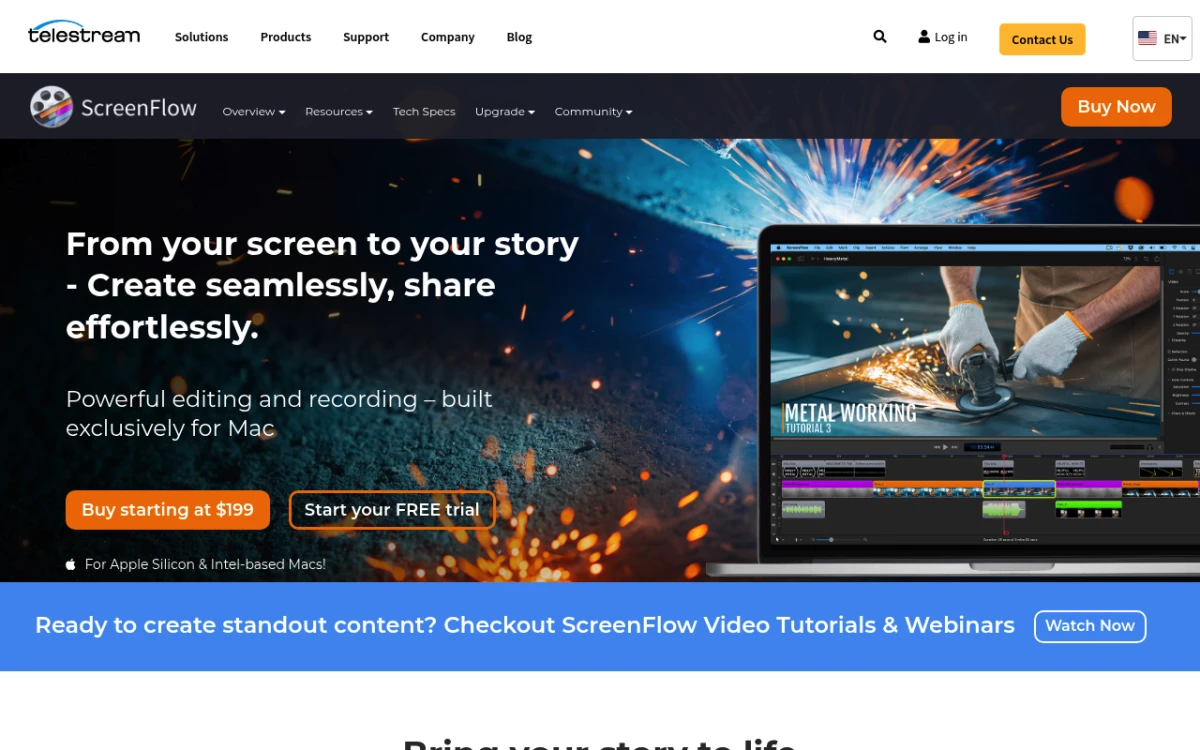
ScreenFlow by Telestream is the closest feature-for-feature Camtasia replacement on Mac. Full multi-track timeline. Chroma key. Built-in stock library. Motion effects. iPhone and iPad screen recording over Lightning or USB-C, a feature even Camtasia handles less elegantly on Mac.
Shines for: course creators, podcasters with a video angle, anyone moving off Camtasia who still wants a real timeline. The Stocks integration (built-in royalty-free clips and audio) means you do not need a B-roll subscription.
Not for: people who just want to record and trim. ScreenFlow is a full app with a real learning curve. If you do not need 90% of what it does, the $169 buys complexity you will not use.
Best fit: anyone whose Camtasia use was "record screen, drag clips on a timeline, add callouts, export." That is the ScreenFlow sweet spot. It even imports Camtasia .mp4 exports, though fair warning: .tscproj files do not open here either. More on that in the migration section below.
What you give up vs Camtasia: no SCORM 1.2 or 2004 export, no native quiz overlays, and no cross-platform project files (ScreenFlow projects are Mac-only). The trade is a tool that feels like macOS instead of a port. For most Mac course creators who do not depend on SCORM, that trade is a win. For LMS pipelines that require SCORM, ScreenFlow alone cannot replace Camtasia. You would need to add a separate authoring tool like iSpring, or stay with Camtasia for the export step.
4. CleanShot X: best for screenshot-heavy workflows
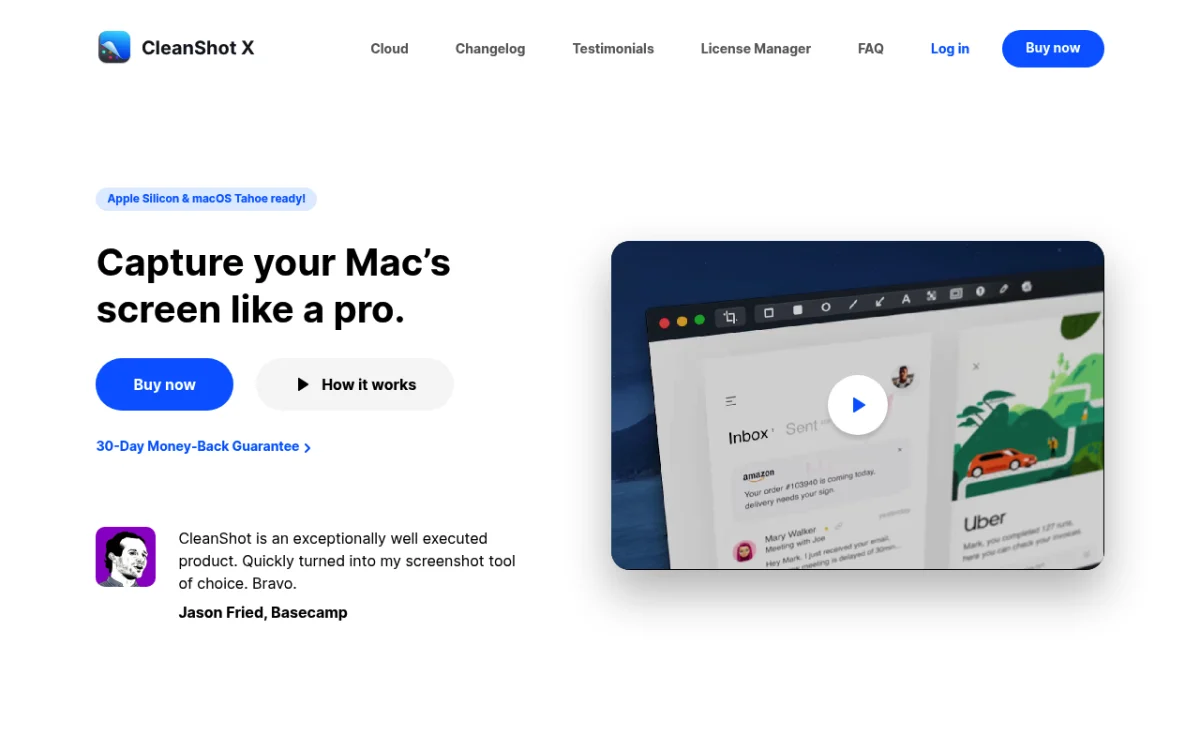
Price: $29 one-time, or $10/mo for CleanShot Cloud Pro | Rating: (4.7/5)
CleanShot X is a Mac-only screenshot and short-recording tool with gorgeous defaults. Scrolling capture. Annotated screenshots with auto-aligned shapes. Quick GIF and MP4 recording. Self-hiding desktop icons during capture. It feels like Apple built it.
Shines for: designers, developers, and PMs who live in screenshots and short clips. The pinned-overlay feature (pin a screenshot to your screen so you can copy from it while typing elsewhere) alone is worth the $29.
Not for: long recordings, course creators, or anything resembling a timeline editor. CleanShot's recorder is a basic trimmer, not an editor.
Best fit: Mac users whose Camtasia workflow was mostly screenshots and short demos, not timeline edits. If that is you, our CleanShot X alternatives for Mac post compares CleanShot to other capture tools (including ScreenSnap Pro and Shottr) head to head.
5. OBS Studio: best free option
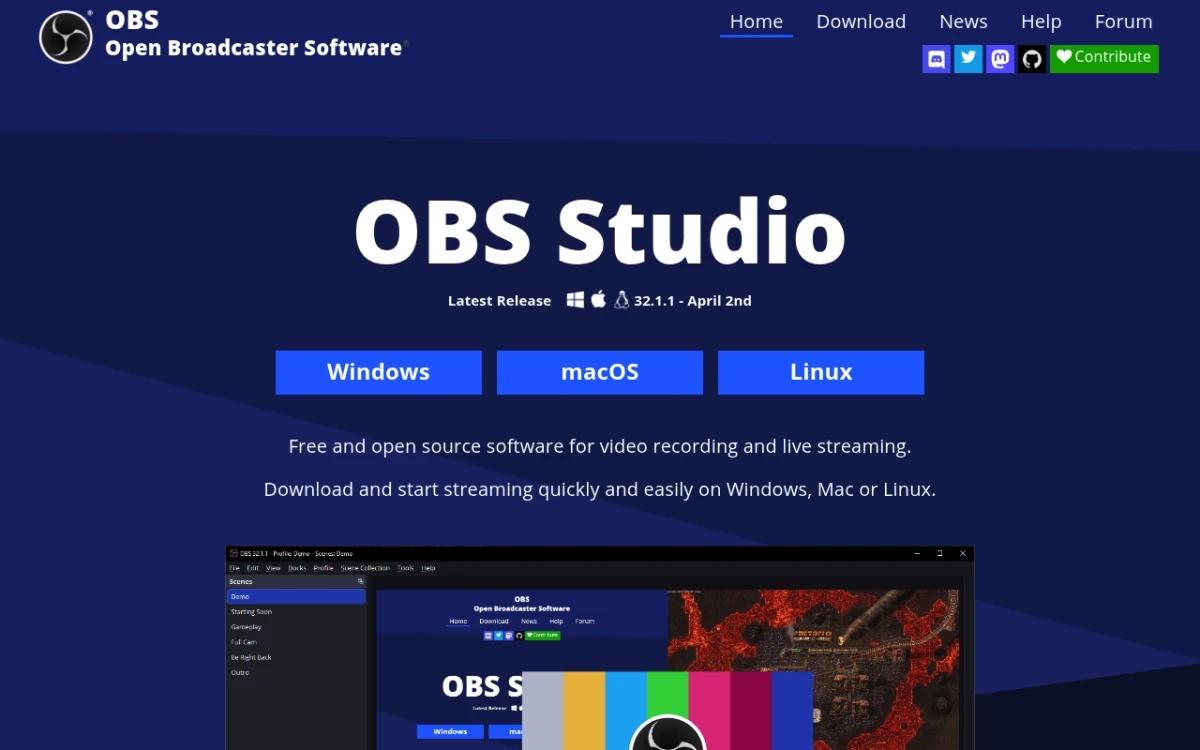
Price: Free, open source | Rating: (4.4/5)
OBS Studio is the free, open-source, cross-platform recording and streaming app. Built originally for Twitch streamers, it does scenes, multi-source layouts (webcam over screen over a slide), audio mixing, and lossless recording. On Mac it runs natively on Apple Silicon.
Shines for: anyone who needs a real recorder for free. Multi-source scenes for talking-head tutorials. Live streaming to YouTube, Twitch, or a custom RTMP endpoint. Hardware encoding via Apple's VideoToolbox.
Not for: anyone who wants an editor. OBS is a recorder, full stop. For editing you pair it with iMovie, DaVinci Resolve, or a paid editor. The UI also looks dated and the learning curve is real. Plan to spend an evening watching tutorials.
Best fit: streamers, power users, and anyone whose budget is literally zero. OBS plus iMovie covers more of the Camtasia workflow than you would expect, and the price is hard to argue with.
The OBS learning curve, demystified: the first thing that throws new users is the Scenes and Sources model. A Scene is a layout. A Source is a thing inside a layout (a window, a webcam, an image). You build one Scene for "intro", another for "main recording", another for "outro", and OBS lets you switch between them mid-recording. Once that clicks, the rest of OBS makes sense. The second thing that throws new users is the lack of an editor. OBS records, period. For a tutorial workflow, you record in OBS, then drag the .mp4 file into iMovie or DaVinci Resolve (also free) to cut and add titles.
6. QuickTime Player: best built-in (already on every Mac)
Price: Free (ships with macOS) | Rating: (4/5)
QuickTime is already on your Mac. Open it, hit File → New Screen Recording, pick a region or full screen, and you are recording. It captures video and mic audio. Trim is built in. Export is a single button.
Shines for: one-off recordings. Bug reports for a client. A quick walkthrough you will send once and never edit. The fastest start time of any tool on this list: zero install, two clicks to record. Apple's own QuickTime Player User Guide covers the full feature set.
Not for: system audio (without installing BlackHole or Loopback), cursor effects, anything beyond trim, or anything you plan to edit seriously.
Best fit: the Mac user who just needs to record once and send it. Our how to screen record on a MacBook guide walks through QuickTime end to end, including the macOS Screenshot toolbar shortcut (Shift+Command+5) which uses the same underlying recorder.
7. Descript: best for transcript-based editing
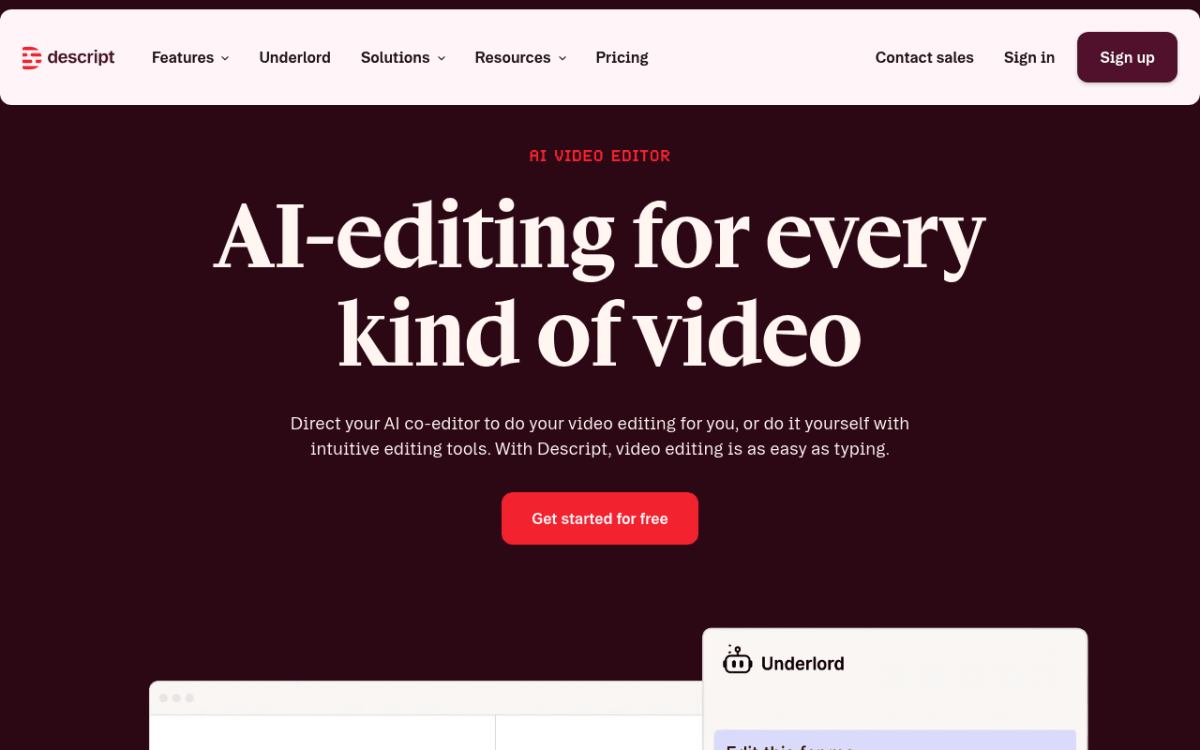
Price: $12-$24/mo (Hobbyist to Pro), free tier with limits | Rating: (4.5/5)
Descript is the weird one. You record your screen and voice, Descript transcribes it, and you edit the video by editing the transcript. Delete a word from the text and the video cuts. Type a new word and the AI Voice clone reads it in your voice.
Shines for: podcasters with a video angle, async teams that record a lot of internal walkthroughs, anyone who finds timeline scrubbing painful. The filler-word removal (one click kills every "um" and "uh") is honest magic. Cross-platform: Mac, Windows, and web.
Not for: highly visual edits that depend on motion graphics, or anyone who needs offline editing, since Descript is cloud-heavy and benefits from a fast connection.
Best fit: content creators who think in words first and visuals second. If your Camtasia workflow was 80% voice and 20% screen, Descript turns the editing process inside out. For more on editing screen recordings in general, our edit screen recording on Mac post walks through the editing flow across multiple tools.
8. ScreenPal: best cloud-hosted budget option

Price: Free (15-min limit) / $4-$15/mo paid tiers | Rating: (4.2/5)
ScreenPal, formerly Screencast-O-Matic, is a budget cloud-first screen recorder. Free tier covers up to 15 minutes per video with a watermark. The $4/mo Deluxe plan removes the watermark, unlocks the editor, and includes cloud storage with interactive quizzes baked in.
Shines for: teachers, training teams, and online instructors. The cloud-first model means students get a link instead of a 600 MB file. Quizzes overlay on the video for simple comprehension checks, which is not as deep as Camtasia's SCORM but is enough for a classroom.
Not for: users who want a fully offline workflow, or anyone who hates subscriptions. ScreenPal is fine, but it is a subscription-or-watermark deal.
Best fit: educators with a tight budget and a need for hosted video. If your school is paying for it already, lean in. If not, ScreenSnap Pro plus a free YouTube or Vimeo account does most of the same thing without the recurring fee.
9. Loom: best for async team videos

Price: Free (25 videos, 5-min limit) / $12.50 per user/mo Business | Rating: (4.4/5)
Loom is the async-video standard. Record screen plus webcam, get an instant share link, viewers can comment timestamp-anchored on the video. AI features remove filler words and generate chapter titles. Cross-platform: Mac, Windows, browser, and mobile.
Shines for: remote teams. Async standups. Quick walkthroughs that would have been a meeting. The instant share link is the whole point: by the time you stop recording, your viewer can already click play.
Not for: long-form content, courses, or anything you need to edit heavily. Loom's editor is basic. Also not for budget-conscious solo users, because the free tier hits the 5-minute ceiling fast.
Best fit: product teams, engineering leads, and customer success reps who use video to replace meetings. If your Camtasia use was "record a 4-minute thing and send it to a coworker," Loom is the cleaner answer.
How to pick the right one
A short decision tree, because nine picks is a lot.
- You mostly take screenshots and record short clips on Mac and Windows → ScreenSnap Pro ($39).
- You make polished product demo videos → Screen Studio.
- You record courses with a full timeline → ScreenFlow.
- You want gorgeous screenshots and a quick recorder on Mac only → CleanShot X.
- You have $0 and do not mind a learning curve → OBS Studio.
- You want to record once and never edit → QuickTime Player.
- You edit by transcript and care more about audio than visuals → Descript.
- You teach and need cloud hosting plus quizzes → ScreenPal.
- You send async videos to coworkers all day → Loom.
A second cut, by what matters most:
- Best value (one-time): ScreenSnap Pro at $39 lifetime, two-computer license, Mac + Windows.
- Best for absolutely free: OBS Studio or QuickTime.
- Best polish out of the box: Screen Studio.
- Closest to Camtasia feature-for-feature: ScreenFlow.
- Best for screenshots: CleanShot X or ScreenSnap Pro.
- Best for collaboration: Loom or Descript.
GIF and screenshot workflows: the bit Camtasia ignores
Every other Camtasia alternative roundup pretends Mac creators only need video. Most actually need three formats: video for tutorials, GIFs for docs and chat, and screenshots for bug reports. Camtasia handles all three poorly. Here is how the picks above stack up across the three.
Screenshots. Camtasia's screenshot tool is a side feature with weak annotation. CleanShot X and ScreenSnap Pro both build screenshots into the core flow with 15+ annotation tools, gradient backgrounds, and pinned overlays. CleanShot adds scrolling capture; ScreenSnap Pro skips scrolling but adds 500+ backgrounds and OCR text extraction. If your day has more screenshots than recordings, picking by this column is the right move.
GIFs. Camtasia exports MP4 to GIF in a separate step, and the output is often too large for Slack or GitHub. ScreenSnap Pro records direct to GIF: pick region, record, get a .gif file. CleanShot X also records direct to GIF. Loom does not export GIFs natively. Screen Studio does not export GIFs. ScreenFlow exports GIFs through the timeline. For the "I need a GIF in 10 seconds" workflow, only ScreenSnap Pro and CleanShot X are honest answers.
Short videos. Every tool above records video. The difference is what you do with the file. QuickTime gives you a raw .mov. ScreenSnap Pro gives you a trimmed .mp4 with optional cloud link. Screen Studio gives you a polished export with auto-zoom and cursor effects. ScreenFlow gives you a fully edited multi-track output. Loom gives you an instant share link without ever touching the file. Pick by what you do next, not by recording quality, because all of them record fine.
If you also need to compress GIFs after the fact, ScreenSnap Pro has a free GIF compressor that handles the size-reduction step without re-exporting from the recorder.

Tired of plain screenshots? Try ScreenSnap Pro.
Beautiful backgrounds, pro annotations, GIF recording, and instant cloud sharing, all in one app. Pay $39 once, own it forever.
See pricing and featuresAudio recording on Mac: the part everyone gets wrong
Audio is where Mac recording falls apart most often. Three honest notes before you record anything.
Microphone audio. Every tool above can record your mic, but the quality depends entirely on the mic itself. The built-in MacBook mic is fine for internal walkthroughs but sounds thin for published tutorials. A $60 USB mic (Samson Q2U, FIFINE K669, anything from that range) makes the biggest single difference to perceived video quality. Levels matter too. Set your input gain in System Settings → Sound → Input so the bar peaks around two-thirds, not at the top.
System audio (the sound coming out of your Mac). This is the part Apple makes harder than it should be. QuickTime alone cannot capture system audio. ScreenSnap Pro, ScreenFlow, OBS, and Descript all include system audio capture natively. If you use a tool that does not, install BlackHole or Loopback (paid), which route system audio as a virtual mic that any recorder can pick up. For tutorial recordings where you demo a video player, web call, or app with sound, system audio matters.
Audio sync drift. A common Mac recording bug: the audio runs slightly out of sync with the video after 10+ minutes of recording. Almost always caused by sample-rate mismatch. Open Audio MIDI Setup (Applications → Utilities), set your microphone and output to the same sample rate (48000 Hz is the safe default), and the drift disappears. ScreenFlow and Camtasia both auto-correct this in post; QuickTime and OBS do not.
Webcam + screen + voice all at once. Loom and Descript handle this natively in their UIs. Screen Studio and ScreenFlow give you three tracks you can resize and reposition. ScreenSnap Pro records webcam-over-screen as a composited single video, which is simpler but less flexible. OBS lets you build it as a Scene with full layout control. For talking-head tutorials, the right pick depends on whether you want flexibility (ScreenFlow) or simplicity (Loom or ScreenSnap Pro).
Real-world scenarios: which tool wins each
Picking by feature list is hard. Picking by a job you actually have is easier. Five common scenarios.
Scenario 1: You are a SaaS founder making a 90-second product demo for the homepage. Screen Studio wins. Auto-zoom, smooth cursor, clean export. It is what Linear, Vercel, and dozens of indie SaaS use. $229 one-time is steep but you will use it weekly.
Scenario 2: You are a developer filing 5+ bug reports a day with annotated screenshots. ScreenSnap Pro or CleanShot X. Both nail the screenshot workflow. ScreenSnap Pro adds Windows support if you switch machines and a one-time price across both. CleanShot X adds scrolling capture and is Mac-only.
Scenario 3: You are a course creator with 30+ recorded lessons in Camtasia .tscproj format and you want out. Hard truth: finish those lessons in Camtasia, then move to ScreenFlow for new lessons. The .tscproj files do not migrate. ScreenFlow is the closest replacement on Mac for everything except SCORM export.
Scenario 4: Your team records 5-minute async walkthroughs every day to avoid meetings. Loom. Instant share link, viewers comment timestamp-anchored on the video, and the free tier covers basic use. For a small team, $12.50/user/mo is below the cost of one extra meeting per person per month.
Scenario 5: You record one tutorial a month and the rest of the time you just want screenshots and GIFs. ScreenSnap Pro at $39 covers all three, you pay once, and you do not need a video editor. If you record more than that, add ScreenFlow as the editor and keep ScreenSnap Pro for fast captures.
Switching from Camtasia: what carries over (and what does not)
Nobody else covers this. Here is the migration truth.
Your .tscproj files do not open in any of these tools. Camtasia's project format is proprietary. Screen Studio cannot read it. ScreenFlow cannot read it. Descript cannot read it. If you want to continue editing an old project, you have two options: keep Camtasia installed for that one project, or export the timeline to MP4 from Camtasia and re-edit the flat video in your new tool.
Most callouts and animations cannot be migrated. Camtasia's animated callouts (the speech-bubble shapes with motion presets) are proprietary effects. They render into the final MP4 fine, but if you re-import that MP4 to a new editor, the callouts are baked-in pixels, so you cannot move or recolor them.
Asset library does not transfer. Intro music, transitions, lower thirds you bought through Camtasia's library stay locked to Camtasia. ScreenFlow's Stock library is the closest equivalent but it is a separate (also paid) ecosystem.
SCORM export is Camtasia-only on this list. If you ship to a learning management system as a SCORM 1.2 or 2004 package, none of these tools do it. The free option is ActivePresenter (not on this list because it is Windows-first and clunky on Mac), and the paid option is staying with Camtasia. There is no Mac-native answer here.
What does carry over: flat MP4 exports from Camtasia open in every tool above. If your project is "done enough", export to 1080p MP4 from Camtasia and bring it in as raw footage to your next editor. Voice tracks export to WAV. Music exports to MP3. Subtitle .srt files export and re-import everywhere.
My honest recommendation: finish active projects in Camtasia, then switch tools for new projects. Trying to migrate a complex live course is more work than just keeping Camtasia installed on one machine.
Troubleshooting common Mac recording problems
The most-skipped section in every other Camtasia roundup. Three real fixes for the three issues every Mac creator hits.
"My screen recording on Mac is laggy."
Almost always one of three causes. First, quit background apps: Slack, Chrome with 30 tabs, and Spotlight indexing all steal CPU during recording. Second, use hardware encoding (every tool above except OBS defaults to it; in OBS pick the "Apple VT H.264 Hardware Encoder"). Third, drop frame rate to 30fps for tutorials. 60fps is for gameplay, not screen recordings, and it doubles your CPU load for invisible benefit.
If the lag is still there, check Activity Monitor during a test recording. If a single app is pegging the CPU, it is interfering with the recorder.
"Audio is not recording on Mac."
Two permission gates. First, the app needs Microphone access. Open System Settings → Privacy & Security → Microphone, and confirm your recorder app is toggled on. Second, on macOS Catalina and later, the app needs Screen Recording permission separately. Same menu, scroll to Screen Recording, toggle the app on. Apple's official guide on controlling screen recording access walks through this with screenshots.
For system audio (the sound coming OUT of your Mac, not the mic), QuickTime alone cannot do it, so you need BlackHole, Loopback, or a tool with built-in system audio capture (ScreenSnap Pro, ScreenFlow, OBS, and Descript all have this).
"Permissions reset after I updated macOS."
This is a known macOS quirk. After major macOS updates (Sonoma, Sequoia, Tahoe), screen recording and microphone permissions sometimes drop. The fix is the same as above: open System Settings, re-grant the permissions, restart the app.
"My recording file is way too big."
A 10-minute 4K 60fps recording can hit 1.5 GB. If you are sharing it, that is too much. Two fixes: record at 1080p 30fps from the start (saves about 70% on file size with no visible quality loss for tutorials), or trim and re-export at a lower bitrate after. ScreenSnap Pro and CleanShot X both let you trim and export at compressed bitrates. For long courses, ScreenFlow's export presets are the cleanest.
If you also need to compress an exported MP4 after the fact, you can convert GIF to MP4 or run an MP4 through any free re-encoder.
The pricing math, plainly
Most Camtasia alternative roundups bury the price comparison three scrolls deep. Lead with it instead.
Camtasia: $299.99 one-time for the perpetual license, or $179/year for Camtasia Create (subscription with hosting). Updates require the Maintenance plan at $49.75/year on top of the perpetual license. For a single creator, five years of Camtasia with updates is roughly $549. For a five-person team, the same five years runs into thousands.
The same five years across alternatives:
- ScreenSnap Pro: $39 once. Total: $39. Includes Mac + Windows on the same license.
- Screen Studio: $229 once. Total: $229. Mac-only.
- ScreenFlow: $169 once, plus $49 for major version upgrades roughly every two years. Total: ~$269. Mac-only.
- CleanShot X: $29 once, plus $96/year if you want CleanShot Cloud. Total: $29-$509. Mac-only.
- OBS Studio: $0. Total: $0. Mac + Windows + Linux.
- QuickTime Player: $0 (bundled). Total: $0. Mac-only.
- Descript: $144-$288/year. Total: $720-$1,440.
- ScreenPal: $48-$180/year. Total: $240-$900.
- Loom Business: $150/user/year. Total per user: $750.
The "subscription tools cost more than the perpetual ones" rule holds across all of these. If you record consistently for more than three years, one-time licenses save you serious money. If you record sporadically and only want a tool when you need it, subscriptions can be cheaper short-term. The ScreenSnap Pro angle is that $39 is roughly the cost of two or three months of most subscription tools. You pay it once and forget about it.
Frequently Asked Questions
Bottom line
Camtasia is fine. It is also $299 and built for course creators who need a full LMS pipeline. If that is you, stay.
For everyone else on a Mac in 2026:
- Polished product demos → Screen Studio.
- Heavy timeline editing → ScreenFlow.
- Capture, GIF, and short recordings at one-time $39 across Mac and Windows → ScreenSnap Pro.
- Free → QuickTime Player or OBS.
If you mostly need screenshots, short screen recordings, and the occasional GIF (the workflow most people actually have, not the workflow Camtasia is sold for), ScreenSnap Pro is the one tool on this list that gets you all three at once on both Mac and Windows for a single one-time payment. Pay once, own forever, works on the Mac you have and the Windows machine you might switch to next year. That is the pitch.
For broader Mac coverage, our free screen recorder for Mac post covers the $0 options in more depth, and the Snagit vs Camtasia breakdown compares Camtasia to the other major TechSmith tool. Happy recording.

Morgan
Indie DeveloperIndie developer, founder of ScreenSnap Pro. A decade of shipping consumer Mac apps and developer tools. Read full bio
@m_0_r_g_a_n_