Snagit vs Camtasia: Complete Comparison Guide (2026)
Choosing between Snagit vs Camtasia comes down to one question: do you need screenshots or videos? Both tools come from TechSmith. They serve different purposes, though. And lighter Mac alternatives like ScreenSnap Pro cover both screenshots and short screen recordings without the TechSmith price tag.
The quick answer:
- Snagit captures screenshots and short screen recordings
- Camtasia creates polished videos with advanced editing tools
You may have seen "snagit vs camtasia reddit" debates online. Most of those threads compare apples to oranges.
This guide breaks down the real differences. You'll know exactly which tool fits your needs by the end.
What Is Snagit? A Screenshot-First Tool
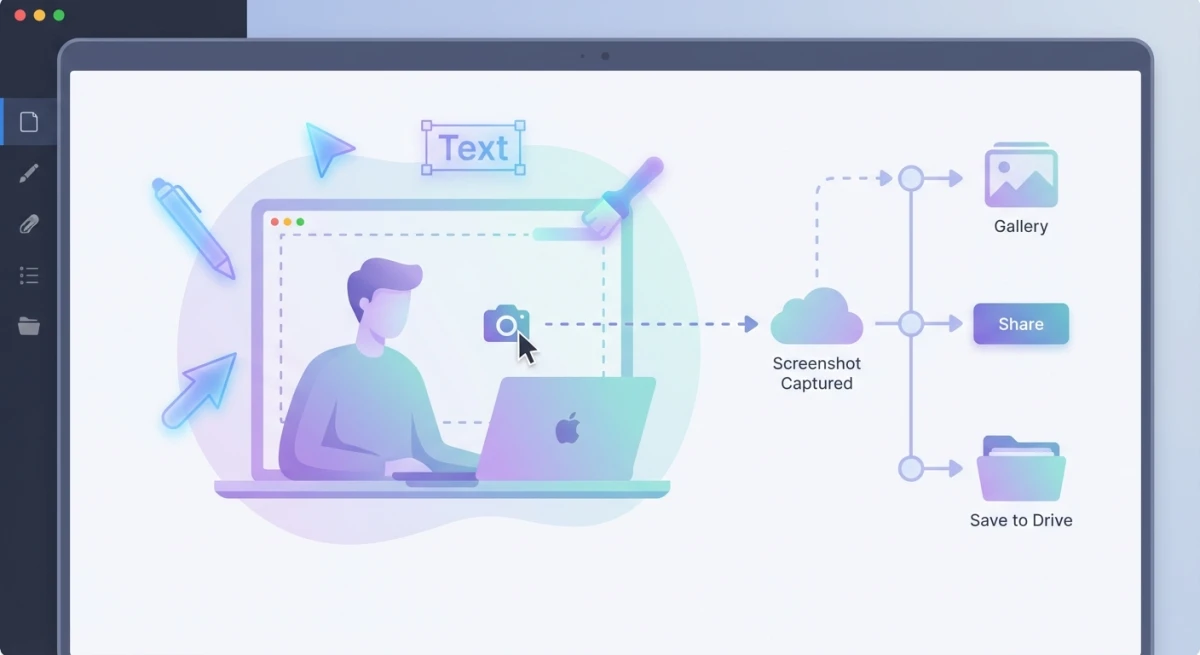
Snagit is TechSmith's screen capture app. It excels at taking screenshots, adding markups, and creating short video clips. Think of it as your daily tool for docs and visual guides.
Snagit Key Features
Screenshot capture is Snagit's strength:
- Full screen, region, or window capture
- Scrolling capture for long web pages
- Wide capture across multiple screens
- Text copying (OCR) from any image
Markup tools help you explain screenshots:
- Arrows, shapes, and callouts
- Text labels and stamps
- Blur tool to hide private info
- Step numbers for tutorials
Basic video recording handles simple tasks:
- Screen recording with your voice
- Webcam overlay option
- Simple clip trimming
- GIF export from any recording
Snagit Pricing (2026)
| Plan | Price |
|---|---|
| Individual | $39/year |
| Business | $48 per user/year ($45.60 for 10 to 99 seats) |
| Education | $39.36/year |
| Students (verified) | $19.99/year |
Snagit is subscription-only since Snagit 2025 (released February 2025). New buyers can't get a one-time license anymore, though older perpetual licenses keep working.
The subscription includes every new version, so there are no separate upgrade fees.
What Is Camtasia? A Video Production Tool
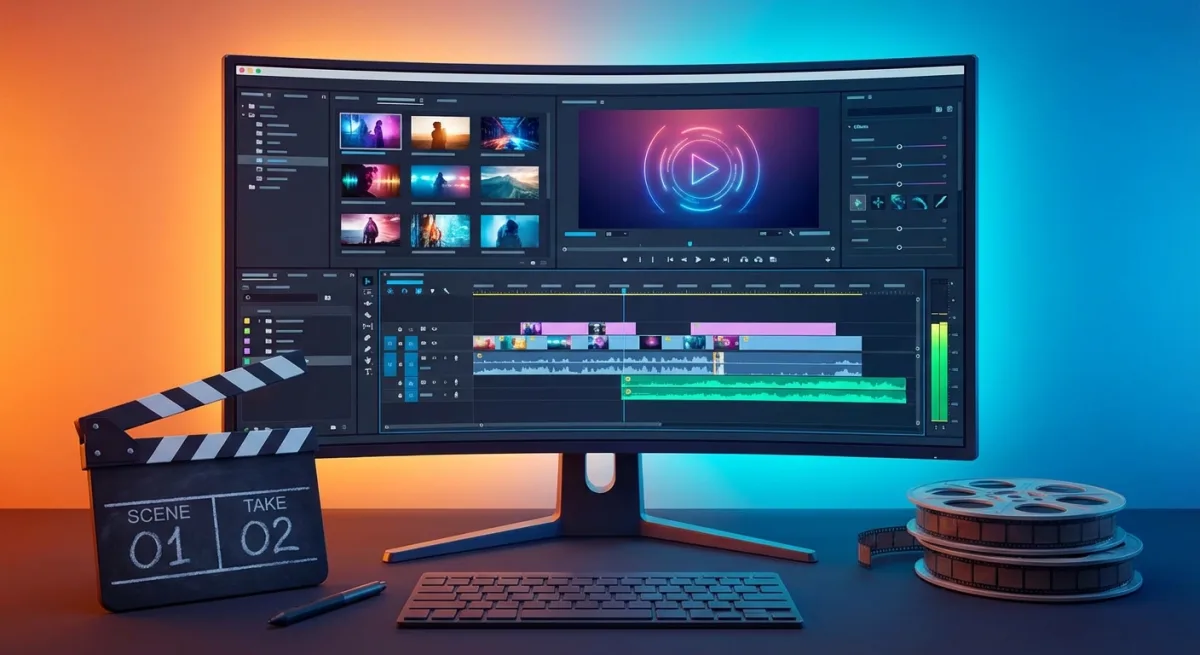
Camtasia is TechSmith's full video editor. It's built for tutorials, courses, and presentations. This is the upgrade path when you need polished videos.
Camtasia Key Features
Screen recording goes beyond basics:
- Record screen, webcam, and audio at once
- Capture system sounds
- Cursor highlights and effects
- 4K video at 60 frames per second
Video editing is the main draw:
- Multi-track timeline for layering
- Over 100 transitions and effects
- Animated graphics and text
- Green screen removal
- Audio cleanup and noise removal
Interactive elements boost viewer engagement:
- Quizzes and surveys (needs TechSmith player)
- Clickable links in videos
- Captions and subtitles
- Chapter markers for navigation
Camtasia Pricing (2026)
| License Type | Price |
|---|---|
| Individual | $249.99 one-time |
| Business | $299.99 one-time |
| Maintenance | $49.99/year (optional) |
Camtasia is a one-time purchase. The optional maintenance gets you updates.
The higher price makes sense. Camtasia is a full video editor. You're paying for that extra power.
Snagit vs Camtasia: Feature Comparison
Here's a side-by-side breakdown:
| Feature | Snagit | Camtasia |
|---|---|---|
| Screenshot capture | ✅ Excellent | ❌ Basic only |
| Scrolling capture | ✅ Yes | ❌ No |
| Image markup | ✅ Full toolkit | ⚠️ Limited |
| OCR text copying | ✅ Yes | ❌ No |
| Screen recording | ✅ Basic | ✅ Advanced |
| System audio | ✅ Yes | ✅ Yes |
| Video timeline editor | ❌ No | ✅ Multi-track |
| Transitions & effects | ❌ No | ✅ 100+ options |
| Animated graphics | ❌ No | ✅ Yes |
| Green screen removal | ❌ No | ✅ Yes |
| Quizzes in videos | ❌ No | ✅ Yes |
| GIF creation | ✅ Yes | ✅ Yes |
| 4K recording | ⚠️ Limited | ✅ Full support |
| Price | $39/year | $249.99 |
The pattern is clear. Snagit excels at screenshots and quick captures. Camtasia handles serious video work.
Which matters more to you? Fast capture or deep editing? Your answer points to the right tool.
When to Choose Snagit
Snagit is the right choice when you:
1. Create Docs and Tutorials
Tech writers love Snagit. Support teams and teachers do too.
It's perfect for step-by-step guides. The markup tools make it easy to:
- Add numbered steps
- Point out buttons
- Explain screens clearly
If you create lots of how-to guides with screenshots, Snagit fits your workflow.
2. Need Quick Video Clips
Sometimes you need a short recording. Maybe to show a bug. Maybe to demo a feature. Maybe to explain something words can't capture.
Snagit handles these quick clips well. Record it, trim the ends, share it. That's the whole process.
You don't need editing skills for this. Snagit keeps things simple.
3. Work With Images More Than Video
Here's a simple rule. Does 80% of your work involve screenshots? Pick Snagit. Does only 20% involve video? Still pick Snagit.
Why pay $250 for Camtasia when you rarely need its editing tools?
4. Want Something Easy
Snagit has a short learning curve. Most people get productive within minutes.
Camtasia's timeline editor is powerful. It takes time to learn, though. For quick results without training, Snagit wins.
When to Choose Camtasia
Camtasia is the right choice when you:
1. Produce Polished Videos
Course creators need clean, pro-quality videos. YouTubers and marketers need them too.
Camtasia delivers with:
- Smooth transitions
- Pro-level animations
- Visual effects
These features turn raw recordings into polished content.
Anyone comparing Camtasia vs ScreenFlow will find Camtasia offers the fuller feature set.
2. Create Long Videos
Videos over 5-10 minutes need real editing tools. You'll need to:
- Cut mistakes
- Move sections around
- Add extra footage
Snagit lacks a timeline editor for this work. For long videos, Camtasia is your best option.
3. Need Viewer Interaction
Training videos often need quizzes inside them. They may need clickable chapters or links too.
Camtasia has all of these. They're key for corporate training and online courses.
4. Record System Audio
When showing software that makes sounds, you need to capture system audio. Camtasia handles this better than most tools.
Snagit vs Camtasia: Pricing Breakdown

Let's talk about the real costs over time.
First-Year Cost
| Tool | Individual | Business |
|---|---|---|
| Snagit | $39/year | $48 per user/year |
| Camtasia | $249.99 | $299.99 |
| Price Gap | $210.99 more | $251.99 more |
In the first year, Camtasia costs about 6 times more than Snagit.
Over 3 Years
| Tool | 3-Year Total |
|---|---|
| Snagit | $117 ($39 × 3 years) |
| Camtasia | $399.96 ($249.99 + $149.97 maintenance) |
Over three years, Camtasia with maintenance costs about 3.4 times as much as Snagit's subscription.
Bundle Option
TechSmith offers a Snagit + Camtasia bundle. You save around 25% compared to buying them separately. This is worth it if you truly need both tools.

Tired of plain screenshots? Try ScreenSnap Pro.
Beautiful backgrounds, pro annotations, GIF recording, and instant cloud sharing, all in one app. Pay $49 once, own it forever.
See pricing and featuresMac-Specific Points
Both Snagit and Camtasia work on Mac. They were built for Windows first, though.
Mac users often notice a few quirks.
Interface differences:
- Neither app feels fully Mac-native
- Keyboard shortcuts can clash with macOS
- UI patterns sometimes feel off
Speed notes:
- On Apple Silicon Macs, native apps run faster
- Both tools now support M-series chips
- They may still feel slower than Mac-built software
Better options exist:
- The Mac world has strong screenshot tools
- Many blend better with macOS
- Dedicated screenshot apps might suit Mac users better
For screenshot-focused work, you might prefer a dedicated Mac screenshot tool.
Tools like ScreenSnap Pro offer similar markup features. They include cloud sharing and GIF recording. They often cost less than Snagit too.
Making Your Choice: A Simple Guide

Not sure which to pick? Ask yourself these questions:
1. What do you mainly create?
- Mostly screenshots → Snagit
- Mostly videos → Camtasia
- Both equally → Look at the bundle
2. How much editing do you need?
- Quick trims and markups → Snagit
- Full timeline editing with effects → Camtasia
3. What's your budget?
- Under $100 → Snagit (or Mac options)
- $200+ is fine → Camtasia works
4. What's your skill level?
- Beginner who needs quick results → Snagit
- Willing to learn for pro output → Camtasia
Camtasia vs Other Video Editors
Is video editing your main need? Here are some other options to consider:
- Camtasia vs OBS: OBS is free and great for streaming and recording. It has no built-in editor, though. You'd need another app for editing.
- Camtasia vs DaVinci Resolve: DaVinci is more powerful and free. It has a steep learning curve. Camtasia is easier for screen recordings.
- Camtasia vs Premiere Pro: Adobe has more pro features. It needs a subscription, though. Camtasia's one-time cost appeals to many.
For Mac users, Camtasia vs ScreenFlow is worth a look. ScreenFlow is Mac-native and often preferred by Apple fans.
Frequently Asked Questions
- Transitions and effects
- Multiple video tracks
- Pro-quality output
- Snagit's markup tools
- Scrolling capture
- Advanced editing
Real-World Examples
Here's how different people use these tools.
Tech Writers and Doc Teams
Tech writers capture software screens. They add callouts and steps. They create visual guides.
Snagit rules this space because it has scrolling capture, step numbers, and great markup tools.
Most doc work involves many screenshots but few videos. Snagit fits perfectly.
A typical Snagit workflow:
- Capture a screen area
- Add numbered callouts
- Blur private data
- Export to your doc system
This whole process takes under a minute.
Online Course Creators
Course creators often need both tools:
- Snagit for slide markups and handouts
- Camtasia for main video lessons
The bundle makes sense for educators. This is true for those with video courses and workbooks.
Marketing and Social Teams
Marketing teams capture product screenshots for:
- Social media posts
- Slide decks
- Sales pages
Snagit works great for still images.
Camtasia becomes useful for video work:
- Promo videos
- Product demos
- Social video ads
Marketers often end up with both tools over time.
Support and Training Teams
Support teams love Snagit for quick visual help. A customer asks "how do I do X?" A marked-up screenshot answers faster than a long email.
Visuals cut down on back-and-forth confusion.
For formal training, Camtasia's quiz features track progress. They also show who finished each course.
Speed and System Needs
Both tools run on macOS 12 (Monterey) or later. They also run on Windows 10 or later.
Snagit is light:
- Uses 100-300 MB RAM most of the time
- Low CPU use (except while recording)
- Starts up fast
- Works well on older machines
Camtasia needs more power:
- Uses lots of resources while editing
- Video export needs strong CPU/GPU
- Project files can grow to several GB
- Best with 16GB+ RAM and an SSD
On an older Mac or laptop, Snagit feels faster.
Camtasia's video editing asks more from your hardware. This is true with 4K footage or many effects.
The Final Answer
Which tool should you pick? Here's the bottom line.
Choose Snagit if:
- Screenshots are your main need
- You create docs, guides, or quick tutorials
- Budget matters
- You want something easy to learn
- You prefer light software
Choose Camtasia if:
- Video work is your focus
- You create courses or training content
- You need timeline editing with effects
- You're ready to spend time learning
- Interactive elements matter for your work
Look at other options if:
- You're a Mac user who wants native software
- You need just screenshots without high pricing
- Your needs are simpler than what these tools offer
Both Snagit and Camtasia excel at their jobs. The "better" choice depends on your goals.
Know your needs first. Then pick the matching tool.
For Mac users who mainly need screenshots with markup, native Mac apps often work better. They cost less too.
Windows users in the TechSmith world will find both tools solid and well-supported.

Morgan
Indie DeveloperIndie developer, founder of ScreenSnap Pro. A decade of shipping consumer Mac apps and developer tools. Read full bio
@m_0_r_g_a_n_