Best OBS Alternatives for Mac 2026: 8 Tested Picks
The best OBS alternative for Mac in 2026 depends on the job: pick ScreenSnap Pro for screenshots, recording, video editing, and GIFs in one app at $34 one-time; Screen Studio for cinematic auto-zoom tutorials; ScreenFlow for full video editing; CleanShot X for polished annotation; QuickTime as a free built-in option; Kap for open-source GIFs; Streamlabs for streaming; and Loom for async messages.
Quick rundown of the 8 best OBS alternatives for Mac:
- ScreenSnap Pro. Best one-app combo (screenshots + recording + video editor + GIF), $34 one-time, Mac and Windows
- Screen Studio. Best for polished tutorial videos with auto-zoom
- ScreenFlow. Best for long-form recording with full timeline editing
- CleanShot X. Best for screenshot-first workflows with optional video
- QuickTime Player. Best free, built-in, no install
- Kap. Best open-source pick for GIFs and short MP4 clips
- Streamlabs Desktop. Best if you actually stream live
- Loom Desktop. Best for short async team messages
If you only want the short version: most Mac users who came to OBS Studio for a "record my screen" tool will be happier with ScreenSnap Pro, Screen Studio, or CleanShot X. Pick Streamlabs only if you stream to Twitch or YouTube. Keep QuickTime in your back pocket, since it ships free with macOS and does the basics well. The rest of this guide explains why.
If sound is your main headache, see our guide to screen recording with audio on Mac.
Why Mac users look for an OBS alternative
OBS Studio is free, open source, and powerful. It also feels like a port on Mac, because it is. The codebase was Windows and Linux first for over a decade. Apple Silicon support did not arrive until OBS 28 in 2022. The result is a tool that works on Mac but never feels at home there.
Here is what trips up most Mac users:
- Screen Recording permission is fiddly. macOS asks you to grant it in System Settings, restart OBS, and sometimes re-grant it after a macOS update. See Apple's screen recording permissions guide. A dedicated Mac recorder handles this more smoothly.
- Scenes and sources feel like overkill. New users see an empty grid and no "just record my screen" button. Dedicated recorders have a one-click start button.
- No menu-bar UX. Mac users expect a small menu-bar icon. OBS opens a full app window every time.
- No built-in editor. OBS records raw files. Trimming a pause means firing up iMovie or Final Cut.
- Audio routing is painful. System audio on Mac used to need BlackHole or Loopback. ScreenCaptureKit (macOS 13+) fixes this, but OBS still nudges new users toward third-party drivers.
For multi-scene live streams with plugins, OBS is a capable free tool you can install. But for a tutorial, a team message, or a quick GIF, there are simpler picks. If you just need quick captures, our free screen recorder for Mac guide covers the no-cost picks first.
What to look for in a Mac OBS alternative
Use these five questions to narrow your list before you download anything.
- Apple Silicon native? On M1/M2/M3/M4 Macs, you want a native ARM64 build, not Rosetta. Native runs cooler and saves battery.
- Does it use ScreenCaptureKit? This modern macOS recording API means smoother capture, better system audio, and no third-party drivers.
- What is your budget model? One-time (ScreenSnap Pro, ScreenFlow, CleanShot X Basic) costs more up front but saves money long term. Subscriptions (Screen Studio, Loom, Streamlabs Ultra) add up fast.
- Do you need GIF export? Bug reports and chat tools love GIFs. Many recorders only output MP4.
- Do you need annotation? If you label videos with arrows and callouts, get a tool with built-in annotation. Bouncing to Preview is slow.
Quick comparison table
Here is a side-by-side look at the eight OBS alternatives for Mac covered in this guide.
| Tool | Best for | Price | Apple Silicon | Streaming | Editor |
|---|---|---|---|---|---|
| ScreenSnap Pro | Screenshots + recording + editing + GIFs | $34 one-time | Yes | No | Yes (multi-track, auto zoom) |
| Screen Studio | Polished tutorials, auto-zoom | From $9/mo (billed yearly) | Yes (native) | No | Yes (visual) |
| ScreenFlow | Long-form video editing | $199 one-time | Yes (native) | No | Yes (timeline) |
| CleanShot X | Annotation, screenshots | $35 one-time / Pro $10/user/mo | Yes (native) | No | Yes (smart zooms, trim) |
| QuickTime Player | Free, built-in | Free | Yes (native) | No | Trim, split |
| Kap | Open-source GIFs | Free | Yes (native) | No | Trim only |
| Streamlabs Desktop | Twitch and YouTube live | Free / Ultra $27/mo | Yes (native) | Yes | Basic (Replay clips) |
| Loom Desktop | Async team messages | Free / from $15/user/mo | Yes (native) | No | Trim, AI |
Now let us walk through each tool.
The 8 best OBS alternatives for Mac (2026)
1. ScreenSnap Pro: the everything-tool
Price: $34 one-time | Best for: screenshots + recording + editing + GIFs in one app | Rating: (4.8/5)

Most people who quit OBS on Mac do not need a streaming studio. They need to grab a screenshot, record and tidy a short video, save a GIF for Slack, and move on. ScreenSnap Pro does all of it for $34 once.
You get screenshot capture (area, window, full screen, delayed) and a screen recording app for Mac that records MP4 at up to 60fps with webcam, mic, and system audio. You also get direct GIF recording and a built-in video editor. The editor has a multi-track timeline (trim, split, cut, speed), one-click silence removal, and cursor-follow auto zoom. On top of that come 500+ backgrounds, 17 annotation tools plus emoji, OCR, full-page website capture, and optional cloud share links. It also runs on Windows, and one license covers 2 seats in any mix of Mac and Windows.
Pros:
- One app for screenshots, video, editing, and GIFs
- $34 one-time, no subscription, no watermark, lifetime updates
- 500+ backgrounds and 17 annotation tools built in
- Video editor with auto zoom, silence removal, and B-roll, music, and voiceover tracks
- Apple Silicon and Intel builds, plus a Windows build for mixed teams
Cons:
- No live streaming (no RTMP) and no scenes-and-sources model, so a bad fit if you stream
- No captions or subtitles in the editor
- Full-page capture works for websites, but there is no scrolling capture of native app windows
Where it beats OBS: OBS does not do screenshots, GIFs, annotation, or editing. ScreenSnap Pro covers the jobs OBS-Mac switchers usually want in one app, for a single $34 payment instead of a subscription.
2. Screen Studio: best for cinematic tutorials
Price: $9 per month billed yearly ($108), or $29 monthly | Best for: polished YouTube tutorials | Rating: (4.7/5)
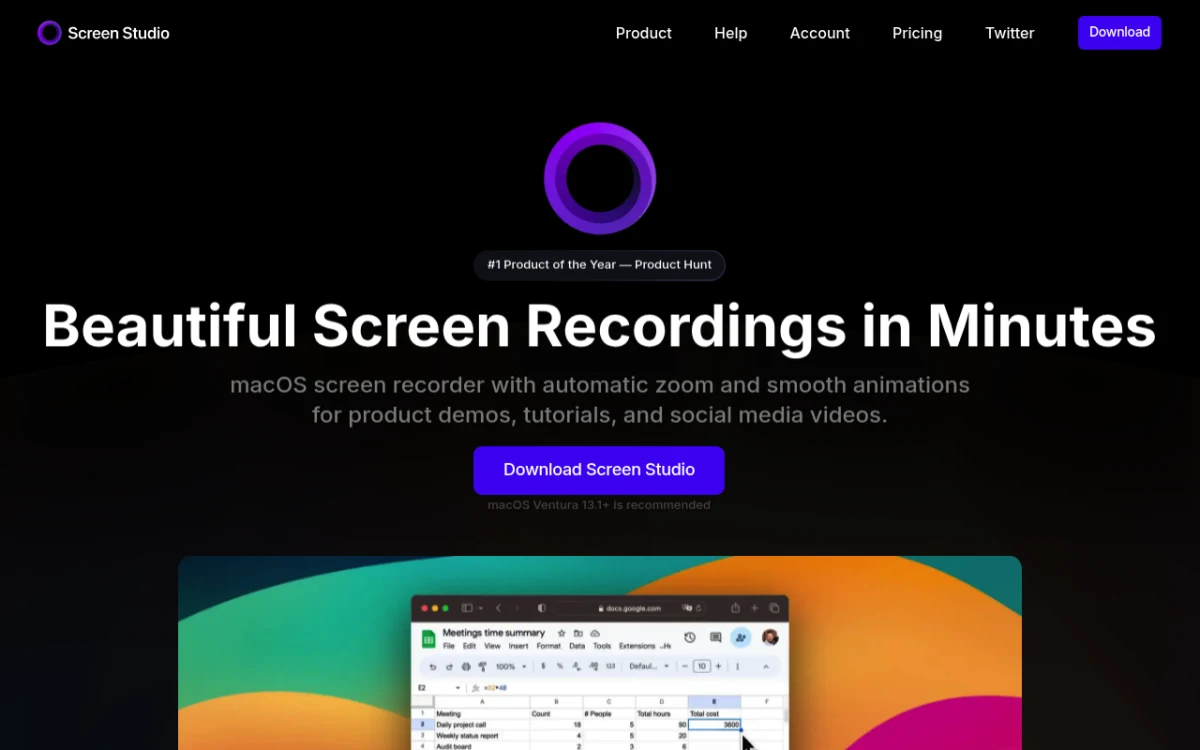
Screen Studio made its name with one trick: your recording looks edited by default. It auto-zooms to wherever you click, smooths the cursor, and exports gorgeous 4K MP4s. The interface is the cleanest on this list.
Pros:
- Auto zoom-to-cursor effects look pro with zero edit time
- Native Apple Silicon, fast hardware H.265 export
- Clean visual editor with no timeline confusion
Cons:
- Subscription only for new buyers, since the one-time license is gone
- Mac-only, recording only (no screenshots)
- No live streaming
Where it beats OBS: OBS records raw. Screen Studio's auto-zoom saves an hour of post per video. See our Screen Studio alternatives for Mac deep-dive.
3. ScreenFlow: best for full editing in one app
Price: $199 one-time | Best for: long-form record-and-edit on Mac | Rating: (4.6/5)
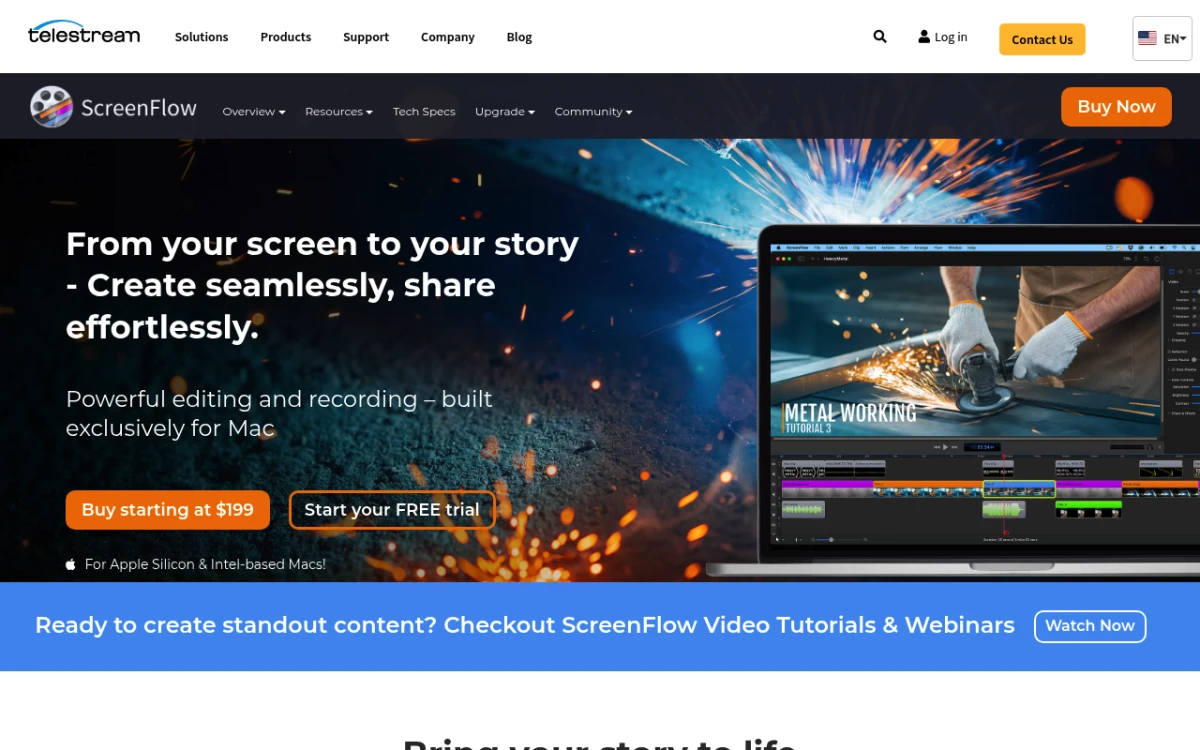
ScreenFlow has been Mac-only since 2008. The timeline editor is mature, recording handles 4K at 60 FPS, and you get a full library of transitions, captions, and a stock asset browser. It is the closest thing to "Final Cut Pro for screen recordings."
Pros:
- Real timeline editor (cut, ripple delete, multi-track audio)
- Mature codebase, stable on every macOS release
- iOS device capture built in (great for app demos)
Cons:
- $199 plus paid upgrades ($79 from version 8 or 9) stacks up
- Recording UI feels dated next to Screen Studio
- Mac-only
Where it beats OBS: OBS records but does not edit. ScreenFlow is record-plus-edit in one app.
4. CleanShot X: best for annotation-heavy workflows
Price: $35 one-time (Basic) or $10 per user/month billed yearly (Pro) | Best for: annotation-first Mac users | Rating: (4.6/5)
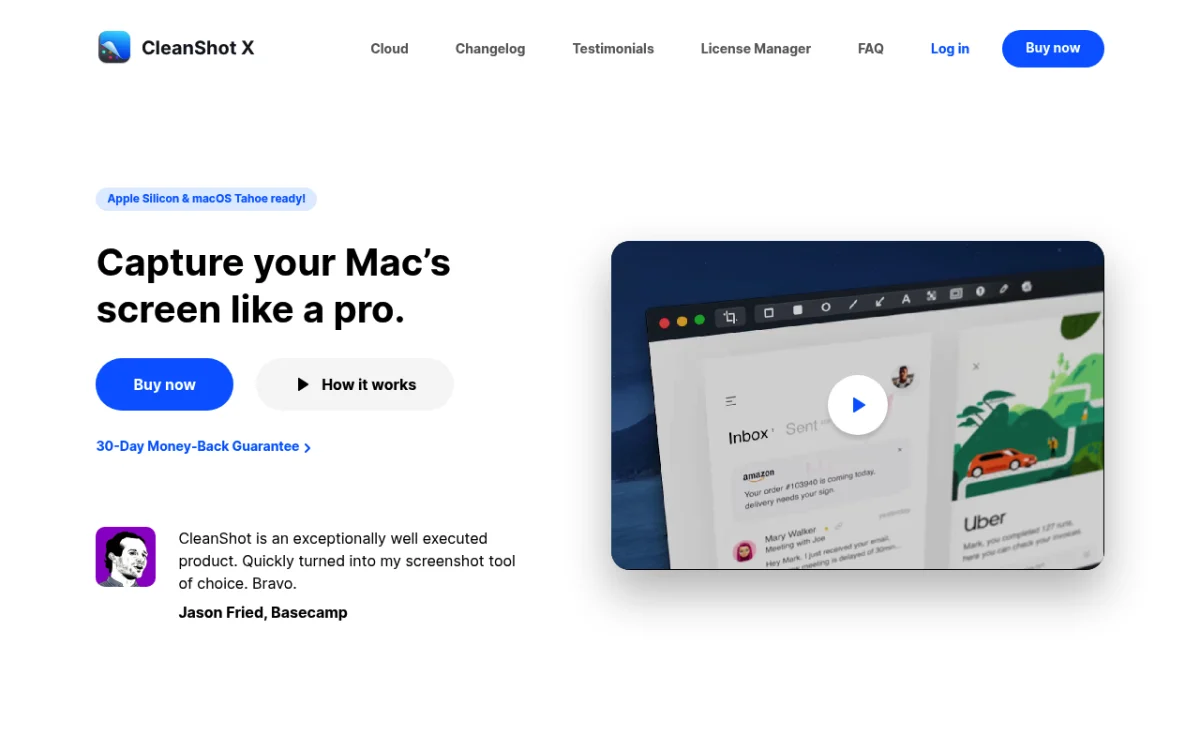
CleanShot X is a polished Mac native that started as a screenshot tool and added video later. The screenshot side is the strongest here: scrolling capture, hide desktop icons, redact text, OCR. Version 5.0 (September 2026) added a video editor with Smart Zooms that follow the cursor, trimming, and recording backgrounds.
Pros:
- Lovely annotation tools (highlight, blur, arrows, text, counter)
- Scrolling capture of app windows, unique on this list
- Hide desktop icons and notifications for clean recordings
Cons:
- Unlimited cloud storage and team features need the Pro subscription
- Basic includes only 1 year of updates ($19 per year to renew)
- The video editor only arrived in 5.0, so it is still young
- Mac-only
Where it beats OBS: OBS does no screenshots or annotation. CleanShot X is cleaner if your day is mostly screenshots. See our CleanShot X alternatives guide for a deeper compare.
5. QuickTime Player: best free built-in pick
Price: Free with macOS | Best for: one-off recordings, no install | Rating: (3.8/5)
QuickTime Player is already on your Mac. Open it, click File > New Screen Recording, and you are running. Apple's screen recording guide covers the full flow (Command-Shift-5 also works). For a one-off bug demo, this is enough.
Pros:
- Free, zero install, Apple Silicon native
- Clean MOV files, decent mic audio
Cons:
- No webcam overlay (just full webcam, or just screen)
- No annotation, no GIF export, and only basic trim and split
- No system audio capture, just a microphone
Where it beats OBS: OBS is overkill for a 30-second clip. QuickTime is two clicks and gone.
6. Kap: best open-source pick
Price: Free (MIT license) | Best for: GIFs and short clips | Rating: (4.2/5)
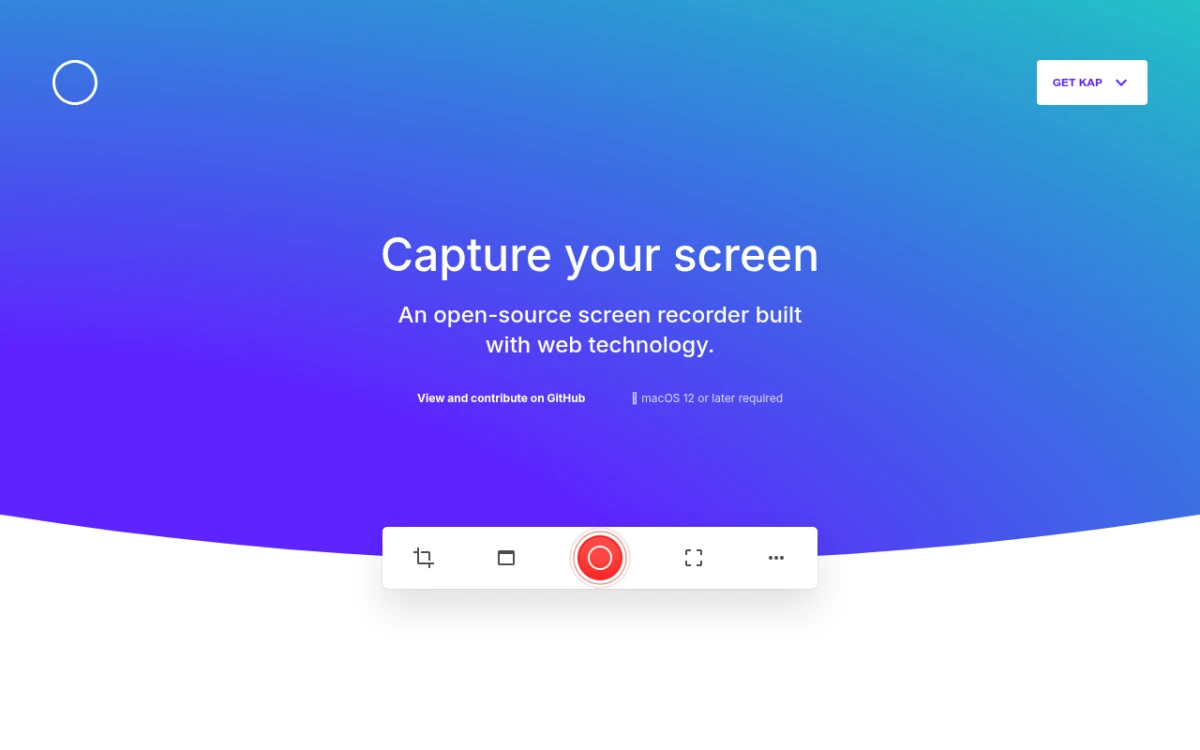
Kap is the indie favorite: a small Electron app that records a region as GIF, MP4, WebM, or APNG. It is fast, polished, and the menu-bar UX feels Mac-native. For GitHub issues or Slack clips, this might be all you need. See our full Kap review.
Pros:
- Free, MIT licensed, Apple Silicon native
- GIF export is one of the best on this list
- Plugins to share on Giphy, Vercel, and Streamable
Cons:
- No webcam overlay, no annotation
- 60 FPS only, no 4K
- Few updates: the latest release (v3.6.0) shipped in October 2022
Where it beats OBS: OBS cannot export GIFs natively. Kap exports them directly with sane file sizes.
7. Streamlabs Desktop: best if you actually stream
Price: Free / Ultra $27 per month or $189 per year | Best for: Twitch and YouTube streamers | Rating: (4.4/5)
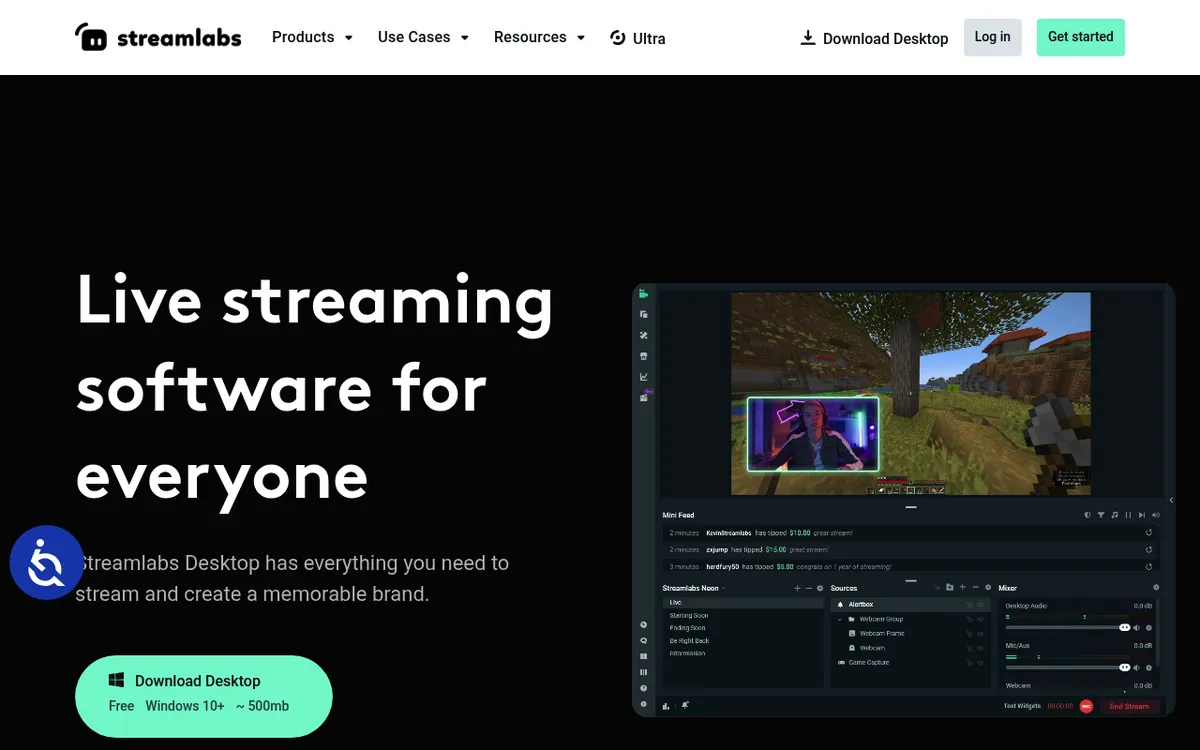
Streamlabs Desktop forks the OBS core and wraps it in a cleaner interface. Same scenes-and-sources model, but with themed overlays, alerts, and a setup step that scans your hardware and internet speed to suggest settings. If your reason for opening OBS was streaming, this is the better pick. Our OBS vs Streamlabs breakdown covers the trade-offs.
Pros:
- Same engine as OBS, so you can import your OBS scene collections
- Built-in alerts, overlays, and chat widgets
- Multistream to Twitch, YouTube, TikTok (Ultra tier)
Cons:
- Users often report heavier CPU and RAM use than vanilla OBS
- Third-party OBS plugins do not install (it has its own app store)
- Best features need the Ultra subscription
Where it beats OBS: OBS makes you set up everything from zero. Streamlabs suggests settings for you, so you can go live in minutes.
8. Loom Desktop: best for async team messages
Price: Free / from $15 per user per month | Best for: async team videos | Rating: (4.3/5)
Loom is built for "let me just show you" videos. Record screen and webcam, auto-upload to the cloud, paste a shareable link in Slack. Transcription is solid, and the Business + AI plan adds auto titles, summaries, and chapters. It is a strong fit for async messaging.
Pros:
- Instant shareable link, no file to send
- Built-in transcription, plus AI titles and chapters on Business + AI
- Webcam bubble overlay looks great by default
Cons:
- Free tier caps at 5 minutes, 25 videos, and 720p
- Cloud-first, and downloading videos needs a paid plan
- Privacy-conscious teams may want files on disk
Where it beats OBS: OBS saves files. Loom saves and shares them in one step.
Side-by-side: ScreenSnap Pro vs OBS Studio on Mac
Most people Googling "OBS alternative Mac" actually want the answer to one question: is there a Mac app that does the basic OBS jobs without the OBS friction? Here is the direct match-up.
| Feature | ScreenSnap Pro | OBS Studio (Mac) |
|---|---|---|
| Setup time | Under 2 minutes | 15 to 30 minutes |
| Apple Silicon build | Yes | Yes (since 28.0) |
| Screenshots | Yes (area, window, full, delayed) | No |
| Screen recording | Yes (MP4 up to 60fps, webcam, mic + system audio) | Yes (scenes-and-sources) |
| Video editor | Yes (multi-track timeline, silence removal) | No (records raw files) |
| Auto zoom | Yes (cursor-follow plus manual) | No |
| GIF export | Yes (direct) | No |
| Annotation tools | 17 plus emoji | None |
| Live streaming | No (no RTMP) | Yes |
| Pricing model | $34 one-time | Free |
| Watermark | None | None |
| Best for | Tutorials, bug reports, async | Live streaming, multi-scene |
Verdict: OBS wins if you stream. ScreenSnap Pro wins for everything else most Mac users actually do, from capture to edited video with auto zoom, for a single $34 payment.
Annotation workflow: where most recorders fall short
Every competitor roundup skipped annotation, and that is the one thing Mac users complain about most. A polished workflow means three things in sequence: capture, mark up, share. If your tool needs a second app for any of those, you have lost the flow.
- ScreenSnap Pro. 17 tools plus emoji (arrows, blur, pixelate, highlighter, spotlight, counter, text, callouts, shapes) on top of capture, recording, and editing.
- CleanShot X. Great annotation for screenshots, and its video editor is new as of version 5.0.
- Loom. Captures and shares, but markup is light and comments live on Loom's servers.
- QuickTime. Capture only. You open Preview to add arrows.
The counter tool surprises people. For step-by-step tutorials, click each spot and ScreenSnap Pro auto-numbers them 1, 2, 3. CleanShot X has one too, but most recorders here do not.

Tired of plain screenshots? Try ScreenSnap Pro.
Beautiful backgrounds, pro annotations, GIF recording, and instant cloud sharing, all in one app. Pay $34 once, own it forever.
See pricing and featuresCloud sharing: the detail nobody covers
The other gap in every Mac OBS-alternative roundup is cloud sharing. Most recorders force a choice: save locally and attach, or upload to a vendor cloud.
- ScreenSnap Pro. Optional cloud share links for quick sharing, included with the $34 license, and you can turn them off.
- Loom. Cloud-only by default. Great for teams, harder to keep private.
- CleanShot Cloud. Basic ($35) includes 1 GB. Unlimited storage needs Pro at $10 per user/month. Excellent UX, but you rent forever.
- Screen Studio. Shareable links for videos up to 30 minutes.
- Streamlabs. Streams to Twitch/YouTube, not personal cloud.
- ScreenFlow, Kap, QuickTime. Local files (Kap adds share plugins). Bring your own Dropbox.
A 2 GB MOV file is not a great Slack attachment. A shareable link is.
How to switch from OBS to your new Mac recorder
A five-minute migration.
- Export your OBS scenes. OBS Studio > Scene Collection > Export. Save the JSON.
- Save your recording profiles. Settings > Profiles > Export.
- Re-grant Screen Recording permission for the new app. System Settings > Privacy & Security > Screen Recording. Toggle on, quit-relaunch.
- Test audio routing. On macOS 13+, ScreenCaptureKit handles system audio without BlackHole.
- Record a 30-second test. Screen + mic + system audio. Confirm both tracks play back.
OBS stays installed in case you stream later.
Troubleshooting: black screen, no audio, permission denied
Three problems hit nearly every Mac recorder at some point.
Black screen when recording
Almost always a Screen Recording permission issue. Open System Settings > Privacy & Security > Screen Recording. Toggle your app on, quit fully (Command-Q), relaunch. If the toggle is greyed out, Apple's permissions guide walks through the unlock flow.
A black screen on an external display is usually HDCP: protected content (Netflix, Apple TV+, some Zoom shares) refuses capture by design.
Recording has no audio
Check three things in order:
- Mic permission. System Settings > Privacy & Security > Microphone. Toggle your app on.
- Input device. Confirm the mic input is your actual mic, not "ZoomAudioDevice" from a Zoom call.
- System audio. On macOS 13+, native ScreenCaptureKit apps record it without a driver. On macOS 12 or earlier, you need BlackHole or Loopback.
Permission denied or app crashes on launch
Usually means the app is from an unsigned developer. System Settings > Privacy & Security > scroll to the bottom > click "Open Anyway." On macOS Sequoia, also right-click the app and choose Open the first time. If it still crashes, confirm you downloaded the Apple Silicon build, not the Intel one.
Mac screen recording shortcut cheat sheet
These work in native macOS and most third-party tools.
| Shortcut | Action |
|---|---|
| Command-Shift-3 | Full screen screenshot |
| Command-Shift-4 | Region screenshot |
| Command-Shift-4 then Space | Window screenshot |
| Command-Shift-5 | Screenshot and recording toolbar |
| Command-Shift-6 | Touch Bar screenshot |
| Control + drag | Copy to clipboard instead of file |
| Space (after drag) | Move the selection |
| Escape | Cancel the capture |
Third-party tools layer their own hotkeys on top. Pick one tool to "own" the standard shortcuts and disable them in the others to avoid clashes.
Common questions
Can OBS run natively on Apple Silicon?
Yes, since OBS Studio 28.0 (September 2022). The native ARM64 build is the default on M1 through M4 Macs. Older OBS versions ran under Rosetta, so updating fixes a lot of "OBS feels slow" complaints.
Is there a true Mac-native OBS?
Not exactly. OBS runs on Mac but was not built Mac-first. For a smoother experience, pick a tool with a one-click start and no audio driver setup: ScreenSnap Pro (a Mac and Windows desktop app with Apple Silicon and Intel builds that records system audio without a virtual driver), or the Mac-only Screen Studio, ScreenFlow, and CleanShot X.
Is QuickTime good enough?
For one-off recordings, yes. It handles a quick demo or a 30-second bug repro fine. It falls short the moment you need annotation, a webcam overlay on top of the screen, or GIF export.
Why is OBS so hard to use on Mac?
OBS was built Windows-first, so the audio model assumed PulseAudio routing. Scenes-and-sources comes from broadcast software, which is overkill for "record my screen." ScreenCaptureKit support arrived late.
What is the cheapest paid OBS alternative for Mac?
ScreenSnap Pro at $34 one-time covers screenshots, recording, video editing, GIFs, and annotation in one license with 2 seats on Mac or Windows. CleanShot X Basic costs $35 one-time with 1 year of updates, but it is Mac-only and unlimited cloud needs the Pro plan. Our best screen recorder for Mac roundup ranks the value picks in more depth.
Final verdict
ScreenSnap Pro is the default pick for most Mac users. It does the jobs OBS-Mac switchers actually want (record, edit, screenshot, GIF), it has an Apple Silicon build, the price is one-time, and it works on Windows too. The built-in editor handles trims, silence removal, and cursor-follow auto zoom, so most clips never leave the app. The one real gap is streaming: there is no RTMP, so streamers should stay with OBS or Streamlabs.
Pick Screen Studio for polished YouTube tutorials, where the auto-zoom is worth the price. Pick ScreenFlow for a real timeline editor. Pick CleanShot X if 80% of your captures are screenshots. Pick Streamlabs only if you stream live. And keep QuickTime for 30-second clips when you do not want to install anything.
OBS is still excellent. It is just rarely the right tool for the job most people open it to do on Mac.

Morgan
Indie DeveloperIndie developer, founder of ScreenSnap Pro. A decade of shipping consumer Mac apps and developer tools. Read full bio
@m_0_r_g_a_n_