Best Lecture Recording Software 2026 (Teachers & Students)
# Best Lecture Recording Software for Teachers & Students (2026)
Lecture recording software captures your slides, webcam, and voice as one video. Then it helps you share that video with students or save it for review. The best tools fit your school's setup, work on the OS you own, and stay simple for non-tech teachers. Below we compare ten options across four buyer tiers, with honest limits for each.
Education buyers fall into four groups. Free tools (OBS, QuickTime, ScreenPal free) work for solo teachers on a budget. School-issued tools (Zoom, Microsoft Teams + Stream) are already paid for by your district. Mid-market apps (Loom, Camtasia, ScreenSnap Pro) trade a small fee for polish and speed. Enterprise tools (Panopto, Echo360) plug into Canvas or Blackboard and run a whole campus.
Pick by setup first, then by budget. If your IT team pushed Panopto to your laptop, that is your answer. If you teach a Saturday tutor session at home, you do not need a campus system. You need a recorder you can launch in under a minute.
Quick comparison: 10 lecture recording tools
| Tool | Best for | Price | LMS integration | Recording length | Captions |
|---|---|---|---|---|---|
| Panopto | University lecture-capture | Quote-based | Native (Canvas, Blackboard, Moodle) | Unlimited | Auto + ASR |
| Echo360 | Higher-ed at scale | Quote-based | Native LTI | Unlimited | Auto + ASR |
| Zoom | Faculty already on Zoom | Free / $14.99+ mo | LTI add-on | 40 min free, unlimited paid | Auto (paid) |
| Teams + Stream | Microsoft 365 schools | Included with M365 EDU | Native | Unlimited | Auto |
| Loom | Async short lectures | Free / $15 mo | LTI for paid | 5 min free, unlimited paid | Auto (paid) |
| Camtasia | Polished course videos | $179.88/yr | SCORM export | Unlimited | Manual + ASR |
| ScreenPal | K-12 teachers on a budget | Free / $4 mo | LTI | 15 min free, unlimited paid | Auto (paid) |
| ScreenSnap Pro | Solo teachers and students | $39 once | None (manual upload) | Unlimited | None |
| OBS Studio | Tech-comfortable teachers | Free | None | Unlimited | None |
| QuickTime | Mac-only quick recordings | Free | None | Unlimited | None |
1. Panopto: the higher-ed standard
Panopto is the lecture-capture tool you likely used as a student. It records the lecturer, the slides, and the room camera as separate streams. Then it plays them back in sync with auto-captions, transcripts, and chapter markers.
Pricing: Quote-based. Schools pay per student or per recording hour. Solo teachers cannot buy it; it is sold to schools.
Key features: Multi-stream capture (camera + screen + slides), auto captions, in-video search, native plugins for Canvas, Blackboard, Moodle, and D2L Brightspace. Students can rewind, speed up, and search transcripts.
Who it fits: Big colleges with central IT. If your campus runs Panopto, use it. Your recordings auto-publish to your course shell with zero extra steps.
Limitations: Pricing is hidden and not a fit for K-12 or solo teachers. The desktop recorder is heavier than a quick tool. You cannot trim or annotate beyond cutting clips.
Rating: (4.5/5)
2. Echo360: LMS-integrated and active learning
Echo360 competes with Panopto in higher ed. It adds an "active learning" layer with in-video polls, quizzes, and confusion flags. Lecturers can see which 30 seconds of a class confused the most students.
Pricing: Quote-based, sold by student count.
Key features: Auto-recording from classroom hardware (a box in the room records every class without anyone clicking start), auto captions, analytics dashboards, and native LTI 1.3 for any LMS.
Who it fits: Schools that want classroom hardware and engagement data, not just video files.
Limitations: Same as Panopto for solo teachers. You cannot just sign up. It needs IT to set up rooms and accounts.
Rating: (4/5)
3. Zoom: the lecture recorder you already have
Zoom is the most common lecture tool today. Every school bought a license during 2020. The "Record" button captures the host video, screen share, and a separate audio track.
Pricing: Free for 40-minute meetings. Paid plans start at $14.99/month per host. Most schools issue paid Zoom EDU accounts.
Key features: Cloud recording with auto-transcripts on paid plans, LTI for Canvas and Blackboard, auto-publish to a course folder, and breakout rooms you can also record.
Who it fits: Any teacher whose school already has Zoom. Recording a class is a one-click step.
Limitations: The free 40-minute cap cuts most lectures short. Cloud storage is limited. The UI is built around a meeting, not a polished video. There is no editor.
Rating: (4/5)
4. Microsoft Teams + Stream
If your school runs Microsoft 365 Education, Teams recordings save to Microsoft Stream. You get auto-captions, transcripts, and a built-in player. Students log in with the same school account.
Pricing: Included with M365 EDU A1 (free for schools that qualify), A3, and A5 plans.
Key features: Auto-captions in 30+ languages, transcript search, native sharing inside Teams classes, no separate login for students, and viewer analytics.
Who it fits: K-12 districts and colleges standard on M365. The fit with Teams classes is hard to beat if your courses live there.
Limitations: Tied to Microsoft 365. Editing is limited to trim. Stream's UI has changed three times in five years, so tutorials go stale fast.
Rating: (4/5)
5. Loom: async lectures and student feedback
Loom is async video for teachers. Record a 10-minute concept clip, drop the link in your LMS, and students watch on their own time. They can also leave comments at any timestamp.
Pricing: Free plan caps videos at 5 minutes and 25 videos total. Loom Business is $15 per month per user. Loom for Education has discounted seats.
Key features: Browser extension or desktop app, instant share links, AI-made chapters and titles on paid plans, viewer engagement data, and comment-at-timestamp for student questions.
Who it fits: Solo tutors, online-course makers, and teachers who flip the classroom with short pre-class videos.
Limitations: The 5-minute free cap is short for full lectures. Some districts block Loom because student videos go through Loom's cloud. Check with IT before you require it. No SCORM export.
Rating: (4.5/5)
6. Camtasia: full-feature course editor
Camtasia by TechSmith is the long-standing pro choice for edited lectures. It bundles a screen recorder with a full timeline editor, callouts, animations, and quizzes.
Pricing: $179.88 per year (renewal pricing, education discount around $169 per year for solo users).
Key features: Full video editor (cuts, transitions, effects), quizzes that send scores to your LMS via SCORM, animated cursor, voice clean-up, and captions you can edit by hand.
Who it fits: Teachers building a course library or selling courses on Teachable or Thinkific. Anyone who wants final polish, not just a raw clip.
Limitations: Steep learning curve next to a simple recorder. Yearly fee. Renders can be slow on older laptops. Overkill for a 10-minute lecture you redo next term.
Rating: (4/5)

Tired of plain screenshots? Try ScreenSnap Pro.
Beautiful backgrounds, pro annotations, GIF recording, and instant cloud sharing, all in one app. Pay $39 once, own it forever.
See pricing and features7. ScreenPal: affordable, schools-friendly
ScreenPal (formerly Screencast-O-Matic) targets K-12 teachers and small colleges. The UI is friendly and the pricing is school-sized.
Pricing: Free with a 15-minute cap and watermark. Solo Deluxe is $4 per month. Team and Edu plans add LTI and admin tools.
Key features: Browser-based recorder (no install needed in many districts), simple editor with green-screen, captions, hosted video pages, and LTI 1.3 for Canvas, Schoology, and Blackboard.
Who it fits: K-12 teachers, online tutorial creators, and anyone who wants a step up from QuickTime without paying for Camtasia.
Limitations: The free 15-minute cap and watermark rule it out for graded content. Editor is basic next to Camtasia.
Rating: (4/5)
8. ScreenSnap Pro: $39 once, for solo teachers and students
Rating: (4.5/5)
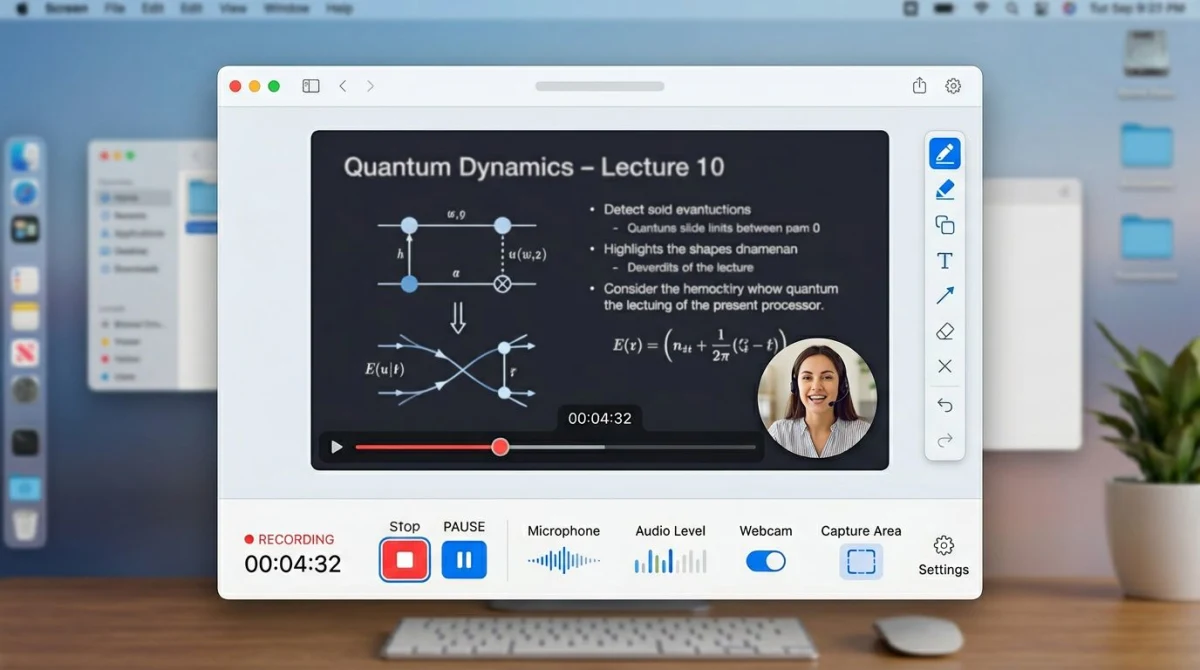
ScreenSnap Pro is a one-time-purchase screen recorder for Mac and Windows. It records your screen, webcam, mic, and system audio together. That covers a short lecture or a homework walk-through. It then exports a clean MP4 you upload anywhere.
Pricing: $39 one-time. Lifetime updates. License covers two computers (mix of Mac and Windows).
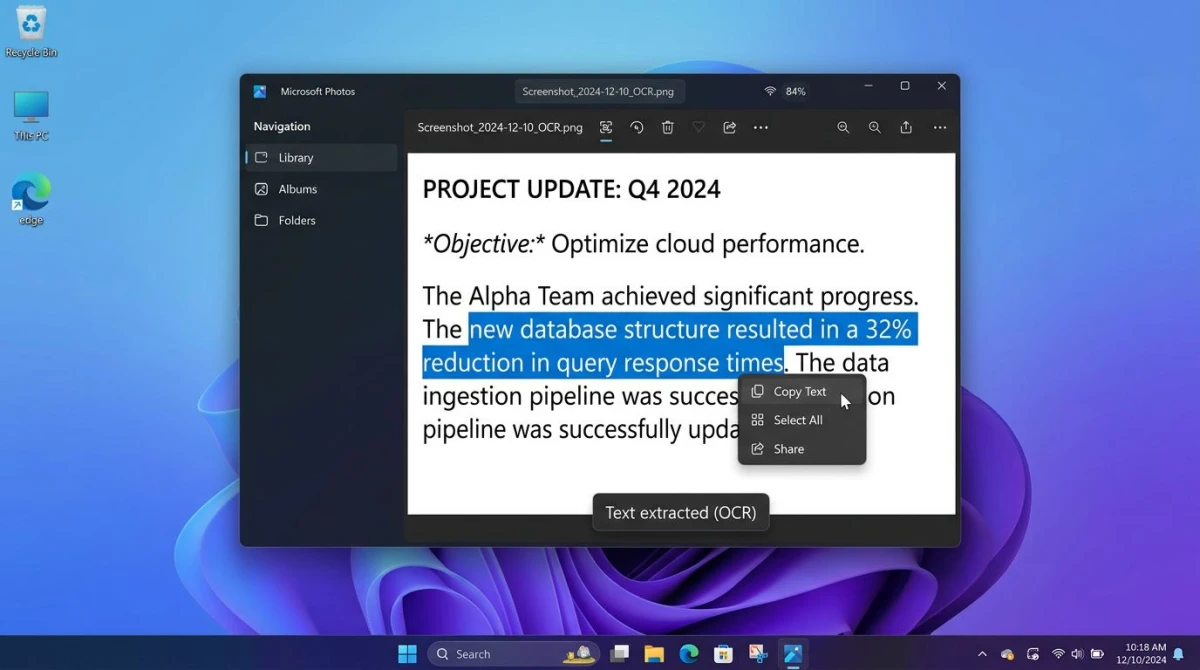
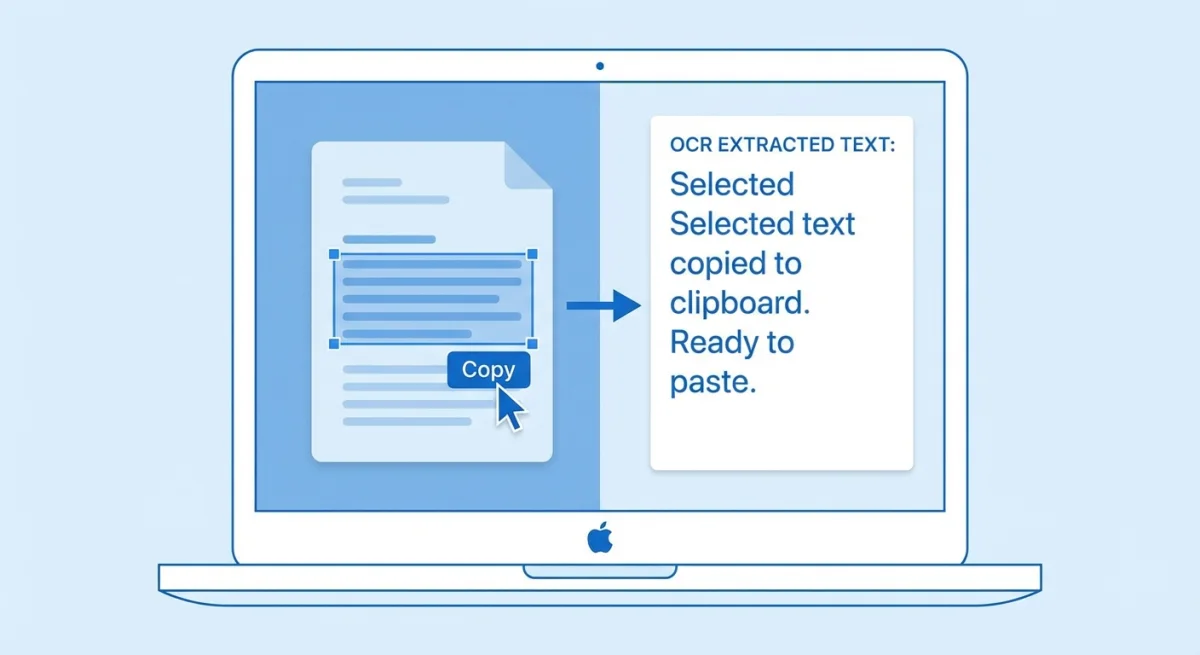
Key features: Full screen + webcam + mic + system audio capture, GIF recording for short clips, 15 annotation tools for marking up feedback screenshots, 500+ gradient backgrounds for clean thumbnails, OCR to pull text from a slide or PDF, no watermarks, and optional cloud share.
Who it fits: Solo teachers, online tutors, students recording study walk-throughs, and anyone who wants a recorder without a subscription. Great for students who record a problem they got wrong to bring to office hours, or for turning lecture slides into flashcards afterwards.
Honest limitations: No LMS-native export. You upload the MP4 to Canvas or Drive by hand. No auto-captions. You would caption later in YouTube or a captions tool. No multi-camera or classroom hardware. Not built for full-campus deployments.
9. OBS Studio: free, technical, unlimited
OBS Studio is the open-source recorder that powers most of YouTube and Twitch. For lectures, it gives you full control over scenes, cameras, and overlays.
Pricing: Free and open source. No upsell.
Key features: Unlimited scenes (slide-only, slide + webcam, slide + webcam + doc camera), high-quality H.264/HEVC encoding, virtual camera output for Zoom or Teams, and plug-ins for chapter markers and Stream Deck.
Who it fits: Tech-comfortable teachers and course designers who want studio-grade output on a budget. Common in CS and media-arts departments.
Limitations: The setup curve is real. First-time users often record black screens or no audio for 20 minutes before they notice. No editor, no captions, no LMS link. Our free screen recorders on Windows guide walks through the OBS basics.
Rating: (4/5)
10. QuickTime Player: Mac-only, already installed
QuickTime Player ships with macOS and records your screen plus mic in two clicks. For Mac-only teachers, it is the easy first choice.
Pricing: Free, built into macOS.
Key features: Screen, audio, or movie recording, simple trim, and share to Mail or Messages. The macOS Screenshot toolbar (Shift + Command + 5) adds region-select and a recording timer.
Who it fits: Mac users recording a one-off lecture or office-hours walk-through. Apple-shop schools (1:1 iPad/MacBook districts) lean on this.
Limitations: No webcam-and-screen at once. You record one or the other. No captions. No annotations. Mac only. We cover the best screen recorders for Mac in more depth, with how to add a webcam overlay.
Rating: (4/5)
Decision framework: which to pick
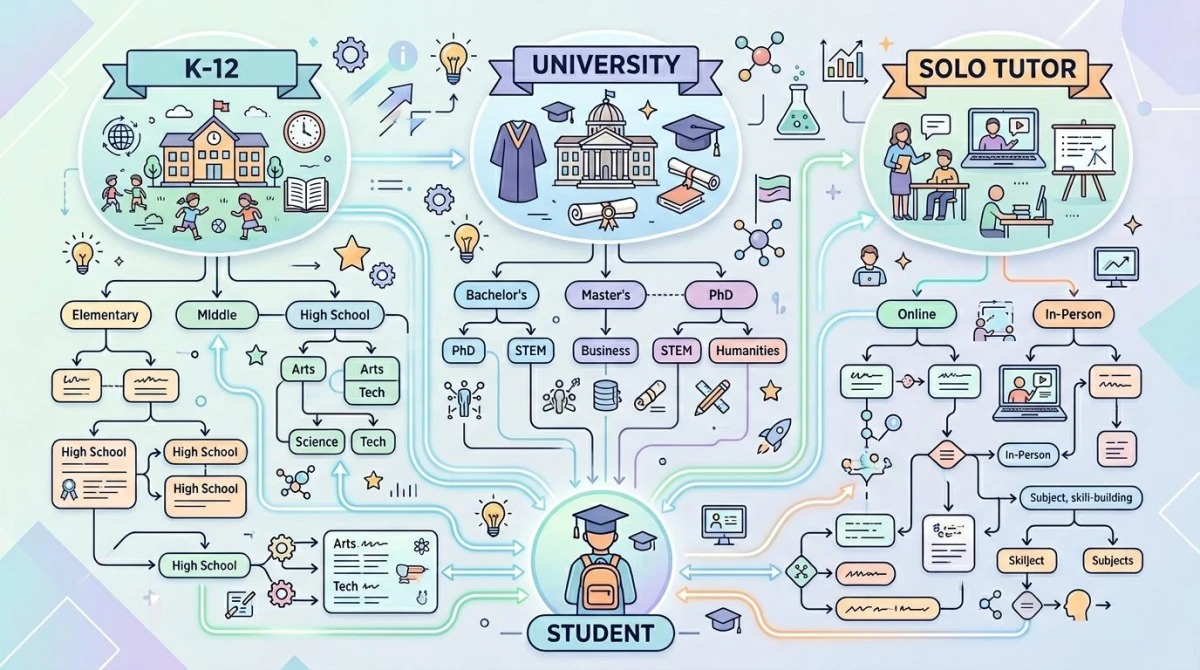
You teach in a K-12 district. Start with what your district issues, usually Microsoft Teams or Zoom. If you need more polish for graded content, ScreenPal's Edu plan adds an LTI for Canvas or Schoology at a price districts can afford.
You lecture at a university. Use what your campus runs (Panopto or Echo360). If you want a personal tool for short concept videos outside the formal flow, Loom or ScreenSnap Pro handles async clips without the Panopto setup.
You are a solo tutor or online course creator. Pick by polish need. For raw clips shared as MP4s, ScreenSnap Pro at $39 once is hard to beat. For edited courses with quizzes, Camtasia is worth the yearly fee. For async client check-ins with comments, Loom fits.
You are a student recording lectures for review. Check your school's policy first (see legality below). For Mac, QuickTime is free and built in. For Windows, ScreenSnap Pro or OBS gives you a clean recording with no account. For both, see our screen record with audio on Mac walk-through.
Education-specific concerns
FERPA and student privacy
In the U.S., FERPA (the Family Educational Rights and Privacy Act) protects student records. If your video shows a student's face, voice, or full name, that video counts as a school record. You cannot share it in public without consent.
What to do: do not post class recordings to public YouTube. Keep them inside your LMS or Stream, where logins gate access. If you record office hours one-on-one, ask first.
Accessibility and closed captions
The ADA and Section 504 require course materials to be accessible. Auto-captions are a start, not the finish line. Speech-to-text usually lands at 85 to 95% accuracy and misses tech terms. Always review and fix captions before you post graded content.
Tools with strong auto-captions: Microsoft Stream, Panopto, Echo360, Zoom (paid), Loom (paid). Tools with no captions you would add later: ScreenSnap Pro, OBS, QuickTime. YouTube's free editor lets you fix auto-captions on any MP4 you upload.

LMS integration: Canvas, Moodle, Blackboard, Schoology
LMS fit matters more than people think. If your tool supports LTI 1.3, students click a video inside the course and the LMS handles the login. If it does not, you upload the MP4 by hand and post a link.
| Tool | Canvas | Moodle | Blackboard | Schoology |
|---|---|---|---|---|
| Panopto | LTI | LTI | LTI | LTI |
| Echo360 | LTI | LTI | LTI | LTI |
| Zoom | LTI add-on | LTI | LTI | LTI |
| Teams/Stream | LTI | Manual | LTI | Manual |
| Loom | LTI (paid) | Manual | LTI (paid) | Manual |
| Camtasia | SCORM | SCORM | SCORM | SCORM |
| ScreenPal | LTI | LTI | LTI | LTI |
| ScreenSnap Pro | Manual upload | Manual | Manual | Manual |
| OBS | Manual | Manual | Manual | Manual |
| QuickTime | Manual | Manual | Manual | Manual |

Automatic transcription
Transcripts help with student review, search in long lectures, and accommodations. Panopto, Echo360, Stream, and Loom all make searchable transcripts on their own. For tools that do not, run the MP4 through YouTube (as a private upload), Otter.ai, or Rev. You get a transcript file you can post next to the video.
Annotation and feedback workflow
A lecture recording is rarely the end of the story. You will mark up screenshots from the video for handouts, annotate a problem set, or blur a student's name before sharing. Our free image annotation tool adds arrows, callouts, blur, and text with no install. It is handy for marking up a frame from your own recording.
When you post a thumbnail of your lecture to your LMS or YouTube, a clean background helps. The free screenshot background generator wraps any image in a gradient or device frame in two clicks.
Frequently asked questions
The bottom line
There is no single "best" lecture tool. There is the one that fits your setup. If your school pays for Panopto, Zoom, or Teams, use what you have. If you teach on your own, pay once for ScreenSnap Pro at $39 or grab Loom for short async videos. If you build polished course content, Camtasia is worth the yearly fee.
If you want a simple recorder you own forever, with no subscription and no LMS lock-in, ScreenSnap Pro covers screen + webcam + audio in a clean MP4 for $39 once on Mac and Windows. If you also build training videos for staff or onboarding, our best training video software guide covers that space. And Loom alternatives for Windows compares the async-video options if Loom is blocked at your school.

Morgan
Indie DeveloperIndie developer, founder of ScreenSnap Pro. A decade of shipping consumer Mac apps and developer tools. Read full bio
@m_0_r_g_a_n_