Instagram Reels Size 2026: Dimensions & Specs
# Instagram Reels Size: 2026 Dimensions, Specs and Safe-Zone Guide
The Instagram Reels size in 2026 is 1080x1920 pixels with a 9:16 aspect ratio. Maximum file size is 4GB and length runs up to 90 seconds (or 15 minutes for select creators). Use MP4 or MOV with the H.264 codec at 30fps, and keep important content within the central safe zone, away from caption and UI overlays. If you film B-roll from your screen, recording at the right size up front in ScreenSnap Pro saves a re-export later.
That short answer covers the spec sheet. The harder part is keeping your subject framed when Instagram layers a username on top, captions in the middle, and a stack of action buttons across the bottom. This guide walks you through the safe zones, the cover image trap, the reels aspect ratio rules, the differences from Stories, and the tweaks that stop your instagram reels video size from rendering blurry.
Quick reference: Instagram Reels specs
| Spec | Value |
|---|---|
| Recommended size | 1080 x 1920 pixels |
| Aspect ratio | 9:16 |
| Maximum file size | 4 GB |
| Maximum length | 90 seconds (default) / 3 minutes (most accounts) / 15 minutes (select creators) |
| Recommended codec | H.264 (MP4 or MOV container) |
| Audio codec | AAC, stereo |
| Recommended frame rate | 30 fps (60 fps OK for high-motion) |
| Recommended bitrate | 5 Mbps for 1080p |
| Cover image | 1080 x 1920 (displayed as 1:1 in grid) |
| Top safe zone | 250 px (username, mute icon) |
| Bottom safe zone | 350 px (caption, like, share, comments) |
These specs apply across the Reels tab, the Explore page, in-feed Reels, and Search results. Stick to 1080 x 1920 and you cover every surface.
Why 1080 x 1920 is the only size that survives
You can technically upload at 720 wide, but you should not. Modern phones run on Retina-class screens that make 720p look soft. 1080 x 1920 is the sweet spot: sharp on every device, light enough to upload fast, and the only instagram reels resolution that matches Instagram's internal re-encoder bucket. Anything under that ratio gets re-encoded twice, which adds compression artifacts.
Need to scale a horizontal video down to 9:16 for a Reel? A free social media image resizer handles the conversion in one click, with no editor required.
Reels aspect ratio: why 9:16 is the only option
Instagram crops or letterboxes anything that is not 9:16. The math: 1080 / 1920 = 0.5625. If your file ratio drifts off that number, the platform either:
- Crops the sides (for square or 4:5 footage)
- Letterboxes with black bars (for 16:9 horizontal footage)
- Stretches a few pixels (for ratios just barely off, like 9:15.9)
If you need to convert horizontal or square footage, the aspect ratio calculator finds the exact dimensions you need. For one-off framing, our free image cropper handles cover image cropping without an editor.
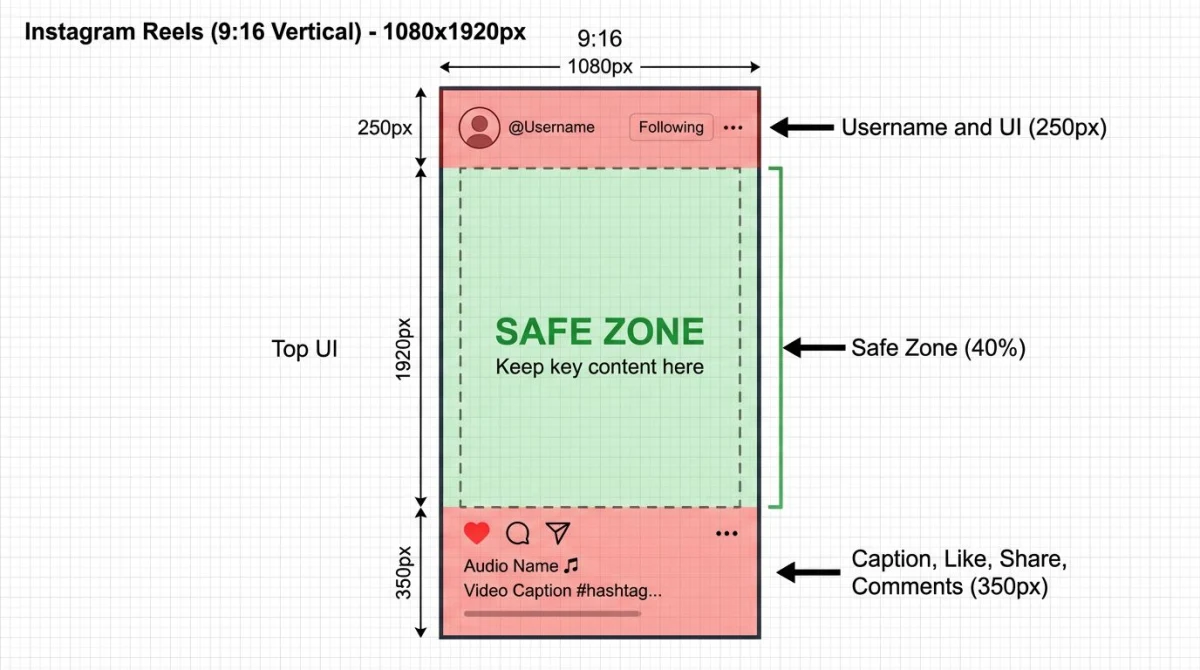
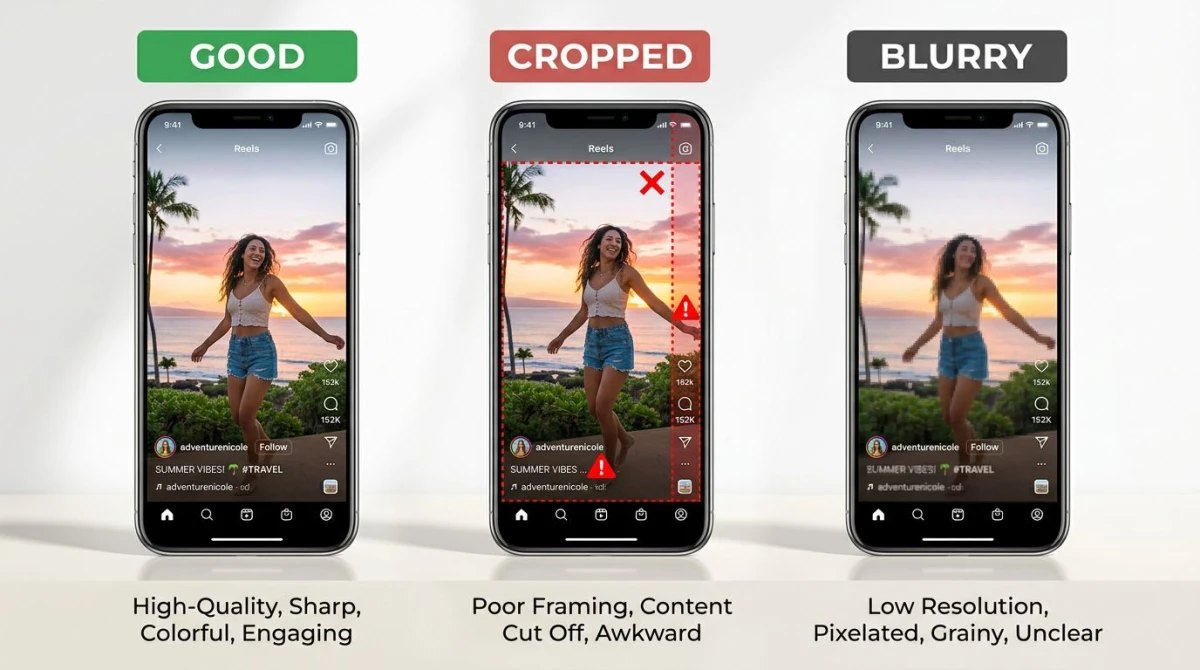
The Reels safe zone: top 250 px and bottom 350 px
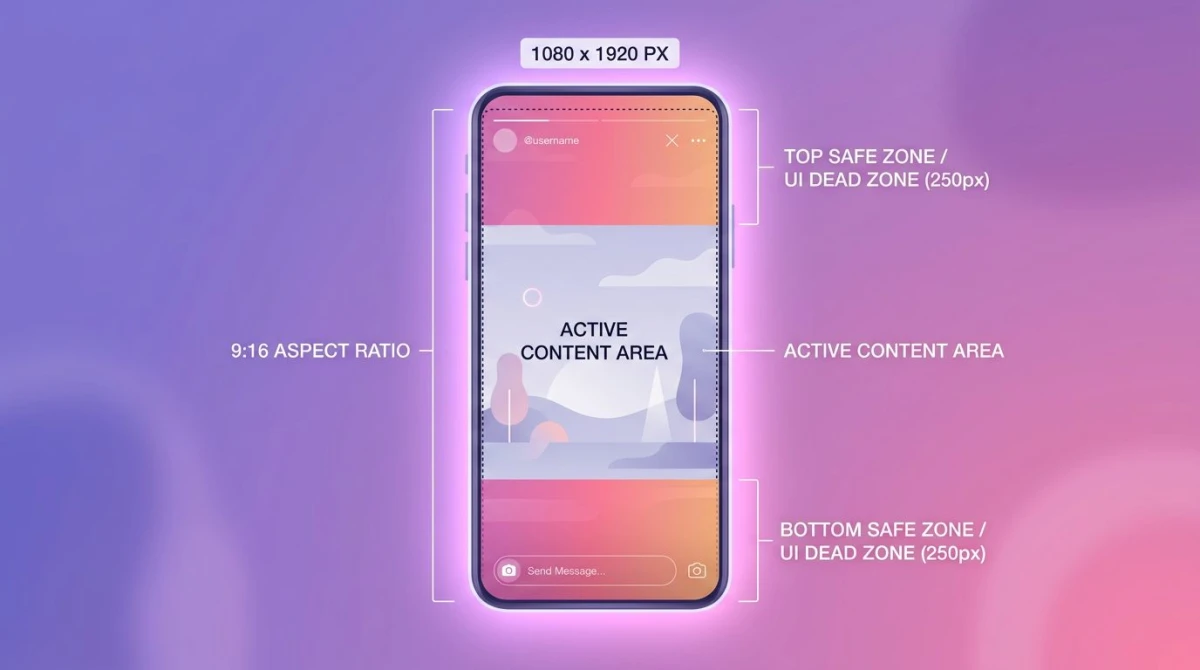
This is where most creators slip up. The video is 1920 tall, but Instagram's UI eats the top and bottom. Your hook, captions, and CTA need to live in the middle.
Top zone (0 to 250 px):
- Username overlay
- Mute / unmute icon
- Sound title pill
Bottom zone (1570 to 1920 px):
- Caption (up to 4 lines on screen)
- Like, comment, share, save buttons
- Audio attribution
- "Original audio" or "Use template" CTA
The bottom 350 px is bigger than Stories (which only blocks 340 px) because Reels has more action buttons. If you put burned-in captions there, half of them disappear behind the comment icon. Move all hard-coded text into the central 1320 px tall safe zone.
Pro tip: design at full 1080 x 1920 but mask out the top and bottom in your editor with semi-transparent rectangles. That way you can see exactly where the UI will land while you frame your shot.
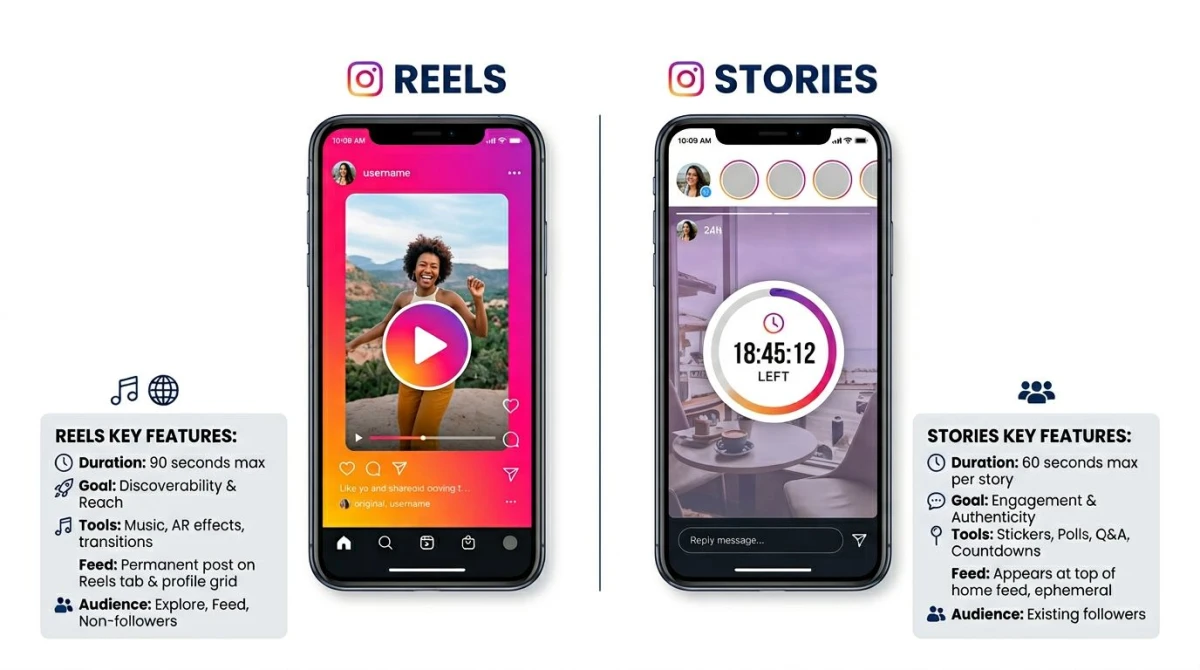
Reels vs Stories: the side-by-side breakdown
Reels and Stories share the 1080 x 1920 spec, but they live in different parts of Instagram and the safe zones differ. Most "reels safe zone" advice on Google blends them together. Do not.
| Feature | Reels | Stories |
|---|---|---|
| Dimensions | 1080 x 1920 | 1080 x 1920 |
| Aspect ratio | 9:16 | 9:16 |
| Max length | 90 sec (up to 15 min for some) | 60 sec per slide |
| Max file size | 4 GB | 4 GB |
| Lifespan | Permanent | 24 hours (or saved as Highlight) |
| Where it appears | Reels tab, feed, Explore, Search | Stories tray at top of feed |
| Top safe zone | 250 px | 250 px |
| Bottom safe zone | 350 px | 340 px |
| Cover image | Yes, separate spec | No |
| Algorithmic reach | High, pushed across IG ecosystem | Low, only your followers |
| Trending audio | Major ranking signal | Minor signal |
The big strategic difference: Reels are forever and can show up in Explore, Search, and even Facebook Reels. Stories disappear in 24 hours unless you save them as a Highlight. If you want long-tail reach, post a Reel. If you want low-stakes daily updates, post a Story.
For Stories-specific framing, see our companion guide on Instagram Story size and dimensions.
Cover image: the spec most creators miss
Every Reel has two image specs, not one. The video is 1080 x 1920, but the cover image is what shows up on your profile grid. Get this wrong and your beautiful Reel looks like a smear on your feed.
Cover image specs:
- Recommended size: 1080 x 1920
- Display ratio in profile grid: 1:1 square (Instagram crops the top and bottom)
- Display ratio in Reels tab: 9:16 vertical
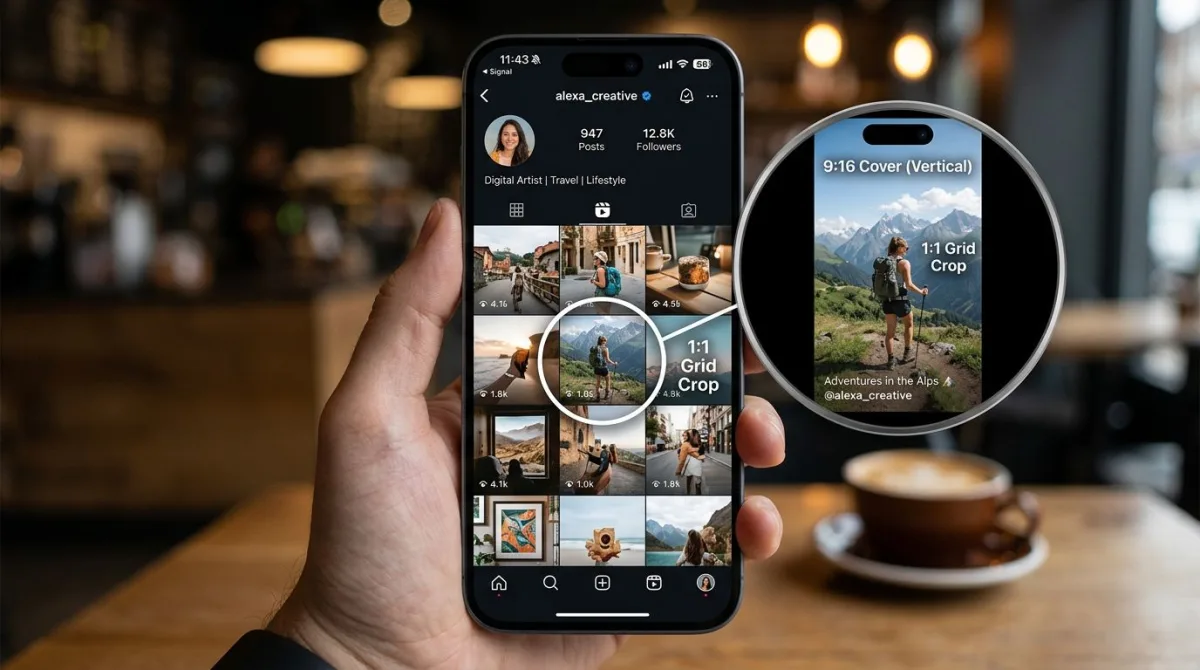
Here is the trap. You upload a 9:16 cover with a perfect title at the top. On the Reels tab it looks fine. On your profile grid it gets cropped to a 1:1 square from the center, and your title is gone.
The fix: keep the most important visual element of the cover in the central 1080 x 1080 square. Title text, faces, and logos go in the middle. Decorative elements can live at the top and bottom.
You can also upload a custom cover from your camera roll instead of picking a video frame. This gives you full design control. Many creators design covers in Canva or Figma at 1080 x 1920 with a 1080 x 1080 "grid-safe" guide layer.

Tired of plain screenshots? Try ScreenSnap Pro.
Beautiful backgrounds, pro annotations, GIF recording, and instant cloud sharing, all in one app. Pay $39 once, own it forever.
See pricing and featuresFile specs: codec, bitrate, frame rate
Instagram accepts a wide range of video files, but only a narrow band gets through the platform's re-encoder cleanly.
Container: MP4 or MOV. Skip AVI, MKV, and WebM, because they get converted on upload, which adds another round of compression.
Video codec: H.264 (also called AVC). H.265 (HEVC) is accepted but Instagram still transcodes it to H.264 for delivery, so you gain nothing.
Audio codec: AAC, stereo, 128 kbps or higher. Mono works but stereo sounds richer in headphones, which is how 70%+ of viewers watch.
Frame rate: 30 fps is the sweet spot. 60 fps is fine for sports, gaming, or fast-motion content. Anything above 60 gets dropped to 30 by Instagram's encoder, so do not bother.
Bitrate: 5 Mbps for 1080p is plenty. Higher bitrates do not survive Instagram's compression, so you just upload a bigger file for the same end result. Cap your export at 8 Mbps if you want a buffer.
Color space: sRGB. If you grade in Rec.709 or P3, convert before export. Instagram clamps everything to sRGB and a wide-gamut source can shift hues unexpectedly.
Reels length tiers in 2026
Reels length has changed three times in two years. Here is where it stands.
| Tier | Max length | Who gets it |
|---|---|---|
| Default | 90 seconds | Every account |
| Extended | 3 minutes | Most accounts (now widely available) |
| Long-form | 15 minutes | Select creators (eligible Pro / business accounts) |
The platform still shows a soft preference for 15 to 60 second Reels in Explore and the Reels tab. Going long does not punish you, but the algorithm rewards completion rate, and shorter Reels finish more often.
If you do go past 60 seconds, structure it like a YouTube short: hook in the first 3 seconds, payoff in the last 5, and a clear narrative thread in between.
Best practices that move the needle
Hitting 1080 x 1920 is the floor, not the ceiling. These practices lift watch time and reach.
- Vertical-first shooting. Frame for 9:16 in-camera. Cropping a horizontal clip wastes resolution. If you must use horizontal source, shoot at 4K so the crop still hits 1080 vertical.
- Hook in the first 3 seconds. Instagram's algorithm watches for thumb-stop. Open with movement, a question, or a bold visual.
- Burn captions into the video. Most Reels viewers watch with sound off. Auto-captions help, but burned-in text is sharper and on-brand. Keep captions in the central safe zone, never the bottom 350 px.
- Use trending audio. Reels with trending audio get pushed harder. Pick a track under 10,000 uses but rising fast.
- Keep filenames clean. Stick to letters, numbers, and dashes, because odd characters can break the upload.
For tutorial Reels that capture screen content (software walkthroughs, app demos, or game clips), a desktop tool like ScreenSnap Pro records on Mac and Windows in MP4 with system audio. You can crop to 9:16 and annotate drafts before exporting. It runs $39 one-time with 15 annotation tools and 500+ wallpaper backgrounds, no subscription.
Editing and export: app presets
Most creators edit on phone. Here are the export settings that match Reels specs cleanly.
- CapCut: 9:16 canvas, 1080p, 30 fps, H.264, recommended bitrate.
- InShot: 9:16 canvas, 1080p high quality.
- Adobe Premiere Pro / Rush: Vertical 1080 x 1920 sequence, export H.264 Match Source High Bitrate, AAC 320 kbps.
- iMovie (iPhone / iPad): 9:16 project, export HD 1080p.
- Final Cut Pro: Custom 1080 x 1920 project at 30 fps, export Apple Devices 1080p HEVC, transcode to H.264 if needed.
When in doubt, export at exactly 1080 x 1920, 30 fps, H.264, 5-8 Mbps, AAC stereo. That spec works on every device and survives Instagram's encoder cleanly.
Troubleshooting: why your Reel looks wrong
"My Reel is blurry." Three usual suspects:
- Source footage is under 1080p, so Instagram upscales and you see soft edges. Fix: re-export from the original at 1080 x 1920.
- Bitrate is too low: under 3 Mbps shows compression mush. Fix: bump to 5 Mbps.
- You uploaded over Wi-Fi with low signal, and Instagram uses a lower-quality fallback encode for slow connections. Fix: upload on a strong connection or wait and retry.
"My Reel got cropped." Your aspect ratio is off. Reels accepts a small tolerance around 9:16, but anything past 4:5 or 16:9 gets center-cropped. Fix: re-export at exactly 9:16 (1080 x 1920) before uploading.
"My Reel got letterboxed with black bars." You uploaded a 16:9 horizontal video. Instagram pads the top and bottom with black to fit the vertical frame. Fix: crop to 9:16 first.
"My audio is missing." Two common causes: your video has no audio track at all (some screen recorders default to muted), or you used copyrighted music that Instagram muted on upload. Fix: check your source for an audio track, and use only Instagram's library or original audio.
"The cover image is wrong on my profile grid." You picked a frame where the subject is in the top or bottom third of the cover. The grid crops to 1:1 from the center. Fix: pick a frame with the subject centered, or upload a custom cover designed with the 1080 x 1080 grid-safe area in mind.
"My Reel was rejected for community guidelines." Usually a music or audio mismatch, meaning Instagram's rights system flagged a track. Less often, the visual content triggered a moderation classifier. Fix: swap the audio for an Instagram-library track and try again.
Reels in the wider social media landscape
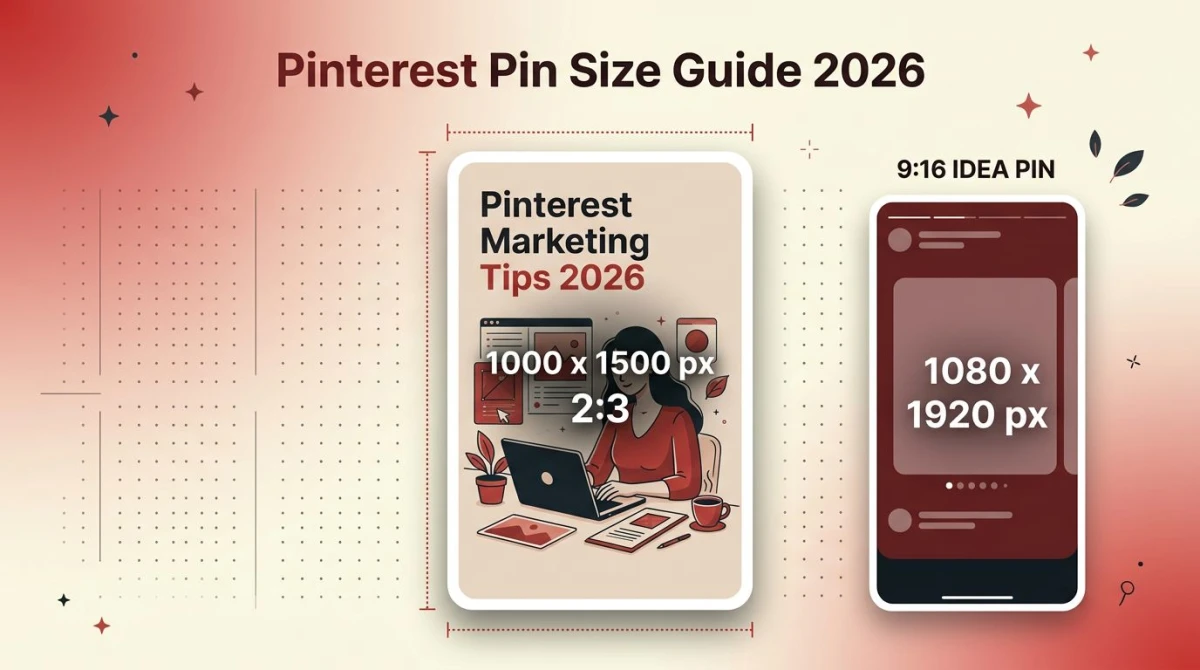
Reels dimensions are a starting point, not the whole picture. Most accounts cross-post to TikTok, YouTube Shorts, and Pinterest Idea Pins, all of which are 9:16 but with slightly different safe zones and length caps.
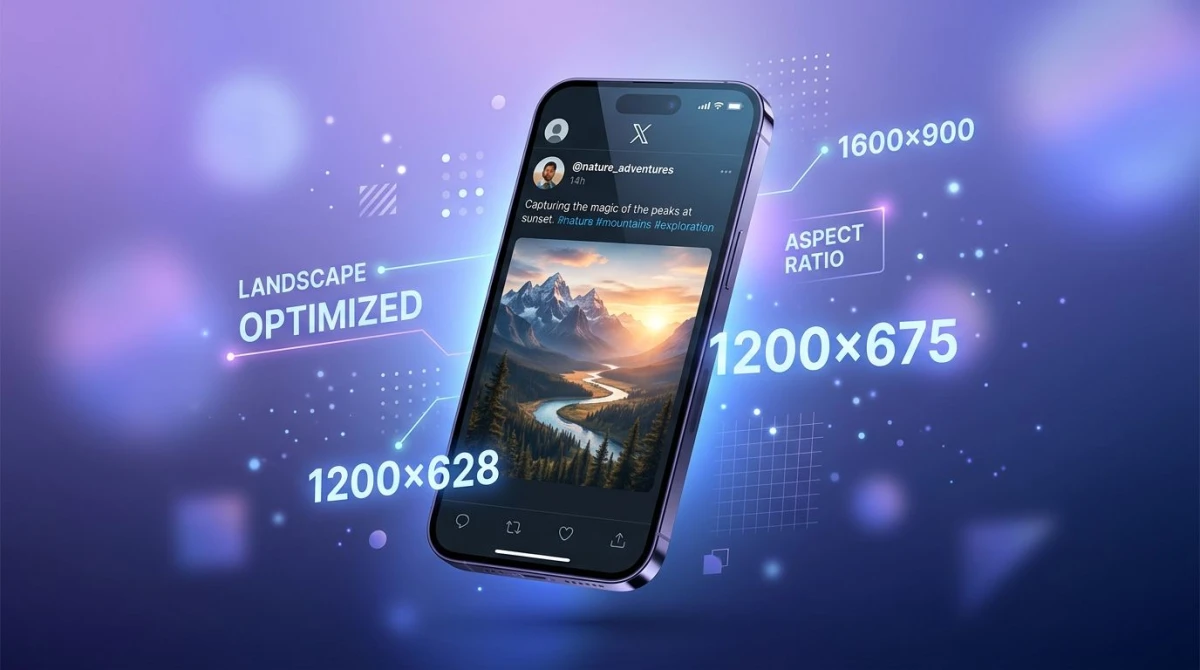
Our social media image sizes cheat sheet covers every dimension across Instagram, TikTok, Facebook, LinkedIn, YouTube, X, and Pinterest. For the 24-hour format, see the Instagram Story dimensions guide. For YouTube Shorts, see the YouTube thumbnail size guide.
The Instagram Help Center is the source of truth for spec updates, since Meta rolls out tweaks via help-doc edits before announcing them.
Frequently Asked Questions
Final spec checklist
Before you hit upload:
- 1080 x 1920 resolution
- 9:16 aspect ratio (exact)
- Under 4 GB file size
- 90 seconds or less (or up to your account's max)
- MP4 or MOV container
- H.264 video codec
- AAC stereo audio
- 30 fps (or 60 fps for high-motion)
- 5-8 Mbps bitrate
- Important content inside the central safe zone (away from top 250 px and bottom 350 px)
- Custom cover image with key visual centered in the 1080 x 1080 grid-safe area
Get those eleven boxes ticked and your Reel will look sharp on every device, survive Instagram's encoder, and frame cleanly around the platform UI. Everything else (the hook, the audio, the caption) is creative, not technical. Your specs are no longer the bottleneck.

Morgan
Indie DeveloperIndie developer, founder of ScreenSnap Pro. A decade of shipping consumer Mac apps and developer tools. Read full bio
@m_0_r_g_a_n_