YouTube Thumbnail Size 2026: Dimensions, Limits & Tips
YouTube thumbnails should be 1280x720 pixels with a 16:9 aspect ratio, kept under 2MB, in JPG, PNG, GIF, or BMP format. The minimum width YouTube accepts is 640 pixels, but 1280x720 is the recommended size for sharp playback on every device. JPG is best for most thumbnails because it keeps file size low. (If you build the thumbnail from a screenshot, ScreenSnap Pro can capture and export at exactly 1280x720.)
That answer covers most cases. The harder part is making sure your thumbnail still reads on a phone, loads fast, and survives YouTube's compression. This guide covers the specs, the design fundamentals, and the workflow that earns clicks.
Quick reference: YouTube thumbnail specs
| Spec | Value |
|---|---|
| Recommended size | 1280 x 720 pixels |
| Minimum width | 640 pixels |
| Aspect ratio | 16:9 |
| Maximum file size | 2 MB |
| Accepted formats | JPG, PNG, GIF, BMP |
| Recommended format | JPG (smaller file) or PNG (transparency) |
| Color space | sRGB |
| YouTube Shorts thumbnail | 1080 x 1920 (9:16) |
These specs apply across every surface: search results, home feed, suggested videos, watch pages, embeds, and the mobile app. Stick to 1280x720 and you cover all of them.
Why 1280x720 is the sweet spot
You can technically upload at 640 wide, but you should not. 1280x720 stays sharp on Retina and 4K displays where 640 looks fuzzy. It also gives YouTube's re-encoder more pixels to work with, so the compressed result stays crisp. And it is the smallest "HD" size that nails the native 16:9 ratio cleanly.
If you are upscaling an old screenshot or video frame, a free image resizer bumps the dimensions to 1280x720 in one click.
The mobile vs desktop problem
Here is the catch: more than 70% of YouTube watch time happens on phones. Your beautifully designed thumbnail at 1280x720 looks great in your editor, but on a phone it shrinks to roughly 320 pixels wide. Tiny details vanish. Five-word headlines turn into blurs.
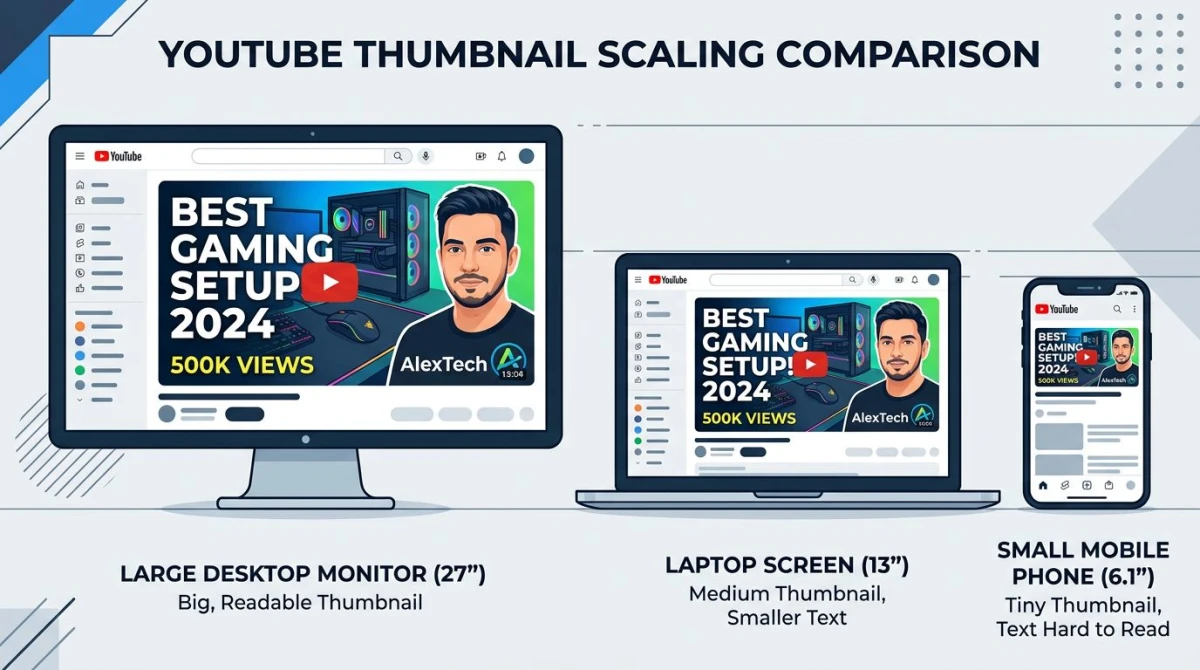
The fix: design at full size but constantly check the small preview. A few rules that survive the shrink:
- 3-5 words max for any text overlay
- Text at least 60-80px tall so it stays readable when scaled down
- High contrast. White text on dark backgrounds, or use a stroke/shadow
- One clear focal point. A face, an object, or a strong visual
- Avoid thin fonts. They break up at small sizes
Pro tip: zoom out to 25% in your design tool. If you cannot tell what it says at that size, neither can your phone viewers. No design tool to hand? You can add the text straight onto the image in the browser and check it at the same zoom.
File size, format, and quality
YouTube caps thumbnail uploads at 2MB. For a 1280x720 image that is plenty. The format you pick matters more than the cap.
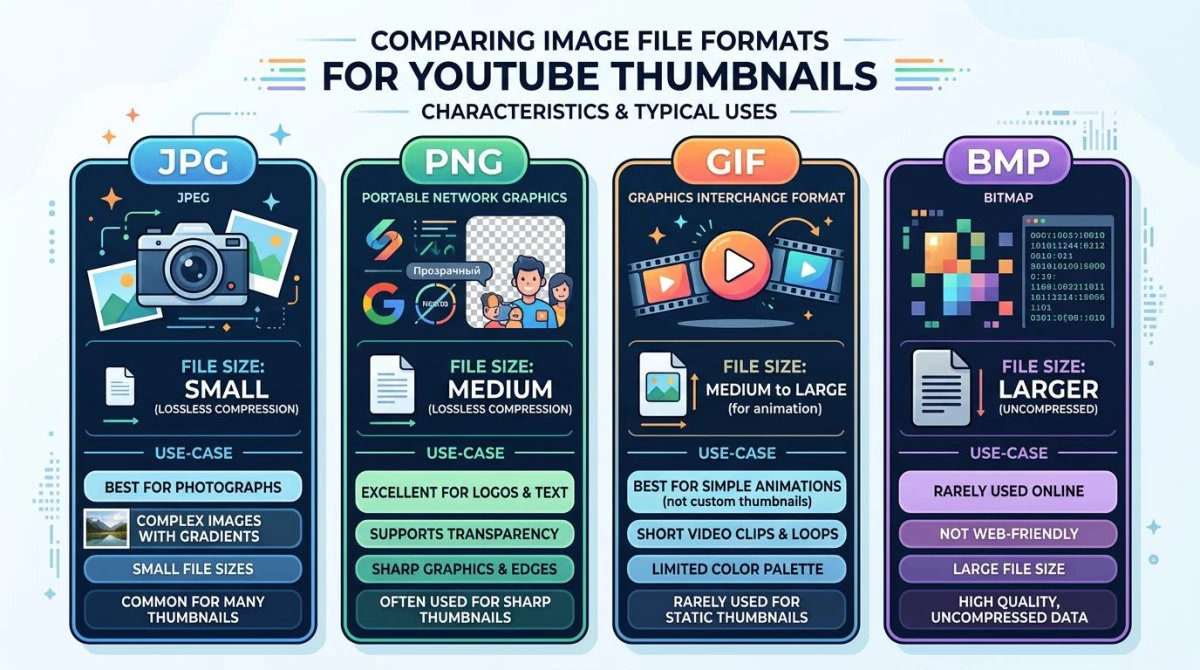
JPG (recommended). Photo-heavy thumbnails compress well. A typical 1280x720 JPG runs 100-300KB at quality 85.
PNG. Use when you need transparency or pixel-perfect graphics. The tradeoff is larger files: a 1280x720 PNG can hit 1-2MB fast.
GIF. Accepted, but YouTube only shows the first frame. No animation. Skip it.
BMP. Allowed but pointless, since files are huge and uncompressed. Convert to JPG first.
If your file is too large, a free image compressor trims it under 2MB without visible quality loss.
YouTube Shorts thumbnail size
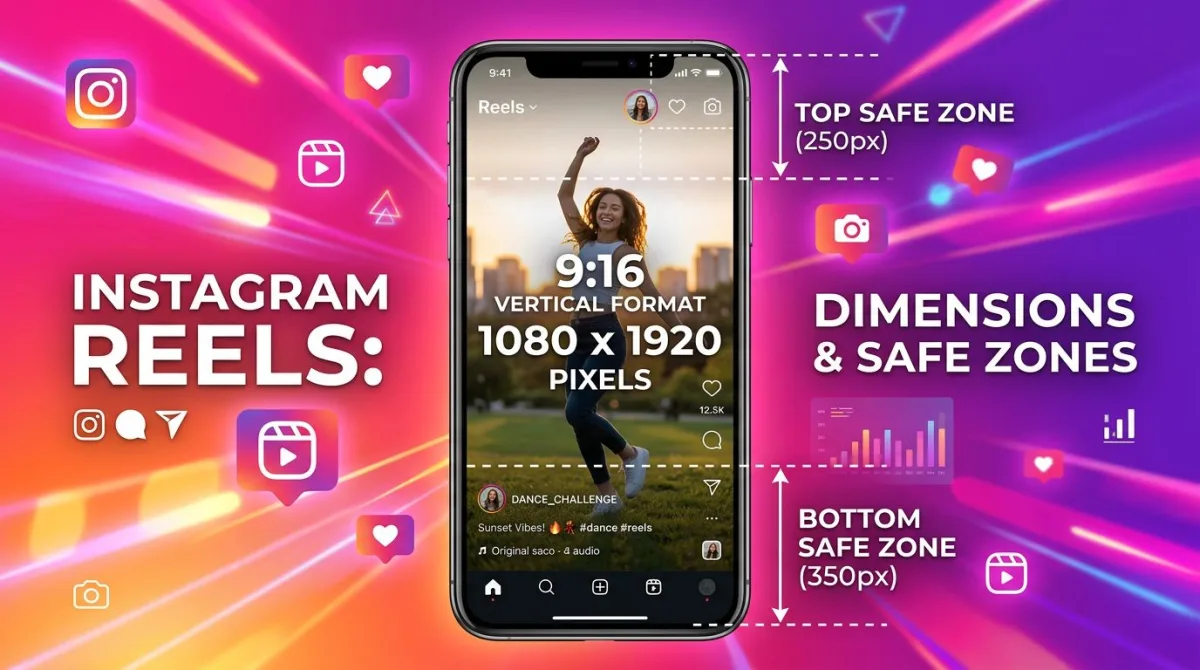
Shorts play vertically, so their thumbnails follow a 9:16 ratio at 1080x1920 pixels. The 2MB cap and accepted formats stay the same. A few quirks:
- Custom Shorts thumbnails require channel verification
- Feed previews are heavily cropped, so keep the action in the center 80%
- Bottom text can get covered by Shorts UI (title, handle, action buttons)
For long-form videos, stick with horizontal 1280x720. For Shorts, go vertical 1080x1920.

Tired of plain screenshots? Try ScreenSnap Pro.
Beautiful backgrounds, pro annotations, GIF recording, and instant cloud sharing, all in one app. Pay $39 once, own it forever.
See pricing and featuresMistakes that hurt click-through rate
You can hit every spec and still get bad CTR. The design mistakes that tank thumbnails most often:
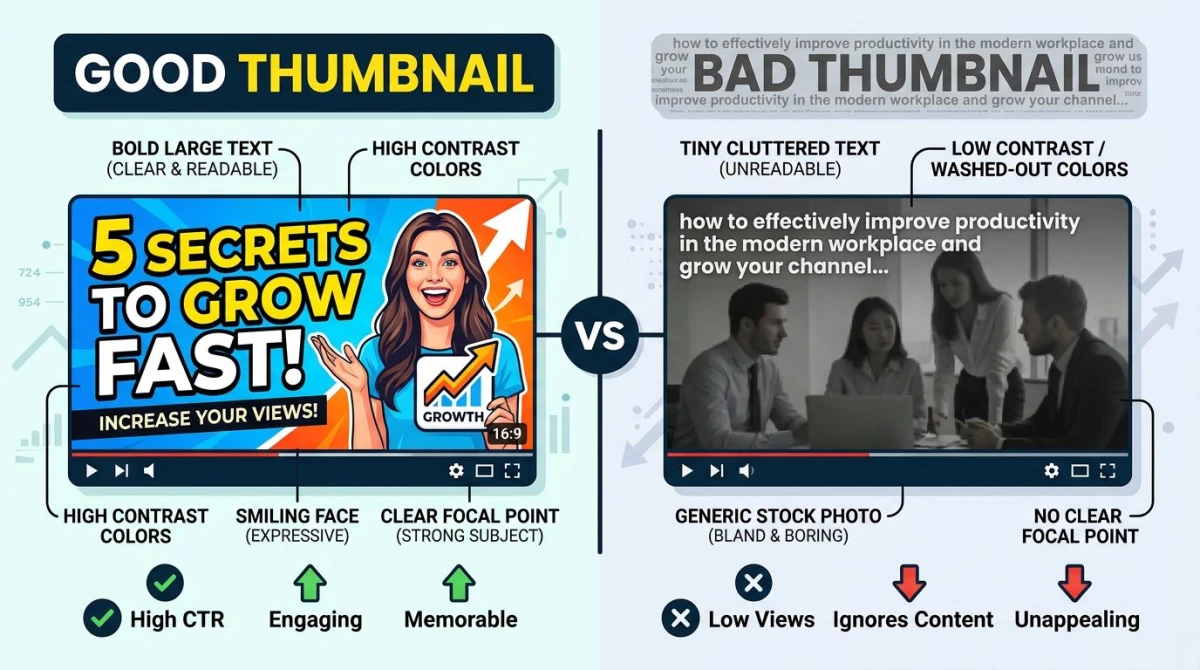
Too much text. Anything over 5-6 words turns to noise on a phone. Pick one phrase that drives curiosity. Cut the rest.
Low contrast. Pastel-on-pastel looks elegant in your editor and disappears in a busy YouTube feed. High contrast wins clicks.
No human face. Faces with strong emotions (surprise, intrigue, laughter) consistently outperform thumbnails without them.
Generic stock imagery. Stock photos read as lazy. Custom screenshots, your own face, or a specific scene from the video all beat stock.
Blurry images. Usually from uploading under 640 wide or heavy upscaling. Always start from 1280x720 or higher.
Hidden focal point. YouTube overlays video duration on the bottom-right. Keep your subject in the center or upper portion.
Title and thumbnail mismatch. Viewers feel tricked when the thumbnail and title tell different stories. Match the message.
Build thumbnails from your own footage
The best thumbnails come from a frame inside the video itself: a reaction shot, a finished result, a key moment. Pulling that frame and editing it is the workflow most pro creators use.
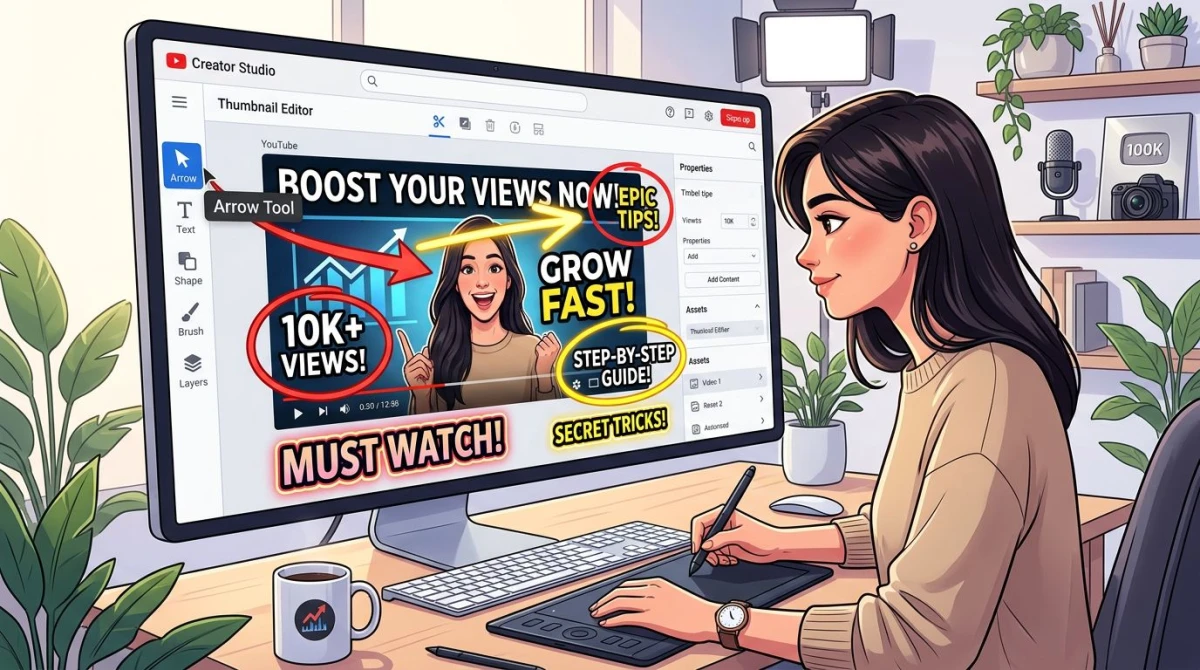
ScreenSnap Pro makes this easy on Mac and Windows. Record with the built-in screen recorder, capture any frame as a screenshot, then drop it into a 1280x720 canvas with one of the 500+ gradient backgrounds. The 17 annotation tools cover arrows, shapes, text, blur, and highlighters. No watermarks, no subscription, and a one-time $39 purchase covers two computers.
If you just need to resize an existing image, our free social media image resizer has a YouTube preset that hits 1280x720 in one click. Need to crop a wider photo to 16:9? The image cropper handles it.
A simple annotation workflow
Once you have your base image, the markup pass turns good thumbnails into great ones:
- Export the base frame at 1280x720
- Add a focal element: a circled face, a red arrow, or a "vs" split
- Layer headline text in 80-120px bold sans-serif (Anton, Impact, Inter Bold)
- Apply a stroke or shadow so text stays readable on any background
- Add brand consistency: a small logo or color stripe across thumbnails
- Export as JPG at quality 85-90 to land under 500KB
You can do this in Canva, Photoshop, Figma, or a screenshot editor with annotation built in. Fewer tools means faster shipping.
Cloud sharing and version testing
YouTube Studio's "Test & Compare" lets you A/B test thumbnails on the same video. To iterate fast, name versions clearly (thumb-v1.jpg, thumb-v2.jpg) and share them so collaborators can weigh in before upload. ScreenSnap Pro's optional cloud upload generates instant shareable links, so you can drop one in Slack, get reactions, and iterate without email attachments. The cloud feature is optional; turn it off and everything still works locally.
Troubleshooting common problems
"Thumbnail not uploading." Check file size first. Over 2MB silently fails. Compress and try again.
"My thumbnail looks blurry." You uploaded a file under 1280 wide. YouTube re-encodes thumbnails, and a low-res source amplifies the softness. Re-export at 1280x720.
"The thumbnail is cropped weirdly." Your image is not 16:9. YouTube center-crops anything else. Always design in a 16:9 canvas.
"I cannot upload a custom thumbnail." Custom thumbnails require channel verification, so link a phone number at youtube.com/verify.
"Colors look different after upload." YouTube assumes sRGB. Adobe RGB or other wide-gamut profiles cause shifts. Convert to sRGB before upload.
"My text gets cut off." YouTube overlays video duration bottom-right and the channel handle bottom-left on some surfaces. Keep important elements in the center 80%.
For full upload specs, see the official YouTube Help thumbnail guidelines.
Frequently Asked Questions
Wrapping up
The 1280x720 spec is easy to memorize. The harder part is consistently shipping thumbnails that survive the phone shrink and pull viewers in. Stick to the basics: high contrast, short text, one focal point, a face when you can. Test on mobile before publishing. Iterate after launch.
If you want one tool that handles capture, annotation, resizing, and cloud sharing in a single workflow, ScreenSnap Pro covers it on Mac and Windows for $39 one-time. For more cross-platform specs, see our guides to social media image sizes and App Store screenshot sizes.

Morgan
Indie DeveloperIndie developer, founder of ScreenSnap Pro. A decade of shipping consumer Mac apps and developer tools. Read full bio
@m_0_r_g_a_n_